You typed "Flow Studio vs Pika AI" into a search bar because you want a straight answer: which one lets you make video clips for free, and which one drains your wallet first? The honest answer is that it depends on what you mean by Flow Studio, how many clips you need per month, and whether a watermark in the corner bothers you. This article lays out the free limits, the pricing, the trade-offs and four alternatives that are on PicassoIA today, so you can pick a tool without burning credits on trial and error.
💡 Quick note on accuracy: AI video pricing changes constantly, and third-party comparison sites often disagree with each other. The numbers below reflect what recent listings reported at the time of writing. Treat them as ranges, and confirm the final figure on each company's own pricing page before you pay.
Which Flow Studio Do You Mean?
The name causes real confusion, because two very different products circulate under nearly the same label. Before comparing anything against Pika, you need to know which one you are weighing.

Autodesk Flow Studio
Autodesk Flow Studio is a cloud tool that takes live action footage and turns it into editable computer graphics scenes. You film an actor, and the software tracks their body, face and motion so a CG character can replace them. Some listings put its entry price at roughly $10 per month. It is closer to a motion capture and VFX helper than a prompt-based video generator.
Google Flow
Most people who search "Flow vs Pika" actually mean Google Flow, the filmmaking workspace built around the Veo video models. You type a prompt or upload a frame, and it produces a short clip, often with audio. Access is tied to Google AI subscriptions, and one comparison reported that the Google AI Pro plan at $19.99 per month bundles around 1,000 Flow credits. That reportedly works out to about 100 lighter Veo 3.1 Lite videos, or about 10 higher quality ones.
💡 Which one fits your goal? If you want to type a sentence and get a clip, Google Flow is the real rival to Pika. If you want to swap a human performer for a digital character in filmed footage, Autodesk Flow Studio is the one to look at. This article focuses on the prompt-to-video comparison, because that is what most Pika users are shopping for.
Free Limits Side by Side
Free plans are where the marketing is loudest and the fine print is quietest. Both tools give you a taste, but the taste is narrow.
What Pika Gives Away
Pika AI is built on a credit system. Reports about its free allowance vary: several sources mention about 80 free credits, usually capped at 480p output, while a few listings say the free tier is limited to credit packs or has been trimmed in recent months. That disagreement is a signal in itself. The free plan exists mainly to let you test the style, and it can change without much warning.
Where sources do agree is the trade-off. Free clips tend to carry a watermark, resolution stays low, and commercial rights usually start on paid plans. If you are making something for a client, a free Pika clip is a sketch, not a deliverable.
What Flow Offers Without Paying
Google Flow is described by some aggregators as free to access, with paid credit tiers layered on top. In practice, the useful generation power sits behind a Google AI subscription. I could not find a clear, current statement of a fixed free quota, so assume that free access means a small trial allowance, not a monthly stream of clips.
Autodesk Flow Studio has historically offered a limited free tier for testing, with paid plans unlocking longer clips and higher export quality. Check its pricing page for the current numbers.
| Feature | Pika AI | Google Flow | Autodesk Flow Studio |
|---|
| Free access | Small credit allowance, reports vary | Limited trial, details unclear | Limited trial tier |
| Free output quality | Often 480p | Varies by model | Varies by plan |
| Watermark on free | Commonly reported | Varies | Varies |
| Commercial use | Paid plans | Paid plans | Paid plans |
| Best for | Fast social clips | Cinematic prompt clips | Live action to CG |
A low sticker price means little if every clip burns five credits and you need ten attempts to get one good take. Think about cost per usable clip, not cost per month.
Pika Plans and Credits
Pika's paid ladder is generally listed as Starter, Creator and Fancy, with a Standard and Pro naming used by some older pages. Prices differ by source and by billing cycle, but the pattern is consistent:
- Starter: roughly $8 to $10 per month, a few hundred credits, watermark removed, commercial use allowed.
- Creator: roughly $28 to $35 per month, a larger credit pool and access to more of the models.
- Fancy: roughly $76 to $95 per month at the low end, scaling much higher for heavy users.
Annual billing usually trims the monthly figure by around 20 percent. Credits are spent at different rates depending on the model, the clip length and effects like Pikaffects, so a heavy month can disappear quickly.
Flow and Google AI Pricing
Google folds Flow into its AI subscription, so you are paying for a bundle that also includes the chat assistant and storage. That can be good value if you already use those extras, and poor value if you only want video. The credit math is the part to watch: if 1,000 credits yield around ten top quality Veo clips, each polished clip effectively costs a couple of dollars of your monthly fee.
Autodesk Flow Studio charges separately, around $10 per month on the listings I found, and prices rise for longer or higher resolution processing.
💡 A simple test: Write down how many finished clips you need each month. Multiply by three, because most people regenerate a prompt two or three times. Compare that total against the credit pool, not the price tag.
Quality, Speed and Control
Price is only half of the decision. If one tool gives you shaky hands or melted faces, the cheaper plan costs more in rework.
Motion and realism. Google Flow, powered by the Veo family, leans toward cinematic realism: believable camera moves, consistent lighting and sound that matches the scene. Pika has traditionally leaned toward playful, stylized and effects-driven clips, which is why it became popular for social posts, memes and quick transformations of existing photos.
Audio. Native audio is now a major selling point of newer video models. Veo clips arrive with synchronized sound, while Pika has added audio features more gradually. If your clips need dialogue or ambient noise baked in, that gap matters.
Control and editing. Pika offers a set of tools for modifying existing footage, swapping objects and applying visual effects. Google Flow adds scene building, frame-to-video and clip extension in a timeline-like workspace. Autodesk Flow Studio sits in its own lane, giving you editable character animation instead of a one-click render.

Speed. Pika's fast modes are good for quick drafts. Higher quality Veo generations in Flow can take longer and burn more credits, which pushes many creators to draft cheap and finalize once.
Who Should Pick Which
There is no single winner, because the two tools solve different problems. Match the tool to the job.

Pick Pika If
- You post short, eye-catching clips to social feeds and want quick turnaround.
- You like playful effects and photo animation more than strict realism.
- You want a low-cost entry point and can live with a watermark while testing.
- Your budget is under $10 per month and you accept limited credits.
Pick Flow If
- You want cinematic, realistic scenes with sound that fits the picture.
- You already pay for a Google AI plan and the credits come at no extra cost.
- You work in a timeline style, stitching several shots into a sequence.
- You need character replacement in live footage, in which case Autodesk Flow Studio is the better match.
💡 Reality check: If you are an occasional creator who wants three or four decent clips a month, neither paid plan is a bargain. A pay-as-you-go or unlimited platform often gives more clips per dollar.
Four Alternatives Worth Trying
Neither Flow Studio nor Pika AI is on PicassoIA. For similar results today, these four video generators are on PicassoIA and cover the same prompt-to-video job, including some that sit close to what Google Flow does.
Veo 3.1 Fast
Veo 3.1 Fast generates 1080p video from text, with native audio. It is the nearest match if you were drawn to Google Flow for its cinematic look. For a cheaper draft pass, Veo 3.1 Lite and Veo 3 Fast are also available.
Seedance 2.5 Lite
Seedance 2.5 Lite is listed as a free and unlimited video generator with clips up to 10 seconds. That directly answers the biggest complaint about Pika's free plan: running out of credits after a handful of tries. For longer sequences, Seedance 2.5 supports clips up to 30 seconds.
Wan 3
Wan 3 produces cinematic video with strong motion handling, and Wan 3 Prime pushes output to 1080p. It is a solid pick for scenes with camera movement, crowds or landscapes.
Hailuo 2.3 Fast
Hailuo 2.3 Fast animates photos into short video quickly, which makes it a natural replacement for Pika's image-to-video workflow. For higher resolution, Hailuo 02 generates 1080p clips.
How to Get Similar Results on PicassoIA
If you liked the idea of Google Flow's cinematic output, the closest route on PicassoIA is Veo 3.1 Fast. Here is a simple workflow that keeps wasted attempts low.
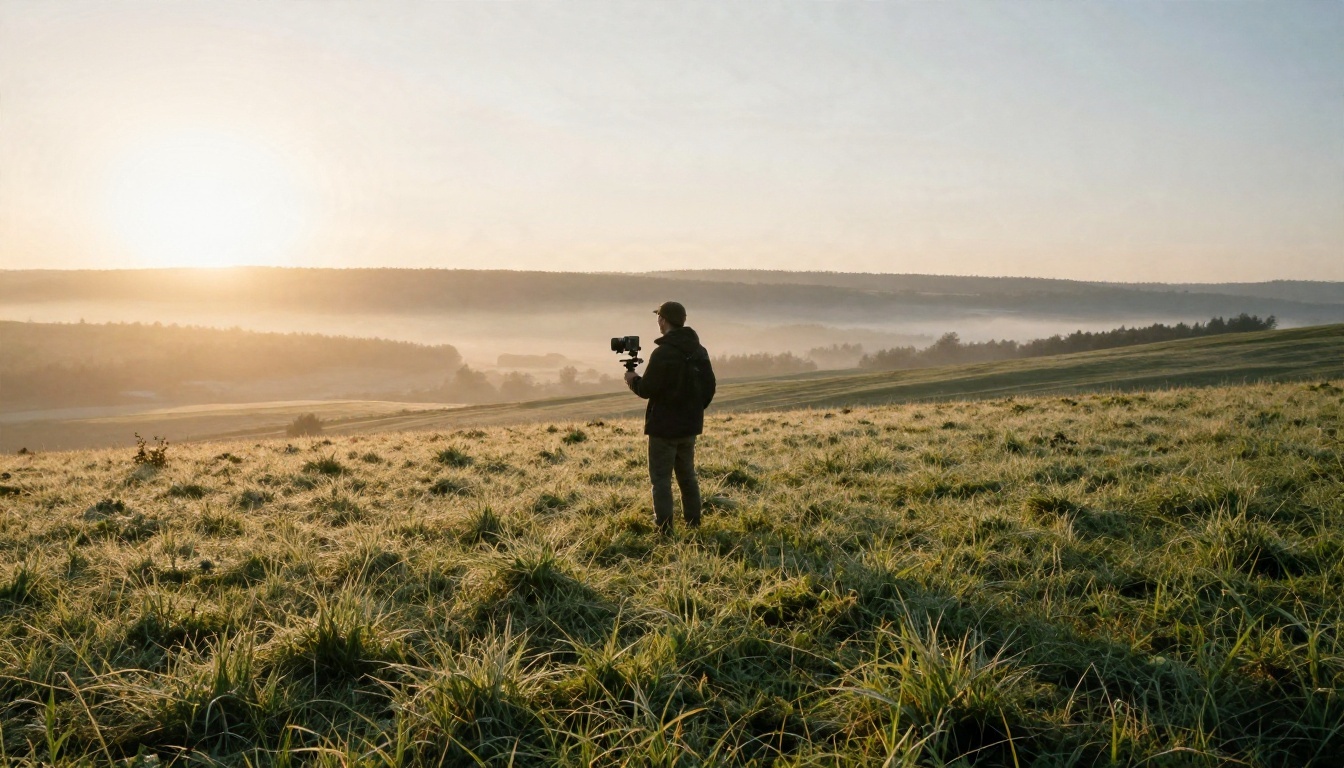
Step by Step
- Open the model page. Go to Veo 3.1 Fast and sign in.
- Write one scene, not a story. A single subject, one action and one camera move work best. For example: "A filmmaker with a gimbal walks up a grassy hill at sunrise, slow dolly forward, soft mist in the valley."
- Describe the light. Mention time of day and direction, such as "low warm sun from the left". It stabilizes the look between attempts.
- Add a sound cue. Because the model produces native audio, a short phrase like "light wind and distant birds" shapes the soundtrack.
- Generate a draft, then refine. Change one thing at a time, either the camera move or the lighting, so you can tell what caused the improvement.
Settings That Matter
- Keep prompts under a few sentences. Overloaded prompts produce muddled motion.
- Use a still image as the first frame when you need a specific look. Pair a reference photo with a motion prompt for tighter control.
- Draft on a cheaper model first. Test the idea on Seedance 2.5 Lite, then rebuild the winner on Veo for polish.
- Avoid on-screen text. Video models still struggle with readable lettering, so add titles in your editor afterwards.
💡 Budget trick: Use unlimited or free models for the first three attempts of any idea, and spend premium generations only on the prompt that already works.
Make Your Own Clip Today
You now have the numbers, the trade-offs and the alternatives. Pika is a decent playground for quick social effects, Google Flow suits cinematic prompts when you already pay for a Google plan, and Autodesk Flow Studio is a different tool for a different job. If your real goal is more finished clips per dollar, the fastest path is to test a few models side by side with the same prompt.
Open Veo 3.1 Fast for a cinematic result, try Seedance 2.5 Lite when you want to experiment without counting credits, and compare the output with Wan 3. Pick one scene from your own project, run it through all three, and keep whichever one looks best. For the full list of video, image and audio models, visit picassoia.com/en/all-models and start creating on Picasso IA today.


