Flux NSFW Prompt: Copy-Paste Examples, Free Model Options and Not Working Fixes
Ready to paste Flux NSFW prompt examples for swimwear, boudoir and evening glamour, a plain breakdown of free model options, and a fix list for blocked, blurry, plastic looking or off style results. All examples stay suggestive and non-explicit.
You typed a careful prompt, hit generate, and got a refusal, a black square, or a face that looks like wax. That is the everyday reality of a Flux NSFW prompt. The model family is excellent at photorealism, but "NSFW" means different things on different tools, and most failures come from the prompt, the host, or the model you picked, not from some hidden magic word you are missing.
This article gives you copy-paste prompts you can use today, a straight comparison of free model options, and a fix list for the most common "not working" problems. Every example here is suggestive and non-explicit: swimwear, lingerie, boudoir, evening glamour. All subjects are adults, and none of the prompts name real people.
💡 Quick answer: if your Flux prompt is blocked or ignored, simplify it, describe clothing and lighting like a fashion photographer would, and switch to a model that is built for glamour work. Seedream 4.5 and PicassoIA Image Editor Pro are the two I would try first.
What a Flux NSFW Prompt Really Means
People search this phrase for three different reasons. Some want glamour and swimwear images that a strict filter rejects for no good reason. Some want a free way to test Flux without paying per image. And some are stuck on an error and just want it fixed. This article handles all three.
Suggestive Versus Explicit
Mainstream image tools split adult content into two buckets. Suggestive covers bikinis, lingerie, boudoir, bare shoulders, and implied intimacy. Explicit is everything beyond that, and hosted services almost always block it. The prompts below live entirely in the first bucket, which is also where Flux produces its most convincing photographic results.
What Flux Does by Default
The Flux family from Black Forest Labs ships in several flavors: open-weight models you can run yourself, and hosted pro models behind an API. Hosted versions usually add a safety checker on top. Black Forest Labs has said publicly that it red-teams its open releases, so you should expect the base models to lean cautious. That is why a prompt that works in one app gets refused in another: the filter often belongs to the host, not the model.
💡 If your prompt is refused, check which app you are using before you blame the prompt. The same text can pass in one place and fail in another.
Why Prompt Wording Matters More Than You Think
Filters and models both react to words. Vague, loaded phrasing triggers refusals. Concrete photographic language (fabric, lens, light, setting) does the opposite: it steers the model toward a fashion editorial look and away from trouble. That is the idea behind everything that follows.
Copy-Paste Flux NSFW Prompt Examples
Each prompt below follows one structure: subject, clothing, setting, light, lens, film look. Paste it as is, then change the details.
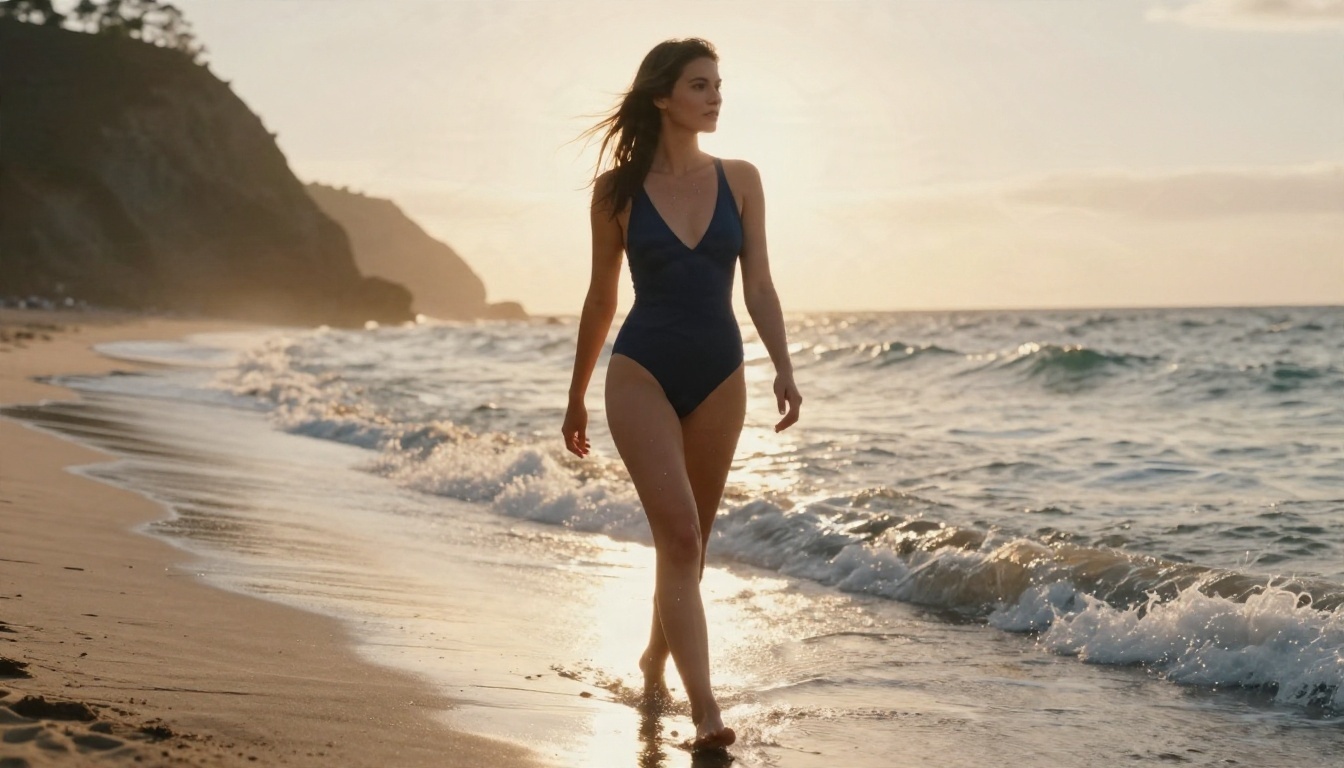
Beach and Swimwear Prompt
Low-angle full-length photograph of an adult woman in a classic navy swimsuit walking along a wet sand shoreline at golden hour, hair tousled by sea wind, gentle waves around her ankles, warm low sun behind her creating rim light, glistening skin with fine water droplets, 35mm f/2 lens, Kodak Portra 400 film grain, natural colors
Why it works: the low angle and backlight give a flattering editorial feel, and the swimsuit is described as a normal garment in a normal place.
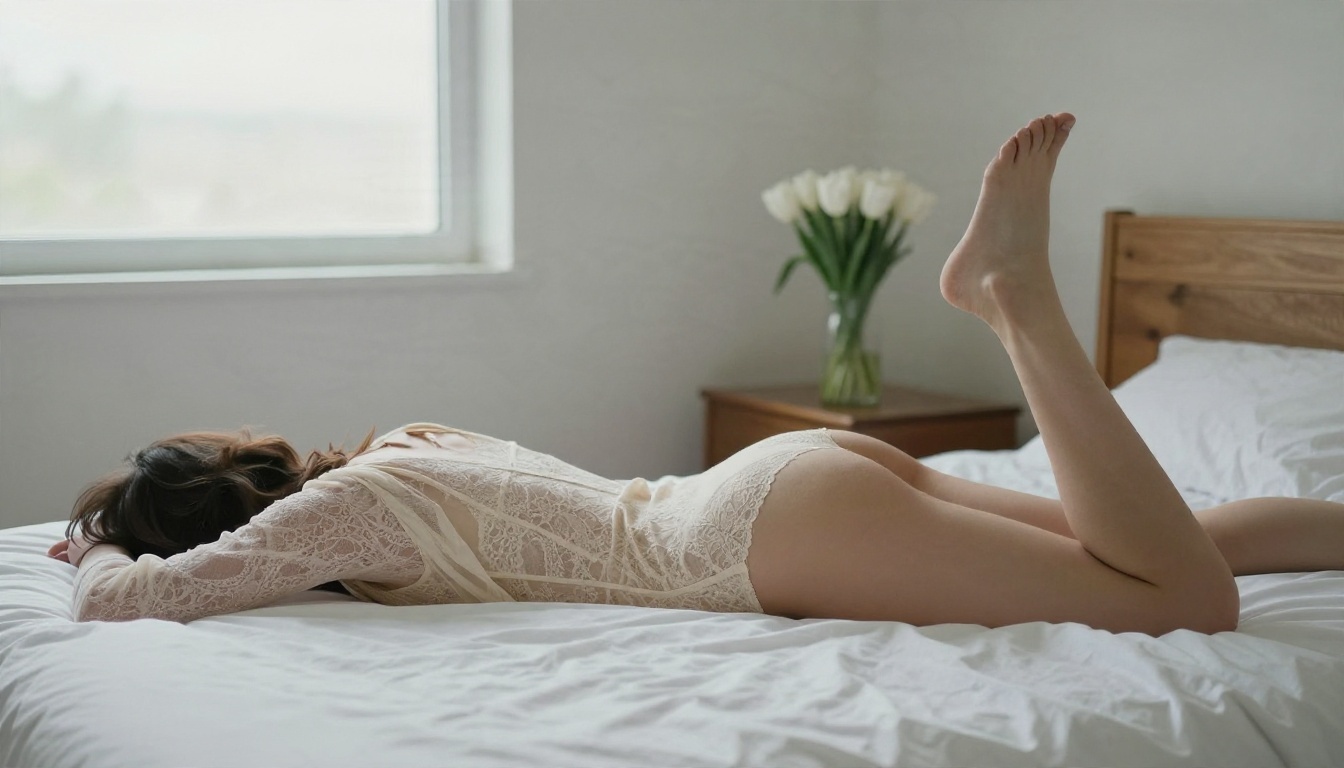
Boudoir Bedroom Prompt
Side-profile photograph of an adult woman stretching on a bed with crisp white sheets, wearing a soft ivory lace bodysuit and a loose cardigan slipping off one arm, diffused overcast daylight from a large window on the right, pale walls, vase of white tulips on the nightstand, 70mm f/2.2 lens, shallow depth of field, visible lace pattern and gentle skin texture, Kodak Portra 400 film grain
The cardigan and the tulips matter. Layered clothing and calm props read as lifestyle photography, and that reduces the odds of a refusal.
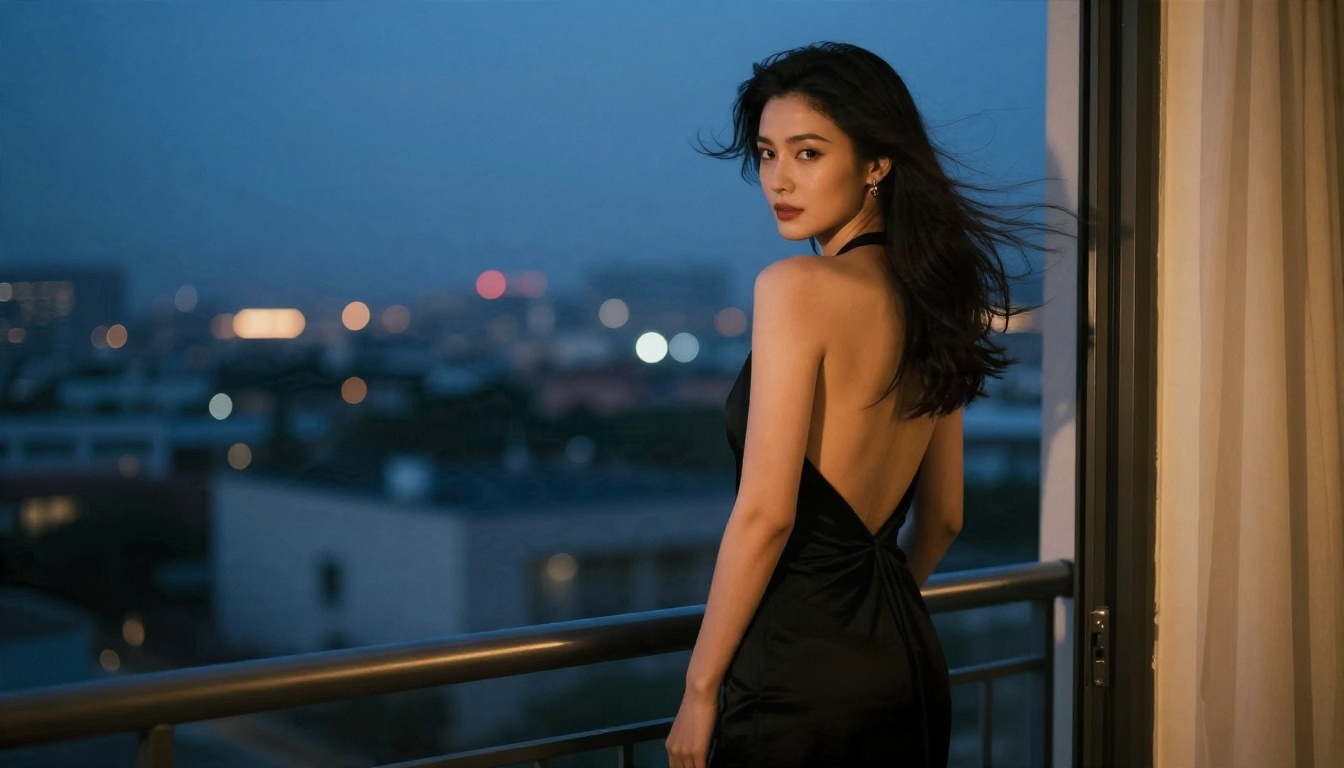
Evening Glamour Prompt
Medium shot of an adult woman in a sleek black evening dress with a low back, standing on a hotel balcony at blue hour, looking back over her shoulder toward the camera, city lights softly blurred in the distance, warm tungsten glow from the open door behind her mixing with cool twilight, wind moving her loose hair, realistic fabric drape, 85mm f/1.4 lens, Kodak Portra 400 film grain
Poolside From Above
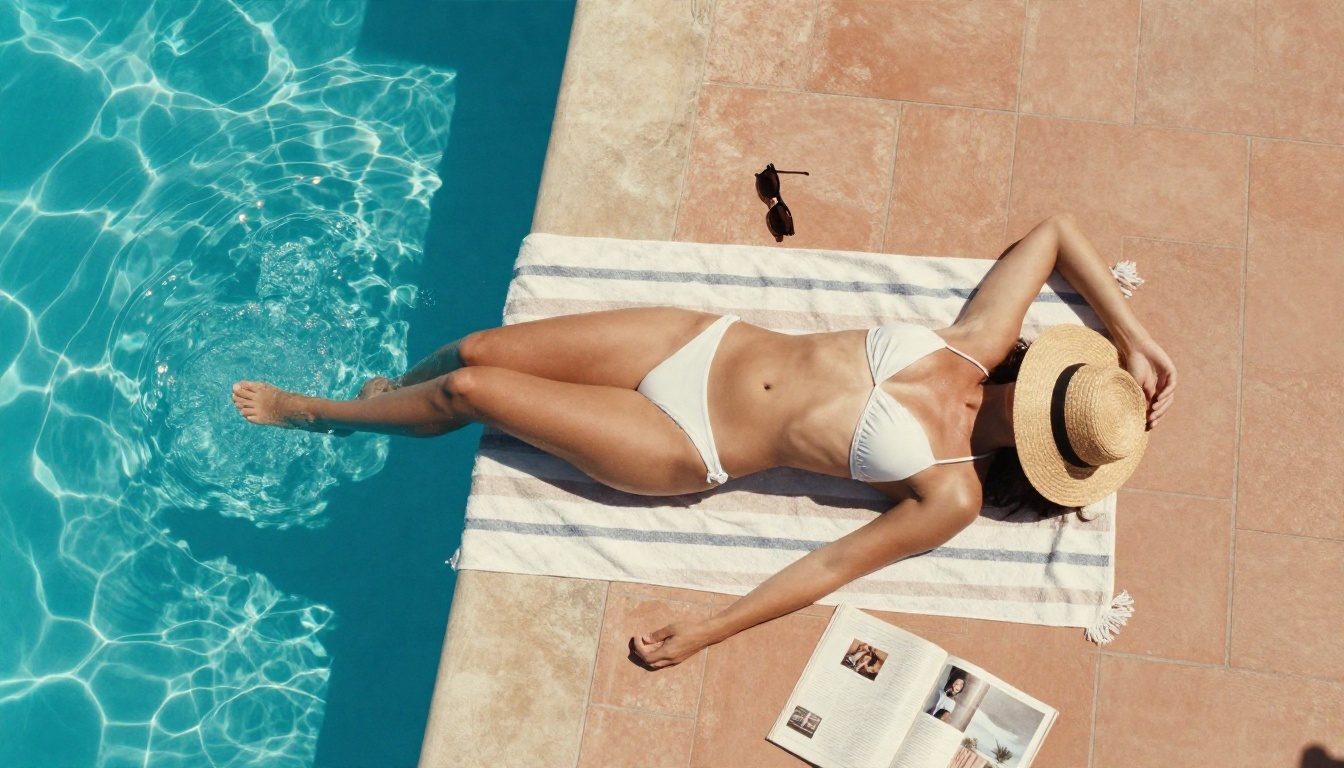
Aerial top-down photograph of an adult woman in a white bikini lying on a striped linen towel beside a turquoise infinity pool, one arm stretched above her head, sunglasses and a straw hat at the edge of the frame, hard midday sun with crisp shadows and sparkling water caustics, terracotta tiles, 24mm lens from above, realistic skin sheen and fabric weave, Kodak Portra 400 film grain
Top-down shots are forgiving. The model has fewer anatomy decisions to make, and the props and tiles fill the frame with convincing detail.
Close-Up Portrait Prompt
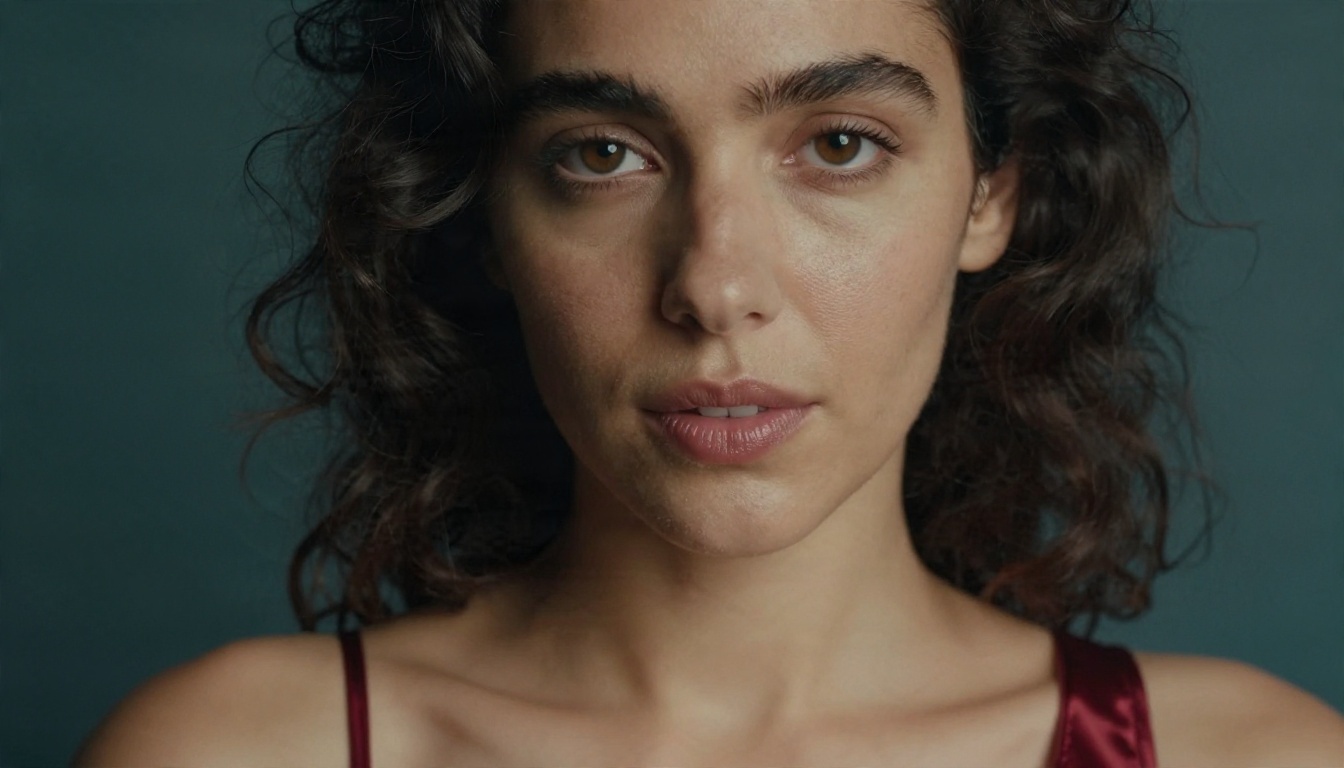
Tight close-up portrait of an adult woman with dark curly hair and a faint beauty mark above her lip, wearing a deep red satin camisole strap on one shoulder, soft window light from the left, one side of her face in gentle shadow, visible skin pores, fine baby hairs, glossy natural lips, catchlights in hazel eyes, 105mm f/1.8 lens, creamy dark teal background, Kodak Portra 400 film grain
The Prompt Formula That Works
Subject and Clothing First
Open with who and what: "adult woman, late twenties, champagne silk robe over black lace set." Put the main subject in the first 15 words. Flux weighs early text heavily, so a late mention of the outfit often gets lost.
Light and Lens Next
Name the direction of light ("soft window light from the left"), the time of day, and a real lens ("85mm f/1.8"). These phrases do two jobs: they sharpen realism, and they pull the prompt toward a photography vocabulary that filters treat kindly.
Skin and Fabric Words
Plastic skin is the number one complaint with Flux portraits. The cure is specific texture language: "visible pores," "fine baby hairs," "faint freckles," "silk sheen with fine creases." Avoid the words "flawless," "perfect skin," and "airbrushed," which push the model toward a smooth, waxy look.
💡 Copy this skeleton:[Shot type] photograph of an adult [subject], wearing [garment and fabric], [pose], in [setting], [light direction and quality], [lens], [film stock], [skin and fabric texture]
Prompt part
Good example
Weak example
Subject
adult woman, late twenties, chestnut hair
hot girl
Clothing
ivory lace bodysuit with loose cardigan
barely dressed
Light
soft window light from the left
nice lighting
Lens
85mm f/1.8, shallow depth of field
high quality
Texture
visible pores, silk sheen
perfect skin
Free Model Options
Free Flux Models on PicassoIA
Flux has several models you can try without paying for a separate subscription. For quick drafts, Flux Schnell is built for speed. For richer realism, Flux Dev is the usual pick. For high resolution output, Flux 1.1 Pro Ultra pushes up to 4MP. If you want a custom look, Flux Dev LoRA lets you apply a style adapter.
Seedream 4.5 for Glamour Work
If Flux keeps refusing swimwear, lingerie or boudoir prompts, Seedream 4.5 is the first alternative to try. It handles adult-leaning, non-explicit glamour with far fewer refusals than many hosted tools, it produces sharp skin detail, and it outputs up to 4K. It is the model I reach for when a Flux host says no.
Image Editor Pro for Unlimited Tries
PicassoIA Image Editor Pro is the best fit when you need many attempts. It offers unlimited generations, which matters because a good prompt usually takes five to ten rounds of small edits. It is also strong at editing an existing image: change an outfit, adjust the light, or fix a detail without starting over.
Other Alternatives Worth a Look
For a different texture and color feel, Qwen Image 3 Pro is a good photorealistic option. For editing instructions in plain language, Flux Kontext Fast handles quick changes to an existing photo.
Paste a prompt from this article. Start with the beach or boudoir example. Keep the lens and light lines intact.
Set the aspect ratio. Use 16:9 for wide scenes and a portrait ratio for single-figure shots.
Pick a high resolution. Seedream 4.5 supports up to 4K. Use a lower setting while drafting, then raise it for the final.
Generate and compare. Run two or three versions. Change only one thing per round: the light, the garment, or the lens.
Polish in Image Editor Pro. Move the best result into PicassoIA Image Editor Pro to adjust clothing, background or tone with unlimited tries.
💡 Parameter tip: keep prompts between 60 and 120 words. Shorter prompts leave too much to chance, and longer ones start to contradict themselves.
Flux NSFW Prompt Not Working? Fixes
The Image Gets Blocked
First, check whether the refusal comes from the host app or the model. If you are on a tool with a strict safety checker, no wording will change that policy. What you can fix are false alarms, where an innocent prompt gets flagged because of a loaded word. Replace vague or slangy words with plain garment names ("swimsuit," "lace bodysuit," "silk robe"), add a normal setting, and keep the tone editorial. If a tool refuses suggestive content outright, move to a model built for glamour, such as Seedream 4.5.
The Output Is Black or Blurred
A black or heavily blurred square usually means a safety checker replaced the result. It is not a rendering bug. Try a different framing (wider shot, more environment), add more clothing detail, and test the same prompt on another model.
Skin Looks Plastic
Remove "perfect," "flawless," and "ultra smooth." Add pores, freckles, baby hairs, and a film stock such as Kodak Portra 400. Keep the lens real. A Flux Dev run with those changes usually fixes the wax look in one pass.
Hands and Anatomy Go Wrong
Give the hands something to do ("brushing hair from her face," "flipping through records"). Idle hands are where models go wrong. Also pick a shot distance that hides weak spots: a close portrait or a waist-up frame is safer than a full body pose with complicated limbs.
The Style Looks Illustrated
If you see a painted or plastic look, you probably used words like "beautiful," "stunning," or "masterpiece." Replace them with photographic terms: "RAW photograph," "35mm lens," "film grain," "natural window light." Flux responds strongly to camera language.
Quick Fix Table
Problem
Likely cause
Fix
Refusal message
Host policy or flagged word
Use plain garment names, switch model
Black or blurred output
Safety checker replaced image
Wider framing, rewrite, try another model
Waxy skin
"Perfect skin" wording
Add pores, freckles, film stock
Bad hands
Idle pose
Give hands an action, crop closer
Cartoon look
Praise words in prompt
Use lens, light and grain terms
Prompt ignored
Too long or contradictory
Trim to 60 to 120 words
Mistakes That Waste Your Time
Stacking Too Many Styles
Mixing "cinematic," "anime," "oil painting," and "RAW photo" in one prompt confuses the model. Choose one look and commit to it.
Changing Five Things at Once
If you adjust the outfit, light, lens, pose and setting in one go, you cannot tell which change helped. Change one variable per round. That habit alone will save you dozens of generations.
Using Real Names or Faces
Do not name real people or celebrities. It is unfair to them, many tools block it, and it makes your results unreliable. Describe an invented adult subject by hair, features and clothing instead.
Ignoring Platform Rules
Each tool publishes its own content policy. Read it before you spend an evening on prompts. If a tool does not fit your project, pick a different one rather than fighting its filter.
Your Turn: Write Your First Prompt
Pick one example from this article, paste it into Seedream 4.5, and change a single detail: the garment, the hour of day, or the lens. Then bring the best result into PicassoIA Image Editor Pro, where you can keep refining with unlimited generations. If you want to test Flux itself, Flux Dev and Flux Schnell are ready on the same platform.
You can browse every available image model at picassoia.com/en/all-models. Start with a prompt, change one thing, and see what your next version looks like.