Type "free AI video generator uncensored" into a search bar and you get a wall of listicles, each promising no filters, no watermark, no limits. Then you sign up, render one clip, and hit a credit wall, a blurred preview, or a polite refusal. I have seen this loop enough times to say it plainly: free, uncensored, and unlimited almost never appear together on the same plan. This article shows you where each promise holds, where it breaks, and how to get the same result with a workflow that actually works.
Everything below stays on the non-explicit side: glamour, swimwear, evening wear, boudoir mood, cinematic skin and fabric. That is where most people want to be anyway, and it is where current video models perform best.
💡 Quick answer: No cloud video generator is truly free, unlimited, and filter-free all at once, because rendering video costs real GPU time. The closest practical setup is a strong image model for the first frame, an unlimited editor for fixes, and an unlimited video model for motion. All three are covered below.
What "Uncensored" Really Means
The word is a marketing label, not a legal status. When a tool says uncensored, it usually means one of three things:
- Looser prompt filters. Words like "bikini", "lingerie", or "sensual" pass without a refusal.
- No output blur. The result is not hidden behind a paywall preview.
- Permissive model weights. The underlying model was not trained to reject adult-leaning aesthetics.
What it never means is "no rules". Laws, payment processors, and model licenses still apply everywhere. Content involving minors, real people without their consent, or anything non-consensual is off the table on every serious platform, and it should be off the table for you too.
Here is how the claims usually line up with reality:
| Claim | What it usually means | Reality check |
|---|
| Free | A trial or daily credits | Often 3 to 10 clips, then a paywall |
| Uncensored | Softer filter on swimwear and glamour | Explicit content is still blocked on mainstream tools |
| Unlimited | Fair use cap in the fine print | Throttled speed or slow queue after heavy use |
| No watermark | Paid tier only | Free exports are commonly branded |
| HD | Preview at low resolution | Full 720p or 1080p behind credits |
Research on the current market backs this up. Free clips are typically capped at 5 to 10 seconds, most free exports carry a watermark, and several popular daily credit systems brand every render on the free plan. Many "best uncensored generator" rankings are written by the vendors themselves, so treat them with caution.
Why Free Tiers Hit a Wall
Video generation is expensive. A single five-second 720p clip with synchronized audio can cost many times what a still image costs. That is why free plans look the way they do.
The Credit Treadmill
Daily credits sound generous until you do the math. If one clip burns 20 credits and you get 66 per day, you have three renders. Prompt tweaking alone eats that in ten minutes. The fix is to plan the clip before you spend the credits, which the prompt section below helps with.
Watermarks and Resolution
A watermark ruins any clip you want to post or reuse. Low resolution previews are worse: you cannot judge skin texture or fabric motion at 360p, so you burn credits on guesses.
Filters That Fail Randomly
Some tools block a prompt on Monday and allow it on Tuesday. That inconsistency is the real cost of "soft" filters. A stable workflow beats a lucky one.
The Workflow That Beats Text-Only Prompts
Most people type a long text prompt into a video model and hope. That is the expensive way. The reliable way has three steps:
- Build the first frame with a strong image model, so you control the face, outfit, light, and mood.
- Fix details with an unlimited editor: hands, hair, background, wardrobe.
- Animate the approved frame with an image-to-video model.
Why does this work? A video model given a finished photograph only has to invent motion, not the whole scene. Faces stay consistent, outfits do not drift, and you waste far fewer renders.
💡 Rule of thumb: Spend your effort on the still frame. A great first frame with a simple motion prompt beats a mediocre frame with a clever one, nearly every time.
Step 1: The First Frame With Seedream 4.5
Seedream 4.5 is the model to lead with for glamour and swimwear imagery. It handles skin texture, fabric, and natural light well, it follows detailed prompts closely, and it is comfortable with adult-leaning aesthetics such as bikinis and evening wear while you keep things non-explicit. Output goes up to 4K, which gives the video model plenty of detail to work from.
Step 2: Fixes With Image Editor Pro
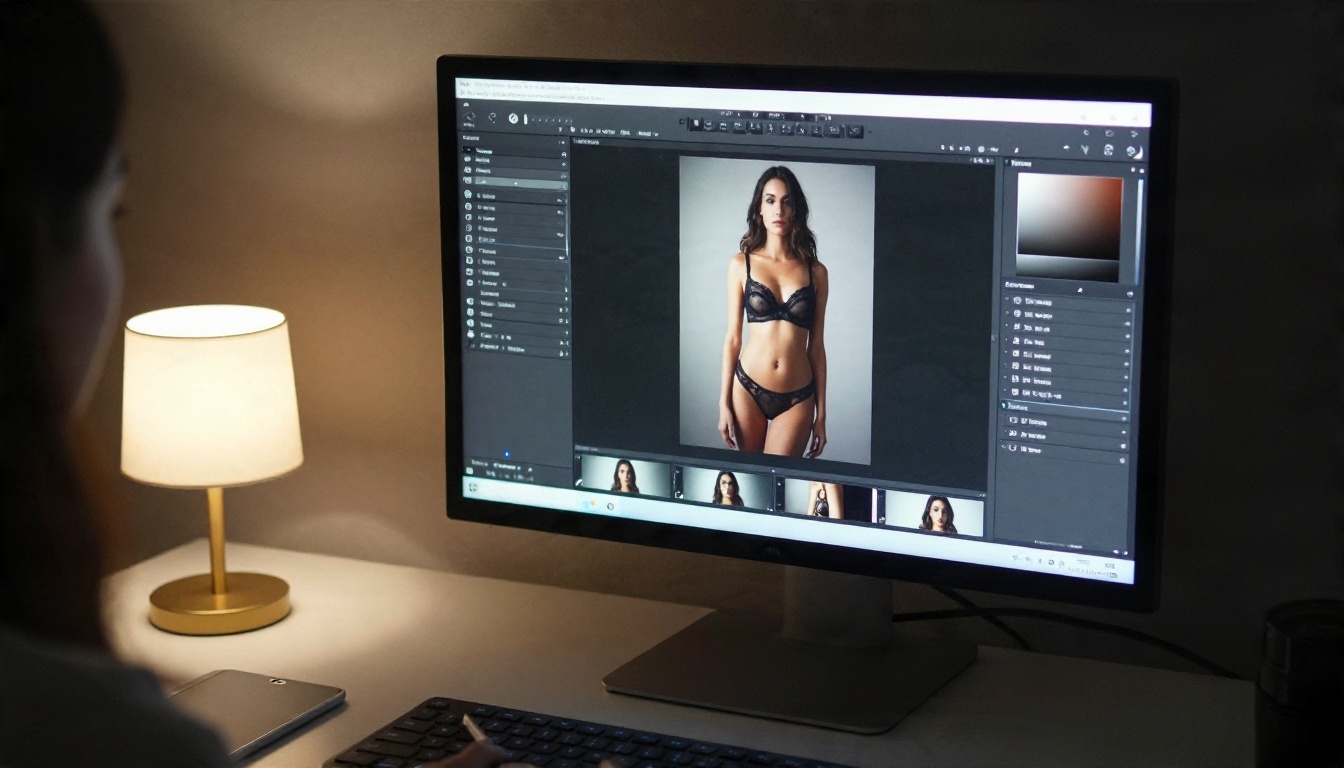
PicassoIA Image Editor Pro is where the unlimited part pays off. You describe an edit in plain language and it finishes in a few seconds, with no per-edit cap and no daily quota. It accepts up to three reference images, so you can keep a character consistent across several frames.
Step 3: Motion With Seedance 2.5 Lite
Seedance 2.5 Lite turns a still image or a text prompt into a clip of up to 10 seconds at 480p or 720p. Elite and Infinite members can run it without a per-clip cost or a daily counter, which removes the credit anxiety that wrecks every free tier. For longer shots, the full Seedance 2.5 model goes up to 30 seconds.
Prompts That Actually Work
Good video prompts read like a director's note: who, where, light, camera, motion. Keep them chronological and physical. Here is a formula you can reuse:
[Subject and outfit] + [setting and light] + [motion over time] + [camera movement] + [mood]
Image Prompt Template
Use this for the first frame:
A woman in her mid twenties with wavy chestnut hair, wearing a coral bikini and a sheer white beach cover, walking on wet sand at golden hour, low sun backlight from the left, 85mm f/1.8, shallow depth of field, natural skin texture with water droplets, Kodak Portra 400 film grain.
Video Prompt Template
Use this for the motion pass:
She walks slowly toward the camera along the shoreline, small waves wash over her ankles, her hair lifts in the sea breeze, she glances down then back up with a soft smile. Slow dolly back, warm golden light, gentle surf sound.
Five Prompt Habits That Save Credits
- Describe one action per clip. Five seconds fits one beat, not a story.
- Name the camera move. "Slow dolly in", "gentle pan left", "static tripod".
- State the light direction. "Backlight from the left" beats "nice lighting".
- Add texture words. Skin pores, silk sheen, wet sand, linen weave.
- Skip negative lists. Say what you want, not twenty things you do not.
Five Examples Worth Copying
These are first frames I would build, with the motion prompt that pairs with each. All are glamour and non-explicit.
Golden Hour Beach Walk
A bikini and cover-up on a quiet shoreline. It is the classic test of skin, water, and backlight.
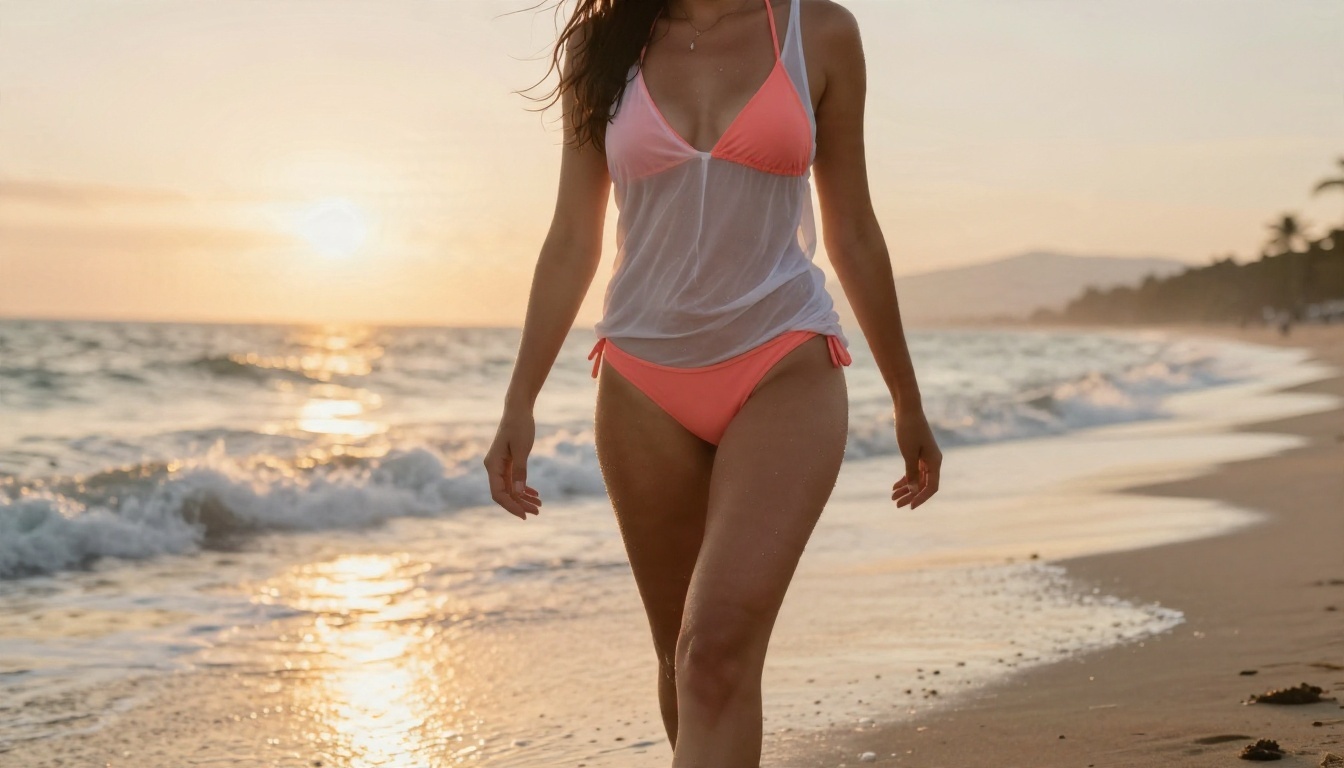
Motion prompt: She walks forward through shallow foam, wind lifting her hair, camera slowly backing away at hip height, sun flaring softly behind her.
Rainy Street in Evening Wear
A red satin dress on cobblestones at dusk. Wet reflections and warm shop windows give the video model rich detail to animate.
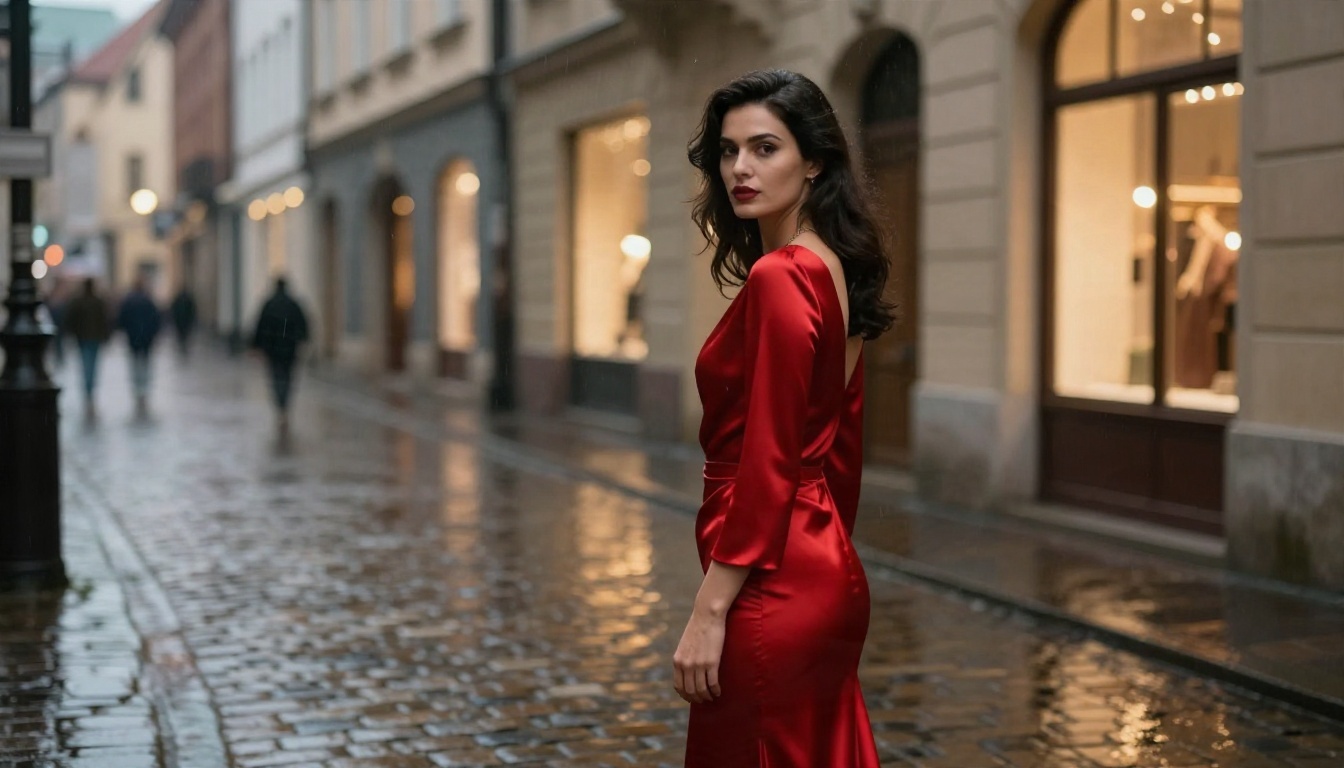
Motion prompt: She turns her head over her shoulder and takes one step forward, drizzle falling through the lamplight, camera rising slowly from low angle to eye level.
Pool Float From Above
A top-down shot of a one-piece swimsuit on an inflatable float. Water caustics make this one look expensive with almost no effort.
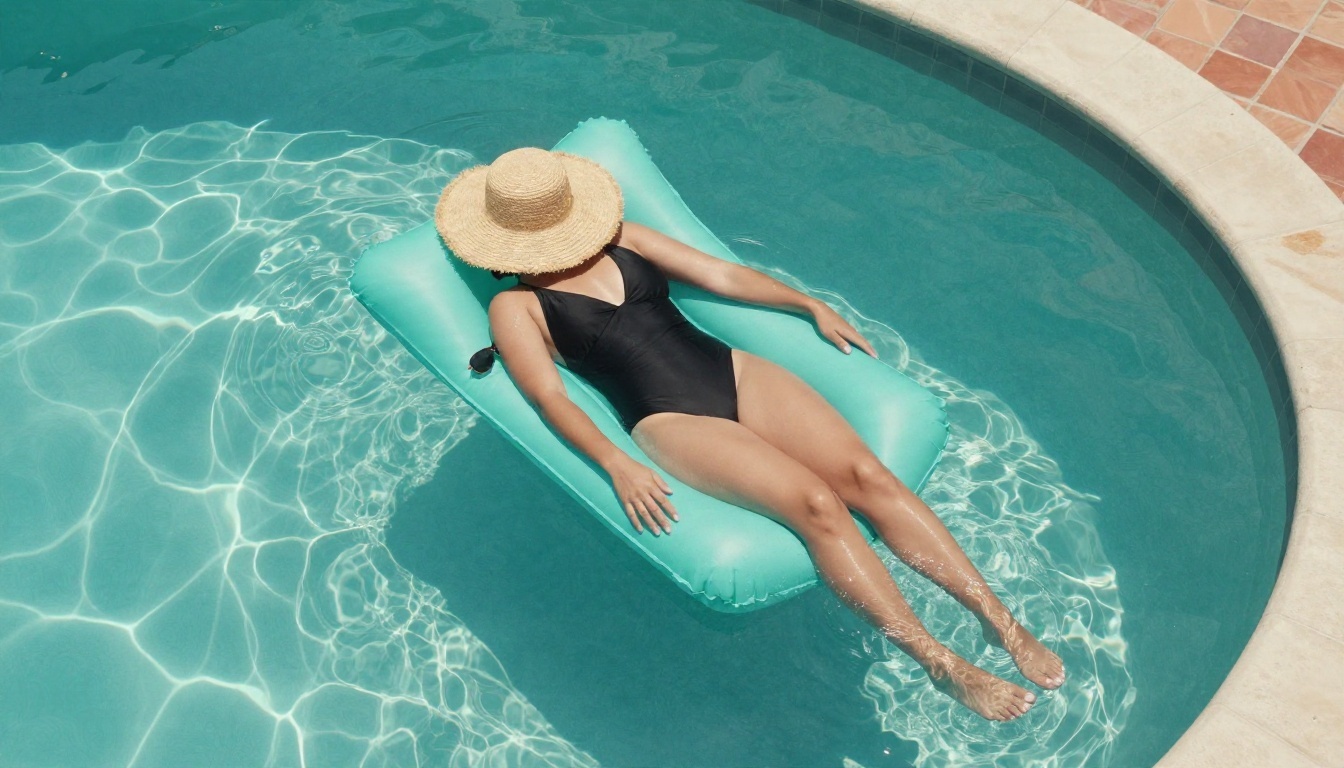
Motion prompt: The float drifts gently, ripples spread across the water, light patterns shimmer on the pool floor, camera static and slowly ascending.
Sailboat at Sunrise
A white linen shirt over swimwear, brass fittings, and a pink sky. This one rewards slow, calm motion.
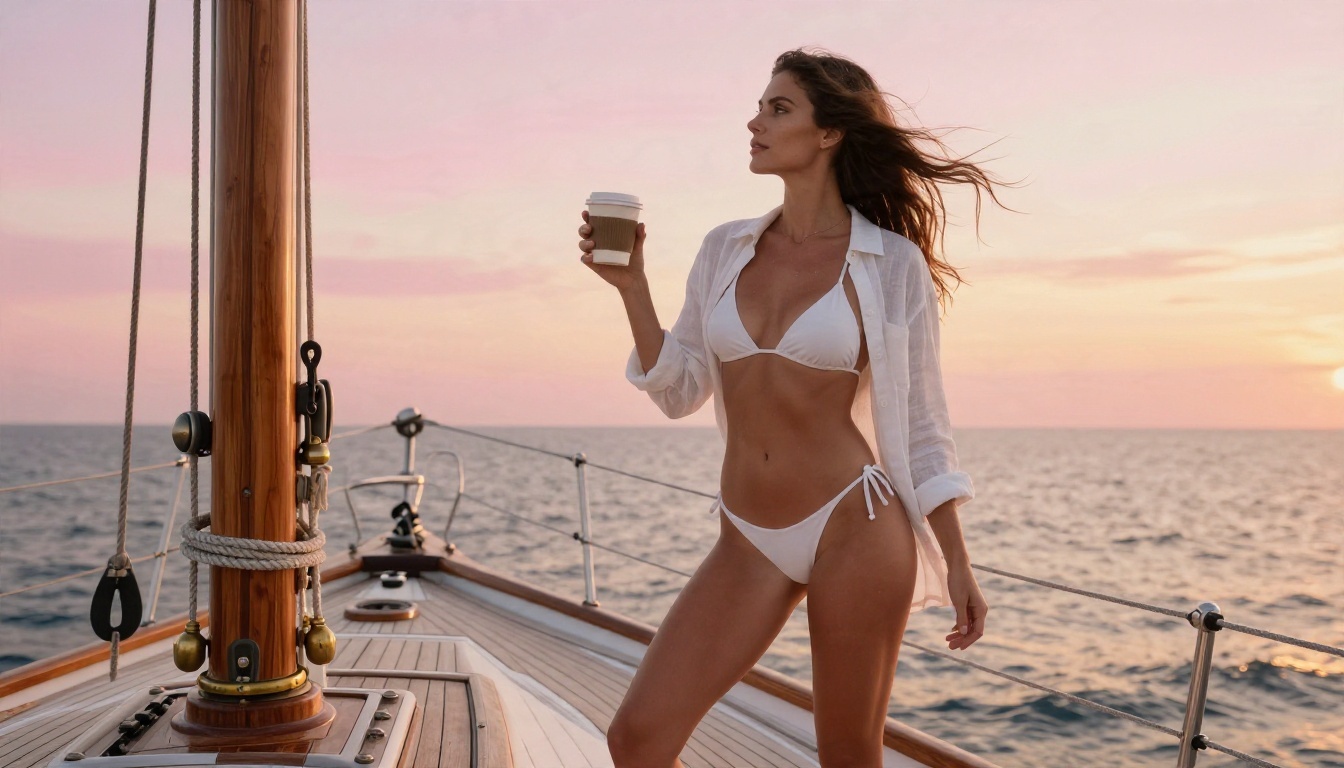
Motion prompt: She lifts the cup and watches the horizon, the boat rocks softly, rope sways, camera glides sideways along the deck.
Hotel Balcony at Night
A champagne silk slip dress and city bokeh. It is a boudoir mood without anything explicit, and silk is a great motion test.
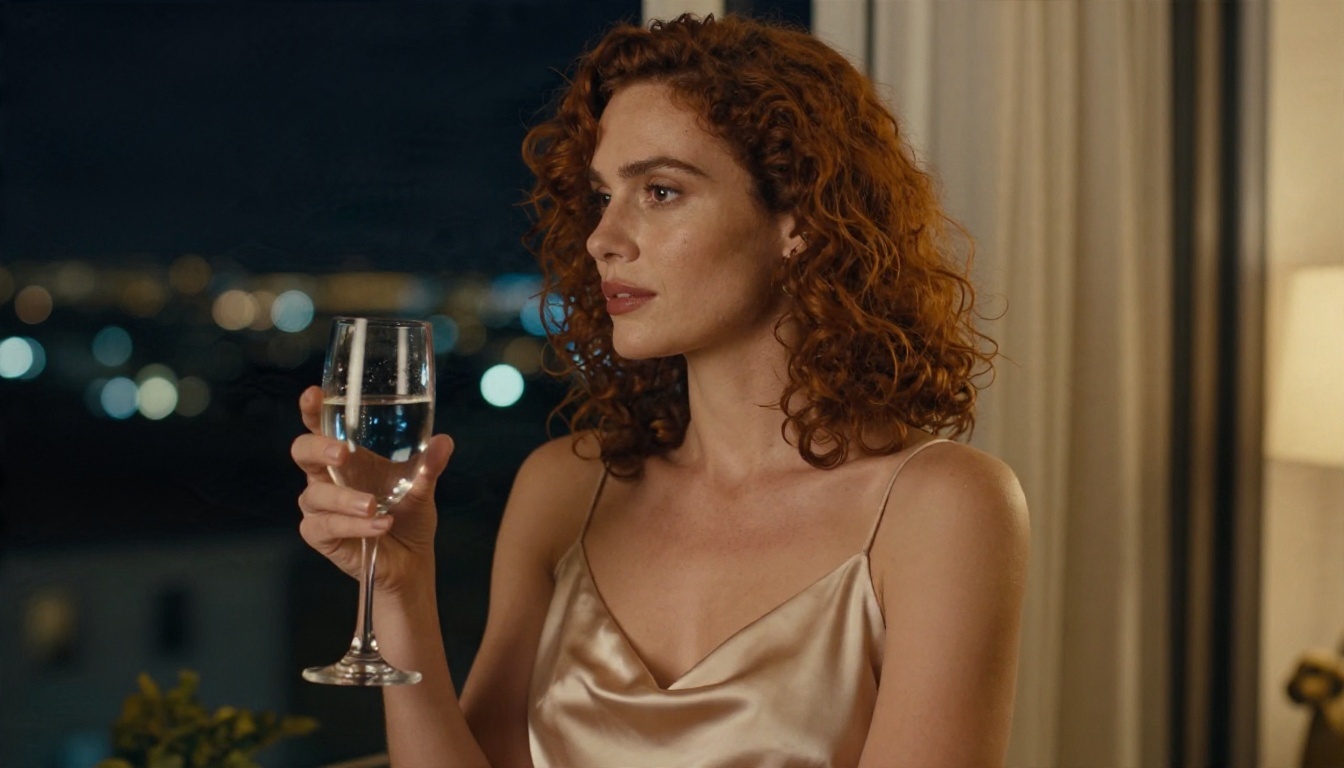
Motion prompt: She exhales and looks out over the city, the curtain shifts in a light breeze, silk moves against her shoulder, slow push in on her face.
How to Use Seedance 2.5 Lite on PicassoIA
Once you have an approved first frame, here is the exact sequence.
Set Up the Clip
- Open the Seedance 2.5 Lite page.
- Upload your first-frame image as the opening shot. If you only have text, use the text-to-video input instead.
- Paste a motion prompt using the template above.
Pick the Settings
- Duration: Start at 5 seconds while you test, then go to 10 once the motion looks right.
- Resolution: 720p for anything you plan to post, 480p for fast drafts.
- Aspect ratio: Match the source image so nothing gets cropped.
Iterate Without Waste
- Change one variable per run: camera move, or action, or light.
- Keep a short note of prompts that worked.
- If the face drifts, go back to Image Editor Pro, fix the frame, and run again.
💡 Honest note: Seedance 2.5 Lite is unlimited for Elite and Infinite members. It is not a no-account freebie, and no serious video tool is. What you get is a flat price with no credit counter, which is the closest thing to "free" that actually lasts.
The Real Limits You Should Expect
Even with a good setup, video models have limits. Knowing them saves you from blaming your prompt.
Clip Length
Most models top out between 5 and 10 seconds per clip. For longer sequences, cut several clips together. Seedance 2.5 reaches 30 seconds if you need a single longer shot.
Hands, Fabric, and Fast Motion
Hands and thin fabric remain the weakest spots. Slow movements look better than fast ones. A hair flip may warp; a slow head turn rarely does.
Consistency Across Clips
A new clip is a new roll of the dice. To keep a character stable, reuse the same first frame style and reference images in the editor, then animate each frame separately.
Content Boundaries
Explicit content is blocked or unreliable almost everywhere. The strongest results come from swimwear, evening wear, and boudoir mood shot with good light. That is also what holds up for sharing and reuse. Never use real people's likeness without consent.
Alternatives Worth Trying
If Seedance does not suit a particular shot, these models are all on PicassoIA and cover different strengths:
When to Pick Which
- Need speed? Draft with Hailuo 2.3 Fast or LTX 2.5 Fast, then redo the winner in a stronger model.
- Need sound? Veo 3.1 Fast generates audio with the clip.
- Need cinematic movement? Wan 3 is a strong pick for sweeping camera paths.
- Need a budget photo animation? Kling v1.5 Pro still handles simple image-to-video well.
Free vs Unlimited: The Honest Math
Here is a rough way to compare a free tier with an unlimited plan. Say you test 8 variations of a prompt to get one clip you like.
| Setup | Clips needed | Result |
|---|
| Free daily credits | 8 renders | Runs out in 2 or 3 days, watermark on export |
| Pay per clip | 8 renders | Cost grows with every retry |
| Unlimited plan | 8 renders | Flat cost, no watermark pressure, retry freely |
If you make one clip a month, a free tier is fine. If you make several clips a week, unlimited is cheaper than it looks, because iteration is where the real cost hides.
Your Next Clip Starts Here
You do not need a magic "uncensored" button. You need a good first frame, an editor that does not count your edits, and a video model that does not count your retries. Build the still in Seedream 4.5, polish it in Image Editor Pro, and animate it with Seedance 2.5 Lite.
Pick one of the five examples above, copy the image prompt, change the outfit or location, and run it. Then paste the motion prompt and watch five seconds of your own scene come to life. When you want to try other video and image models side by side, browse the full list at picassoia.com/en/all-models and start creating your own clips on PicassoIA today.


