Type "free hentai generator" into a search bar and you get a wall of tools that all promise the same thing: anime-style adult art in seconds, no signup, no limits. Then you hit a credit wall after three images, a filter that blocks half your prompt, or a watermark across the corner. This article sorts the useful from the noisy. You will see what these generators actually do, which online options are worth your time, how to write prompts that produce clean results, what examples look like, and where the free tier runs out.
Everything here is written for adults making art of adult characters. That rule is not a footnote, and you will see it come back in the privacy section.
What a Hentai Generator Does
In Japanese, "hentai" is the word fans use for anime and manga with adult themes. A hentai generator is simply a text-to-image model (or an image editor) steered toward that look: large expressive eyes, clean line work, cel shading, saturated color, and the glamour poses common in the genre. You describe a scene, the model draws it.
Anime Style, Adult Themes
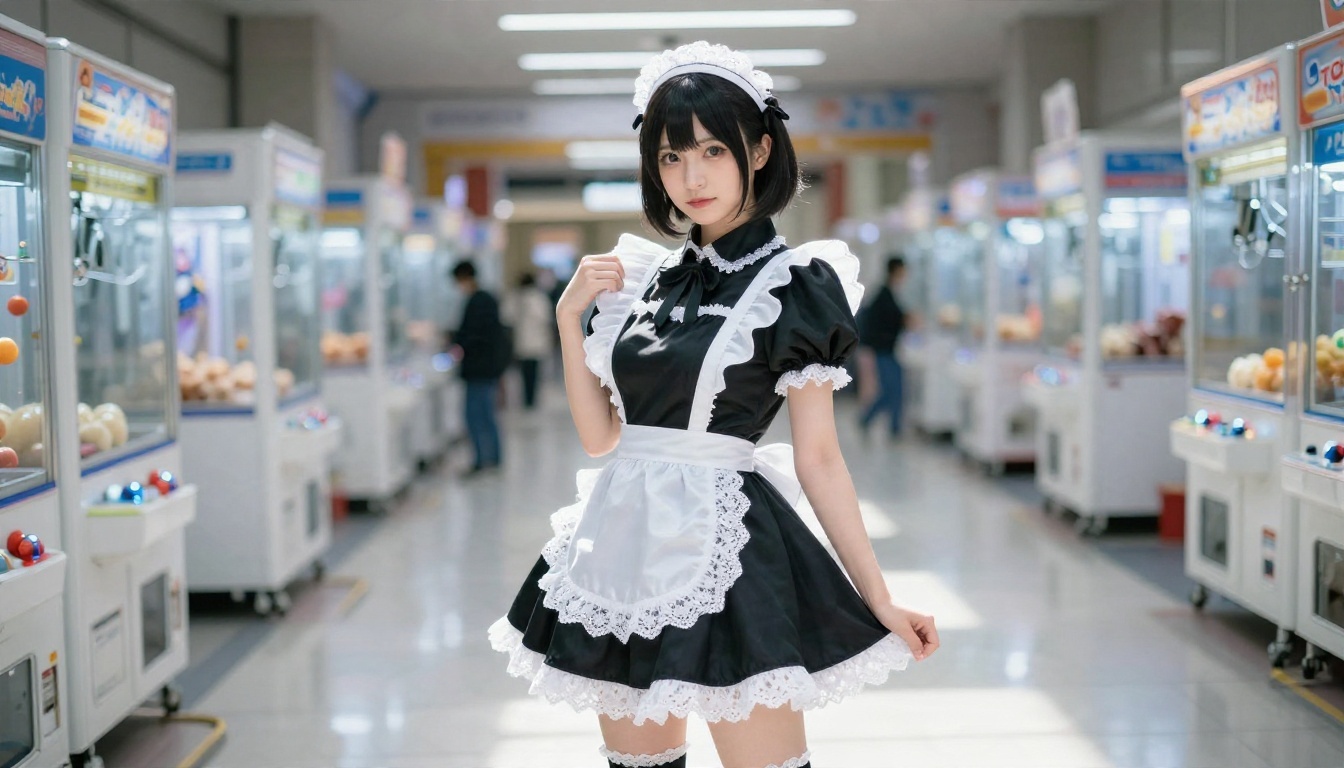
Most people searching this term do not want explicit output on every try. They want a stylish adult character: a woman in a swimsuit on a beach, a cosplay-inspired outfit, a moody bedroom portrait with soft lighting. The strongest tools handle that range well, from suggestive and glamorous to more mature scenes, depending on the platform's rules.
On PicassoIA, the focus stays on non-explicit, attractive adult imagery: glamour, swimwear, lingerie-style fashion, artistic mood. That is also where models produce their cleanest anatomy and lighting, so it is a sensible place to start even if you plan to push further elsewhere.
Why Free Tools Look So Appealing
Three reasons keep people hunting for free options:
- Curiosity. You want to see whether AI can really match the style before committing money.
- Volume. Good results need iteration. Ten attempts for one keeper is normal, and paid credits disappear quickly.
- Privacy. Many people prefer a browser tool over installing a local setup with gigabytes of checkpoints.
💡 Reality check: "Free" usually means one of three things: a daily credit allowance, a slow queue, or a watermark. Truly unlimited free generation is rare, and it is worth knowing which compromise you are accepting.
The market splits into three groups: general-purpose image models, anime-tuned specialists, and editors that modify an image you already have. Each solves a different problem.
| Tool type | Best for | Typical weakness |
|---|
| General text-to-image model | Detailed scenes, lighting, clean anatomy | Needs a clear prompt for the anime look |
| Anime specialist model | Consistent line art and cel shading | Narrower range outside anime |
| Image editor with inpainting | Fixing hands, outfits, backgrounds | Needs a decent source image |
| Style conversion model | Turning a photo into an anime version | Output depends heavily on the source |
Seedream 4.5 Comes First
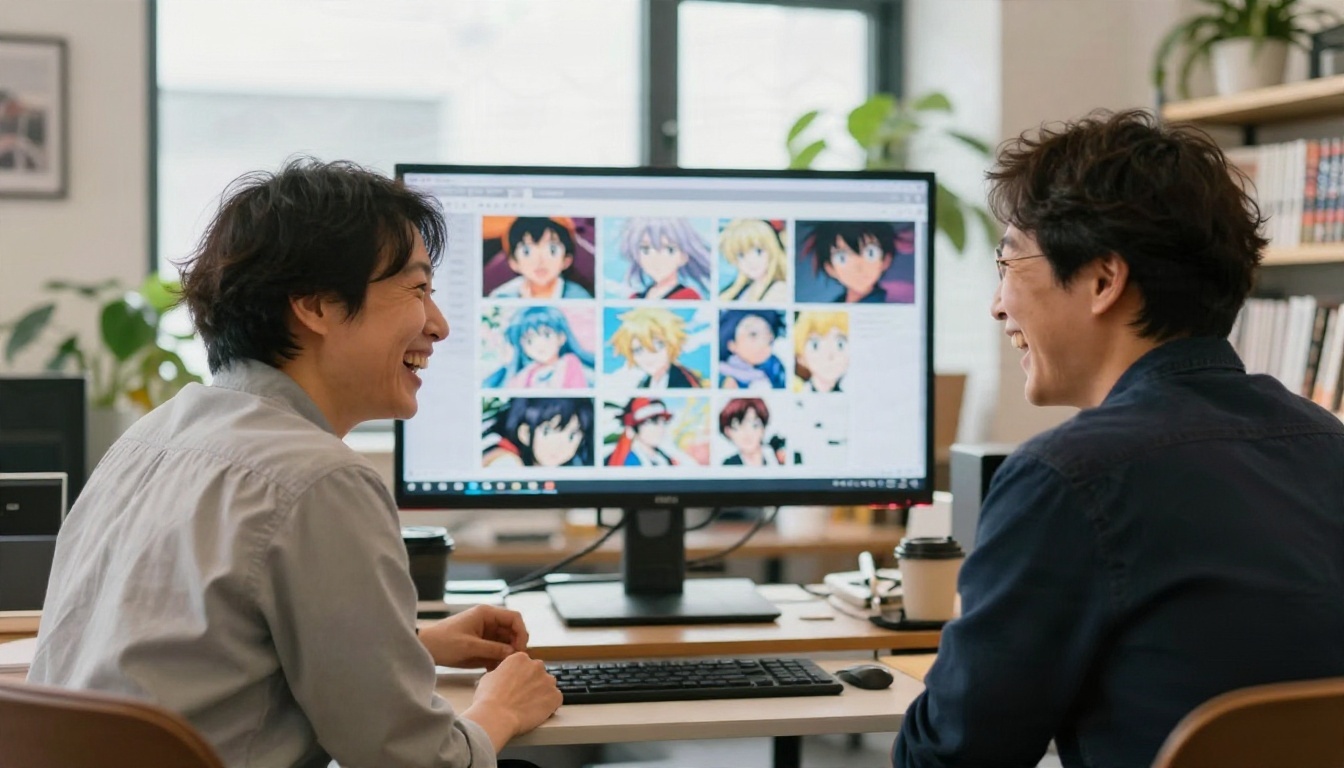
Seedream 4.5 is the model to open first. It follows long, descriptive prompts closely, renders skin, fabric and hair with a level of detail that holds up at high resolution, and handles stylized looks as well as photographic ones. For adult glamour themes, it gives you the most dependable first draft: the pose you asked for, the outfit you described, and hands that usually have the right number of fingers.
Its strength is prompt obedience. If you write "silver hair, black lace trim, golden hour light from the left, anime illustration style," you tend to get exactly that combination instead of a muddled average.
PicassoIA Image Editor Pro
PicassoIA Image Editor Pro is the one to keep open in the next tab. It offers unlimited generations, which matters because the real cost of anime art is iteration. You can generate a base, ask for a different outfit, change the background, adjust the expression, and try again without watching a counter tick down.
It is also uncensored in the sense that matters for adult creators: it does not refuse ordinary glamour and swimwear prompts that other tools block outright. You still keep to the platform rules on adult-only subjects, but you are not fighting a filter every second prompt.
Anime Specialists and LoRAs
When you want the look to be unmistakably anime, a specialist helps. These are good second stops after Seedream 4.5 and Image Editor Pro:
- Z Image Turbo is fast, so you can test ten prompt variations in the time another model finishes three.
- Flux 2 Klein 9B Base LoRA supports styled output through LoRA weights, which is useful when you want a consistent look across a series.
- Proteus v0.3 is built around anime character art and produces clean, saturated results.
- Krea 2 Medium handles anime and painterly styles with a softer, more illustrated feel.
- Qwen Image Edit Plus LoRA Photo To Anime converts a photo of your own adult character design or cosplay shoot into an anime version.
💡 Browse the full catalog at picassoia.com/en/all-models if you want to compare more options side by side.
Prompts That Actually Work
Prompt quality decides the result more than the model does. A vague prompt gives you a generic face with odd proportions. A structured one gives you a character you can recognize across several images.
A Prompt Formula That Holds Up
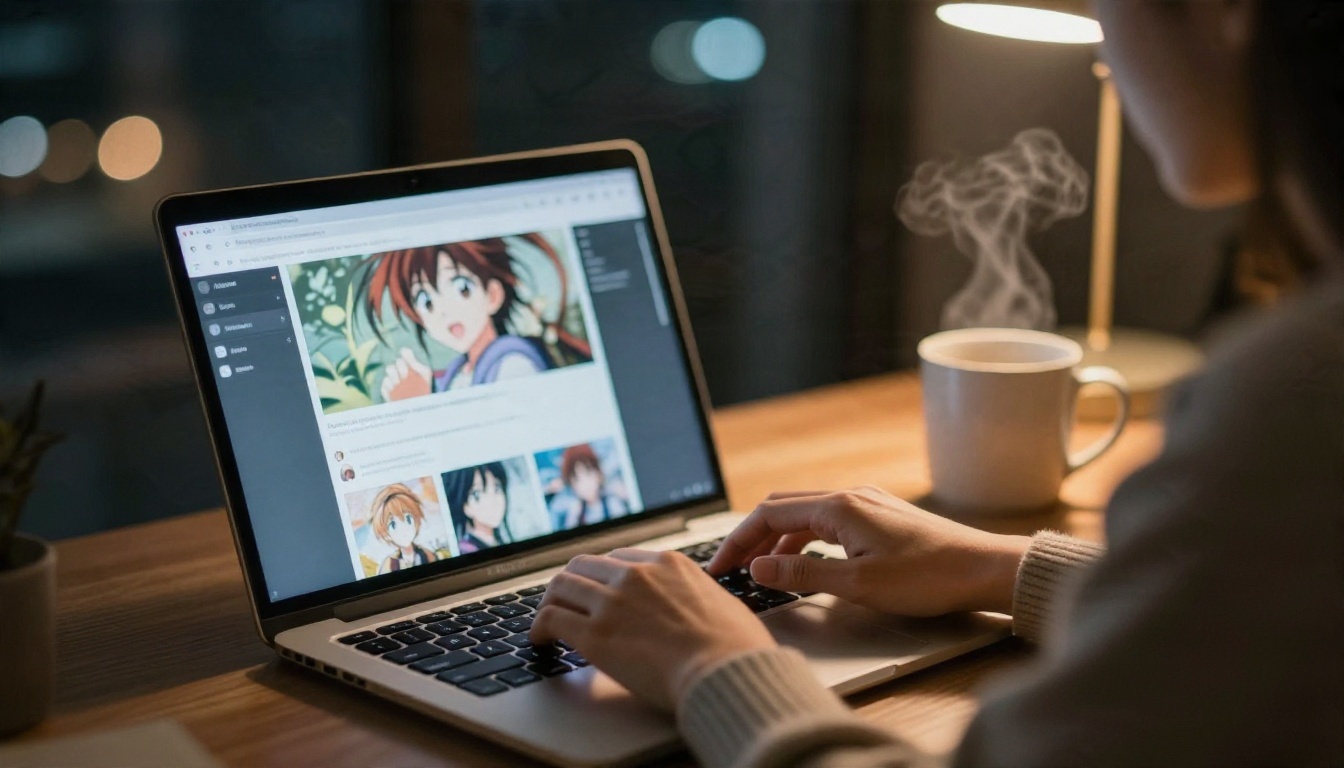
Write prompts in this order and you will rarely get lost:
- Subject. Age and gender stated plainly: "adult woman, 26 years old."
- Look. Hair color and length, eye color, expression, outfit.
- Pose and framing. Seated, standing, over the shoulder, close-up, full body.
- Setting. Beach boardwalk, rainy window, arcade, apartment balcony.
- Light. Golden hour from the left, soft window light, warm lamp fill.
- Style tags. "Anime illustration, clean line art, cel shading, saturated color."
Stating the age as an adult number is not optional decoration. It anchors the model toward adult proportions and keeps your work inside every platform's rules.
Example Prompts to Copy
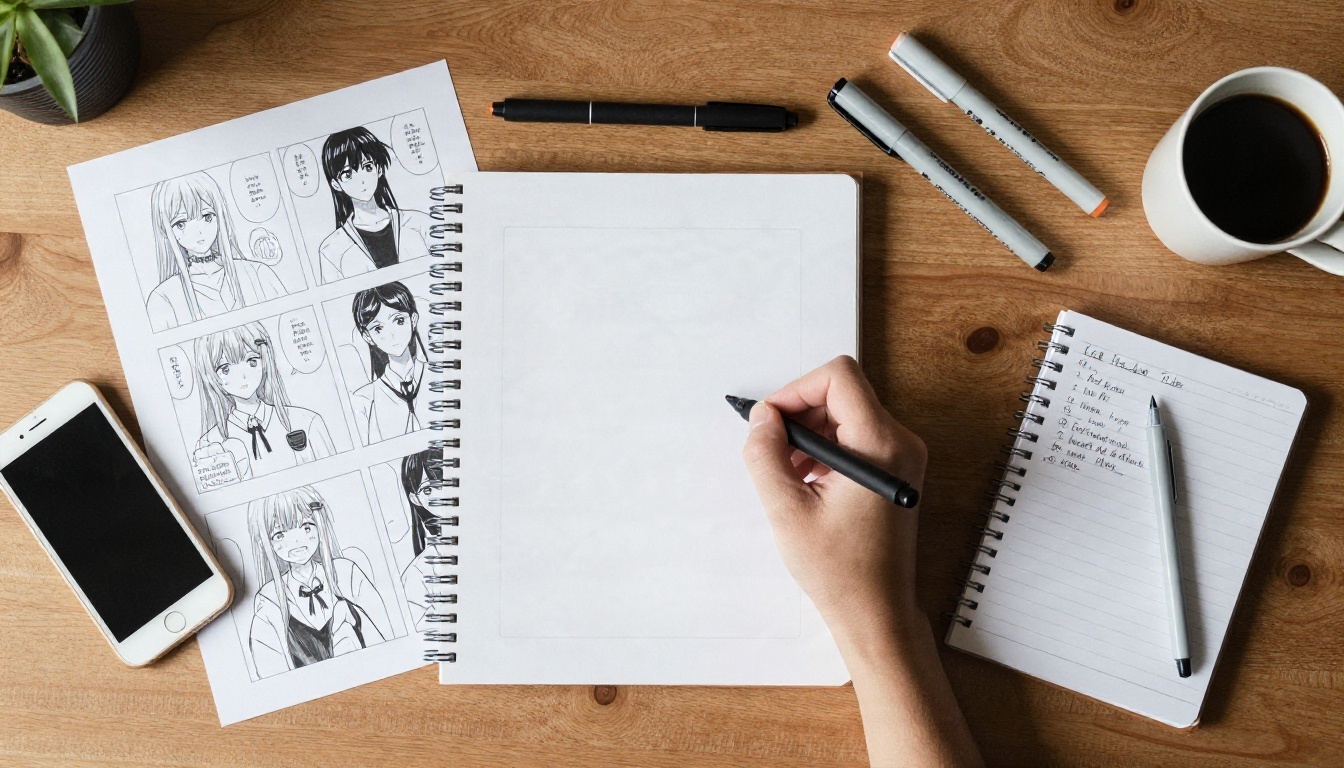
These are written to stay suggestive rather than explicit, which also gives the cleanest output:
| Goal | Prompt |
|---|
| Beach glamour | Adult woman, 27, long silver hair, white sun hat, sheer swimsuit cover-up, beach boardwalk at golden hour, backlit sun, anime illustration, clean line art |
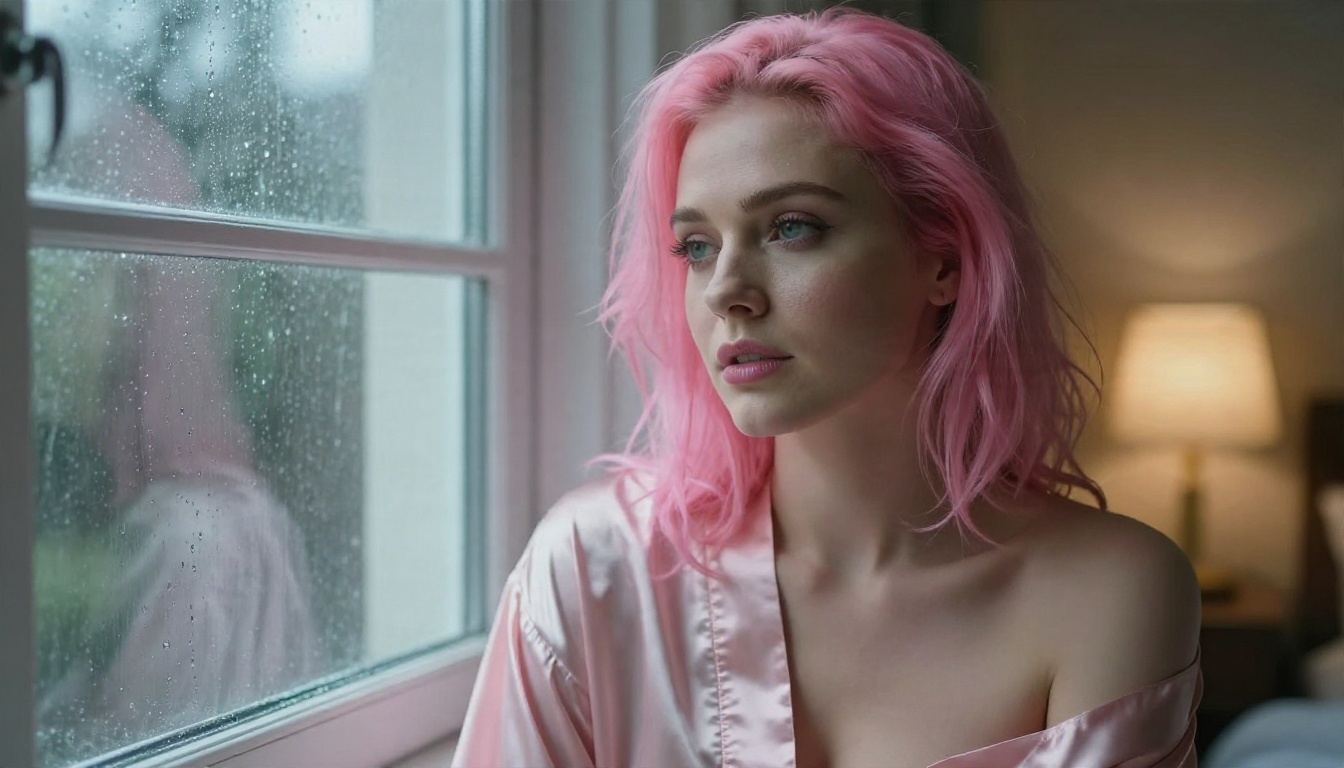
| Moody portrait | Adult woman, 25, pink hair, satin robe slipping off one shoulder, rain on window, warm lamp glow, soft shading, close-up, anime style |
| Cosplay look | Adult woman, 28, black maid-inspired dress with white lace, arcade corridor, playful smile, low angle, cel shading, saturated color |
| Casual daylight | Adult woman, 24, tank top and denim shorts, balcony with potted herbs, late afternoon light, relaxed smile, soft anime rendering |
Details Worth Adding or Removing
Small phrases do a lot of work:
- Add "detailed hands, five fingers" when hands are visible. It does not fix everything, but it reduces the worst mistakes.
- Add lighting direction ("from the left," "backlit") to avoid flat, even images.
- Remove contradictory tags. "Realistic photo" and "flat cel shading" in one prompt confuse the model and muddy the style.
- Keep prompts to one clear scene. Three characters and four props in one frame is a recipe for fused limbs.
Real Examples and Style Ranges
A useful way to judge a generator is to look at range. The same model should produce a bright outdoor scene, a moody interior and a stylized costume without changing your workflow.
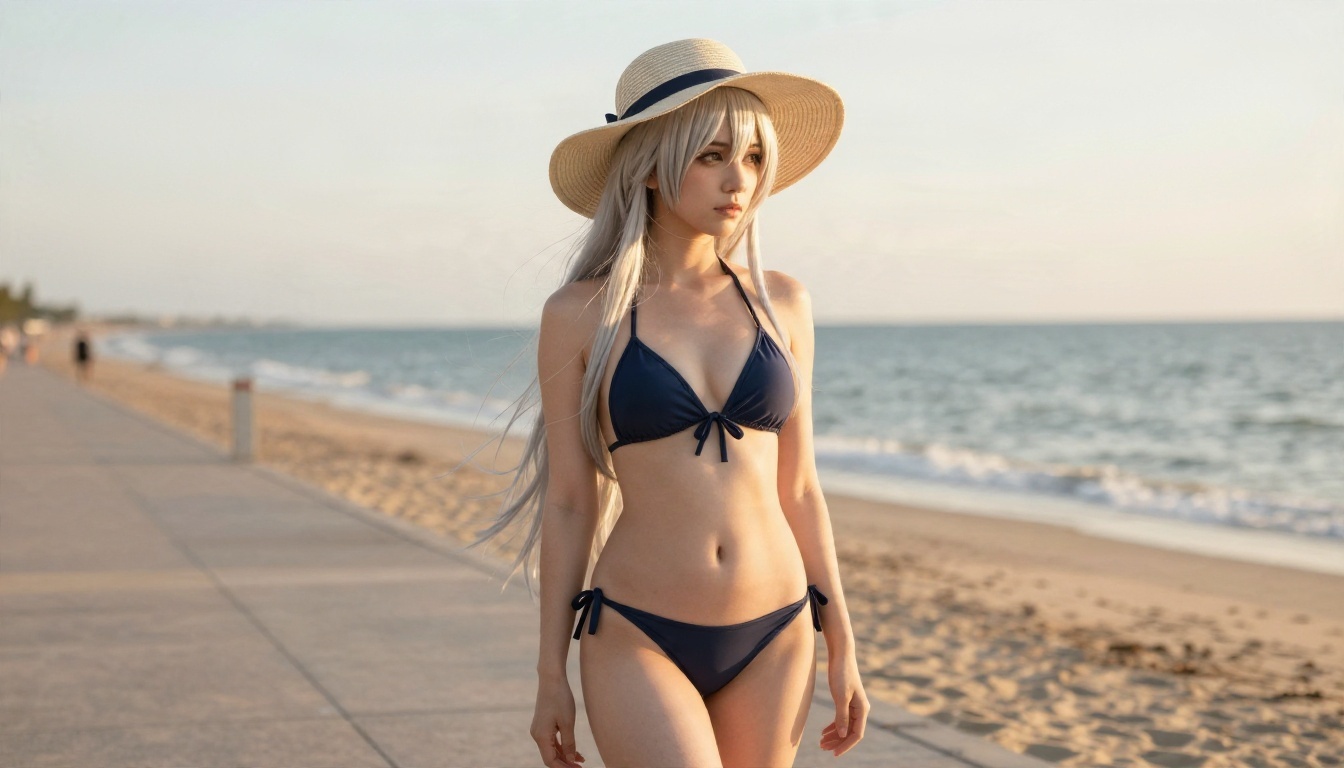
Bright and Playful
Outdoor scenes with warm backlight are the easiest to get right. Hair picks up a soft edge of light, fabric catches highlights, and the background blurs into color. If a tool cannot handle this, it will struggle everywhere else.
Moody and Intimate
Interior portraits are harder. Satin, skin and window light all interact, and weaker models flatten them. Close-up framing helps because it removes the need to get a full body right.
Artist Workflows Beyond One Click
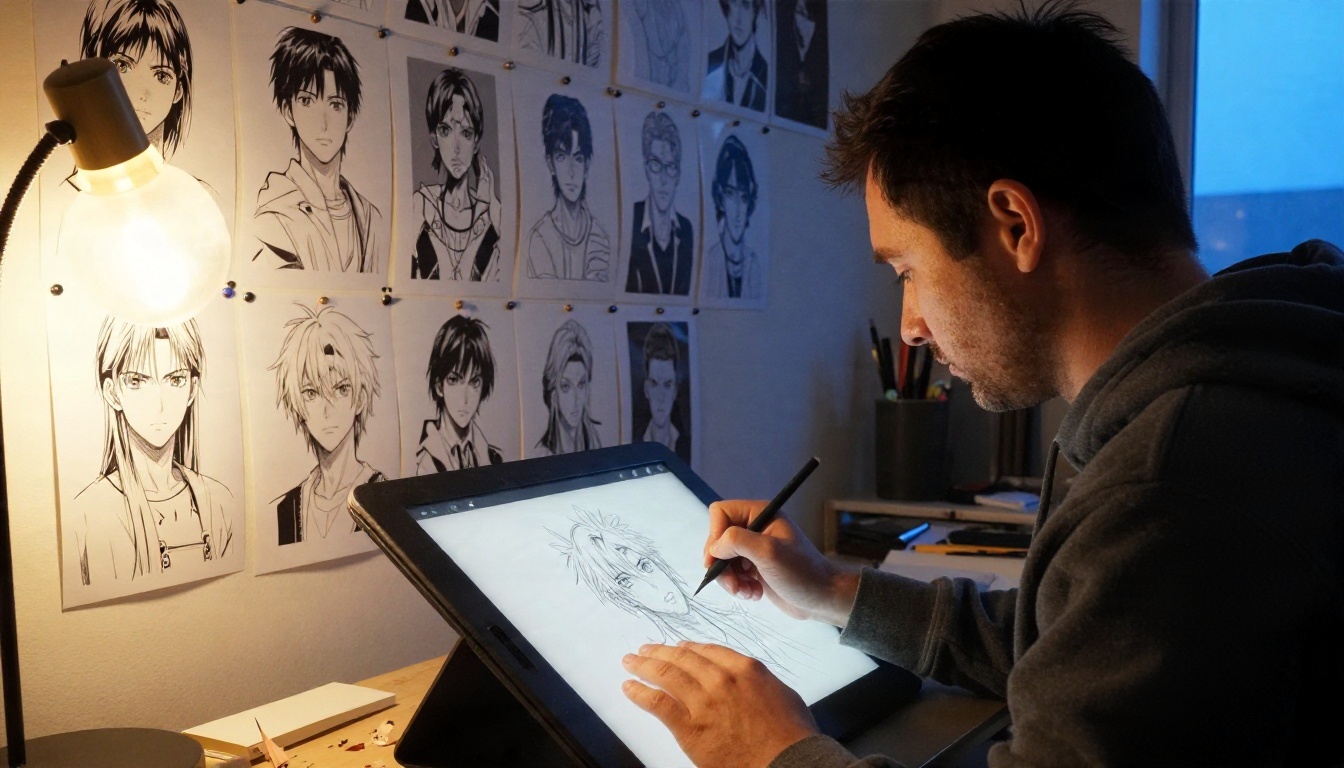
Plenty of working artists use generators as a sketch partner, not a finish line. They generate ten compositions, pick the strongest pose, then redraw or retouch by hand. If you draw, this is the most productive way to use AI: let it handle the rough thumbnails and spend your time on the parts that carry your style.
Free Limits You Will Hit
Every free generator has a ceiling. Knowing where it sits saves an evening of frustration.
Credits, Queues and Watermarks
| Limit | What it looks like | Workaround |
|---|
| Daily credits | A handful of images, then a paywall | Use an unlimited tool for drafts |
| Slow queue | Minutes per image at peak hours | Try a fast model like Z Image Turbo |
| Watermark | Logo across the corner | Pick a tool without one, or edit it out of your own render |
| Resolution cap | Soft, small output | Run the result through a super resolution model |
| Content filters | Blocked prompts or blurred output | Choose a platform with adult-friendly rules |
Resolution deserves a special note. A draft that looks fine at 1024 pixels often falls apart when printed or viewed on a large monitor. A super resolution model can sharpen it afterward, which means you can draft quickly and upscale only the keepers.
Anatomy and Consistency Errors
Even strong models slip. The usual offenders:
- Hands. Extra fingers, merged fingers, or a thumb in the wrong place.
- Jewelry and accessories. Earrings that do not match, straps that vanish into skin.
- Character drift. The same prompt gives a slightly different face each time.
- Text. Any lettering on clothing or signs tends to come out garbled.
The fix is rarely a better prompt alone. Generate several variations, pick the best, and use an inpainting editor to repair the one problem area. This is where Image Editor Pro earns its place, since unlimited edits mean you can keep fixing without paying for every retry.
Privacy, Consent and Age Rules
This section matters more than any prompt tip. Responsible use of a generator comes down to three rules.
Adults Only, Every Time
Characters must be adults, clearly and unambiguously. Do not use youthful descriptors, school settings or childlike body proportions. Platforms ban this content, and it is not something any serious tool will help with. State an adult age in every prompt and review each output before saving or sharing it.
Real People Are Off Limits
Do not generate adult imagery of a real person without their consent, and do not feed in a photo of someone to produce suggestive output. Cosplay photos you shot yourself, with your own consent and the subject's, are a different matter. A photo of a stranger or acquaintance is not.
Keep Your Data Tidy
Check how a platform stores your prompts and images, and avoid uploading personal photos you would not want kept. A browser-based tool with clear account controls is easier to manage than a random site with no policy at all.
💡 If a site has no terms, no contact information and asks for a download to "unlock" results, close the tab.
Make Your First Image in Five Steps
Here is a fast workflow using the tools above:
- Open Seedream 4.5. Start on the Seedream 4.5 page and paste one of the example prompts from earlier.
- Set the ratio. Choose 16:9 for scenery and wide scenes, or a vertical ratio for single-character portraits.
- Generate three variations. Compare composition and light before you commit to refining one.
- Refine in Image Editor Pro. Open the best result in PicassoIA Image Editor Pro and fix hands, change an outfit or swap the background. Generations are unlimited, so try freely.
- Upscale and save. Run the winner through a super resolution model if you need a larger file.
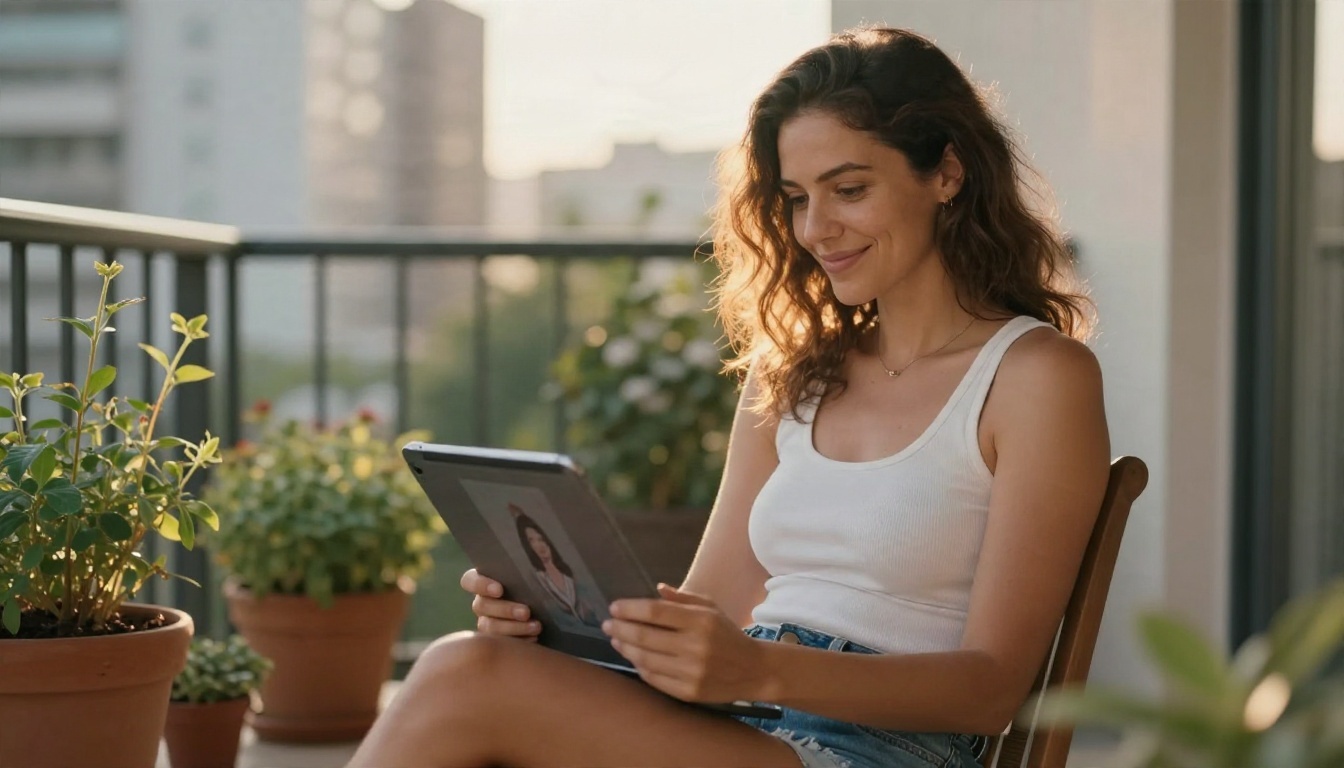
Start Creating Your Own Images
You do not need a powerful GPU, a pile of checkpoints or a long setup. You need a clear prompt, a model that listens, and an editor that lets you keep iterating. Open Seedream 4.5, copy one of the prompts above, change the hair color and setting to something that is yours, and see what comes back. Then move the best result into Image Editor Pro and refine it until it matches what you pictured.
PicassoIA gives you the models, the editor and the unlimited generations in one place, so you can spend your time on ideas instead of credit counters. Browse every option at picassoia.com/en/all-models, pick a model, and make your first image today.


