Most people searching for a free NSFW video maker hit the same wall within ten minutes: the "free" tool puts a watermark on every clip, the "unlimited" plan runs out after three renders, and the moment a prompt mentions a bikini or a silk robe, the app refuses it. The good news is that a clean, repeatable setup exists, and it costs nothing to try. This article walks through the tools that work, the prompts that produce smooth motion, and the limits you will hit so nothing surprises you. Everything here stays on the suggestive and glamour side: swimwear, boudoir styling, evening wear, slow cinematic movement. Nothing explicit, nothing pornographic.
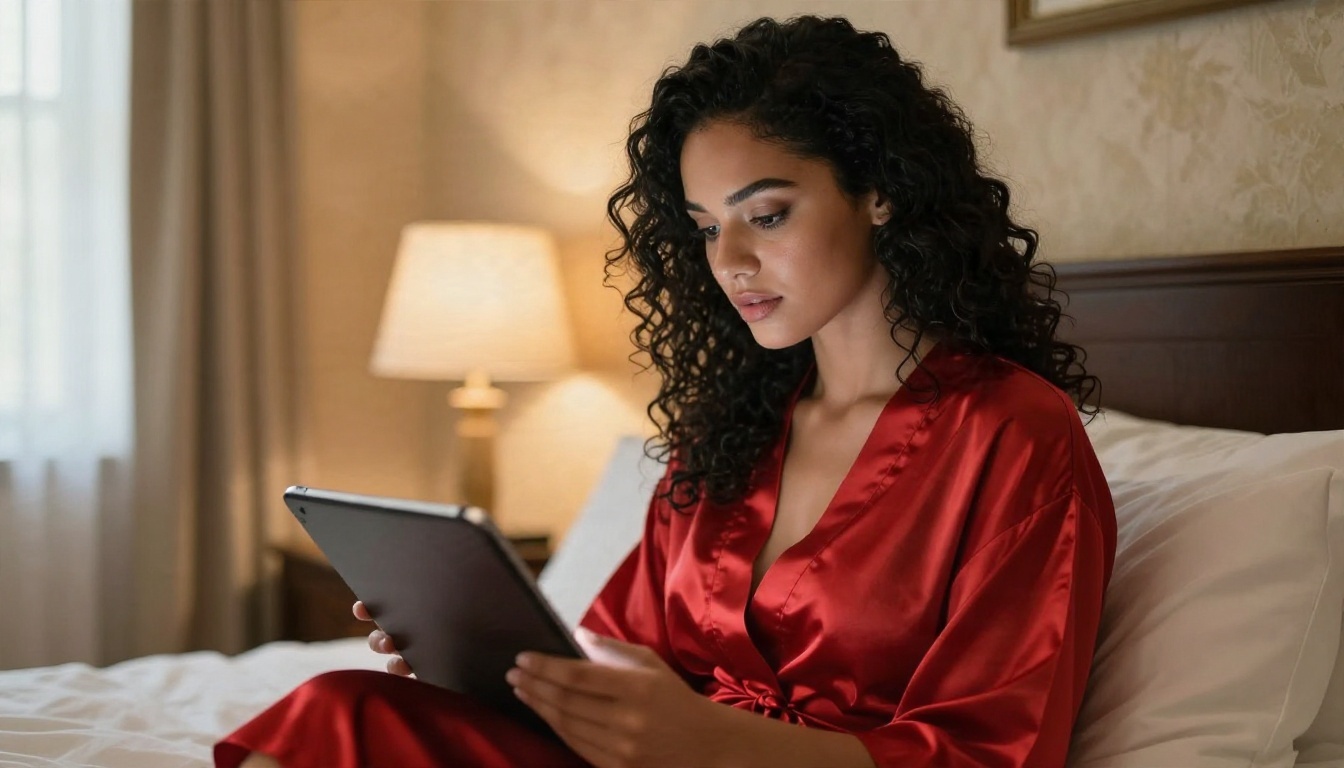
What a Free NSFW Video Maker Does
A free NSFW video maker is an AI tool that turns a text description or a still photo into a short moving clip with an adult-leaning, glamour aesthetic. Think a model in a swimsuit turning her head as the sun moves, a satin robe shifting in a breeze, or a slow push-in on a candlelit portrait. The clips are short, usually 5 to 10 seconds, and the quality depends far more on your starting image and prompt than on the price.
Image to Video vs Text to Video
There are two ways in, and they behave very differently.
- Text to video: you type a scene and the model invents everything. Fast, but faces and outfits change from one run to the next.
- Image to video: you upload a still and the model animates it. The face, outfit and setting stay locked to your picture, so results look far more controlled.
For glamour content, image to video wins almost every time. You get to approve the exact look first, then add motion. That is the workflow used throughout this article.
Why Suggestive Beats Explicit
Explicit generation is a dead end for practical reasons. Video models trained to stay mainstream produce bad anatomy and broken motion the moment a scene gets complicated, and most platforms block it anyway. Suggestive work is where the technology is strongest: fabric, hair, water, skin light and camera movement all render convincingly. A well-lit swimwear clip looks better, loads faster and can be posted in far more places than anything explicit.
💡 Rule of thumb: if the still image looks like a magazine shoot, the animated version will too. If the still looks off, the video will only make the flaws move.
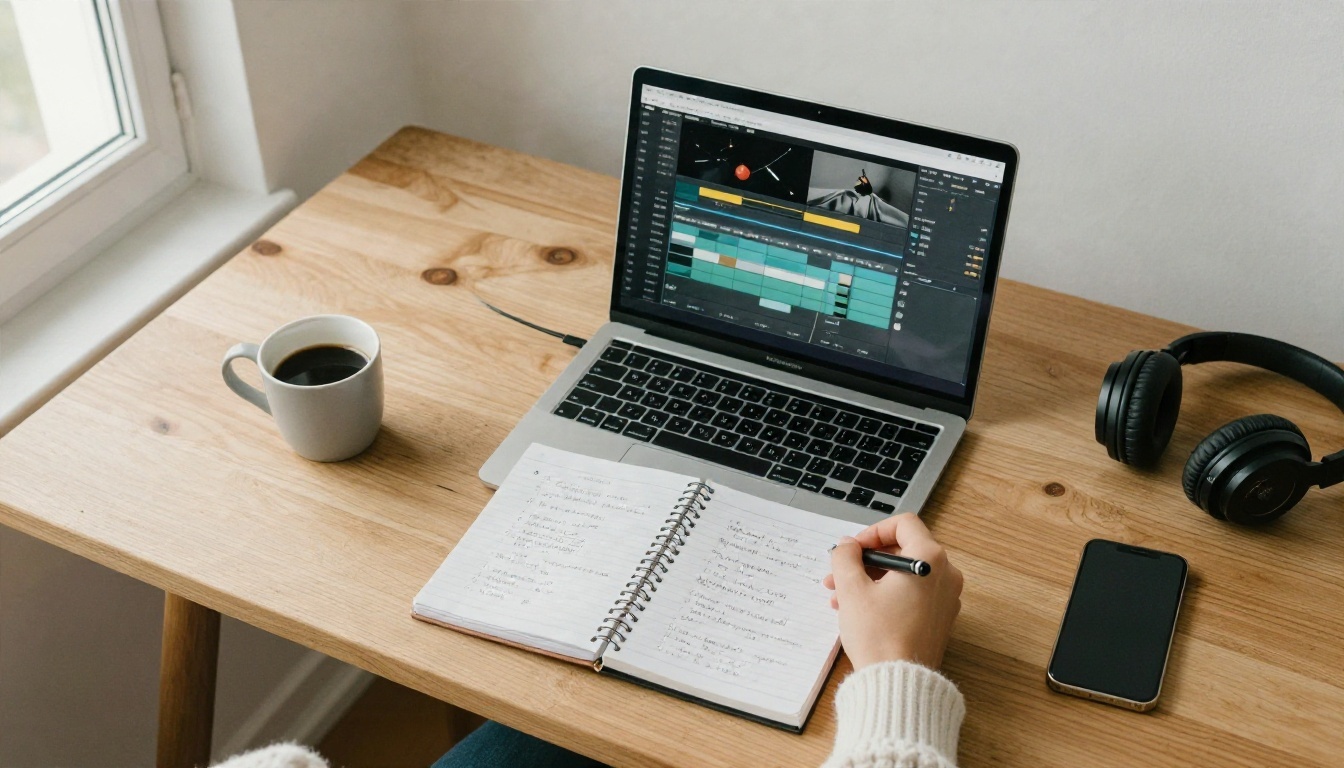
The tools below are all available on PicassoIA, and they are listed in the order that makes sense for a glamour workflow: still first, edit second, animate third.
Start With a Strong Still
Your first frame decides everything. Seedream 4.5 is the best starting point for this kind of work. It renders skin texture, fabric weave, wet hair and natural window light with a photographic look, and it handles swimwear, lingerie-style loungewear and evening dresses without the awkward hands and plastic skin that older generators produce. Write the prompt like a photographer: subject, outfit, setting, light direction, lens.
Once you have a still you like, fix the small stuff in PicassoIA Image Editor Pro. It offers unlimited generations, which matters because you will almost always need two or three edits: smoothing a strap that got twisted, changing the robe color, swapping a background, or softening a harsh highlight. Because it is unlimited, you can iterate without watching a credit counter.
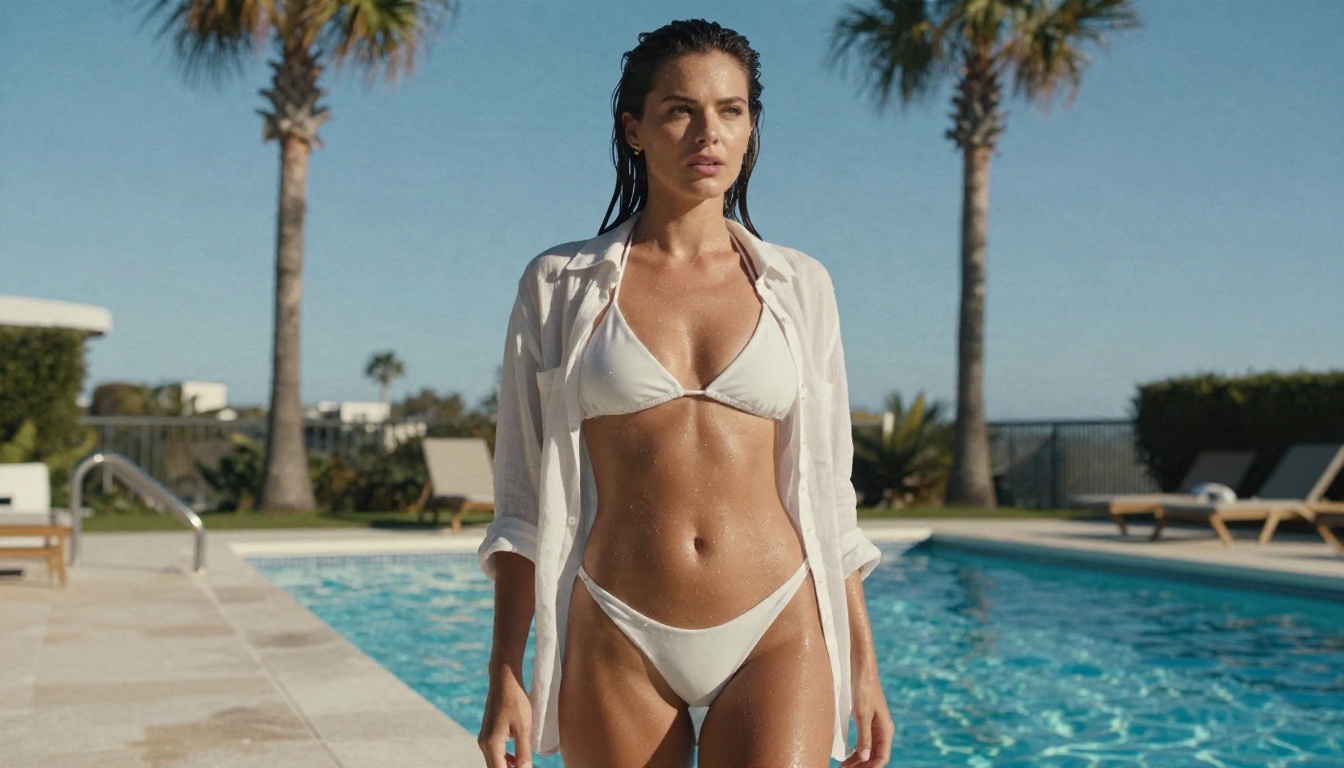
Free Video Models Worth Using
For the animation step, these are the strongest options when cost is the priority:
- PicassoIA Video is a free, unlimited generator that accepts text or an image. It is the easiest place to begin if you just want to see your still move.
- Seedance 2.5 Lite is free and unlimited and can run clips up to 10 seconds, which gives you more room for a slow camera move than the usual 5 second limit.
- Wan 2.5 I2V Fast is a fast image-to-video model that keeps the subject close to the source photo.
- Hailuo 2.3 Fast animates photos quickly and handles fabric and hair movement well.
Paid Models for Extra Polish
When a clip matters, such as a pinned post, a promo reel or a client sample, a stronger model is worth the credits. Kling v2.5 Turbo Pro is good at smooth, cinematic camera movement. Veo 3.1 Fast adds native audio, so ambient sound like waves or room tone arrives with the clip. Wan 2.7 I2V is another solid image animator when you want sharper detail.
| Tool | Best for | Cost | Typical clip |
|---|
| Seedream 4.5 | The first still | Credits | Image |
| Image Editor Pro | Fixing and restyling stills | Unlimited | Image |
| PicassoIA Video | Quick free animation | Free, unlimited | Short clip |
| Seedance 2.5 Lite | Longer free clips | Free, unlimited | Up to 10 sec |
| Wan 2.5 I2V Fast | Faithful image animation | Credits | Short clip |
| Kling v2.5 Turbo Pro | Cinematic camera moves | Credits | Short clip |
| Veo 3.1 Fast | Clips with sound | Credits | Short clip |
A Workflow That Actually Works
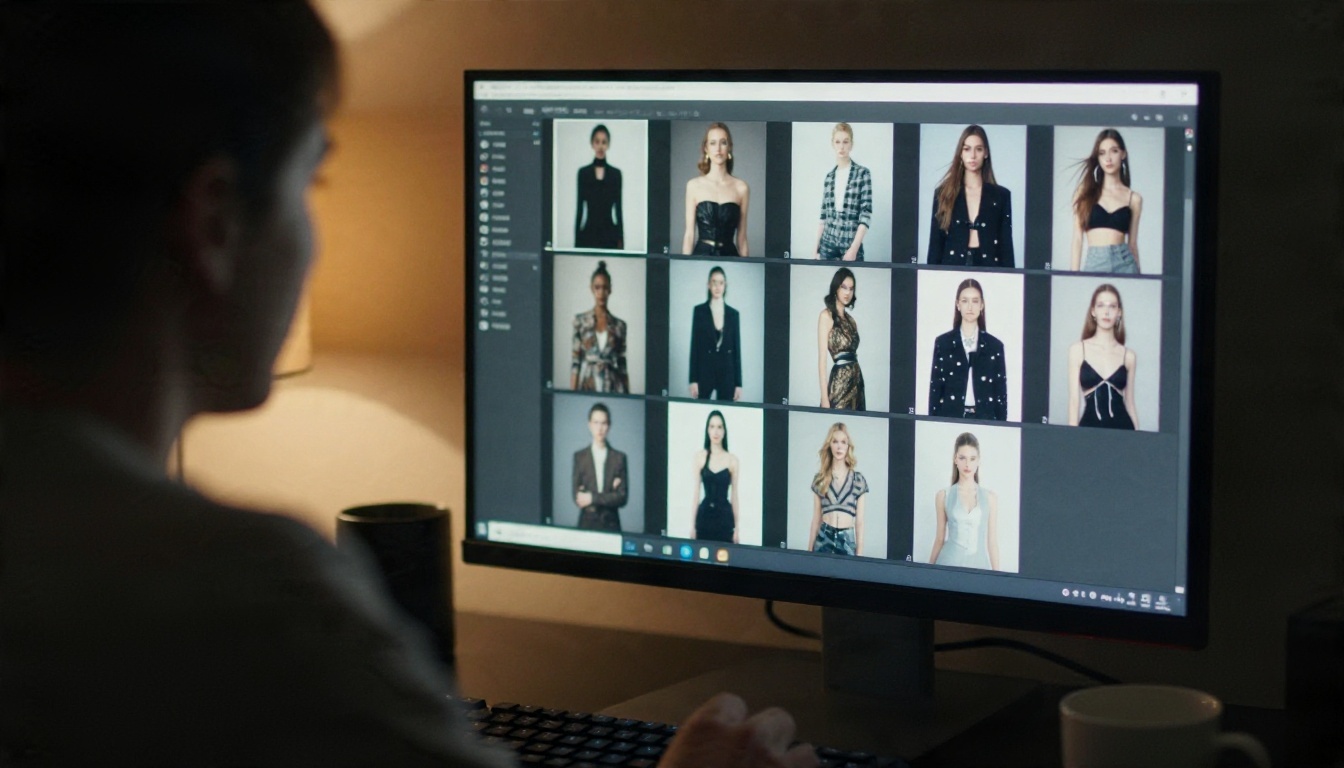
Here is the four-step loop that keeps results consistent and wastes the fewest renders.
Step One: Build the Still
Open Seedream 4.5 and write a photographic prompt. Include the subject, outfit, setting, light and lens. A strong example: "A woman with long chestnut hair on a white linen daybed at a villa terrace, black two-piece swimsuit and a sheer ivory wrap, golden hour light from the left, 85mm f/1.8, Kodak Portra 400 film grain, natural skin texture." Generate three or four options and pick the one with the cleanest hands, face and fabric.
Step Two: Clean It Up
Take the best still into PicassoIA Image Editor Pro and fix anything that could break when it starts moving. Straps, jewelry, hair edges and background clutter are the usual troublemakers. A twisted necklace in a still becomes a flickering mess in video. Since edits are unlimited, spend the time here, because it is the cheapest place to fix a problem.
Step Three: Animate With Restraint
Upload the cleaned still to PicassoIA Video or Seedance 2.5 Lite and describe only the motion. One subject movement and one camera movement is plenty. Asking for a dance, a costume change and a camera orbit in 5 seconds is how clips fall apart.
💡 Batch tip: run the same still through two different video models. One almost always handles the hair or the fabric better, and the comparison takes under a minute.
Prompts You Can Copy
Video prompts work best when they read like a shot list: what moves, how the camera moves, what the light does.
Motion Prompts That Hold Up
Copy and adjust these:
- "She slowly turns her head toward the camera and smiles, a light breeze moves her hair, the sheer wrap drifts gently, slow push-in, warm golden hour light."
- "The satin robe slips slightly as she stands up from the bed and walks toward the window, slow handheld follow, soft morning light."
- "Water drips from her hair as she steps out of the pool, slow tilt up from the water to her face, bright midday sun, ripples catching light."
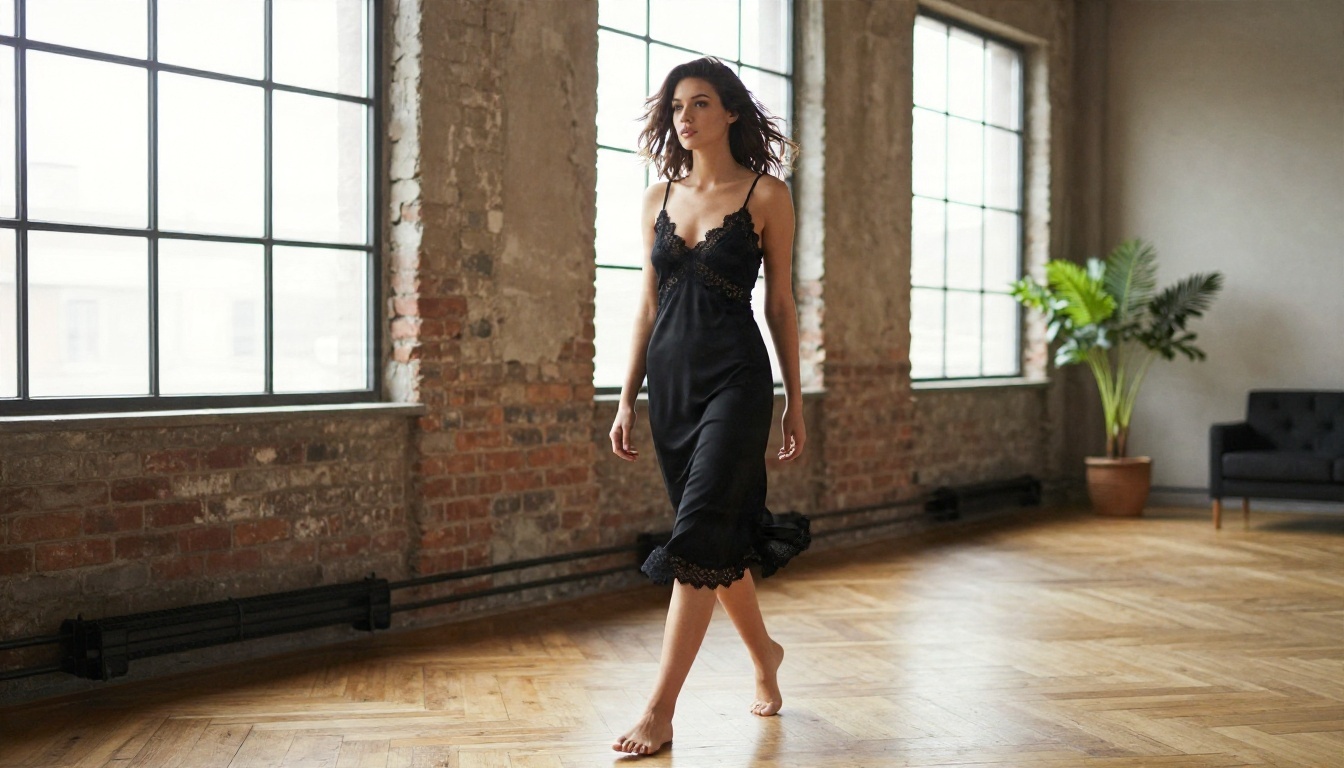
- "She walks through the loft toward the camera, the slip dress swaying with each step, shallow depth of field, backlight from the windows."
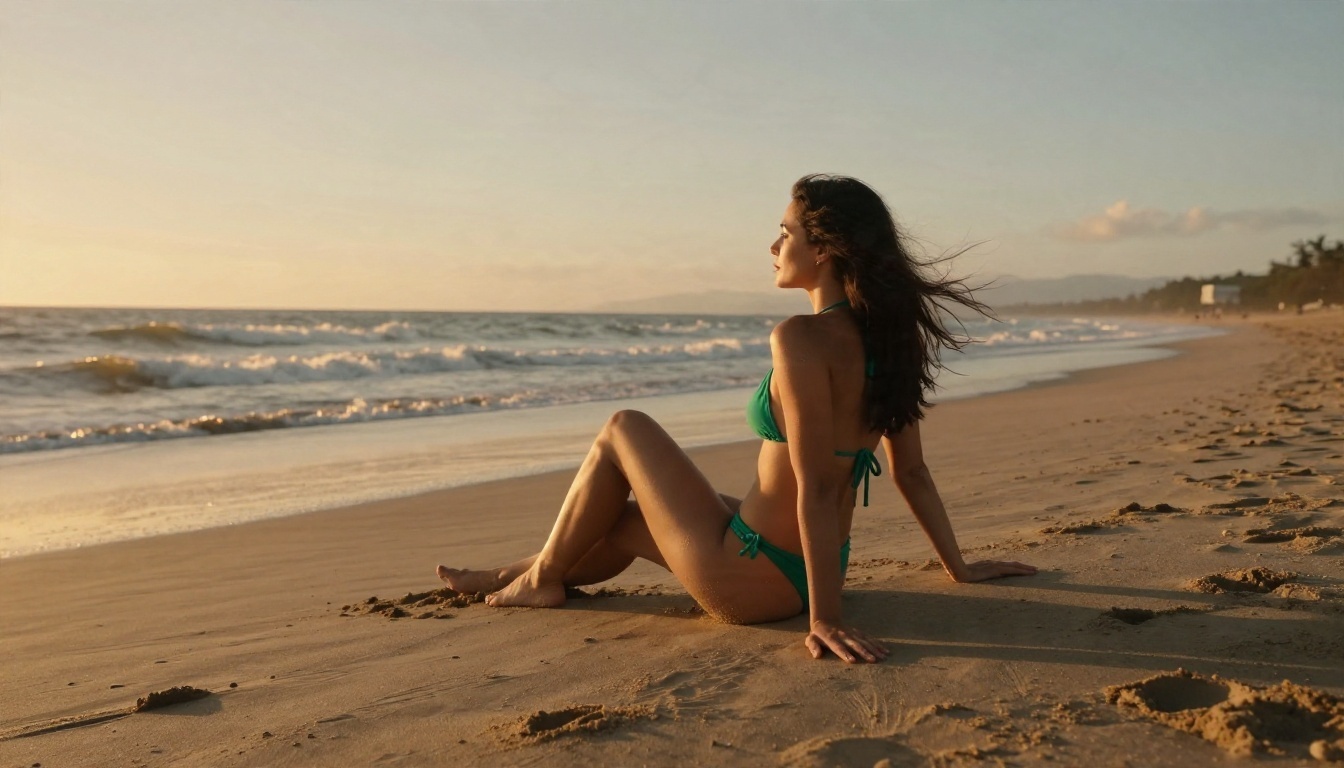
- "She looks out at the ocean as waves roll in, wind moves her hair and sarong, slow pan right, sunset glow."
Lighting and Camera Phrases
Small phrases change the feel of a clip a lot. Mix and match:
| Goal | Phrase to add |
|---|
| Soft and romantic | "warm golden hour backlight, gentle lens haze" |
| Moody and intimate | "single bedside lamp, deep soft shadows" |
| Fresh and sporty | "bright midday sun, crisp reflections, wet skin highlights" |
| Smooth and cinematic | "slow dolly-in, shallow depth of field" |
| Fashion editorial | "locked-off camera, subject walks toward lens" |
Keep a short list of things to leave out of the prompt, too: fast spins, crowds, text on screen, and anything involving both hands interacting with small objects. Those are the situations where free models stumble.
Free is genuinely useful here, but it has edges. Knowing them in advance saves a lot of wasted time.
Length, Resolution and Queues
Most clips run 5 to 10 seconds. Longer videos are made by stitching several clips together, ideally ending one on a pose that the next one starts from. Free tiers commonly produce lower resolution output than paid ones, and busy periods mean queues. Unlimited plans remove the counting but not the waiting, so batch your requests and do something else while they render.
| Limit | What to expect | Workaround |
|---|
| Clip length | 5 to 10 seconds | Stitch clips that match poses |
| Resolution | Often below 1080p on free tiers | Use a paid model for hero clips |
| Queue time | Longer at peak hours | Submit several jobs at once |
| Audio | Many free models are silent | Add sound in an editor, or use a model with native audio |
| Consistency | Faces drift between separate clips | Always animate from the same still |
Consistency and Motion Glitches
The biggest quality problem is drift. Generate two clips from text and you get two slightly different women. Always start from the same still image, and keep motion small. Large movements make hands, fingers and jewelry warp. If a render comes out with a glitch, change one thing in the prompt and run it again instead of rewriting everything.
Rules Worth Following
AI glamour content is legal and widely made, but a few lines are firm. They protect you as much as anyone else.
Consent and Real People
Only generate original characters, or likenesses you have written permission to use. Never animate photos of a real person who has not agreed to it, and never create intimate imagery that imitates a real person. That is harmful, often illegal, and the fastest way to get an account banned. Fictional characters made from scratch with a still-image prompt avoid the whole problem.
Adults Only and Platform Policies
Every character must be clearly an adult, with adult proportions, styling and setting. No exceptions. Beyond that, each place you post has its own policy. Many social platforms restrict swimwear or suggestive content in ads, thumbnails or the first frame of a clip, so check the rules before you upload. Label content as AI-generated where a platform asks for it.
Mistakes That Waste Your Renders
- Starting from text only. You lose control of the face and outfit. Use a still.
- Overloading the prompt. One action and one camera move per 5 seconds.
- Skipping the edit step. Small flaws in the image become big flaws in motion.
- Ignoring light. Flat lighting makes AI skin look waxy. Name a light direction.
- Expecting a long clip in one go. Plan for stitched short shots.
- Using one model only. Try two and keep the better result.
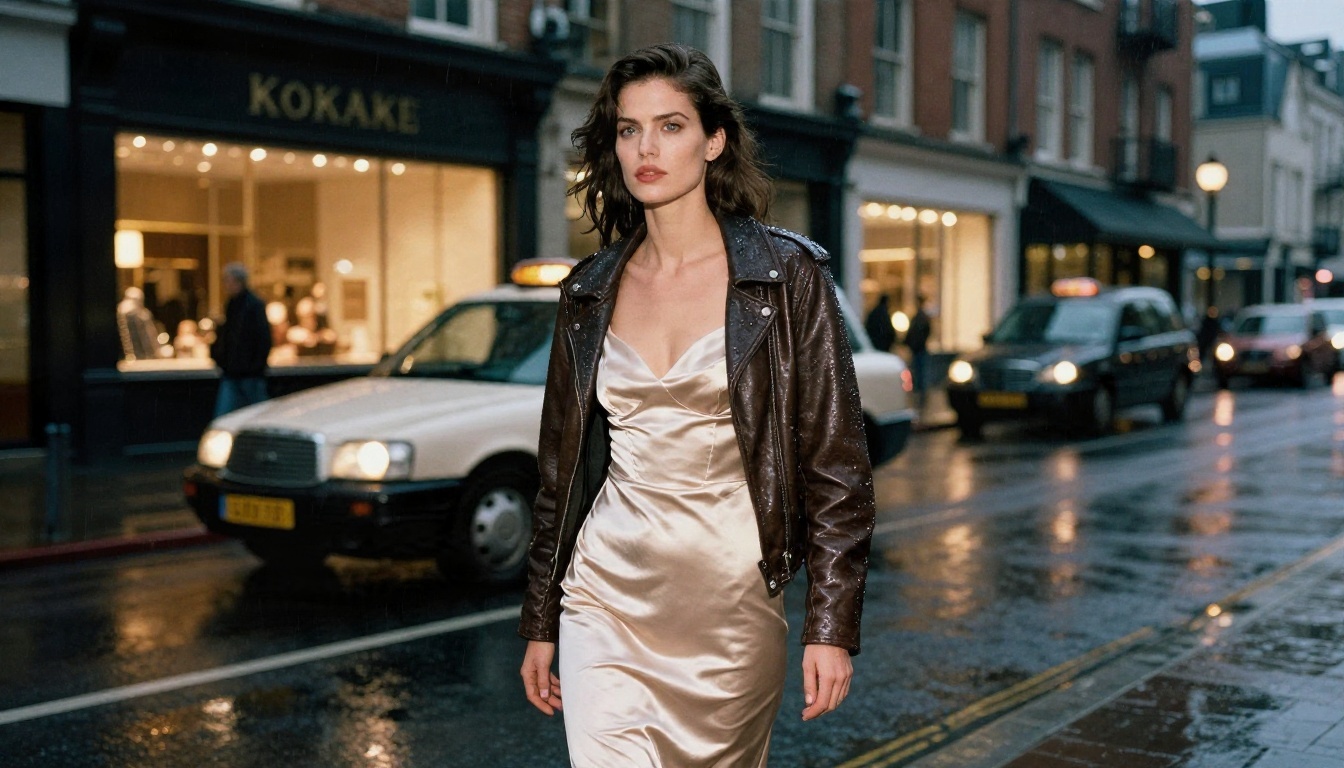
Make Your First Clip Today
You can go from nothing to a finished glamour clip in about ten minutes. Generate a still with Seedream 4.5, polish it in PicassoIA Image Editor Pro where generations are unlimited, then animate it with PicassoIA Video or Seedance 2.5 Lite. Copy one of the prompts above, change the outfit and setting, and run it. Then try the same still in a second video model and compare.
When you want to compare more tools, browse the full catalog at picassoia.com/en/all-models and test a few. The best way to find your own style is simple: make five clips, keep the best one, and adjust the prompt from there.


