You made a gorgeous still. Soft light, a believable face, fabric that looks like fabric. Then you ran it through a random "free" animator and got a three second clip with a melting jawline and a watermark the size of a billboard. That is the usual story with free NSFW AI art to video, and it is fixable once you know three things: which apps actually let suggestive images through, how long a clip can really run, and how to write a motion prompt that does not fight the picture.
This article covers all three. It stays on the suggestive side of adult content (swimwear, lingerie, boudoir, glamour), because that is the territory where the best tools are consistent, and where you get clean, shareable results instead of filtered errors.
💡 Quick answer: Most free image to video tools cap a single clip somewhere between 4 and 10 seconds, with 5 seconds being the most common ceiling. If you need more, you chain clips instead of asking for one long render.
What "AI Art to Video" Really Means
Image to video takes one still frame and asks a model to predict what happens next. The still becomes frame one, and the model invents the motion: hair drifting, fabric settling, a camera easing forward. Nothing is filmed. Everything after frame one is a prediction.
That has two consequences worth keeping in your head:
- The still decides 80 percent of the result. Sharp eyes, clean hands and a clear light source give the model something solid to hold onto. A muddy source gives you a muddy clip.
- Short clips look better than long ones. The longer a model has to predict, the more the face and body drift away from the original frame.
Text to video versus image to video
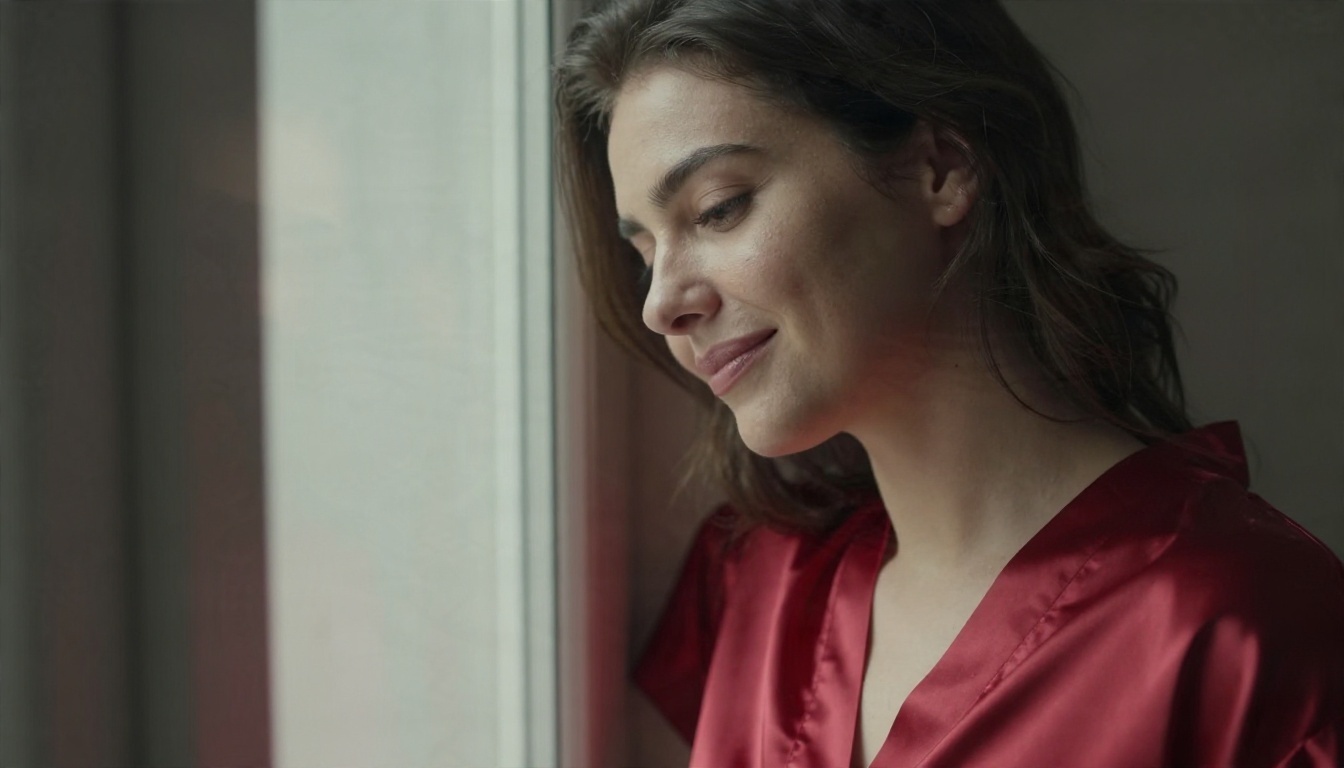
Text to video invents everything, including the person. Image to video keeps the person you already designed. For adult-leaning glamour work, image to video is the sensible choice because you pick the face, the outfit and the lighting first, then add motion.
Why art stills animate better than photos
Generated stills tend to have clean separation between subject and background, even lighting and no motion blur. Those are exactly the conditions a video model likes. A hand-held phone photo with grain and blur often animates worse than a well-built AI image.
Which Free Apps Actually Work
Here is the honest situation in late 2026. A lot of sites advertise "free NSFW image to video" and most of them fall into one of three buckets: a short trial with credits that vanish after a handful of clips, a watermarked output that is useless for posting, or an upload form that asks for your photos with no clear policy on what happens to them. Treat any no-signup adult site with suspicion, since some are known to harvest uploads.
What you want is a platform that is unlimited, clear about what it allows, and fast.
Start with the image, then the video
For the still, lead with Seedream 4.5. It produces sharp, photographic skin and fabric, which is the single biggest factor in whether the animation holds together afterward. Next, PicassoIA Image Editor Pro is where you fix problems before animating: change an outfit, adjust the pose, clean a stray finger. It offers unlimited generations, so you can iterate on a frame ten times without watching a credit counter.
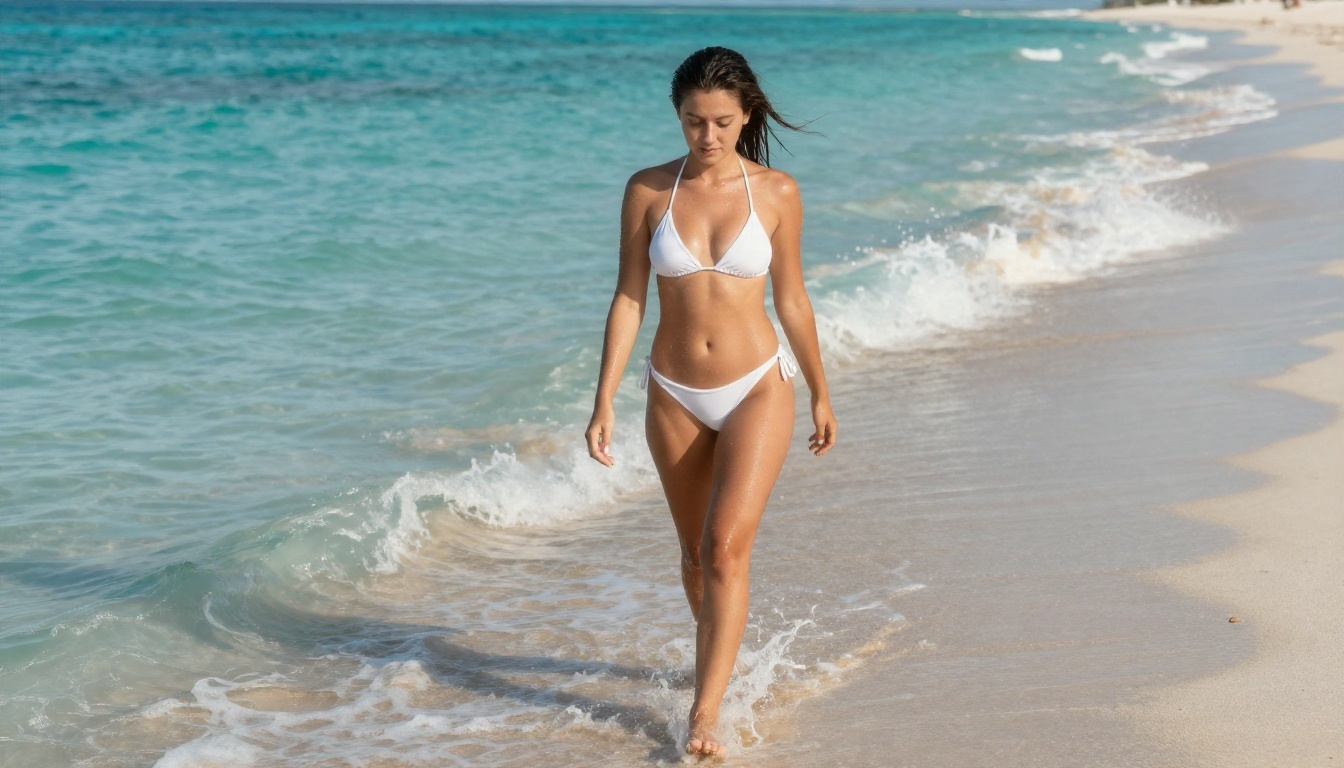
💡 Tip: Spend your effort on the still. A great frame animated by an average model beats a weak frame animated by the best model.
Free video models worth trying
These are the animation options on PicassoIA that matter for this workflow, with what each is best at:
| Model | Best for | Notes |
|---|
| PicassoIA Video | Free, unlimited text or image to video | The easiest place to start when you want zero credit anxiety |
| Seedance 2.5 Lite | Free, unlimited clips up to 10 seconds | The longest single free clip in this list |
| Seedance 2.5 | Long form, up to 30 seconds | Use when a 10 second ceiling is too short |
| Wan 2.7 I2V | Faithful animation of a still | Strong at keeping the face on model |
| Wan 2.5 I2V | Reliable, balanced motion | A steady all-rounder |
| Kling v2.5 Turbo Pro | Smooth, cinematic camera moves | Great for slow push-ins |
| Hailuo 02 | Natural body and fabric motion | Good with hair and loose clothing |
| P Video Animate | Quick photo animation | Fast turnaround for tests |
If you want a wider menu, every model lives on picassoia.com/en/all-models.
What to check before you pick any app
- Does it offer unlimited generations, or a fixed credit pack? Credits drain fast when you are iterating.
- Is there a watermark? Free tiers often add one.
- What happens to your uploads? If a site does not say, assume the worst.
- Is the clip length stated up front? If not, it is probably 4 seconds.
Length Limits: What to Expect
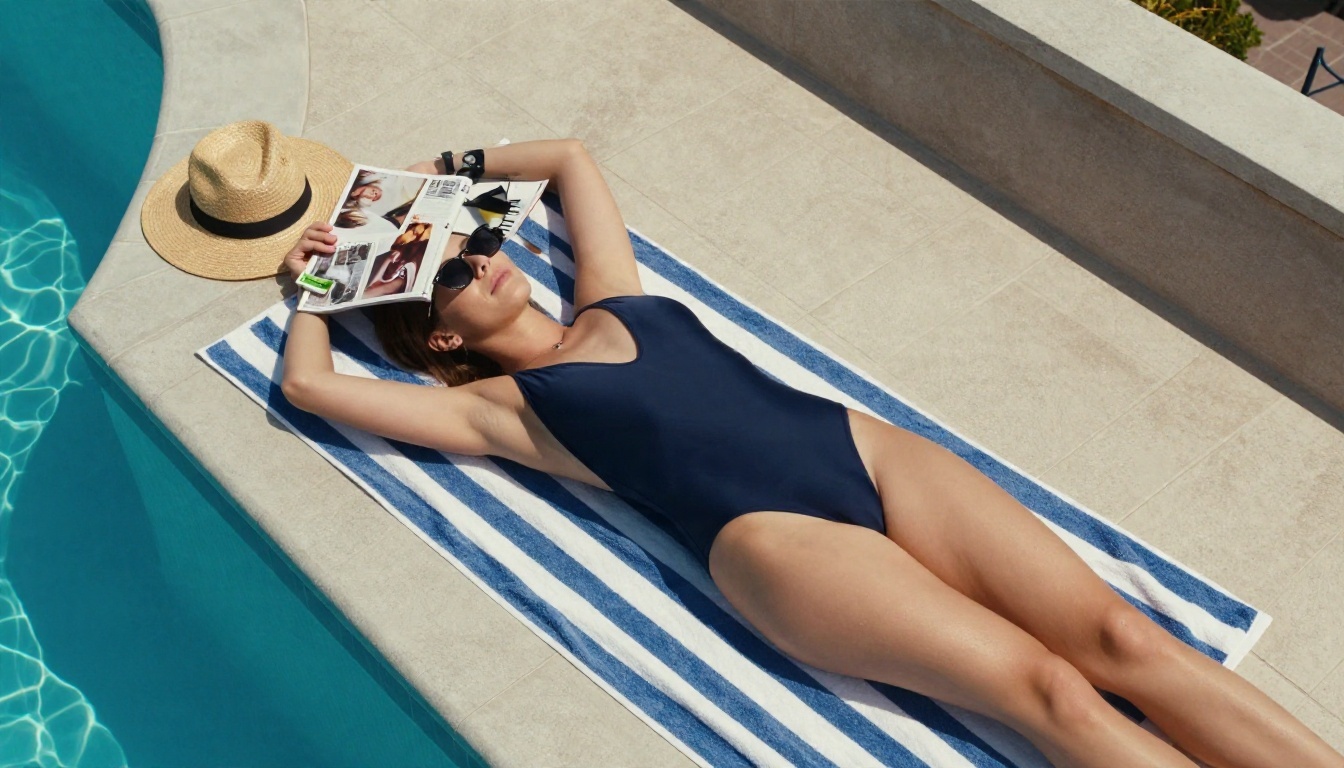
This is where most people get frustrated, so here is the plain version. Across the market, free tiers usually cap a single clip between roughly 4 and 10 seconds, and 5 seconds is the figure you will see most often. Paid tiers and a few specialist models stretch further. Platform limits change often, so treat any number you read, including these, as a snapshot.
Why clips stay short
Video models predict every frame from the one before. Errors compound. By second eight or ten, a small wobble in the jaw becomes a different face. Providers cap length because beyond that point quality falls apart and compute costs climb.
Typical limits at a glance
| Tier | Typical clip length | Common catch |
|---|
| Trial or credit app | 3 to 5 seconds | Credits run out, watermark added |
| Free unlimited model | 5 to 10 seconds | Resolution may be capped at 720p |
| Premium long-form model | Up to 30 seconds | Costs more per render |
How to build a longer video
You do not need a single long render. The reliable method is chaining:
- Generate clip one from your still.
- Grab the last frame of that clip.
- Use that frame as the source for clip two.
- Repeat, then trim and join the clips in any editor.
Each clip starts from a fresh, sharp frame, so identity drift never gets a chance to build. Three 5 second clips chained together look far better than one 15 second render.
💡 Tip: Change the camera move between clips. A push-in, then a slow pan, then a gentle tilt reads like intentional editing rather than a loop.
Build the Still First
A good source frame is a checklist, not a mood. Before you animate anything, confirm these.
Pick a pose that can move
Standing, seated or leaning poses with space around the body animate cleanly. Tight crops with hands near the face, crossed limbs or fingers gripping objects are where models stumble. If you can see both eyes, a relaxed hand and a clear edge between hair and background, you are in good shape.
Light the scene like a photographer
Directional light helps the model understand shape. Window light from one side, golden hour from behind, or a single warm lamp all give the model clear shadows to maintain. Flat, shadowless light tends to produce floaty, plasticky motion.
Keep it suggestive and tasteful
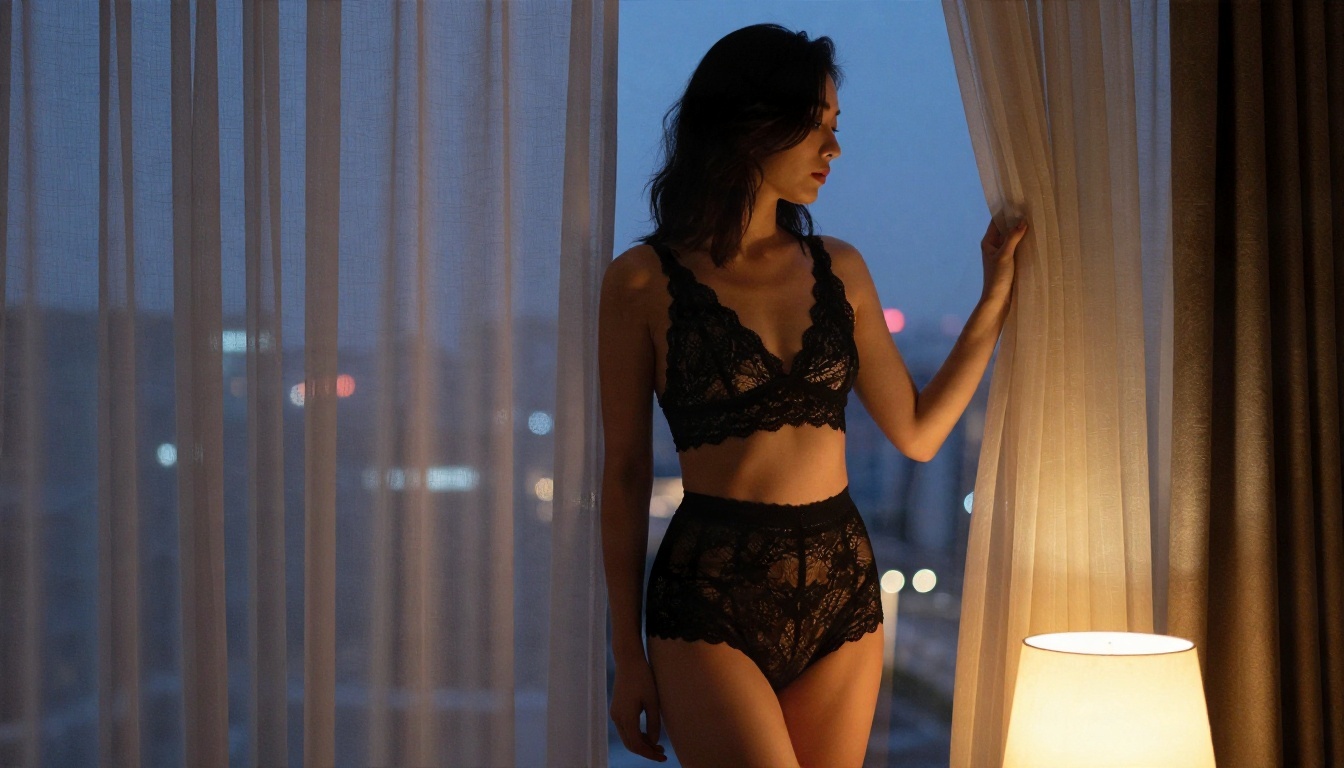
Stay in swimwear, lingerie and glamour territory. It gives better, more consistent output, keeps you clear of platform blocks, and produces results you can actually publish on social channels without removal. Beautiful lighting and confident posing do more than explicitness ever could.
Fix flaws before animating
Animation magnifies flaws. A slightly odd finger on a still becomes a writhing finger in motion. Open the frame in PicassoIA Image Editor Pro, repair the problem, then animate. It takes a minute and saves you a dozen failed renders.
Prompts That Keep Motion Natural
A motion prompt is not a scene description. The image already shows the scene. Your prompt should only say what moves, how the camera behaves, and what the light does.
The simple formula
Subject motion + camera move + light and atmosphere.
Write it in order of time, like a director calling a take. Keep it to two or three sentences. Long prompts invite chaos.
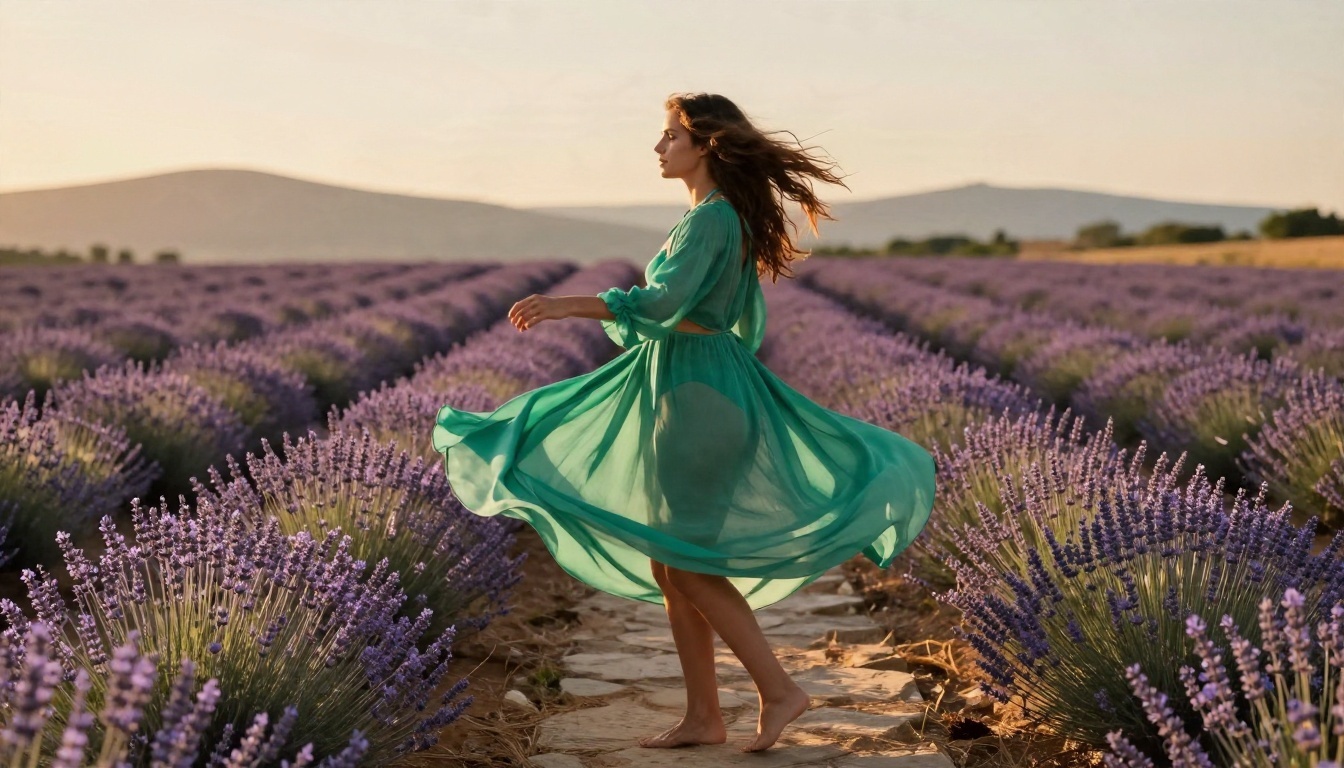
Copy-ready prompts
Villa terrace glamour
She slowly tucks a strand of hair behind her ear and turns her gaze toward the camera with a faint smile. Camera eases forward in a slow dolly-in. Golden sunlight shimmers on the pool behind her, olive leaves sway in a light breeze.
Beach at sunrise
She walks forward through shallow surf, water swirling around her ankles, wet hair moving in the wind. Camera tracks backward at a low angle, keeping her centered. Warm sunrise backlight glints on the waves.
Window boudoir
She draws the curtain slightly aside and looks out at the city, shoulders relaxing. Camera drifts a few inches to the right with a gentle parallax. City lights flicker softly in the bokeh behind her.
Rooftop pool
She stretches one arm overhead and shifts onto her side, the towel rustling. Camera slowly rises from overhead. Sunlit ripples move across the tiles.
Silk portrait
Her eyes open slowly and she exhales, the silk scarf lifting slightly at the edge. Camera holds nearly still with a subtle push-in. Soft window light brightens by a small amount.
Words that help and words that hurt
| Helps | Hurts |
|---|
| slow, gentle, subtle, drifting | fast, violent, explosive, chaotic |
| dolly-in, slow pan, parallax | spinning, shaking, whip pan |
| breeze, ripple, shimmer | storm, flames, glowing energy |
| one action per clip | five actions in one sentence |
💡 Tip: Ask for less motion than you want. Models tend to exaggerate, and a "subtle" prompt usually lands on "natural."
A Workflow That Takes Ten Minutes
Here is a repeatable pipeline you can run today, with no credit anxiety.
Step by step
- Generate the still with Seedream 4.5. Describe the pose, outfit, lighting direction and lens. Use a 16:9 ratio for video-friendly framing.
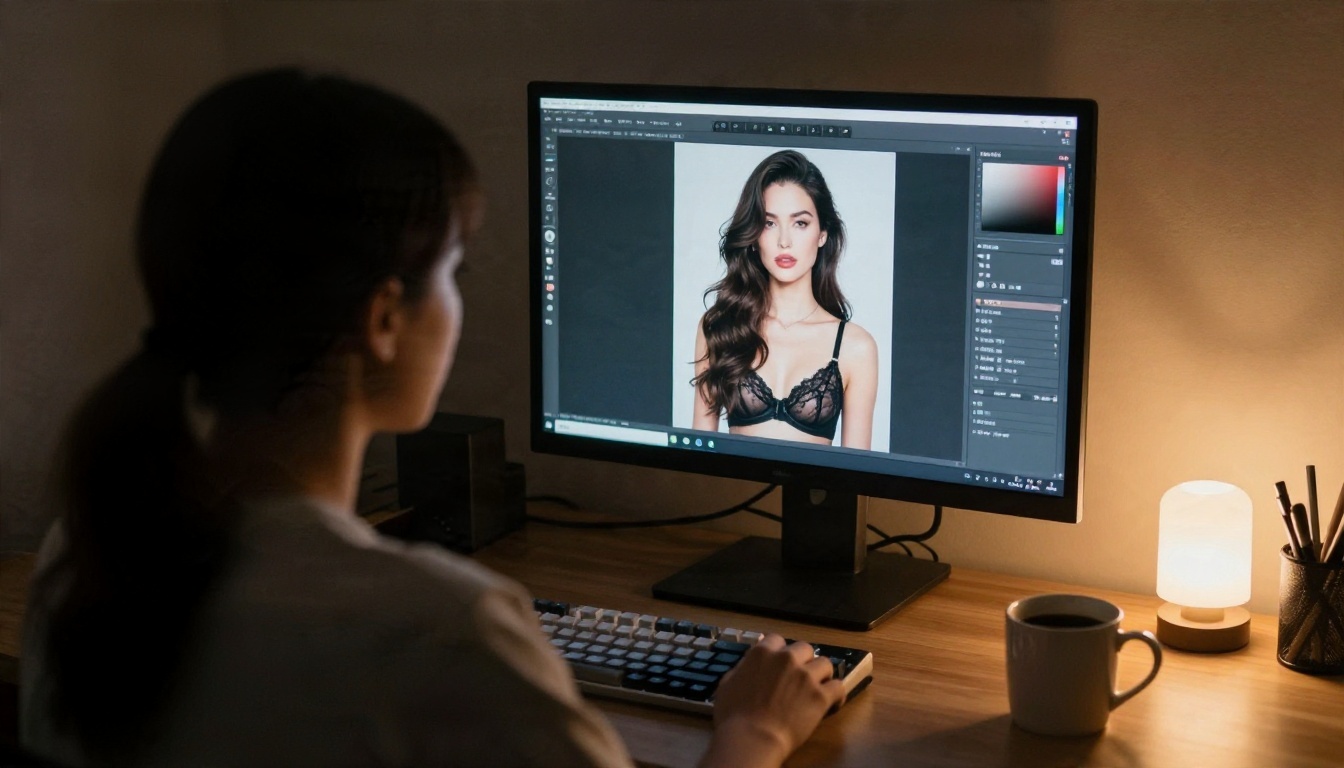
- Refine it in PicassoIA Image Editor Pro. Fix hands, adjust wardrobe, clean the background.
- Pick the video model. Start with PicassoIA Video or Seedance 2.5 Lite for free, unlimited tests.
- Upload the still as the first frame and paste a short motion prompt from the section above.
- Render two or three versions. Keep the best. Unlimited generation makes this cheap.
- Chain clips by using the last frame of the winning clip as the next source.
- Finish in an editor. Trim, add music, export.
Which model for which job
Plan clips before you shoot them
Sketch a rough storyboard. Three shots of five seconds each gives you a 15 second piece with a beginning, middle and end. Write one motion prompt per shot before you render anything. It prevents the "just one more try" loop that eats an afternoon.
Common Mistakes to Avoid
Almost every bad result traces back to one of these.
Asking for too much motion
"She dances, turns, laughs, walks and the camera spins" is a recipe for a melted face. One action per clip. Always.
Using a weak source image
A blurry, low-contrast or oddly cropped still will not rescue itself in motion. Redo the still.
Ignoring the watermark and policy fine print
If a free tool adds a watermark or does not state what it does with your uploads, move on. There are unlimited options that do not ask you to trade quality or privacy for a free label.
Rendering one version and settling
Each render is a dice roll. Generate several, then pick. This is exactly why unlimited generation matters more than a flashy feature list.
Chasing a single long clip
Past the 10 second mark, quality drops on almost every model. Chain shorter clips unless you specifically need a long-form model like Seedance 2.5.
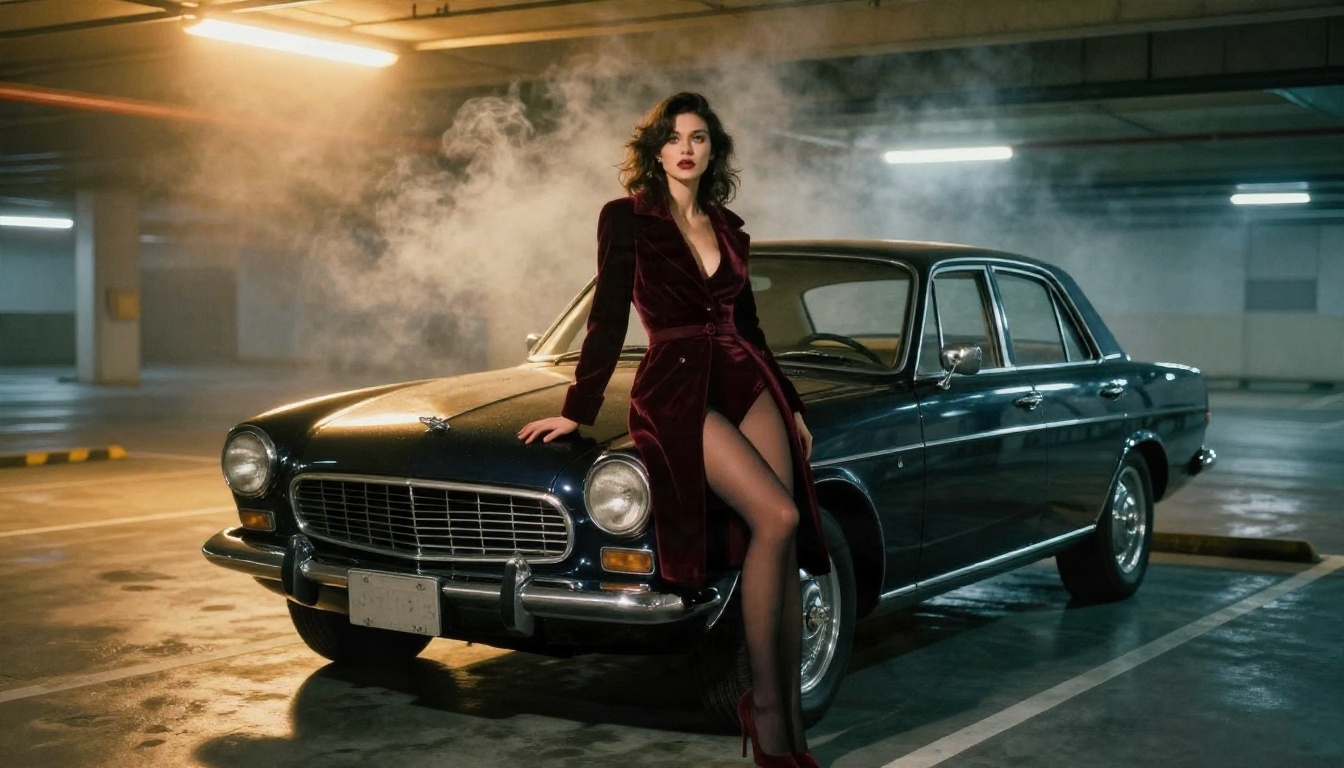
Make Your First Clip Today
You now have the full picture: pick an unlimited platform, build a sharp still, keep motion subtle, stay inside the 5 to 10 second range, and chain clips when you want length. None of it needs a paid plan to get started testing.
Open PicassoIA, generate a still with Seedream 4.5, polish it in PicassoIA Image Editor Pro, and animate it with PicassoIA Video. Run three versions, keep the best, and post it. When you want to try other engines, browse the full catalog at picassoia.com/en/all-models and see which one gives your style the smoothest motion.


