Type "free NSFW content" into a search bar and you get a wall of pop-ups, fake "unlimited" trials and sites that want your card number before they show you a single picture. There is a better route. Today you can generate your own glamour, swimwear and boudoir style photos with AI, for free or close to it, and the results look like they came off a real photoshoot. This article shows where to find that kind of content, which models actually deliver, the prompts worth copying, and the limits nobody mentions up front.
One note before we start: everything here is about non-explicit, suggestive, adult imagery. Think bikinis, lingerie style fashion, satin robes, evening gowns and moody boudoir portraits. Pornographic content is a different thing and it is not what this article is about.
What Free NSFW Content Actually Means
"NSFW" is a wide label. It covers everything from a swimsuit editorial to material that no mainstream platform would host. When people search for free NSFW content, they usually want one of three things:
- Attractive, suggestive photos of adult subjects: beach shots, glamour portraits, boudoir style scenes.
- Fewer refusals. They are tired of generators that block the word "bikini" or flag a perfectly normal portrait.
- No paywall. They want to try before paying, or never pay at all.
That third point is where most of the frustration lives. A lot of "free" tools give you three images, add a watermark, and then lock everything behind a subscription. So the useful question is not just "where is it free?" but "where is it free and worth using?"
💡 Quick filter: if a site asks for payment details before generating a single sample, or if the sample gallery looks identical across every "model", walk away. Real generators let you test first.
Suggestive Versus Explicit
The line matters for practical reasons, not only moral ones. Suggestive imagery is accepted by far more tools, travels well on social platforms, and is far less likely to get your account banned. Explicit output narrows your options to a handful of risky sites that often have no moderation, no privacy protection and no accountability for what happens to your data.
A good rule: if the image would sit comfortably in a fashion magazine, a swimwear catalogue or a perfume advert, it belongs in the "tasteful NSFW" bucket. That is where AI is strongest anyway. Photorealistic skin, fabric, light and mood are exactly what current models do best.
Who Actually Searches for This
Not only hobbyists. Photographers use AI to test lighting setups before a shoot. Writers and game designers generate character references. Small brands in swimwear and lingerie prototype campaign moods. Content creators build mood boards. Most of these people want clean, attractive, safe to publish images, which is a very different goal from what the search term suggests.
Where to Find It Without Getting Burned
You have four realistic sources. Each has trade-offs.
Free Tiers and Daily Credits
Many mainstream generators give a few free generations per day or per month. The upside is quality and reliability. The downside is that most apply strict filters, so swimwear and boudoir prompts get refused often, and the credits run out fast.
On PicassoIA the picture is different. The platform is built around fewer restrictions and fast generation, and PicassoIA Image Editor Pro is offered with unlimited generations, which removes the usual "three images and done" ceiling. More on that below.
Open Weights and Community Models
If you have a strong GPU and patience, you can run open models locally. That gives you privacy and zero per image cost. It also gives you driver problems, model files that weigh tens of gigabytes, and a steep setup curve. For most people the time cost outweighs the savings.
Social Feeds and Galleries
Browsing other people's AI work is a great way to collect prompt ideas. Treat it as inspiration only. Reposting someone's generation as your own, or using a real person's likeness, causes problems quickly.
Sites to Avoid
Skip anything that:
- Demands a download or browser extension to "unlock" images.
- Shows real celebrity lookalikes as the main attraction.
- Hides pricing until after you sign up.
- Has no privacy policy or says nothing about how it stores your prompts and outputs.
Best Models for Tasteful Adult Imagery
Not every model handles this subject equally. Some are tuned to refuse anything near skin. Others produce plastic faces and melted hands. Based on how they behave with glamour, swimwear and boudoir prompts, here is the order I would try them in.
| Model | Best for | Strength | Watch out for |
|---|
| Seedream 4.5 | Photorealistic glamour portraits | Skin texture, lighting, up to 4K | Long prompts can drift if cluttered |
| PicassoIA Image Editor Pro | Editing, restyling, unlimited tries | Unlimited generations, fast | Needs a clear instruction for each edit |
| Flux Dev | Natural looking people and scenes | Strong prompt following | Skin can look a bit smooth |
| Z Image Turbo | Speed and quick drafts | Very fast sharp output | Less fine detail in complex scenes |
| Flux 2 Klein 9B Base LoRA | Styled looks with LoRA control | Flexible styling | Needs more prompt tuning |
Seedream 4.5: The First Model to Try
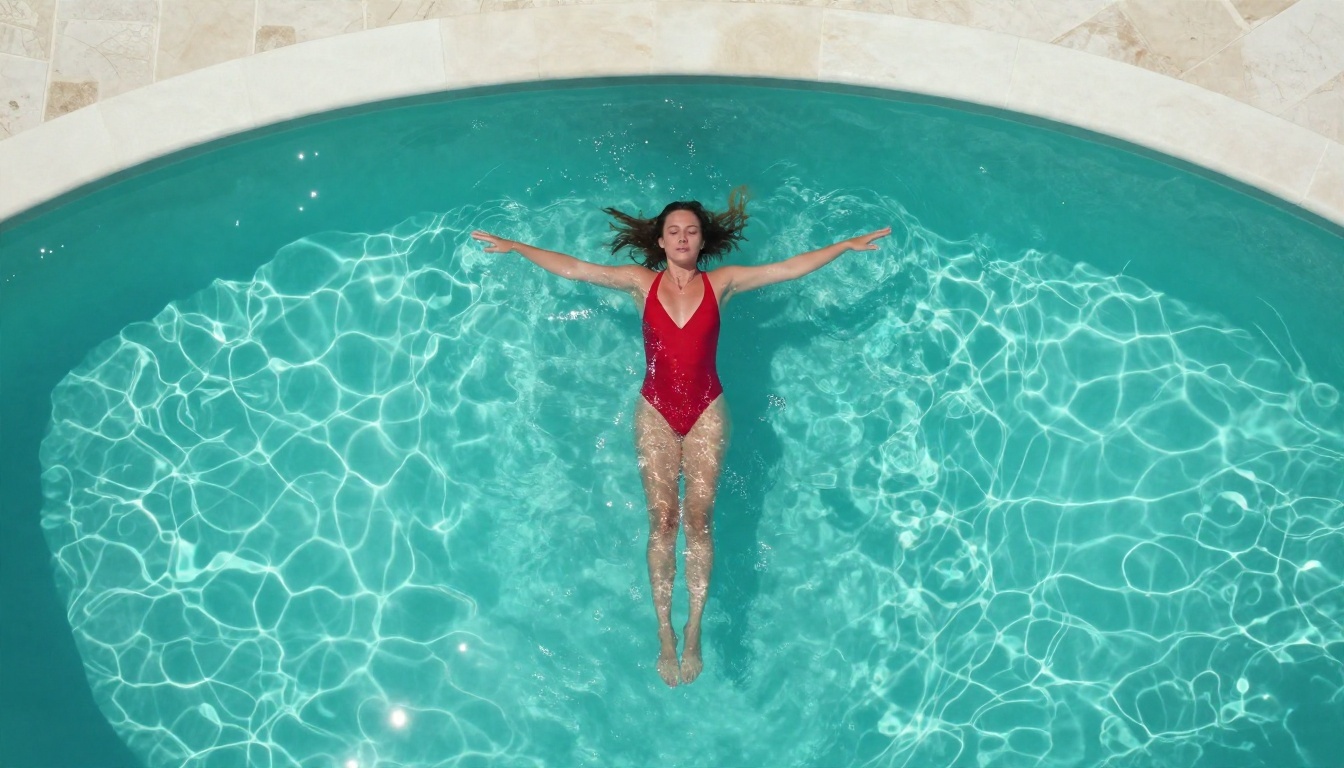
Seedream 4.5 is where I would start every time. It handles skin pores, fabric folds, backlight and shallow depth of field in a way that reads as real photography. It tends to follow wardrobe and pose instructions closely, which matters when the whole point is a specific look, like a satin slip dress by a window or a red swimsuit by a pool.
PicassoIA Image Editor Pro: Unlimited Edits
PicassoIA Image Editor Pro is the one to open when you already have an image and want to change it: swap the outfit, move the scene from a bedroom to a balcony, adjust the lighting, fix a detail. Because generations are unlimited, you can iterate ten, twenty, fifty times without watching a credit counter. That changes how you work. You stop being careful and start experimenting.
The Fast and Flexible Options
Flux Dev is a dependable all rounder for natural looking scenes. Z Image Turbo is the one for speed: when you want twenty rough drafts to find a composition, it gets you there quickly. Flux 2 Klein 9B Base LoRA is useful when you want a consistent styled look across a set.
💡 Workflow tip: draft in Z Image Turbo, pick the best composition, then rebuild that idea in Seedream 4.5 for the final high detail version. You spend less and get better results.
How to Use Seedream 4.5 on PicassoIA
Here is the exact process that works well for glamour and swimwear imagery.
Step 1: Open the Model
Go to the Seedream 4.5 page on PicassoIA. You will see a prompt box and a few settings.
Step 2: Write a Structured Prompt
Use this order: subject and pose, wardrobe, environment, lighting, camera and lens, texture details. Models respond well to a clear sequence. A scrambled prompt gives scrambled results.
Step 3: Set Aspect Ratio and Quality
For wide editorial scenes choose 16:9. For portraits and social posts, 4:5 or 3:4 works better. If 4K output is available, use it for finals and keep lower settings for drafts.
Step 4: Generate Variations
Run the same prompt three or four times. Small seed differences change expression, hand placement and light. Pick the best one rather than fighting a single result.
Step 5: Refine in Image Editor Pro
Send your favourite into PicassoIA Image Editor Pro for small changes: a different robe colour, softer shadows, a cleaner background. Since generations are unlimited, you can keep adjusting until it is right.
| Setting | Recommended value | Why |
|---|
| Aspect ratio | 16:9 or 4:5 | Editorial look, social ready |
| Prompt length | 50 to 90 words | Enough detail without clutter |
| Variations per idea | 3 to 4 | Better odds of a clean hand and face |
| Final pass | Image Editor Pro | Unlimited fixes |
Prompts to Use Right Now
Copy these, then change the details. They are written for adult subjects and tasteful, non-explicit results.
Beach and Swimwear
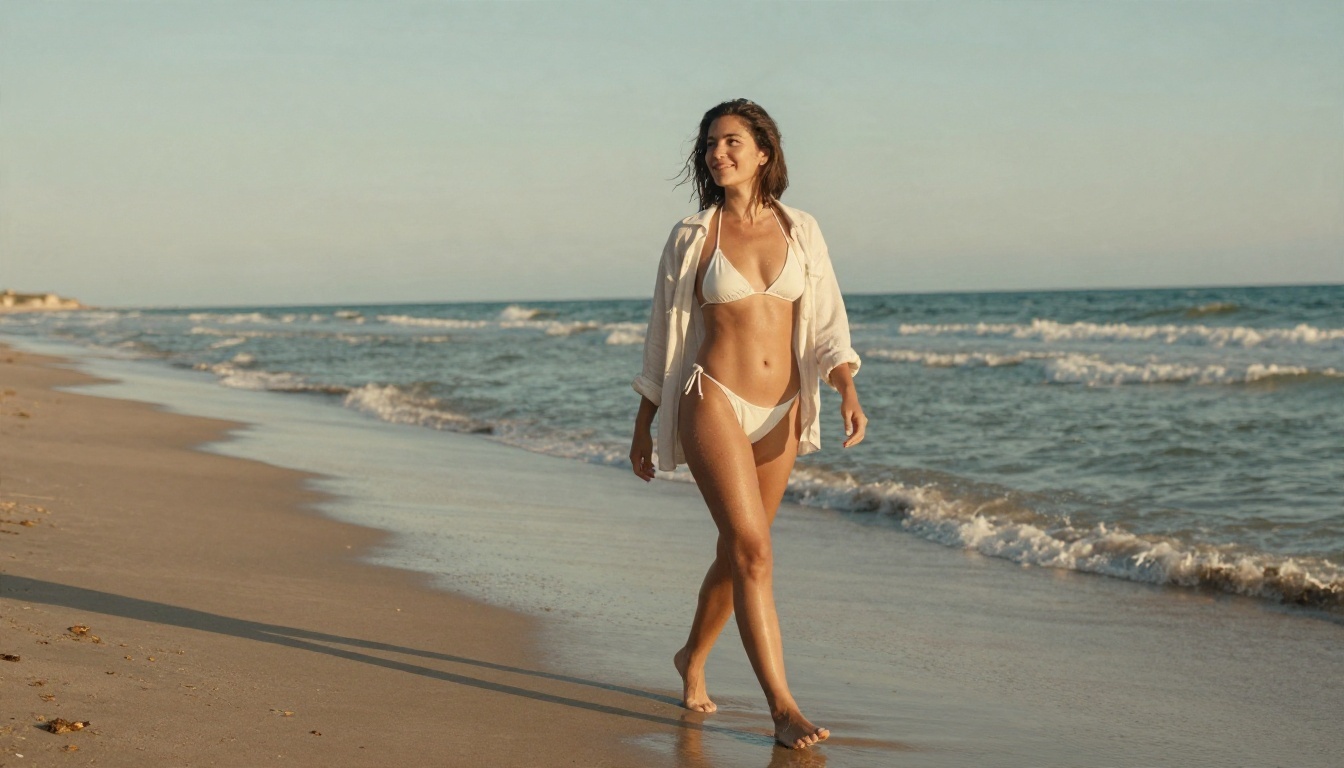
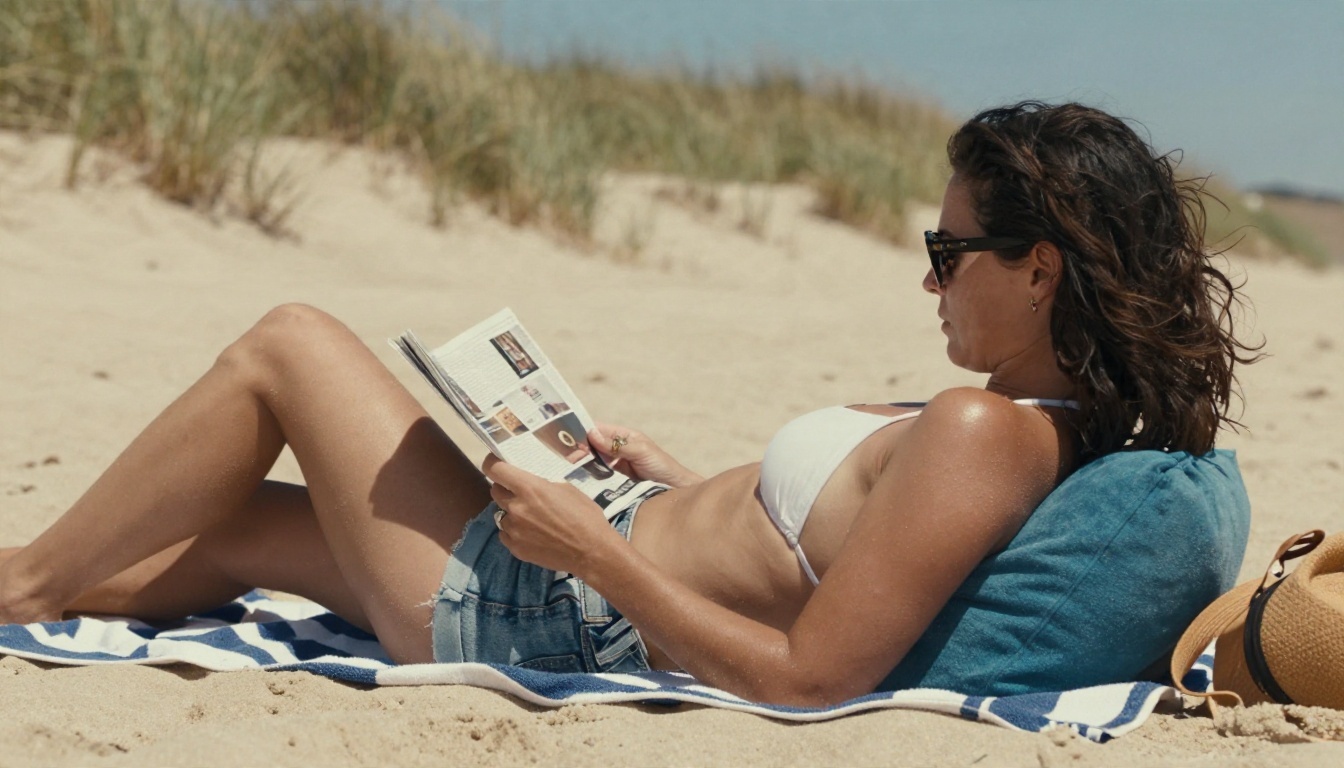
An adult woman in a white string bikini and loose linen shirt walking barefoot along a quiet beach at golden hour, looking back over her shoulder with a playful smile, wet sand reflecting the sky. Warm low sun from the right, long soft shadows. 50mm f/2 lens, eye level side angle, salt-dried skin texture, tousled hair, Kodak Portra 400 film grain, photorealistic.
Why it works: the action ("walking, looking back") gives the pose life, and the light direction and lens give the model a photographic anchor.
Boudoir and Silk
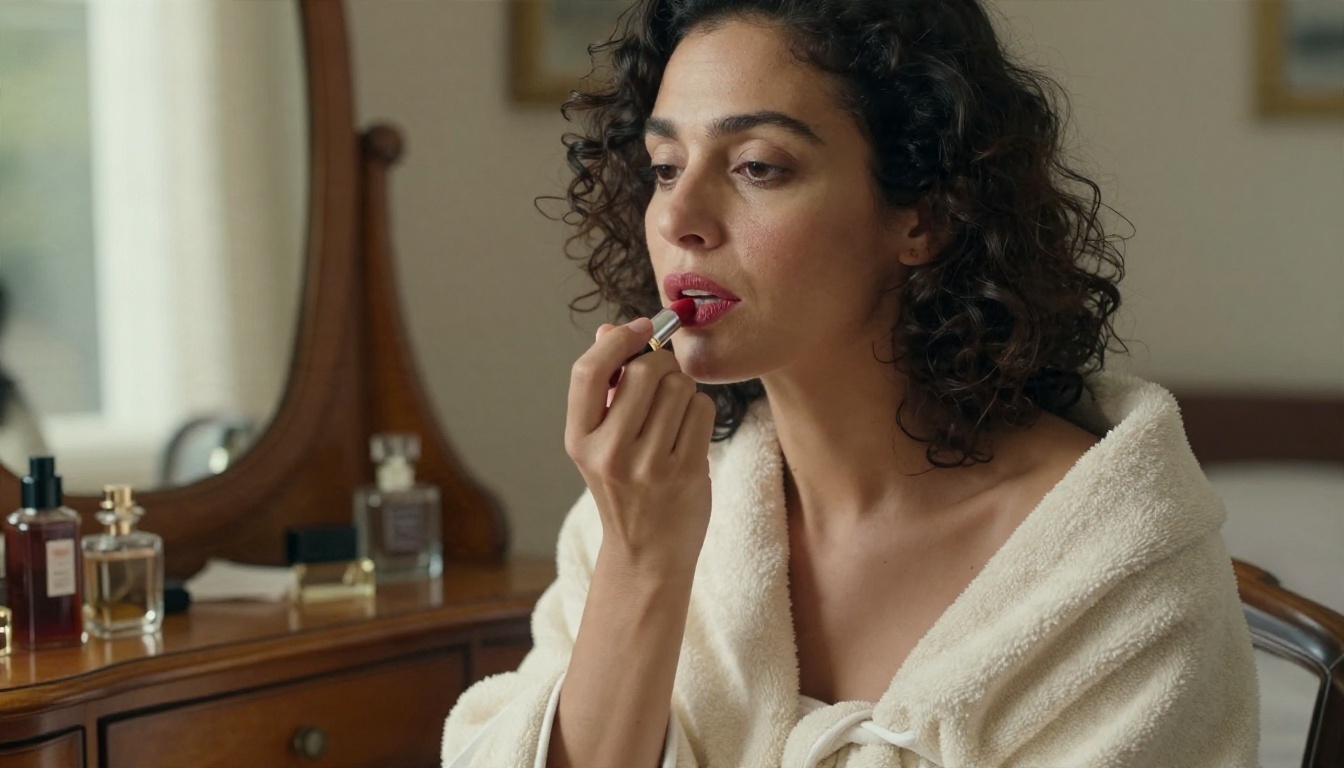
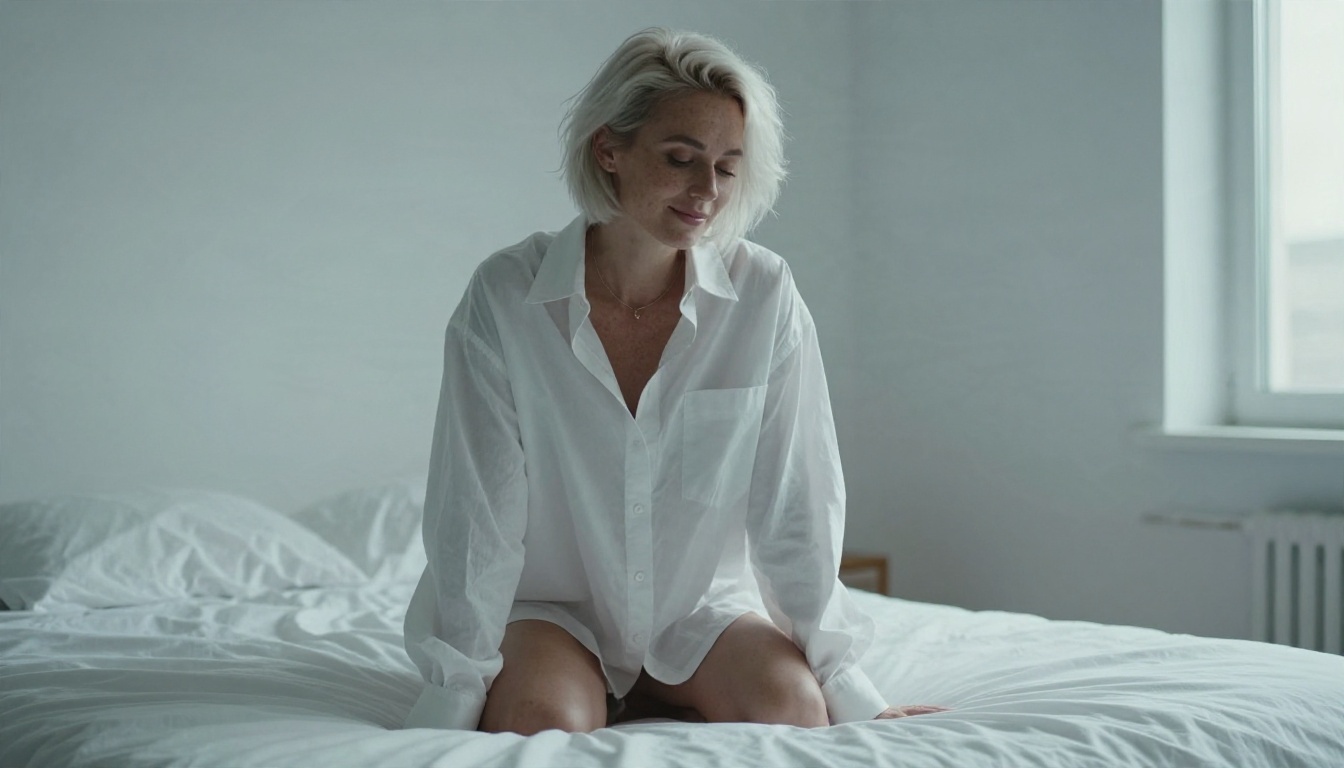
An adult woman in a black satin slip dress seated on the edge of a rumpled linen bed in a sunlit hotel suite, one hand resting on her collarbone, relaxed knowing half smile. Morning light from the left window, sheer curtains moving, 85mm f/1.8 lens, shallow depth of field, visible skin pores, satin folds, subtle film grain.
Why it works: fabric words like "satin folds" and "linen weave" push the model towards tactile realism.
Evening Glamour
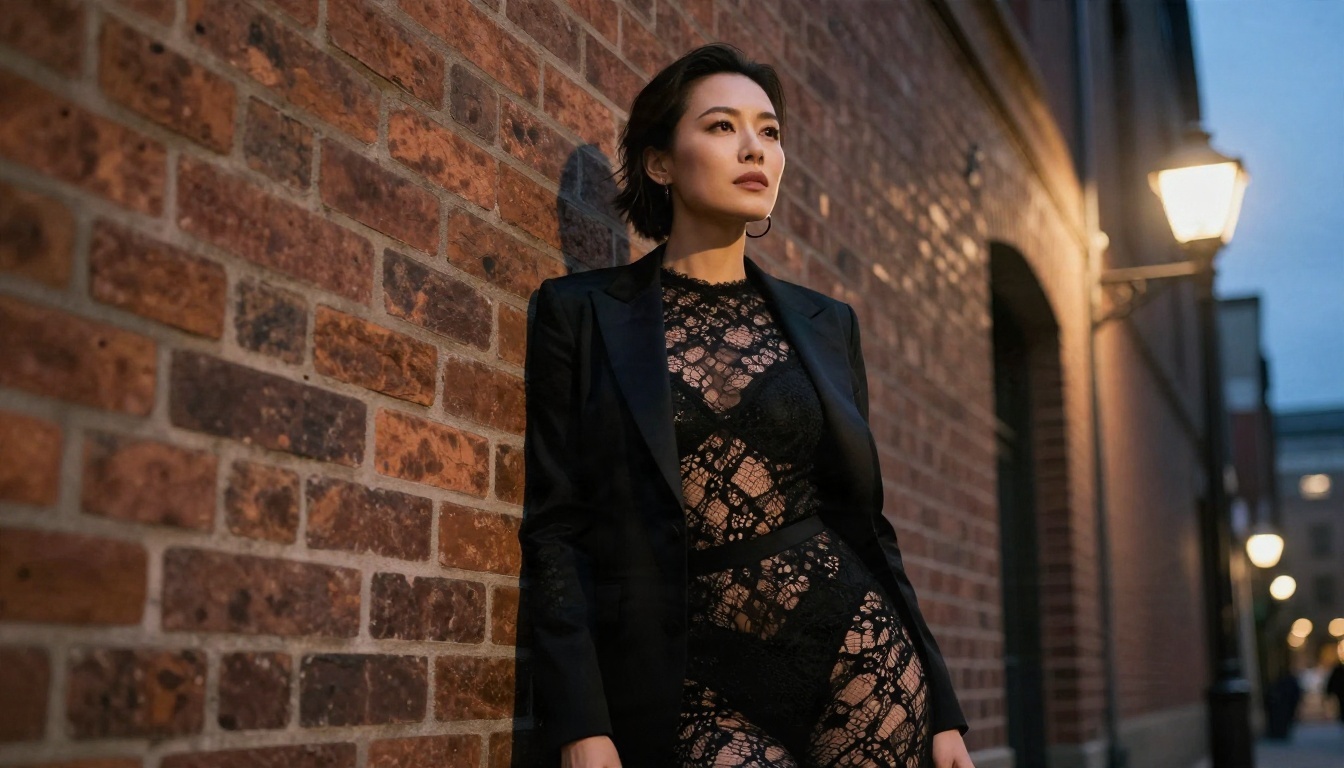
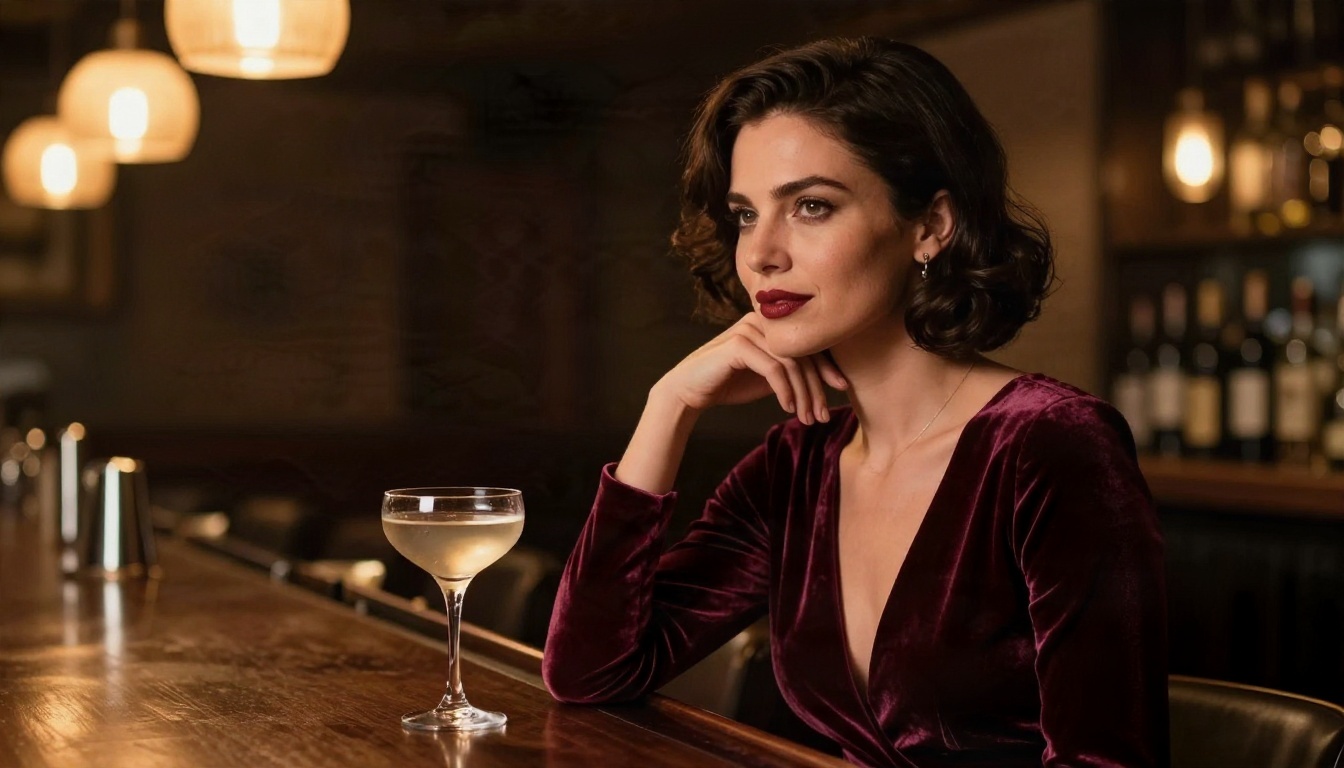
An adult woman with a sleek bob in a plunging burgundy velvet gown at a dim cocktail lounge, chin resting on her hand, glancing sideways. Warm amber pendant light from above right, deep soft shadows, 85mm f/1.8, creamy bokeh of bottles, velvet nap texture, glass reflections.
Lighting and Lens Words That Help
A short list of phrases that consistently raise realism:
- Lighting: "golden hour from the left", "soft window light", "warm tungsten from the right", "hard midday sun with sharp shadows".
- Lens: "85mm f/1.8" for portraits, "35mm f/1.4" for environmental shots, "24mm top down" for aerial angles.
- Texture: "visible skin pores", "freckles", "flyaway hairs", "fabric creases", "film grain".
- Film look: "Kodak Portra 400", "natural muted tones", "slight vignette".
Words That Hurt Your Results
Some words fight against realism. Avoid "perfect skin", "flawless", "ultra HD masterpiece" and stacks of buzzwords. They produce waxy, over smoothed faces. Real photographs have pores, tiny asymmetries and uneven light. Ask for those.
Limits You Will Hit
Free does not mean frictionless. Here are the constraints worth knowing before you invest an evening.
Platform Filters
Most mainstream tools block anything beyond a modest swimsuit, and some block swimsuits too. Filters are inconsistent: the same prompt may pass at noon and fail at midnight. That is exactly why a platform with fewer restrictions saves time. Note that Seedream 5 Lite blocks adult content, so do not pick it for this kind of work. Stick with Seedream 4.5 and Image Editor Pro.
Credits, Queues and Watermarks
| Limit | What it looks like | How to dodge it |
|---|
| Daily credit caps | 3 to 10 images then locked | Use a tool with unlimited editing |
| Queue times | Minutes of waiting at peak hours | Draft with a fast model first |
| Watermarks | Logo across the image | Check output before committing |
| Resolution caps | Small files on free plans | Upscale or use a 4K capable model |
Quality Limits
Even strong models stumble on certain things. Hands with unusual poses, jewellery clasps, small text, reflections in mirrors and crowded scenes still produce errors. The fix is simple: keep compositions clean, limit props, and generate several variations. If one detail is wrong in an otherwise great image, patch it in Image Editor Pro rather than starting over.
Legal and Consent Limits
This is the limit that matters most. A few rules that are not negotiable:
- Only depict fictional adults. Never generate anything involving minors, and never make a subject look underage.
- Never use a real person's likeness without their explicit permission. That includes celebrities, coworkers and exes.
- Check where you publish. Platforms have their own adult content rules, and some countries have strict laws about synthetic imagery.
- Label AI images when you share them, especially photorealistic ones.
Staying inside these lines protects you, protects other people, and keeps your accounts alive.
Mistakes That Waste Credits
After a lot of test runs, the same errors show up again and again.
Prompting Like a Search Engine
"Hot girl beach" gives generic output. A scene with an action, a place, a light source and a lens gives a photograph. Write like a photographer briefing an assistant, not like someone typing into a search bar.
Changing Everything at Once
If an image is almost right, do not rewrite the entire prompt. Change one thing: the robe colour, the light direction, the camera angle. This is where unlimited editing in PicassoIA Image Editor Pro pays off.
Skipping the Drafting Stage
Going straight to a final render with an untested idea burns time. Draft first with Z Image Turbo, find the pose and framing that work, then polish.
Ignoring Variety
Ten images with the same angle and lens look like one image. Mix wide, medium and close shots. Try a low angle, an overhead view, a side profile. Vary the light between morning, dusk and warm indoor lamps. A set with variety looks professional.
Quick Reference Table
Make Your Own Pictures Today
Free NSFW content is easy to find and hard to find well. The shortcut is to stop hunting through sketchy galleries and generate exactly what you want: your pose, your wardrobe, your light, your location. Start with Seedream 4.5 for the first render, refine it in PicassoIA Image Editor Pro where generations are unlimited, and keep a few of the prompts above as templates.
Pick one scene from this article, paste the prompt, change one detail, and see what comes back. Then do it ten more times, because that is the whole point of having no ceiling. When you are ready to try other options, browse every model at picassoia.com/en/all-models and find the one that fits your style.


