You typed "Freepik Picasso AI" into a search bar, and now you are staring at a dozen tabs that all contradict each other. One says the tool is free. Another says it costs a small fortune. A third claims unlimited images, then a fourth says that offer was scaled back. Fair enough, because the situation really is messy. This article sorts it out: what the tool is, what the free plan gives you, what the paid plans cost, what the images look like, and which alternatives are worth your time if the limits start to annoy you.
A quick heads-up before anything else. Prices and daily limits in this space change often, and the sources I checked do not agree with each other on every number. I will tell you where the figures are solid and where you should double-check the official pricing page before paying anyone.
What Freepik Picasso AI Really Is
Freepik is best known as a huge library of stock photos, vectors and templates. Over the past few years it added an AI suite on top: an image generator, an upscaler, a retouch tool, a video generator and more. The image generator is the part most people mean when they type "Freepik Picasso AI".
The Pikaso Name Mix-Up
Here is the first thing worth knowing. Freepik's image generator is called Pikaso, not Picasso. The spelling slip is extremely common, and it is why search results mix Freepik pages with unrelated pages about other tools. Picasso IA is a separate platform with no corporate link to Freepik. So when you read "Freepik Picasso AI", you are almost always reading about Freepik's Pikaso generator, and the word "Picasso" is just a typo that stuck.
Some reports also say Freepik has been rebranded as Magnific since late April 2026, which means the pricing page you land on may carry a different name than the one you remember. If the site looks unfamiliar, that is probably why.

Who It Suits
Freepik's generator makes the most sense for people who already live inside the Freepik ecosystem: marketers who download stock assets, small agencies that buy a subscription for templates, and designers who want one login for photos, vectors and AI output. If you only want to generate images and nothing else, you are paying for a lot of extras you may never open.
💡 Quick test: if you do not use Freepik's stock library at least a few times a month, a dedicated image generator will probably give you better value per image.
Free Options and Their Limits
The word "free" is doing a lot of work in most reviews, so let's look at what it means in practice.
What the Free Plan Gives
According to most third-party reviews, the free plan lets you generate roughly 20 images per day. That sounds generous until you read the fine print: free users reportedly get only the Auto model, which means the tool picks the engine for you. You cannot choose a specific premium model, and you cannot count on a consistent look from one prompt to the next.
One comparison I found cites a much smaller allowance of about 15 generations per month, and a competitor's blog says 3 per day. Those numbers conflict with the majority, so treat them as outliers. The honest answer is that Freepik has changed free limits more than once, and you should test your own account on day one.

Watermarks and Attribution
Free outputs are reported to carry a watermark, and the free licence reportedly requires attribution. For personal experiments, that is fine. For client work, product pages, ads or social posts you want to look polished, a watermark is a dealbreaker.
| Free plan feature | What reviews report |
|---|
| Daily images | About 20 per day (some sources disagree) |
| Model choice | Auto only |
| Watermark | Yes |
| Attribution | Required |
| Commercial use | Not recommended without upgrading |
Free Workarounds That Actually Work
Rather than fighting the limits, plan around them:
- Batch your ideas. Write ten prompts in a notebook first, then spend your daily allowance in one sitting instead of wasting generations on vague tests.
- Use free generations for rough drafts. Lock in composition and subject, then recreate the winner somewhere without a watermark.
- Keep prompts short and concrete. Auto mode tends to drift when a prompt is long and contradictory.
- Check other platforms for free tiers. Several image models are free to try elsewhere, which I cover in the alternatives section below.
Pricing: What You Actually Pay
This is where reviews disagree the most, so I will give you the structure first and the numbers second.
The Plan Ladder
Freepik's own documentation lists five tiers: Free, Essential, Premium, Premium+ and Pro. Each paid plan includes a pool of AI credits, and every use of the image generator, upscaler, retouch tool or video generator spends some of them.

Reported Prices
Numbers I found in 2026 reviews, none of which I could confirm on a single official page:
| Plan | Reported price | Notes |
|---|
| Free | $0 | Watermarks, daily cap, Auto model |
| Essential | About $5.75 per month, billed yearly | Around 84,000 credits per year |
| Premium | About $14.50 per month billed yearly, or about $20 on monthly billing | Around 216,000 credits per year |
| Premium+ | About $33.75 per month billed yearly, or about $45 monthly | Larger credit pool |
| Pro | Several hundred dollars per month for teams | Multiple seats |
The spread between yearly and monthly billing is large, so the same plan can look cheap or expensive depending on which article you read. Always check what the checkout page says before you enter a card.
Credits and the April Change
The biggest story of 2026 is the credit shake-up. Reports say that in April 2026, the unlimited image access offered on higher tiers was scaled back. Credits returned for premium image models, and only about ten image models stayed credit-free. Video and audio generation still spend credits on every plan.
In plain English: "unlimited" now comes with an asterisk. If you picked a plan last year because it promised unlimited generations, reread the current terms.
What One Image Really Costs
A useful way to judge any subscription is cost per usable image. Not cost per generation, because many generations are misses.
💡 Simple formula: monthly price divided by the number of images you keep. If you pay $20 and keep 40 images, each costs 50 cents. If you keep 400, each costs 5 cents.
If you generate a handful of images every week, the cheapest plan may still cost more per keeper than a pay-as-you-go approach. If you generate hundreds a month, a bigger credit pool pays off quickly.
Image Examples and Quality
Freepik's generator can reach different quality levels depending on which model the user picks, which makes a single "Freepik look" hard to define. Paid tiers give access to premium engines, and the Auto model on the free tier is more of a lottery.
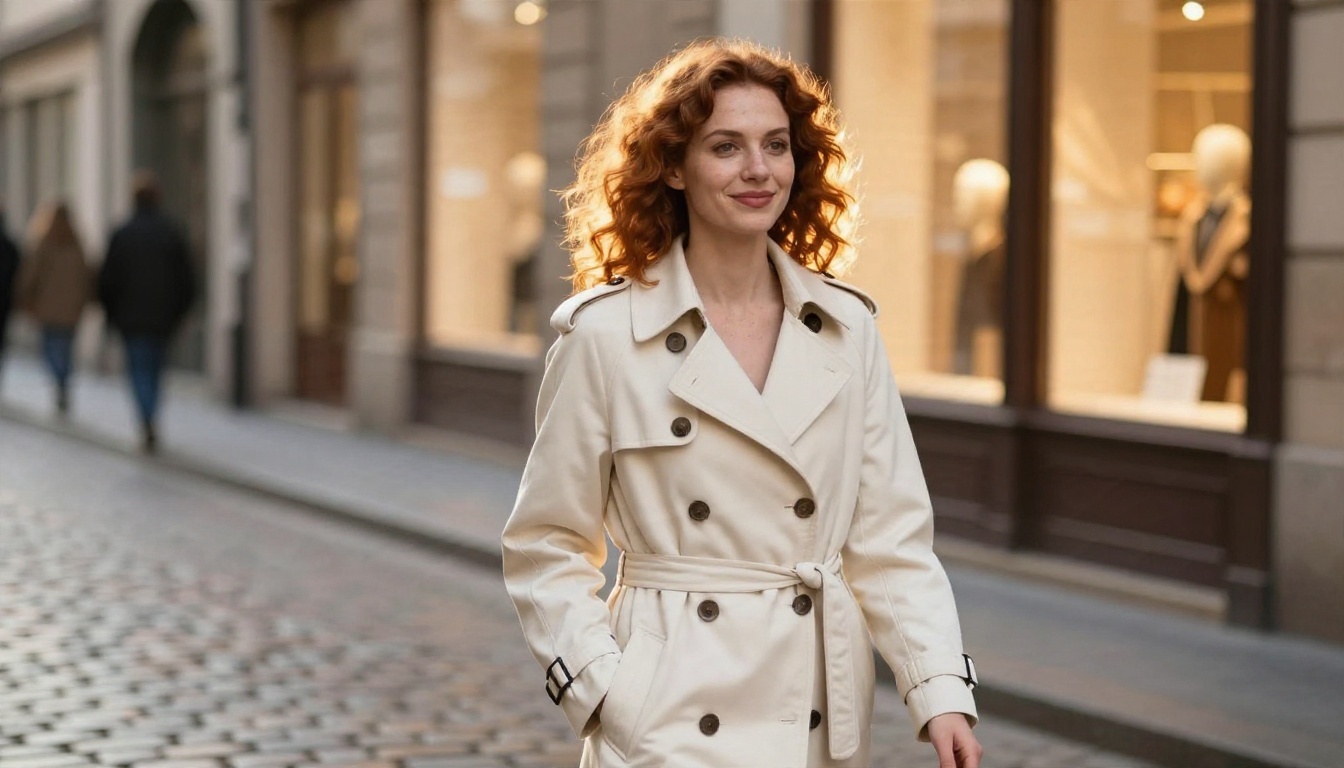
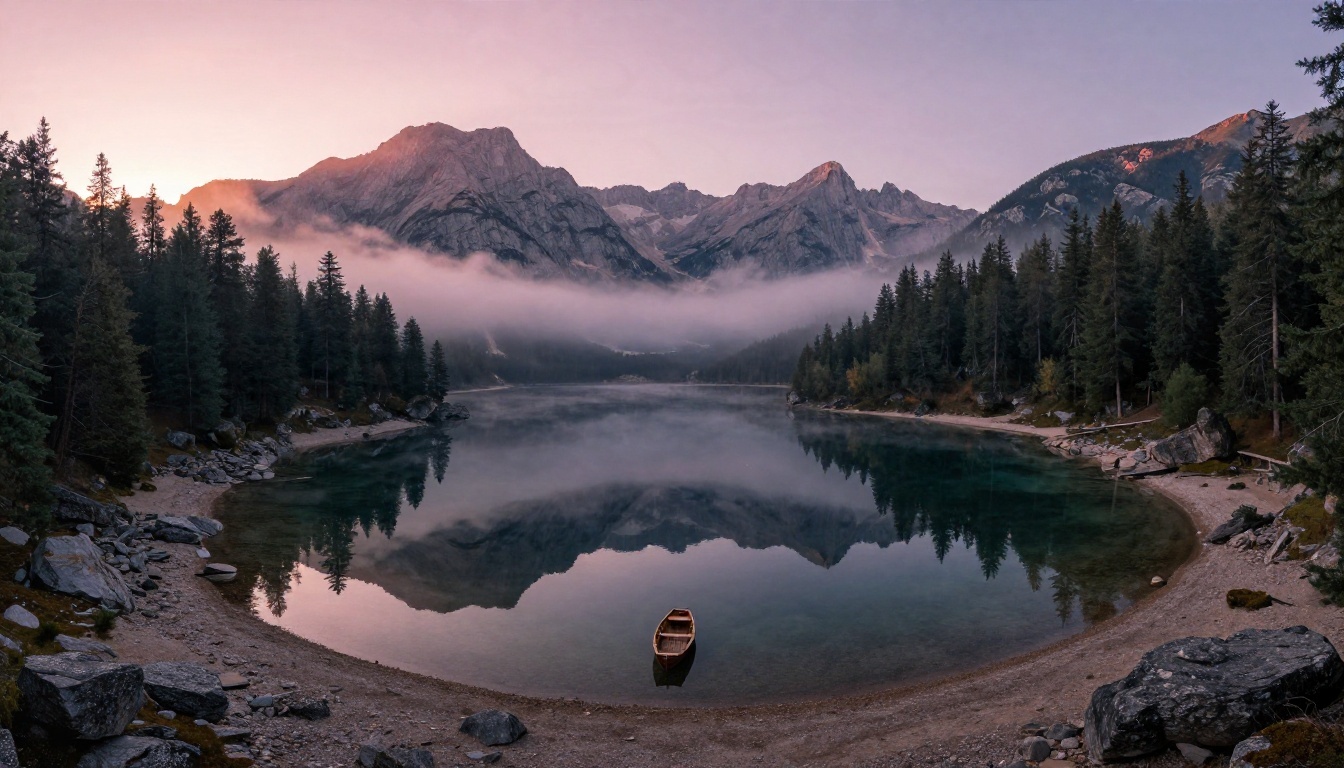
To give you a concrete benchmark, the pictures below show the kind of photographic quality you should expect from any serious image generator in 2027. They are samples made with an AI image model for this article, not screenshots from Freepik, but they are the standard to hold every tool against: believable skin, accurate light, clean edges and no melted details.
Portraits
Faces are where weak generators give themselves away. Look for natural skin pores, believable hair strands, correct light direction and eyes that look at the same spot.
Product Shots
E-commerce sellers care about glass, metal and fabric. A perfume bottle is a great stress test because transparent surfaces expose every lighting mistake.

Landscapes
Wide scenes test fine detail across the frame: pine needles, water reflections, rock texture and atmospheric haze. Cheaper models often smear the far distance into mush.
Where It Falls Short
No tool is perfect, and Freepik's generator has some fair criticism attached to it.
Quality You Cannot Control
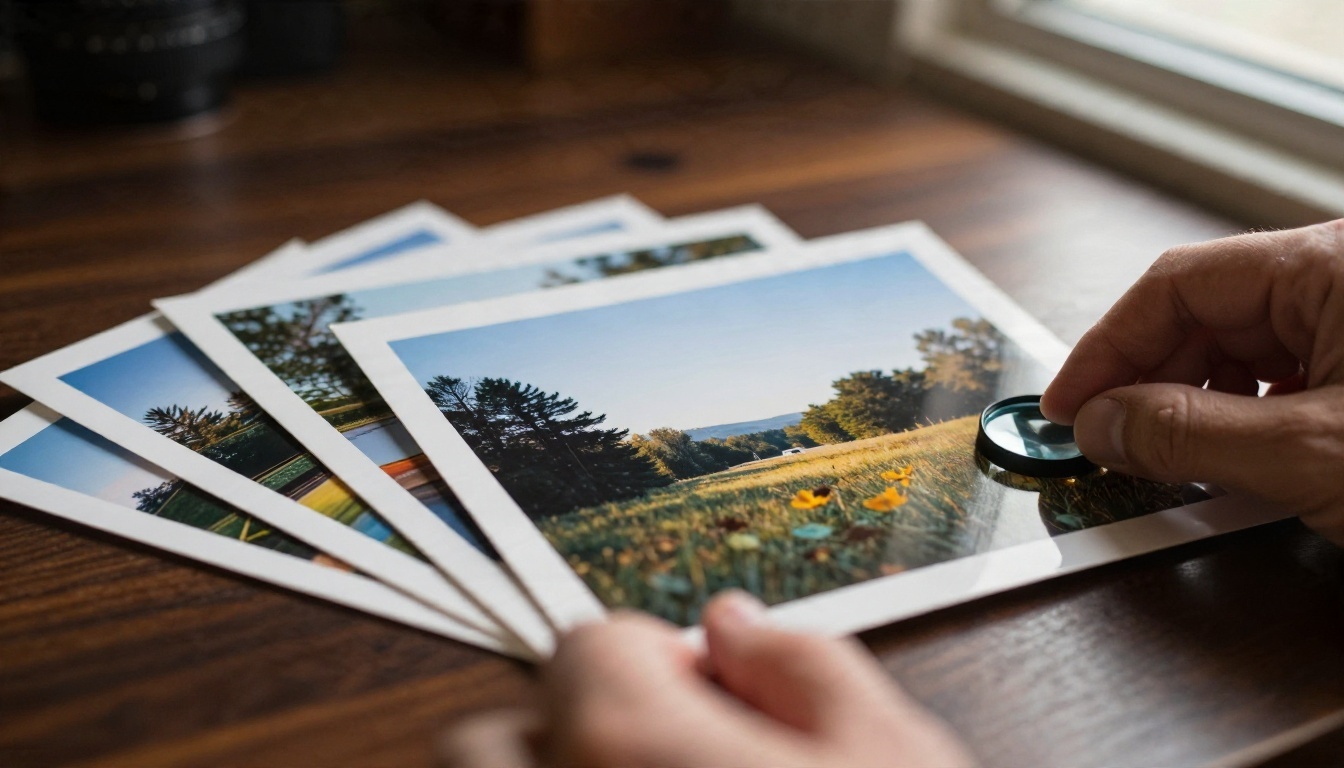
On the free plan, Auto mode picks the engine. That is convenient for beginners and frustrating for anyone who wants repeatable results. Two prompts that look nearly identical can return very different styles.
The Cost of Staying Inside One Ecosystem
A subscription that bundles stock photos, vectors, video and AI is convenient, but it ties your budget to credits that vanish across many tools. A burst of video generations can drain a pool that you planned to spend on images.
Commercial Use Needs Care
Commercial rights differ by plan, and the free tier requires attribution. If you make images for clients, read the licence for your exact plan before delivering anything.
Alternatives That Are on PicassoIA
Freepik's generator, whether you call it Pikaso or Picasso, is not on PicassoIA, so there is nothing to link or use there. If you want similar results today without credit-pool arithmetic, these image models are available on PicassoIA and cover the same job: text to photoreal image.

Here is how I would pick:
- Photoreal portraits and product shots: start with Seedream 4.5 or Imagen 4.
- Edits and consistent revisions: Nano Banana Pro handles "change this one thing" requests well.
- Fast brainstorming: Z Image Turbo returns images in seconds, which makes it ideal for testing ten prompt ideas before you commit to one.
- Posters and social graphics with words: Ideogram v4 Quality is built for text rendering.
💡 Tip: choose by job, not by brand. A fast model for drafts and a sharper one for the final render beats one tool for everything.
How to Get Similar Results on PicassoIA
If you want Freepik-style photoreal images without a credit pool, Seedream 4.5 is the model I would try first. Here is the workflow.
Step by Step
- Open the model page. Go to Seedream 4.5 on PicassoIA and open the generator.
- Write a concrete prompt. Name the subject, the setting, the light and the lens. "Woman in a cream trench coat on a cobblestone street at golden hour, 85mm, shallow depth of field" beats "pretty woman outside".
- Pick the aspect ratio. Use 16:9 for banners and blog headers, 1:1 for social posts, 9:16 for stories.
- Choose the resolution. Draft at a lower size, then render the final at the highest the model offers.
- Generate and compare. Run the same prompt a few times and keep the best. Change one detail per round so you know what caused each improvement.
- Fix and upscale. If a result is close, tweak the wording or use an edit-capable model such as Nano Banana Pro to correct one detail.
Prompt Tips That Save Time
- Lead with the subject. Models weigh the opening words most.
- Describe light, not just mood. "Soft window light from the left" gives more control than "beautiful lighting".
- Name textures. Wool weave, wet cobblestone, brushed metal and visible skin pores push the output toward photographic realism.
- Avoid contradictions. Do not ask for "minimal" and "highly detailed" in the same sentence.
- Use a seed. If the model page offers a seed field, reuse it to repeat a composition while you adjust the wording.
💡 Free try: several models on the platform advertise free access in their descriptions, so test two or three with the same prompt and keep the one you like best. Check each model page for current limits.
Try It Yourself Today
If you came here to decide whether Freepik Picasso AI (really Pikaso) is worth paying for, here is the short answer. Use the free plan if you want a quick, watermarked experiment. Consider a paid plan if you already depend on Freepik's stock library and want everything in one place. Look elsewhere if you mostly want clean, high-quality images and hate counting credits.

The best way to decide is to run your own test. Pick one prompt you actually need, such as a product photo, a portrait or a header image, and run it through two or three models. Compare the skin, the light, the edges and the speed. In ten minutes you will know more than any review can tell you.
Ready to try? Open Seedream 4.5, Nano Banana Pro or Imagen 4 on Picasso IA, paste in the prompt you have been saving, and see what comes back. When you want more choices, the full catalog is waiting at picassoia.com/en/all-models.


