You type a simple prompt into Gemini. A woman in a summer swimsuit on a terrace, golden light, magazine feel. The answer comes back as a polite refusal or a blank result with no explanation. If that sounds familiar, you are not alone, and you are not doing anything unusual. Gemini adult images sit in a gray zone that frustrates photographers, fashion creators, and curious users every day.
This article lays out what Gemini actually allows, where the filters step in, and which free alternatives give you tasteful, photorealistic glamour results without the constant friction. Everything here stays non-explicit: we are talking about swimwear, lingerie fashion, boudoir mood, and glamour portraits of adults, not pornography.
💡 Quick answer: Gemini blocks sexually explicit content and also stops a lot of borderline material, including some swimwear and lingerie requests. If your work is glamour or fashion, you will likely hit walls. Seedream 4.5 and PicassoIA Image Editor Pro are the better fit, and both are covered below.
What Gemini Actually Allows
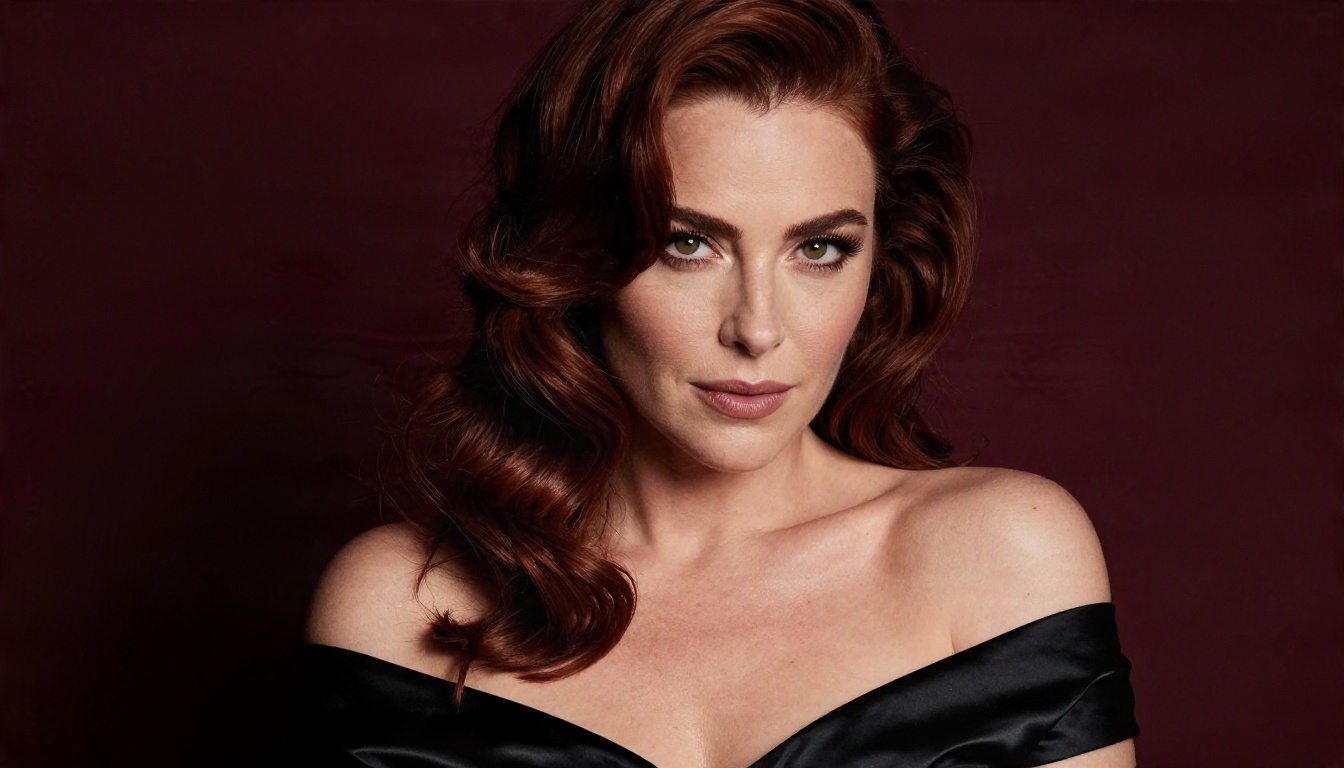
Gemini's image creation runs on Google's Nano Banana family of image models. Google's published rules for the Gemini app prohibit sexually explicit content, which includes graphic depictions of sexual acts and explicit nudity. There is no adult mode, no age-verified toggle, and no hidden setting that relaxes this for paying users.
That much is clear. The messy part is everything below the explicit line.
The Official Line
Google's stance is simple in principle: no sexually explicit images, no sexual role-play, nothing involving minors, and no content that sexualizes real people without consent. These rules apply to prompts, to generated outputs, and to edits of uploaded photos.
What the rules do not do is define a clean border for "suggestive." Words like sensual, seductive, or revealing are judgment calls, and the system makes those calls automatically, in milliseconds, with a strong lean toward caution.
Swimwear and Lingerie Reality
Here is what users report in practice, based on developer forums and third-party testing, so treat the details as community experience, not a Google promise:
- Plain portraits and fashion in everyday clothing: usually fine.
- Swimwear on a beach or by a pool: hit or miss, and often accepted with neutral wording.
- Lingerie, bralettes, bodysuits: frequently blocked, even in fashion framing.
- Artistic nudity, implied or otherwise: almost always refused.
- Explicit content: refused every time.
Some developers have publicly complained that legitimate swimwear and lingerie advertising work gets filtered. That tells you the filter is wide, not that you wrote a bad prompt.
Why Edits Get Blocked Too
A common assumption is that uploading your own photo and asking for a small edit sidesteps the rules. It does not. Editing carries the same restrictions as generation. If you ask Gemini to change an outfit to something more revealing, or to remove clothing, the same safety layer evaluates the request and the result.
Where the Limits Hit

Most frustration comes from not knowing why an image failed. Gemini rarely explains, which makes the experience feel random. It is not random, though. There is a pattern.
Two Filters, Two Failure Points
Developer documentation around Google's image models describes two separate checks:
- A prompt check. Your text is screened before any image is made. Flagged words or intent stop the request immediately.
- An output check. Even if your prompt passes, the finished image is scanned. If it looks too suggestive, anatomy is too visible, or the pose reads as erotic, the result is discarded. Developers see this as an image safety block.
The second filter is the one that catches creators off guard. You wrote something perfectly innocent, and the picture still failed the check.
Signs Your Request Was Filtered
| What you see | Likely cause |
|---|
| Polite refusal message | Prompt check triggered |
| Image never appears, no message | Output check rejected the result |
| Image appears but clothing changed | Silent adjustment toward safer output |
| Works one hour, fails the next | Filter sensitivity varies by context and load |
| Real person's face refused | Policy on identifiable real people |
Why Rewording Rarely Works
The usual advice is to swap "lingerie" for "elegant evening wear" and hope. Sometimes that works once. But because the output filter judges the image itself, a prompt that sounds innocent still fails if the picture reads as too revealing. You end up spending ten generations on one usable shot.
💡 If you have rewritten the same prompt three times and it keeps failing, the prompt is not the problem. The tool is simply not built for this kind of work.
Gemini Limits at a Glance
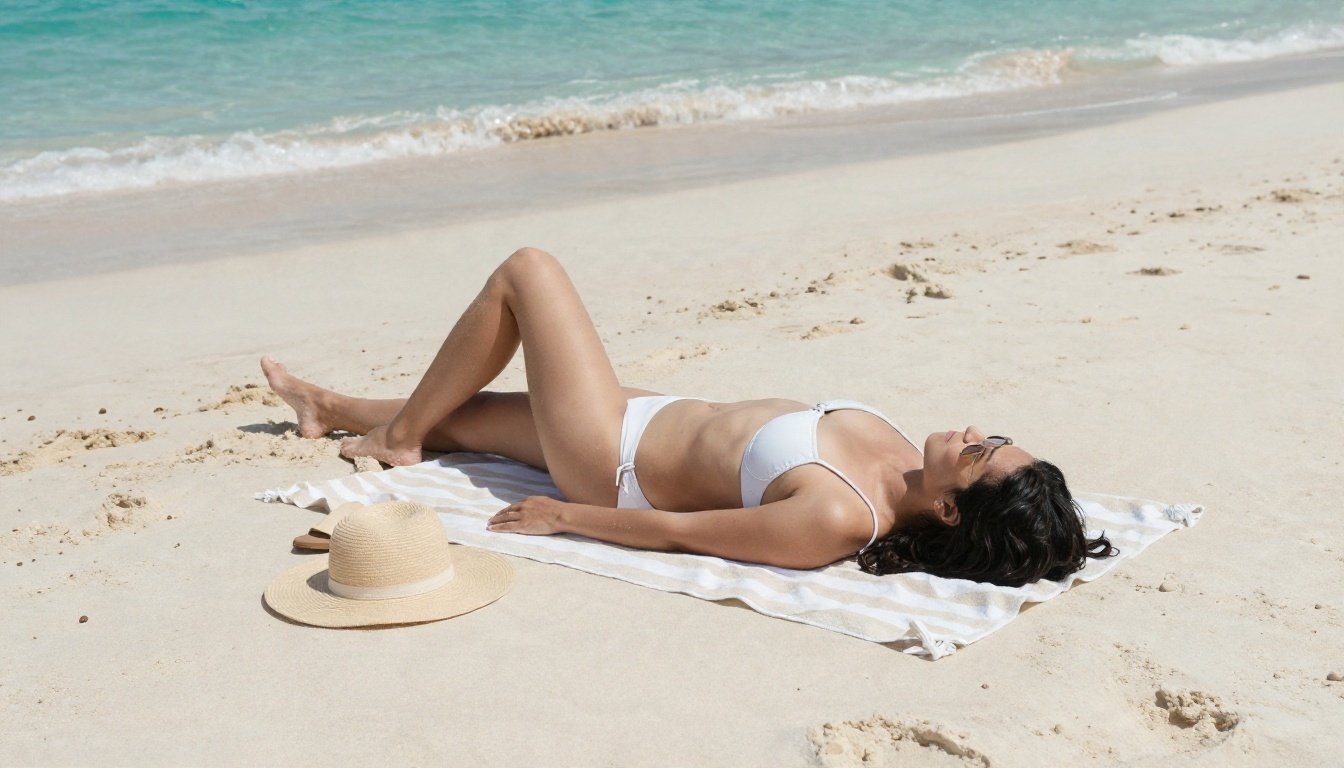
Here is a quick comparison of what typically passes and what typically does not, based on public documentation and widely reported user experience:
| Request type | Typical outcome in Gemini |
|---|
| Casual portrait, everyday clothing | Allowed |
| Fashion editorial, covered styling | Allowed |
| Beachwear, neutral wording | Sometimes allowed |
| Swimwear with a glamour pose | Often blocked |
| Lingerie or bodysuit fashion | Frequently blocked |
| Boudoir mood, robe, implied nudity | Frequently blocked |
| Explicit nudity or sexual acts | Always blocked |
| Anything involving minors | Always blocked, zero tolerance |
| Sexualized edits of real people | Blocked |
If your project lives mostly in the middle rows, you are fighting the tool more than using it.
Why People Look Elsewhere
The reason is practical, not scandalous. A huge share of people searching for this are working creators: swimwear brands testing campaign concepts, boudoir photographers planning a shoot, novelists who want a cover character, or hobbyists who simply like glamour photography.
Fashion and Swimwear Work
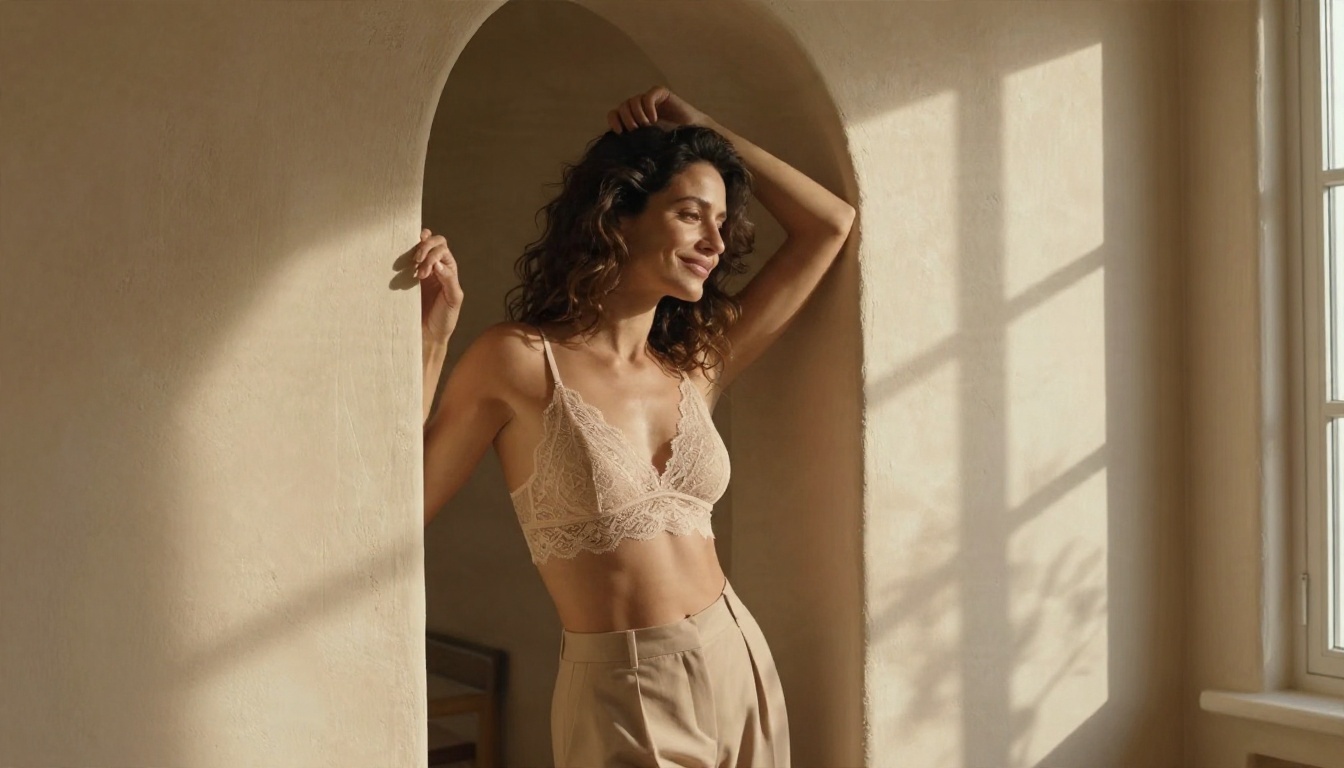
Fashion has always involved skin. Swimsuit catalogs, lingerie lookbooks, and resort campaigns are a mainstream industry. When an image tool refuses that whole category, it cuts out a legitimate use case. Brands need concept images before booking a studio. Photographers need reference boards. Stylists need quick mood tests.
Boudoir and Glamour Projects
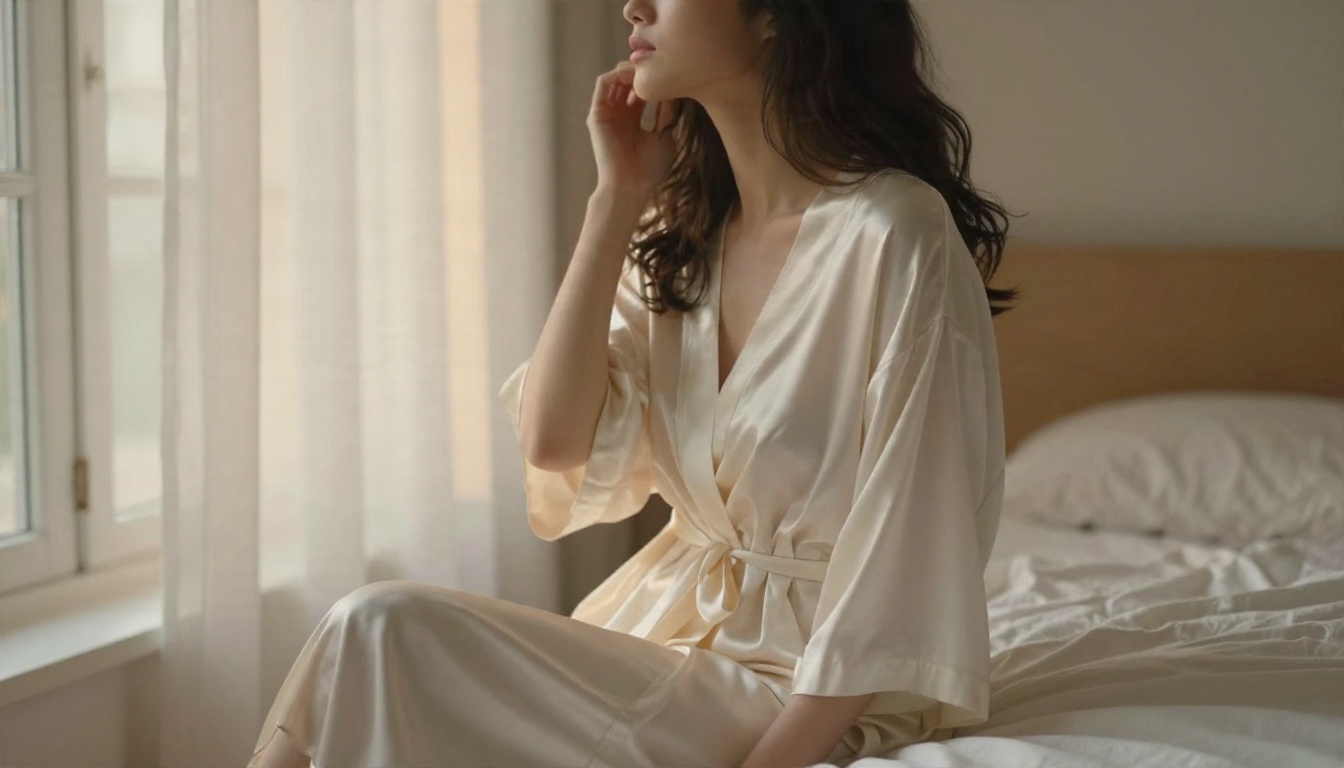
Boudoir photography is built on implication: soft light, silk, window glow, confident posture. It is tasteful by design. But "implied nudity" is exactly the phrase that trips automatic filters, so boudoir concepts are among the first casualties.
Free Alternatives That Work
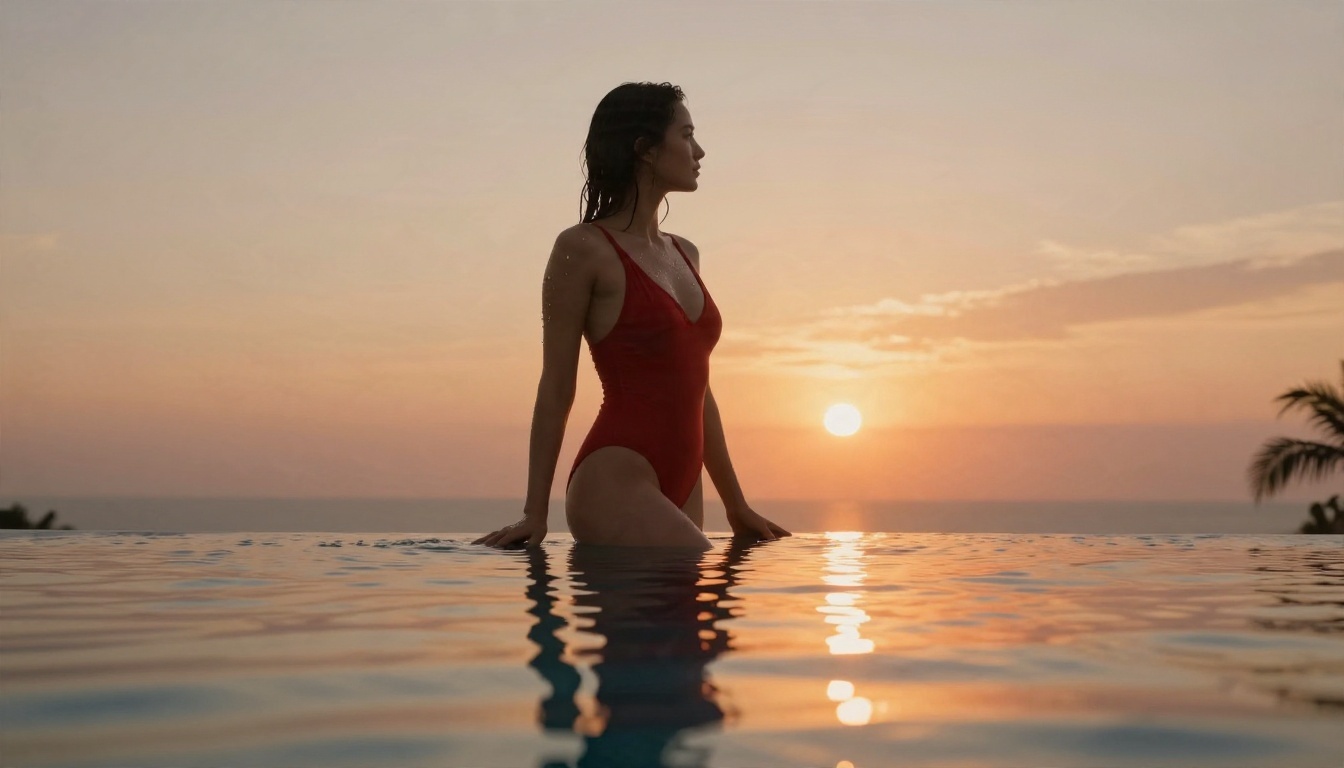
You do not need a complicated setup. PicassoIA hosts models that handle adult glamour, swimwear, and boudoir styling with far fewer interruptions, and you can run them straight from the browser.
Seedream 4.5 First
Seedream 4.5 is the model to try first. It produces sharp, photorealistic images with convincing skin texture, believable fabric, and accurate lighting, which is exactly what glamour work demands. It follows detailed prompts well, so when you describe a pose, a lens, and a lighting direction, you get something close to what you pictured.
What stands out in practice:
- Realistic skin and fabric: pores, sheen, lace weave, silk folds.
- Strong prompt following: specific poses and framing land on the first or second try.
- Fewer refusals: swimwear, lingerie fashion, and boudoir mood are not treated as red flags the way they are in Gemini.
- High resolution: crisp enough for mood boards and campaign concepts.
Image Editor Pro for Unlimited Runs
PicassoIA Image Editor Pro is the second tool to keep close. It offers unlimited generations, which matters more than it sounds. Glamour photography is iterative: you adjust the light, the pose, the outfit, the background. When every attempt counts against a cap, you hesitate. When runs are unlimited, you experiment freely until the shot is right.
It also works as an editor, so you can adjust outfits, backgrounds, and styling on an image you already like without starting from scratch.
Other Models Worth a Test
Different models have different strengths, and it is worth running the same prompt through a few:
For the full list of models, browse picassoia.com/en/all-models.
💡 Seedream 5 Lite is not the right pick for this kind of work, because it blocks adult content. Stick with Seedream 4.5 and Image Editor Pro.
How to Use Seedream 4.5 on PicassoIA
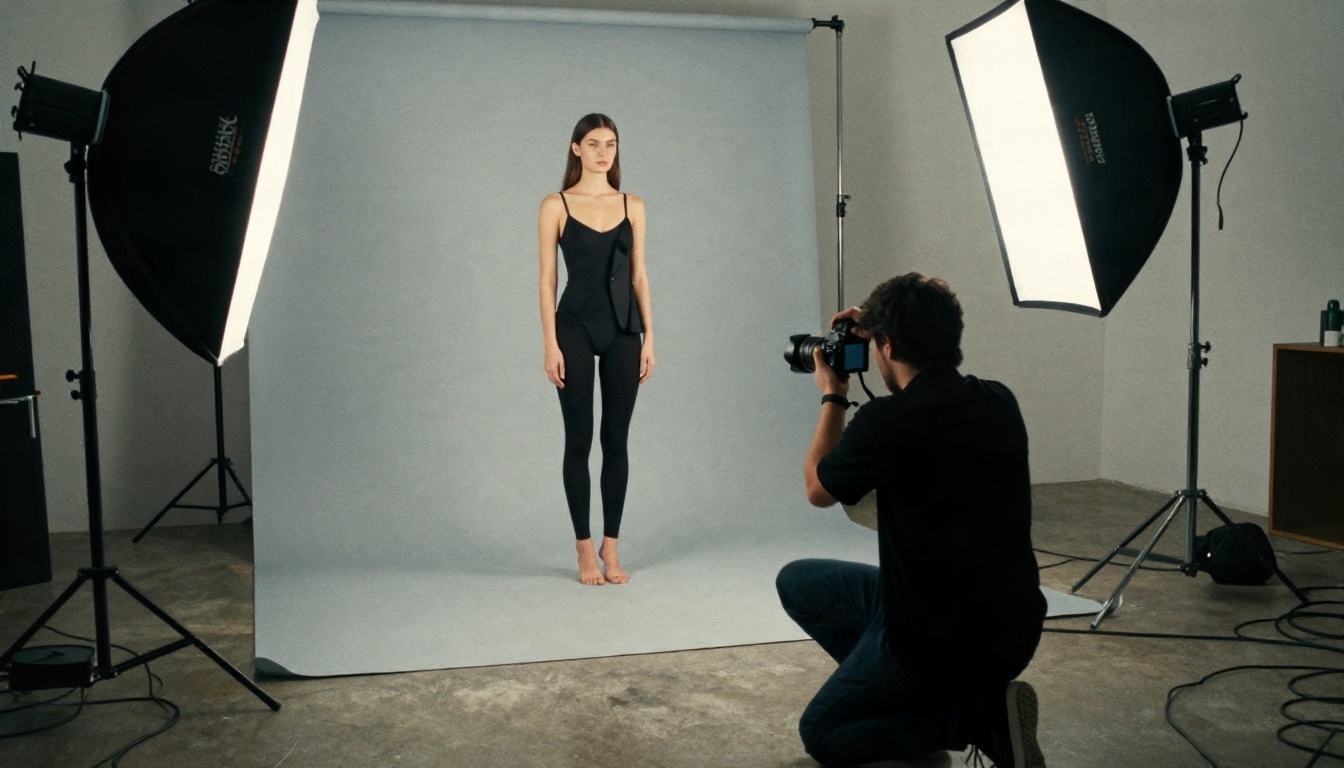
The workflow takes a few minutes, even if you have never used an image generator.
Step by Step
- Open the model page. Go to Seedream 4.5 on PicassoIA.
- Write your prompt. Describe subject, outfit, setting, lighting, and camera in one flowing paragraph.
- Choose 16:9 for scenes, 3:4 or 2:3 for portraits. Match the ratio to where the image will be used.
- Generate. Review the result and note what you want to change.
- Refine one thing at a time. Change only the lighting, or only the pose, so you can see what each edit does.
- Move to Image Editor Pro for adjustments. Use Image Editor Pro when you want outfit swaps, background changes, or small fixes without limits.
Prompt Tips
The structure that works best for glamour photography is: subject and pose, environment, lighting, lens, texture details. Here is a sample you can adapt:
An adult woman in a black one-piece swimsuit reclining on a linen daybed on a villa terrace, Mediterranean sea behind her, warm low sun from the left with soft fill, 85mm lens at f/1.8, shallow depth of field, visible skin texture, fine film grain, Kodak Portra 400 look.
A few habits that improve results:
- Name the lens. "85mm f/1.8" pushes the model toward flattering portrait compression.
- Describe the light direction. "Soft window light from the left" beats "good lighting."
- Add texture words. Linen, lace, satin, sea salt, freckles, flyaway hair.
- Ask for film grain. It removes the plastic, over-smooth look.
- State "adult" clearly. Always make the subject's adult age explicit in your prompt.
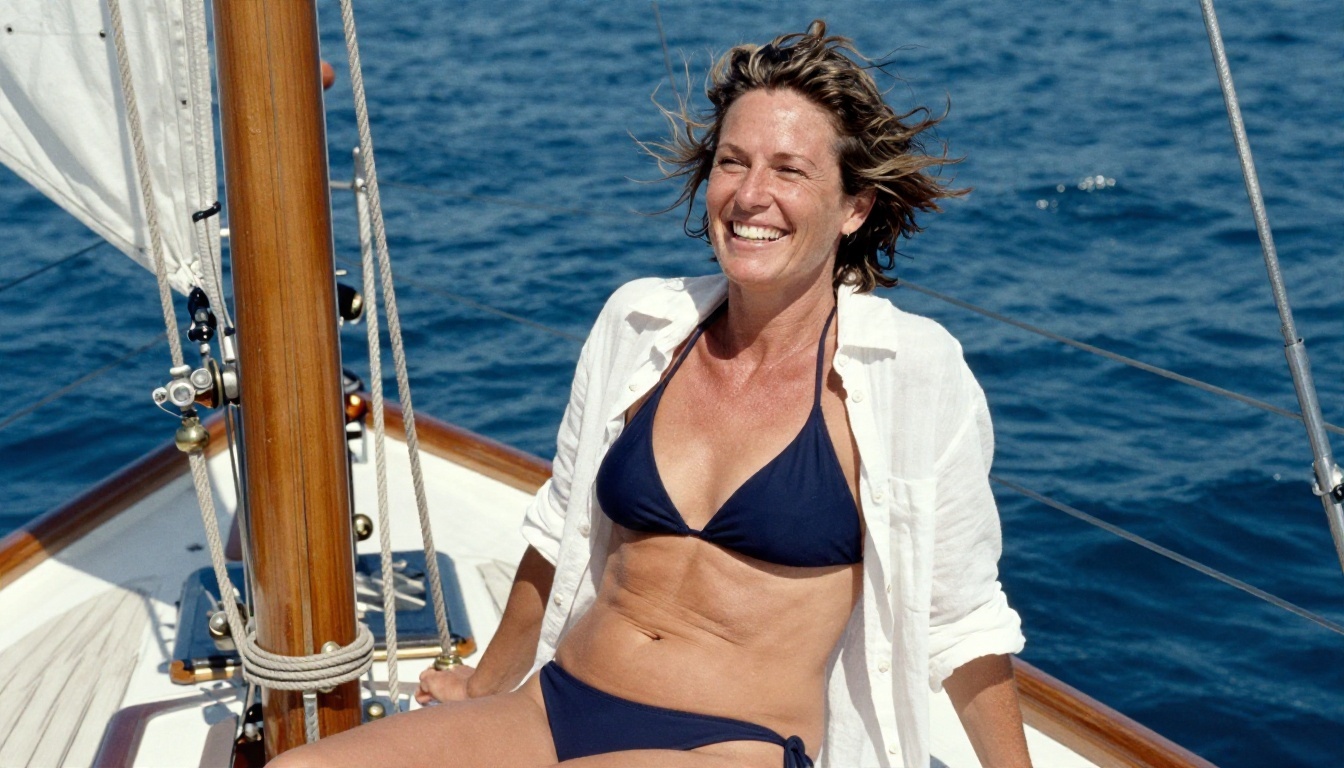
Rules That Still Apply
Fewer filters does not mean no rules. Responsible use is what keeps this kind of tool available, and a few lines should never be crossed on any platform.
| Always do | Never do |
|---|
| Depict clearly adult, fictional subjects | Create anything involving minors, in any form |
| Keep results tasteful and non-explicit | Generate pornographic or explicit content |
| Use your own photos or original concepts | Use a real person's face without their consent |
| Label AI imagery when publishing | Pass AI images off as real photographs of someone |
| Check each site's content rules before posting | Share glamour images where adult content is banned |
💡 Consent matters. Creating sexualized images of a real, identifiable person without permission is harmful and, in many places, illegal. Keep your projects fictional or based on people who have clearly agreed.
Also keep in mind that where you publish matters as much as where you create. Social platforms, ad networks, and app stores each have their own adult content rules, and swimwear that passes on one may be flagged on another.
Try Your Own Glamour Shots
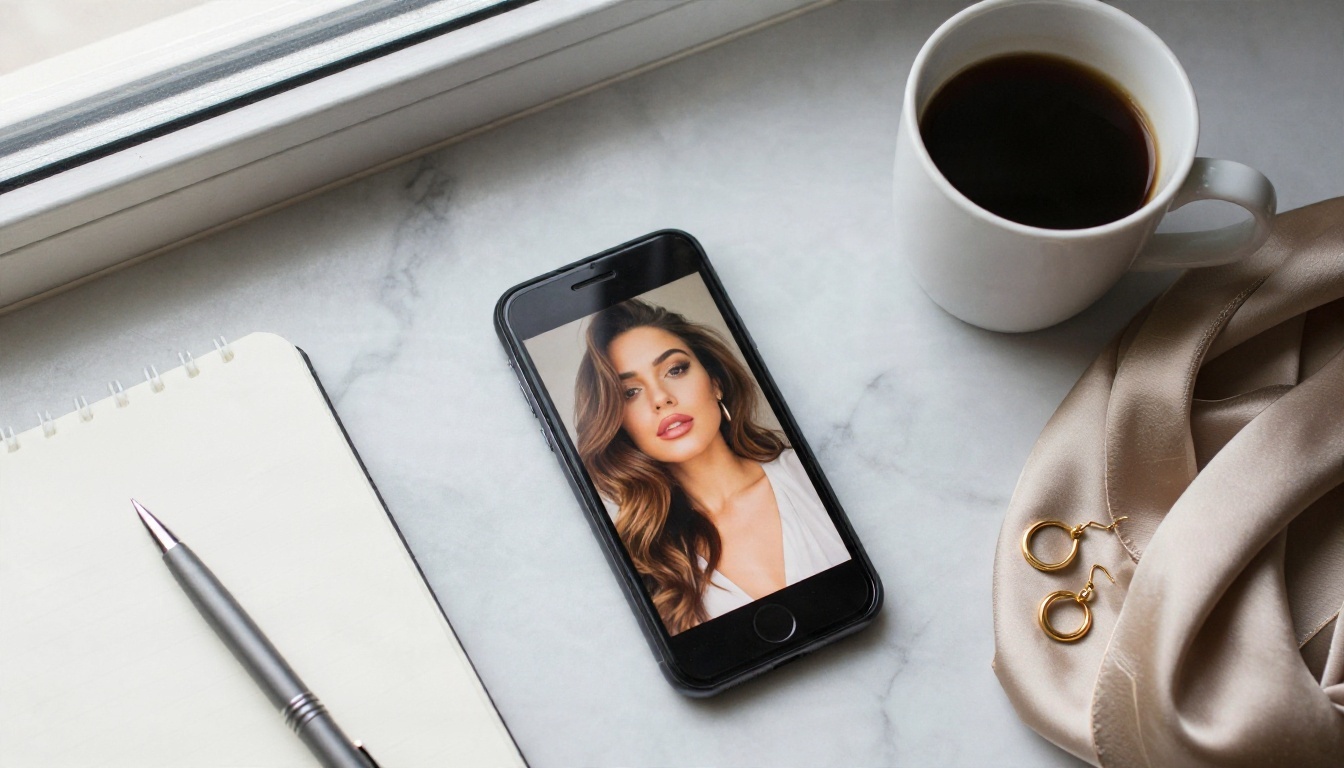
Gemini is a capable general tool, but for adult glamour, swimwear, and boudoir concepts it works against you more often than for you. The refusals are inconsistent, the output filter catches innocent prompts, and there is no setting that changes that.
The fix is simple: use tools built with more room for creative work. Start with Seedream 4.5 for photorealistic skin, fabric, and light. Then open PicassoIA Image Editor Pro for unlimited generations, so you can adjust the pose, the outfit, and the setting until the image matches your idea.
Take the sample prompt above, paste it into Seedream 4.5, and change one detail at a time: the time of day, the fabric, the lens. In twenty minutes you will have a small collection of polished concepts, and you will not have sat through a single vague refusal. When you want to see what else is out there, browse every available model at picassoia.com/en/all-models and run the same prompt through two or three of them. Picasso IA is built for exactly this kind of experimenting, so open it and make your first shot today.


