You type a perfectly reasonable prompt into Gemini, something like a woman in a bikini on a beach at sunset, and the reply is a polite refusal or a blank spot where the picture should be. Sound familiar? That is the daily reality of Gemini NSFW Image: Does It Work, Prompt Examples and Free Alternatives, and the short answer is: not the way most people hope. Gemini will make some swimwear and fashion shots, it blocks anything explicit, and it sometimes blocks harmless photos too.
This article breaks down exactly where the line sits, shows prompts that tend to pass, explains why the popular workarounds waste your time, and points you to free tools that handle adult glamour photography with far fewer refusals. Everything here is about non-explicit, tasteful imagery of adults: swimwear, boudoir styling, evening glamour. Nothing more.
💡 Quick answer: Gemini does not have an adult mode. Explicit content is refused, and borderline requests are often refused as well. For suggestive but tasteful photos, a model with looser filters will save you a lot of retries.
Does Gemini Allow NSFW Images?

No. Google positions Gemini as a general assistant, and its image generation sits behind several layers of safety checks. Pornographic prompts and reference images are refused outright. Suggestive requests land in a gray zone where the result depends on wording, the subject, and the day you try.
What Google's Filters Block
Based on what developers and users report, the refusals fall into a few buckets:
- Explicit sexual content: always blocked, no exceptions.
- Nudity and near-nudity: usually blocked, even when the intent is artistic.
- Real people: photos of identifiable people, especially celebrities, are refused.
- Minors or anything that could read as youthful: blocked, and that is the right call.
- Violence and gore: blocked in most phrasing.
Developer forums describe at least two separate layers. One is a configurable text-safety check. The other is an image-specific filter that developers say cannot be switched off. So even if you control the settings through an API, the second layer still decides what you get back.
Why Safe Photos Get Blocked Too
Here is the annoying part. Several developers have posted that ordinary fashion and lifestyle images get flagged by the image safety layer. Think a model in a summer dress, a gym outfit, a swimsuit campaign. Nothing explicit, still refused.
The cause is usually context. A word like "sensual", "seductive" or "lingerie" pushes the request toward the blocked side, and the filter does not weigh your good intentions. These systems are tuned to over-block on purpose, because a false refusal costs Google less than one bad image.
| Request type | Typical Gemini result |
|---|
| Explicit or pornographic | Refused every time |
| Artistic nudity | Refused most of the time |
| Lingerie or boudoir | Hit or miss, often refused |
| Bikini or swimwear editorial | Usually works with neutral wording |
| Evening wear, fashion portrait | Works, with occasional false blocks |
| Real person or celebrity | Refused |
What Actually Works in Gemini
If you want to stay inside Gemini, the winning approach is boring but reliable: describe a photograph, not a mood. Name the clothing, the place, the light and the lens. Skip adjectives that carry a sexual charge.
Swimwear and Fashion Prompts
Swimwear is the safest territory. Gemini treats a bikini on a beach the same way a catalog would. Keep the setting natural, keep the pose relaxed, and mention the camera.
Soft Boudoir Styling
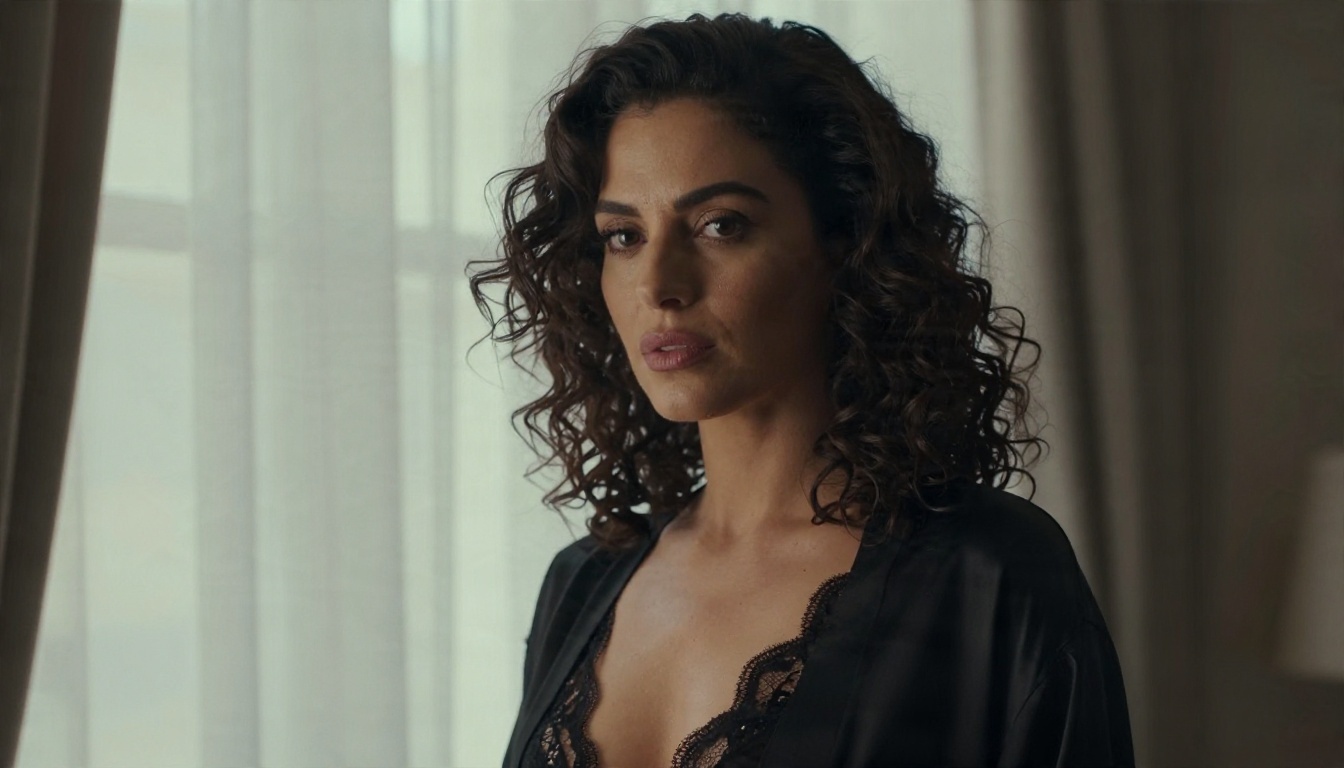
Silk robes, window light and a quiet bedroom can pass if you avoid the word "lingerie" and keep the framing to the shoulders and face. Results vary. If you get a refusal, changing a single word often changes the answer, which tells you how fragile the filter is.
Prompts That Get Refused
These patterns trigger blocks again and again:
- Words like "nude", "topless", "seductive", "erotic" or "undressing".
- A request to remove clothing from an uploaded photo.
- Naming a real person or a famous face.
- Describing body parts in detail.
- Anything involving a school, a uniform that suggests youth, or an unclear age.
Prompt Examples That Pass
Here are four prompts written in plain photographic language. They work best as a starting point. Swap the location, outfit colors and lens to fit your project.
Beach Editorial
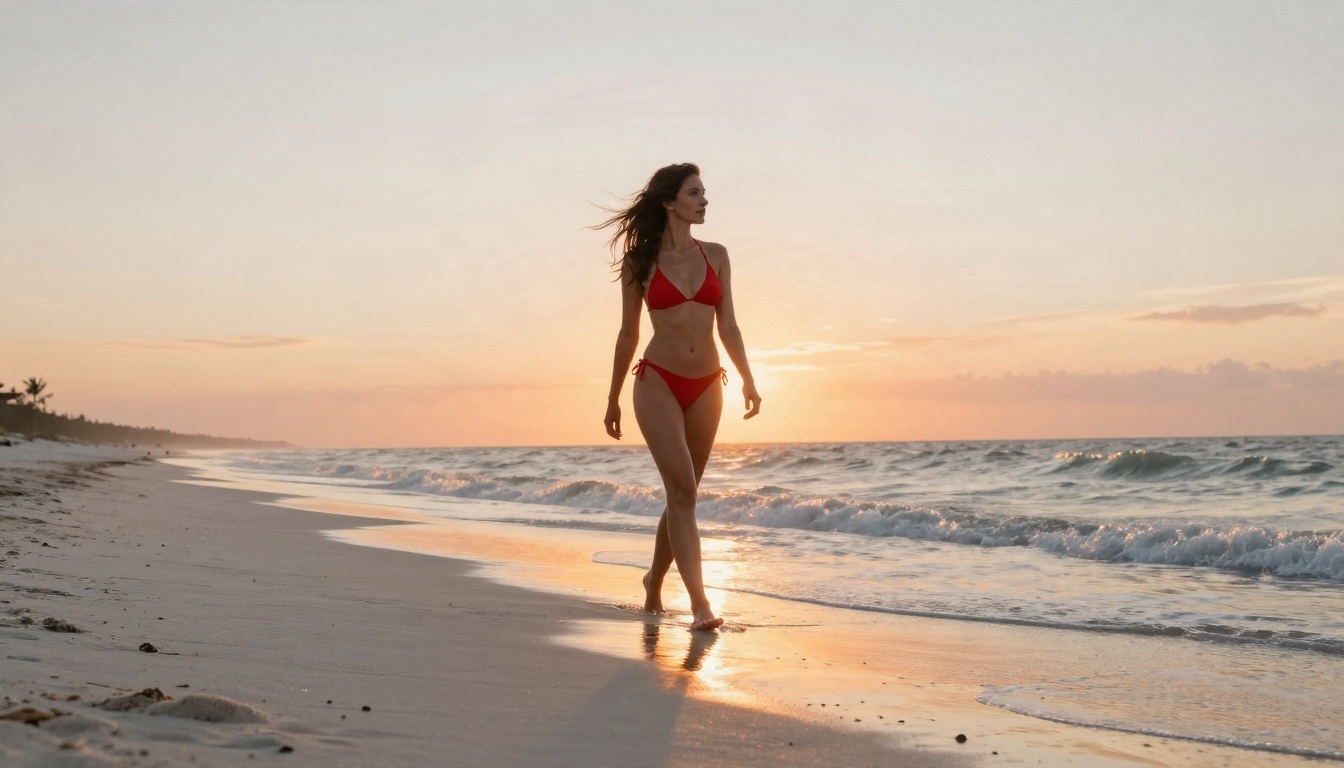
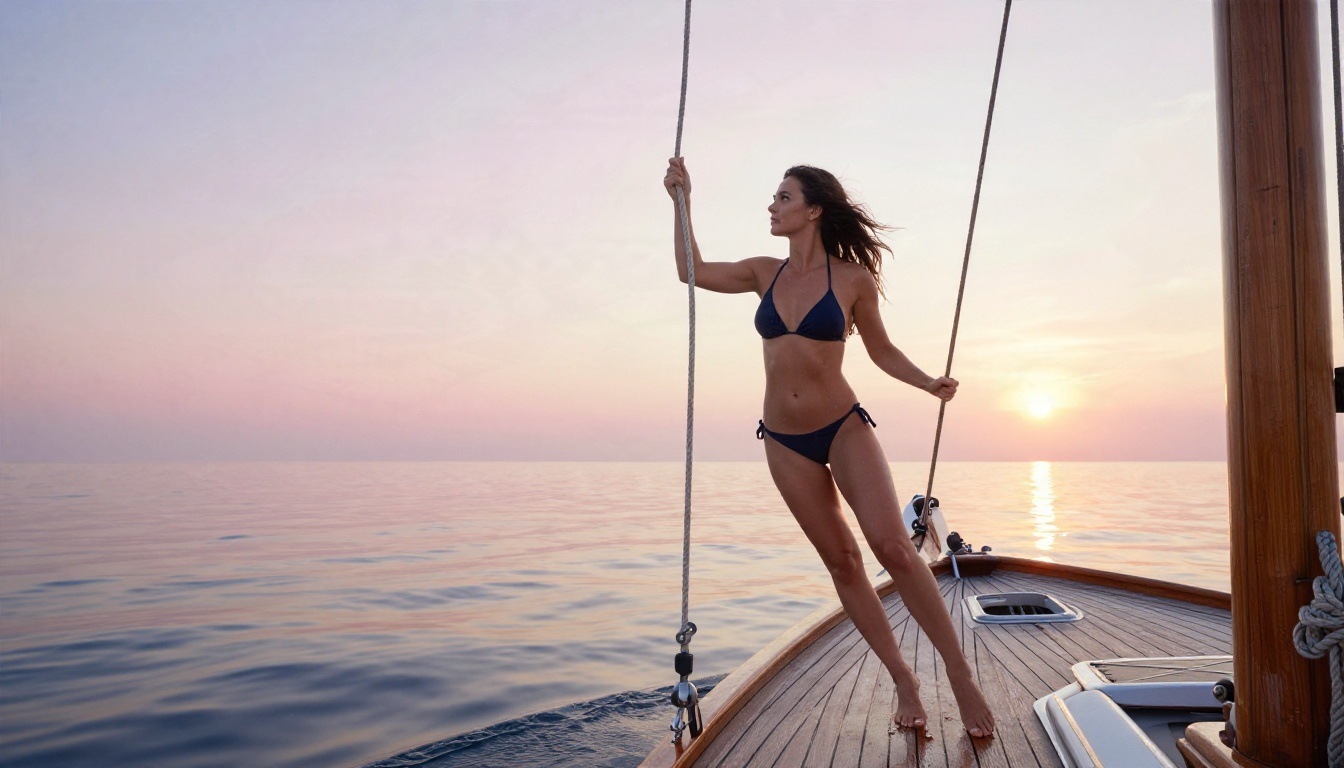
Low-angle photograph of an adult woman in a red bikini walking along a white sand beach at sunset, wet sand reflecting an orange sky, windblown hair, golden backlight, 24mm lens, natural film grain, travel magazine style.
This is the kind of prompt that passes in Gemini more often than not. It reads like a magazine brief.
Poolside Portrait
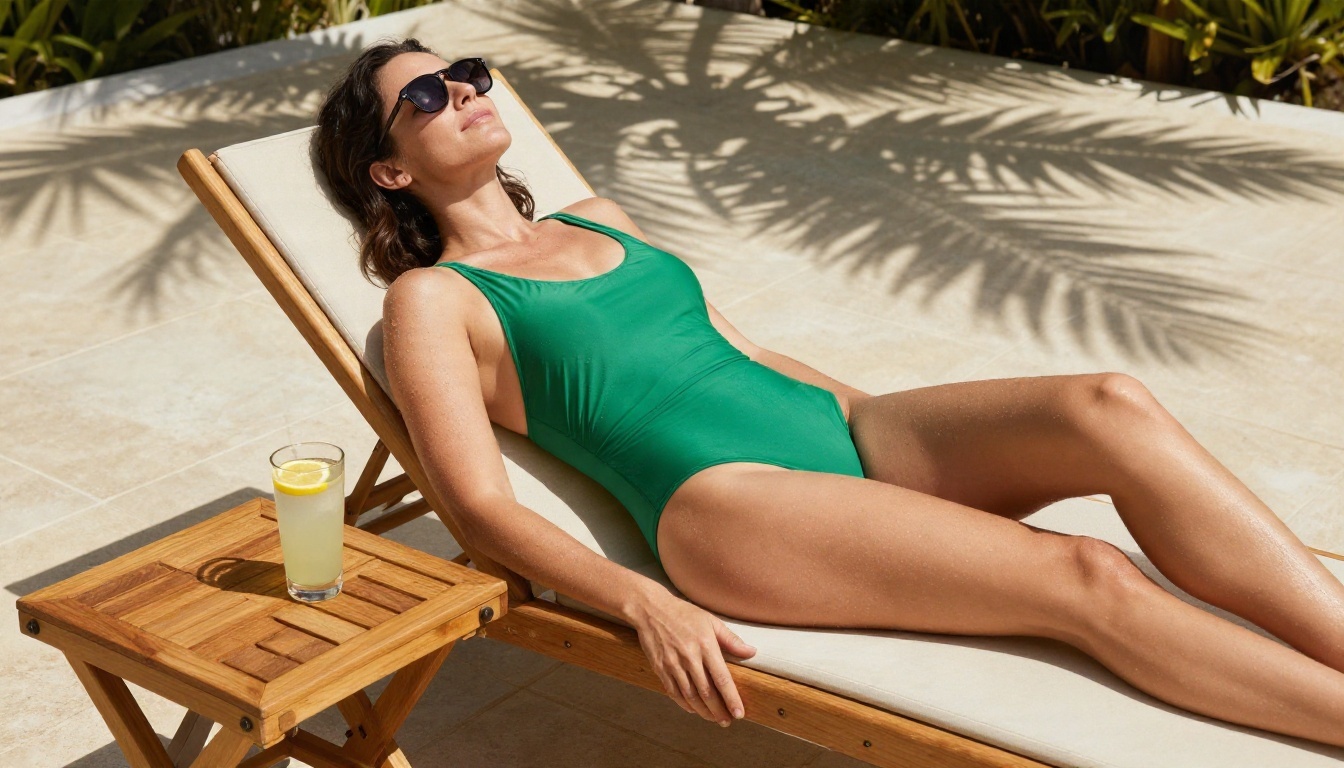
Medium shot of an adult woman in an emerald green swimsuit lounging on a teak daybed beside a villa pool, sunglasses in her hair, palm shadows on the tiles, midday sun from above right, 50mm lens, visible skin texture and water droplets.
Evening Glamour
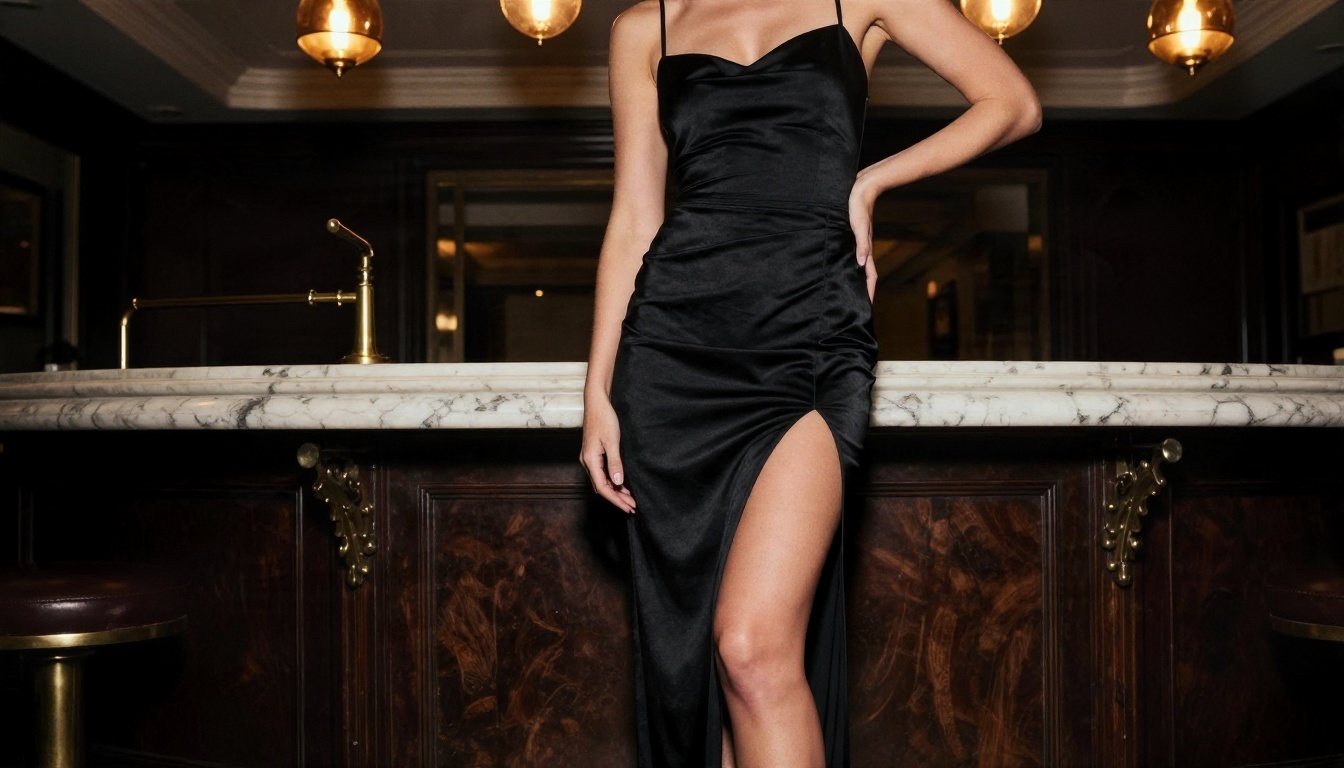
Full-length fashion photograph of an adult woman in a fitted black evening dress with a high leg slit, standing in a marble hotel lobby, warm pendant lights from above left, 70mm lens, soft shadows, silk sheen, editorial look.
Evening wear is a sweet spot. It looks glamorous, and filters tend to relax because the setting reads as fashion.
Window Light Boudoir
Close-up portrait of an adult woman with dark curly hair, black silk robe resting on her shoulders, standing beside a tall window with sheer curtains, soft morning light from the left, 85mm lens, shallow depth of field, film grain.
💡 Tip: Always state "adult woman" in your prompt. It sharpens the output and removes ambiguity for the filter.
Why Bypass Tricks Fail
Search for this topic and you will find endless threads about clever rewording, role-play setups and multi-step edits meant to get around the filters. I would skip all of it, and not only because it feels sketchy.
The Rewording Loop
Every time you rewrite a refused prompt, you burn time and often get a different refusal. Because the image filter works on the generated result and not only your text, even a clean prompt can be blocked after the picture is made. You can spend an hour trading one synonym for another and end with nothing usable.
Account and Policy Risks
Repeated attempts to push past a safety system can trigger warnings on your account. It is a bad trade for a few swimsuit photos you can get elsewhere without a fight.
Consistency Across Batches
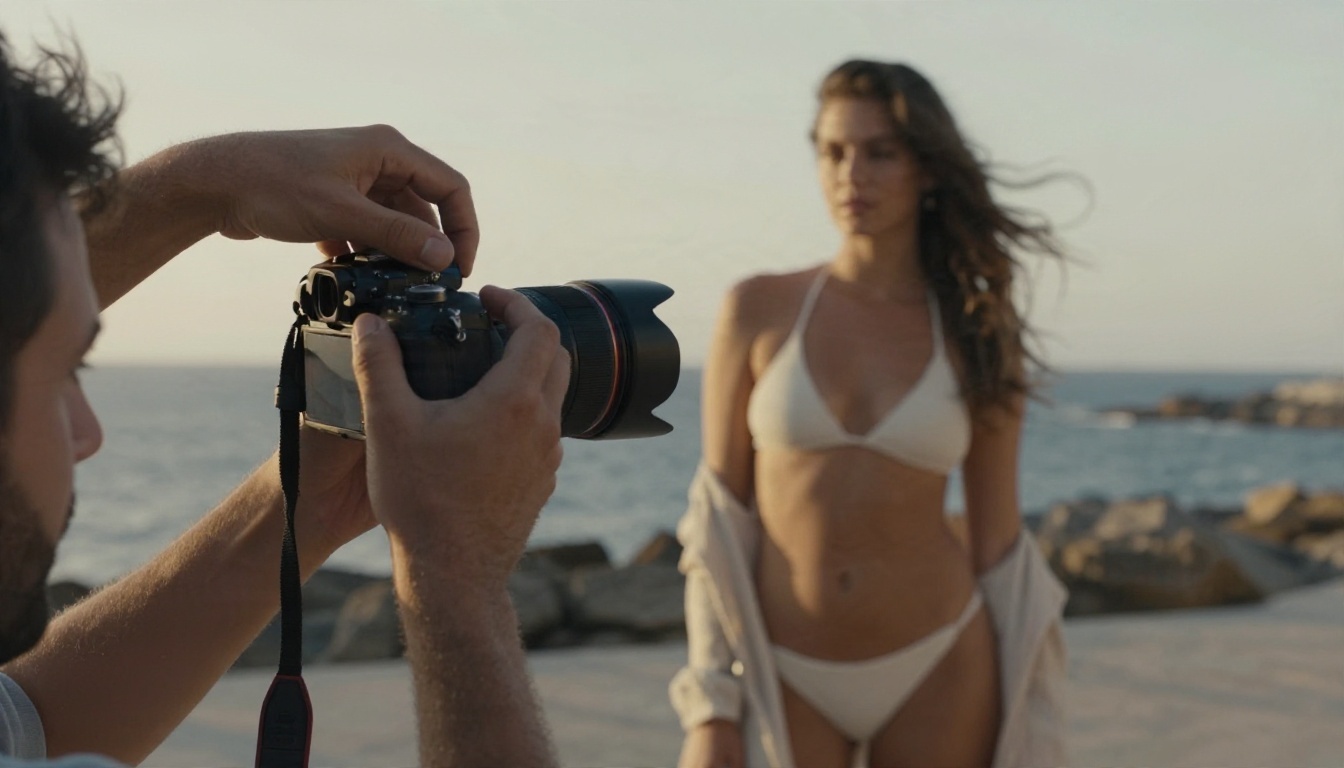
Even when a prompt passes once, the same prompt may fail the next day. Filters get retuned quietly, and what worked in the morning can break by evening. If you are building a series of images for a project, that unpredictability is the real cost. A tool with stable rules is worth more than a clever trick.
Free Alternatives Without Refusals
Gemini itself is not a model you can use on PicassoIA, so here are the options that are. The image models below are built for photorealistic work, and they are a much better fit for glamour, swimwear and boudoir style photography. Gemini is not available on PicassoIA, but for similar results today, try these in this order.
Google's own Nano Banana Pro is the image model family closest to what Gemini uses. It is great for clean portraits, product shots and edits, but treat it as a safe-for-work tool rather than an adult one.
💡 Reminder: All the images in this article are tasteful, non-explicit and show adults. Keep your own work in that lane.
How to Get Similar Results on PicassoIA
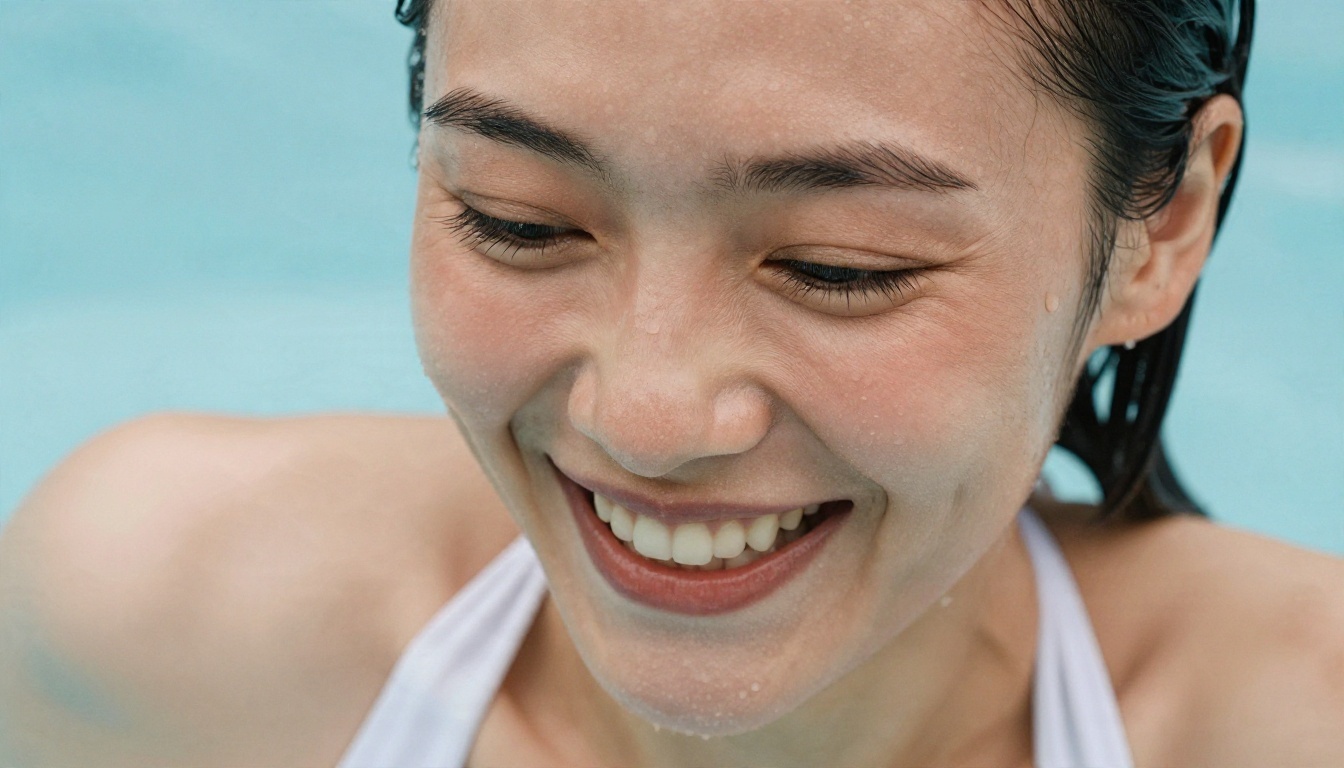
The best place to start is Seedream 4.5. It produces sharp, natural skin and believable light, and it is far more relaxed about swimwear and glamour than Gemini. Here is the simple workflow.
Step by Step
- Open the Seedream 4.5 page on PicassoIA.
- Paste one of the prompts from the section above. Replace the location, outfit color or lens to make it yours.
- Pick a 16:9 ratio for landscape scenes or 3:4 for full-length portraits.
- Generate, and look at the skin texture and the light direction first.
- Rewrite one detail at a time. Change the outfit, then the setting, then the lens.
- Send the best result into PicassoIA Image Editor Pro for retouching, background changes or small fixes.
Parameter and Prompt Tips
- Lead with the camera. "85mm f/1.8, shallow depth of field" gives a portrait feel in one line.
- Name the light. "Low golden sun from camera left" beats "nice lighting" every time.
- Add texture words. Skin pores, fabric weave, water droplets, wet sand. Real details make a photo feel real.
- Keep it grounded. Film grain, natural color, Kodak Portra 400 style. Avoid neon or glossy effects.
- Use one subject. Crowded scenes dilute detail on the face.
- State the age. "Adult woman" keeps the output in the right category.
Models Ranked for Glamour Work
Here is how each model earns its spot, based on what each one does best.
Seedream 4.5 for Hero Shots
Use Seedream 4.5 when a single image has to look great. It handles skin, fabric and background blur with a polish that is hard to beat, and it outputs at up to 4K. That makes it a strong match for covers, portfolios and social posts.
Image Editor Pro for Volume
PicassoIA Image Editor Pro offers unlimited generations, which is the biggest practical difference from Gemini. When you are testing ten outfits and six locations, a hard daily cap or a random refusal ruins the flow. Here you can keep iterating, then edit the winner in the same place: swap a background, change a swimsuit color, clean up small flaws.
Z Image Turbo for Fast Drafts
Z Image Turbo returns sharp images in seconds. Use it to test composition ideas before spending time on a final render. Think of it as your sketchpad.
Flux 2 Klein 9B LoRA for Styling
Flux 2 Klein 9B Base LoRA is the pick when you want a consistent look across a whole series. LoRA support gives you control over style that a plain prompt cannot match.
Quick Comparison With Gemini
| Feature | Gemini | PicassoIA models |
|---|
| Swimwear and glamour | Hit or miss | Works with fewer refusals |
| Boudoir styling | Often blocked | Works with fewer refusals |
| Daily limits | Yes, depends on plan | Unlimited in Image Editor Pro |
| Photo editing | Basic | Full editing in Image Editor Pro |
| Speed | Moderate | Seconds with Z Image Turbo |
| Output quality | Good | Up to 4K with Seedream 4.5 |
Build a Better Prompt Workflow
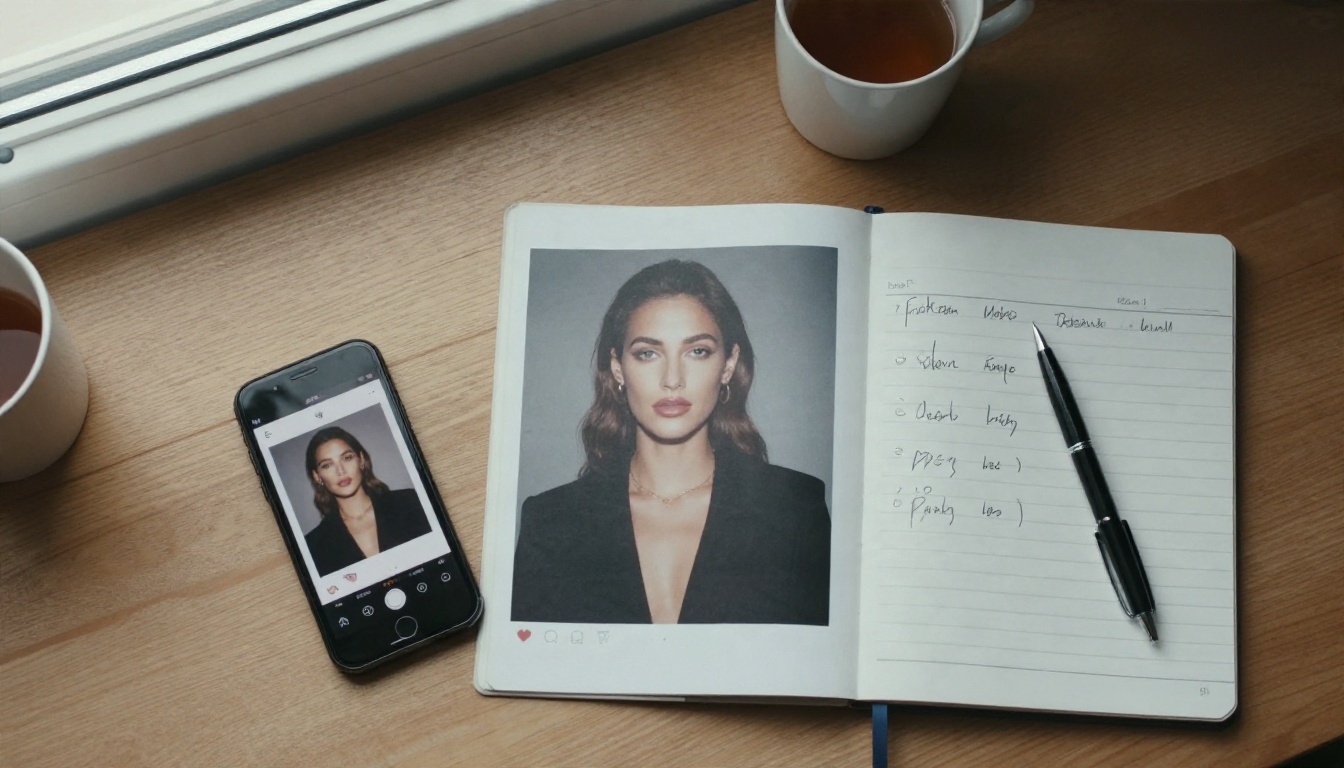
Once you pick a model, the real gains come from process, not from any single prompt. Keep a notebook or a text file with your best prompts, label what worked, and reuse the structure.
A Simple Prompt Formula
Use this order and you will rarely go wrong:
- Subject and pose: an adult woman seated on a wooden dock, looking over her shoulder.
- Outfit: satin two-piece swimsuit with an open linen shirt.
- Setting: Mediterranean bay at golden hour.
- Light: low sun from the left, warm rim light on the hair.
- Camera: 85mm f/1.8, shallow depth of field.
- Texture and mood: film grain, visible skin pores, natural color.
Common Mistakes to Avoid
- Stacking too many styles in one prompt.
- Forgetting to name the light direction.
- Using vague mood words like "hot" or "sexy" in place of real visual detail.
- Skipping the lens, which leaves the framing to chance.
- Regenerating without changing anything, then expecting a different result.
Try It Yourself Today
Gemini will give you a swimsuit photo on a good day and a refusal on a bad one. If you want steady, photorealistic glamour images without the guessing game, switch to tools built for the job. Start with Seedream 4.5 for polished portraits, move to PicassoIA Image Editor Pro when you want unlimited tries and quick edits, and keep Z Image Turbo nearby for fast drafts.
Copy one of the prompts above, change the outfit and the location, and see what comes out. Then browse the full list of models at picassoia.com/en/all-models and find the one that fits your style. Your first Picasso IA image is a single prompt away.


