OpenAI shipped GPT Image 2.6 on November 4, 2026, and within hours the same questions flooded every creative forum: when exactly did it launch, where can I use it, and is it really different from 2.5? The short version is that the launch was real, the rollout is staged, and the changes lean toward speed and flexibility rather than a brand new look. This article sorts out the dates, the access points, and the actual feature changes, then shows what you can do right now with image models that are live today.

Release Date at a Glance
If you only need the date, here it is. If you want the context behind it, keep reading, because the naming alone has tripped up plenty of people.
The Short Answer
GPT Image 2.6 was released on November 4, 2026. Several independent reports agree on that date, and one of them points to OpenAI's own API changelog, which lists the two new API models as released that day. Inside ChatGPT the feature is branded Images 2.6, while developers see model names with the "GPT Image 2.6" label.
💡 Quick fact box: ChatGPT users see "Images 2.6". API users see two models called GPT Image 2.6 Flare and GPT Image 2.6 Sunburst. Same release, different labels.
Why the Dates Confuse People
Three things muddy the timeline:
- Some trackers listed 2.6 as unreleased in the days just before launch, and those pages are still cached in search results.
- The launch post says the models are available in the API, while at least one forum thread described them as "coming to the API". The wording is inconsistent, so treat access as rolling, not instant for every account.
- The previous release, version 2.5, introduced the Flare and Sunburst naming only weeks earlier, so many people assume 2.6 is a rename. It is not. It adds features.
Italic reminder: a release date tells you when a product exists, not when it reaches your account. Those are often different days.
Where to Try It Right Now
Access depends on how you work. Here is the practical breakdown based on what was reported at launch.
ChatGPT and Codex
OpenAI describes a global rollout across ChatGPT and Codex, on web, desktop and mobile, spread over subscription tiers. A few details are worth knowing:
- General image access and the "Images with thinking" mode are not treated the same way. The thinking mode is tied to paid plans.
- GIF creation appears to be a staged rollout, so you may see it a bit later than the basic image tool.
- If you do not see Images 2.6 yet, updating the app and starting a fresh conversation is the first thing to try.
The API Models
For developers there are two models, each with a different job:
| Model | Aimed at | Where it is listed |
|---|
| GPT Image 2.6 Flare | Speed and fast iteration | Image generation and edit endpoints |
| GPT Image 2.6 Sunburst | Quality and edit consistency | Image generation and edit endpoints |
Reports say both appear on the dedicated image generation and edit endpoints, but not on Responses, Chat Completions or Batch. One write-up also noted that OpenAI does not promise API access to every account on day one, so check your own dashboard rather than assuming.
⚠️ Pricing note: One third-party breakdown aimed at ad creatives claimed the low-quality tier costs noticeably more than it did in 2.5 while the high tier stayed flat. I could not confirm that figure from primary material, so check the official price list before you budget a campaign around it.
What Changed From 2.5
Version 2.5 already brought sketch input, on-image markup and lower latency. Version 2.6 pushes in four directions: speed, motion, vector output and control.
Faster Generation
OpenAI says images generate about 50% faster than the prior version. If you work in loops, writing a prompt, looking at the result, nudging the wording, trying again, that matters more than raw sharpness. Ten quick attempts beat three slow ones almost every time.
GIF Output
The headline addition is animated GIF creation. You describe a short looping scene and get a moving file back instead of a still. It is a natural fit for reaction images, product teasers, and social posts where a video file would be overkill. Expect short loops with a limited frame count; I could not verify exact frame limits, so test with your own prompts.
SVG Export
2.6 can also output SVG, the scalable vector format used for logos, icons and simple illustrations. For designers this is a real workflow change: a vector can be resized without blur and edited point by point in a vector editor. It works best for flat, graphic shapes. Do not expect a photographic portrait to become a clean vector.
The Complexity Setting
A new complexity control adjusts how much planning the model does before it draws. Think of it as a dial between "sketch it quickly" and "think about the layout first". Busy scenes with several subjects, specific object counts or precise spatial relationships tend to benefit from more planning. A single object on a plain background does not need it.
Markup Edits in the API
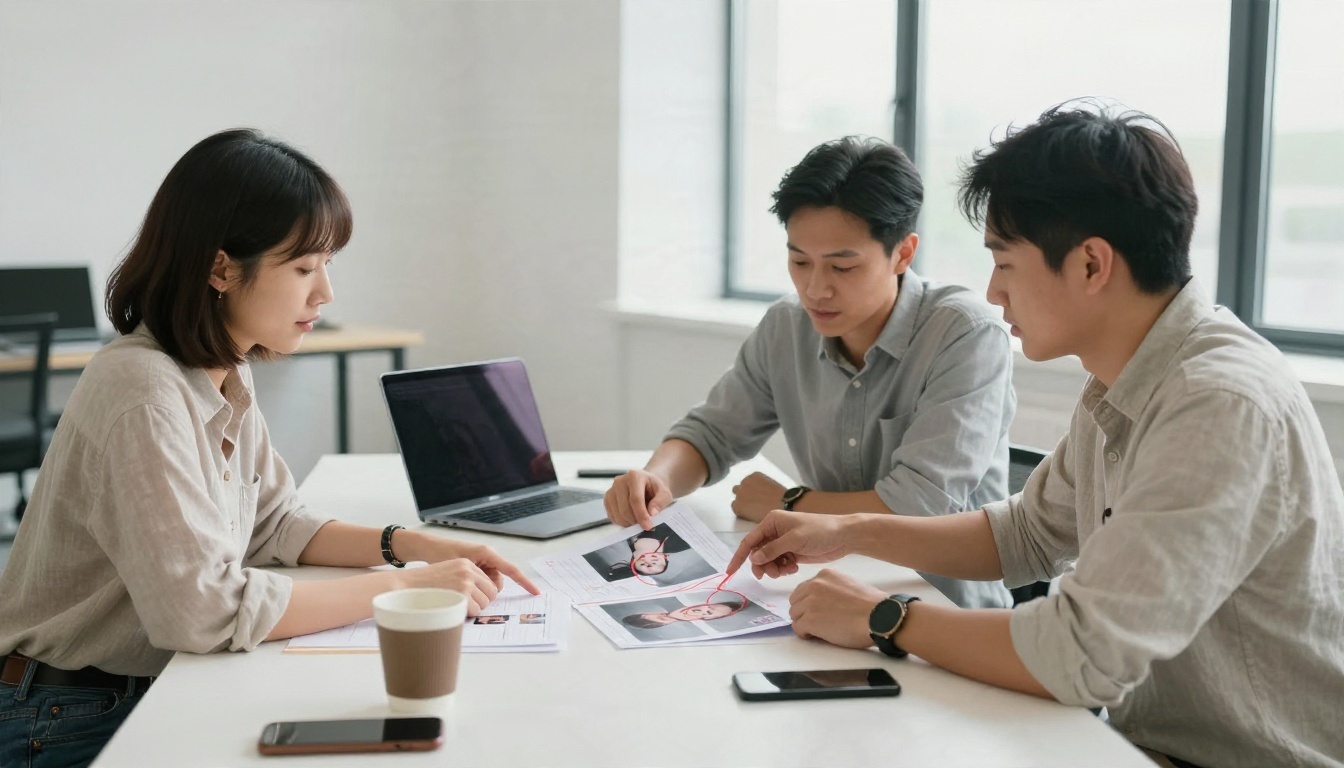
ChatGPT's visual markup editing, where you circle or mark a region and say what to change, now reaches the API. Developers can build tools where a user draws on a picture and the model edits only that area. For product teams this removes a lot of awkward "describe the region in words" logic.
Here is the whole change list in one place:
| Feature | Version 2.5 | Version 2.6 |
|---|
| Speed | Lower latency than earlier releases | About 50% faster than 2.5 |
| Animated GIF | Not offered | Offered (staged rollout) |
| SVG output | Not offered | Offered |
| Complexity control | Not offered | Offered |
| Markup editing in API | ChatGPT only | Brought to the API |
| API model names | Flare and Sunburst | Flare and Sunburst |
Is It on PicassoIA?
Straight answer: GPT Image 2.6 is not on PicassoIA yet. It has no page there, so there is nothing to link and nothing to promise. I will not pretend otherwise, and I would not trust any site that claims an instant mirror of a release announced days ago.
What is on the platform is the line of models just before it. That matters, because Flare and Sunburst were the two names introduced with version 2.5, and both are available now.
Alternatives Available Today
GPT Image 2.6 is not on PicassoIA yet; for similar results today, try these:
- GPT Image 2.5 Sunburst: the quality and editing option, and the closest match to what Sunburst is aimed at.
- GPT Image 2.5 Flare: the faster option for quick iteration, the same role Flare plays in the new release.
- GPT Image 2: the earlier base model, handy when you want the older look for comparison.
- Nano Banana Pro: a different family from Google, strong for sharp, high-resolution output when you want a second opinion on a prompt.
💡 Tip: None of these will produce GIF or SVG files the way the new release does. If those two outputs are your main reason for waiting on 2.6, plan around them separately. Still images, edits and typography-style prompts are where the alternatives shine.
How to Get Similar Results on PicassoIA
Here is a practical routine using GPT Image 2.5 Sunburst, the model closest in spirit to the quality-focused 2.6 Sunburst. Everything below applies to the 2.5 model, not to 2.6.
Step by Step
- Open the model page. Go to the GPT Image 2.5 Sunburst page and sign in.
- Write a structured prompt. Use this order: subject, action, setting, lighting, camera, mood. For example: "A ceramic teapot on a wooden table, steam rising, soft window light from the left, 50mm lens, shallow depth of field, calm morning mood."
- Set the aspect ratio first. Pick 16:9 for banners, 1:1 for posts, 9:16 for stories. Changing it later changes the composition.
- Generate, then edit. Sunburst supports editing, so upload your result with a change request instead of rewriting the entire prompt.
- Switch to Flare for volume. Once the idea is settled, run variations on GPT Image 2.5 Flare and keep the best.
Parameter Tips
- Be specific about counts and positions. "Three red apples on the left, one green pear on the right" works better than "some fruit".
- Quote any text. Keep it to one or two short words. Long sentences inside an image are where mistakes creep in.
- Change one thing at a time. If you edit the subject, lighting and lens in one go, you will not know which change helped.
- Check the options on the model page. Available settings can differ between models, so look at what each page offers before you start.
💡 Workflow shortcut: Draft on Flare, finish on Sunburst. It is the same speed-versus-quality split OpenAI built into the new API lineup, only one version earlier.
Which Model Fits Which Job
A quick decision table helps when you are choosing between the options.
| Your goal | Best pick | Why |
|---|
| Fast drafts and many variations | GPT Image 2.5 Flare | Built for speed |
| Polished final images and edits | GPT Image 2.5 Sunburst | Quality and edit consistency |
| A baseline to compare against | GPT Image 2 | Earlier generation behavior |
| Older transparency workflows | GPT Image 1.5 | Transparent background support |
| Sharp high-resolution stills | Nano Banana Pro | Different family, fresh take |
| Detailed 2K images with strong prompt following | Seedream 5 Pro | Sharp, clean output |
| Animated GIF or SVG output | Wait for 2.6 access | Only the new release lists these |
Mistakes People Make With New Releases
Every launch week brings the same errors. Avoid these three and you will save hours.
Trusting the First Headline
Early coverage often repeats the press release, including contradictions. When one page says "available" and another says "coming soon", both can be partly right because rollouts are staged. Check your own account instead of arguing about it.
Judging It on One Prompt
A single test tells you almost nothing. Run the same five prompts on the old and new models, then compare. Use a mix: a portrait, a crowded scene, a product shot, a piece of text, and an edit. That small set exposes real differences quickly.
Ignoring the Boring Settings
Speed, aspect ratio and quality tiers decide your costs and your results more than any headline feature does. If a platform offers a lower quality tier, test whether it is good enough for drafts before you pay for the top tier on every attempt.
💡 Rule of thumb: treat a new model like a new lens. Shoot the same subject with both before you decide which one lives in your bag.
Try It Yourself Today
GPT Image 2.6 is out, but its rollout is still settling, and it is not on PicassoIA yet. You do not have to wait to get moving. The models above are live right now, and they cover the same two jobs OpenAI built the new release around: fast drafts and polished finals.
Open GPT Image 2.5 Flare for rapid ideas, take your favorite into GPT Image 2.5 Sunburst for the finish, and compare the results against Nano Banana Pro or Seedream 5 Pro. Want more choices? Browse every available model at picassoia.com/en/all-models and start creating your own images with Picasso IA today. Write three prompts, run them on two models, and see which one matches your eye. That small experiment will tell you more than any release note.


