Grok has a reputation for saying yes where other assistants say no, and its "spicy" option for Grok Imagine made that reputation official. But the setting is buried, it depends on your plan and your app version, and it is not the free-for-all that headlines suggest. If you have been tapping through menus looking for a switch that is not where a forum post said it would be, this article is for you.
Below you will find where the NSFW toggles sit, who can actually use them, what Grok still refuses or blurs, and what to do when the filters get in your way. Then comes the practical part: how to produce suggestive, photorealistic glamour images on PicassoIA with models that give you far more room to work.
💡 Quick answer: Grok NSFW mode is a set of account and content preferences, plus a "spicy" style inside Grok Imagine. It is reported to work on paid plans in the mobile apps, and it still moderates the most explicit prompts. Menu names change often, so treat any walkthrough (including this one) as a map, not a promise.
What Grok NSFW Mode Actually Is
People use the phrase "Grok NSFW mode" for three different things, and mixing them up is the main reason guides contradict each other.
The chatbot side
In the text chat, Grok is looser than most mainstream assistants. It will write flirty dialogue, romance scenes with some heat, and companion-style roleplay. That behavior is shaped by your content preferences and by the character or persona you are talking to. There is no single "NSFW" button, just a gradual shift in what it will say.
The Grok Imagine "spicy" option
When xAI launched Grok Imagine, its image and short video generator, it shipped with a "spicy" option next to styles like normal and fun. Launch reporting described it as a way to produce more sensual, adult-leaning clips, including partial nudity in some cases. This is the feature most people mean when they search for Grok NSFW mode.
The account-level toggle
Behind both sits an account setting that decides whether sensitive media is shown to you and whether generation of such media is allowed. One third-party walkthrough places it under profile settings and content preferences, with a "Display NSFW content" switch and a second switch for sensitive media generation that only appears after the first is on.

💡 Reality check: I could not find official xAI documentation that spells out the exact menu path. The steps below come from reporting and user walkthroughs, so the labels on your screen may differ.
How to Enable It Step by Step
Here is the path most walkthroughs describe. If a step does not match your screen, look for the closest wording in the same area of the app.
Step 1: Use a supported app
The spicy option was reported as available in the Grok apps on iOS and Android, not as a universal web feature. Update the app to the latest version before you start, because older builds often hide newer toggles.
Step 2: Check your plan
Launch coverage pointed to paid access, with SuperGrok and Premium+ subscribers named as the people who could use it. Free accounts have had limited or no access to the adult-leaning generation options. If your toggle is missing or greyed out, the plan is the first thing to check.
Step 3: Turn on content preferences
Open your profile, then settings, then look for content preferences. Switch on the option that displays NSFW or sensitive content. Some users report that a second option for allowing sensitive media generation appears only once this first one is active.
Step 4: Restart the app if nothing changes
A few users on Android reported that the new setting did not apply until they force-closed and reopened the app. It sounds trivial, but it solves a large share of "the toggle does nothing" complaints.
Step 5: Pick the spicy style in Grok Imagine
Open Grok Imagine, write your prompt, and choose the spicy option instead of the default style. Spicy is a style selector, not a magic password. The prompt still matters, and so does the reference image if you animate a still.
| Step | Where to look | Common problem | Quick fix |
|---|
| App version | App store | Old build hides toggles | Update, then reopen |
| Plan | Subscription page | Free tier blocked | Check SuperGrok or Premium+ |
| Preferences | Profile, settings, content | Toggle missing | Enable display first |
| Apply changes | Whole app | Setting ignored | Force close and relaunch |
| Style | Grok Imagine | Spicy not offered | Try a fresh image or prompt |
Where the Settings Live
Because menus move around, it helps to know what each setting is supposed to control rather than memorizing a path.
Display versus generation
Display decides what you see in your feed and in results. Generation decides what Grok will try to create for you. They are separate on purpose. You can allow display and still find that generation is limited, which confuses a lot of people.
Age and region gates
Adult content settings usually sit behind an age confirmation, and some regions get a stricter version or no access at all. If you are traveling or using a VPN, your options can change without warning. That is a common reason a friend sees a toggle you cannot.
Persona and companion settings
In chat, the persona you select changes how far the conversation goes. A playful companion character will respond differently from the default assistant. Think of persona as a dial, and the account toggle as the gate that lets the dial turn.
The Limits You Will Hit
Even with every switch on, Grok is not unfiltered. Reporting at launch was mixed: some outlets described partial nudity being possible, while others noted that the spicier prompts often returned blurred, moderated results that could not be opened.
Blurred and moderated results
The most common limit is not a refusal but a blur. The generation runs, the output fails a safety check, and you get a masked preview you cannot access. This wastes time and, on metered plans, usage.
Hard blocks
Some categories are blocked everywhere, no matter your settings. Anything involving minors is refused outright. Sexual violence, coercion and non-consensual framing are also off limits, and so are attempts to put a real, identifiable person into an explicit scene.
Real people and likenesses
Uploading a photo of a real person and asking for adult edits is the area with the most controversy and the tightest enforcement. Policies have shifted more than once, so do not build a workflow around loopholes. Use original characters, models you have rights to, or fully synthetic faces.
Inconsistent outcomes
The same prompt can pass today and fail tomorrow. Filters get tuned, and borderline requests land on either side of the line. If you rely on a result for a project, save what you get when it works.
| Limit | What happens | Can you change it? |
|---|
| Plan gate | Toggle missing or locked | Upgrade or switch tools |
| Blur filter | Masked output | Rewrite prompt, soften wording |
| Hard blocks | Refusal | No |
| Real person edits | Refusal or removal | No |
| Region rules | Reduced options | Depends on local law |
Why Spicy Prompts Still Fail
If you have the toggles on and the output still gets blocked, the cause is usually one of these.
The prompt reads as explicit
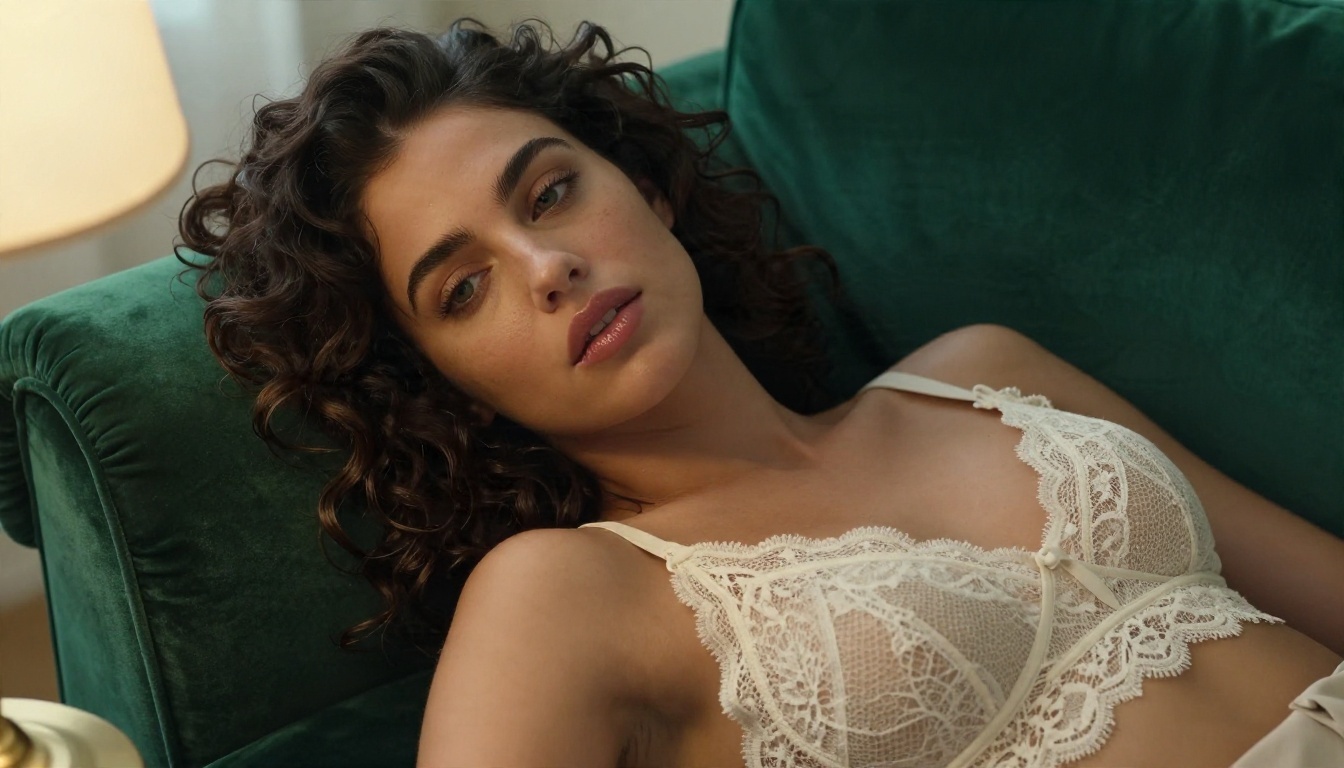
Filters react to blunt wording. Compare "nude woman" with "a woman in a silk robe, shoulder bare, soft lamp light, editorial boudoir style." The second describes the same mood in photographic terms, and it is far more likely to produce a usable image. It also tends to look better.
The source image is the problem
When you animate a still, the model judges the image first. A source photo that already looks like a real person's private picture can trigger a block before your text is even read.
The request mixes too many ideas
Long prompts that stack several risky elements raise the chance of a moderation hit. Keep each prompt about one scene, one outfit, one lighting setup.
💡 Prompt habit that helps: Write like a photographer, not like a search query. Name the lens, the light direction, the fabric, the location and the mood. Specific beats explicit.
A Faster Route on PicassoIA
If the toggles, plan checks and blur filters are not worth the trouble, you can skip all of it. PicassoIA is built for suggestive, non-explicit adult-leaning imagery: bikinis, lingerie, boudoir, glamour and fashion portraits, with no app settings to hunt through.
Start with Seedream 4.5
Seedream 4.5 is the model to open first. It produces sharp, photographic skin, believable fabric and natural light, and it accepts glamour and swimwear prompts without the blur-and-refuse cycle. Outputs reach 4K, which matters when you plan to crop or print.
Edit and iterate with Image Editor Pro
PicassoIA Image Editor Pro is the place to refine what you generated. It offers unlimited generations, so you can try ten variations of an outfit, a pose or a background without watching a counter. For anyone used to metered plans and blocked previews, that freedom is the real difference.
More models worth trying
Different models render skin, light and fabric differently, and testing two or three on the same prompt is cheap.
💡 Good to know: Grok itself is a different product with its own rules. PicassoIA also lists Grok Imagine Image 2, Grok Imagine Image Quality and Grok Imagine Video 1.5 for general image and video work. For suggestive glamour, start with Seedream 4.5 and Image Editor Pro.
How to Get Similar Results on PicassoIA
You do not need a plan, a toggle or a restart. Here is the workflow with Seedream 4.5, then a polish pass in Image Editor Pro.
Step 1: Open the model
Go to the Seedream 4.5 page and open the generator. Pick a 16:9 ratio for wide scenes, or 3:4 and 2:3 for portraits.
Step 2: Write a photographer's prompt
Use this structure: subject and pose, environment, lighting, lens, texture details. A strong example:
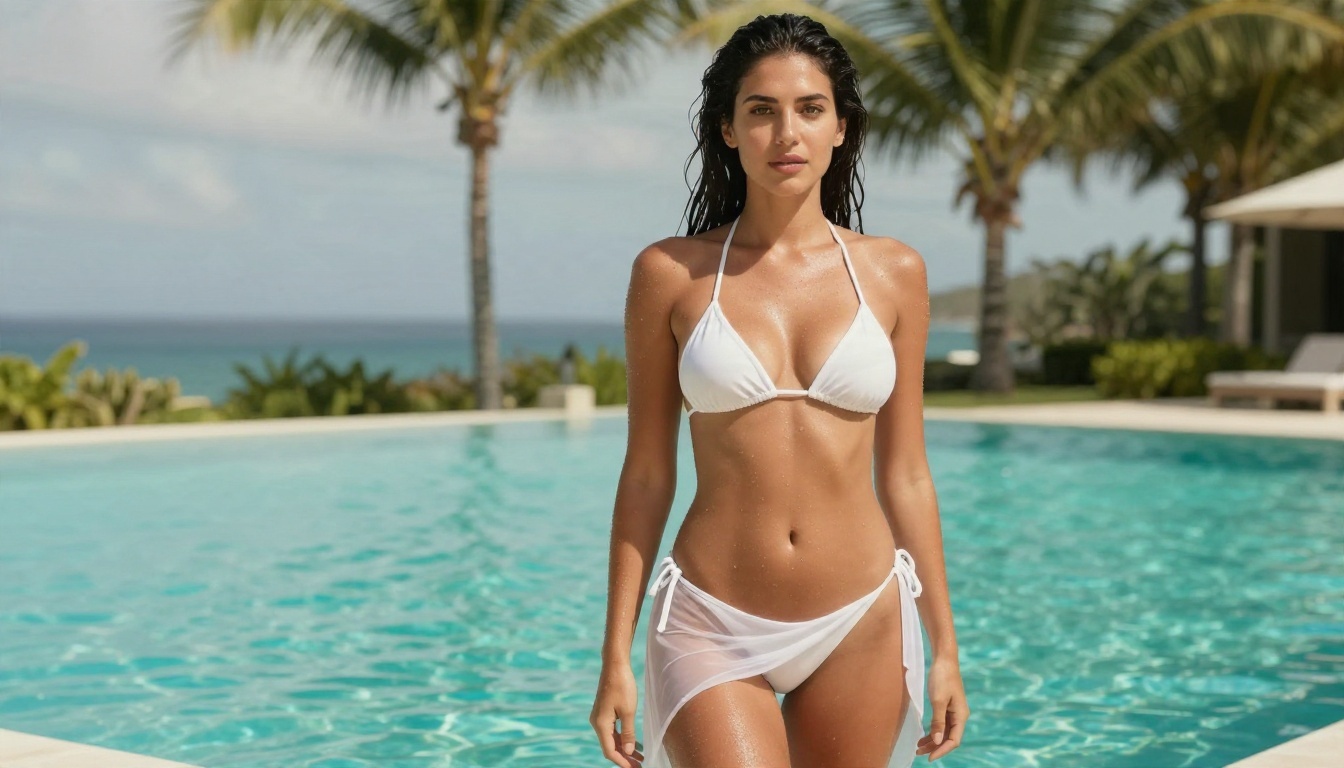
A woman in a white string bikini and sheer sarong at the edge of an infinity pool, turquoise water, palm trees, soft midday light, 35mm lens from low angle, water droplets on skin, natural film grain.
Step 3: Set the parameters
Choose the highest resolution offered, keep the aspect ratio matched to your layout, and generate two or three variations at once. If a result is close but not right, adjust one thing at a time: outfit, light or camera angle.
Step 4: Refine in Image Editor Pro
Load your favorite result into Image Editor Pro. Because generations are unlimited, you can swap a dress color, change the background or fix a detail as many times as you like.
Step 5: Save your prompts
When a prompt works, keep it. A small library of tested prompts saves hours, and it protects you from filters that change on other platforms.
| Setting | Recommended value | Why |
|---|
| Model | Seedream 4.5 | Sharp skin, natural light |
| Aspect ratio | 16:9 or 3:4 | Wide scenes or portraits |
| Prompt length | 50 to 75 words | Enough detail, not cluttered |
| Variations | 2 to 4 per prompt | Pick the best skin and pose |
| Editing | Image Editor Pro | Unlimited refinements |

Prompt Ideas That Pass Cleanly
Suggestive does not need to mean explicit. These scene types consistently produce attractive, usable results.
Poolside and beach glamour
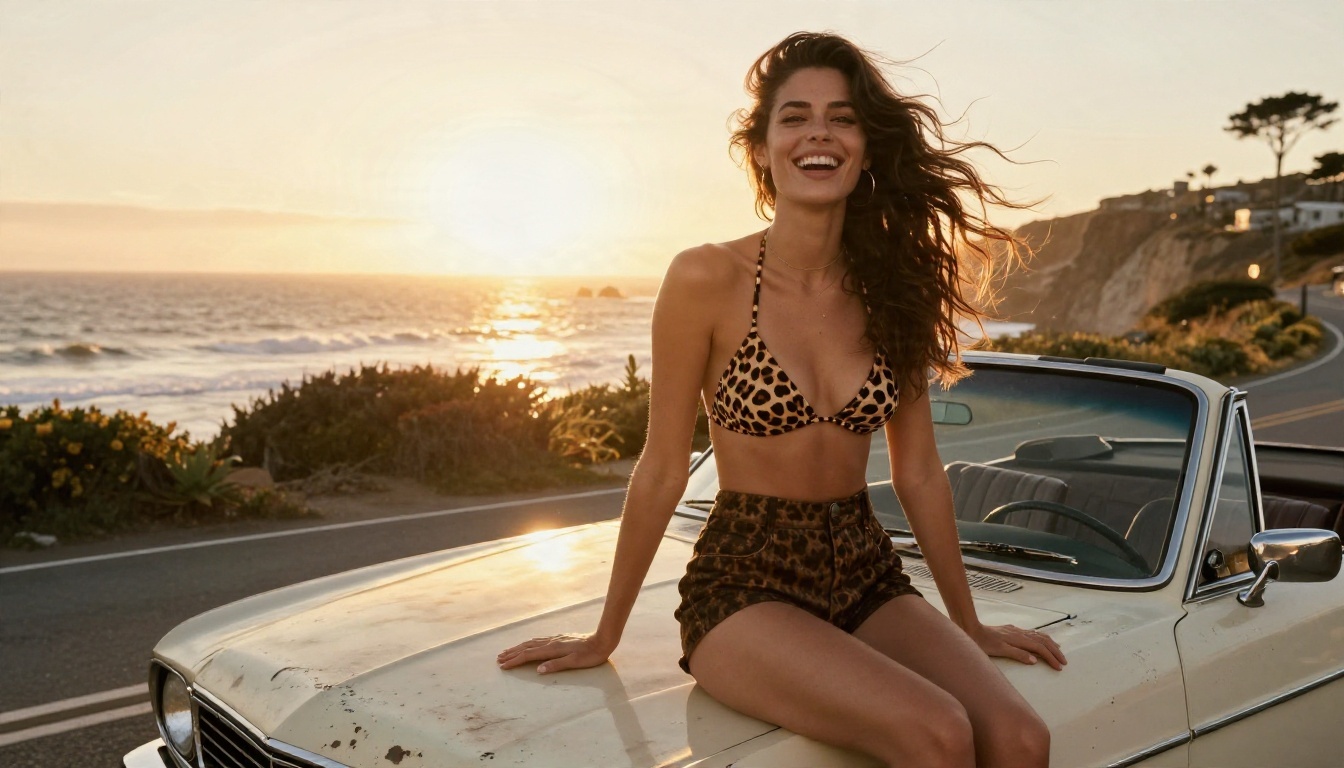
Swimwear, wet skin, bright sun and turquoise water. Specify the lens and the time of day, and the model handles the rest.
Boudoir and lounge portraits
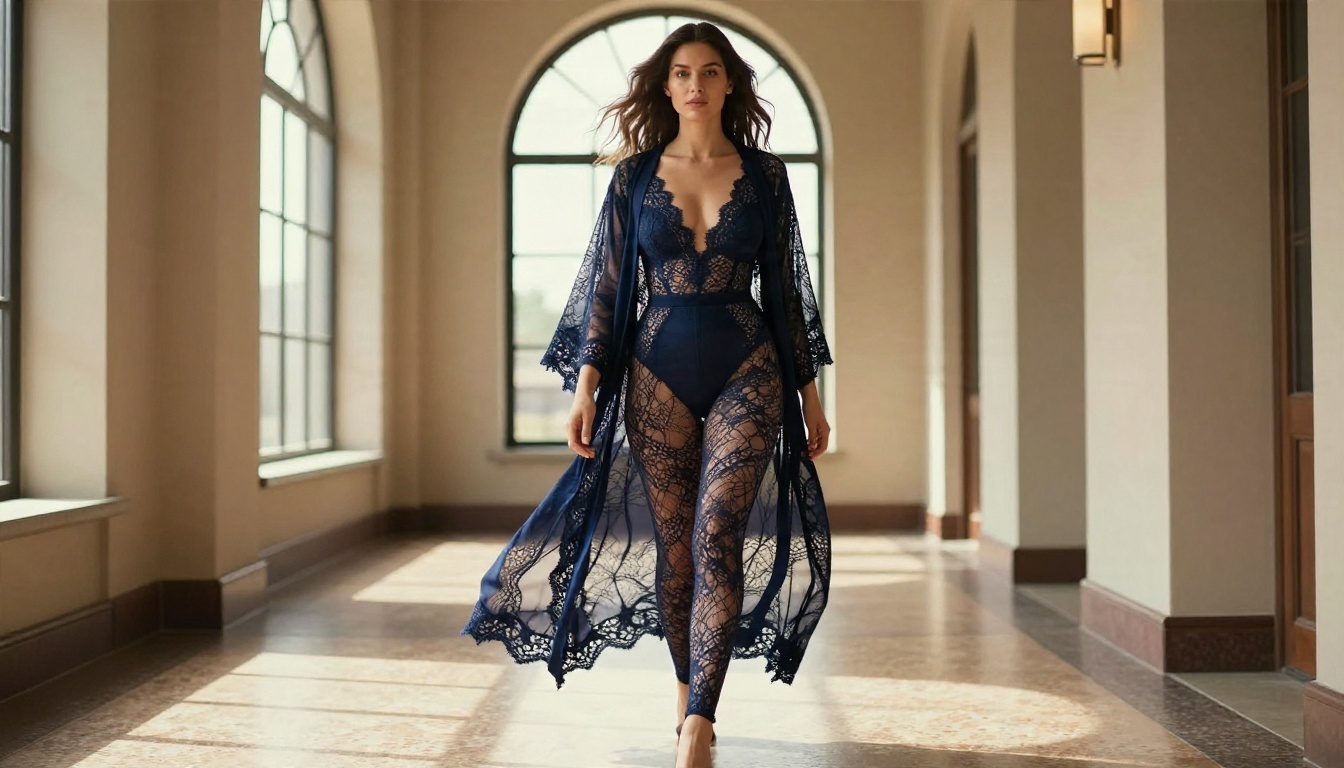
Silk robes, lace details, warm lamp light and shallow depth of field. Think magazine editorial, not snapshot.
Evening and travel looks
Gowns on balconies, convertibles on coastal roads, hotel corridors at golden hour. Locations add story, and story makes the image feel real.
Morning candids
Oversized shirts, coffee, window light. Candid scenes read as intimate without needing anything explicit, and they tend to look the most natural.
Safety, Consent, and Good Habits
Whatever tool you use, a few habits keep your work clean and your accounts safe.
Only use adult, original subjects
Every character you generate should be clearly an adult and entirely synthetic or based on someone who has agreed. Never generate or edit images of real people without their consent.
Keep it non-explicit
Aim for taste. Implied is more flattering and more shareable than blunt. It also avoids platform bans if you post your images elsewhere.
Check the rules where you publish
Social platforms, stock sites and marketplaces each have their own limits on adult-leaning content. Read them before you upload, and label your images where required.
Quick Troubleshooting Checklist
If you stay with Grok, run through this list when things go wrong.
- Toggle missing: check your plan, update the app and confirm your region.
- Toggle on, nothing changes: force close and reopen, then try a new prompt.
- Blurred output: rewrite in photographic language and drop blunt terms.
- Animation blocked: try a different source image with clearer, more editorial framing.
- Inconsistent results: save successful prompts and settings as you go.
And if the list feels longer than the creative work itself, that is the cue to move your glamour and boudoir projects to a platform built for them.
Start Creating Your Own Images
Grok NSFW mode exists, but it lives behind a paid plan, a handful of settings that move around, and filters that still blur or block a lot of requests. For many people that adds up to more friction than fun.
PicassoIA removes that friction. Open Seedream 4.5, write one detailed photographic prompt, and see what comes back. Then take your favorite into PicassoIA Image Editor Pro and keep refining with unlimited generations. Try the same prompt on a second or third model, compare the skin, the light and the fabric, and keep the one you like best.
When you are ready to test more, browse the full catalog at picassoia.com/en/all-models and build your own set of favorite models for glamour, boudoir, swimwear and fashion work.


