Type a sentence, wait a few seconds, and get a moving clip with sound. That was the promise when xAI put video generation inside Grok, and for a few months in 2025 it felt almost too generous. Then came paywalls, shifting quotas, clip length changes and a moderation policy that keeps getting tighter. If you are trying to work out what you can actually do with Grok xAI video generation right now, the answers are scattered across forum threads, screenshots and outdated blog posts that contradict each other.
This article sorts it out. You will see what is realistically free, how long a Grok clip can run, what the adult content rules look like in practice, and what to do when Grok says no. You will also see how to run Grok Imagine Video 1.5 on PicassoIA, plus a set of alternatives for people who need longer clips or fewer restrictions.
💡 Quick note on accuracy: Grok's limits change often and are rarely announced in one clear place. Everything below reflects what was widely reported through late 2026. Treat specific numbers as a snapshot, and check the in-app limits screen before you plan a project around them.
What Grok Video Generation Actually Is
Grok Imagine is the image and video feature built into the Grok app and the X platform. You give it a text prompt or a still image, and it returns a short video clip, usually with synchronized audio. The video side improved quickly: the 1.5 release, which landed at the end of May 2026, pushed output to 720p at 24 frames per second with sound that follows the motion on screen.

Text to video versus image to video
Grok supports both starting points. Text to video is quick but unpredictable, because the model decides how every face, outfit and camera angle looks. Image to video gives you control: you supply the first frame, and the model animates it. Most serious creators prefer the second route because the result looks like the picture they approved.
Why the audio matters
Native audio changed how people judge these tools. A silent clip needs a second step for sound effects or music. A clip with footsteps, wind and ambient room noise is closer to something you can post. Grok's audio is decent for ambience and simple effects, though it can stumble on speech that needs precise lip movement.
Is Grok Video Generation Free?
Short answer: barely, and not reliably. The longer answer depends on when you read the reports.
In mid-2025, Grok Imagine opened to a wide audience with generous free access, and many people made dozens of clips a day without paying. Reports then described xAI pulling back. By March 2026, multiple sources said free video generation had effectively ended, with image and video creation moving behind a SuperGrok subscription. Some free accounts still see a thin allowance, mostly for images, and availability appears to differ by region.

What the paid tiers look like
Reported pricing sits around these levels, though regional prices and promotions shift things:
| Plan | Approximate monthly price | What reports say about video |
|---|
| Free account | $0 | Little to no video, small image allowance, varies by country |
| SuperGrok Lite | About $10 | Basic short clips with a low quota |
| X Premium | About $8 | Entry level access with a small video quota |
| SuperGrok | About $30 | Standard video access, higher daily quota |
| X Premium+ | About $40 | Higher quota bundled with X features |
| SuperGrok Heavy | Premium tier | Largest quotas, early access to new features |
Daily caps are the part nobody can pin down. Third party pages list numbers such as 50, 100 and 500 videos per day depending on tier, but xAI does not publish a stable table, and users reported quotas being cut sharply in spring 2026. If a source gives you a precise number without a date, be skeptical.
Free ways to try video without Grok
If your goal is simply to test AI video without paying for a subscription first, you have better options than hunting for a loophole in Grok:
- Use a platform with a free starting allowance and test several models side by side.
- Start from a good still image. Image to video models waste fewer credits when the first frame is already right.
- Keep clips short while testing. A five second clip answers most questions about motion quality.
💡 Tip: Never trust a "free unlimited Grok video" website. Most are wrappers that charge in other ways, collect your uploads, or simply do not work.
Grok Video Length Limits Explained
Length is where people get confused, because the number changed several times and different tiers got different limits.
Base clip length
Early versions produced about 6 second clips. Later updates raised the standard output to roughly 10 seconds for paying users, at 720p. Free and entry level tiers were tied to the shorter 6 second length in earlier reports.
The 15 second episode
In mid-2026, a 15 second option reportedly showed up in the interface, and then vanished for many users within hours. Whether it was a staged rollout, a test or a mistake is still unclear. If you see 15 seconds in your own account, treat it as a bonus rather than a promise.
Extending to 30 seconds
Grok also offers a video extend feature that chains clips together, with reports of totals reaching about 30 seconds. The catch is consistency. Each extension is a new generation conditioned on the end of the last one, so faces drift, lighting shifts and small objects change shape. For anything beyond 10 seconds, plan on editing several short clips together instead of relying on one long generation.
| Length setting | Typical result | Best use |
|---|
| 5 to 6 seconds | Most stable motion | Product shots, loops, portraits |
| 10 seconds | Good for one simple action | Social posts, B-roll |
| 15 seconds (when offered) | Uneven, depends on prompt | Experiments only |
| Extended to 30 seconds | Visible drift between segments | Stitched sequences with editing |
Adult Content Rules in Grok
This is the part with the most rumors and the least official clarity, so it is worth being careful.
The "Spicy" mode story
When Grok Imagine launched, a mode called Spicy drew most of the headlines. It allowed more suggestive output than competing tools, which was a deliberate contrast with how cautious other AI companies were. Reports since then disagree on what Spicy covers today. Some say it applies to images only and requires age verification inside the mobile app. Others say it was available for video behind a paid plan. A few say it was quietly narrowed after a policy change in early 2026.
What changed in 2026
After a wave of public criticism over misuse of AI image tools, moderation across the board was reported as significantly tighter from January 2026. Practically, that means:
- Prompts that mention real people, especially public figures, are blocked far more often.
- Anything suggesting minors is refused outright, with no exceptions and no workarounds.
- Borderline requests that worked months ago now return a refusal or a heavily toned down result.
- Age verification and region checks can block features even on paid accounts.
💡 Important: Content involving real people without their consent, or anything involving minors, is off limits on every responsible platform, and attempts to bypass those blocks can get an account banned. This article is about legal adult themes involving fictional or consenting subjects, nothing else.
Why prompts get refused
Grok's filters check both your text and the generated output. A harmless prompt can still fail if the result looks too explicit, and an innocent image can fail if it resembles a real person. Rewording rarely helps for long. If a project needs consistent adult themed visuals, such as glamour, swimwear or boudoir style imagery, a platform built for that kind of work saves a lot of frustration.
How to Use Grok Imagine Video 1.5 on PicassoIA
If you want Grok's video model without the subscription juggling, Grok Imagine Video 1.5 is available on PicassoIA. It turns a still image into a short clip with synchronized audio at up to 720p.

Step by step
- Open the model page for Grok Imagine Video 1.5 on PicassoIA.
- Upload your starting image. JPG, JPEG, PNG and WebP all work. A sharp, well lit picture gives the best motion.
- Write a motion prompt. Describe what moves and how the camera behaves, for example: "Slow push in on the woman as wind moves her hair, soft ambient street sound."
- Set the aspect ratio. Leave it on auto to match your image, or pick 16:9 for video, 9:16 for vertical posts, or 1:1 for square feeds.
- Choose resolution. 720p is the default and the best quality option. Use 480p for quick tests.
- Keep duration at 5 seconds for the most stable result.
- Generate, review, then adjust one thing at a time. Change the prompt or the image, not both.
Parameter tips that save time
| Setting | Recommendation | Why |
|---|
| Duration | 5 seconds | Matches the model's standard clip length |
| Resolution | 720p | Sharper output for web and social |
| Aspect ratio | Auto | Avoids cropping your first frame |
| Prompt length | One or two sentences | Long prompts tend to cause conflicting motion |
Build a better first frame
The quality of your starting image decides most of the outcome. If you need a fresh source picture, Grok Imagine Image 2 creates 2K images that feed straight into the video model. For polished portraits and lifestyle scenes, Seedream 4.5 is another strong source.
Writing Prompts That Survive Filters
Whether you use Grok or any other tool, prompt habits decide how many credits you burn.

Describe motion, not mood
"A sad woman" gives the model nothing to animate. "A woman turns her head toward the window and exhales" gives it a clear action. Short verbs, one subject and one camera move produce cleaner clips than long poetic descriptions.
Keep one camera instruction
Pick a single move: slow push in, gentle pan, static shot, or low angle tracking. Stacking three camera moves in one prompt usually produces jitter.
Mention sound sparingly
When the model generates audio, a short phrase such as "soft rain on glass" or "distant traffic" steers the soundtrack. Long lists of sounds tend to get ignored or muddled.
Avoid trigger phrases
Words tied to real celebrities, violence or explicit acts raise refusals on nearly every mainstream platform. Describe the style and setting you want instead of naming a person.
Better Alternatives When Grok Says No
Sometimes Grok is the wrong tool. A clip needs more than 10 seconds, the filters keep blocking a legitimate adult themed project, or the quota runs out mid week. These options are on PicassoIA today.
For longer or higher quality clips
- Veo 3.1 Fast produces sharp 1080p video with audio and strong prompt following.
- Veo 3.1 Lite is a lighter, cheaper route to native audio video.
- Kling v1.5 Pro handles text and image prompts at 1080p with natural motion.
- LTX 2.5 Fast is a good pick when speed matters more than polish.
For editing a clip you already have
Kling o1 and Wan 2.7 Videoedit rewrite existing footage from a text instruction, which is handy when a clip is almost right but one detail is wrong.
| Need | Best pick | Why |
|---|
| Free-style testing with audio | Grok Imagine Video 1.5 | Fast image to video with sound |
| Highest polish | Veo 3.1 Fast | Strong realism and audio |
| Budget friendly | Veo 3.1 Lite | Lower cost, still has audio |
| Fast drafts | LTX 2.5 Fast | Quick turnaround |
| Fix an existing clip | Kling o1 | Text based video editing |
Adult Themed Visuals Without Constant Refusals
If you create glamour, swimwear, boudoir or fashion editorial content, you need a workflow that does not collapse every time a filter wobbles. The reliable approach is to build the still image first, then animate it.
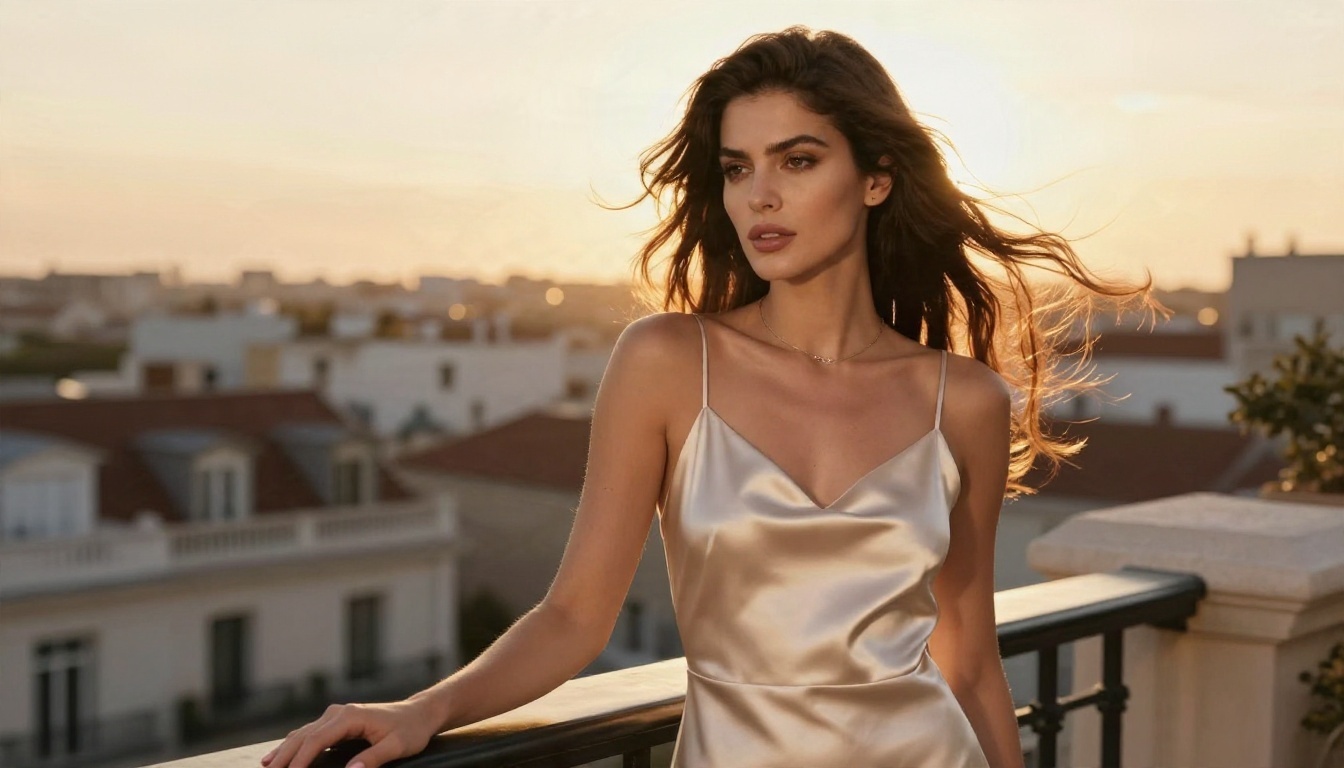
Start with Seedream 4.5
Seedream 4.5 is the best place to begin. It renders skin texture, fabric and lighting with real photographic quality, and it handles suggestive, non-explicit glamour concepts that more cautious tools reject. It is also fast, so you can iterate on poses and outfits in minutes.
Refine with Image Editor Pro
Next, bring the picture into PicassoIA Image Editor Pro. It offers unlimited generations, so you can adjust clothing, backgrounds, lighting and details as many times as you need without watching a quota shrink. That is the practical gap between this workflow and a capped Grok plan.
Animate the final frame
Once the still looks right, feed it to Grok Imagine Video 1.5 or Veo 3.1 Fast for a short motion clip. Keep movement subtle: a breeze through hair, a slow camera push, soft fabric movement. Subtle motion looks more natural and is far less likely to trip an output filter.
💡 Reminder: Keep everything within the law and within platform rules. Use fictional or fully consenting subjects, and never create content involving minors or real people without their permission.
Which Option Fits You
Here is a plain way to decide.
- You want to test AI video cheaply: start with a short image to video clip on PicassoIA and keep it at 5 seconds.
- You need clips longer than 10 seconds: plan a sequence of short clips and edit them together instead of leaning on extend features.
- You make adult themed glamour content: build stills with Seedream 4.5 and Image Editor Pro, then animate.
- You depend on a Grok subscription anyway: use it for quick experiments, but keep an eye on quotas, because they have shifted several times this year.
Try It Yourself
Grok made AI video feel easy, then showed how quickly access, limits and rules can change under your feet. The smarter move is to keep your workflow flexible: one tool for fast ideas, another for polish, and an unlimited editor for the fine work.
Open Grok Imagine Video 1.5 on PicassoIA, upload a favorite picture, and watch it move in about a minute. Then build a few starting frames with Seedream 4.5 and polish them in PicassoIA Image Editor Pro. When you are ready to compare more options, browse the full catalog at picassoia.com/en/all-models and see which model fits your next project.


