You hit generate, glance at the clock, and wait. For anyone producing short video clips in volume, that wait is the real price tag. Hailuo 02 Fast was built to shrink it: a lighter version of the Hailuo 02 video model that trades pixels for speed, so you can test a motion idea in well under a couple of minutes instead of babysitting a long render. But "fast" is a slippery word. How many seconds per clip? What resolution do you actually get? And how much can you run before something stops you?
This article answers those three questions with honest ranges instead of marketing promises. Public sources disagree on exact render times, so I will show you what is reported, what changes the number, and how to measure it yourself in about five minutes. You can run the model directly on PicassoIA through the Hailuo 02 Fast page.
How Long Each Clip Really Takes
The Short Answer
Expect a typical Hailuo 02 Fast clip to land somewhere between roughly 10 seconds and a minute and a half. That is a wide window, and the reason is simple: the sources that publish numbers do not agree. One PicassoIA write-up on the model mentions something like 10 to 30 seconds per render, while a third-party example page for the same model shows a single run closer to 80 seconds. Both can be true. Render time depends on server load, clip length and which toggles you flip.
For planning, use this working rule: budget about one minute per clip, and treat anything faster as a bonus. If you are sequencing ten test renders, set aside ten minutes, not two.

What Changes the Wait
Four things move the needle more than anything else:
- Clip duration. A 10 second clip has more frames to produce than a 6 second one, so it generally takes longer.
- Queue pressure. Peak hours on any shared video service mean a longer line. A clip that finishes in 20 seconds at 7 a.m. can take triple that on a busy afternoon.
- The Go Fast toggle. This setting trades a little quality for a shorter render, covered in the next section.
- Your first frame image. The model builds the whole clip from the picture you upload, and very large files take a little longer to upload before generation even starts.
💡 Tip: Time the first three clips with a phone stopwatch, then average them. That personal number is more useful than any figure published online, because it reflects your prompts, your clip length and your time of day.
A Rough Timing Table
These are planning estimates, not lab measurements. Use them to size your session, then replace them with your own averages.
| Scenario | Likely wait per clip | Good for |
|---|
| 6 second clip, Go Fast on | Short, often under a minute | Rapid motion tests |
| 6 second clip, Go Fast off | Around a minute | Balanced previews |
| 10 second clip, Go Fast on | About a minute | Longer shots at speed |
| 10 second clip, Go Fast off | One to two minutes, sometimes more | Cleaner final candidates |
| Busy hours, any setting | Add 30 to 60 seconds | Plan a buffer |
What Fast Mode Actually Does
The Go Fast Toggle
On the model page you will find a setting literally named Go Fast, described as generating videos faster with slightly lower quality. It is off by default. Flip it on and you get a shorter wait in exchange for a small dip in polish: slightly less stable fine detail, a touch more softness in busy backgrounds.
Notice what this means. "Fast Mode" is two layers of speed stacked together. The model itself is the lighter Fast variant of Hailuo 02, and then the toggle pushes it further. When iteration speed matters more than anything, use both. When you are producing a candidate you might actually publish, turn the toggle off.

Fast Model vs Standard Hailuo 02
The standard Hailuo 02 is the higher-quality sibling, positioned around 1080p output. It takes longer per clip and is the better choice once a concept is approved. Think of the two as a sketchbook and a finished canvas.
| Feature | Hailuo 02 Fast | Hailuo 02 |
|---|
| Output resolution | 512p | Up to 1080p |
| Typical role | Ideation and review | Final render |
| Clip length options | 6 or 10 seconds | Longer, higher-detail runs |
| Wait per clip | Shorter | Longer |
| Best for | Testing prompts | Publishing |
Prompt Optimizer and Wait Time
Hailuo 02 Fast ships with a prompt optimizer that rewrites rough prompts into something the model handles better. It is on by default. For quick tests it is helpful, since a short phrase like "slow push toward the window" still produces coherent motion. If you have written a precise prompt and want exactly that behavior, switch it off so the model does not reinterpret your wording.
Resolution: What 512p Means
What 512p Looks Like
Hailuo 02 Fast outputs at 512p, and that is the only option in its resolution setting. The picture is sharp enough to judge composition, subject motion, camera movement and pacing. It is not sharp enough for a full screen presentation or a large television. Fine textures such as hair, fabric weave and small text can look a bit soft.
Do not treat that as a flaw. The resolution is the reason the model is quick. Fewer pixels per frame means less computation, which means a shorter wait.
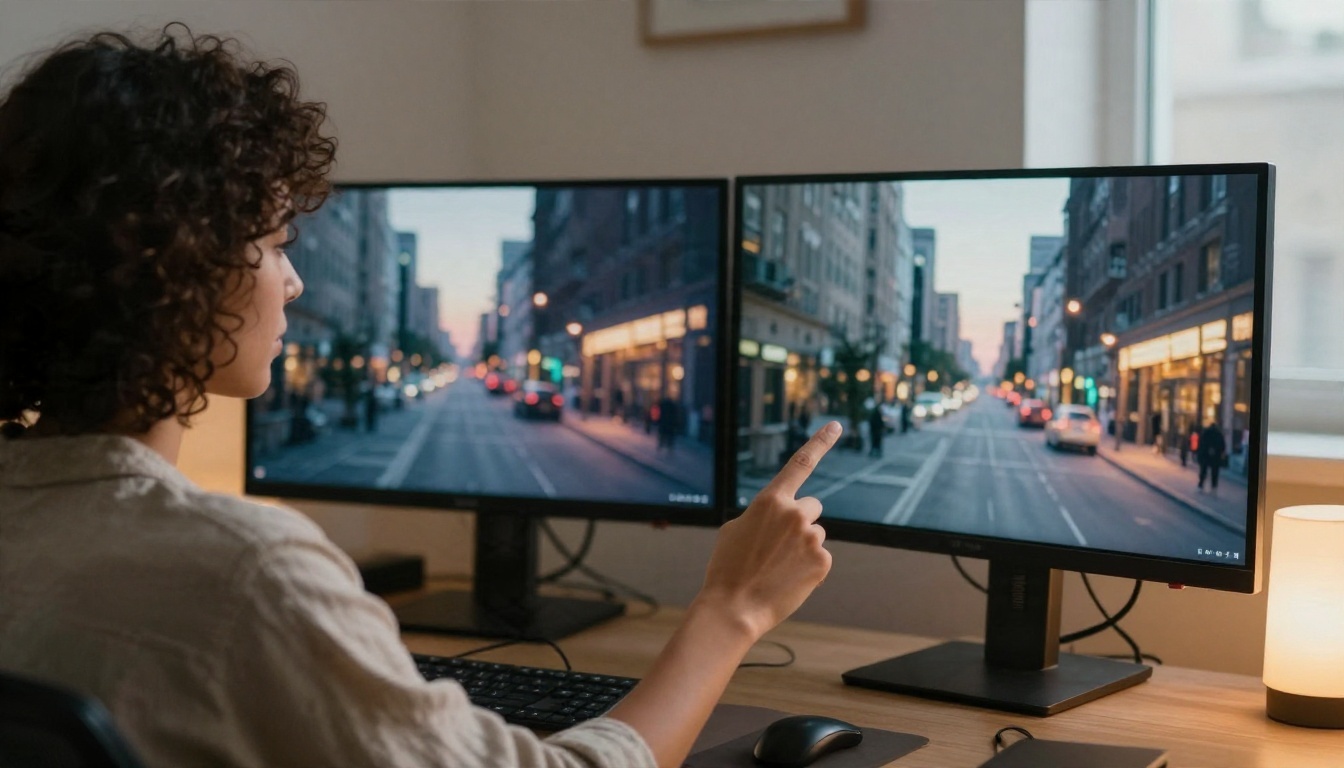
⚠️ Heads up: Some third-party listings describe this model with different resolution figures. The setting on the PicassoIA page is the one to trust: 512P is the only value offered.
When 512p Is Enough
512p works well for:
- Storyboard animatics where you only need to see movement and timing.
- Social previews for platforms where the clip plays small on a phone.
- Prompt testing before you spend time on a high-quality render.
- Client approvals at the rough stage, when everyone is judging motion rather than polish.
- Reference motion you plan to upscale afterward.
When to Step Up
Move to a higher-resolution model when the clip is headed for a website hero section, a presentation on a big screen or a paid ad. At that point, switch to Hailuo 02 or Hailuo 2.3. If you already have a 512p clip you love, a video upscaler can lift it afterward, which is often cheaper than regenerating.
Free Limits in Practice
What Free Means Here
Here is the honest part. I could not find a published, fixed free quota for Hailuo 02 Fast, such as a set number of clips per day. Sources describe the model as accessible through several platforms, and paid API listings show per-run pricing in the range of cents, but none of that equals a promised free allowance. If a site advertises a precise daily cap for this model, check that it lists the date it was last updated.
What you can do is read the model page on PicassoIA, check the allowance shown on your account, and run a few clips to see how your own plan behaves. Limits change as platforms adjust, so a number printed in an article today may be stale in a month.

Planning Your Iterations
Whatever your allowance, a good habit is to treat every render as a small budget item. A sensible split looks like this:
- Three to five test clips at 6 seconds with Go Fast on, to find the right motion.
- One or two refinements with Go Fast off, to check quality.
- One 10 second run only once the shot is locked.
That pattern wastes very few renders, and it works whether your limit is generous or tight.
Free Alternatives Worth Knowing
If your main goal is unlimited experimentation, check Seedance 2.5 Lite, which is positioned as a free and unlimited generator for clips up to 10 seconds. It is a different model with its own look, so it complements Hailuo 02 Fast rather than replacing it.
How to Use Hailuo 02 Fast on PicassoIA
Step by Step
The model needs a first frame image, so it works as an image-to-video tool: you supply the starting picture and describe what should happen next.
- Open the Hailuo 02 Fast page.
- Upload your first frame image. The output keeps the same aspect ratio as this picture, so crop it to the shape you want before uploading.
- Write a prompt describing the motion: what moves, how the camera behaves, what the mood is.
- Choose a duration of 6 or 10 seconds.
- Leave resolution on 512P, the only available option.
- Decide on Go Fast and Prompt Optimizer using the guidance above.
- Optionally upload a last frame image to control how the clip ends.
- Press generate, and time the render.
Parameter Tips
| Setting | Recommended starting value | Why |
|---|
| Duration | 6 seconds | Shorter clips render faster and fail cheaper |
| Go Fast | On for tests, off for candidates | Speed first, polish later |
| Prompt Optimizer | On for rough prompts, off for precise ones | Controls how much the model rewrites |
| Last frame image | Use when the ending matters | Defines a clear start and finish |
| First frame image | Sharp, well lit, uncluttered | Everything flows from this picture |
Writing Prompts That Render Cleanly
Describe one subject doing one thing. "The woman turns her head toward the window as the curtain moves in a light breeze, slow dolly in" beats a paragraph of competing actions. Busy prompts slow you down twice: the render may take as long, and you will need more attempts to get something usable.
Faster Habits That Save Minutes
Prepare Your Frames First
A lot of lost time happens before the render starts. Collect your first frames, crop them to a consistent ratio and name them clearly. If you need source pictures, generate them with a text-to-image model first, then feed them in as first frames. The result is a clean pipeline: image in, clip out.

Run Tests in Batches
Queue your short test clips back to back, then review them together. Reviewing one clip at a time breaks your focus, and the wait between each becomes dead time. A batch of five clips takes about the same total render time but far less mental effort.
Use the Last Frame Image Wisely
Setting a last frame is one of the best ways to avoid wasted renders. Without it, a clip can drift in unexpected directions. With it, the model aims for a defined ending, which often cuts the number of retries.
Review With Others
When a team approves rough motion at 512p, the expensive high-resolution pass only happens once. That saves far more time than any toggle.

When You Need More Than 512p
Hailuo 2.3 and Its Fast Variant
For a newer generation of the Hailuo family, look at Hailuo 2.3 for text-driven cinematic clips and Hailuo 2.3 Fast for animating photos at speed. They suit creators who like the Hailuo look but want a more current model.
Other Strong Video Models
A Simple Two Stage Workflow
| Stage | Model | Purpose |
|---|
| Draft | Hailuo 02 Fast | Test motion and timing quickly |
| Review | Your team or client | Approve the concept at 512p |
| Final | Hailuo 02, Hailuo 2.3 or Kling v3 Video | Produce the high-resolution version |

Your Turn to Try It
Hailuo 02 Fast is at its best when you treat it as a sketchpad: quick, forgiving and cheap to be wrong with. The wait is usually short, 512p is the price of that speed, and free access depends on your account rather than on a number printed in any article, so check your own limits and time a few runs.
Here is a simple plan for your next session. Pick a strong first frame, write a one-action prompt, run it at 6 seconds with Go Fast on, and note how long it takes. Do that three times and you will know your real wait per clip better than any review can tell you.
When you are ready, open Hailuo 02 Fast on PicassoIA and make your first clip today. If you want to see what else is available, browse every model at picassoia.com/en/all-models and pair your drafts with a higher-resolution model when the concept is ready for its close-up.