You typed a few words, hit generate, and got a character with six fingers, mismatched eyes and a face that looks nothing like the one in your head. That is the normal first experience with a hentai character generator, and it is fixable in about ten minutes once you know how the prompt, the model and the settings fit together. This article shows you the free options, the prompt formula that works, and real examples of the glamour and anime inspired looks you can build today.
One rule before anything else: every character here is an adult, 18 or older, original, and not based on a real person. The images in this article are suggestive and stylish, never explicit, and that is the standard we recommend you follow.
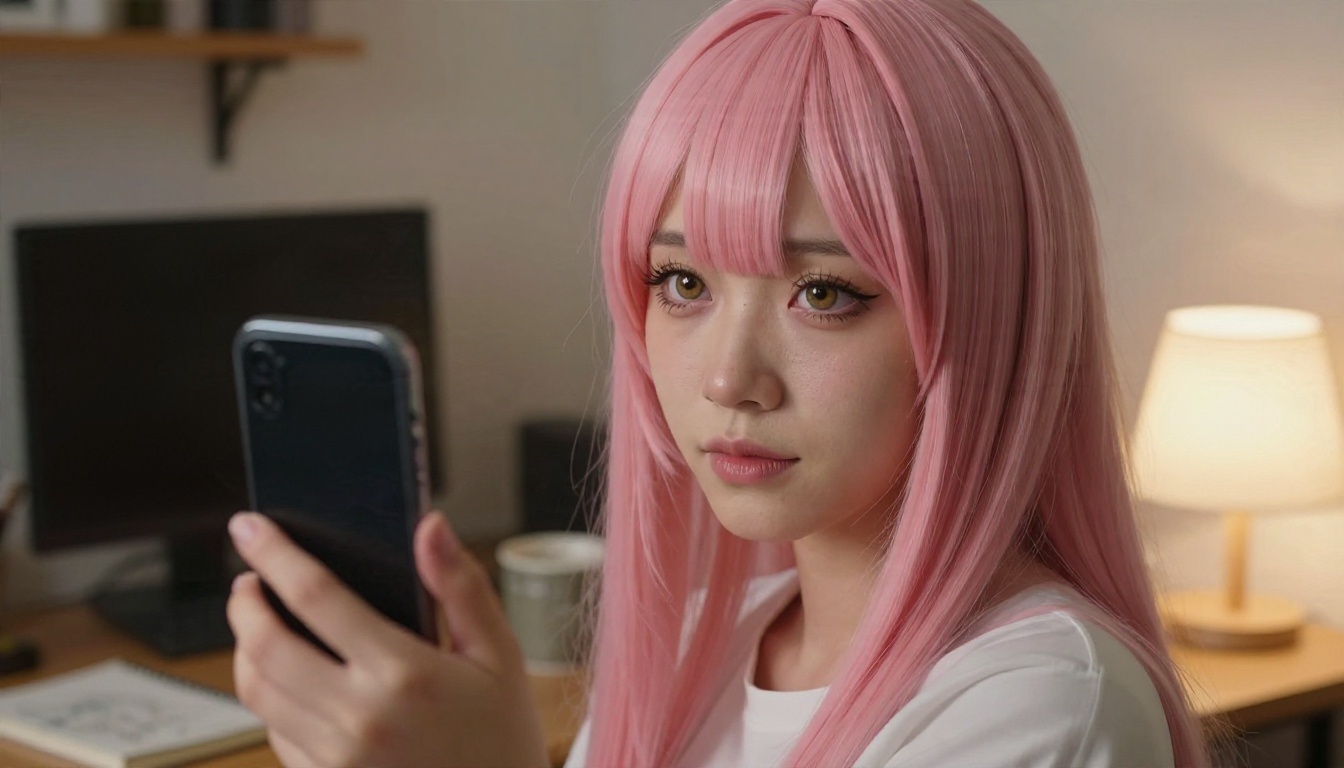
What a Hentai Character Generator Does
A hentai character generator is an AI image maker tuned for adult anime art. You describe a character in plain English, pick a style, and the model draws a new person with the hair, eyes, outfit and mood you asked for. No drawing skills, no tablet, no hours in a layer panel.
Under the hood, most of these tools are standard text to image models. What changes is the prompt language and sometimes a style LoRA, which is a small add on file that pushes the model toward a certain look. That is why the same sentence can give a flat sticker in one tool and a rich, cinematic character in another.
Anime Look vs Photoreal Look
There are two broad families of output:
- Illustrated anime: flat or cel shaded color, large eyes, clean line work. Think classic manga covers.
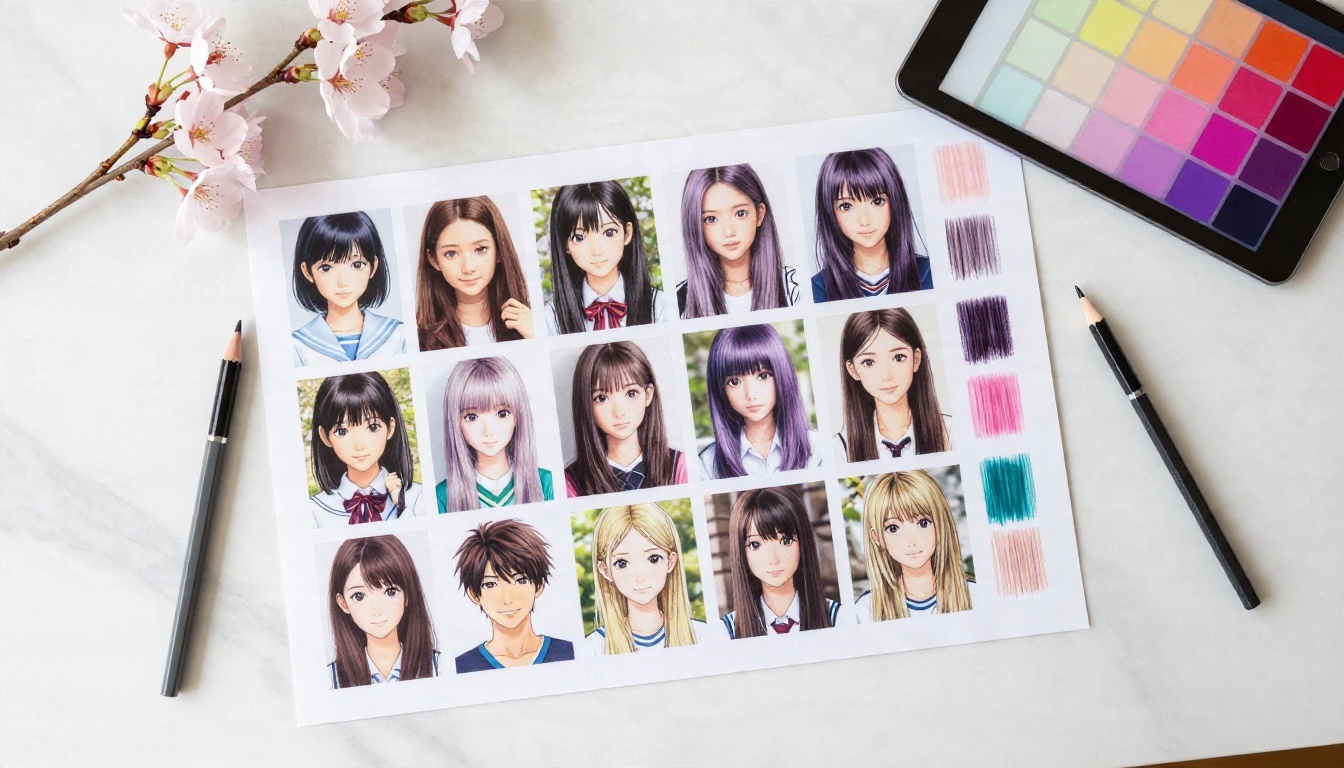
- Photoreal anime inspired: a live action version of the same character, with real skin texture, fabric and lighting. This is what cosplay photographers aim for.
The photoreal path has grown fast because modern models handle skin, hair strands and fabric so well. A character with silver twin tails and amber eyes can look like a magazine shoot instead of a drawing. Both paths use the same prompt skeleton, which we cover below.
Who Uses These Makers
| User | What they want | Typical output |
|---|
| Webcomic and visual novel authors | Consistent character sheets | Front, side and three quarter views |
| Game modders and hobbyists | Portraits and profile art | Bust shots with clean backgrounds |
| Cosplay planners | Outfit and wig previews | Photoreal mockups before buying |
| Fan artists with original characters | Fast concept sketches | Full body poses in several outfits |
| Casual creators | Fun, wallpapers, avatars | Single stylish portraits |
💡 Tip: Treat the first result as a sketch. The real quality comes from the second and third round, when you keep what works and change one detail at a time.
Free Online Makers Compared
Searching for a free maker brings up dozens of sites, and most of them are the same few models wrapped in a different page. What matters is which model sits behind the page and how many generations you actually get.
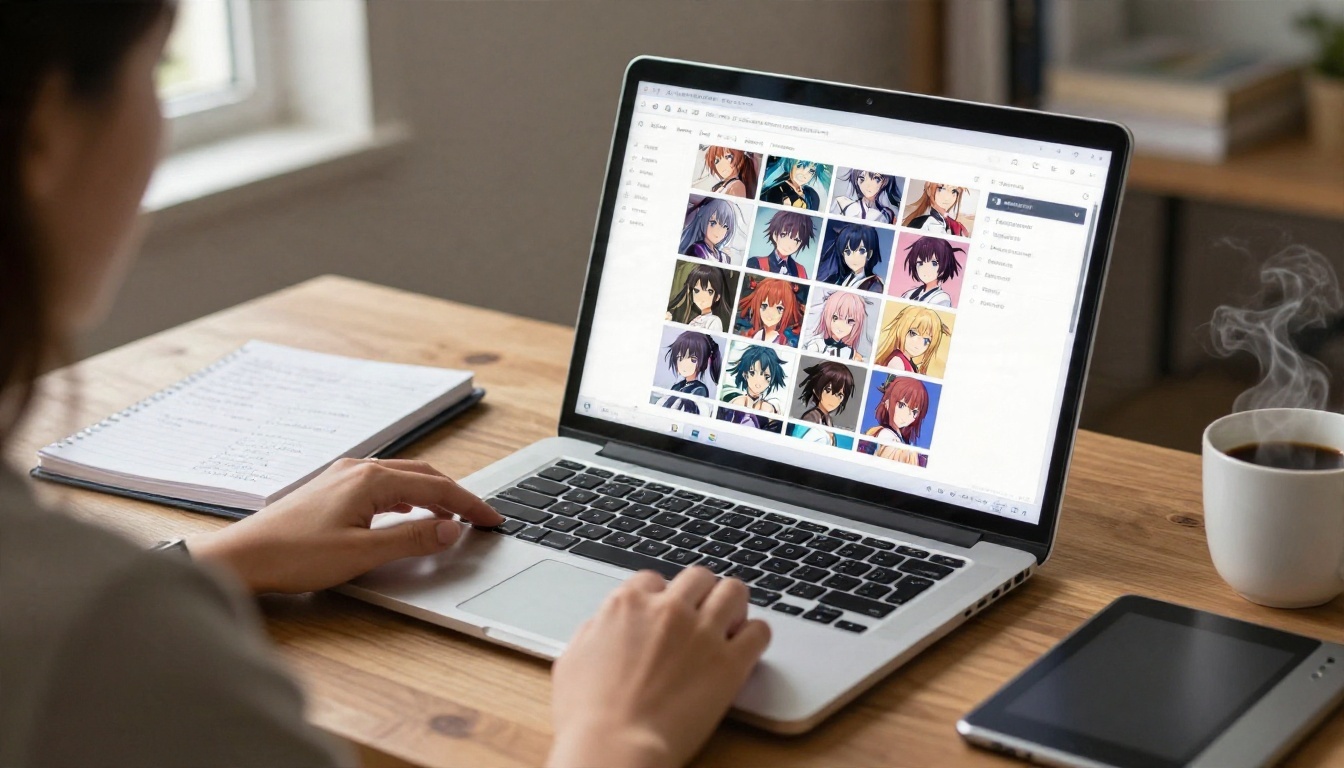
What Free Really Means
Free usually falls into one of four buckets:
- Daily credits that run out after a handful of images.
- Watermarked output that you cannot use anywhere.
- Slow queues where free users wait behind paying ones.
- Strict filters that block anything beyond a plain smile.
The best setup for adult anime work is a platform that gives you generous, fast generations and does not refuse a glamour or lingerie style prompt. That is where PicassoIA fits in: you get a range of models in one place, and the Image Editor Pro option offers unlimited generations.
Models Worth Trying
Here is how the main options on PicassoIA stack up for this kind of work, in the order we suggest testing them.
💡 Tip: Run the same prompt through two models. The comparison shows you in one minute whether a problem comes from your wording or from the model.
How to Use Seedream 4.5 on PicassoIA
Seedream 4.5 is the model we reach for first. It follows long prompts closely, renders faces and hair cleanly, and produces up to 4K output, which makes it a strong base for glamour and anime inspired characters.
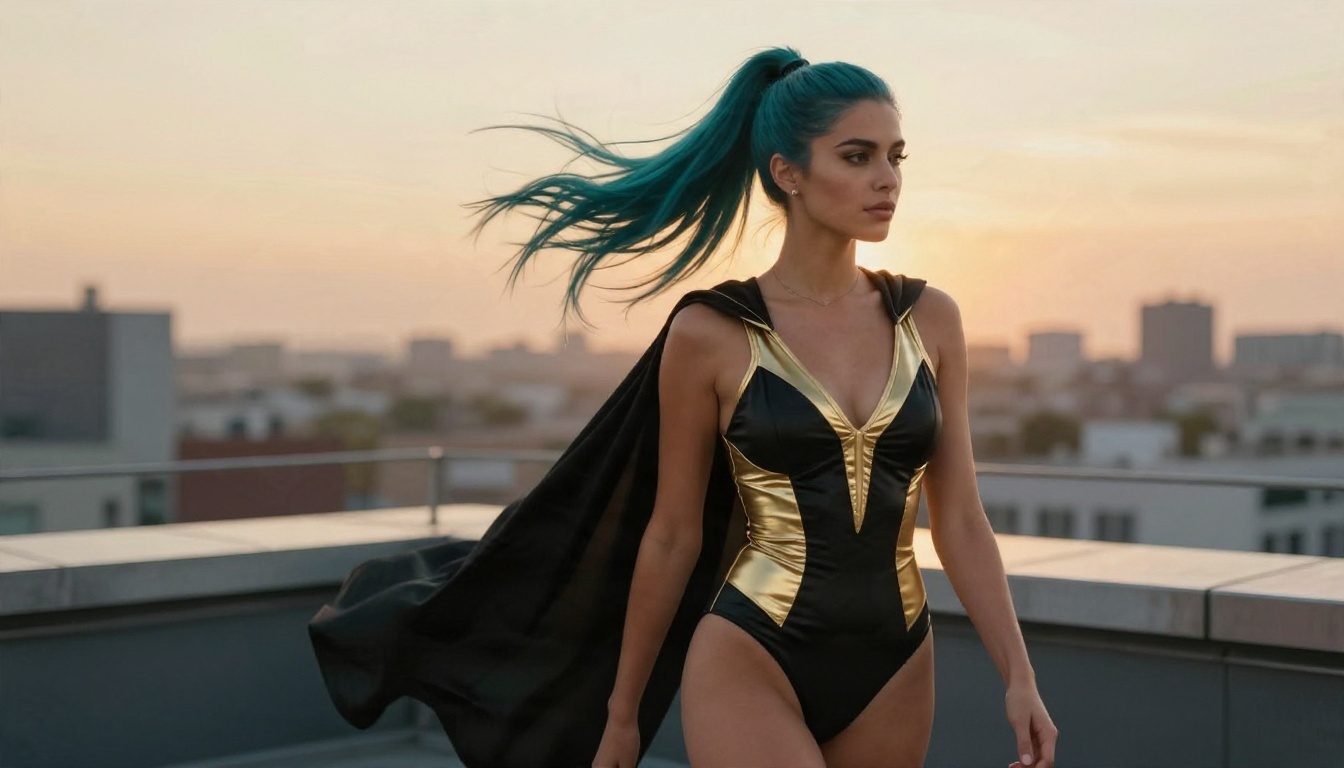
Step by Step
- Open the Seedream 4.5 page on PicassoIA.
- Paste your character prompt into the text box. Start with the subject, then outfit, then setting, then light.
- Choose an aspect ratio. Use 16:9 for wallpapers, 3:4 or 2:3 for full body character sheets, and 1:1 for avatars.
- Pick the resolution. Start low for drafts, then raise it for the final version.
- Press generate and review the result. Look at the eyes, hands and hair edges first.
- Change one thing and run it again. Do not rewrite the entire prompt each time.
- Send the winner to PicassoIA Image Editor Pro for outfit swaps, background changes and fine fixes.
Settings That Matter
- Aspect ratio: tall ratios give the body room, wide ratios suit scenes with a setting.
- Prompt length: 60 to 120 words is the sweet spot. Shorter prompts give generic faces, longer ones start to contradict themselves.
- Seed: if you find a face you love, keep the seed and change only the outfit text. This is the simplest route to a consistent character.
- Reference image: when the model accepts one, use it to lock a face or a pose.
💡 Tip: Write the hair and eye color early in the prompt. Models give the first few words the most weight, and these two details define how a character is recognized.
Good prompts are not poetry. They are a checklist the model can follow.
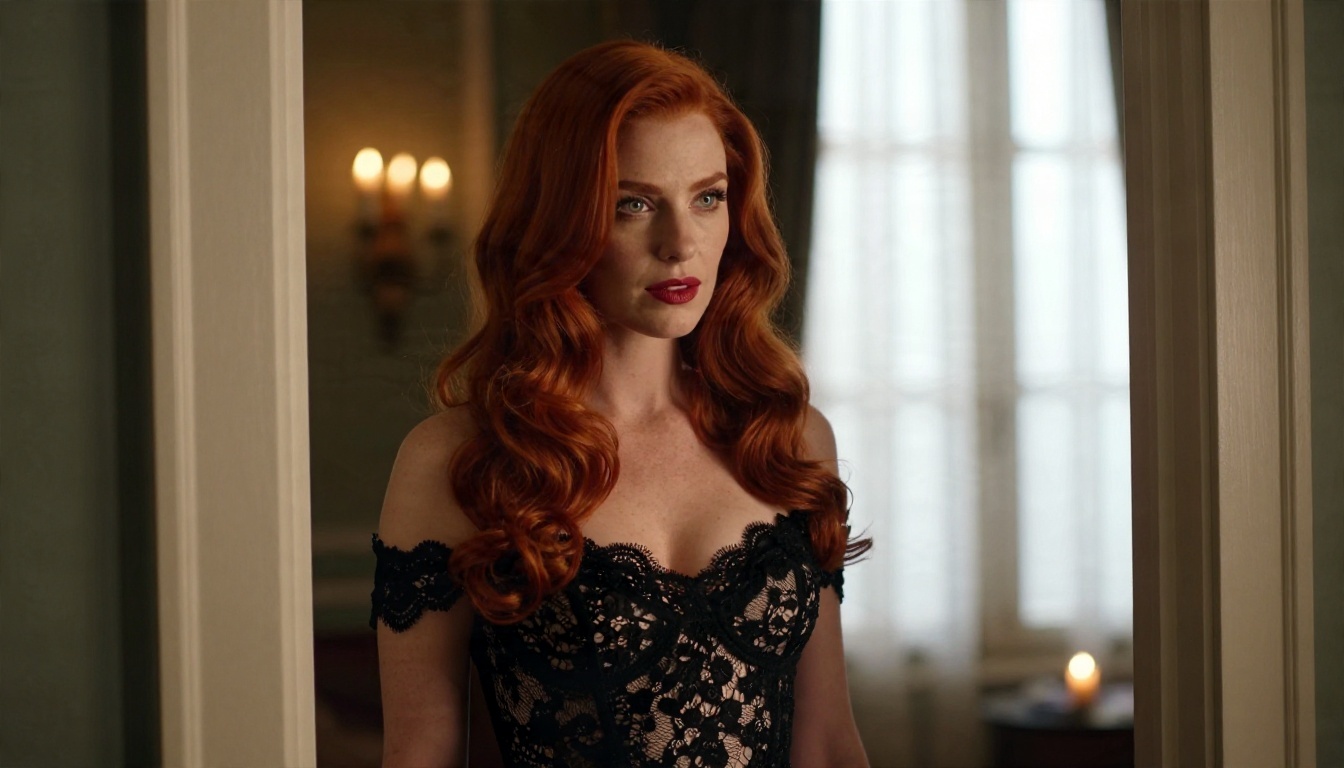
The Six Slot Structure
Fill these slots in order:
- Subject: "adult woman in her mid twenties". Always state the age clearly.
- Face and hair: color, length, style, eye color, one memorable detail like heterochromia or freckles.
- Outfit: fabric and cut, such as "satin corset top with black lace trim".
- Pose and expression: "leaning on a doorway, soft confident smile".
- Setting: "candle lit lounge", "sunlit loft", "rooftop at golden hour".
- Light and camera: "soft window light from the left, 85mm lens, shallow depth of field".
Ready to Paste Prompts
Use these as a base and swap the details.
Photoreal glamour heroine
Adult woman in her mid twenties, long silver lavender hair in twin tails, large amber eyes, faint freckles, burgundy satin corset top with black lace trim, velvet choker, sitting sideways on a velvet armchair in a sunlit loft, soft window light from the left, 85mm f/1.8, film grain, photorealistic
Illustrated anime portrait
Adult anime woman, 25 years old, wavy crimson hair, heterochromia eyes blue and gold, off shoulder black lace dress, candle lit lounge, cel shading, clean line art, soft rim light, detailed eyes, high quality
Cat ear café look
Adult woman in her mid twenties, short midnight blue bob, cat ear headband, navy and white café costume with a short apron, window seat with a latte, afternoon sun from the right, 35mm lens, playful smile, photorealistic
Negative Details to Avoid
When a model has a negative prompt field, use it to block common faults:
- extra fingers, fused fingers, deformed hands
- blurry, low resolution, jpeg artifacts
- text, watermark, logo
- asymmetrical eyes (unless you asked for heterochromia)
- anything that makes the subject look younger than an adult
That last line matters. State adult age in the positive prompt and block youthful cues in the negative one.
Character Examples by Style
Examples are the quickest way to see what a prompt change does. These three families cover most of what people build.
Soft Glamour Heroines
Soft glamour is the safest and most flexible category. Think silk robes, warm window light and a calm pose. The model has an easy job here because the lighting is simple and the outfit is a single fabric.
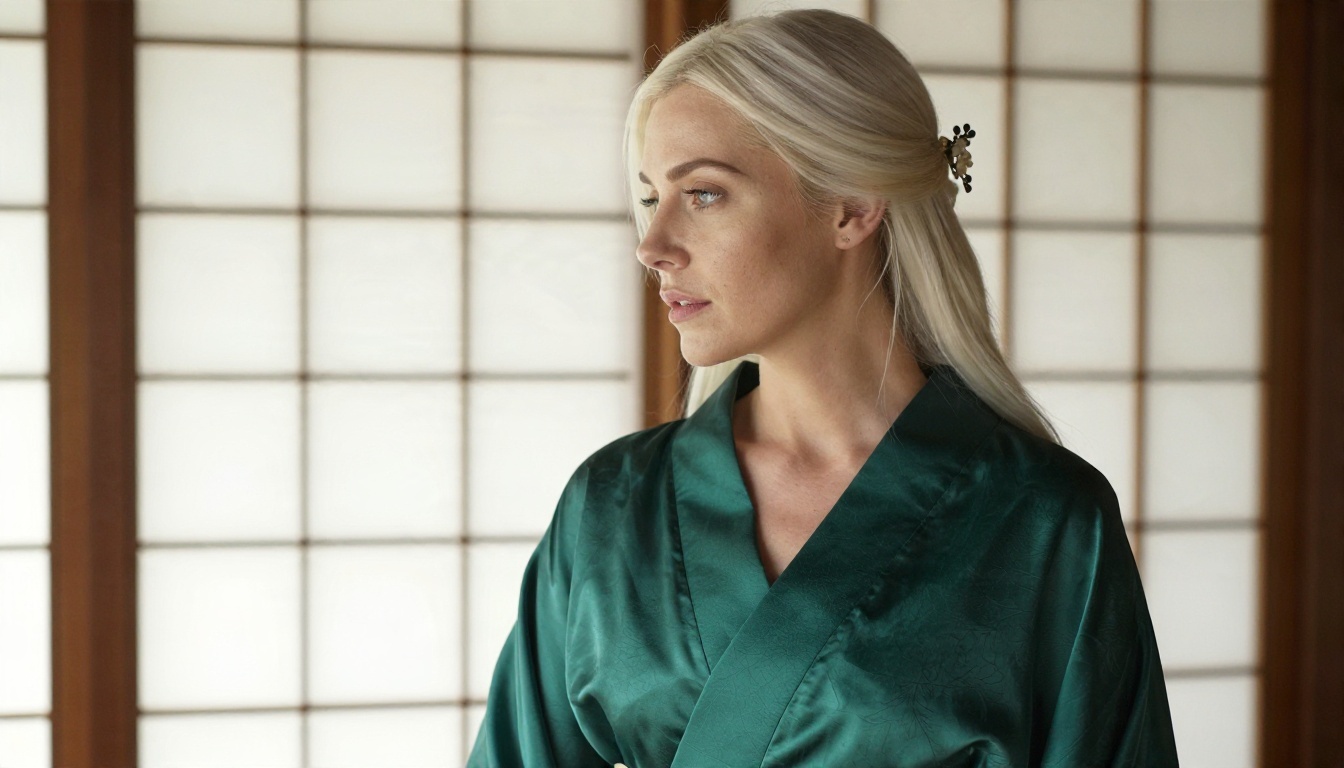
What makes it work:
- One fabric, one color: emerald silk against pale paper gives clean contrast.
- Soft front light: it hides skin flaws and keeps the face smooth.
- A small accessory: a floral hairpin adds interest without cluttering the frame.
Cosplay and Café Looks
Cosplay prompts are fun because the costume does the storytelling. You give the model a recognizable silhouette, such as cat ears, an apron or a short cape, and it fills in the character.
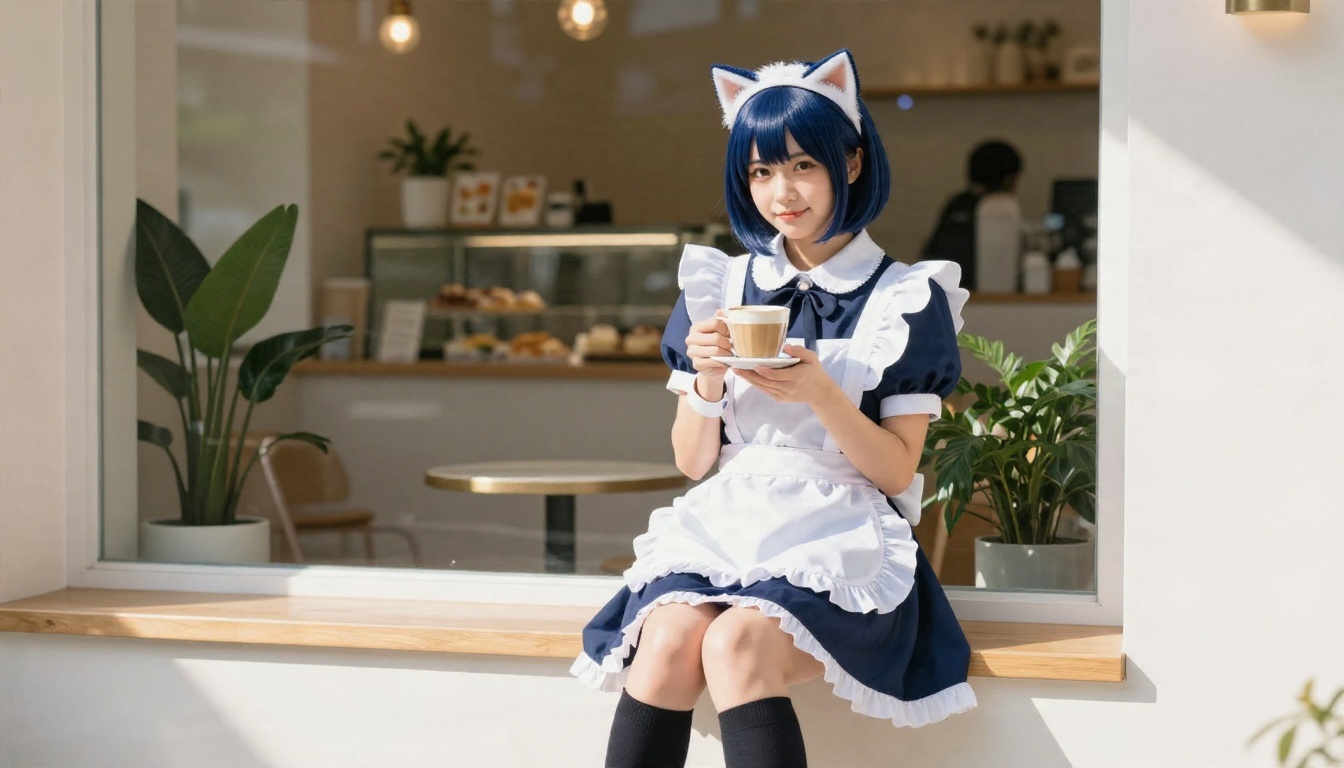
Tips for costume prompts:
- Name the colors of the outfit in pairs, like "navy and white".
- Add one prop, such as a latte, a sword or a book, so the hands have a job.
- Keep the background simple. A busy café can pull detail away from the face.
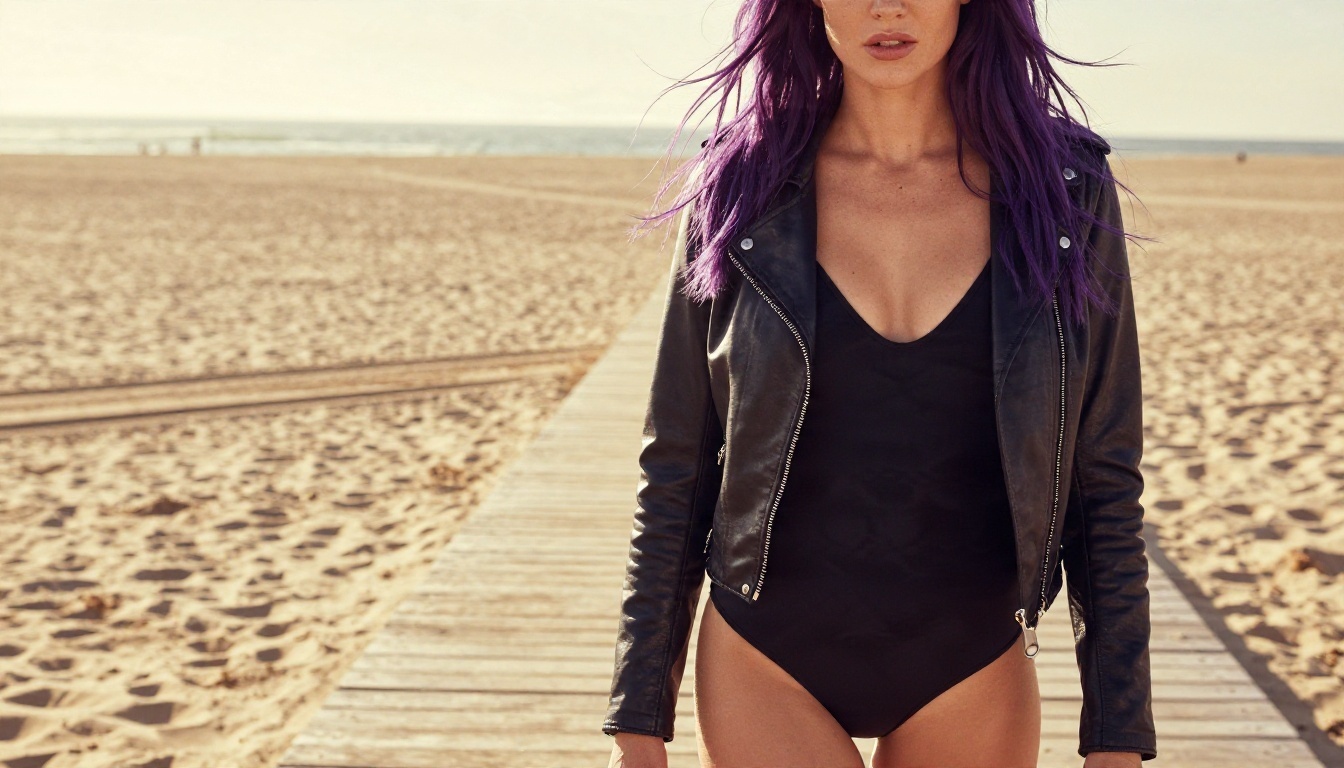
A different take on the same idea is a bolder, sportier outfit. A fitted leather jacket over a black bodysuit on a sunny boardwalk gives you attitude and movement.
Moody Evening Portraits
Candle light, lace and deep shadows suit the darker, romantic end of the style. The trick is to keep the face lit even when the room is dark. Add "soft side light from a window" so the model does not bury the eyes in shadow.
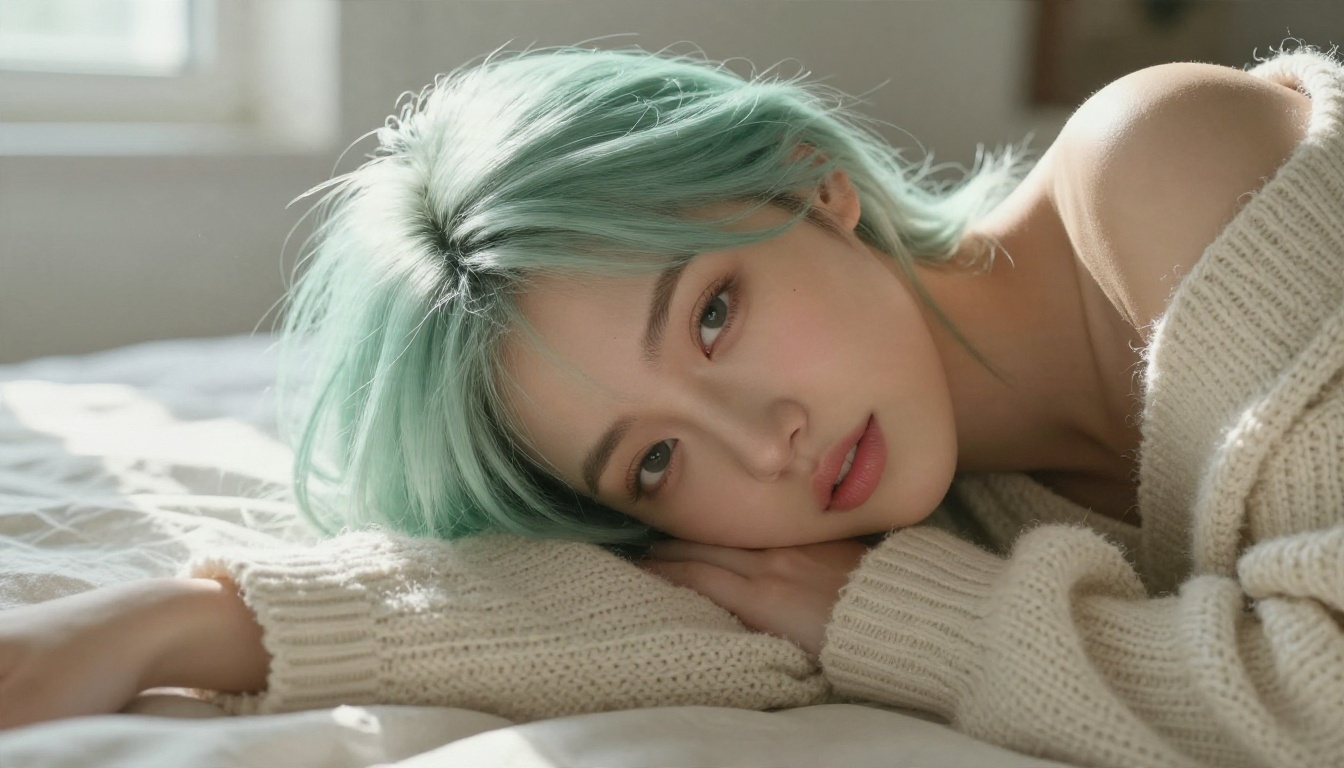
For a tender, quiet variation, try a morning bedroom scene with knitwear and dust motes in the light. It reads as intimate and suggestive without showing anything explicit.
| Mood | Light | Fabric | Color palette |
|---|
| Soft glamour | Window light, front | Silk, satin | Emerald, cream, gold |
| Cosplay and café | Afternoon sun, side | Cotton, pleated skirts | Navy, white, pink |
| Moody evening | Candle plus window | Lace, velvet | Black, burgundy, amber |
| Tender morning | Low sun through glass | Knit, linen | Cream, mint, soft pink |
Fixing Faces, Hands and Hair
Even strong models slip. Eyes drift, fingers multiply and hair strands melt into the background. You rarely need to start over.
Inpainting Quick Fixes
Inpainting means selecting only the broken area and regenerating that patch. Use PicassoIA Image Editor Pro for this:
- Upload the image you like.
- Mask the problem area, such as a hand or one eye.
- Describe only what should be there: "relaxed hand holding a ceramic mug, five fingers".
- Generate several versions and pick the cleanest.
Because Image Editor Pro offers unlimited generations, you can try ten versions of a hand without watching a credit counter.
Upscaling Final Pictures
A draft at 1024 pixels looks fine on a phone but soft on a monitor. Before you print or set a wallpaper, run the final pick through a super resolution tool to upscale by 2x or 4x. Do this last, because upscaling also magnifies flaws.
A simple workflow:
- Draft with a fast model such as Z Image Turbo.
- Refine the best draft in Seedream 4.5.
- Fix details in Image Editor Pro.
- Upscale once at the end.
Rules for Safe Creation
Adult anime art has a few firm lines, and following them keeps your work usable and your accounts safe.
- Adults only: every character must be clearly 18 or older. Say it in the prompt and avoid childlike cues in features, proportions or outfits.
- No real people: do not use a real person's face or name. Original characters are always the better choice.
- Keep it suggestive: glamour, lingerie style outfits and implied intimacy are fine for most platforms. Explicit content gets work removed and accounts flagged.
- Respect copyright: describe a character's traits instead of typing a franchise character's name when you plan to share or sell the result.
- Label AI work: many communities require it, and it builds trust with your audience.
💡 Tip: Save your best prompts in a notes file with the seed and model name. A good character is easy to lose if you do not record how you made it.
Make Your First Character Today
You now have the full loop: pick a model, fill the six slots, generate, fix one detail at a time, and upscale at the end. Start with Seedream 4.5 for the first draft, move to PicassoIA Image Editor Pro for unlimited edits, and try Krea 2 Medium or Proteus v0.3 when you want a flat illustrated look.
Pick one of the prompts above, change the hair color and the outfit, and press generate. Then browse every option at picassoia.com/en/all-models and see which one fits your style. Picasso IA gives you the models, the speed and the room to experiment, so your next character can be on screen in a minute.


