You write a perfectly normal prompt. A woman in a satin dress on a hotel balcony, golden hour, fashion editorial. You hit generate, wait, and get a flag instead of a result. If that sounds familiar, you are not alone, and this article explains exactly why it happens on Higgsfield AI, how the free plan fits into the picture, and what to use when the filter keeps getting in your way.
Here is the short version. Higgsfield AI censorship is real, layered and sometimes inconsistent. It runs checks on your prompt, on your uploaded reference image and on the output, and some of those checks come from outside providers that Higgsfield itself does not control. The free plan is small, so every blocked attempt hurts more than it would on a paid tier. And for creators who work in glamour, swimwear, boudoir style and fashion, the friction adds up fast.
💡 Quick take: Higgsfield is not on PicassoIA. For similar image results today, try Seedream 4.5 or PicassoIA Image Editor Pro, which has unlimited generations.

What Higgsfield Actually Blocks
Higgsfield positions itself as a creator platform for cinematic AI video and image generation. Like nearly every mainstream tool, it has content rules. The trouble is that the rules are not published as a clean list, and the behavior you see depends on which model inside the platform you pick.
Prompt-level filters
The first layer reads your text. Explicit sexual language is blocked, which is expected. What surprises people is how often borderline but legal wording gets caught too: lingerie, swimwear descriptions, certain body terms, and anything the system reads as sexualized. A prompt that would pass on a stock photo site can still get flagged.
Upload-stage checks
The second layer looks at images you upload as a reference or as a first frame for video. Higgsfield's own help material notes that a borderline reference image can trigger the filter even when your written prompt is completely safe. That matters for image-to-video work, because your starting image is often the exact thing being judged.
Provider-side moderation
The third layer is the one most users miss. Higgsfield offers models from several outside providers, and those providers apply their own moderation. According to Higgsfield's help center, a flag can come from its own safety system or from an external model provider, and both can produce false positives. For provider-side rules, Higgsfield says it has no access to the internal logic. In practice, that means two models in the same app can react very differently to the same prompt.
| Layer | What it checks | Who controls it |
|---|
| Prompt filter | Text of your request | Higgsfield |
| Upload filter | Reference or first-frame image | Higgsfield |
| Provider moderation | Prompt, image and output | The outside model provider |
| Copyright and likeness checks | Names, brands, characters | Higgsfield and providers |
Where the Filter Gets It Wrong
Moderation is never perfect, and Higgsfield is no exception. The problem is less about strictness and more about predictability. When you cannot tell why something was blocked, you cannot fix it.
False positives on safe prompts
Creators regularly report flags on content that is plainly harmless: a person at the beach, a fitted dress, a portrait with bare shoulders. Because part of the check lives with outside providers, rewording sometimes helps and sometimes does nothing. You end up guessing, and every guess can cost time.
Credits and refunds
Here is where it gets murky. Higgsfield's own pages are inconsistent about whether a flagged request costs you credits. One help page says NSFW-flagged requests are charged. Another page from the same site says they are not charged, and that costs are refunded when moderation rejects content. The refund wording looks like the newer policy, but I could not confirm it, so check your own credit balance after a flag before you assume anything.
⚠️ Tip: After any blocked generation, open your credit counter and compare it with the number before you pressed generate. Two minutes of checking beats losing a week of free credits.
Copyright and likeness blocks
Separate from NSFW rules, Higgsfield also blocks generations that look like copyrighted characters or protected likenesses. If you work in fan art or celebrity-adjacent styles, you will see a second type of rejection that has nothing to do with adult content.
Higgsfield Free Plan Limits
The free plan is where the filter hurts most. When you only have a handful of attempts, a single false positive can eat a large share of your allowance.
What you get without paying
Higgsfield does not publish a neat free-plan limit table for moderation, and official docs say usage limits depend on the account and the model, shown in your dashboard. Third-party reviews describe the free tier as roughly two or three video generations on basic models plus one image. These numbers are secondhand and change often, so treat them as a rough picture, not a promise.

Watermarks and resolution
Free output typically carries a watermark, and some sources list free resolution as capped around 720p. Credits on paid plans reportedly expire at the end of each billing period according to third-party summaries, which means unused credits do not roll over.
| Free plan point | What reports say | How reliable |
|---|
| Video generations | About 2 to 3 on basic models | Third-party, unverified |
| Image generations | About 1 | Third-party, unverified |
| Watermark | Present on free output | Widely reported |
| Resolution | Up to about 720p | Single-source |
| Rate limits | Depend on account and model | Official docs |
So the math is simple. With so few free generations, you cannot afford to test five prompt variations to dodge a filter. That is the real cost of Higgsfield AI censorship on the free tier: not the rule itself, but the lost attempts.
Why Creators Look for Alternatives
Most people do not leave a tool because of one flag. They leave because the pattern wears them down.
Real use cases that get flagged
The content that triggers friction tends to be completely mainstream in the creator world:
- Swimwear and beach editorials for fashion and travel brands
- Glamour and boudoir style portraits that stay non-explicit
- Lingerie-adjacent product mockups for small shops
- Artistic portraits with bare shoulders, silk and soft light
- Character art for adult-oriented storytelling that never goes explicit
None of these are pornographic. They are the daily bread of fashion photography, and they are exactly where cautious filters misfire.
Cost per blocked attempt
On a paid plan, a flagged request may or may not be refunded. On the free plan, you have almost nothing to lose in absolute terms, but almost everything in relative terms. Either way, the real expense is time: rewriting prompts, re-uploading references, waiting in queues. A tool that does not interrupt you is worth more than one with a slightly nicer demo reel.
Uncensored Alternatives That Work Today
Higgsfield is not on PicassoIA yet. For similar results today, these are the two models I would start with. Both are built for photorealistic output, and both treat tasteful glamour, fashion and swimwear as normal creative work. To be clear, "uncensored" here means fewer false flags on legal, non-explicit content. Explicit pornographic material is not the goal and is not what these workflows are for.
Seedream 4.5 for stills
Seedream 4.5 is the first model I reach for when I want photorealistic people. Skin texture, fabric sheen, hair detail and natural light all come out convincingly, and it follows long, descriptive prompts closely. It is also fast, which matters when you want to iterate on a look.
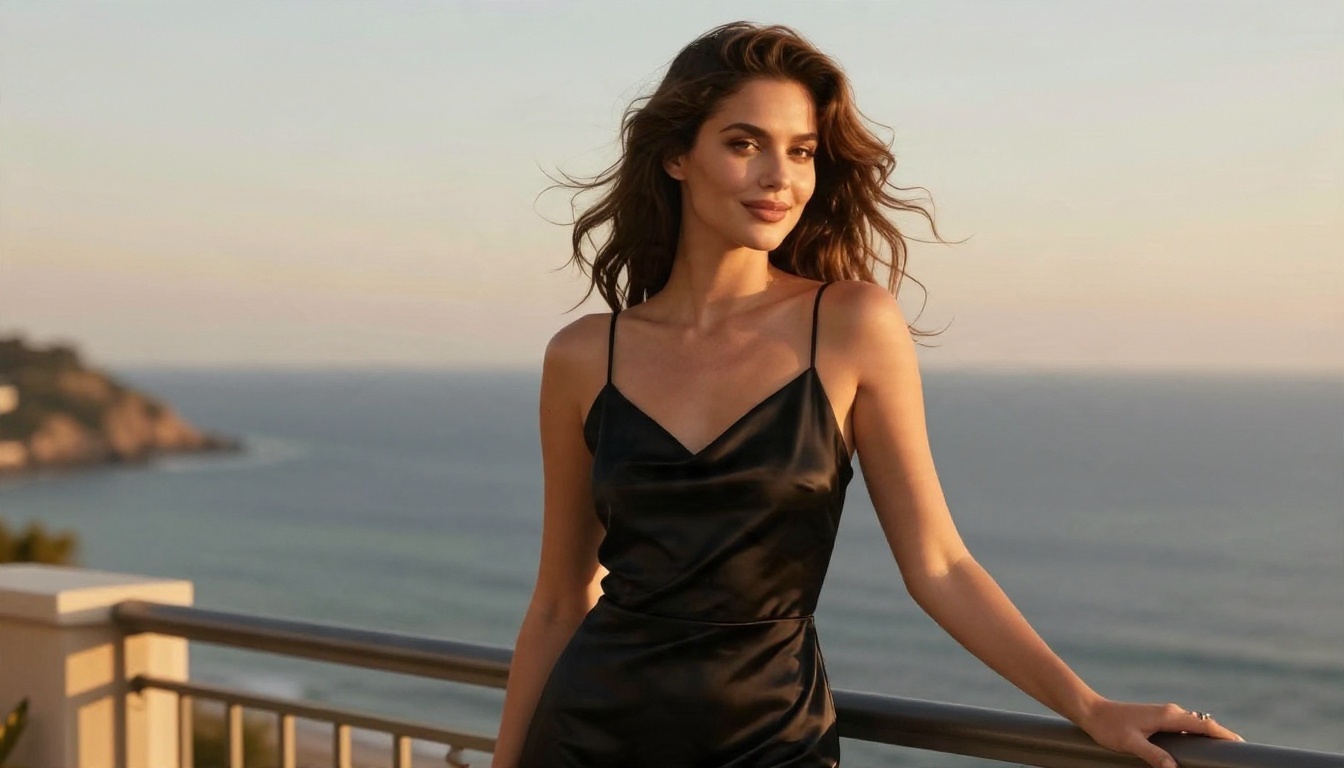
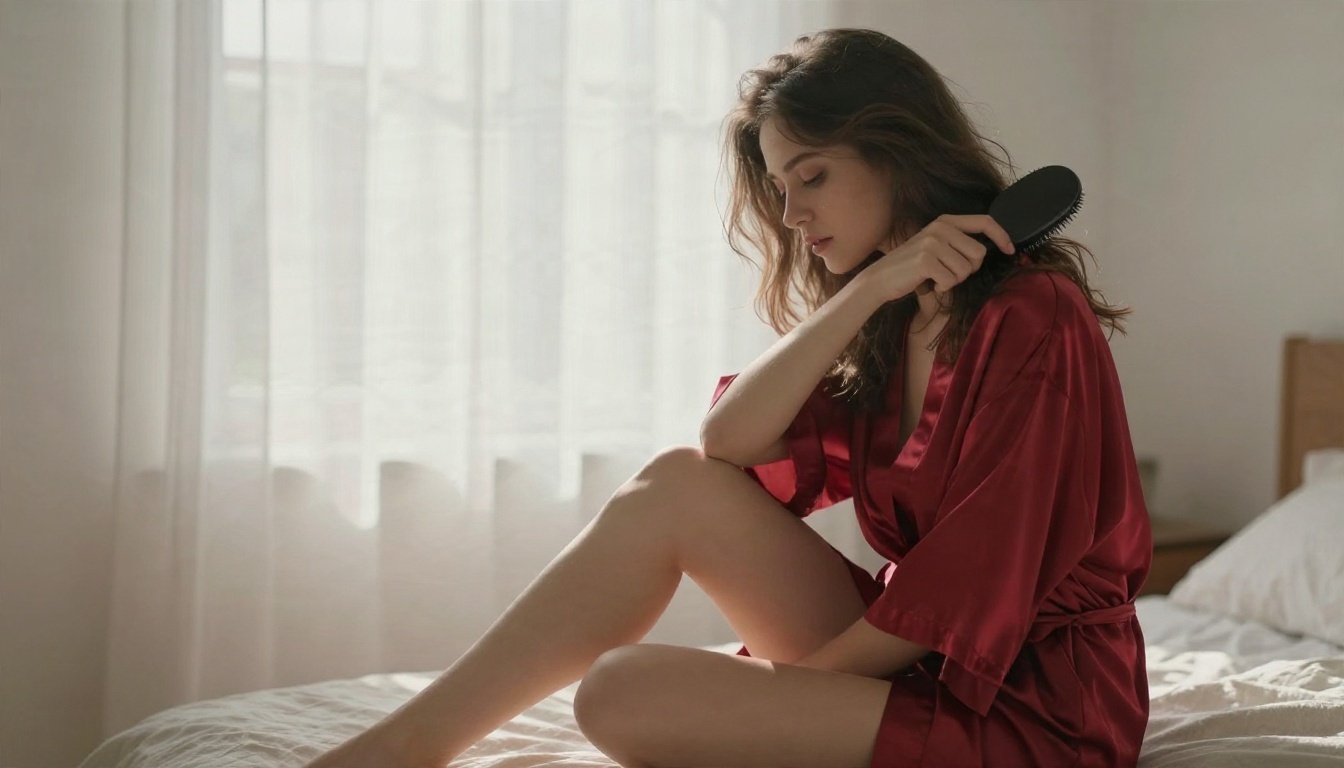
It handles the kind of prompts that tend to get flagged elsewhere: satin dresses, silk robes, swimwear, golden-hour portraits and boudoir-style mood. You get suggestive and beautiful, not explicit.
Image Editor Pro for unlimited edits
PicassoIA Image Editor Pro is the best answer to the free-plan problem. Generations are unlimited, so there is no allowance to protect and no reason to be nervous about a failed attempt. You can upload a photo, change the outfit, shift the lighting, fix details and try again as many times as you like.
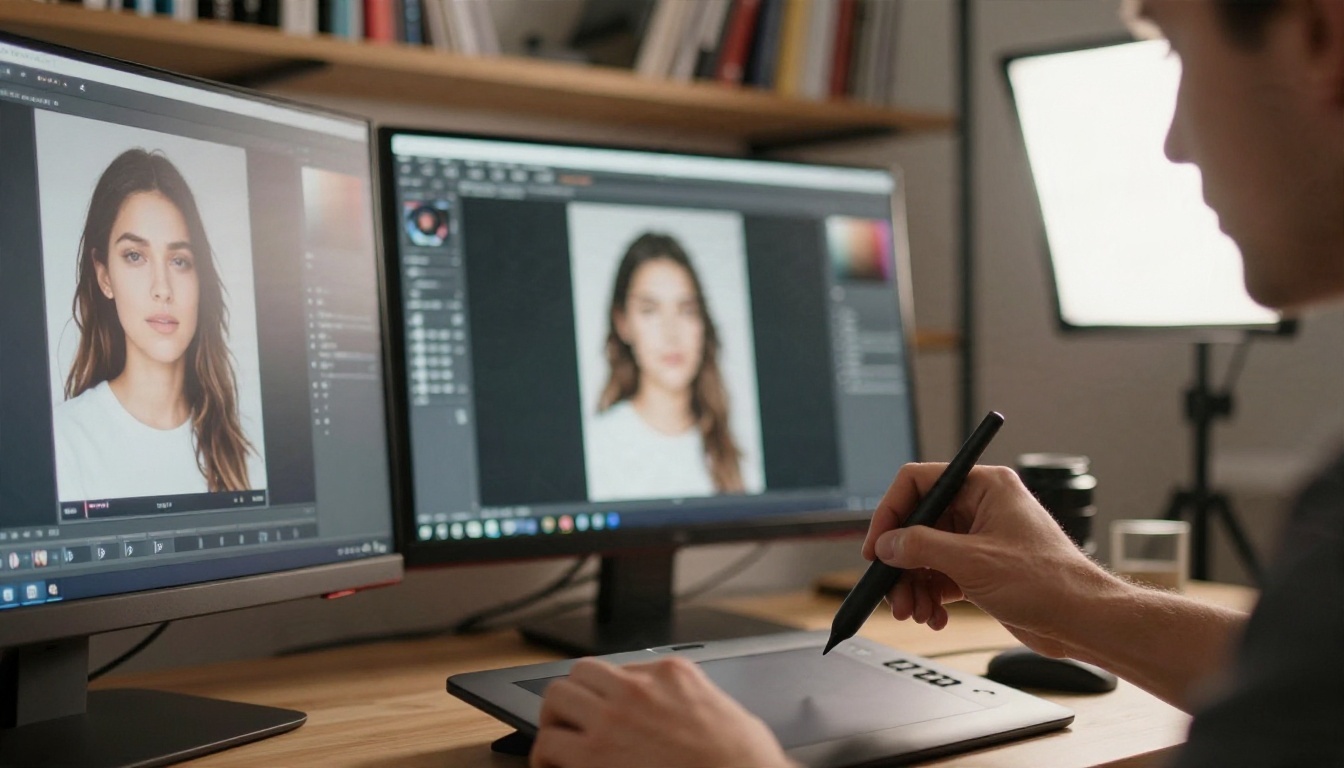
That freedom changes how you work. Instead of writing one careful prompt and hoping, you can run ten quick variations, pick the best, and refine it.
More models on the platform
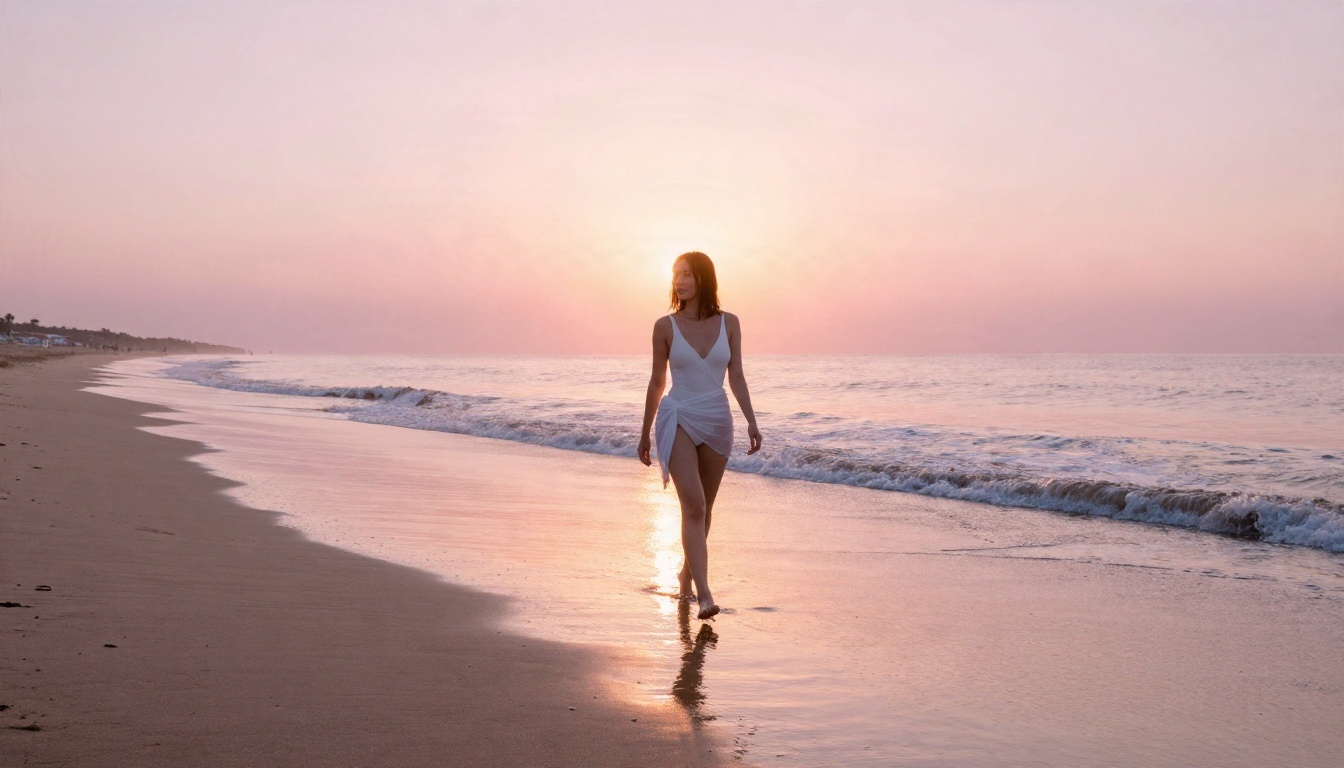
PicassoIA hosts a wide range of image, video, lipsync and enhancement models. If your Higgsfield work was mostly video, you can browse the full catalog at picassoia.com/en/all-models and filter by text to video, image to video or effects.
Higgsfield vs PicassoIA Options
| Feature | Higgsfield (free plan) | Seedream 4.5 | Image Editor Pro |
|---|
| Main strength | Cinematic video | Photorealistic stills | Editing and variations |
| Free output limits | Small, with watermark (reported) | Credit based | Unlimited generations |
| Filter friction on glamour | Frequent per user reports | Low on non-explicit content | Low on non-explicit content |
| Photo realism | Varies by model | Very high | High |
| Best for | Short video clips | Editorial portraits | Iterating on one image |
How to Get Similar Results on PicassoIA
Since Higgsfield has no page on the platform, the closest everyday workflow for image work is Seedream 4.5. Here is how to use it.
Step by step
- Open the model page. Go to Seedream 4.5 and sign in.
- Write a descriptive prompt. Use one sentence for the subject, one for the setting, one for light, and one for the camera.
- Set the aspect ratio. Choose 16:9 for banners, 3:2 for editorial, or 9:16 for stories.
- Generate and review. Look at skin, hands, fabric edges and background.
- Refine the winner. Send your best result to PicassoIA Image Editor Pro to adjust clothing, light or small details with unlimited tries.
Prompt tips that work
- Name the lens and light. "85mm f/1.8, warm golden light from the right" beats "nice lighting".
- Describe texture. Satin sheen, linen weave and visible skin pores push the image toward real photography.
- Keep the style photographic. Words like "Kodak Portra 400" and "film grain" calm the plastic look.
- Stay tasteful. Suggestive, elegant and artistic works well. Explicit material is outside what these workflows are for.
💡 Pro habit: Save your best prompts in a note. A good prompt is reusable, and you will rarely have to rewrite it from scratch.
Even with a freer tool, a few habits keep your results clean and reduce wasted attempts.
- Lead with the setting, not the body. "Hotel balcony at golden hour" tells the model the mood. Overly body-focused wording tends to attract flags and worse images.
- Use fashion vocabulary. Words like "editorial", "satin", "silk" and "resort wear" push toward photography language.
- Test with low stakes first. Start with one image before running a batch.
- Check the reference image. If you upload a photo as a base, remember that on some platforms the image itself is judged.
- Keep records. Note which wording passed and which did not, so you can see patterns.
Start Creating Your Own Images
If Higgsfield AI censorship has been slowing you down, the fix is simple: try a workflow where the filter is not the main character. Open Seedream 4.5 and write the prompt that got blocked last week. Then send the best result into PicassoIA Image Editor Pro and keep refining, with no generation counter ticking down.
Experiment with portraits, beach editorials, silk and satin textures, and golden-hour fashion. See how different it feels when the tool simply does the job. When you want more options, including video and enhancement, browse everything at picassoia.com/en/all-models.
Your first image takes a minute. Make it a good one.


