You typed a prompt, hit generate, and the app told you your credits were gone after two clips. If that sounds familiar, you are probably comparing Picsart's AI video tools with Runway, two products that look similar on a landing page and behave very differently once the credit counter starts dropping.
So how does Picsart's AI video compare to Runway: pricing, free limits and alternatives? Short version: Runway is the dedicated video studio with its own Gen-4 family of models and a credit meter that runs fast. Picsart is a huge photo and design app that added video generation on top, and it spends credits on short clips too. Neither gives you much for free. This article puts the numbers side by side, shows what a realistic month costs, and lists four alternatives on PicassoIA that handle the same job.
💡 Quick note on numbers: Both companies change plans often, and third-party price lists disagree with each other. Treat every figure below as a snapshot from late 2026 and check the live pricing page before you pay for anything.
The Short Answer First
If you only have 30 seconds, here is the comparison at a glance.
| Factor | Picsart AI video | Runway |
|---|
| Main purpose | Photo and design editor with AI video added | Dedicated AI video and editing studio |
| Free access | Small credit allowance, reported as roughly 5 credits per week by most trackers | One-time grant of about 125 credits that does not renew |
| Typical paid entry | Reported between about $5 and $15 per month depending on plan and source | Standard plan around $15 per month, or about $12 billed annually |
| Credits on the entry plan | Plans reported from roughly 200 to 500 credits | About 625 credits per month |
| Clip length | Short clips, commonly 3 to 5 seconds | Short clips, commonly 5 to 10 seconds depending on model |
| Top model access | Third-party video models inside the app | Gen-4 family, with the newest model on paid plans only |
| Best for | Social posts, quick edits, mixed photo and video work | Filmmakers, ad teams, tight control over shots |
The pattern is clear. Picsart is cheaper at the door, but video is the part of the app that eats credits fastest. Runway costs more at the door, yet you get a tool built around video from the first click.
What Picsart Actually Offers

Picsart started as a mobile photo editor, and that history shows. Most people open it for stickers, collages, background removal and filters. AI video is one more tool in a long menu.
How the credit system works
Picsart uses generative AI credits. Images cost a few credits each, and video costs noticeably more. According to its own tutorial material, a short 3 to 5 second AI clip lands somewhere around 15 to 25 credits. That means a free allowance of a handful of credits does not even cover one clip.
Models behind the button
Picsart does not rely on a single in-house video model. Its developer platform lists several third-party video models, including PixVerse versions, each with its own per-call price. For regular app users that means the quality you get depends on which model Picsart routes your request to, and the price per clip can change when the model changes.
Where it fits
Picsart is a good fit if you already live in the app. Turning a product photo into a short moving clip for a story, then adding a text overlay and a sticker in the same project, is smooth. What you do not get is deep shot control, long clips, or a timeline built for cinematic work.
What Runway Offers
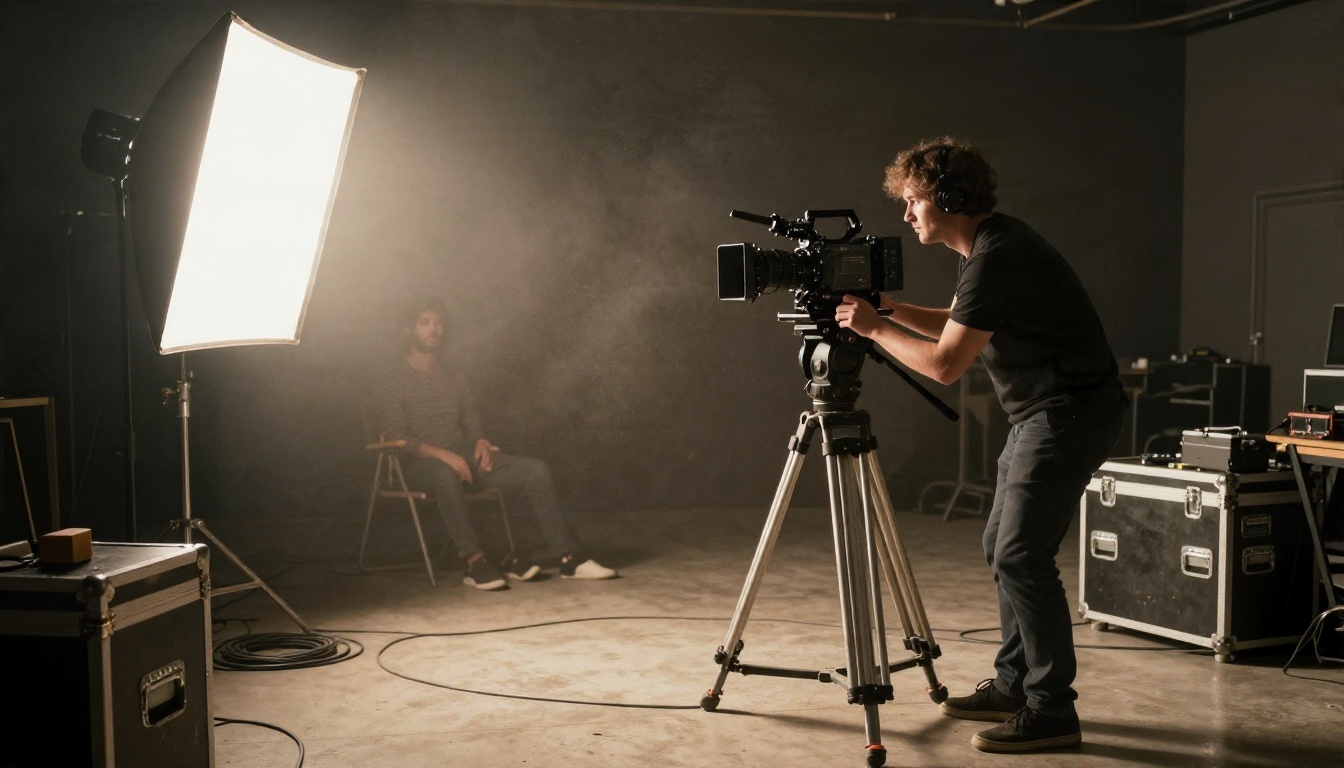
Runway has spent years as the name film students and agencies mention first. Its identity is video: generation, editing, motion transfer, and tools that let you restyle existing footage.
The Gen-4 family
Runway's video models sit in tiers. Gen-4 Turbo is the cheaper, faster option that mostly handles image-to-video. Gen-4 is the standard model. The newest generation, Gen-4.5, sits on paid plans only. Per-second credit costs reported by pricing trackers run roughly like this: about 5 credits per second for Turbo, about 12 for Gen-4, and about 25 for Gen-4.5.
Editing is part of the product
Runway is not only a generator. It lets you take a clip you already shot and recut or restyle it. That video-to-video angle is why production teams stay with it even when they grumble about the credit burn.
💡 Worth knowing: Runway's video-to-video model Gen-4 Aleph is available on PicassoIA as Gen 4 Aleph, and the newer Aleph 2 lets you edit one frame and restyle the whole video. Runway's text-to-video and image-to-video generators are a separate matter, and those are not on PicassoIA.
Pricing Side by Side

Here is where reports start to disagree, so I will separate what most sources agree on from what is shaky.
Runway plan ladder
- Free: a one-time grant of around 125 credits, no monthly renewal, watermark on outputs, and access limited to the cheaper model.
- Standard: about $15 per month, or about $12 per month on annual billing, with about 625 credits.
- Pro: about $35 per month with a bigger credit pool and extra features.
- Top tier: called Unlimited or Max depending on the source, aimed at heavy users who would otherwise run out of credits.
Picsart plan ladder
- Free: a small weekly or monthly AI credit allowance, with the exact number varying by report and by whether you use web or mobile.
- Plus: reported near $5 per month in some price lists, with a few hundred credits.
- Pro: reported anywhere from $7 to $15 per month, with more credits and, according to some sources, the best access to AI video.
- API platform: new developer signups reportedly receive 200 free credits, and each call is charged per request, with a free dry-run to quote the cost first.
The Picsart figures are less reliable. Different trackers list different prices for the same plan name, and one directory even claims there is no free plan at all. That is a sign the plans have shifted more than once this year.
A realistic cost per clip
Math beats marketing, so here is a rough month for each tool. These are estimates built from the reported credit costs, not official quotes.
| Scenario | Picsart estimate | Runway estimate |
|---|
| One 5-second clip | About 15 to 25 credits | About 25 credits on Turbo, 60 on Gen-4, 125 on Gen-4.5 |
| Clips per month on entry plan | Roughly 8 to 30 depending on plan | Roughly 5 on Gen-4.5, 10 on Gen-4, 25 on Turbo |
| Cost per usable clip if 1 in 3 is good | Triple the numbers above | Triple the numbers above |
That last row is the one people forget. AI video is a retry game. If only a third of your generations are usable, your effective cost per keeper triples, and a cheap-looking plan stops being cheap.
Free Limits and What They Really Allow

Free tiers in AI video exist to let you test, not to let you work. Both tools follow that rule.
Runway's free plan
The one-time grant works out to a handful of short clips on the cheapest model. Once it is gone, it does not come back next month. Outputs carry a watermark, and the newest models are locked behind a paid plan. It is enough to decide whether the interface suits you. It is not enough to finish a project.
Picsart's free plan
Picsart's free allowance renews, which feels friendlier, but the amount is tiny. If a video clip costs 15 to 25 credits and the free plan hands you around 5 a week, you are looking at weeks before a single clip becomes possible. Many reviewers also report that AI video is gated behind the paid Pro tier, so check whether the button even works on your account.
The hidden limits
- Watermarks: common on free outputs from both tools.
- Resolution caps: free outputs are often limited to 720p or lower.
- Queue priority: free users wait longer at busy hours.
- Commercial use: read the terms before you put free-tier clips in an ad.
💡 Rule of thumb: If a free allowance cannot produce at least three or four clips, it is a demo, not a plan. Budget for a paid tier or choose a platform with a more generous model.
Quality and Control in Practice

Pricing is only half the story. A cheap clip you cannot use is expensive.
Motion and realism
Runway's newer models are built for cinematic motion: camera moves, consistent subjects, believable physics. Picsart's video output depends on the routed model and tends to be tuned for short, eye-catching social clips. For a three-second product spin, both are fine. For a shot where a person walks across a room and picks up a cup, the dedicated video studio usually holds together better.
Control over the shot
Runway gives you more levers: motion brushes, camera direction, reference images and the video-to-video tools mentioned earlier. Picsart keeps things simple, which is a strength for casual users and a limit for anyone who wants to direct.
Length and audio
Both tools generate short clips. If you need ten seconds with synced sound, check the model you are routed to, because audio support differs from model to model and plan to plan.
Who Should Pick Which

Pick Picsart if
- You already edit photos and designs in the app.
- Your videos are quick social clips, not scenes.
- You want one subscription for stickers, templates, cutouts and a bit of AI motion.
Pick Runway if
- Video is your main output and you need shot control.
- You want to restyle or recut footage you already shot.
- You can live with a fast credit burn in exchange for quality.
Pick neither if
- You want a generous free tier.
- You need clips longer than 5 seconds with built-in audio.
- You prefer to pay once and generate without watching a counter.
That last group is where alternatives start to make sense.
Alternatives Worth Trying

Picsart's video generation is not on PicassoIA, and neither is Runway's Gen-4 generation family. For similar results today, these four video generators are, each with its own page you can open and test.
| Model | Best for | Standout detail |
|---|
| Seedance 2.5 Lite | High-volume testing | Clips up to 10 seconds at 480p or 720p, text or image input, synced audio option, unlimited for Elite and Infinite members |
| Kling v3 Video | Cinematic motion | Strong subject consistency and natural camera movement |
| Veo 3.1 Fast | Text to 1080p video with audio | Fast turnaround for polished clips |
| Wan 2.5 I2V Fast | Animating still images | Quick image-to-video for product shots and portraits |
When each one makes sense
- Replacing Picsart's short clips: Seedance 2.5 Lite gives you longer clips and does not charge per generation on the unlimited plans, which suits the retry-heavy way people actually work.
- Replacing Runway's cinematic output: Kling v3 Video and Veo 3.1 Fast are the closest in spirit for polished, believable motion.
- Animating photos you already have: Wan 2.5 I2V Fast takes a still and gives it movement quickly.
- Editing existing footage: if the video-to-video side of Runway is what you need, try Gen 4 Aleph or Aleph 2.
For more options, the full catalog lives at picassoia.com/en/all-models.
How to Get Similar Results on PicassoIA

Here is a simple workflow using Seedance 2.5 Lite, which accepts either a text prompt or a starting image.
Step by step
- Open the model page. Go to the Seedance 2.5 Lite page and open the generator.
- Write the prompt in time order. The model page recommends cinematic, chronological descriptions. Say what the subject does first, what happens next, and how the camera moves.
- Pick a duration. Choose 5 seconds for a quick test or 10 seconds when the shot needs room for action.
- Choose 720p for finals. The model supports 480p and 720p. Use 480p for fast drafts and switch to 720p once the motion looks right.
- Set the aspect ratio. Choose 9:16 for stories and reels, 16:9 for YouTube, or leave the default if you supply an input image.
- Decide on audio. Synchronized audio is on by default. Turn it off if you plan to add music later.
- Fix the seed. Once you get a shot you like, reuse the same seed while you tweak the wording.
Prompt tips that save retries
- Name one subject and one action. "A hiker raises a hand to shield their eyes" beats a paragraph of competing ideas.
- Describe the camera. Slow dolly-in, gentle pan left, or locked-off tripod shot.
- Mention light. Low morning sun, overcast softbox light, warm lamp glow.
- Keep motion simple. One main movement per five seconds is the sweet spot.
💡 Budget tip: Draft at 480p, then render only the best prompt at 720p. You get Runway-style iteration without the Runway-style credit burn.
Animating a still image

Image-to-video is the most reliable way to control the look of a clip. Generate or upload a still like the hiker frame above, drop it into the input image field, and describe only the motion: mist drifting through the valley, jacket fabric moving in the wind, the camera pushing in slowly. The clip inherits the image's aspect ratio, so there is nothing else to configure. You can also add a closing frame so the model animates between your first and last images.
If you prefer other engines, the same workflow applies to Kling v3 Video and Wan 2.5 I2V Fast: same prompt structure, different look.
Which One Wins on Cost
Here is the honest verdict.
- Lowest entry price: Picsart, if the reported Plus pricing holds and AI video is included on your plan.
- Best control and cinematic output: Runway, especially for editing existing footage.
- Worst free value: Runway's non-renewing grant runs out fast, and Picsart's weekly crumbs barely cover a clip.
- Lowest friction for iteration: a platform where you can generate repeatedly without per-clip anxiety, which is exactly where unlimited-style models like Seedance 2.5 Lite shine.
The best choice depends on how many clips you throw away. If you keep two out of ten, per-credit pricing hurts. If you keep eight out of ten, it barely matters.
Try Your Own Clips Today
Reading price tables only gets you so far. Pick one idea, a product spin, a landscape push-in, a character walking into frame, and run it through two or three models. Write the same prompt every time, compare the motion, and look at how many attempts it took to get a clip you would actually post.
Head to Seedance 2.5 Lite for fast drafts, try Kling v3 Video when you want a cinematic finish, and browse everything else at picassoia.com/en/all-models. Start with a single prompt, and let the results decide which tool earns your subscription.


