You typed a perfectly reasonable prompt. A woman in a bikini by a pool, golden hour, fashion magazine lighting. Higgsfield answered with a red "content flagged" message and a spinning credit counter. If that sounds familiar, you are not alone, and you are probably wondering whether there is a way around it.
Here is the straight answer. Higgsfield's own help center says that bypassing or circumventing its moderation is prohibited under its Terms of Use, so I am not going to hand you a list of prompt tricks. Those tricks break often, they can get an account suspended, and they waste credits. What works is understanding why the flag fired, fixing the false positives you can fix, and moving adult-leaning glamour work to a platform whose rules fit it.
This article covers all three, and it ends with a step-by-step workflow for producing tasteful, suggestive, non-explicit images and video without fighting a filter.
Why Higgsfield Flags Your Prompts
Higgsfield is an aggregator. It wraps several image and video models behind one interface, and every request passes through more than one safety layer. According to its help center, a flag can come from Higgsfield's own safety system or from the external model provider's system. Higgsfield has no view into the internal moderation rules of those outside providers, so the exact reason for a block is often unknown, even to support.
The two checkpoints
The check happens at two moments:
- Prompt processing. Your text is scanned before anything is generated.
- Upload or reference input. If you attach a photo for image-to-video, that image is scanned too.
That second checkpoint explains a lot of confusing blocks. You can write a harmless prompt, attach a swimwear photo, and still get flagged because the reference image tripped a classifier.
False positives are common
Both layers produce false positives. Words like "bikini," "lingerie," "bare shoulders" or "sensual" can sit close to prohibited categories in a classifier's view, even when the image you want is the sort of thing printed in any fashion catalog.
💡 Good to know: Credits for generations that fail because of an NSFW flag are returned automatically on most models. If you lost credits on a flagged job, check your balance before contacting support.
A different check: the IP block
Do not confuse the NSFW flag with an IP block. An IP block means the system detected a possible copyright issue, such as a famous character or a branded product. It is not about adult content and rewording the body description will not fix it.
What Actually Fixes False Flags
Some blocks are legitimate fixes you can make without breaking any rules. If your content is plainly safe and still gets flagged, try these in order.
| Situation | What to try | Why it helps |
|---|
| Prompt flagged, image is ordinary swimwear | Describe the setting and photography first, outfit last | Classifiers weigh the whole sentence, not one word |
| Reference photo rejected | Use a less cropped, better lit source image | Tight crops on skin can trigger the upload check |
| Same prompt works on one model but not another | Switch models inside the app | Each provider applies its own filtering |
| Repeated flags on clean content | Ask support to help rephrase | Support can see more than you can |
| Flag on a branded or famous subject | Remove the brand or character | That is an IP block, not an NSFW one |
None of this changes what the platform allows. It just removes accidental triggers. If your goal is something Higgsfield does not permit, rewording will not get you there, and pushing against the rules is how people lose accounts.
Why "Bypass" Searches Disappoint
If you have searched this topic before, you have seen the same advice recycled: misspell words, add a long block of "safe" text, split the prompt across steps. Here is why I do not recommend any of it.
- It is against the terms. Higgsfield states that circumventing moderation is prohibited. That puts your account at risk, along with any credits you paid for.
- It breaks constantly. Filters are updated without notice. A trick that worked last week fails today, and you pay for the failure.
- It degrades the result. A prompt padded with decoys produces muddy, confused images. You spend more and get less.
- Video is stricter. Image-to-video adds the upload check on top of the prompt check, so there are more places for a job to fail.
💡 The honest takeaway: The cheapest way to stop fighting a filter is to stop using a tool whose rules do not match your project.
Free Uncensored Options and Alternatives
Higgsfield is not available on PicassoIA, so you will not find it in the model list there. If your work involves swimwear, glamour, boudoir and other suggestive but non-explicit imagery, these are the models to reach for instead. I have ordered them by how well they fit that kind of work.
1. Seedream 4.5
Seedream 4.5 is the first model I would open for adult-leaning, magazine-style photography. It handles skin texture, fabric sheen and lighting with a realism that makes photoshoot prompts look like photoshoots. It also generates fast, so you can iterate on a look in minutes instead of waiting on a queue.
2. PicassoIA Image Editor Pro
PicassoIA Image Editor Pro is the one to use when you already have an image and want to change it: swap an outfit, adjust a setting, fix lighting or tidy details. Its biggest advantage is unlimited generations, which means you can try twenty variations without watching a credit meter. For anyone who burned credits on flagged Higgsfield jobs, that matters.
3. Flux 2 Klein models
The Flux 2 Klein 4B Base and Flux 2 Klein 9B Base LoRA models are useful when you want to lock in a consistent style across a whole set. LoRA support lets you steer the look toward a specific aesthetic, which suits recurring characters and branded series.
4. Qwen Image 3 Pro
Qwen Image 3 Pro is a solid photorealistic option when you want a second opinion on a prompt. Run the same description through two models and keep the better result.
Quick comparison
💡 A note on Seedream versions: Pick Seedream 4.5 for this kind of content. Newer Seedream variants apply stricter content rules, so they are the wrong choice for glamour and boudoir work.
How to Get Similar Results on PicassoIA
Here is the workflow I use with Seedream 4.5 to produce suggestive, non-explicit photography without fighting a filter.
Step 1: Write the photograph, not the outfit
Start with the camera and light. A prompt that reads like a photographer's shot list gets better results than one that reads like a list of clothing.
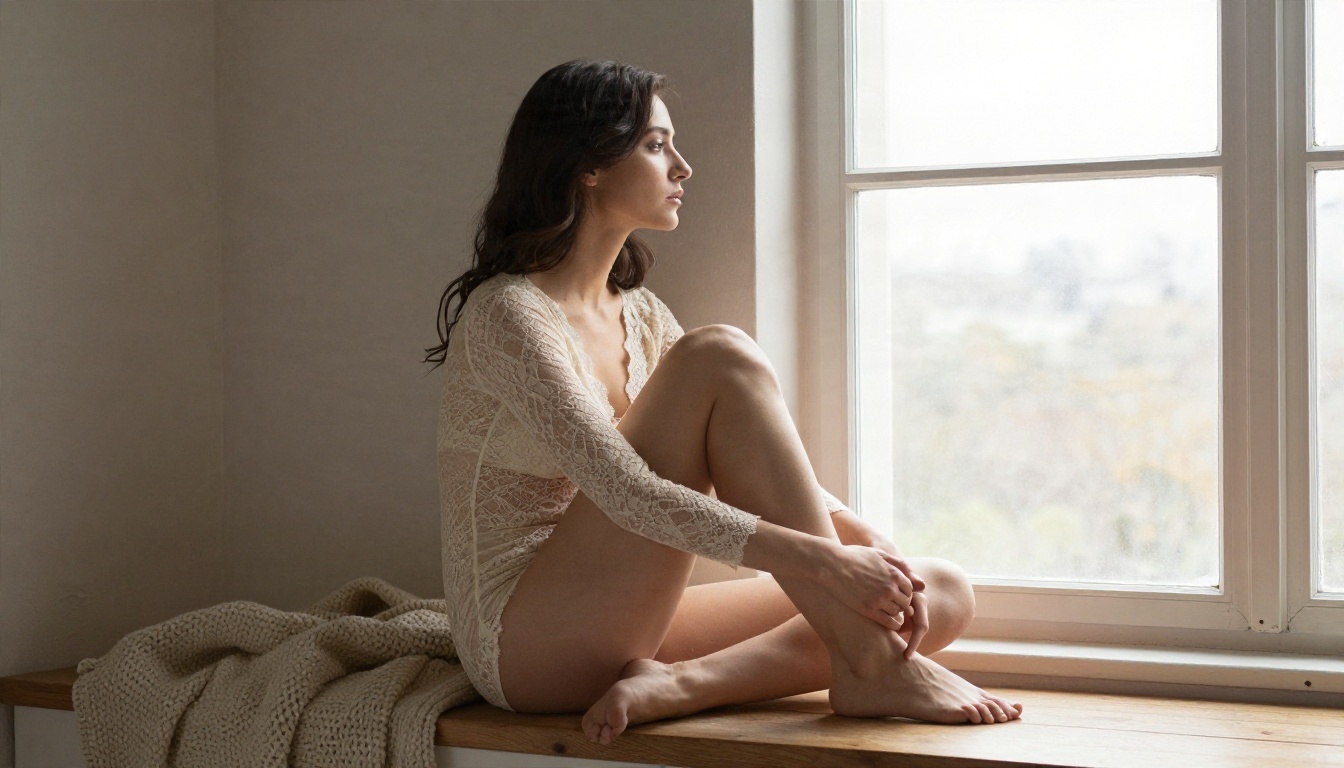
Medium shot of a woman in a cream lace bodysuit on a wooden window seat, soft side light from a large window on the right, 50mm f/1.4 lens, shallow depth of field, Kodak Portra 400 grain, tasteful boudoir editorial.
Step 2: Specify lens, light and texture
Realism comes from specifics. Name the focal length, the direction of the light and the surface details you want to see.
- Lens: 35mm for environmental shots, 85mm or 105mm for portraits
- Light: golden hour from the left, window light from the right, softbox from the front
- Texture: visible pores, satin folds, wet skin, lace pattern, film grain
Step 3: Keep it suggestive, not explicit
Glamour sells because of mood and composition. Lean on posture, expression, fabric and light. This keeps your results polished, publishable on most social platforms and consistent with the non-explicit style that works best.
Step 4: Generate three, keep one
Run three variations of each prompt, then pick the strongest. If you like the pose but not the outfit or background, send the image to PicassoIA Image Editor Pro and edit it without worrying about generation limits.
Step 5: Match the aspect ratio to the platform
Use 16:9 for banners and video thumbnails, 3:4 or 2:3 for portraits and feed posts.
Parameter tips
| Setting | Recommendation | Reason |
|---|
| Aspect ratio | 16:9 for scenes, 3:4 for portraits | Matches how the image will be used |
| Prompt length | 50 to 80 words | Enough detail without confusing the model |
| Lighting words | One main source, named direction | Prevents flat, evenly lit results |
| Variations | 3 per idea | Gives you a choice without wasting time |
| Style words | "photograph," "film grain," "Portra 400" | Pushes toward realism instead of illustration |
Prompt Ideas That Work
These are directions that give good results with Seedream 4.5. Adjust the details to match your own project.
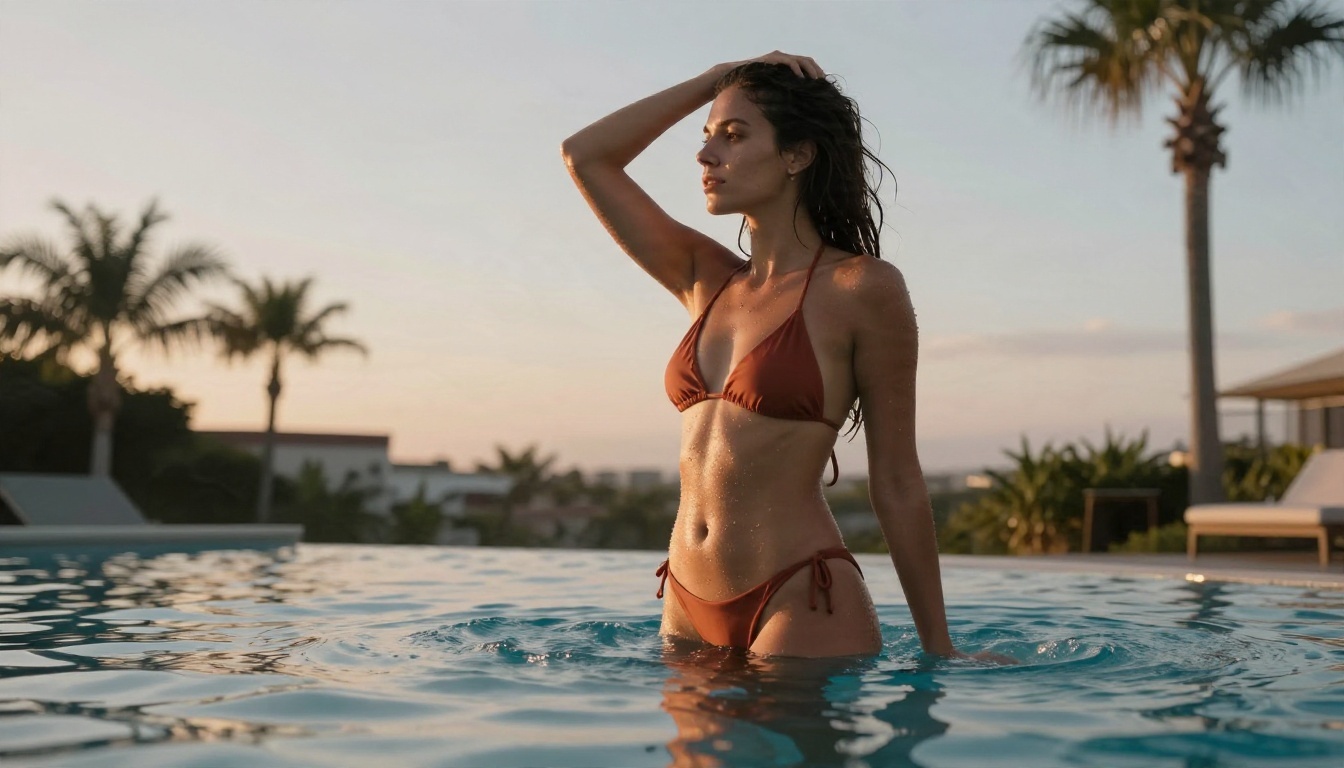
Poolside glamour: a woman in a terracotta bikini at the edge of an infinity pool, golden hour backlight, water droplets on tanned skin, 24mm lens, low angle.
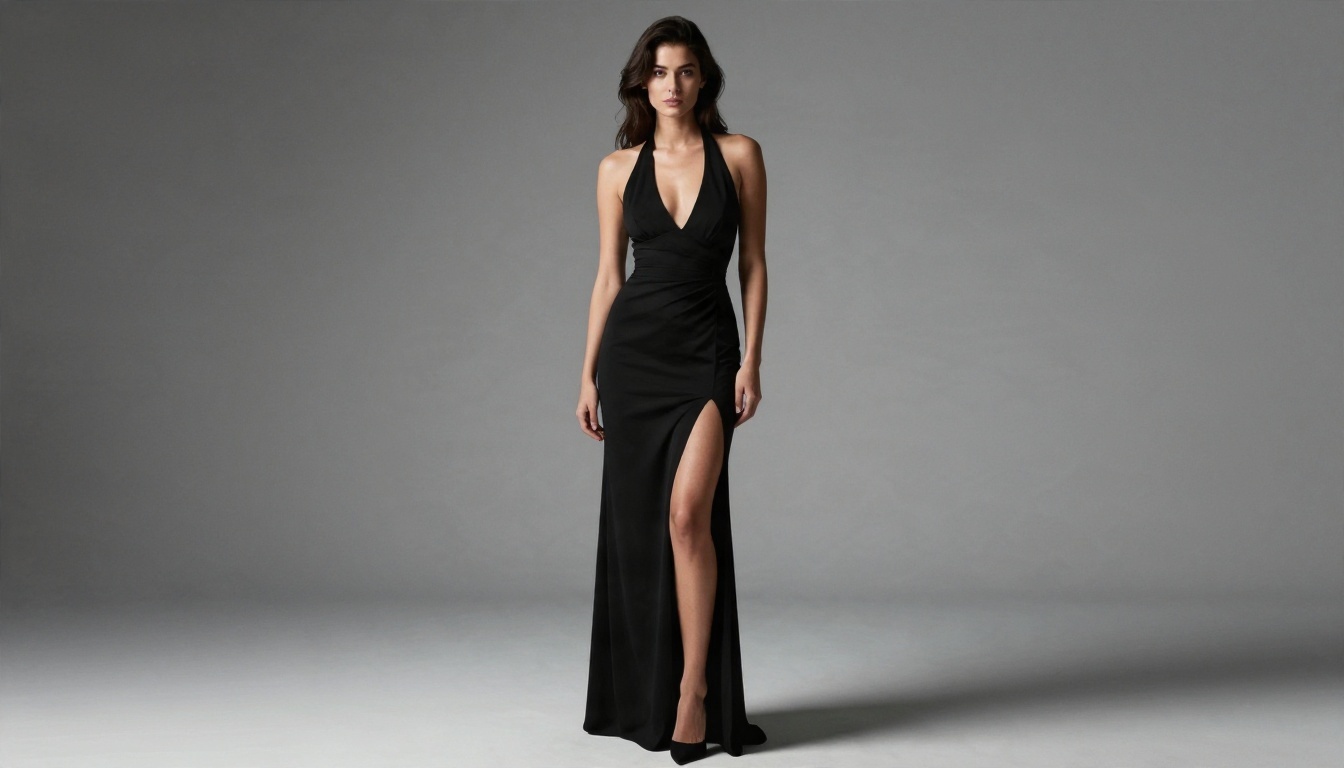
Fashion studio: a woman in a long black halter gown with a high leg slit on a seamless grey backdrop, strong softbox from front left, 70mm f/2.8, confident wide stance.
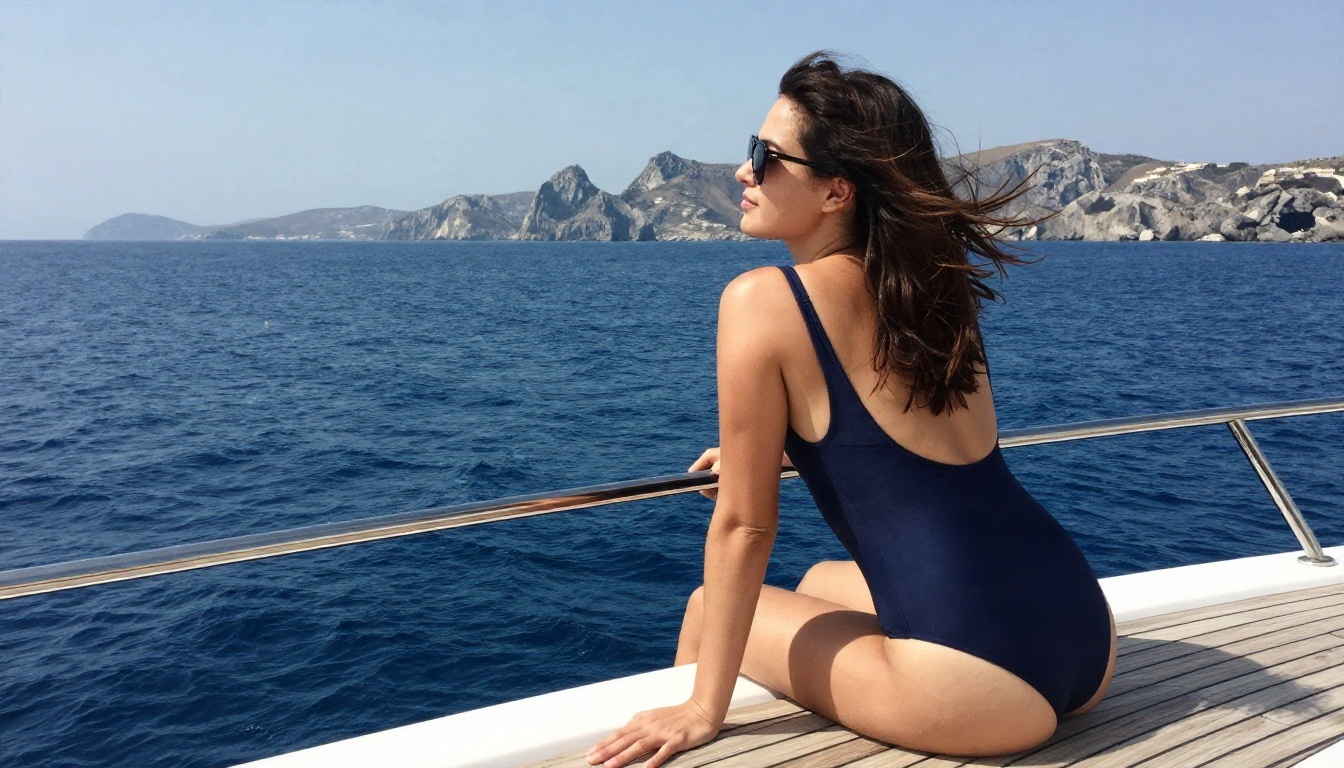
Yacht day: a woman in a navy two-piece swimsuit leaning on a white yacht railing, deep blue sea behind her, strong midday sun, 28mm lens, wind moving her hair.
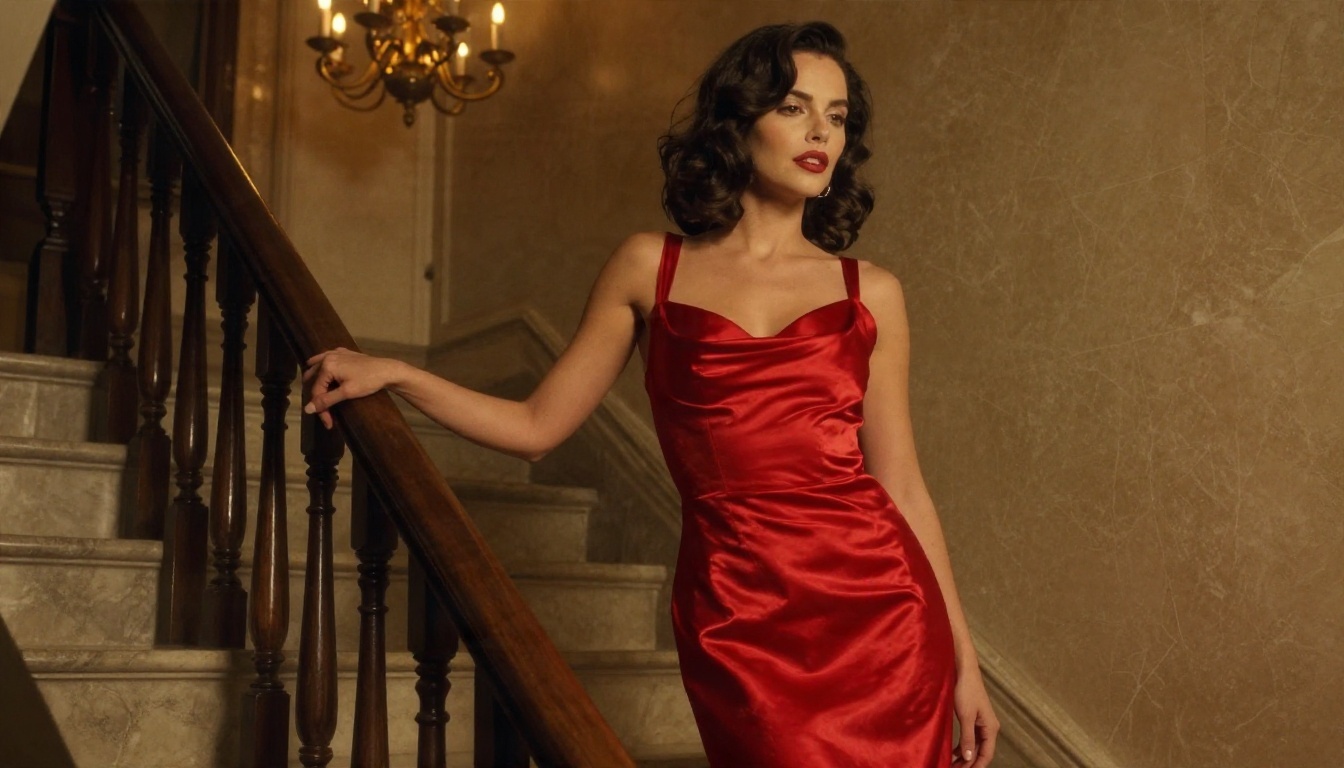
Evening drama: a woman in a fitted red satin dress descending a marble staircase, warm chandelier light, deep shadows, 35mm f/1.8.
Common mistakes
- Stacking adjectives. "Sexy, hot, seductive, alluring" adds nothing the model can draw. Describe light and pose instead.
- Skipping the camera. Without a lens and light, you get the generic "AI look."
- Overloading one prompt. Three subjects, two locations and five outfits will confuse any model.
- Ignoring hands and fabric. Mention them in the prompt if they are visible in the shot.
Adding Motion With Video Models
Still images are only half of what Higgsfield offered. If you also want movement, there are video models on PicassoIA that animate a still image or turn text into a clip.
- Wan 2.5 I2V Fast animates a finished image quickly, which is ideal for testing whether a pose works in motion.
- Wan 2.5 T2V generates a clip from text alone.
- Kling v3 Video is the one to try for cinematic camera moves and smooth, believable motion.
- LTX 2.5 Fast is built for speed when you are drafting several versions.
A simple workflow: generate the still in Seedream 4.5, polish it in Image Editor Pro, then send it to an image-to-video model with a short motion prompt such as "slow dolly in, hair moving in the breeze, warm golden light."
💡 Tip: Keep motion prompts short and physical. Describe what moves and how the camera behaves, not what the subject feels.
Setting Up a Repeatable Workflow
The real gain from switching is not one good image. It is a pipeline that does not stall.
- Plan the shoot. Pick a location, a light direction and a mood board of three to five references.
- Draft in Seedream 4.5. Generate several variations per scene.
- Refine in Image Editor Pro. Adjust outfits, backgrounds and details with unlimited tries.
- Animate the best frames. Send finalists to a video model.
- Organize the set. Name files by scene so a series stays consistent.

Rules that still apply
Less restricted does not mean no rules. Keep these in mind whichever tool you use:
- Adults only. Every subject must be clearly an adult.
- No real people without consent. Do not generate likenesses of real individuals.
- No explicit material. The approach in this article is suggestive and tasteful, which is also what travels best across social platforms.
- Check where you publish. Instagram, TikTok and other platforms have their own rules, regardless of how an image was made.
Quick Answers
Can I turn off the Higgsfield NSFW filter? No. Moderation is built into the platform and into the models it connects to. Higgsfield's help center says circumventing it is prohibited.
Why was my harmless prompt flagged? Classifiers produce false positives, and the flag may have come from an outside model provider rather than Higgsfield itself. The reference image can also be the trigger.
Will I get my credits back? On most models, credits for generations that fail due to an NSFW flag are returned automatically.
Is there a free option? PicassoIA Image Editor Pro offers unlimited generations, and Seedream 4.5 is quick enough that testing a prompt costs very little.
Is Higgsfield on PicassoIA? No. The alternatives above are the models to use for similar image and video work.
Make Your First Set Today
Stop spending credits on prompts that bounce back. Open Seedream 4.5, paste in one of the prompt ideas above, and generate three variations. Then take your favorite into PicassoIA Image Editor Pro and push it as far as you like, with no cap on attempts.
When you want motion, send the finished still to Wan 2.5 I2V Fast or Kling v3 Video. To see every image and video model in one place, browse picassoia.com/en/all-models and build the look that fits your project.


