You type a perfectly reasonable prompt into Poly AI, wait a few seconds, and get a grey tile, a refusal, or nothing at all. It is frustrating, especially when the same idea works fine somewhere else. If you searched for a way to bypass the Poly AI image filter, you probably want one of three things: your blocked image to finally render, a prompt that stops tripping the moderation system, or a different tool that treats you like an adult. This article covers all three, honestly, including the part where most "bypass tricks" stop working within days.
💡 Short version: there is no reliable trick that beats a moderation layer that gets updated constantly. What does work is cutting false positives with better prompts, fixing real technical faults, and switching to a generator with looser rules for non-explicit glamour, swimwear and portrait work.
Why Poly AI Blocks Your Images
Before you change anything, it helps to know what you are up against. Image filters in chat apps are built to protect the platform from legal risk, app store penalties and advertiser trouble. They are tuned to be cautious, and cautious means they block plenty of harmless requests.
Two filters, not one
Most AI image products check content twice. The first check reads your text prompt and looks for flagged vocabulary or combinations of words. The second check looks at the finished picture and scores it for nudity or suggestive content before showing it to you. Your prompt can pass the first gate and still get stopped at the second, which is why you sometimes wait for a render and then see a refusal.
I could not find any official, public explanation of how Poly AI's own filter is tuned, so treat the details below as how these systems typically behave rather than a confirmed rulebook for that app.
False positives are common
Moderation models guess. They do not read intent. A prompt about a beach day, a gym outfit or a silk robe can be scored the same as something far more explicit because the surrounding words (skin, body, tight, wet) carry weight on their own. Users of several AI image tools report swimwear, fitness and plain clothed portraits being flagged as adult content.
What usually gets flagged
| Trigger | Why it fails | Typical result |
|---|
| Body-focused wording ("revealing", "tight", "skin") | Scored as adult intent | Prompt rejected |
| Minors or youthful terms near any suggestive word | Hard block on every serious platform | Account warning |
| Real celebrity names | Likeness and consent rules | Refusal |
| Wet, oiled or "see-through" fabric terms | Image check sees nudity-like areas | Blank or blurred tile |
| Very long prompts stuffed with adjectives | One flagged word poisons the whole request | Generic error |
⚠️ Hard line: nobody should try to get around filters that protect minors or real people. Every suggestion in this article assumes adult, fictional subjects and non-explicit results.
Does Any Bypass Actually Work?
Search any forum and you will find confident posts about secret words, symbol substitutions and role-play loopholes. Some of them worked for a weekend. Almost all of them are gone a week later.
Why tricks break fast
Platforms read the same forums you do. When a workaround spreads, it gets added to the blocklist or the classifier is retrained on examples of it. Anything you copy from a post that is more than a few days old is more likely to fail than to work. You also burn credits or daily limits testing each one.
The account risk nobody mentions
Repeated attempts at flagged content can lead to rate limits, shadow restrictions or a ban on the account. If you have a long chat history with characters you care about, that is a real cost. Trying to outsmart a filter on an account you want to keep is a bad trade.
The better question to ask
Instead of "how do I break this filter," ask two things. Is my prompt triggering a false positive that a rewrite can fix? And if my goal is simply a glamour or swimwear portrait that the platform will never allow, am I using the right tool? The next sections answer both.
Prompt Fixes That Reduce Blocks
If the content you want is allowed but keeps getting flagged, the problem is usually your wording. These fixes target false positives, not rules.
Describe the scene, not the body
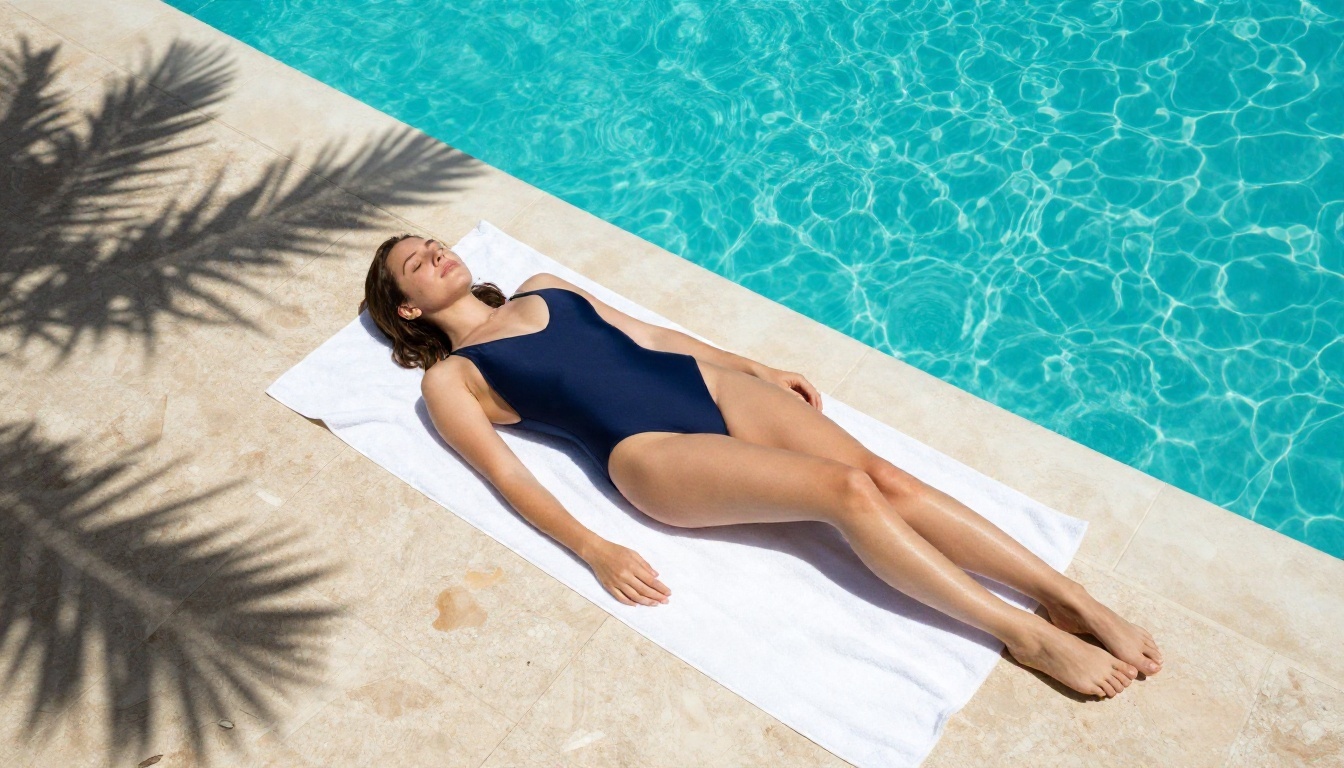
Moderation scores spike on body-first language. Flip your prompt so the setting, light and clothing do the talking. "A woman in a navy swimsuit on a white towel beside a villa pool, midday sun, shot from above" scores far lower than a prompt built around skin and curves.
Swap loaded words for neutral ones
Small substitutions help a lot when you are dealing with a pattern-based filter:
- "Sexy" becomes "elegant", "confident" or "editorial".
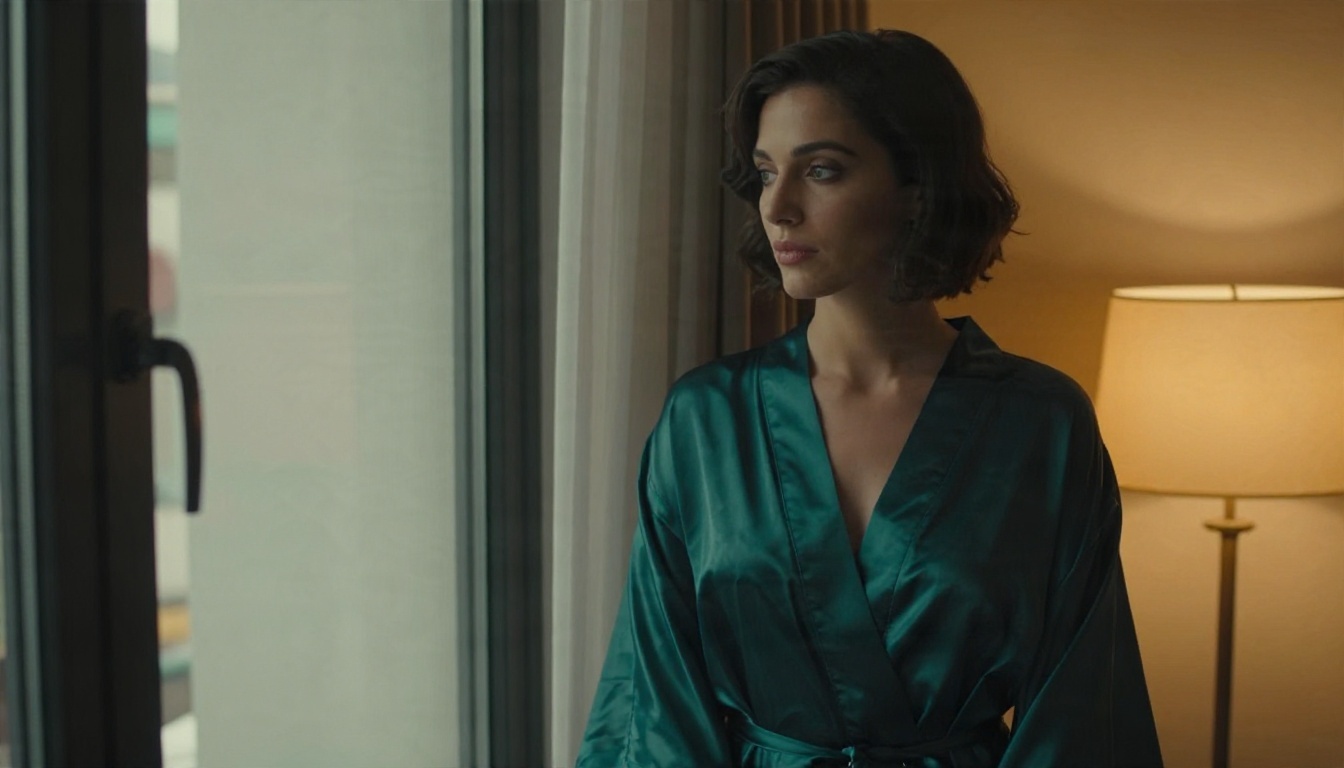
- "Revealing outfit" becomes the actual garment: "silk robe", "one-piece swimsuit", "satin slip dress".
- "Wet look" becomes "sea breeze" or "sunlit water in the background".
- "Perfect body" becomes "athletic build" or simply nothing.
Add photography language
Camera and lighting vocabulary pushes the request toward a fashion or lifestyle reading. Phrases like "85mm portrait lens", "soft window light", "film grain" and "magazine editorial" tell the model, and any classifier reading the prompt, that you want a photograph and not something explicit.
Shorten and test in steps
Long prompts are fragile because one flagged word sinks everything. Start with a short version (subject, clothing, place, light), confirm it renders, then add details one at a time. When a version fails, you know exactly which addition caused it.
| Blocked version | Rewritten version |
|---|
| "Sexy girl, tight revealing dress, perfect skin" | "Woman in a fitted black satin dress, loft apartment, soft morning window light, 85mm portrait" |
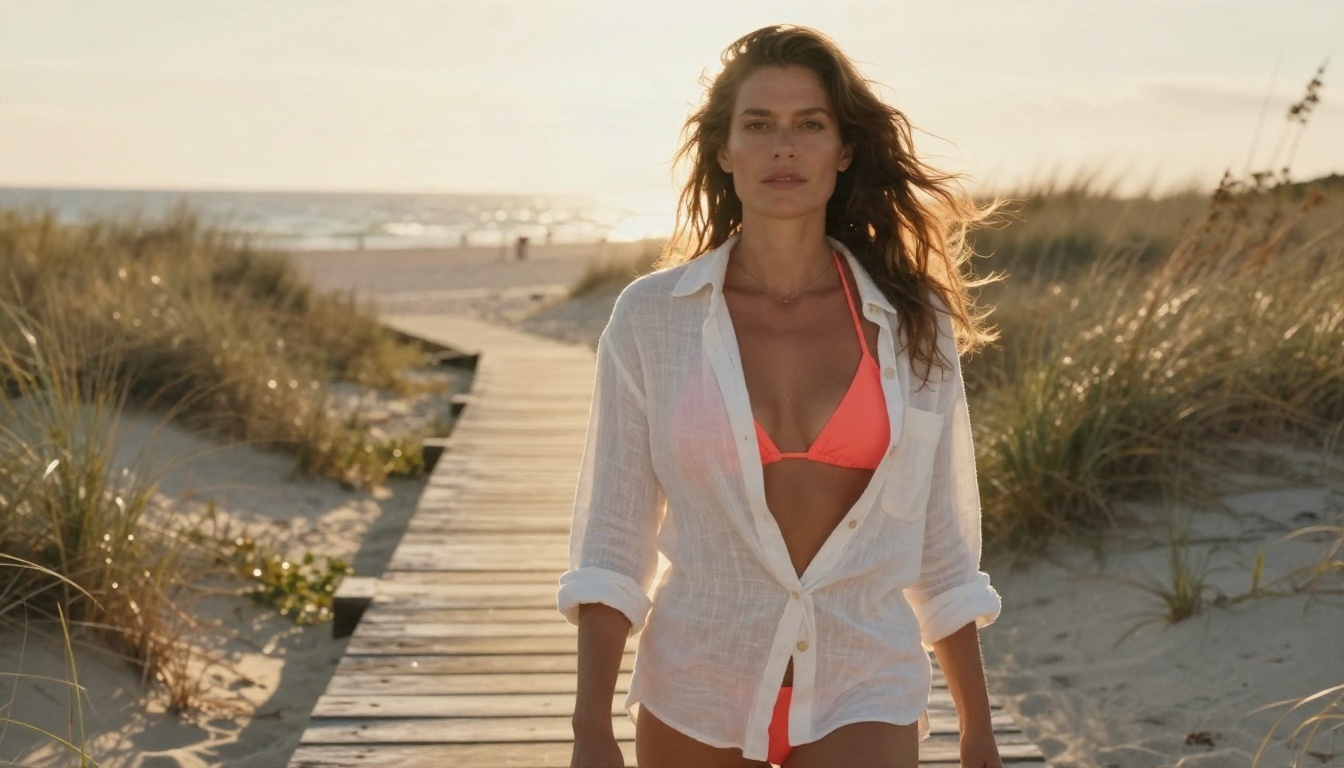
| "Hot girl in tiny bikini, wet" | "Woman in a coral bikini top and white linen shirt, beach boardwalk, golden hour backlight" |
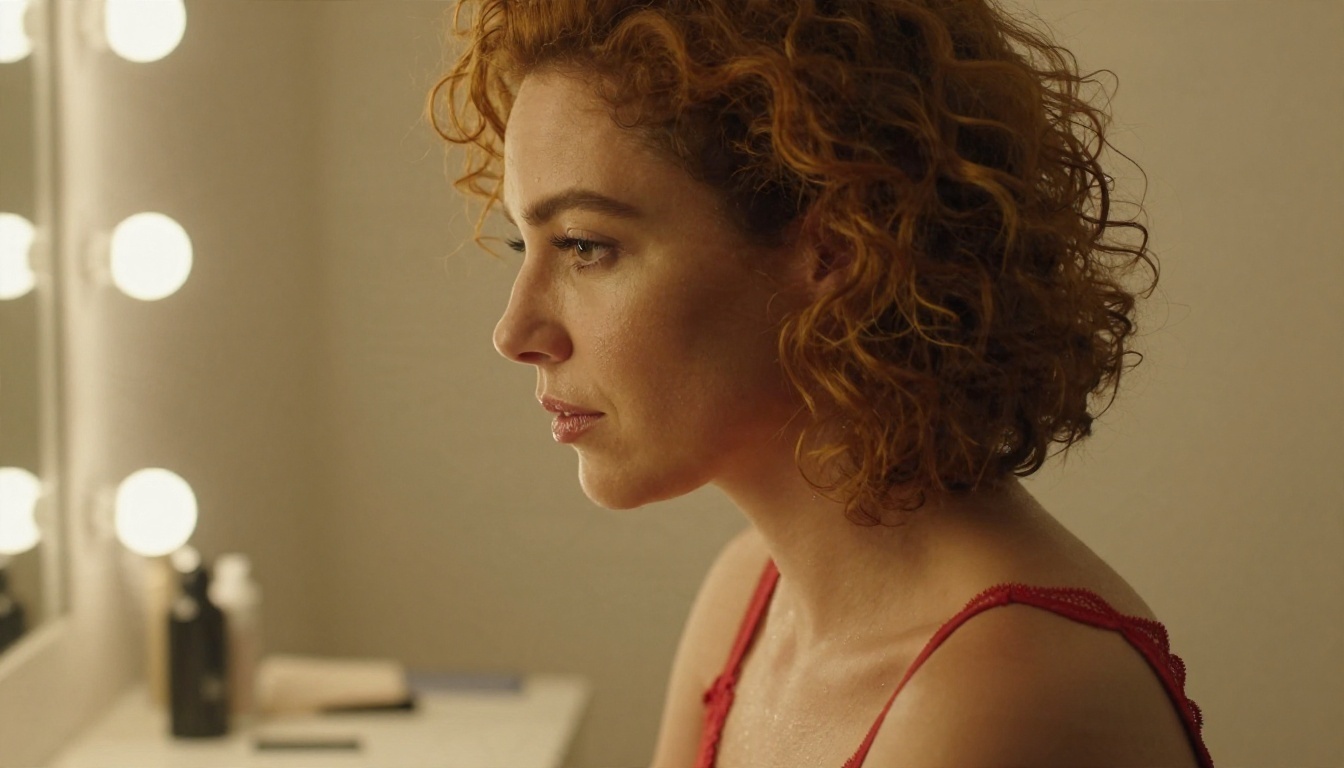
| "Sensual lingerie photo" | "Woman in a lace-trimmed camisole at a vanity mirror, warm dressing room light" |
Poly AI Image Not Working Fixes
Not every failed image is a filter decision. Sometimes the app simply breaks. Before you rewrite a prompt for the tenth time, rule out the boring causes.
A quick checklist
- Test a harmless prompt. Ask for "a red apple on a table". If that fails too, the filter is not your problem.
- Refresh or restart the app. Stuck sessions often return empty tiles.
- Check your connection. Weak mobile data can leave images half loaded.
- Update the app. Old versions can fail on newer image endpoints.
- Clear cache or reinstall. Corrupted cache is a common reason for grey placeholders.
- Check your limits. Daily image caps or credit shortages sometimes show up as a generic error and not a clear message.
- Try again later. Busy hours produce timeouts, especially for free users.
When it really is the filter
If the apple works and your portrait prompt does not, you are hitting moderation. Apply the rewrites above. If three clean, neutral rewrites still fail, the platform simply does not allow that kind of content, and no wording trick should be expected to change that for long.
What to do about repeated refusals
Stop retrying the same prompt. Repeated flagged attempts are exactly what triggers account-level restrictions. Switch tools for that specific image and keep your chat account for what it does well.
Free Alternatives Worth Trying
Chat apps bolt an image generator onto a roleplay product, so the rules are written for the app's risk profile. A dedicated image platform is built around the pictures themselves, and that usually means more freedom for glamour, swimwear and artistic portraits, with real photographic quality.
Why a dedicated generator helps
You get control over resolution, aspect ratio and editing, you are not bound to a character conversation, and moderation is typically less jumpy for lifestyle and fashion content. You also keep your chat account clean because you are no longer pushing it into refusals.
Models worth using on PicassoIA
Poly AI is a chat product and not an image model on PicassoIA, so there is nothing to link for it. These are the image models to reach for instead, in the order I would try them:
| Model | Best for | Why it fits |
|---|
| Seedream 4.5 | Photorealistic glamour portraits up to 4K | Sharp skin texture, strong prompt following, and room for adult-leaning, non-explicit looks |
| PicassoIA Image Editor Pro | Editing and restyling your own images | Unlimited generations, so you can iterate without watching a counter |
| Qwen Image 3 Pro | Natural photographic realism | Strong lighting and fabric detail |
| Flux 2 Klein 9B Base LoRA | Styled looks and fast drafts | Quick iterations when you are testing prompt variations |
Free does not mean low quality
You can start without paying and still get a print-ready result. The practical limit is not resolution but how many drafts you want to run, which is where an unlimited editor like Image Editor Pro earns its place.
How to Get Similar Results on PicassoIA

Here is a simple workflow using Seedream 4.5, the first model I would open for glamour and portrait work.
Step by step
- Open the model page. Go to the Seedream 4.5 page and start a new generation.
- Write a short base prompt. Subject, clothing, location, light. For example: "Woman in a black satin slip dress on a cream linen sofa, sunlit loft, soft window light from the left."
- Add lens and film language. Add "85mm f/1.8 portrait, Kodak Portra 400 film grain, natural skin texture".
- Pick 16:9 or 3:4. Landscape suits scenes and environments, portrait ratio suits full-body fashion shots.
- Generate, then refine. Change one thing per run: the outfit, the angle or the light. That makes it clear what each change does.
- Edit the winner. Send the best frame to PicassoIA Image Editor Pro to adjust outfit, background or details without starting over.
Parameter tips that matter
- Resolution: generate at the highest size first if you plan to crop. Cropping a low-res image costs more detail than generating large.
- Prompt length: 40 to 80 words is the sweet spot. Shorter lacks control, longer starts to contradict itself.
- Negative space: ask for "negative space on the left" when you want room for text or a caption later.
- Consistency: keep the same hair, outfit and lighting phrases across prompts if you want a set that looks like one shoot.
💡 Tip: if a result looks plastic, add "unretouched, visible skin pores, natural film grain" and remove words like "perfect" or "flawless". Those two words push many models toward a waxy look.
Why this beats fighting a filter
On a dedicated platform you spend your time improving the picture. In a chat app with a tight filter, you spend it guessing which word got you blocked. The first approach gets you better images and the second gets you a warning.
Prompts You Can Copy
These are written for adult, fictional subjects and aim for tasteful, magazine-style results. Paste them into Seedream 4.5 or Qwen Image 3 Pro and adjust from there.
Dressing room portrait
"Side-profile close-up of a woman with auburn curls wearing a red lace-trimmed camisole, seated at a vanity mirror, warm bulb lights softly out of focus, golden light from the left, 100mm f/2.8 portrait lens, fine skin texture, Kodak Portra 400 film grain."
This works because the clothing is named, the mood is set by light, and the lens choice reads as photography.
Poolside villa
"Wide aerial photograph of a young woman in a navy one-piece swimsuit lounging on a white towel beside a turquoise infinity pool, palm shadows across the stone deck, bright midday sun, 24mm lens, realistic water ripples."
An overhead angle and a one-piece swimsuit keep the framing about the location. Swap in a two-piece when your tool allows it.
Golden hour field
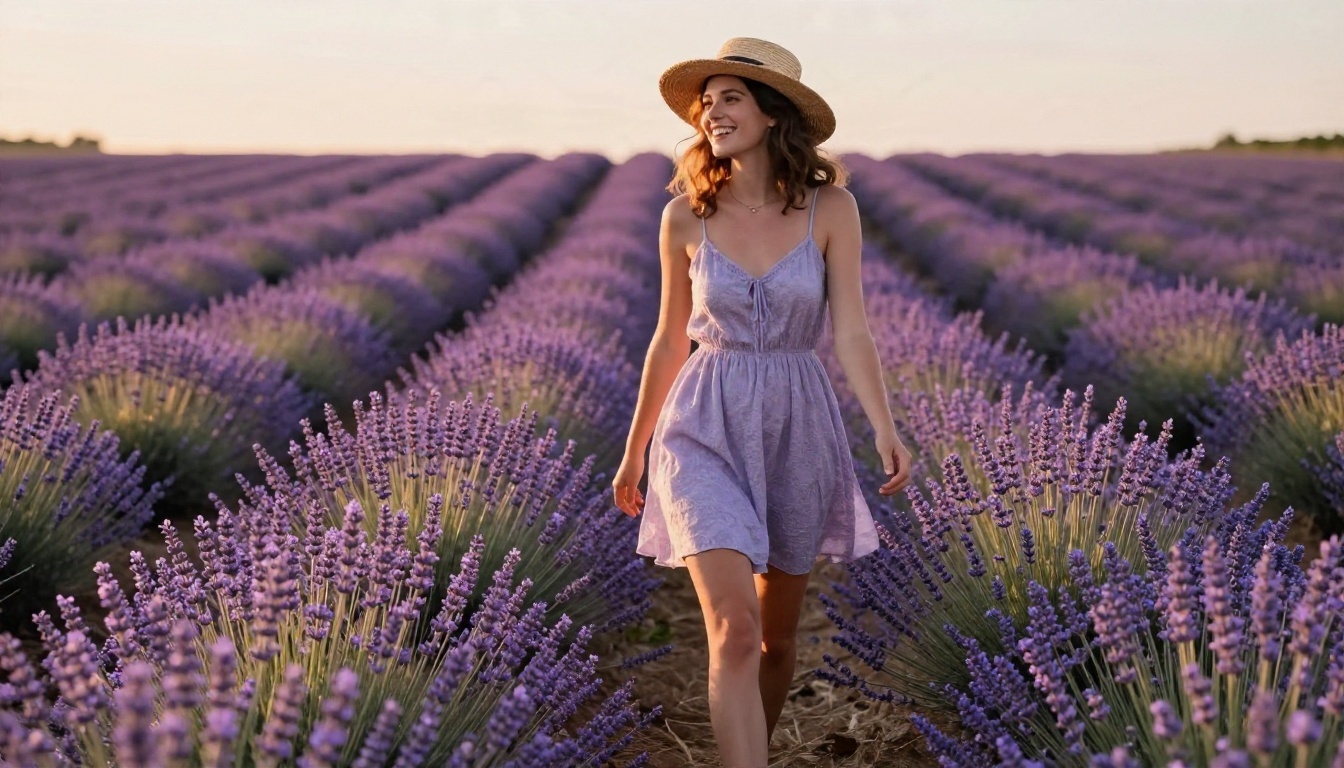
"Candid photograph of a laughing woman in a short summer sundress and straw hat walking through a lavender field at sunset, hair catching warm backlight, 70mm f/2.8 lens, Kodak Portra 400 film grain."
Motion, backlight and a candid expression give you an attractive image that almost never trips a filter anywhere.
Rooftop evening look
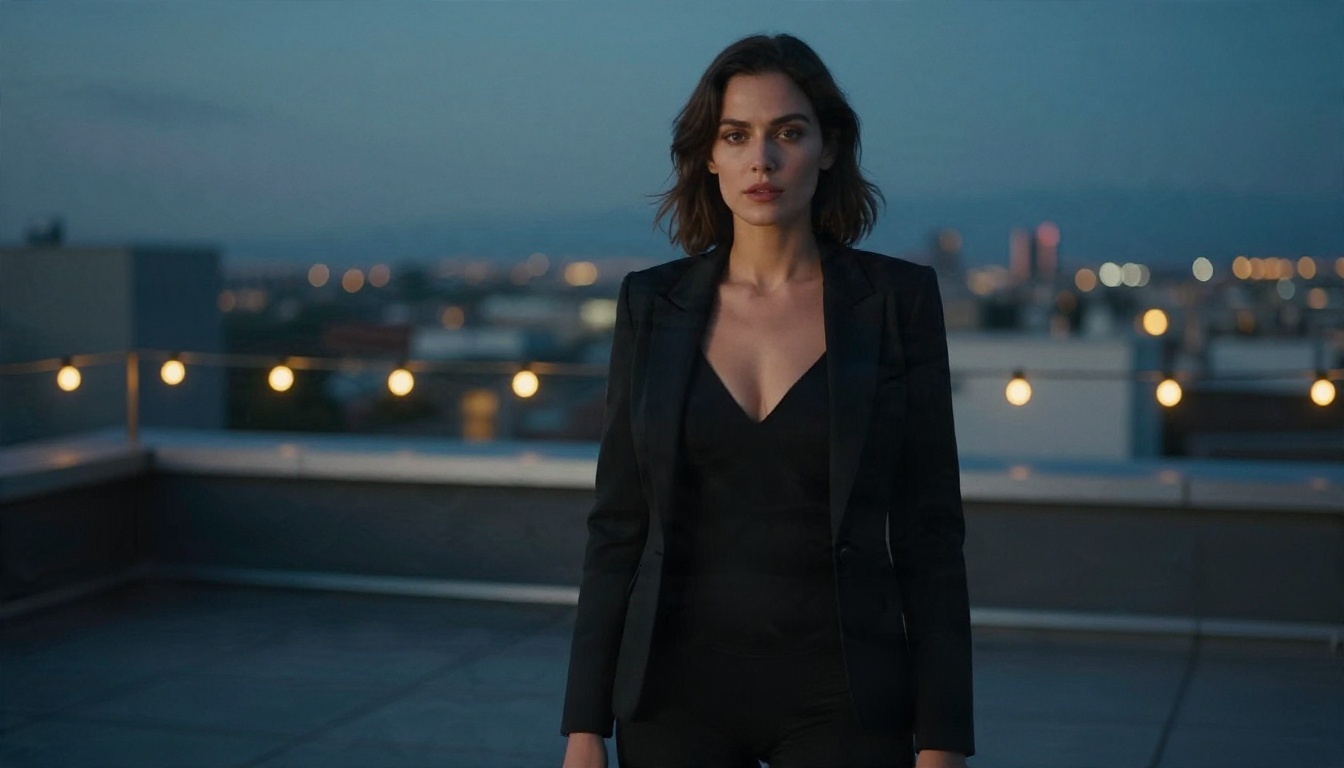
"Cinematic medium photograph of a woman in a fitted black bodysuit and tailored blazer standing on a rooftop terrace at dusk, city skyline softly blurred behind, warm string lights, 85mm f/1.8 lens."
Layering a blazer over the bodysuit adds style and keeps the focus on the whole look.
Which Route Should You Pick?
| Your goal | Best move |
|---|
| Keep chatting with characters, occasional safe images | Stay on Poly AI and use neutral prompt rewrites |
| Blocked by a bug, not a rule | Run the checklist and update the app |
| Glamour, swimwear or artistic portraits | Use a dedicated generator like Seedream 4.5 |
| Edit or restyle photos you already have | Use PicassoIA Image Editor Pro |
| Anything involving minors or real people | Do not pursue it, on any platform |
The honest picture is simple. Rewrites fix false positives. Technical fixes solve glitches. And when the content you want sits outside what a chat app allows, the practical answer is a different tool, not a cleverer prompt.
Start Creating Your Own Images
You do not need to keep fighting a grey tile. Open Seedream 4.5, paste one of the prompts above, and change a single detail: the outfit, the light, the location. Then send your favorite result to PicassoIA Image Editor Pro and keep refining without a counter ticking down. If you want to compare engines, browse everything on picassoia.com/en/all-models and run the same prompt on two or three of them. Ten minutes of testing will tell you more than any forum thread about which filter trick still works.


