Your avatar is the first thing anyone sees in a virtual world, and it takes about two seconds for people to decide whether it feels like you. Most people never get past the default character because they think avatar design needs 3D skills, a paid subscription or a powerful gaming rig. It doesn't. A free avatar maker, a clear reference photo and a few well-written AI prompts will get you a character you actually want to wear into VR.
This article walks through the whole process: what a metaverse avatar is, which free tools still work in 2027, how to design a face and outfit with AI image models, and which prompts produce usable results. You'll also see worked examples you can copy and a short list of mistakes that waste hours.
A metaverse avatar is your digital body inside a virtual world, social app or game. It can be a cartoon character, an anime figure, a realistic double of yourself, or something that has nothing to do with how you look. What matters is that it carries your identity: face, hair, clothes, posture and personality.
There are really two parts to every avatar. The look is the visual design, and the rig is the technical skeleton that lets it move, blink and talk in a 3D space. AI image models are excellent at the first part and not built for the second. Free avatar makers handle the rig for you. The smartest workflow uses both.
Stylized or Photoreal Avatars
Stylized avatars (anime, cartoon, low-poly) are forgiving. Slightly odd proportions read as charm, and they run smoothly on phones and standalone headsets. Photoreal avatars are harder: tiny errors in the eyes or skin push a face into the uncanny zone fast.
| Style | Best for | Effort | Typical platforms |
|---|
| Anime / VTuber | Streaming, social VR | Low to medium | VRChat, VTuber apps |
| Cartoon / chibi | Mobile social worlds | Low | ZEPETO and similar apps |
| Semi-realistic | Meetings, brand spaces | Medium | Meta Horizon style worlds |
| Photoreal | Portfolio, concept art | High | Custom Unity or game engines |
💡 Tip: If this is your first avatar, pick stylized. You'll finish faster, and you'll learn what you like before investing in realism.
Where Avatars Get Used
People build avatars for very different reasons. Some want a social identity for hanging out in VRChat. Others need a professional face for virtual meetings, a mascot for a small business, or a consistent character for a YouTube channel. Knowing the destination matters because every platform has its own rules about polygon counts, file formats and style.
The free avatar market has shifted a lot in the last couple of years. Some well-known services closed, others went paid, and a few stayed free and kept improving. Here is what is worth your time today.
VRoid Studio for Anime Looks
VRoid Studio is a free desktop app for building anime-style 3D characters. You shape the face with sliders, paint your own hair and clothing textures, and export a VRM file that many VR and VTuber apps accept. It is the best free option if you want full control over a stylized character without touching Blender.
The learning curve is gentle for the face and body, and steeper for hair. Plan on an evening for your first decent result.
ZEPETO and Mobile Avatars
ZEPETO is a free mobile app focused on social avatars. You build a character from a selfie or from presets, dress it from a big wardrobe, and use it in the app's own worlds. It is the quickest way to get a cute, working avatar in under ten minutes, but it keeps you inside its ecosystem.
VRChat and Meta Horizon Options
VRChat is free to join and lets you pick from a huge library of community avatars or upload your own, which usually involves Unity. Meta Horizon gives you a built-in avatar editor on Meta headsets, with sliders for face, body and clothing. It is simple and stylized, and it works only inside Meta's apps.
A Note on Ready Player Me
Ready Player Me was for years the go-to free tool for cross-platform avatars. Recent industry reports say the service wound down in early 2026. Before you plan a project around it, check whether it still runs in your region and whether the platform you want accepts avatars from it.
| Tool | Cost | Output | Best for |
|---|
| VRoid Studio | Free | VRM 3D model | Anime avatars, VTubers |
| ZEPETO | Free (in-app purchases) | In-app avatar | Mobile social worlds |
| VRChat | Free to join | Community or custom avatars | Social VR |
| Meta Horizon editor | Free with headset | In-app avatar | Quest users |
| AI image models | Free tiers available | 2D concept art and portraits | Designing the look |
Build the Face With AI First
Here is the trick most beginners miss: don't start inside the avatar maker. Start with a 2D design. An AI image model lets you test twenty faces, hairstyles and outfits in the time it takes to adjust sliders for one. Once you pick a winner, you rebuild it in the 3D tool using the image as a reference sheet.
Pick a Reference Photo
If you want your avatar to resemble you, start with a clear, evenly lit selfie. Face the window, remove glasses unless they're part of the look, and keep a neutral expression. A good reference gives the model reliable information about face shape, brow position and skin tone.
You can also skip the photo and design a character from text alone. That works well for fantasy or stylized personas.
Choose the Right Model
Different models suit different parts of the job. These are the ones worth testing on PicassoIA:
- Seedream 4.5 produces sharp, detailed portraits and follows long prompts well. A strong first pick for base character art.
- Nano Banana is great for editing an existing photo: change the outfit, the hair or the background while keeping the face recognizable.
- Nano Banana Pro handles higher resolution and finer details when you want a polished final sheet.
- Qwen Image 3 Pro is a good pick for photorealistic faces and natural skin.
- Flux Kontext Fast makes quick, targeted edits when you only want to change one thing.
- PicassoIA Image Editor Pro lets you keep editing without worrying about generation limits.
💡 Tip: Generate in batches of four to eight and pick the best face before touching outfits. Fixing a face later is always harder than choosing a good one first.
Prompts That Work
A good avatar prompt has five ingredients: who the character is, face details, hair, clothing, and lighting and camera. Leave out any of them and the model fills the gap with something generic.
Base Portrait Prompt
Use this when you want a clean front-facing headshot to use as your face reference:
Front-facing portrait of a woman in her late twenties, oval face, soft jawline, dark brown almond eyes, defined eyebrows, small freckles across the nose, shoulder-length wavy black hair, neutral relaxed expression, plain light grey background, soft window light from the left, 85mm lens, shallow depth of field, natural skin texture, photorealistic.
Swap the age, face shape and hair to fit your character. Keep the plain background and neutral expression: both make it easier to rebuild the face in a 3D tool later.
Full Body Turnaround Prompt
Most avatar makers and 3D tools work better with a body reference. Ask for a straight standing pose:
Full body photo of a man standing in a relaxed A-pose, arms slightly away from the body, facing the camera, wearing a fitted dark green jacket, white t-shirt, slim black jeans and white sneakers, short textured brown hair, light stubble, plain studio wall, soft even daylight, 50mm lens, photorealistic.
The A-pose (arms angled slightly down and out) is the standard starting position for rigging, so it saves time later.
Outfit and Hair Variations
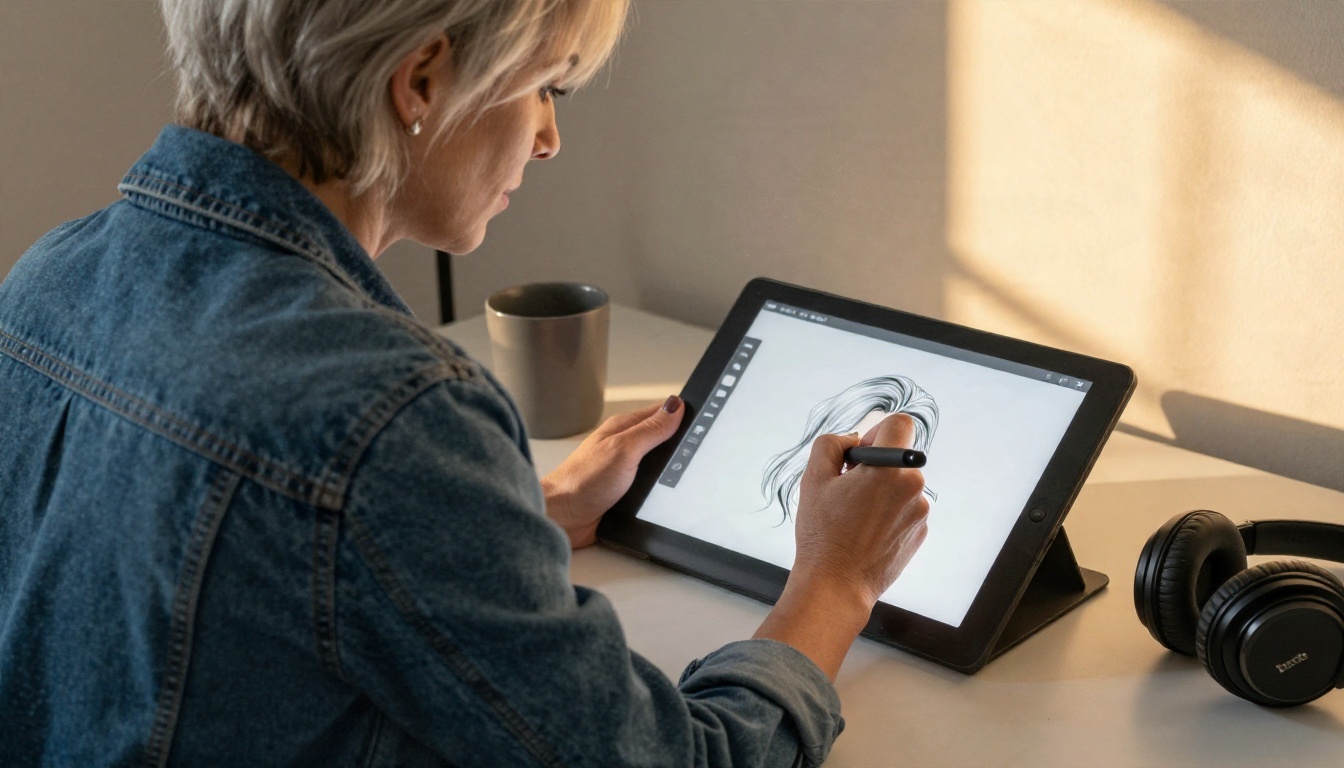
Once you like a face, use an editing model to change one thing at a time. With Nano Banana, upload your portrait and write short edit instructions:
- Keep the same face. Change the hair to a short silver bob.
- Keep the same face. Dress the character in a denim jacket over a cream sweater.
- Keep the same face. Add round tortoiseshell glasses.
For hair alone, Change Haircut is a fast way to test styles on the same photo.
Examples You Can Copy
Here are four starting points for different avatar types. Each follows the same five-ingredient structure, so you can adjust the details.
| Avatar type | Prompt starting point | Suggested model |
|---|
| Professional meeting avatar | Headshot of a man in his forties, short grey hair, kind eyes, navy blazer over white shirt, plain beige wall, soft daylight, photorealistic | Qwen Image 3 Pro |
| Casual social avatar | Young woman with curly auburn hair, olive hoodie, small hoop earrings, friendly smile, studio grey background, natural light | Seedream 4.5 |
| Fantasy explorer | Weathered traveler with a braided beard, wool cloak, leather satchel, standing in a plain room with soft side light, photographic detail | Nano Banana Pro |
| Mascot style | Friendly character wearing a mustard raincoat and yellow boots, standing straight, plain backdrop, soft light | Seedream 4.5 |
Example: From Selfie to Avatar Sheet
Say you want an avatar that looks like you. Upload a clean selfie to Nano Banana and write: Keep the same face. Show the person in a relaxed A-pose, full body, wearing a dark green jacket and white sneakers, plain grey studio background, soft daylight. You get a full body sheet that keeps your facial features, ready to use as a reference in VRoid Studio or any 3D editor.
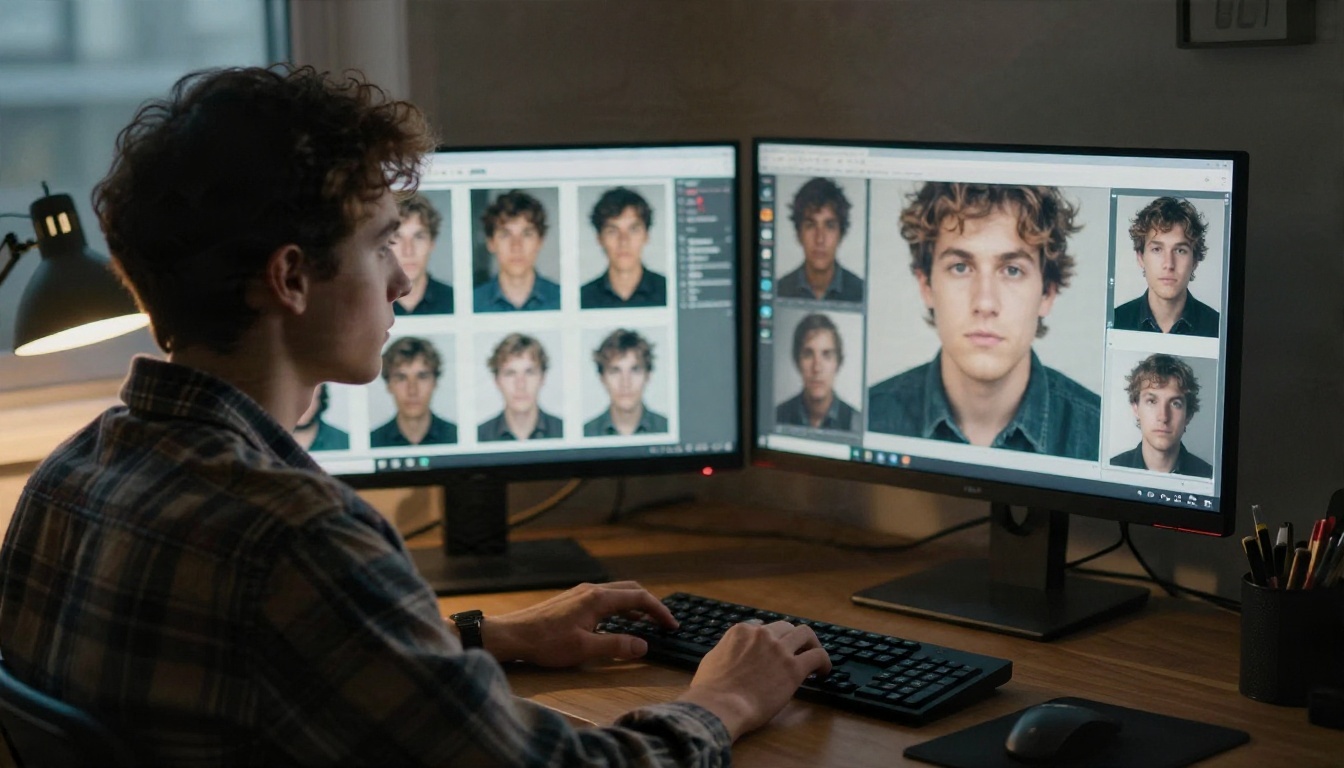
Example: Compare Variations Side by Side
Generate six versions of the same character and place them next to each other. Differences you miss on a single image jump out immediately in a grid: eyes too far apart, a jaw too sharp, hair that is too heavy. Pick the best face, then fix the rest with small edits.
Polish Before You Import
AI output is a great starting point, but a few quick passes make the avatar much easier to build.
Clean Cutouts and Sharp Details
Platforms and 3D tools usually want a clean subject with no background clutter. Remove Background gives you a precise cutout in seconds. If your image is small, run it through Real ESRGAN to upscale it up to 4x before using it as a reference sheet or texture source.
Swap the Setting
For profile pictures and promo images, you may want your avatar in a specific scene. Generate Background lets you drop your cutout into a new setting without regenerating the character. Pair it with Depth of Field for a natural camera blur.
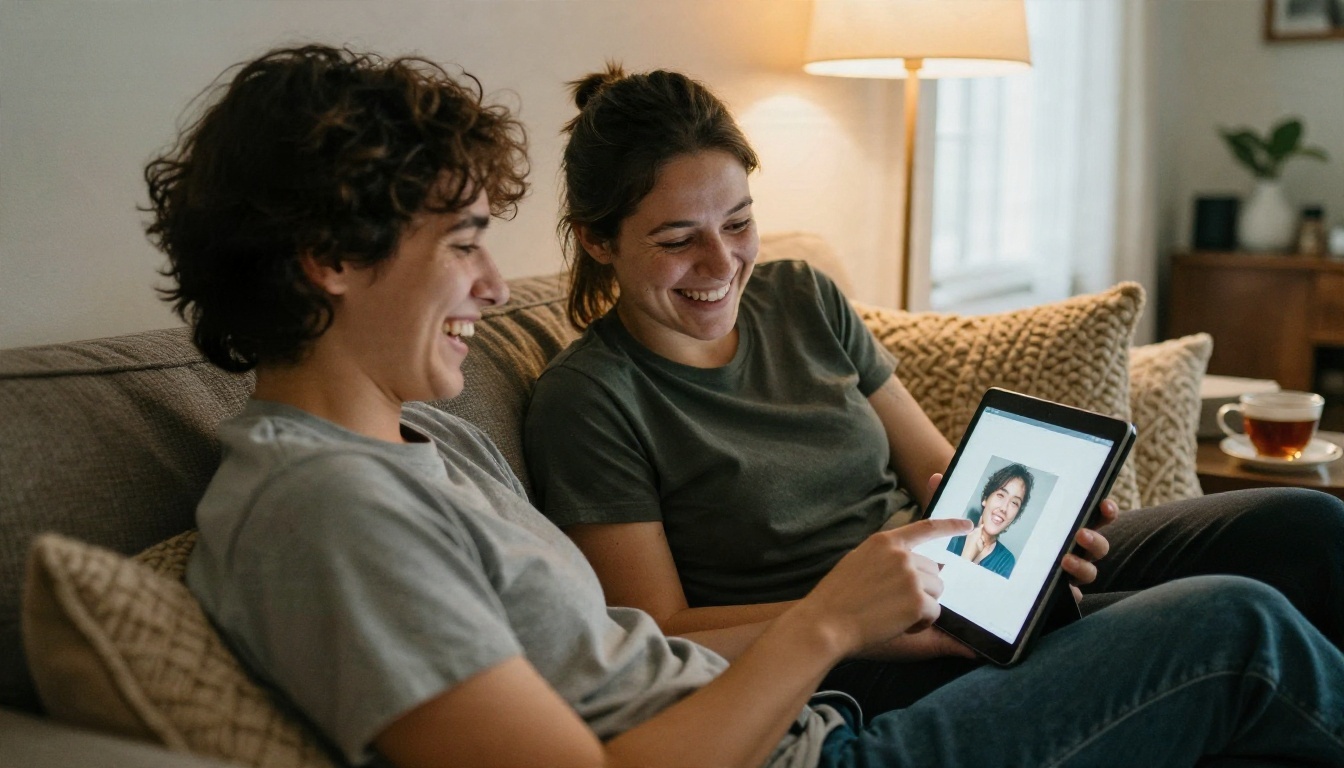
Once the design is settled, rebuild or import the avatar in your target app. The exact route depends on the platform, but the pattern is similar everywhere.
- Build the base in VRoid Studio, ZEPETO or the in-app editor, using your reference sheet.
- Match the details: skin tone, eye color, hair shape and outfit colors.
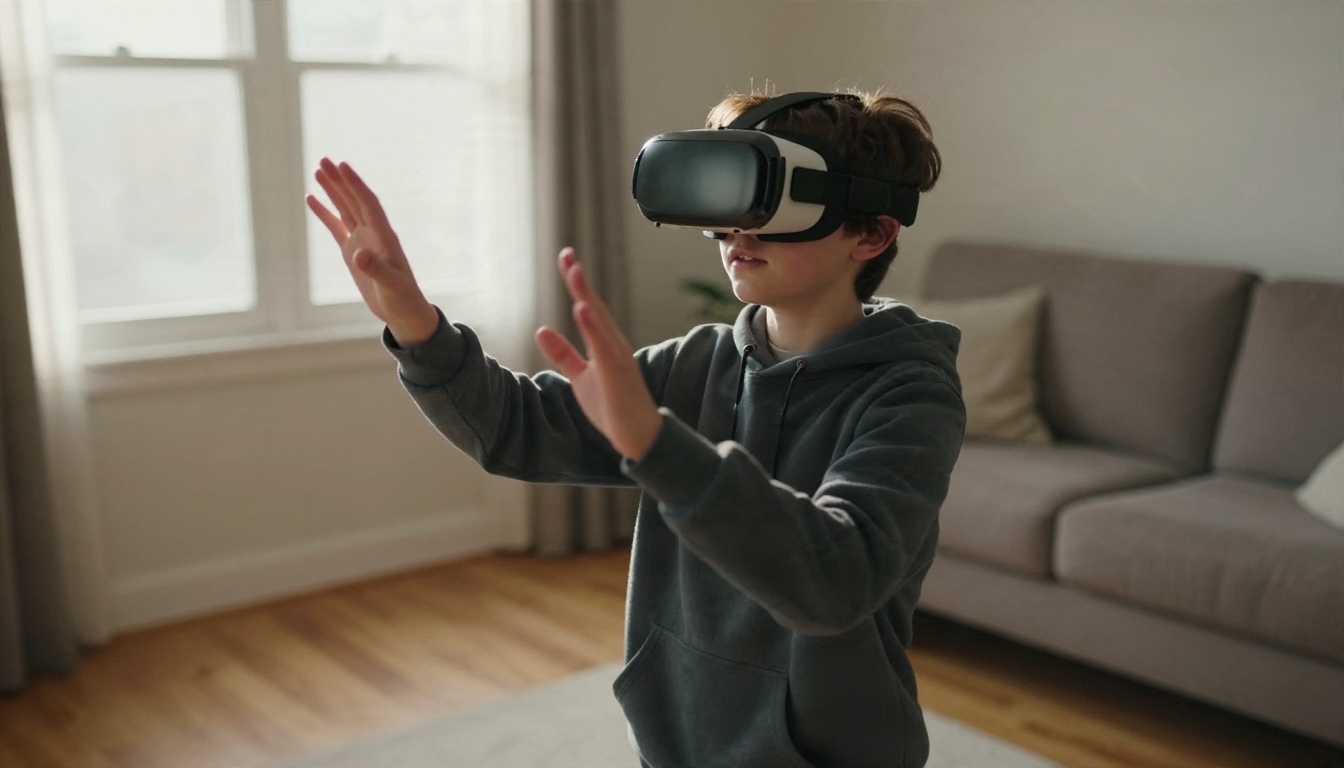
- Test in motion: turn the head, raise the arms, and check how clothing behaves.
- Export in the format the platform expects (VRM for many VTuber apps, or the platform's own upload route).
- Try it in a private world before you show up in a crowded one.
Export Formats and Sizes
Check each platform's rules before you spend hours on details. Many limit polygon count, texture size and the number of materials. Mobile and standalone headsets are stricter than PC. A beautiful avatar that is too heavy gets blocked or runs badly, so start light and add detail only where people will notice it: the face, the hair and the hands.
Common Mistakes
- Too much detail in the prompt. Seven accessories in one image confuse the model. Add one or two, then edit.
- Changing the face while editing outfits. Always say "keep the same face" in edit prompts.
- Busy backgrounds. They make reference sheets harder to read. Use plain walls.
- Ignoring the side view. Ask for a profile shot too, so the head shape in 3D feels right.
- Skipping the platform rules. Check file limits before you start building.
💡 Tip: Save your best prompt in a note. When you want a new outfit or a second character, you can reuse the structure and only change the details.
Make Your First Avatar Today
You don't need a design degree or a paid plan to get a metaverse avatar you love. Pick one free tool, design the face with an AI image model, use the prompts above as your starting point, and refine from there. The first version won't be perfect, and that's fine. Every round gets you closer to a character that feels like yours.
Open Picasso IA and try the portrait prompt with Seedream 4.5, then edit it with Nano Banana. Generate a few variations, pick your favorite and take it into your avatar maker. You can browse every available model at picassoia.com/en/all-models and keep experimenting until the face on your screen looks like someone you want to be online.


