Most people who search for how to make adult video with AI hit the same wall: paid credits vanish after three clips, filters block half the prompts, and the results look like melted wax. The fix is not a magic tool. It is a simple pipeline: build one beautiful, consistent still image, then animate it with a short, well-written motion prompt. This article shows the free tools that make that possible, the prompts worth copying, the settings that change the result, and visual examples of what a good first frame looks like.
💡 Scope note: everything here is about sensual, non-explicit adult content for adults: glamour, boudoir, swimwear, lingerie-style fashion and suggestive mood. Use your own invented characters or your own likeness with consent, and keep everything 18+.
What "Adult Video" Means in AI
When creators say adult video in the AI context, they usually mean glamour clips of 5 to 10 seconds: a woman turning toward the camera, fabric moving in a breeze, a slow walk down a corridor, a hair flip in golden light. These are the clips that perform on social feeds, in subscription previews and in photo-set companion reels.
The workflow is almost always image to video. Text-to-video alone gives you a different face and outfit every time you press generate. Starting from a still gives you control over identity, wardrobe, setting and light, and the video model only has to add movement.
Why Stills Come First
A video model inherits everything from its first frame: skin tone, lighting direction, lens look, even mood. If the still looks cheap, the clip looks cheap, only moving. Spend 80 percent of your effort on the frame.
What Makes a Clip Feel Premium
- One light source with a clear direction, like a window on the left
- Natural skin texture, not airbrushed plastic
- Slow motion with a single action per clip
- A believable location, such as a hotel suite, beach or balcony
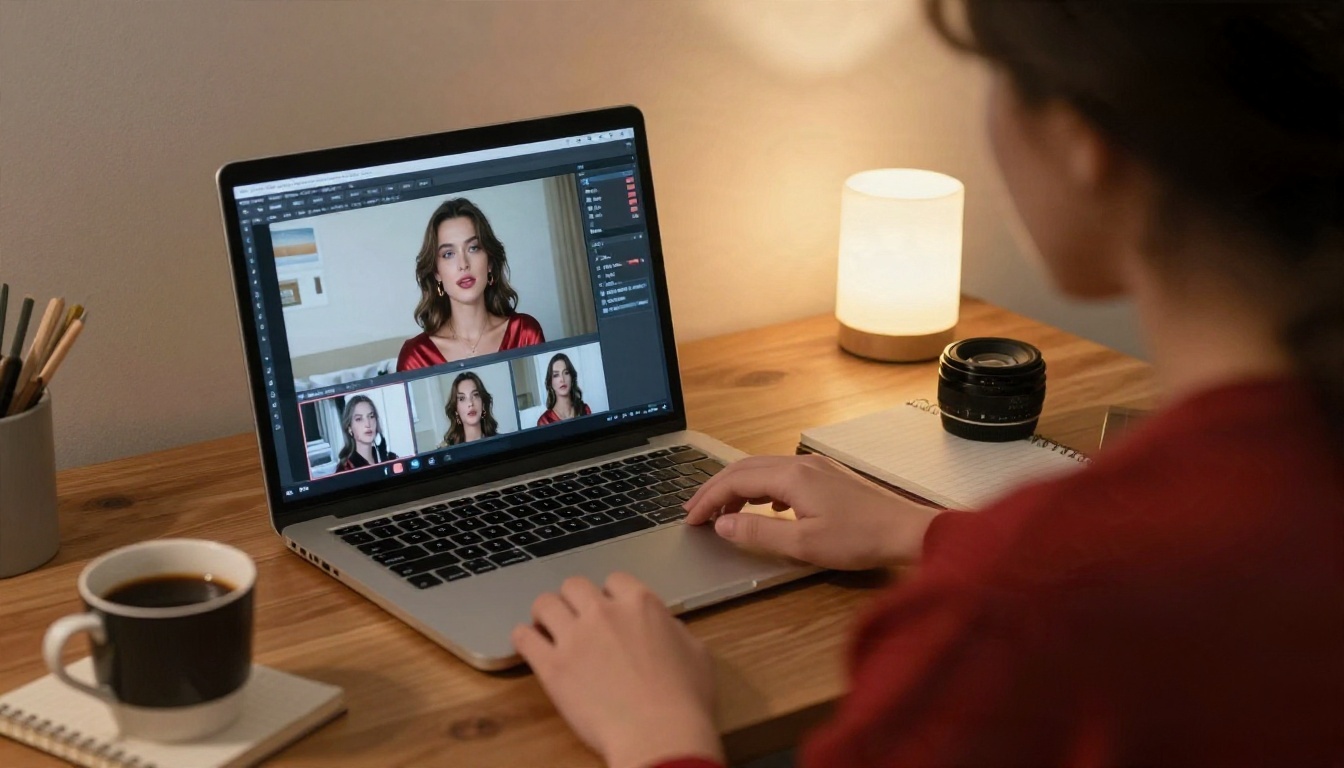
You do not need ten subscriptions. You need one strong image generator, one editor for fixes, and one or two video models. Here is the lineup I would build around.
| Step | Tool | Why it earns a place |
|---|
| Create the still | Seedream 4.5 | Sharp, photorealistic skin and fabric, no content wall for glamour work |
| Edit and fix | PicassoIA Image Editor Pro | Unlimited generations, so you can iterate without counting credits |
| Animate (free and unlimited) | Seedance 2.5 Lite | Free, unlimited clips up to 10 seconds |
| Animate (longer or richer) | Seedance 2.5 | Longer clips for slower, more cinematic scenes |
| Animate (cinematic motion) | Wan 3 | Natural camera moves and good cloth physics |
| Animate (fast tests) | Hailuo 2.3 Fast | Quick previews of a motion idea |
Start With the Image Model
Seedream 4.5 is where I would begin, because it produces the kind of detail that survives animation: individual hair strands, satin sheen, pores, light falling off a shoulder. Its strength is following long, descriptive prompts closely, which is exactly what glamour work needs.
Use the Editor for Repairs
PicassoIA Image Editor Pro is the second stop. When a hand looks odd, an outfit color is wrong or the background is cluttered, you edit the still instead of regenerating from scratch. Because generations are unlimited, you can run ten small edits to get a frame perfect before you ever animate it.
Pick One Video Model, Then Compare
Start with Seedance 2.5 Lite because it is free and unlimited. Then test the same still on Wan 3 or Kling v1.5 Pro. The same image can behave very differently between models, and the best one for a beach scene is not always the best one for an indoor close-up.
💡 Tip: Run the same still and the same motion prompt through two models before committing. It takes a few minutes and often saves an hour of rerolls.
How to Use Seedream 4.5 on PicassoIA
This is the first-frame step, and it decides everything after it.
Step by Step
- Open the Seedream 4.5 page on PicassoIA.
- Write a prompt that names the subject, outfit, setting, light direction, lens and mood in one paragraph.
- Set the aspect ratio to 16:9 for landscape clips, or 9:16 if the video is for vertical feeds.
- Generate a batch and pick the frame with the best face, cleanest hands and clearest light.
- Send the winner to PicassoIA Image Editor Pro to fix small flaws.
- Save the final still. This becomes your video's first frame.
Parameter Tips
- Describe light explicitly. "Soft window light from the left, warm rim light on shoulders" beats "nice lighting."
- Name a lens. "85mm f/1.8, shallow depth of field" gives portrait compression.
- Add texture words. Satin sheen, linen creases, natural pores, film grain.
- Keep the pose open. Leave room for movement: a turn, a step, a glance. A pose that is already extreme leaves the video model nowhere to go.
A Reliable Still Prompt
A glamorous woman in a black silk robe over a satin slip standing beside a tall hotel window, one hand on a sheer curtain, glancing at the camera with a relaxed half smile. Golden morning light from the left, warm rim light on her shoulders, pale plaster walls, cream linen bed behind her. Natural skin texture with fine pores, tousled chestnut waves. 85mm f/1.8, shallow depth of field, Kodak Portra 400 film grain, editorial boudoir photography.
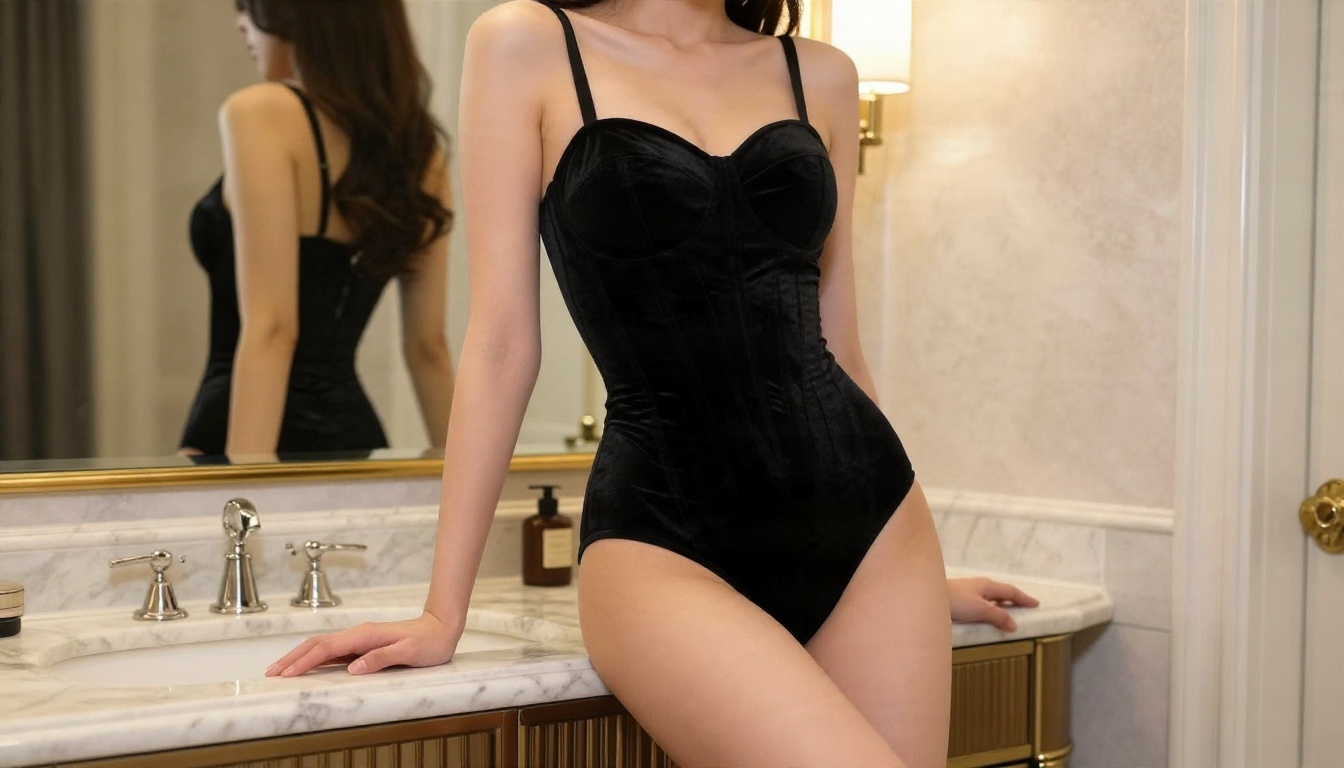
Prompts You Can Copy
A motion prompt is not a scene description. The scene already exists in your still. The prompt only says what moves and how the camera behaves. Keep it short, chronological and calm.
The Formula
[Subject action] + [one secondary motion] + [camera move] + [light and mood]
Example: "She slowly turns her head toward the camera and smiles, the curtain drifts in a light breeze, slow dolly-in, warm morning light stays steady."
Boudoir Motion Prompts
- "She looks over her shoulder at the camera, tucks a strand of hair behind her ear, soft handheld sway, warm window light."
- "She stretches one arm above her head and exhales, linen sheet shifts slightly, slow overhead drift downward, quiet morning mood."
- "Raindrops slide down the window beside her, she turns her face toward the lens, shallow focus, tungsten lamp glow flickers softly."
Beach and Swimwear Prompts
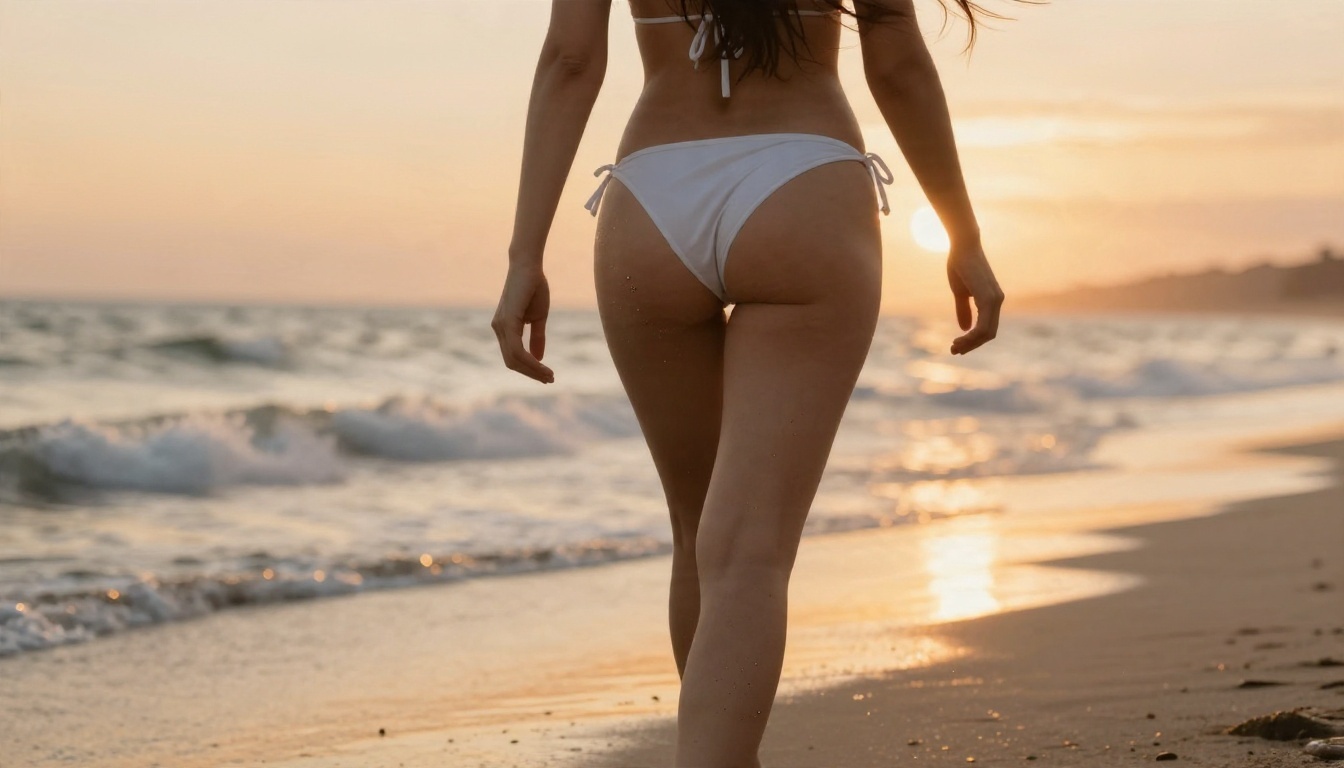
- "She walks along the shoreline toward the camera, wind moves her hair and sarong, small waves reach the sand behind her, low-angle tracking shot, golden backlight."
- "She pauses, looks out to sea, then glances back at the lens, gentle push-in, sunset light glints on wet sand."
Hotel and Fashion Prompts
- "She walks down the corridor with a confident stride, heels click on marble, light beams shift across the floor, slow backward tracking shot."
- "She leans on the vanity, meets her own eyes in the mirror, then turns to the camera, subtle rack focus, warm lamp light."
Words That Cause Trouble
Avoid stacking actions like "dances, spins, jumps, waves and laughs." Video models try to do everything at once and the body distorts. Also avoid vague adjectives like "sexy" or "hot" on their own. They add nothing physical the model can animate. Describe the movement instead: slow, deliberate, relaxed, confident.
Settings That Change the Result
Prompts get the attention, but settings often decide whether a clip is usable.
| Setting | Recommended value | What it does |
|---|
| Duration | 5 seconds for tests, up to 10 for finals | Longer clips drift in face and anatomy |
| Aspect ratio | Match the source still | Cropping mid-generation wastes detail |
| Resolution | 720p for drafts, higher for finals | Saves time while you test motion |
| Motion strength | Low to medium | High values warp faces and fabric |
| Camera | One move only | Mixing pan, zoom and orbit confuses the model |
| Seed | Fix it while comparing prompts | Lets you see what the prompt changed |
Keep Motion Low
Low to medium motion is the single most useful setting for glamour clips. A subtle turn, a breeze, a slow dolly-in looks expensive. A fast whip pan looks like a glitch.
Match Duration to the Action
If the action is "turn and smile," 5 seconds is plenty. If you ask for a walk down a corridor, give it 8 to 10 seconds, so she is not rushing. Mismatched duration is the most common reason movement looks unnatural.
Lock the Light
Add "lighting stays steady" or "light does not change" to the motion prompt. Models sometimes shift exposure mid-clip, which breaks the cinematic feel and makes stitching clips together painful.
Examples Worth Studying
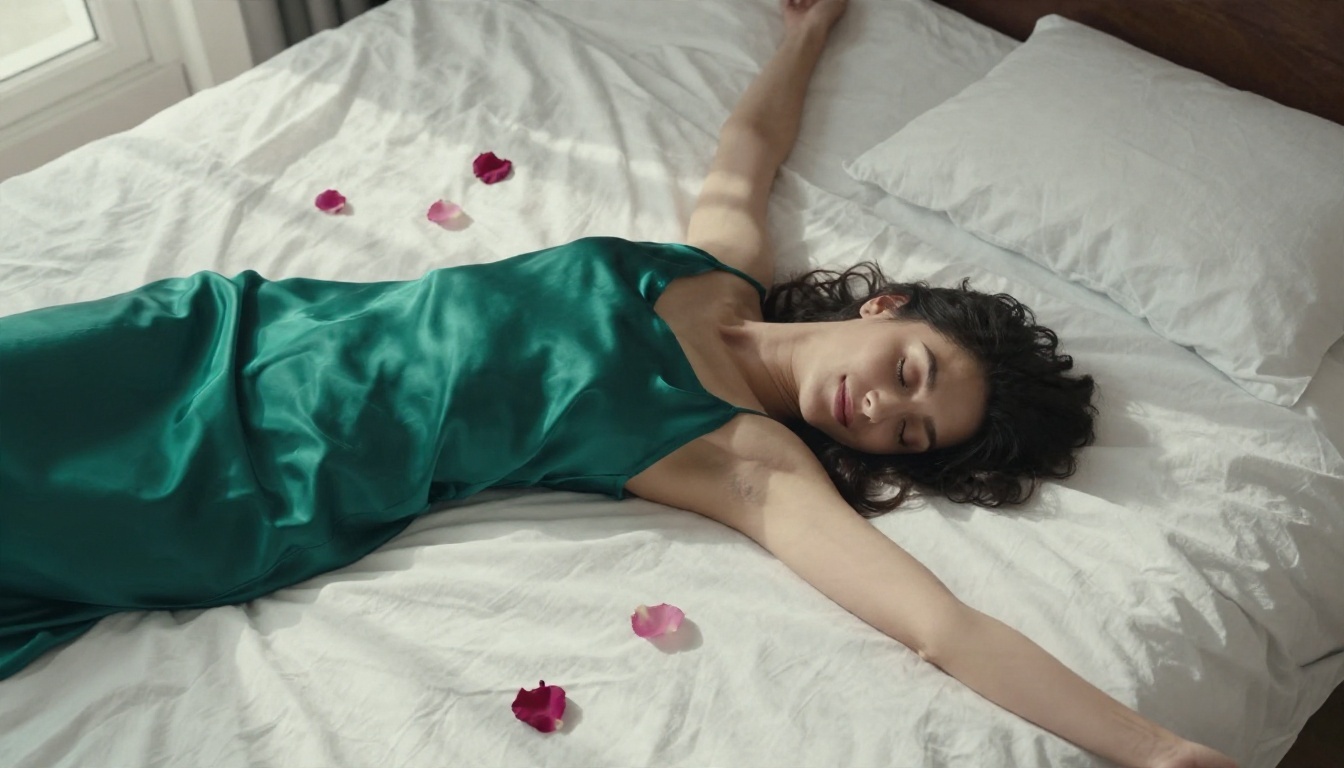
Good first frames share traits. Look at these and notice what the video model has to work with.
Overhead Silk Scene
An overhead frame with a silk slip, white linen and soft morning shadows is ideal for a slow downward drift. Fabric folds give the model natural places to add subtle motion, and a single window light keeps the scene stable. A motion prompt such as "she exhales, the linen settles slightly, slow overhead descent" is all it needs.
Balcony at Dusk
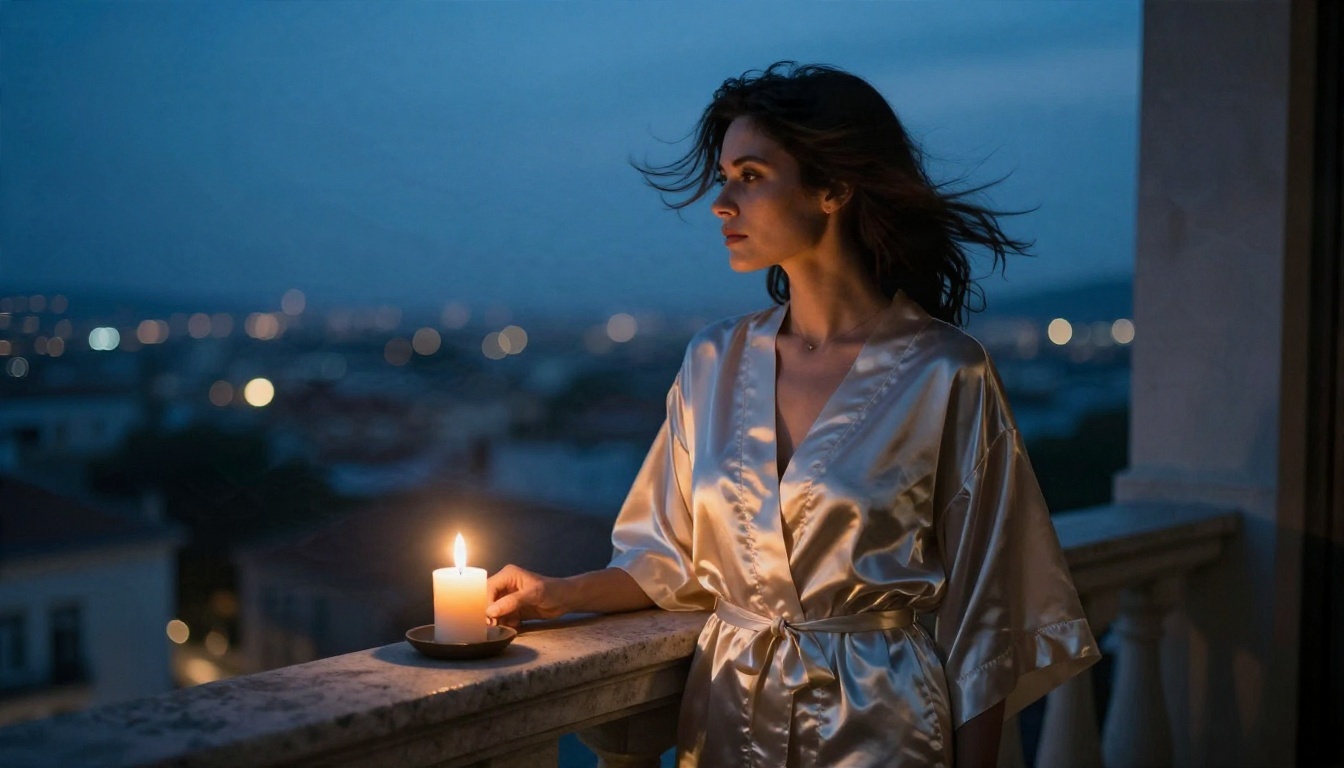
The mix of warm candlelight and cool dusk sky creates natural color contrast. Hair in a breeze, a flickering flame and distant city lights give you three gentle motion sources without asking the subject to do anything complicated. Use a slow lateral track and keep the prompt to two sentences.
Rainy Window Portrait
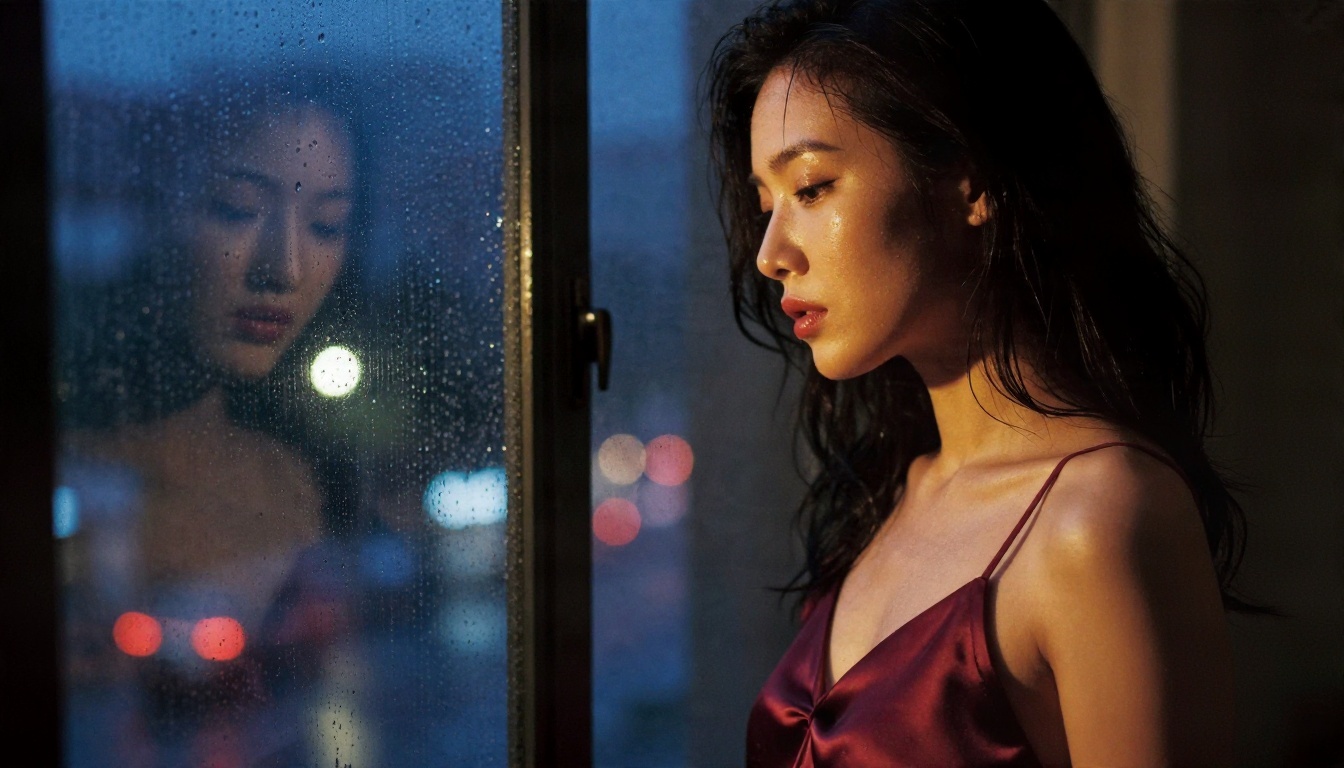
Rain on glass already implies motion, and shallow depth of field hides small background errors. This is one of the most forgiving setups for beginners: the model animates droplets and a soft head turn, and the mood does the rest.
Hotel Corridor Walk
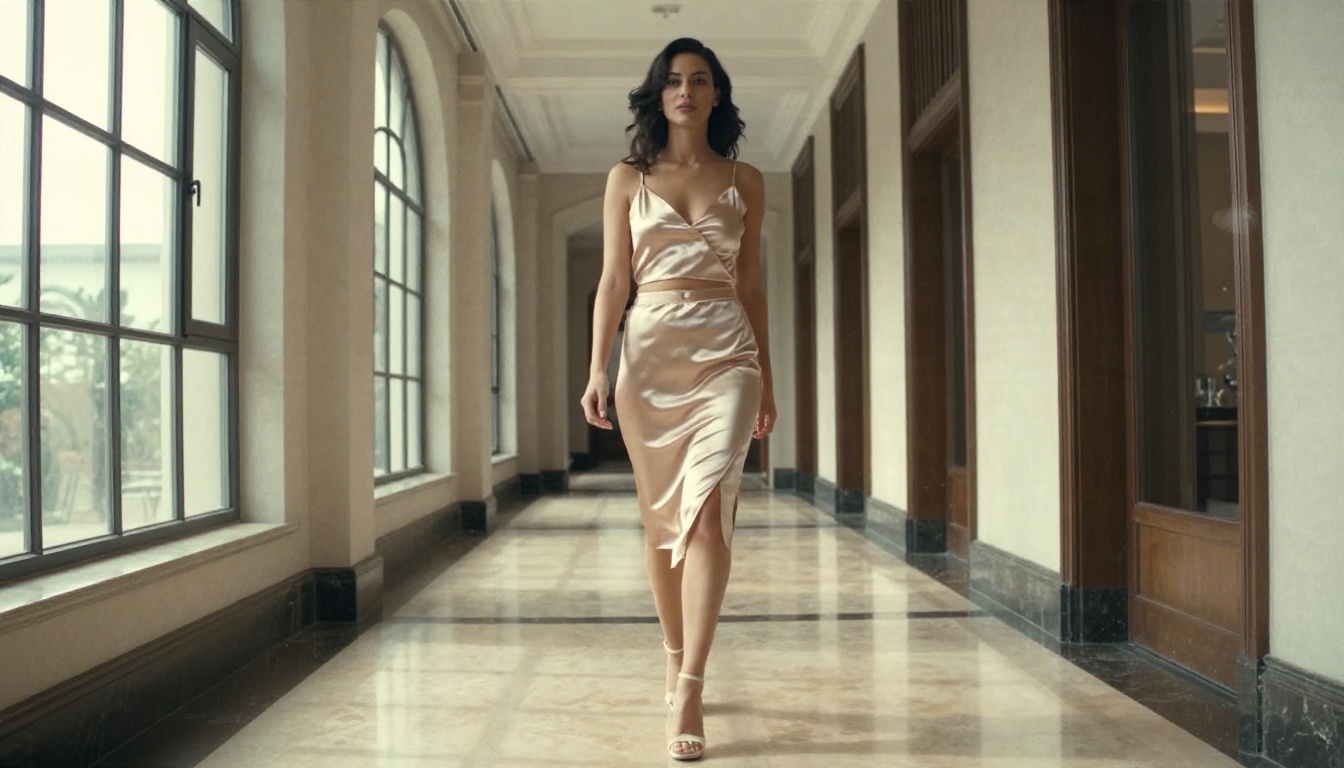
Walking toward the camera is a strong motion for models like Wan 3 and Veo 3.1 Fast, because the perspective gives depth cues. Use a slow backward tracking shot so the subject stays the same size in frame.
A Soft Everyday Opener
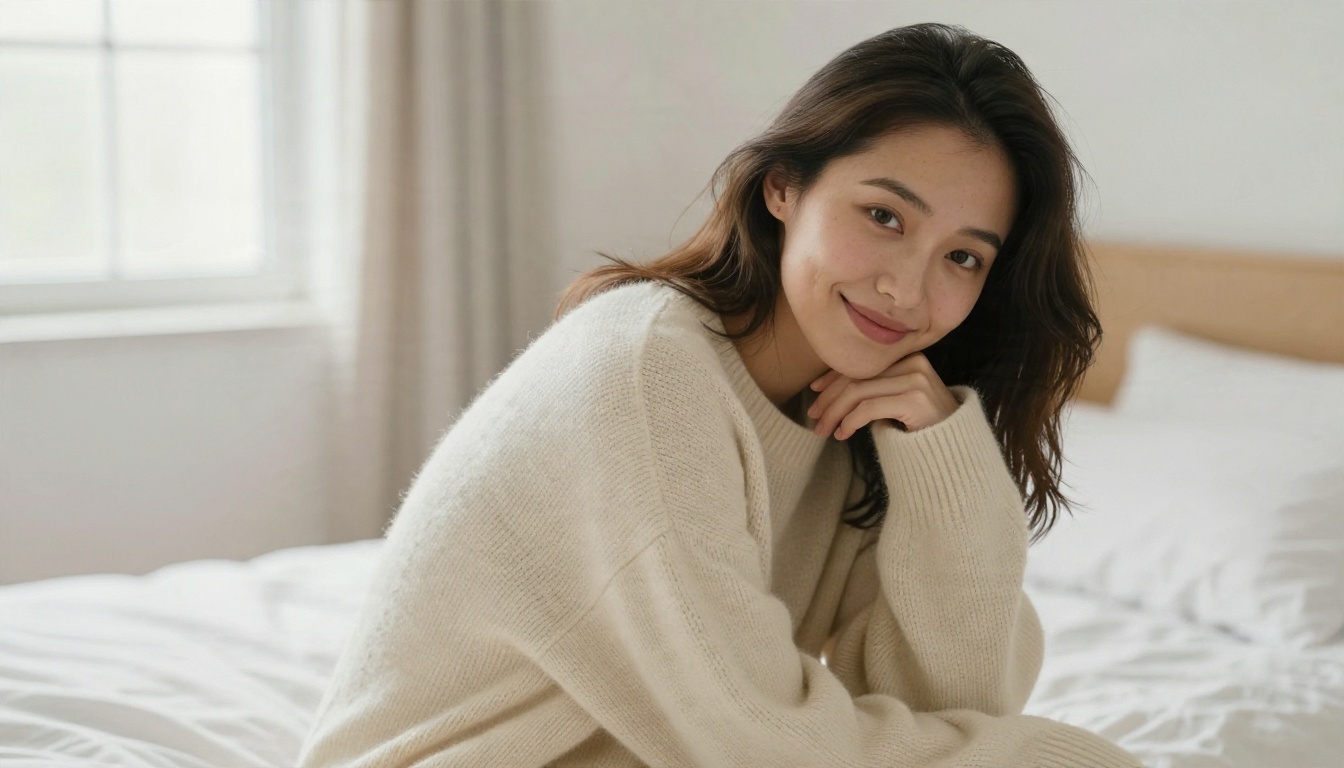
Not every first frame needs to be dramatic. A relaxed, warm still like this one works well as the opening of a longer sequence, and it keeps the face stable when you animate it. You can then use the editor to change the outfit for the next scene while the face and room stay the same.
Building a Full Scene From Clips
One 5-second clip is a teaser. Four to six clips edited together become a short film. Plan before you generate.
Make a Simple Shot List
- Establishing shot: wide frame of the location, no close face.
- Introduction: medium shot, she turns toward the camera.
- Detail shot: fabric, hair or hand movement, shallow focus.
- Mood shot: a window, rain, candle, a slow push-in.
- Closing shot: a glance back or a slow walk away.
Keep Identity Consistent
Reuse the same face reference by editing the original still in PicassoIA Image Editor Pro rather than prompting from scratch for each scene. Change outfit, room or angle, and keep the face. This is the cheapest way to build a recognizable character.
Add Sound and Polish
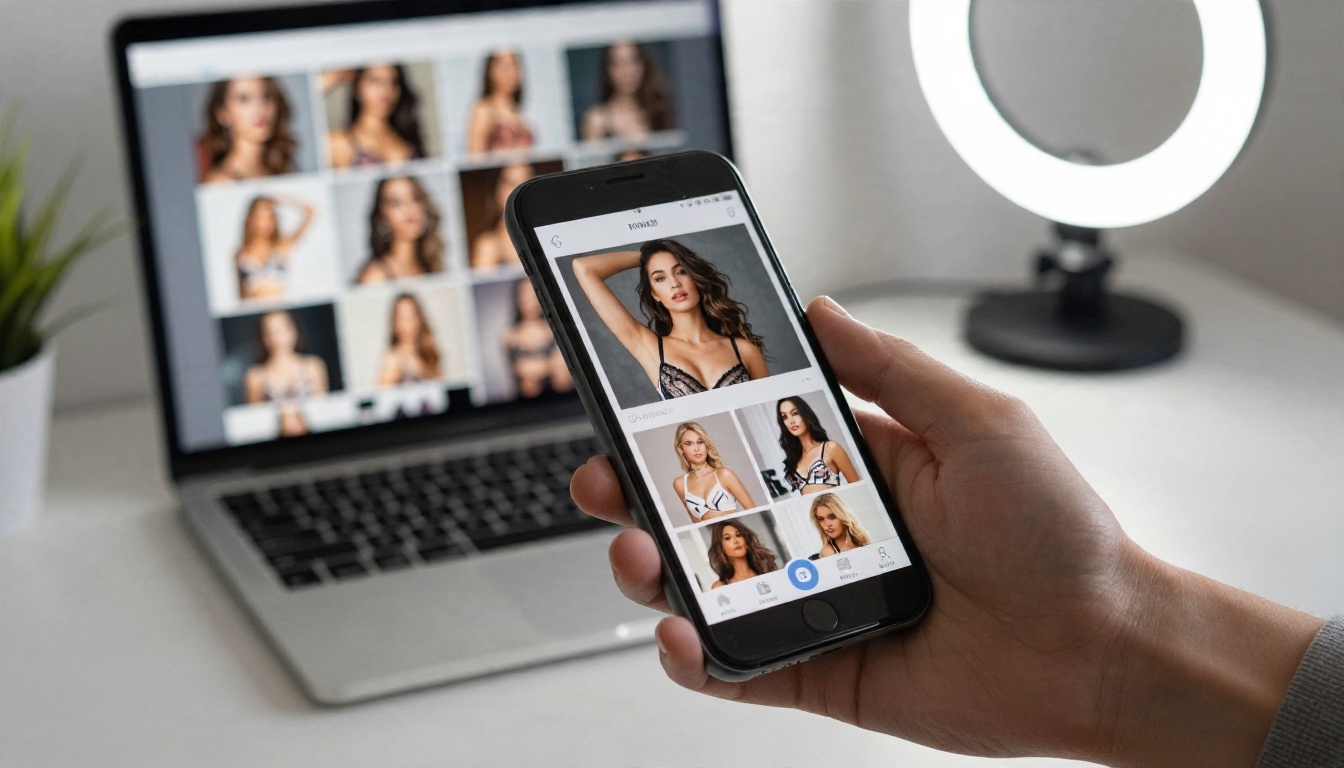
Short ambient audio, such as rain, soft room tone or distant waves, makes the clips feel finished. Models like Veo 3.1 Fast can generate native audio, and for a quick draft pass you can try LTX 2.5 Fast. If a clip is soft, run it through a super resolution tool before final export.
Mistakes That Waste Time
Most failed clips share the same few causes. Fix these and your success rate jumps.
Starting From a Weak Still
If the face is slightly off or the hands are wrong, the video will amplify it. Fix the image first. Regenerating the video ten times will not repair a flawed frame.
Asking for Too Much Movement
One action, one camera move, one light. When you add a fourth instruction, quality drops. Split big ideas into separate clips and edit them together.
Ignoring Platform Rules
If you publish, read the rules of the platform you use. Many require labels for AI-generated content, and most ban explicit material in public feeds. Keep your content tasteful, label it where required, and never use a real person's likeness without permission.
Judging After One Try
AI video is probabilistic. Run three to five generations of the same prompt and pick the best. With free and unlimited tools like Seedance 2.5 Lite and PicassoIA Image Editor Pro, rerolls cost nothing, so use them.
A Quick Workflow You Can Repeat
Here is the loop I would run for every new scene.
- Write the still prompt with outfit, setting, light and lens.
- Generate a batch in Seedream 4.5 and choose the best frame.
- Repair details in PicassoIA Image Editor Pro.
- Write a two-sentence motion prompt using the formula above.
- Animate with Seedance 2.5 Lite, and compare with Wan 3 when a shot matters.
- Pick the best take, trim the edges and assemble the sequence.
💡 Speed tip: keep a notebook of prompts that worked. Reusing a proven light and lens description for every new scene gives your whole series a consistent look.
Try Your First Clip on Picasso IA
You now have the pipeline: one polished still, one calm motion prompt, low motion strength, and a few rerolls. The fastest way to see it work is to run it yourself. Open Seedream 4.5 on Picasso IA, generate a first frame using the sample prompt above, clean it up in PicassoIA Image Editor Pro, then animate it with Seedance 2.5 Lite.
Change one thing at a time: the light, the lens, the camera move. Within an hour you will have a personal prompt library and a recognizable style. When you want to compare more engines, browse every option at picassoia.com/en/all-models and test your favorite still on each of them.


