Most people who type this search want one thing: a free way to generate adult images without a subscription, a content filter, or a stranger reading their prompts. ComfyUI can do that. It is also a node-based tool that asks you to wire together a dozen boxes before you see a single picture. This article walks through the free local setup, the online options for people without a strong graphics card, and the browser alternatives that skip the plumbing. Everything here stays on the tasteful side: glamour, swimwear and boudoir style imagery of adults, never explicit content.
💡 Quick answer: ComfyUI is free and runs on your own PC if you have an Nvidia card with roughly 8 GB of VRAM. No GPU? Rent one online, or use a browser tool like Seedream 4.5 and get a result in seconds.
What ComfyUI Actually Is
ComfyUI is an open source program for running image generation models on your own machine. It is not a model itself. It is the workbench where you load a model, write a prompt, and decide exactly how the picture gets made.
Nodes Instead of One Prompt Box
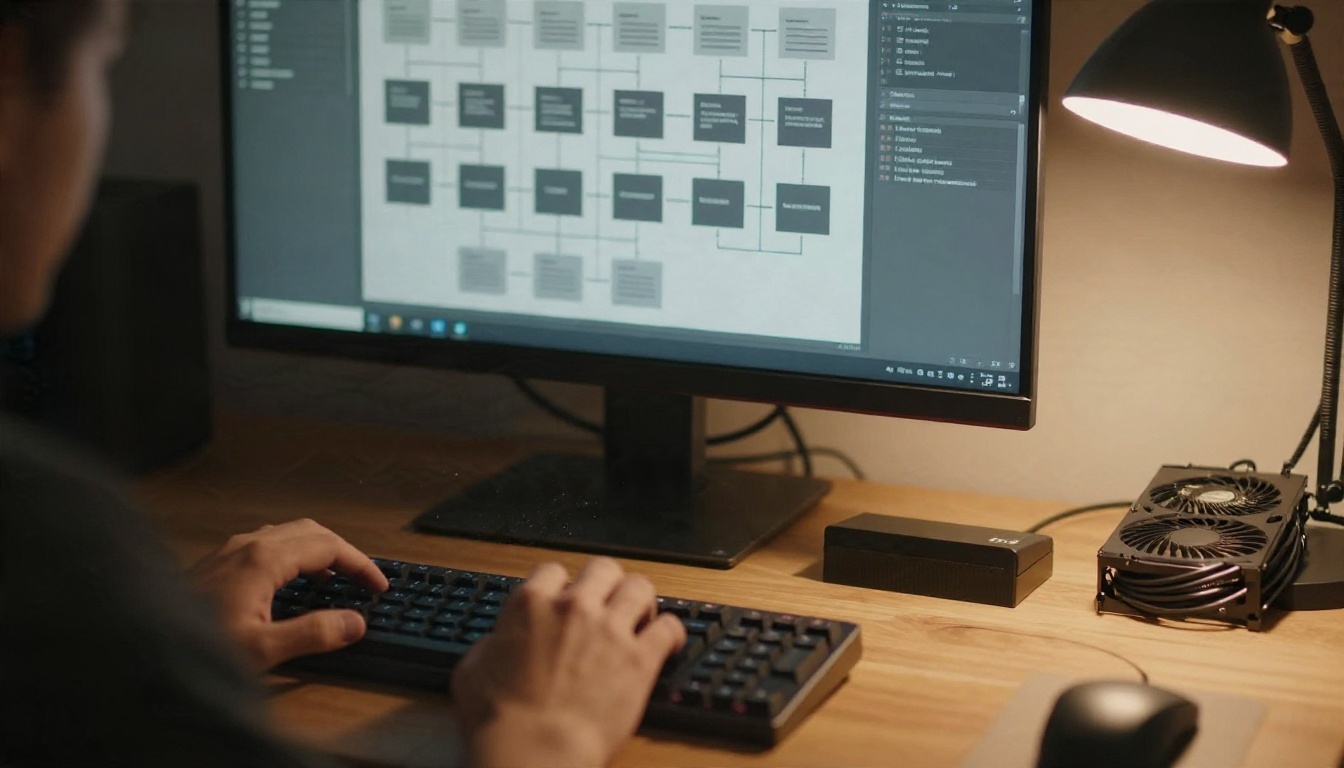
Most web generators give you a text field and a button. ComfyUI gives you a canvas. Each step of the process is a small box (a node), and you draw wires between them: load a checkpoint, encode the text, sample the noise, decode the pixels, save the file. A saved layout is called a workflow, and people share them as small files you can drag onto the canvas.
That sounds like extra work, and it is. The payoff is control. You can chain upscalers, fix faces in a second pass, mix several LoRA files, or batch fifty variations while you make lunch.
Why Adult Creators Pick It
Three reasons come up again and again:
- No hosted filter. Running locally means the only rules are the ones baked into the model you downloaded.
- Privacy. Your prompts and outputs stay on your drive.
- Zero per image cost. After the hardware, every render is free.
The catch is that you become the IT department. Drivers break, custom nodes conflict, and a workflow downloaded from a forum may need nine missing add-ons before it runs.
Free Local Setup on Your PC
The free route is real, but it is only free if the computer you already own can handle it.
Hardware You Need
Third-party setup guides in 2026 mostly agree on a few numbers. An Nvidia GPU with 8 GB of VRAM is the practical starting point. Six gigabytes can run older Stable Diffusion 1.5 style models, and 12 GB makes SDXL and compressed Flux builds far more comfortable. The newer small Flux 2 Klein 4B model was released in January 2026 under an open license and is reported to run in about 8 GB at four sampling steps. The full Flux 2 dev model is much heavier, and one source puts it at a 24 GB card even in a compressed format.
| Component | Bare minimum | Comfortable |
|---|
| GPU | Nvidia, 6 GB VRAM | Nvidia, 12 GB or more |
| System RAM | 16 GB | 32 GB |
| Storage | 50 GB free | 200 GB SSD (models are large) |
| Operating system | Windows 10/11 or Linux | Windows 11 or Linux |
| Typical models | SD 1.5 | SDXL, Flux class models |
AMD cards work on Linux through ROCm. On Windows, support was still described as experimental in mid 2026, so treat it as a gamble.
💡 Tip: ComfyUI has had dynamic memory management turned on by default since March 2026. It unloads unused models between steps, so a mid range card copes better than it did a year ago.
Three Ways to Install
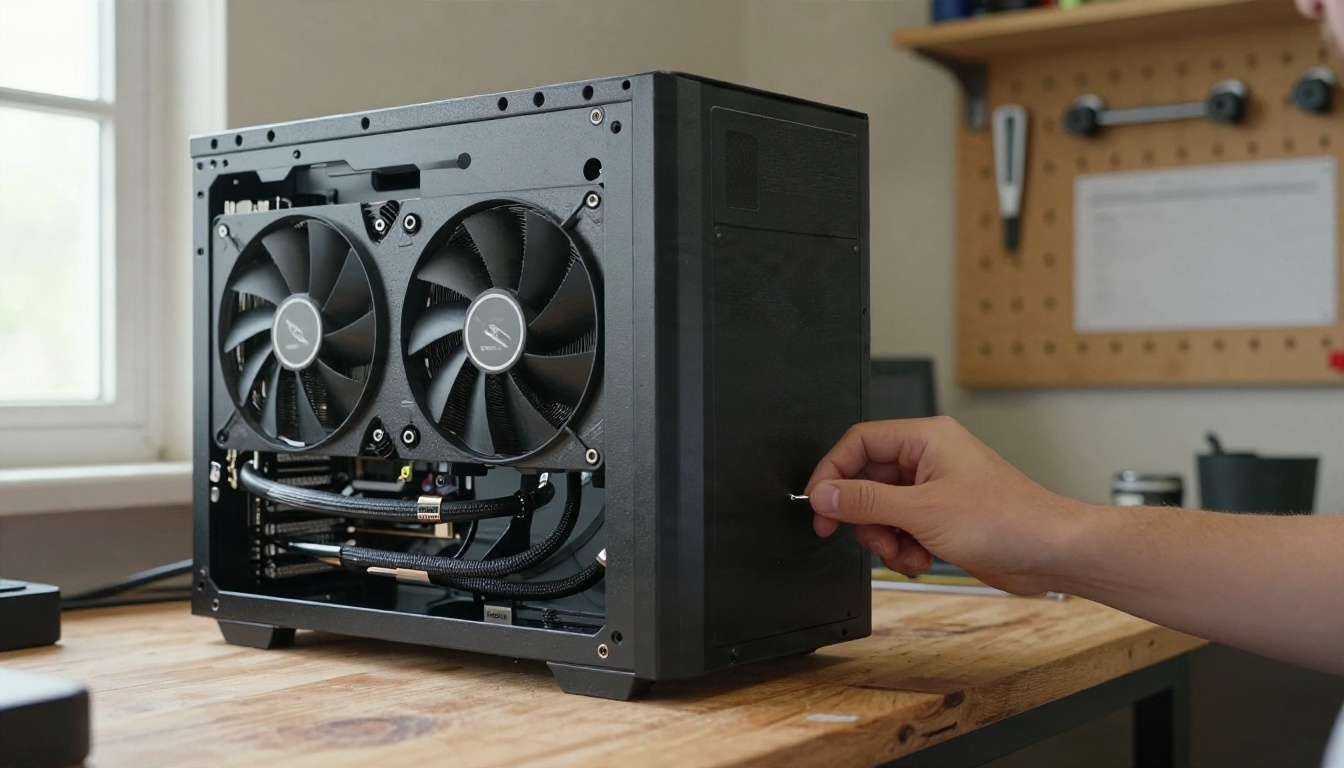
- Desktop app. The easiest option. You download an installer, run it, and it sets up Python and everything else for you. Best for beginners on Windows with an Nvidia card.
- Portable build. A zip file you unpack and run. Nothing touches the rest of your system, so deleting it is as simple as deleting a folder.
- Manual install. You clone the repository, create a Python environment and install dependencies yourself. This is the most flexible path and also the one where most people get stuck.
If this is your first time, pick the desktop app. You can always move to a manual install later.
Loading a Checkpoint
A fresh install generates nothing until you give it a model. A checkpoint is the big file (2 to 25 GB) that holds the trained image knowledge. You place it in the checkpoints folder inside the models directory, restart, and select it in the loader node.
For glamour and swimwear photography, look for photorealistic checkpoints and LoRAs from community model hubs. Read each model's license page before you use it. Some forbid commercial use, and some forbid realistic depictions of real people.
Building a Basic Workflow
Once a checkpoint loads, the default workflow that ships with ComfyUI is enough for a first image.
The Minimum Node Chain
Every simple text to image workflow uses the same six pieces:
- Load Checkpoint: picks your model.
- CLIP Text Encode (two of them): one for what you want, one for what you do not.
- Empty Latent Image: sets the width and height.
- KSampler: the engine. It takes steps, a CFG value and a sampler name.
- VAE Decode: turns the internal data into pixels.
- Save Image: writes the file.
Start at 25 to 30 steps, a CFG between 4 and 7 for SDXL models (Flux models want lower), and a resolution close to what the model was trained on, usually 1024 by 1024 for SDXL.

Prompting for Glamour Looks
Photographic language works better than adjectives. Compare these two:
- Weak: "sexy woman, beautiful, hot, 4k"
- Strong: "adult woman in a coral bikini on a terrace at golden hour, 85mm lens, shallow depth of field, soft backlight, natural skin texture, film grain"
The second one tells the model about the lens, light, setting and texture. That is where realism comes from. Use the negative prompt for the usual faults: extra fingers, plastic skin, warped hands, watermarks.
Adding LoRAs and Upscalers
A LoRA is a small add-on file that nudges a model toward a style, a pose type, or a fabric look. In ComfyUI you insert a Load LoRA node between the checkpoint and the text encoders. Keep the strength between 0.6 and 1.0, since higher values burn out the image.
For sharpness, add a second pass: upscale the latent by 1.5x, then run a low denoise sampler (about 0.3 to 0.45). This brings out pores, fabric weave and hair detail without changing the composition.
💡 Tip: Change one thing at a time. If you add a LoRA, a new sampler and a new resolution at once, you will not know which one broke the picture.
Online Options Without a GPU
No Nvidia card, or an older laptop? You can still run ComfyUI. Someone else's GPU does the work and you drive it from a browser.
The Official Hosted Service
The makers of ComfyUI run their own cloud service. It left beta in March 2026, runs on workstation class Nvidia cards, and needs no local install. Reports say a free tier exists with a monthly credit allowance and no card on signup. Check the current limits before you rely on it, because credit rules change often.
Be aware of one thing: hosted services apply their own terms of use. A platform that stores your prompts on its servers can enforce content rules, so an adult workflow may be restricted or blocked there. Read the acceptable use policy first.
Rented GPU Machines
Several third party hosts rent you a machine with ComfyUI preinstalled. RunComfy offers A100 and H100 class machines, and services such as Runpod provide ComfyUI templates. Other names you will see include ComfyOnline and Floyo.
Rough price ranges from 2026 listings (they vary a lot by source, so treat them as approximate):
| Option type | Typical cost | Best for |
|---|
| Credit subscription | Around $10 to $70 per month | Casual use |
| Managed hourly session | About $0.50 to $2.00 per hour | Short projects |
| Raw GPU rental | From about $0.22 per hour (RTX 3090) | Tinkerers who like Linux |

Trade-offs to Expect
- Compatibility. Not every community workflow runs on every host. One competitor comparison claimed only three out of ten test workflows ran unchanged on the official cloud, while nine ran on its own platform. Take the exact numbers with a grain of salt, but the pattern is real: missing custom nodes are common.
- Storage. Large models and your outputs live on someone else's disk, sometimes with a monthly storage fee.
- Meter anxiety. Hourly billing makes you rush, and rushing makes bad workflows.
Why Many Creators Skip ComfyUI
After a few weeks, a lot of people realize they spend more time debugging nodes than making pictures. Here are three common mistakes:
Mistake 1: Chasing Giant Workflows
A 60 node workflow looks impressive and breaks the moment one custom node updates. Simple graphs fail less.
Mistake 2: Ignoring Model Licenses
A checkpoint that is free to download is not always free to sell. If you plan to post or monetize, check the license.
Mistake 3: Skipping Hands and Faces
Even good models slip on fingers, jewelry and teeth. Without a repair pass, your best picture has one obvious flaw.
If any of that sounds exhausting, the alternatives below get you a polished result in a browser, with no install and no VRAM math.

How to Get Similar Results on PicassoIA
ComfyUI itself is a local application, so it is not something you run on PicassoIA. What you can do is get the same kind of photorealistic glamour output through ready made models, with no checkpoints, no nodes and no hardware. For this kind of content, start with Seedream 4.5, then use PicassoIA Image Editor Pro to refine.
Step by Step with Seedream 4.5
- Open the Seedream 4.5 page.
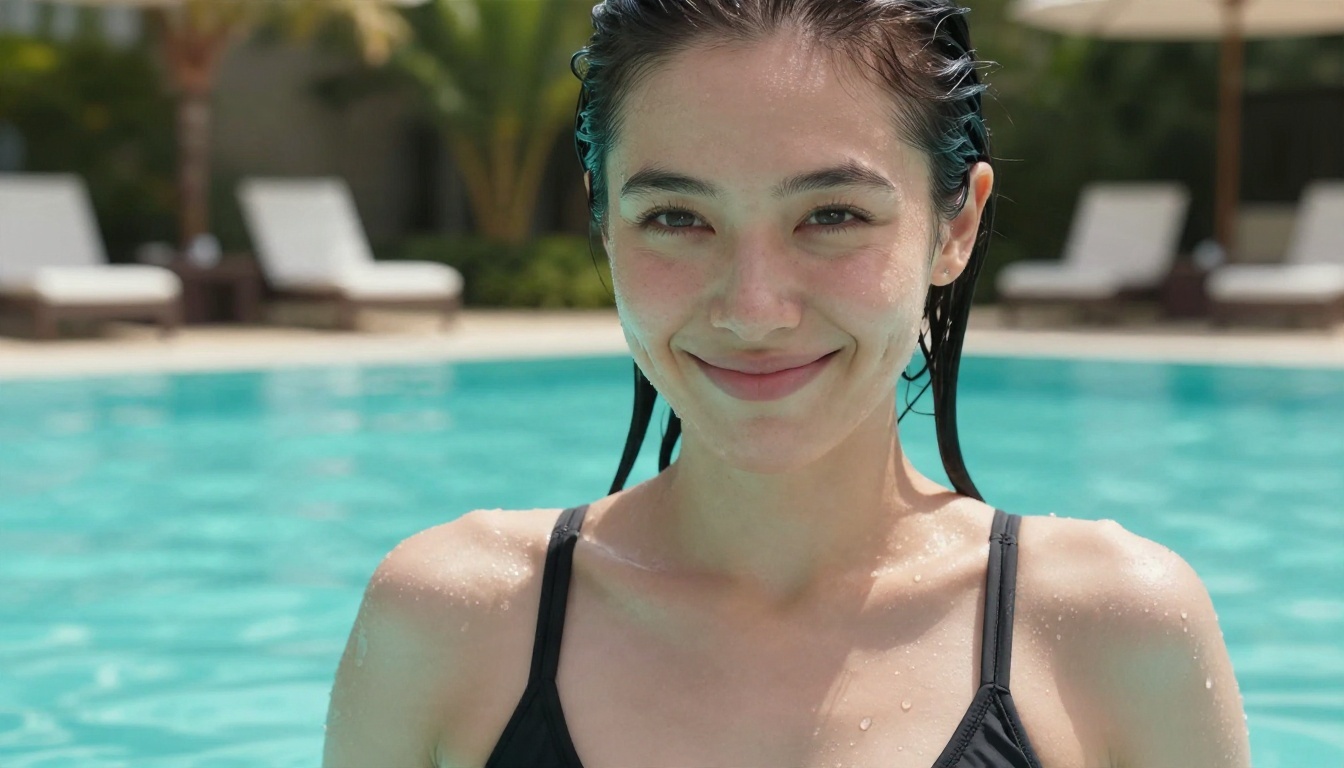
- Write a photographic prompt: subject, outfit, setting, light, lens. For example: "adult woman in a black halter swimsuit beside an infinity pool at midday, 100mm lens, water droplets on skin, natural texture, film grain."
- Choose a 16:9 ratio for landscape shots, or 3:4 for portraits.
- Generate, then compare two or three variations. Change only the lighting or the lens between runs.
- Keep the best frame and move it into the editor for fine adjustments.
Seedream 4.5 gives sharp detail and natural skin rendering, and it is fast. A render takes seconds, not minutes.
💡 Parameter tip: Describe fabric and light in detail ("satin sheen, soft window light from the left") and keep the wording factual. Vague adjectives like "hot" or "sexy" give flat, generic results.
Refine with Image Editor Pro
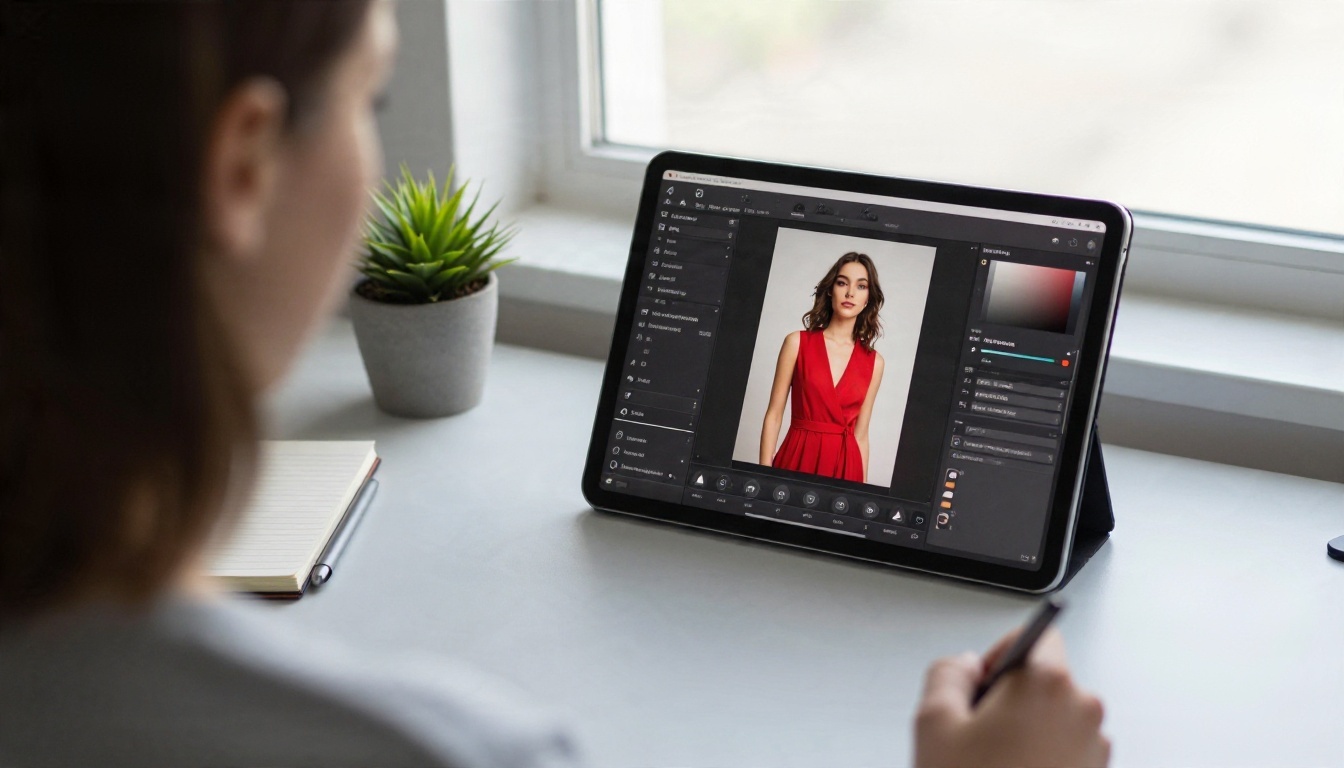
PicassoIA Image Editor Pro is built for edits on top of an existing picture, and it offers unlimited generations. That matters for adult glamour work, where you often need ten tries to get the pose, outfit and lighting right. Typical uses:
- Change an outfit color or fabric while keeping the pose.
- Fix a hand or a piece of jewelry.
- Swap a background, from a bedroom to a terrace.
- Relight a portrait for a warmer golden hour feel.
Other Models Worth a Try
Different models have different looks. Here is a quick comparison, in the order I would try them:
If you are used to node graphs, PicassoIA also lists a model called Any ComfyUI Workflow, which is a separate model page and worth a look for people who already think in workflows.
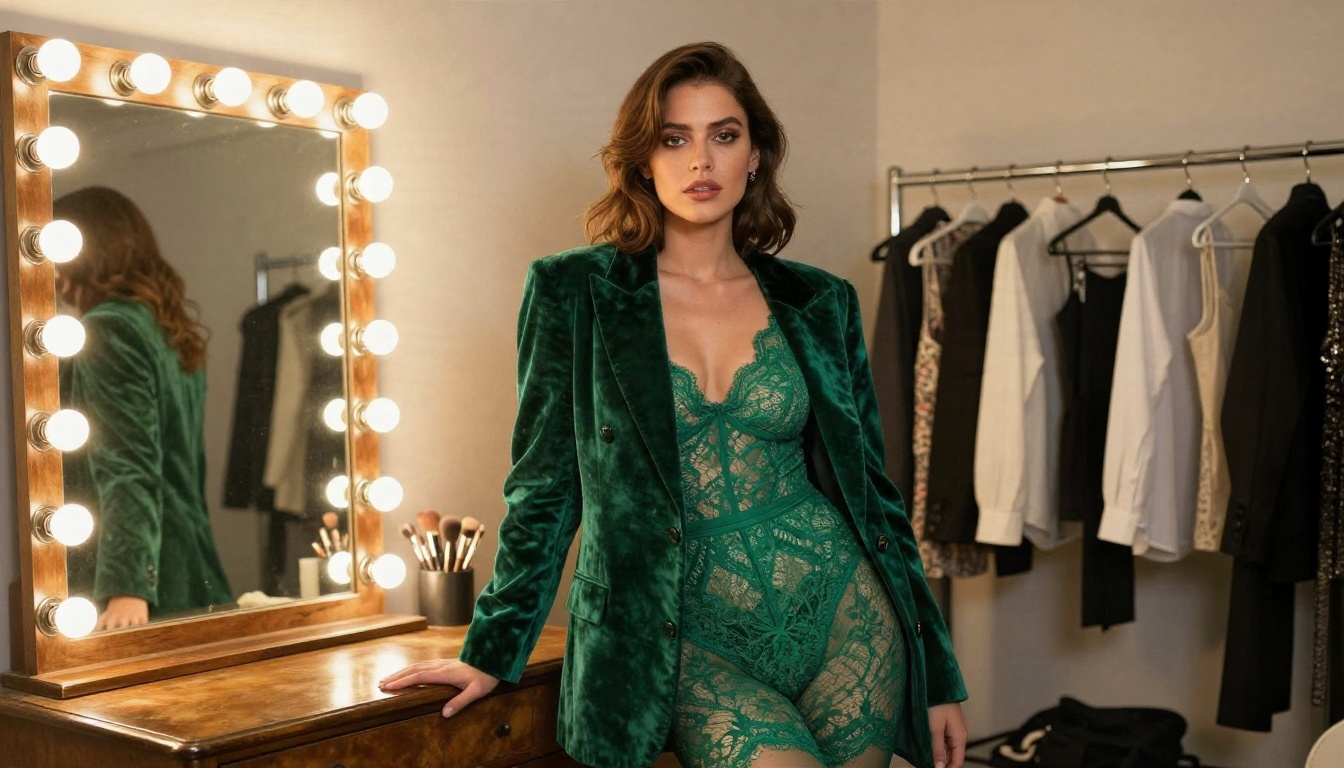
Here is the side by side that matters when you pick:
| Factor | ComfyUI local | ComfyUI online | PicassoIA browser models |
|---|
| Upfront cost | GPU and storage | None to low | None |
| Setup time | Hours | Minutes | Seconds |
| Control | Total | High | Prompt and edit based |
| Content rules | Set by the model files | Set by the host | Non-explicit glamour focus |
| Speed per image | Depends on your GPU | Fast on rented cards | Seconds |
| Maintenance | You | Host | None |
Choose local ComfyUI if you love tinkering and own the hardware. Choose a browser tool if you care about the picture and not the pipeline.
Rules You Should Follow
Adult image generation has real limits, and ignoring them can cause real harm.
- Adults only. Every character you generate must be clearly an adult. Never create anything that looks like a minor. This is non negotiable.
- No real people without consent. Do not use a real person's face or likeness for adult content. This includes celebrities, coworkers and exes. In many places it is illegal, and it is harmful everywhere.
- Label AI images. When you post them, say they are AI generated. Some platforms require it.
- Check local law and platform terms. Rules on synthetic adult content differ by country and by site.
- Keep it tasteful. Glamour, swimwear and boudoir photography already deliver striking results without anything explicit, and they are far easier to publish and share.
Make Your First Images Today
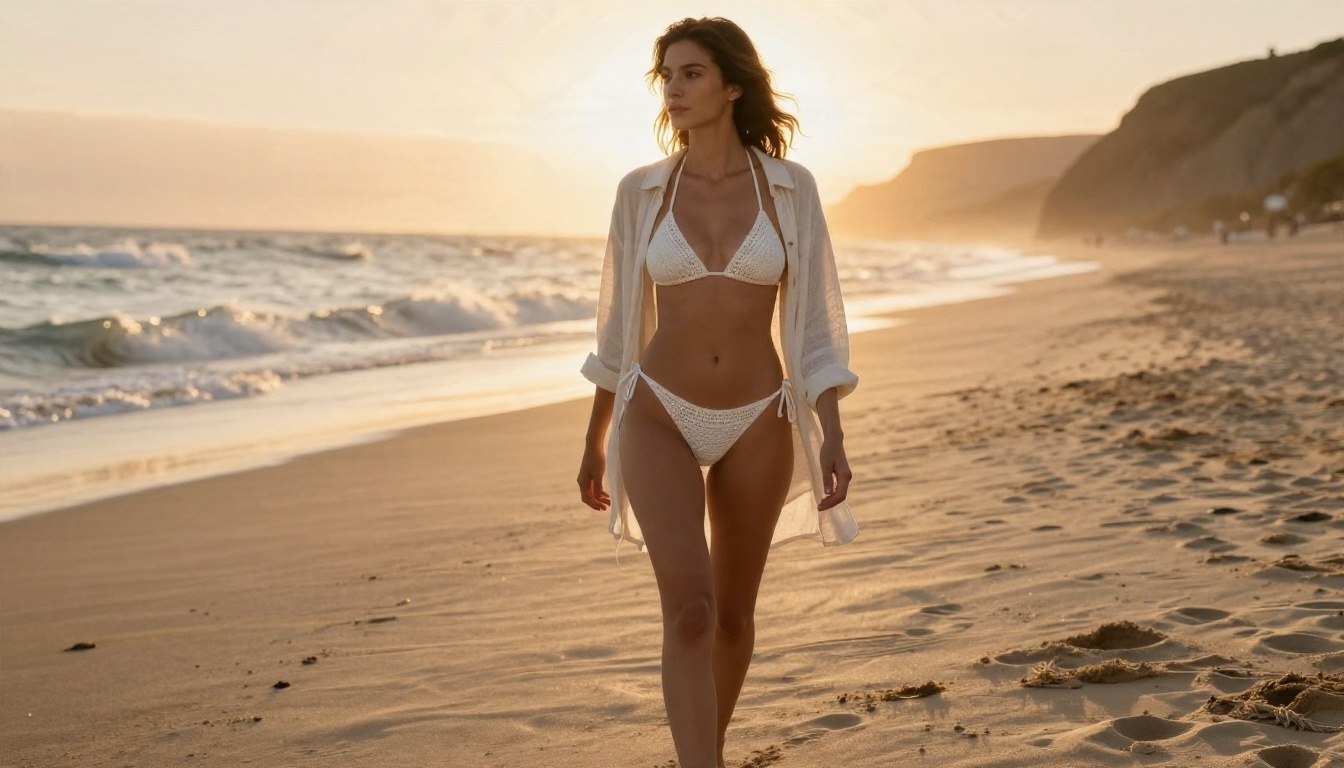
You do not need a graphics card, a Python install or an afternoon of debugging to get a polished glamour picture. Open Seedream 4.5, write one photographic prompt with a subject, an outfit, a light source and a lens, and press generate. Then take your favorite frame into PicassoIA Image Editor Pro and change the outfit, the background or the mood as many times as you like, since generations are unlimited.
Want to compare more styles? Browse every available model at picassoia.com/en/all-models and run the same prompt through two or three of them. You will see within minutes which one fits your taste. Pick a prompt from this article, paste it in, and make something of your own.


