You open a pricing page, see "$0.10 per image", and think the math is easy. Then the invoice arrives, and it reflects retries, failed prompts, resolution upcharges and a week of testing aspect ratios. That gap between the sticker price and the real bill is exactly what trips up creators who adopt a new image model through an API.
Tencent's Hunyuan Image 3.0 is one of the most talked about open image models of the year. It is large, it follows long prompts well, and it can be reached through several hosted APIs. It is also priced differently almost everywhere you look. This article breaks down what it costs, which settings are worth touching, and which alternatives deserve a test before you commit a budget.
💡 Quick take: Third-party hosts currently charge roughly $0.04 to $0.13 per image for Hunyuan Image 3.0. Steps, CFG and resolution decide whether you pay the low or the high end. Alternatives like Qwen Image 3 and Seedream 4.5 are worth a side-by-side test.
What You Actually Get
A very large open model
Hunyuan Image 3 comes from Tencent and is built as a very large mixture-of-experts system, usually described as having around 80 billion parameters in total. The weights were released openly, which is why so many hosts offer it. Anyone with enough GPU memory can run it, but almost nobody does at home, because the hardware requirement is steep.
That is why the API route matters. Instead of renting multiple high-memory GPUs, you send a prompt and receive an image. You trade control for convenience, and the price per call becomes the number that rules your workflow.

Where it shines
The model has a reputation for reading long, detailed prompts and keeping the details straight. A paragraph describing a subject, a setting, a lens and a lighting mood usually comes back with most of those elements present. Portraits, product shots and editorial scenes are its comfort zone.
Where it is less impressive: speed on the full model, and cost when you iterate dozens of times on a single idea.
Who should bother
If you produce a few hundred images a month and care about prompt fidelity, it is a strong candidate. If you generate thousands of quick social visuals daily, a faster and cheaper model is usually the better fit. The sections below show the numbers behind that statement.
The Real Cost of Hunyuan Image 3.0
Per-image rates by host
Tencent does not publish one universal price, so the cost depends on which provider you call. The figures below were listed by third-party hosts in mid-2026 and can change at any time, so treat them as a snapshot and check the current page before you budget.
| Host | Listed rate | Notes |
|---|
| AIMLAPI | about $0.13 per megapixel | Billed by output size |
| EmpirioLabs | about $0.13 per image | Standard pay-as-you-go |
| WaveSpeedAI | about $0.12 per image | Instruct text-to-image variant |
| Novita AI | about $0.10 per image | Flat per-call rate |
| fal | about $0.094 per image | Estimate for a 1024x1024 Instruct image |
| Apify wrapper | $0.025 to $0.04 per image | Wrapper actor, cheaper on higher plans |
Notice the pattern. The flat per-image hosts are easy to forecast. The per-megapixel hosts reward you for staying small and punish you the moment you ask for a large canvas.
Hidden costs that add up
The listed rate covers one successful call. It does not cover:
- Retries. Hands, text and crowded scenes often need two or three attempts.
- Prompt testing. Writing a good prompt for a new model takes ten to twenty generations.
- Resolution bumps. Moving from 1024 pixels to a larger canvas can double or triple the bill on megapixel-priced hosts.
- Variant confusion. The base model and the Instruct variant do not always cost the same.
A practical rule: multiply your expected final image count by three to get your real generation count.
Budget math for 1,000 final images
Here is what a month looks like if you need 1,000 usable images and generate three attempts per keeper, so 3,000 calls.
| Rate per image | Cost for 3,000 calls | Cost per keeper |
|---|
| $0.04 | $120 | $0.12 |
| $0.094 | $282 | $0.28 |
| $0.10 | $300 | $0.30 |
| $0.12 | $360 | $0.36 |
| $0.13 | $390 | $0.39 |
💡 Tip: Cost per keeper is the number that counts. A cheaper model with a lower hit rate can end up costing more than a pricier model that nails the prompt on the first try.
Settings That Change Results
Hosts expose different controls, but the same handful of settings show up again and again. Here is what each one does in practice.
Steps and the distilled option
The standard checkpoints are normally run at roughly 30 to 50 inference steps. More steps give the sampler more passes to refine detail, with diminishing returns after the middle of that range. A distilled checkpoint of the model runs in about 8 steps, and guides report that quality stays close to the full version. If your host offers it, the distilled option cuts waiting time and, on time-billed platforms, cost.
My suggested starting points:
| Goal | Steps |
|---|
| Fast drafts and prompt testing | 8 (distilled) or 20 to 25 |
| Everyday final images | 30 |
| Detail-heavy portraits and products | 40 to 50 |
CFG scale and prompt adherence
CFG controls how strictly the sampler follows your text. A value near 5 is a balanced start. Pushing toward 7 tightens prompt adherence but can make skin and surfaces look overcooked. If an image looks blurry or soft, raise steps first, then nudge CFG up by one point.
Aspect ratio and size
Output shape affects both composition and price. Hosts that bill by megapixel make a 16:9 frame more expensive than a square at the same long edge, so pick the ratio you need instead of cropping later. On PicassoIA the model supports 11 aspect ratios, from 1:1 and 4:5 for social posts to 16:9 and 21:9 for banners and cinematic frames.
Seeds for repeatable output
Pin a seed when you like a composition and want to change only one thing, such as the lighting phrase or the wardrobe color. Same seed plus a small prompt edit gives you controlled variation instead of a lottery.
Format and quality
If the host lets you choose, WebP gives the smallest files for web use, PNG keeps lossless detail for retouching, and JPG is the safe choice for broad compatibility. Quality values around 90 to 95 are hard to tell apart from 100 on screen while saving bandwidth.
Writing Prompts It Rewards
A structure that works
Because the model handles long text well, use that. A reliable order is:
- Subject and action: who or what, doing what.
- Environment: place, time of day, background elements.
- Light: direction, quality, color temperature.
- Camera: lens length, aperture, angle.
- Texture and mood: skin, fabric, grain, atmosphere.
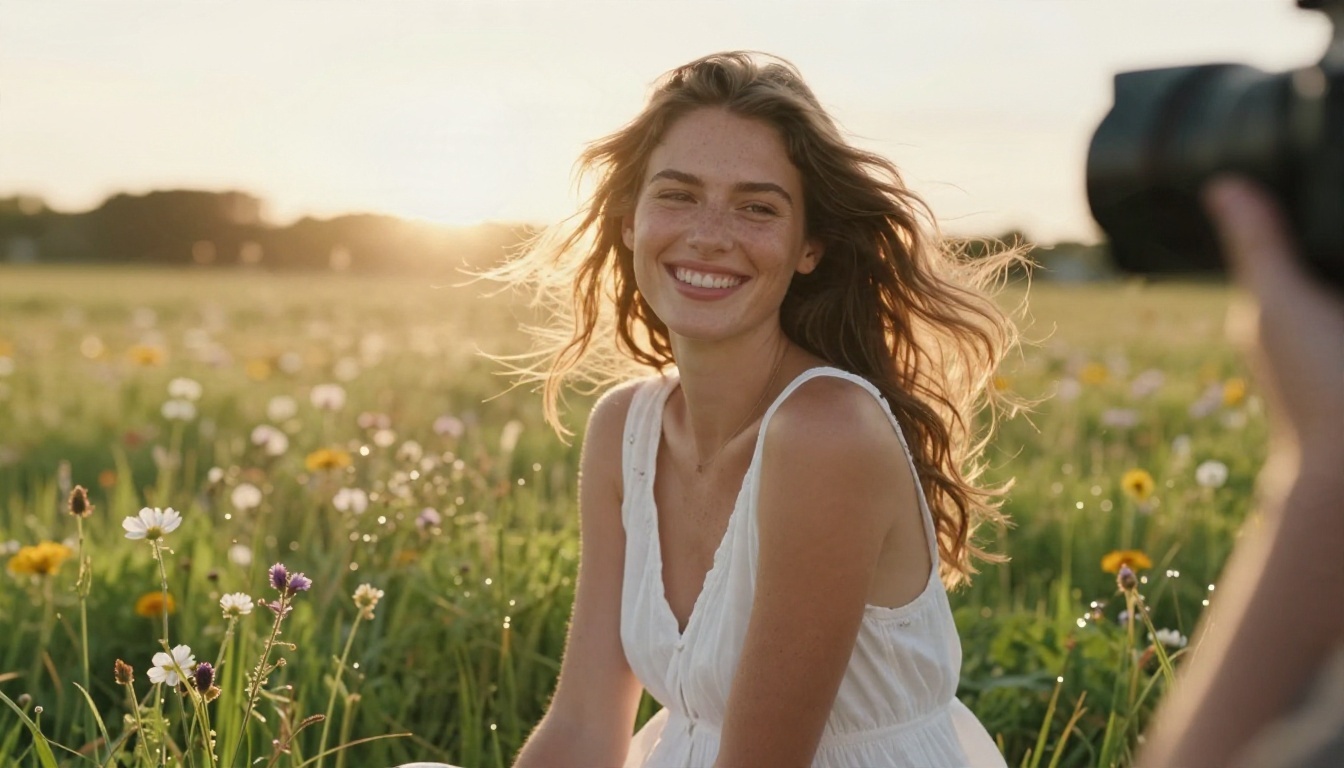
Example: "A woman in a white linen dress walking through a wildflower meadow at golden hour, low sun behind her creating rim light in her hair, 85mm lens at f/1.4, shallow depth of field, visible skin texture, fine film grain, natural color."
Mistakes to skip
- Stacking contradictions. "Soft overcast light" and "harsh midday sun" in one prompt gives mush.
- Burying the subject. Put the main subject in the first sentence.
- Long text inside the image. Keep any in-image words to one or two short words.
- Style words that fight realism. Terms like "hyper-detailed digital painting" push away from photographic output.
How to Use Hunyuan Image 3 on PicassoIA
If you would rather skip API keys and billing dashboards, you can run the model directly in the browser. The Hunyuan Image 3 page on PicassoIA exposes the controls you actually need.
Step by step
- Open the model page and click into the generator.
- Write your prompt using the five-part structure above.
- Choose an aspect ratio. Start with 16:9 for scenes and 4:5 for portraits.
- Leave Go Fast on for drafts. Turn it off for final renders if you want maximum fidelity.
- Pick an output format: WebP for web, PNG for retouching.
- Set output quality between 90 and 100.
- Add a seed once you find a composition worth refining.
- Generate, compare, and adjust one variable at a time.
Settings cheat sheet
| Setting | Recommended | Why |
|---|
| Aspect ratio | Match the final placement | Avoids cropping loss |
| Go Fast | On for drafts | Quicker iteration |
| Output format | WebP or PNG | Size versus lossless |
| Output quality | 90 to 100 | Sharp without bloat |
| Seed | Pinned after a good result | Repeatable variations |
💡 Workflow tip: Draft in Go Fast mode with a pinned seed, change one phrase per run, and only switch to a final render when the composition is locked.
Alternatives Worth Testing

No single model wins every job. Before you pay for volume anywhere, run the same prompt through two or three alternatives and compare. Every model below is available on PicassoIA, so you can test them in one place.
For photographic realism
Imagen 4 and Qwen Image 3 Pro are the two I would run first against Hunyuan on portrait prompts. Compare skin texture, hair detail and how each handles window light. The differences are subtle, and they are easy to spot once the images sit side by side.
For large, sharp output
If your deliverable is a print, a hero banner or anything that will be cropped hard, Seedream 4.5 and Nano Banana Pro both target 4K, which saves you an upscaling step.
For speed and volume
When you are drafting dozens of concepts, Imagen 4 Fast keeps cost per attempt low and turnaround short. Use it to find the composition, then move the final render to a higher-fidelity model.
For custom looks
If you need a consistent brand style across hundreds of images, a model built for fine-tuning such as Flux 2 Klein 4B Base gives you something an API-only call cannot: a look that belongs to you.
Matching a Model to Your Workflow

Solo creators
You have limited time and a fixed budget. Draft with a fast model, finish with a high-fidelity one, and keep a seed log so you can reproduce winners. A browser tool that bundles many models beats juggling four separate API accounts.
Small teams and agencies
You need consistency and review cycles. Pick one primary model for hero images, one fast model for exploration, and write a shared prompt template so every teammate starts from the same five-part structure. Print a few outputs and review them physically at least once, because color and texture problems show up on paper faster than on a screen.
Product and e-commerce work
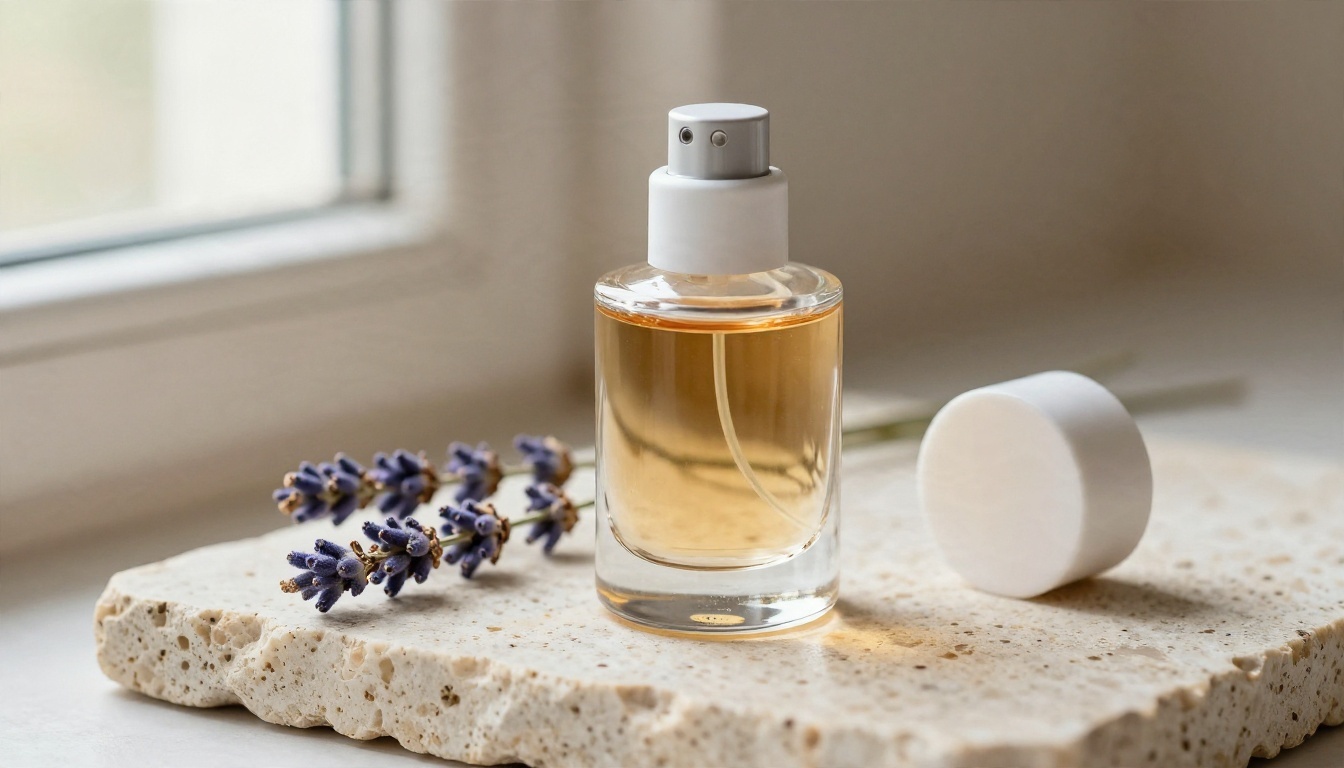
Product still lifes reward models that respect material detail: glass reflections, stone pores, fabric weave. Test glass and metal specifically, since those surfaces expose weak models quickly. Keep prompts short on the product and long on the lighting.
Judging quality honestly
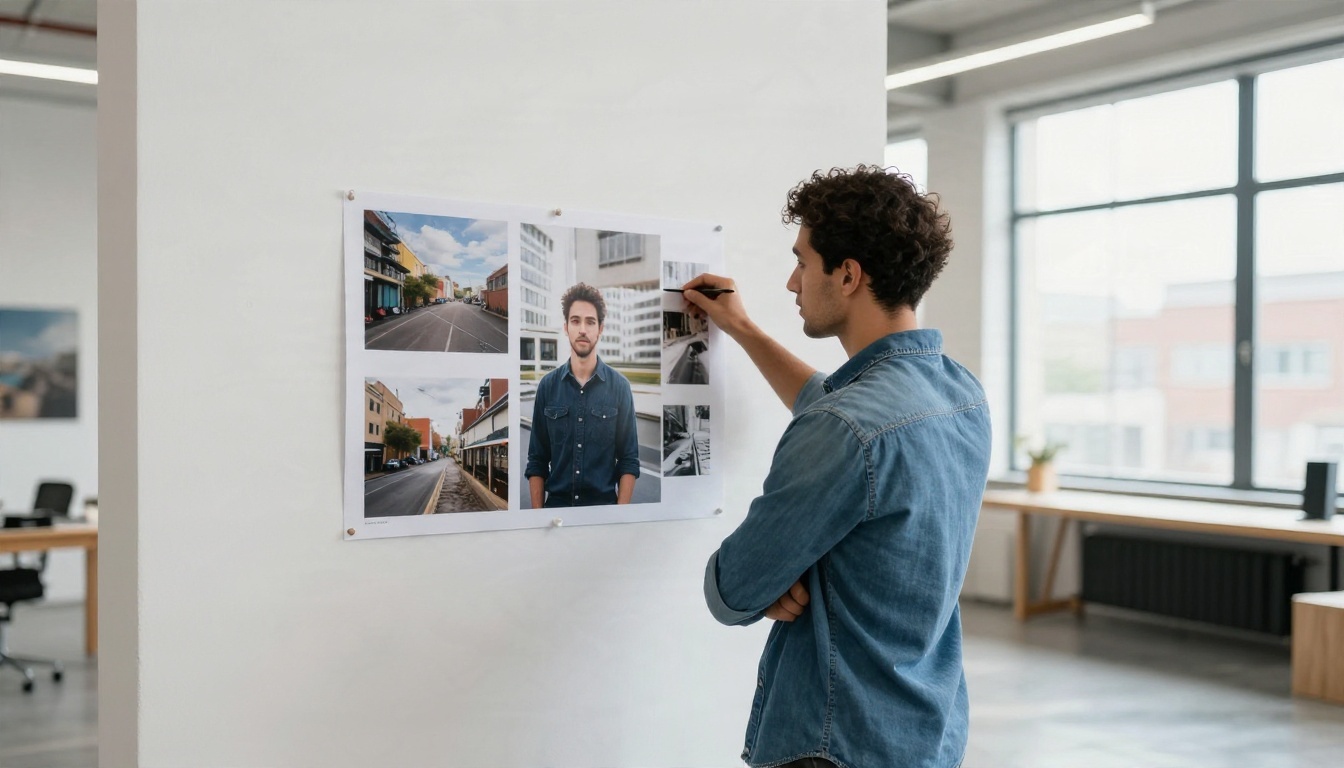
Score each candidate on the same checklist: prompt adherence, skin and surface texture, hand accuracy, lighting realism and edge cleanliness. Give each a score from one to five across at least ten prompts. Ten prompts is enough to reveal a pattern, and a single lucky render is not.
Try It on PicassoIA
The cheapest way to decide is to test. Open Hunyuan Image 3, paste the same prompt you plan to use in production, and run it next to Qwen Image 3 and Seedream 4.5. Change only the model, keep the seed and aspect ratio, and look at the three results together.

You will know within fifteen minutes which model reads your style best, and you will have a real cost per keeper instead of a sticker price. Start with a portrait prompt, then a product prompt, then a scene with tricky light. Pick the winner for each job, and keep the rest as backups.
Ready to see the difference yourself? Head to picassoia.com/en/all-models, browse the full list of text-to-image models, and start creating your own photorealistic images today.


