You have a photo you like, and you want a better version of it. A different outfit, warmer light, a new location, a sharper face. That is the whole idea behind image to image 18: you feed an AI model a reference picture of an adult, add a short written instruction, and get back a new picture that keeps what you liked and changes what you asked for. The "18" simply means the content is meant for grown-ups, think boudoir, swimwear, lingerie and glamour portraits, never anything explicit.
The problem is that most free tools either block anything suggestive, slap a watermark across the result, or ration you to three tries a day. This article sorts out which tools actually allow adult glamour editing, which prompts keep the result looking like a real photograph, and which settings decide whether you get a clean edit or a melted face.
💡 Quick answer: Start with Seedream 4.5 for the most realistic skin and fabric, then switch to PicassoIA Image Editor Pro when you want unlimited generations to refine the same photo again and again.
What Image to Image 18 Means
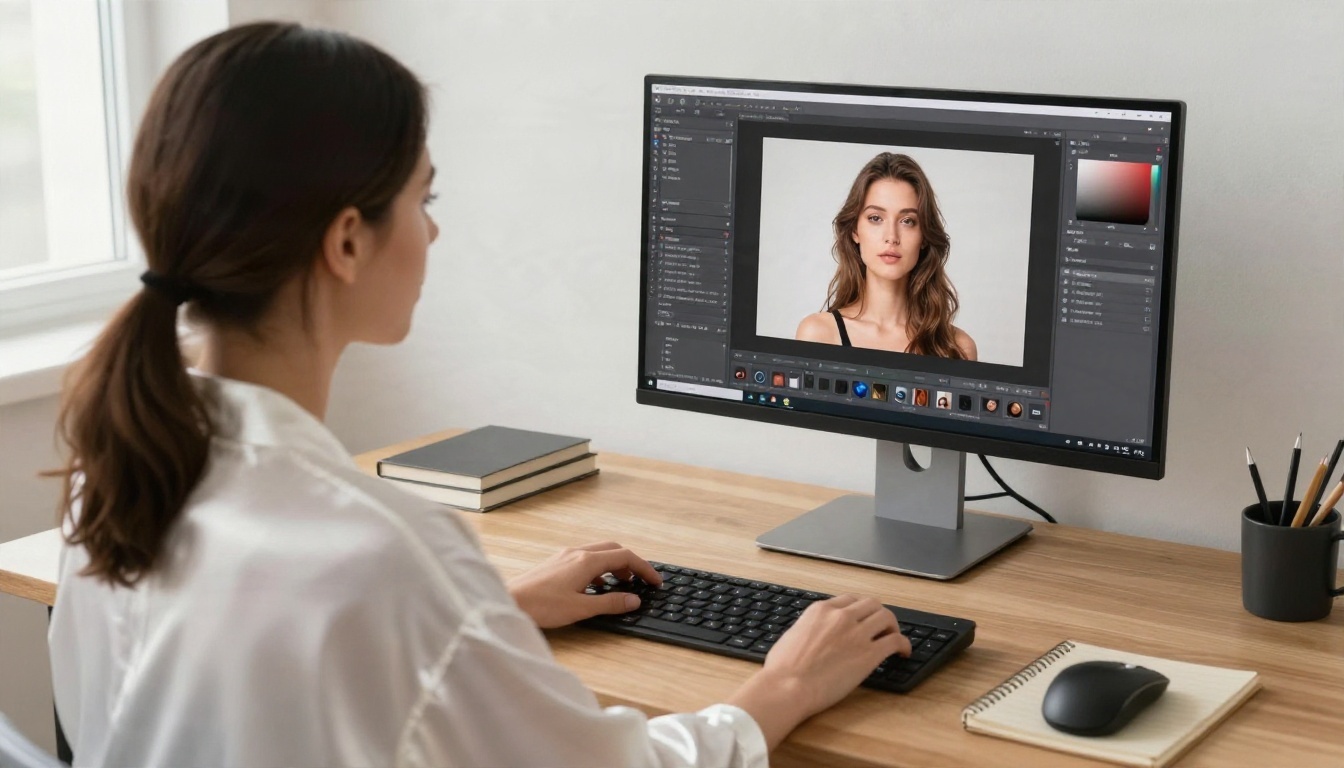
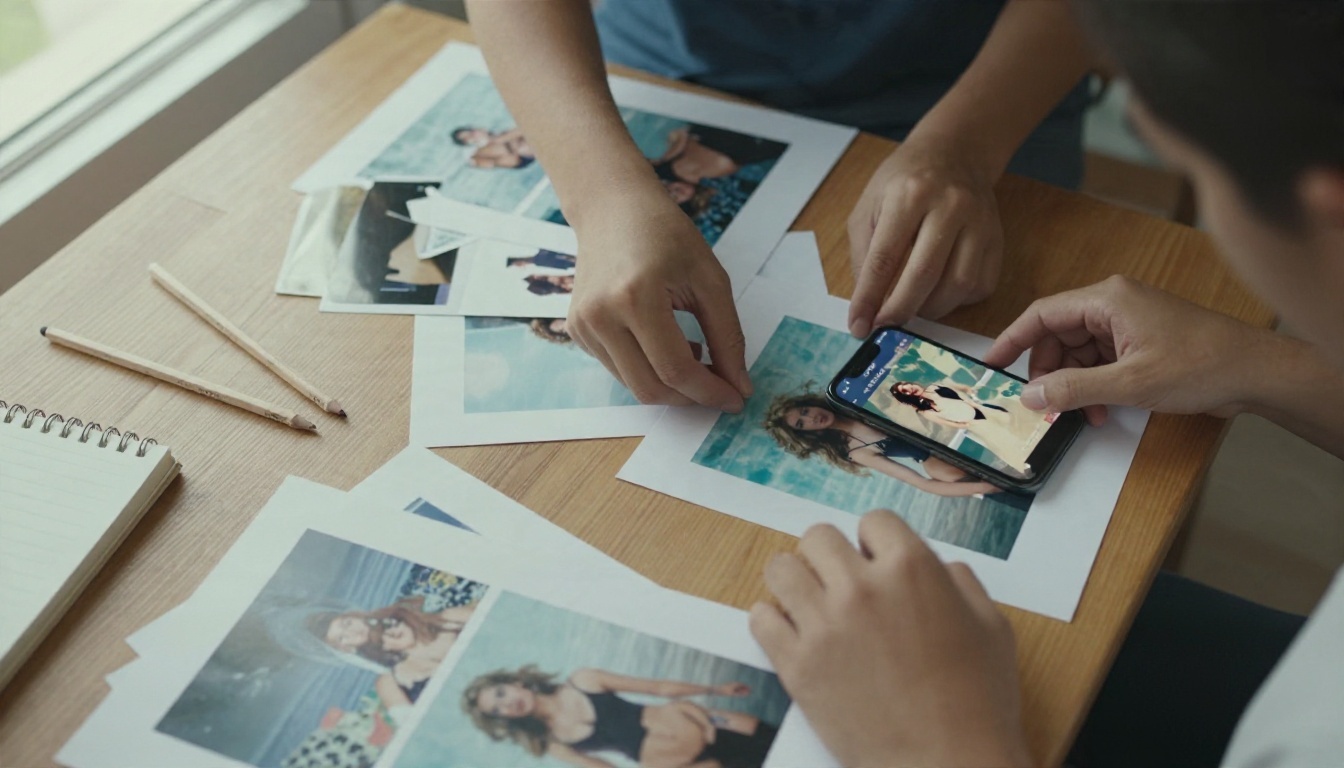
Text to image starts from nothing. You type a sentence and the model invents a scene. Image to image starts from something real: a photo you took, a pose you like, a lighting setup you want to copy. The model reads the picture, reads your instruction, and blends the two.
For adult glamour work, that difference matters a lot. A reference photo locks in the pose, the framing and the light direction, so you spend your prompt on the changes instead of describing everything from scratch.
Reference photo plus prompt
Think of it as two inputs with different jobs. The photo answers "what does it look like?" The prompt answers "what should be different?" When people complain that the output ignores their picture, they usually wrote a prompt that describes a completely new scene. When the output barely changes, the prompt was too timid or the strength setting was too low.
Who this is for
This workflow suits photographers retouching boudoir sessions, creators building consistent swimwear or lingerie lookbooks, models refining their own portfolio shots, and anyone who wants to restyle a picture of themselves. It is for adults only, using your own photos or photos of people who have clearly agreed to be edited. More on that near the end.
Common 18+ edit types
| Edit type | What changes | Typical difficulty |
|---|
| Outfit swap | Swimsuit, lingerie, robe or dress | Easy |
| Lighting change | Golden hour, tungsten lamp, window light | Easy |
| Location change | Beach, hotel room, loft, pool | Medium |
| Skin and detail repair | Sharper pores, cleaner hair edges | Medium |
| Pose adjustment | Slight head turn, different arm position | Hard |
| Style match | Make a phone snap look like film | Easy |
Not every model handles adult content the same way. Some refuse the prompt outright, some quietly blur the result, and some work fine for a swimsuit but choke on lingerie. The list below is ordered by how well each option handles tasteful, non-explicit adult glamour.
Seedream 4.5 comes first
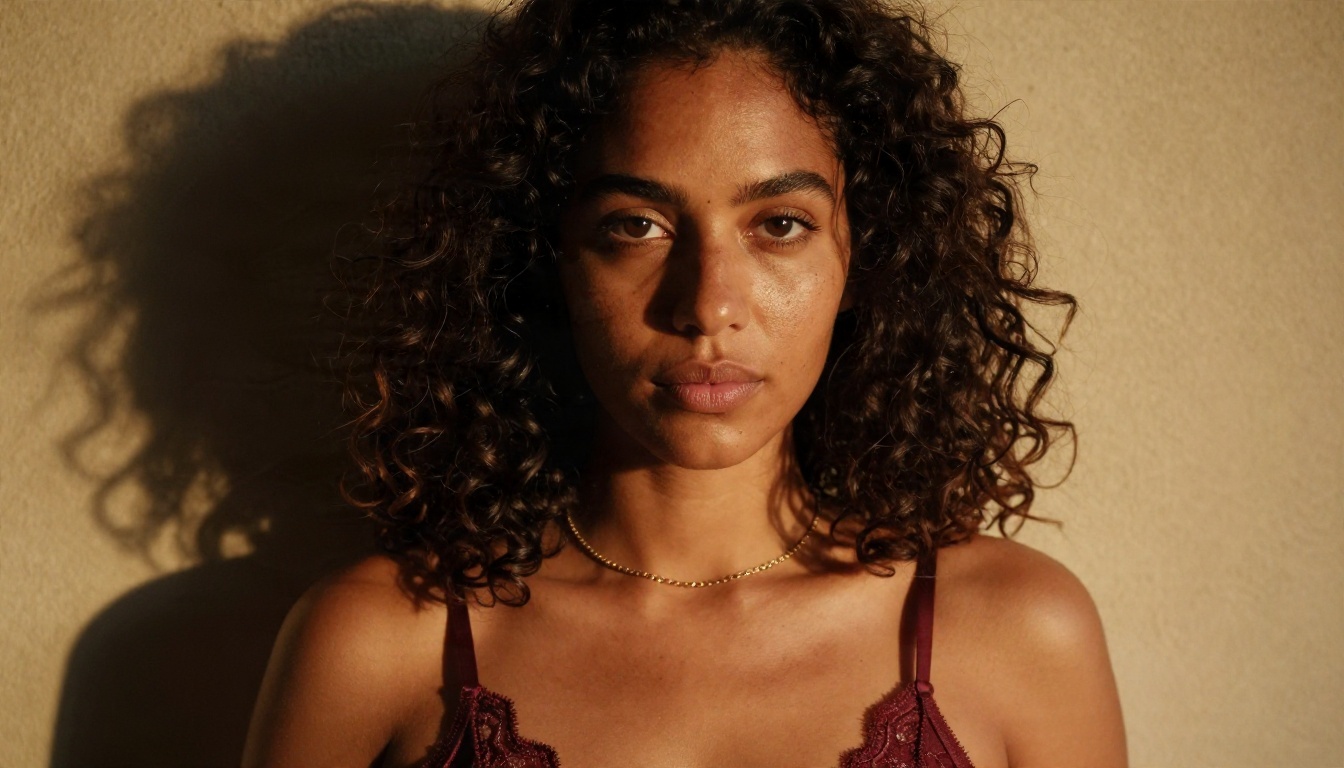
Seedream 4.5 is the model I reach for first. It produces natural skin with visible pores, believable fabric folds on silk and lace, and lighting that behaves like a real lens would capture it. It also accepts reference images, so you can hand it your original photo and ask for a specific change.
It is quick, it does not water down a swimwear or boudoir prompt, and it keeps faces stable across several edits, which matters if you are building a series.
PicassoIA Image Editor Pro for iteration
Good edits rarely happen on the first try. You change the light, then the outfit, then the background, then you undo one of those. That is where PicassoIA Image Editor Pro earns its place: unlimited generations, uncensored handling of adult glamour within the non-explicit line, and fast turnaround. You can afford to experiment without watching a credit counter.
💡 Workflow tip: Do your first big edit in Seedream 4.5, then bring the best result into Image Editor Pro for small, repeated refinements like hair, color grade and background cleanup.
Other models for specific jobs
Once those two are running, a few more models fill different gaps:
- Flux 2 Klein 9B Base LoRA is useful when you want a styled, film-like look and a bit more control over the character of the image.
- Qwen Image Edit Plus is built for editing existing photos, handy for outfit and object changes while the rest of the frame stays put.
- Flux Kontext Fast gives you quick instruction-based edits when you want to test an idea in seconds.
- Qwen Image 3 Pro is a strong pick for photorealistic portraits when you want a clean, detailed base to work from.
Quick comparison
Prompts That Actually Work
A weak prompt gives you a generic, plastic image. A strong prompt reads like a photographer's shot note: who, what, where, light, lens, film. Short is fine, but specific beats long every time.
The five-part prompt formula
Use this order and you will rarely go wrong:
- Keep statement: what must stay the same ("keep her face, hair and pose").
- Change statement: the one thing to alter ("change the outfit to a red two-piece bikini").
- Setting: where the new scene happens ("on a quiet beach at sunrise").
- Light: direction and quality ("low golden light from behind, soft rim on the hair").
- Camera feel: lens and film ("85mm portrait lens, Kodak Portra 400 grain, natural skin texture").
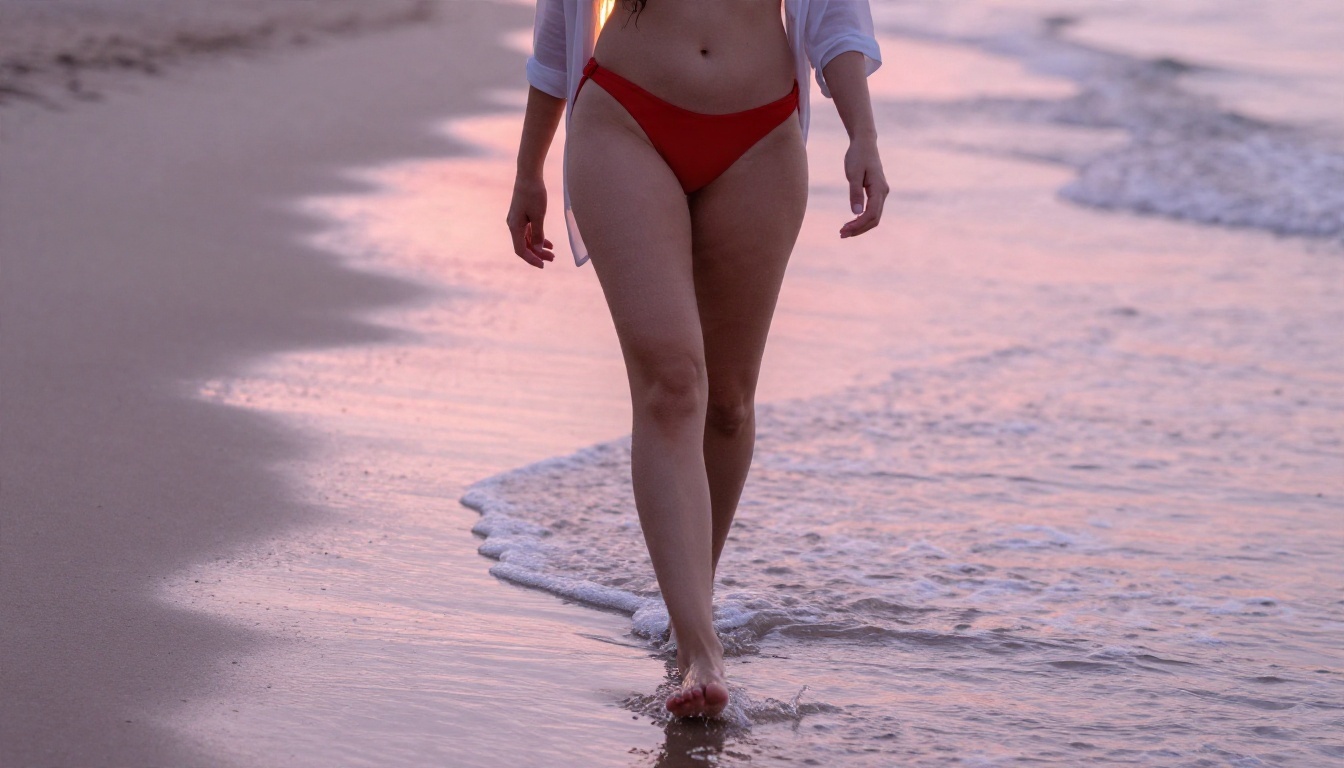
Put together: "Keep her face, hair and pose. Change the outfit to a red two-piece bikini with a sheer white cover-up. Setting: wet sand at sunrise. Low golden light from behind, soft rim on the hair. 24mm lens, Kodak Portra 400 grain, natural skin texture, visible pores."
Ten prompt templates to copy
Swap the bracketed parts for your own details.
- "Keep the face and pose. Replace the outfit with a [black silk bralette set]. Warm window light from the left, 85mm, film grain."
- "Same person, same pose, relocate to a [vintage hotel room] with a velvet armchair and tungsten lamp."
- "Change the lighting to golden hour from camera left, keep everything else identical."
- "Restyle as a lingerie magazine editorial, soft shadows, natural skin texture, no retouching smoothness."
- "Convert this phone snapshot into a Kodak Portra 400 film photograph with gentle grain."
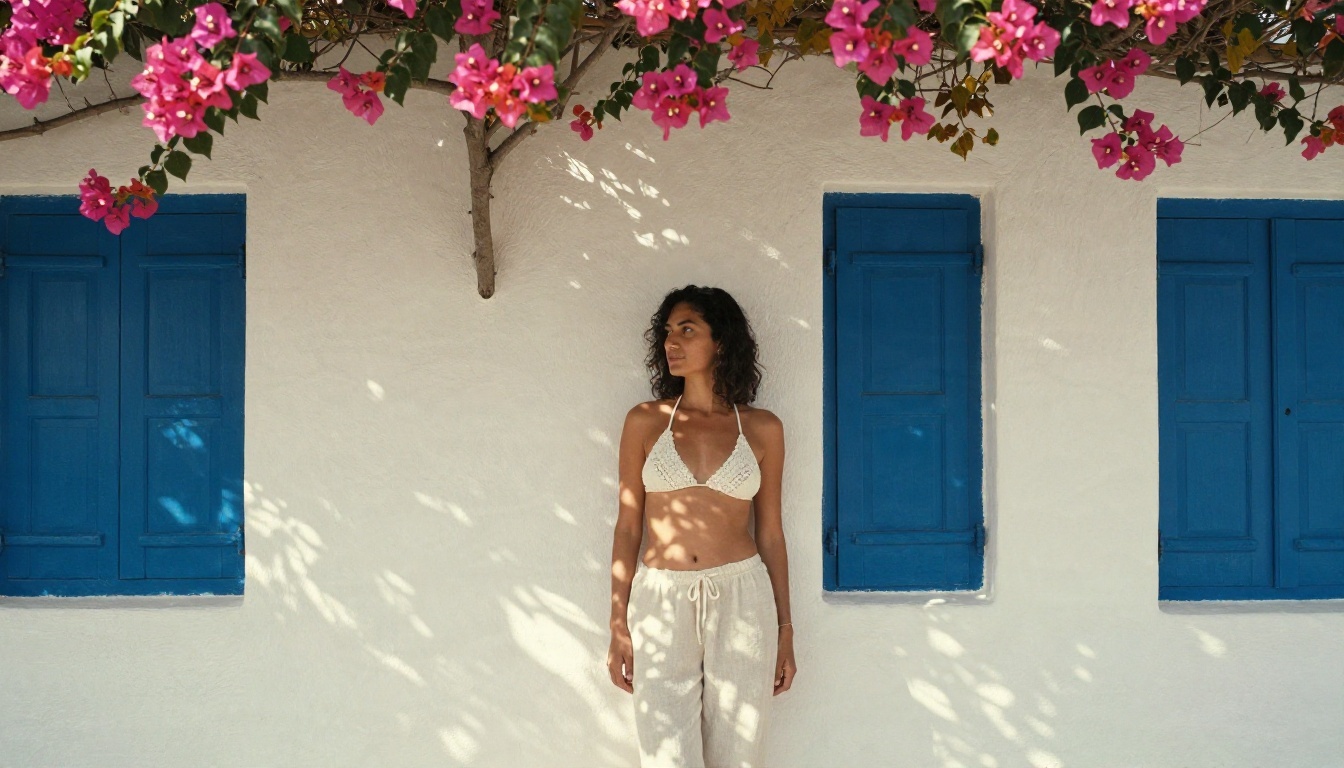
- "Replace the background with a whitewashed Mediterranean wall and blue shutters, dappled afternoon light."
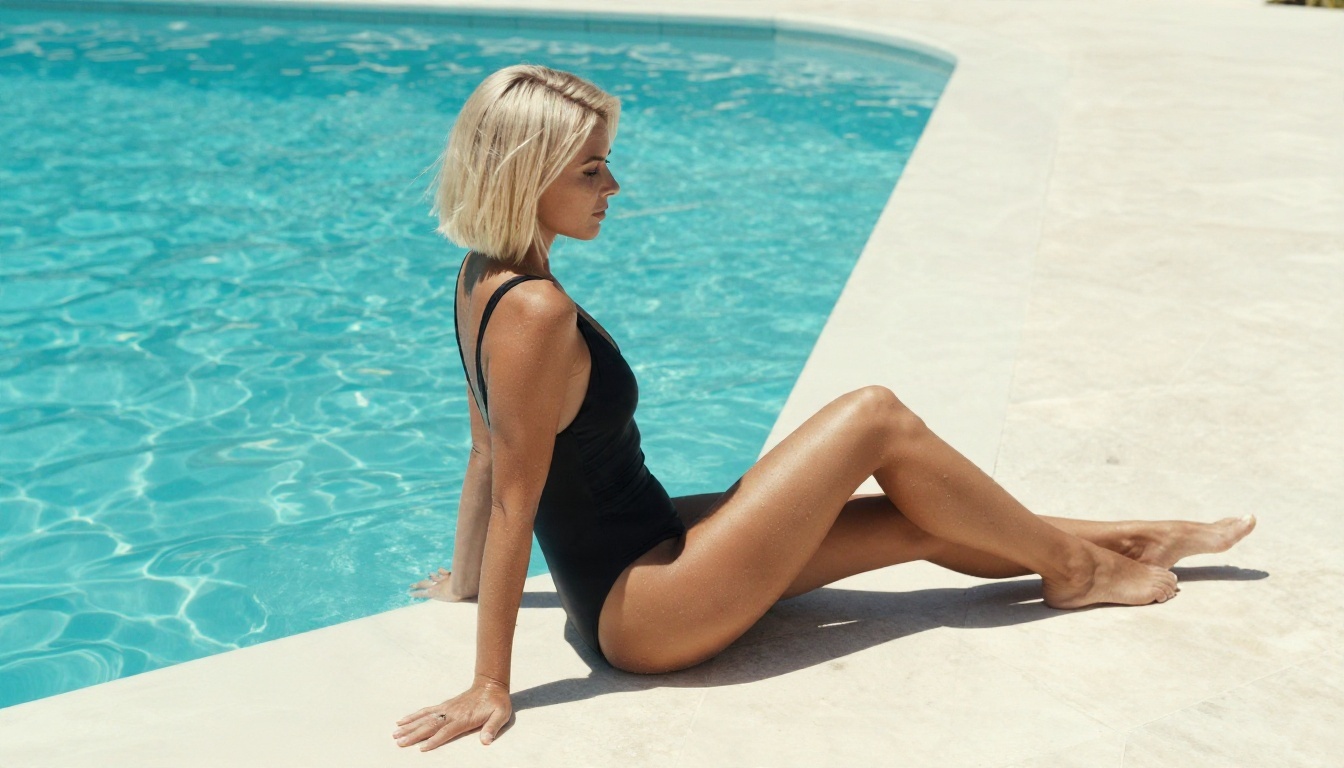
- "Change the swimsuit to a black one-piece, add water beads on the skin, hard midday sun."
- "Short platinum bob hairstyle, keep face shape and expression the same."
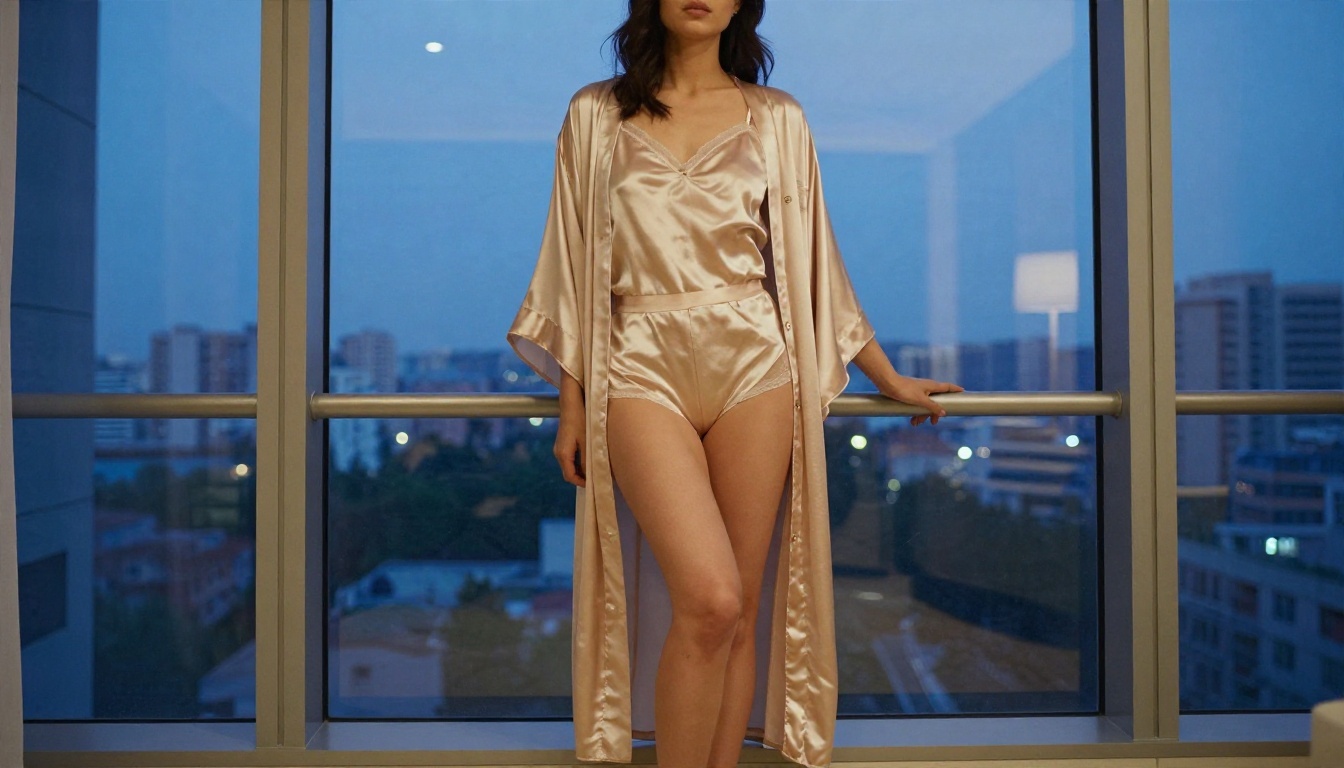
- "Dusk window scene, warm lamp glow behind, cool twilight on the glass, champagne silk robe."
- "Sharpen skin detail and hair edges, keep the color grade and composition unchanged."
Words that sabotage results
Certain habits turn good photos into artificial ones. Avoid piling on terms like "perfect skin," "flawless," "airbrushed" and "ultra smooth." They push the model toward a waxy, doll-like finish. Ask for texture instead: freckles, pores, peach fuzz, fabric weave, wet hair strands. Also skip contradictory instructions such as "dark moody room" and "bright sunny beach" in the same line.
Settings That Change Everything
Prompts get the attention, but settings often decide the outcome. Tools label them differently, so look for the closest equivalent to each item below.
Strength or similarity
This is the dial between "copy my photo" and "do whatever you want." Low values keep the original almost untouched. High values let the model reinvent the scene.
| Goal | Suggested range | Why |
|---|
| Light retouch, color grade | Low | Face and pose stay locked |
| Outfit swap | Medium | Clothes change, body and face hold |
| Location and light change | Medium to high | Background needs room to change |
| Full restyle | High | Only the rough composition survives |
If the model does not expose a numeric slider, the same control lives in your wording. "Keep everything identical except..." acts like a low setting. "Reimagine this as..." acts like a high one.
Aspect ratio and resolution
Match the output ratio to the input, or the model will crop and invent edges you did not ask for. A wide 16:9 frame suits beach and window scenes. Portrait ratios suit boudoir close-ups. Choose the highest resolution the tool allows for the final pass, and use a lower one for quick drafts so you can test ideas faster.
Seeds and batches
A seed is the starting number for the random noise. Lock it, and the same prompt gives similar results, which makes it easy to test one change at a time. Leave it random when you want variety. Generating a batch of four and picking the best is almost always faster than rewriting the prompt four times.
A Step by Step Workflow
Here is the exact order I use for a swimwear or boudoir edit.
Step 1: Pick a strong source photo
Resolution and lighting in the original matter more than anything you type. Use a sharp, well lit picture where the face is clear and nothing important is cropped. Soft, directional window light is ideal because it gives the model clean shadows to read.
Step 2: Write one change per pass
Resist the urge to change outfit, location, light and hair in one go. Each extra change adds risk. Edit the outfit first, check the result, then change the light, then the setting.
Step 3: Run it in Seedream 4.5
Open Seedream 4.5, upload your reference image, paste the five-part prompt, and set a medium strength. Generate a small batch. Look at hands, hairlines, jewelry and the edges of fabric first. Those are where errors hide.
Step 4: Refine in Image Editor Pro
Take the strongest result into PicassoIA Image Editor Pro. Because generations are unlimited, run short, specific passes: "soften the background," "warm the skin tones slightly," "remove the stray hair across the eye." Small instructions give the cleanest outcomes.
Step 5: Finish and compare
Put the original and the final side by side. If the face looks like a different person, go back one step and lower the strength. If the picture looks too smooth, add "visible skin texture, subtle film grain" and run it again.
Common Mistakes and Quick Fixes
| Problem | Likely cause | Fix |
|---|
| Face looks different | Strength too high | Lower it, add "keep her face identical" |
| Plastic, waxy skin | Words like "flawless" in the prompt | Ask for pores, freckles, peach fuzz |
| Warped hands | Busy pose, low resolution | Use a simpler pose or crop hands out |
| Wrong lighting direction | Prompt never named it | State "light from camera left" |
| Fabric looks painted on | Vague outfit description | Name the material: silk, lace, satin, crochet |
| Output ignores the photo | Prompt describes a new scene | Start with a "keep" statement |
| Random extra jewelry or text | Noisy background in source | Crop or clean the source first |
Lighting words that help
Specific lighting terms have a huge payoff. "Volumetric morning light from the left," "tungsten lamp warmth," "dappled afternoon light through leaves," and "hard midday sun with crisp shadows" each produce a distinct, believable look. Vague words like "nice lighting" give the model nothing to work with.
Fabric and skin words that help
For fabrics, name the material and its behavior: "silk with a soft sheen," "lace with delicate edging," "wet hair strands," "sand clinging to the ankles." For skin, ask for "natural pores," "freckles across the nose," "light sheen from water droplets." Realism comes from imperfection.
Rules for Adult Content
Adult image editing comes with a few firm rules that protect you and everyone else.
- Adults only. Every person in an input or output image must be a clearly identifiable adult. Never edit pictures of minors or people who look like minors.
- Consent matters. Use your own photos or photos of people who have agreed to be edited. Do not restyle someone's picture without their permission, and do not create images that imitate a real person to embarrass or mislead.
- Stay non-explicit. Glamour, boudoir, swimwear and lingerie editorial are the target here. Keep it tasteful and suggestive, not pornographic.
- Check platform rules. Where you post the final images, social networks, portfolios or stores, each has its own limits on adult material.
Privacy and storage
Treat source photos like private files. Keep originals offline when you can, and avoid uploading pictures that include identifiable backgrounds such as a street sign, a house number or a work badge.
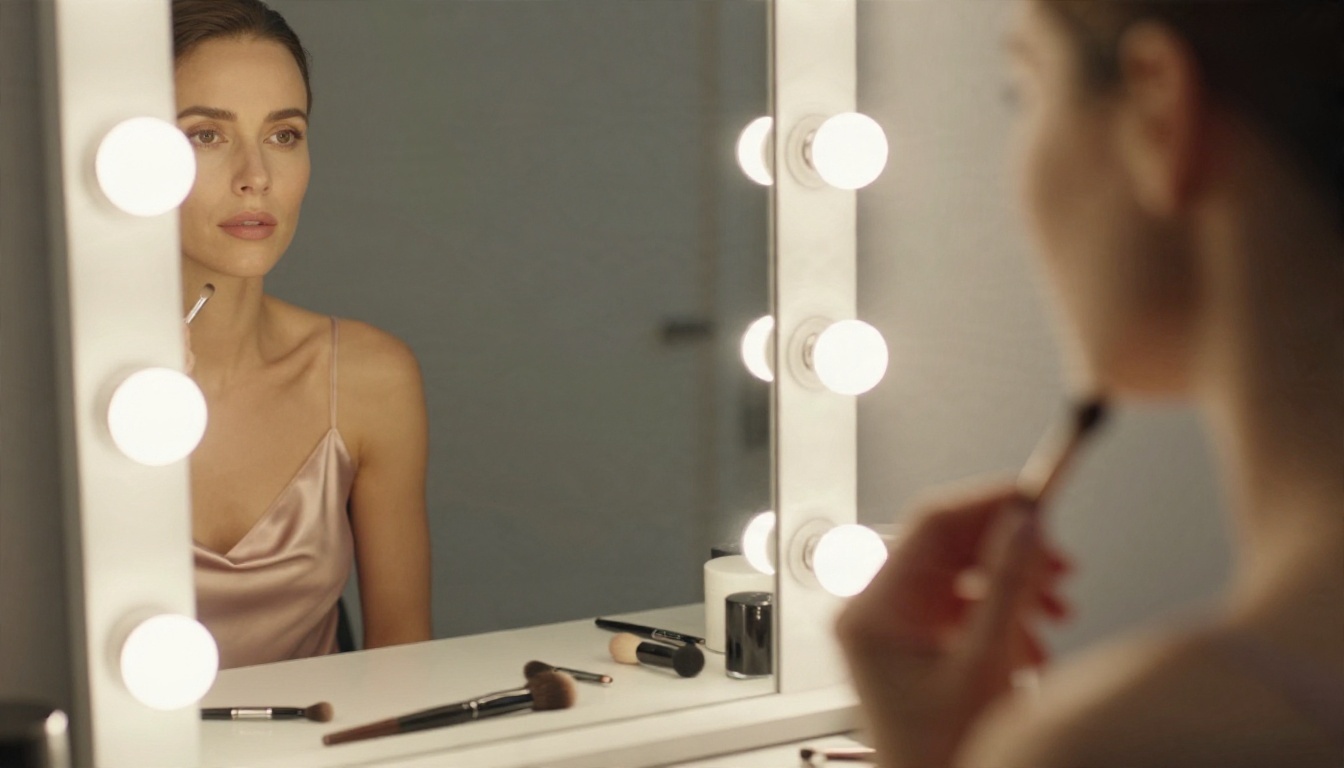
Try Your Own Edits Today
You do not need a studio or a retouching course to get polished adult glamour images. You need one good reference photo, a five-part prompt, a sensible strength setting, and a tool that lets you run as many passes as the image needs.
Open Seedream 4.5 for your first big edit, then move into PicassoIA Image Editor Pro for unlimited refinements at speed. If you want a different flavor, test Flux 2 Klein 9B Base LoRA, Qwen Image Edit Plus, Flux Kontext Fast or Qwen Image 3 Pro with the same prompt and compare.
Pick one photo you already like, change one thing, and see what comes back. Then change the next thing. Every model on the platform is waiting at picassoia.com/en/all-models, so try your own image to image 18 edit with Picasso IA today and keep the version you like best.


