You upload a photo, type a short instruction, and a few seconds later the same person is standing on a beach in a different outfit, lit by golden hour sun. That is the promise of an image to image NSFW generator, and in 2027 it works well enough that the real question is no longer "can it do it?" but "which tool should I trust with my time and money?"
The market is noisy. Some sites hide the price until you sign up, some throttle you after three tries, and a few advertise an API that turns out to be a contact form. This article sorts that out. You will see how image to image actually works, which online tools are worth opening, what pricing models look like in practice, and what to check before you wire anything into an app. Everything here stays on the non-explicit side: glamour, swimwear, boudoir, fashion. Beautiful, suggestive, never pornographic.
💡 Quick answer: For fast, realistic glamour edits, start with Seedream 4.5, then move to PicassoIA Image Editor Pro when you want unlimited generations.
What Image to Image Really Means
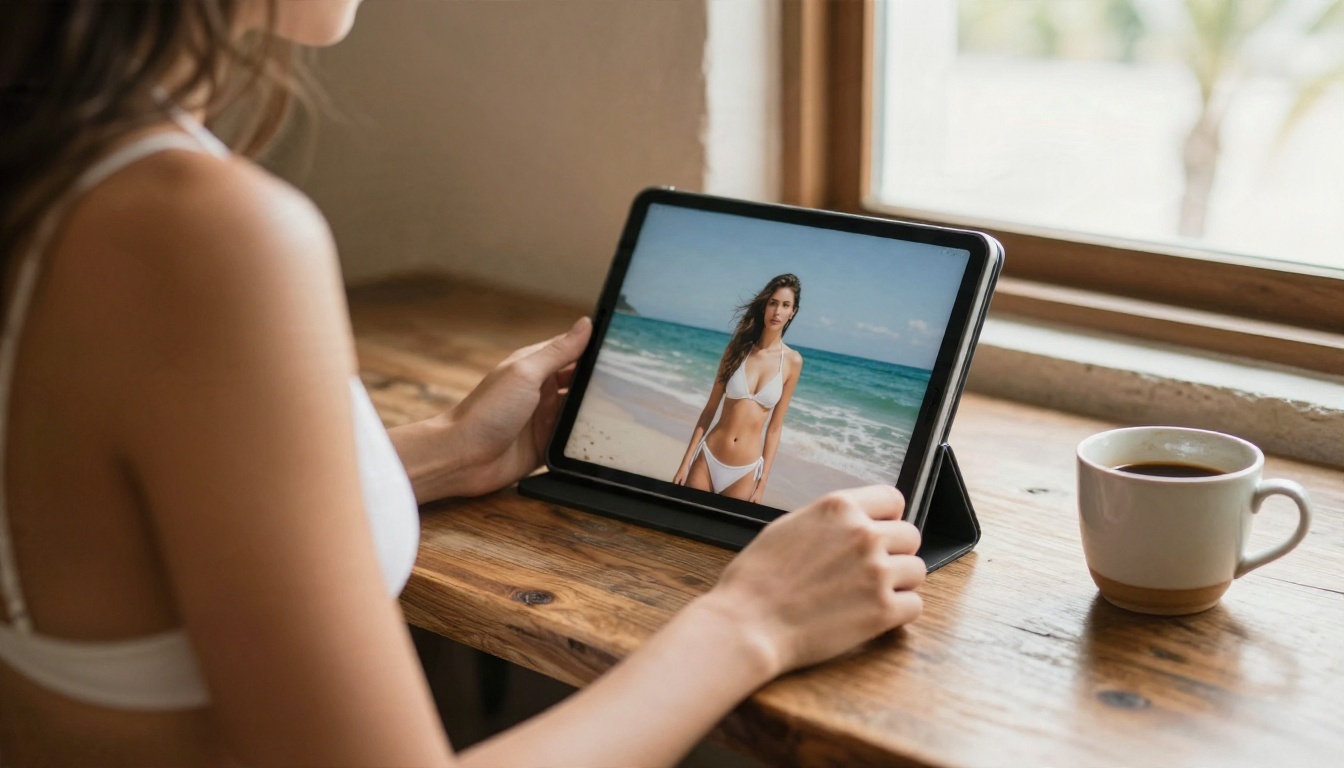
Text to image starts from nothing. You describe a scene and the model invents everything: the face, the pose, the room. Image to image starts from a photo you already have. The model keeps the parts you want (identity, pose, composition) and rewrites the parts you ask it to change (clothes, setting, lighting, mood).
How the Process Works
Under the hood, the model reads your source image, turns it into a compact internal description, and then generates a new picture guided by both that description and your text prompt. Most tools expose one setting that matters more than any other: how closely to follow the original. Low values give you a loose reinterpretation. High values give you a faithful edit with small changes.
Newer editing models skip that slider entirely. You write an instruction such as "change the dress to a red two-piece swimsuit, keep the face and pose" and the model decides how much to preserve. This instruction style is faster to use and usually more predictable.
Where Text to Image Falls Short
Text to image is great for fresh ideas, but it struggles with consistency. If you want the same woman, the same hairstyle, the same freckles across ten different outfits, you will fight the dice every time. Image to image solves that. One good source photo becomes the anchor, and every edit stays recognisably the same person.
| Task | Text to Image | Image to Image |
|---|
| Brand new concept | Excellent | Limited |
| Same face across many looks | Unreliable | Strong |
| Outfit or swimwear swap | Needs a full re-roll | One instruction |
| Background and lighting change | Re-roll again | Precise |
| Speed to a usable result | Several attempts | Often one or two |
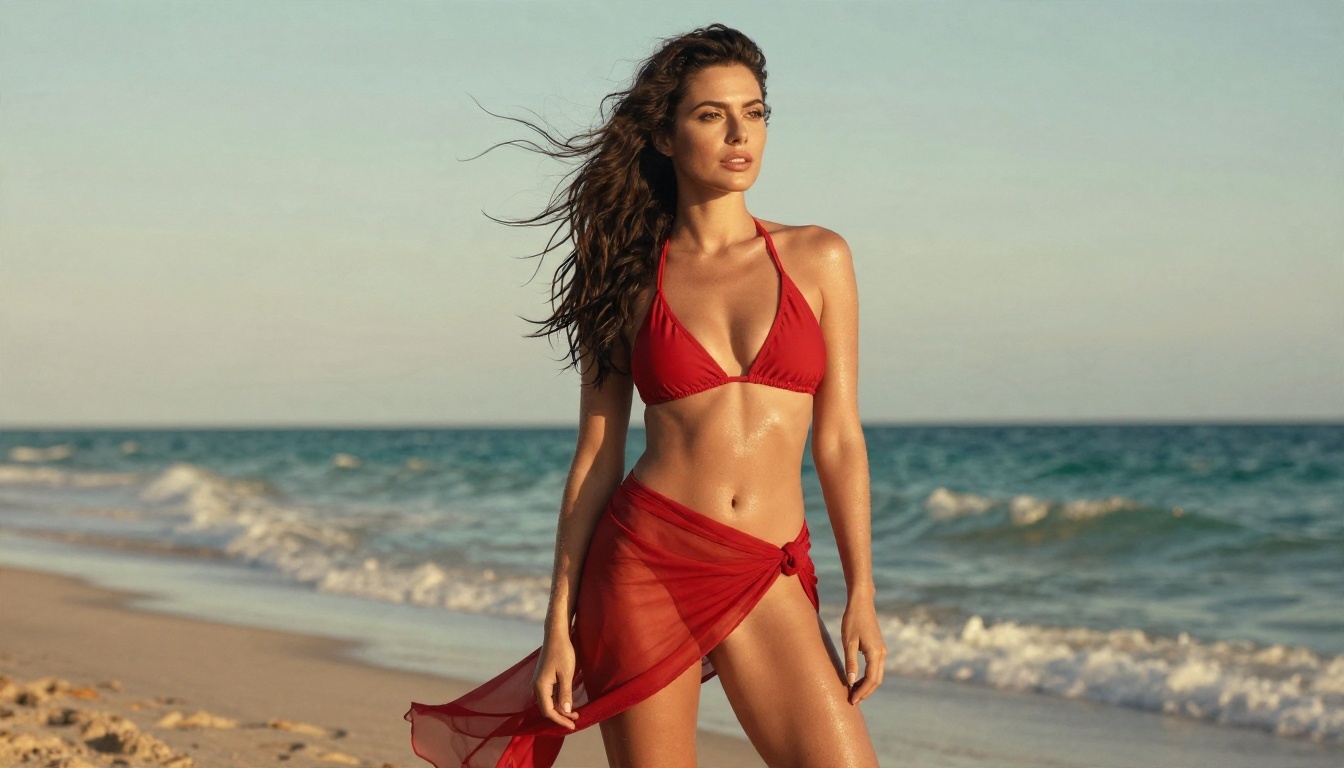
Search for this topic and you will find dozens of near identical sites. Many are thin wrappers around the same open models with a watermark and a paywall. Before comparing names, decide what actually separates a useful tool from a disappointing one.
What Separates Good From Bad
Five things decide the experience:
- Realism of skin and fabric. Look for pores, fabric folds, believable shadows. Plastic skin is a red flag.
- Identity preservation. The edited face should still look like the source.
- Speed. If every edit takes two minutes, you will stop experimenting.
- Limits. Daily caps, watermarks and queue times matter more than the headline price.
- Content policy clarity. A tool that blocks swimwear or glamour portraits randomly wastes your credits.
Seedream 4.5 Comes First
Seedream 4.5 is the model to open first. It produces sharp, photographic output up to 4K, handles skin texture and fabric detail well, and accepts reference images so you can steer an edit instead of gambling on a fresh generation. It also responds quickly, which matters when you are iterating on outfits, poses and lighting.
For glamour and swimwear work, it is the most reliable starting point because it keeps faces stable and renders light the way a real camera would. If you want a cheaper experiment first, Seedream 4 is the earlier generation and still delivers strong realism.
PicassoIA Image Editor Pro
PicassoIA Image Editor Pro is where heavy experimenters end up. Its main selling point is unlimited generations, which changes how you work. Instead of rationing credits and writing one perfect prompt, you can run ten variations, compare them, and keep the best. For image to image this is a big deal, because the first edit is rarely the final one.
Use it for batch looks: same source photo, five outfits, three backgrounds, two lighting moods. The unlimited approach also takes the pressure off pricing, which brings us to the next section.
Other Editors Worth a Look
Beyond the first two, these models handle edits well and each has its own strength:
The full catalogue is on picassoia.com/en/all-models, and it is worth a scroll because new editing models appear regularly.
The Real Cost of Pricing
Pricing pages for adult friendly image tools are designed to confuse. A "free" plan with a watermark and a 15 credit daily cap is not free in any useful sense. Here is how the common models break down.
Subscriptions Versus Credits
Reviews published in 2026 describe a wide spread. Entry level plans on popular generators sit in the single digit to low double digit dollars per month, mid tier plans reach roughly $25 per month, and top tiers on some NSFW focused services climb to around $150 per month. Treat those figures as snapshots, since providers change plans often and many review sites earn affiliate commissions.
Credit systems add another layer. A credit might buy one standard image, or a quarter of a high resolution edit, or nothing at all if the generation fails. Always check how many credits a single image to image edit costs at your target resolution.
| Pricing Model | Typical Range | Watch Out For |
|---|
| Free tier | $0 | Watermarks, daily caps, slow queues |
| Low monthly plan | About $4 to $10 | Credit limits that run out in days |
| Mid monthly plan | About $25 | Features locked behind higher tiers |
| Premium plan | Up to about $150 | Paying for volume you may not use |
| Pay per image API | Fractions of a cent to a few cents | Costs rise fast at scale |
Hidden Limits That Cost You More
Three limits catch people off guard:
- Resolution gating. The cheap plan caps output at 1024 pixels, and 4K needs an upgrade.
- Queue priority. Free users wait while paying users skip the line.
- Re-roll cost. If a bad edit eats the same credit as a good one, your real price per usable image is two or three times the listed price.
💡 Tip: Divide the monthly price by the number of images you actually keep, not the number you generate. That is your true cost per image.
That is why unlimited tools like PicassoIA Image Editor Pro change the maths. When every re-roll is free, the cost of a bad edit drops to zero.
API Access for Developers
If you are building an app, a content pipeline or a batch processing script, you need an API. This is where marketing and reality drift furthest apart. Several consumer NSFW sites state plainly that they offer no public API or developer documentation, and access means emailing support. Others expose an API only for their general models, not the adult friendly ones.
What to Check Before You Build
Run through this list before writing a line of integration code:
- Does the API accept an input image? Many only expose text to image.
- Which content policy applies through the API? It can differ from the website.
- Are there rate limits? Requests per minute decide your throughput.
- How are failures billed? A rejected or failed job should not cost you.
- Is output stored or logged? Check retention terms before sending personal photos.
How Per Image Pricing Adds Up
API providers often quote very low per image prices, in some cases a fraction of a cent for basic models. That sounds cheap until you multiply. A project generating 50,000 edits a month at three cents each lands at $1,500. Run your own estimate with your real volume, your target resolution and a retry rate of at least 20 percent.
For testing, prototype in a web interface first. Settle on the model, prompt and settings that work, then price the API route once you know exactly what a good result requires.
How to Run It on PicassoIA
Here is a practical workflow using Seedream 4.5 and PicassoIA Image Editor Pro.
Step by Step
- Pick a strong source photo. Sharp focus, even lighting, a clear face and a pose you like. Avoid heavy filters.
- Open Seedream 4.5 and upload the photo as the reference image.
- Write one clear instruction. Example: "Same woman, same pose, red two-piece swimsuit and sheer sarong, golden hour beach, 35mm photograph, natural skin texture."
- Generate and compare. Check the face first, then hands, then fabric edges.
- Switch to Image Editor Pro for volume. Run a series of variations on the best result without worrying about credits.
- Finish with detail. If a result is close but soft, upscale it with a super resolution model before saving.
Parameter Tips
- Describe lighting explicitly: "soft window light from the left" beats "nice lighting."
- Name a lens and film feel: "85mm f/1.8, Kodak Portra 400" nudges the model toward photographic realism.
- Keep the change list short. Two or three changes per edit, not ten.
- Keep a fixed seed when the tool offers one, so you can compare variations fairly.
Prompts That Work
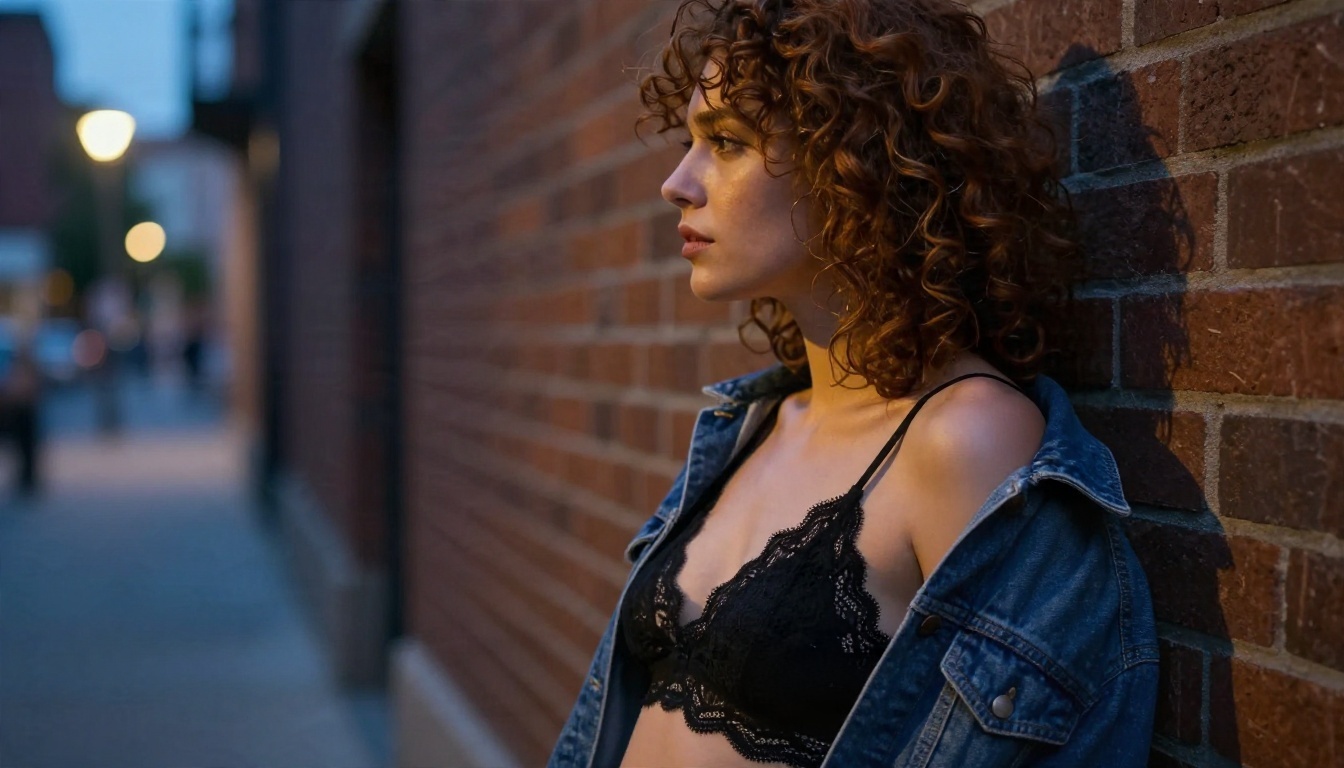
Good prompts are boring in the best way. They read like a note to a photographer.
The Edit Prompt Formula
Use this order: what to keep, what to change, where, how it is lit, how it is shot.
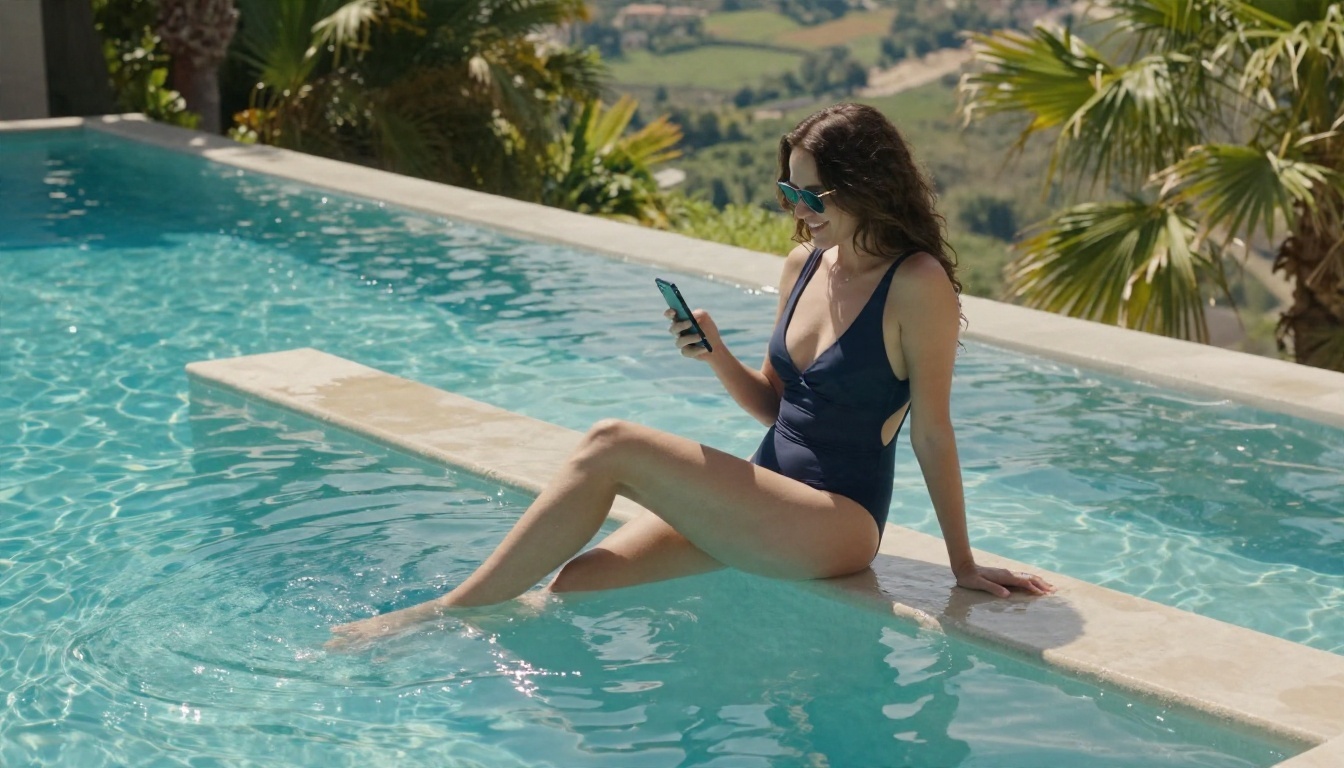
"Keep the face, hairstyle and pose. Change the outfit to a navy one-piece swimsuit. Setting: infinity pool at a hillside villa, midday sun. Photographed on a 24mm lens, light film grain."
Notice what is missing: adjectives like "stunning," "perfect," "ultra detailed masterpiece." They add noise and rarely help.
Common Mistakes
- Asking for too much at once. Outfit, background, pose, age and hairstyle in one prompt confuses the model. Split it into two passes.
- Using a blurry source. Garbage in, garbage out. The model cannot invent a sharp face from a muddy one.
- Ignoring hands and edges. Check fingers, straps and hairlines before you call an image finished.
- Over-correcting. If the first result is 80 percent right, refine it. Do not start over.
- Skipping the lighting description. Flat, generic light is the number one reason edits look fake.
A Few Reliable Styles
Glamour work stays safe and attractive with these themes:
- Beach and poolside swimwear at golden hour
- Silk robes and satin slips in soft morning window light
- Lace trimmed bodysuits and bralettes in warm evening interiors
- Studio fashion shots with a seamless backdrop and softbox light
Safety, Consent, and Ground Rules
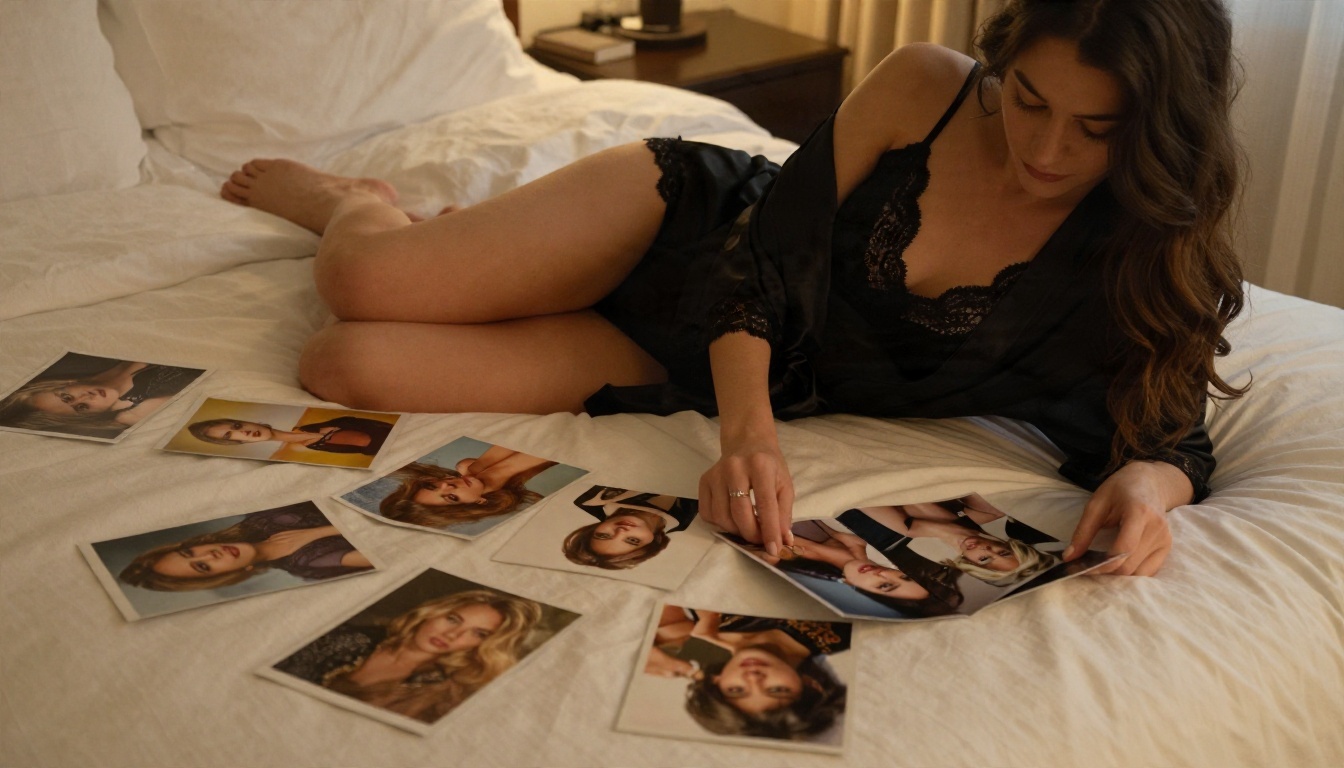
Image to image carries a responsibility that text to image does not. You are editing a photo of a real person, and that changes the rules.
Use Your Own Photos or Fictional Subjects
Only upload photos of yourself, of adults who have clearly agreed, or of fictional subjects. Never edit images of someone without their consent, and never use photos of minors in any context. Many jurisdictions now treat non-consensual synthetic imagery as a legal offence, and platforms ban accounts for it.
Keep Results Non-Explicit
Staying with swimwear, lingerie style fashion and implied glamour keeps your work publishable almost anywhere, and it keeps your account in good standing. The best results in this category are the ones that look like a magazine editorial, not the ones that push every boundary.
Protect Your Data
Check how a service stores uploaded photos and generated outputs. If retention terms are vague, treat that as a warning. A tool that is clear about deletion and training policies earns more trust than one with the cheapest plan.
Start Creating Your Own Images
You now have the full picture of the image to image NSFW generator landscape: what the technology does, which tools deliver realistic results, how pricing really behaves, and what API access involves.
The fastest way to form your own opinion is to run an edit. Pick one sharp photo, open Seedream 4.5, and ask for a single change: a new outfit, a new beach, a different light. Then take the same photo into PicassoIA Image Editor Pro and run ten variations back to back, with no credit counter in the corner.
If you want to try other options, Qwen Image Edit Plus and Flux Kontext Fast are good for quick instruction based edits, and you can browse every available model at picassoia.com/en/all-models. Open PicassoIA, upload your first reference photo, and see what one clear sentence can do.


