You have one great photo and you want it to move. A breeze through the hair, waves rolling toward the shore, a slow push toward the subject's face. That is exactly what Hunyuan image to video promises: you hand the model a still frame, add a short text prompt, and it returns a clip that starts from your picture. The catch is that the model has hard limits on length, resolution and hardware, and most people only find them after wasting an evening on a failed install.
This article lays out what the model really does, how long your clips can be, which settings matter, and which prompts give clean motion instead of melting faces. It also covers the "free online" question honestly, because the answer is not as simple as a single website.
💡 Quick answer: Tencent's image to video model for Hunyuan outputs up to 720p and up to 129 frames, which is roughly 5 seconds. The default recipe uses 50 inference steps. Running it locally needs a very large GPU, so most people use a hosted tool instead.
What Hunyuan Image to Video Does
Hunyuan is the video model family from Tencent. The original text to video release was followed by an image to video version, usually written as HunyuanVideo-I2V. Instead of inventing a scene from words alone, the I2V model takes your picture as the first frame and predicts what happens next.
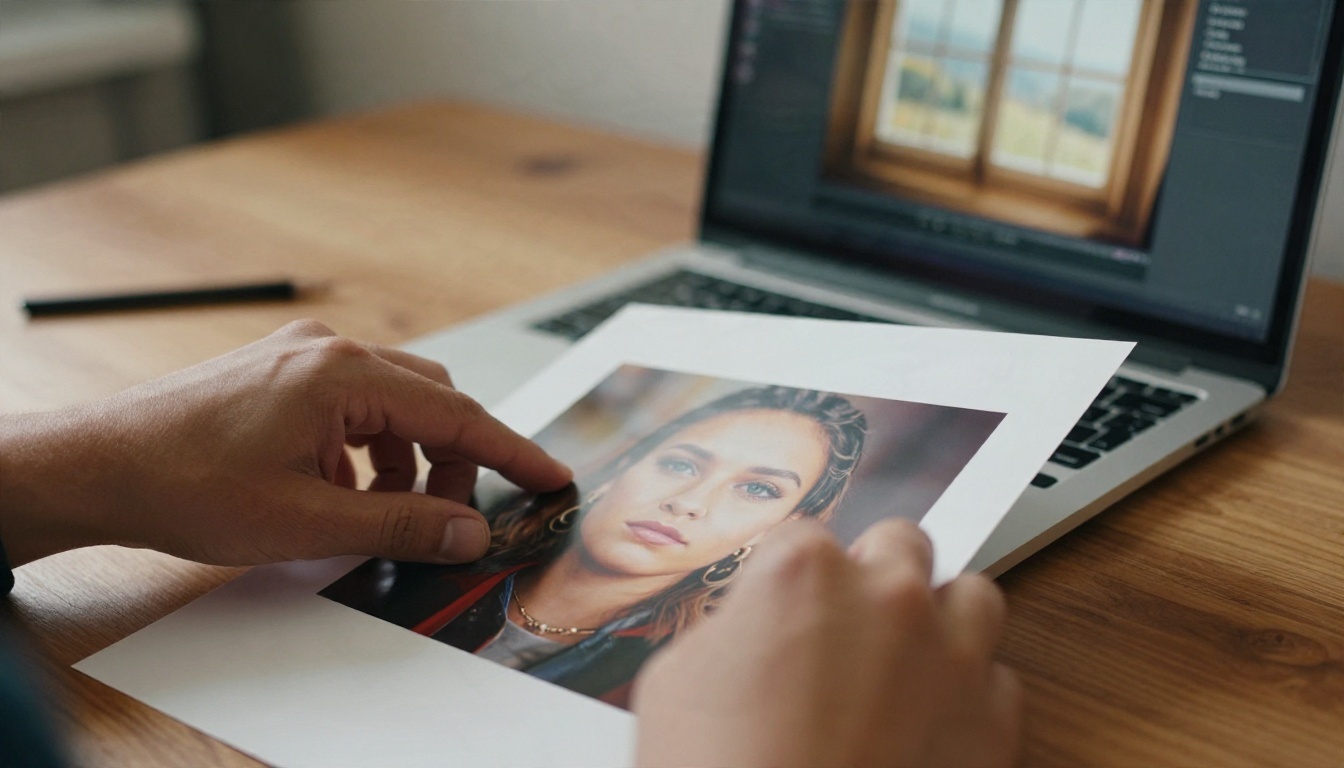
How the model reads your photo
The model treats your image as the anchor. Subject, colours, lighting and composition come from the photo. The prompt only describes motion: what moves, how fast, and what the camera does. That is why a short prompt often beats a long one. If you re-describe things already visible in the picture, the model has more chances to drift away from your original.
Three things carry over from the photo almost every time:
- Identity: faces, clothing and objects stay close to the source in the first second.
- Lighting direction: a window from the left stays a window from the left.
- Framing: the opening composition matches your image.
What does not carry over reliably is the last second of the clip. Faces can soften and hands can warp as the motion builds, which is why shorter, calmer motion usually looks better.
Where the model stands today
The image to video model has open weights from Tencent, so anyone with enough hardware can run it. A newer HunyuanVideo 1.5 family also exists, with its own image to video variant and different resolution presets. Treat those as separate models with separate limits. The numbers in this article refer to the original HunyuanVideo-I2V release.
💡 Availability note: HunyuanVideo-I2V is not on PicassoIA. Further down you will find a section on getting similar results with image to video models that are on the platform.
Can You Use It Free Online?
Short answer: the weights are free, the compute is not. "Free online" usually means one of three things.
Run it yourself
Because the model is open, you can download it and run it on your own machine. The official setup lists a GPU peak memory of about 60 GB for 720p generation at batch size one. That puts it beyond a typical gaming card. Community builds that shrink memory use exist, but they trade speed or quality for it, and setup involves Python environments, model files and command line flags.

Hosted services
Several hosting platforms offer the model through an API or a web form. They usually give a handful of free credits, then charge per clip. Defaults tend to mirror the official numbers: 129 frames and 720p. Prices and free allowances change often, so check the current numbers before you plan a batch of clips.
What PicassoIA offers instead
PicassoIA has a model called Hunyuan Video. Be careful here: that is the text to video model. It does not take an input image, so it is not the I2V model this article is about. It is still useful if you want to see how the Hunyuan family handles motion from a prompt alone.
| Option | Needs a GPU | Image input | Setup time |
|---|
| Local HunyuanVideo-I2V | Yes, about 60 GB peak | Yes | Hours |
| Hosted I2V API | No | Yes | Minutes, per-clip cost |
| Hunyuan Video on PicassoIA | No | No (text only) | Seconds |
| Image to video models on PicassoIA | No | Yes | Seconds |
Length and Resolution Limits
This is the part most tutorials skip, so here are the numbers plainly.
129 frames, about 5 seconds
The official release generates up to 129 frames. Frame counts for this model family follow the 4k+1 rule, so valid values include 49, 81, 97 and 129. At about 24 frames per second, 129 frames gives you close to 5 seconds. Some hosts report 25 fps, which changes the runtime by a fraction of a second. Either way, plan around 5 seconds as the ceiling.
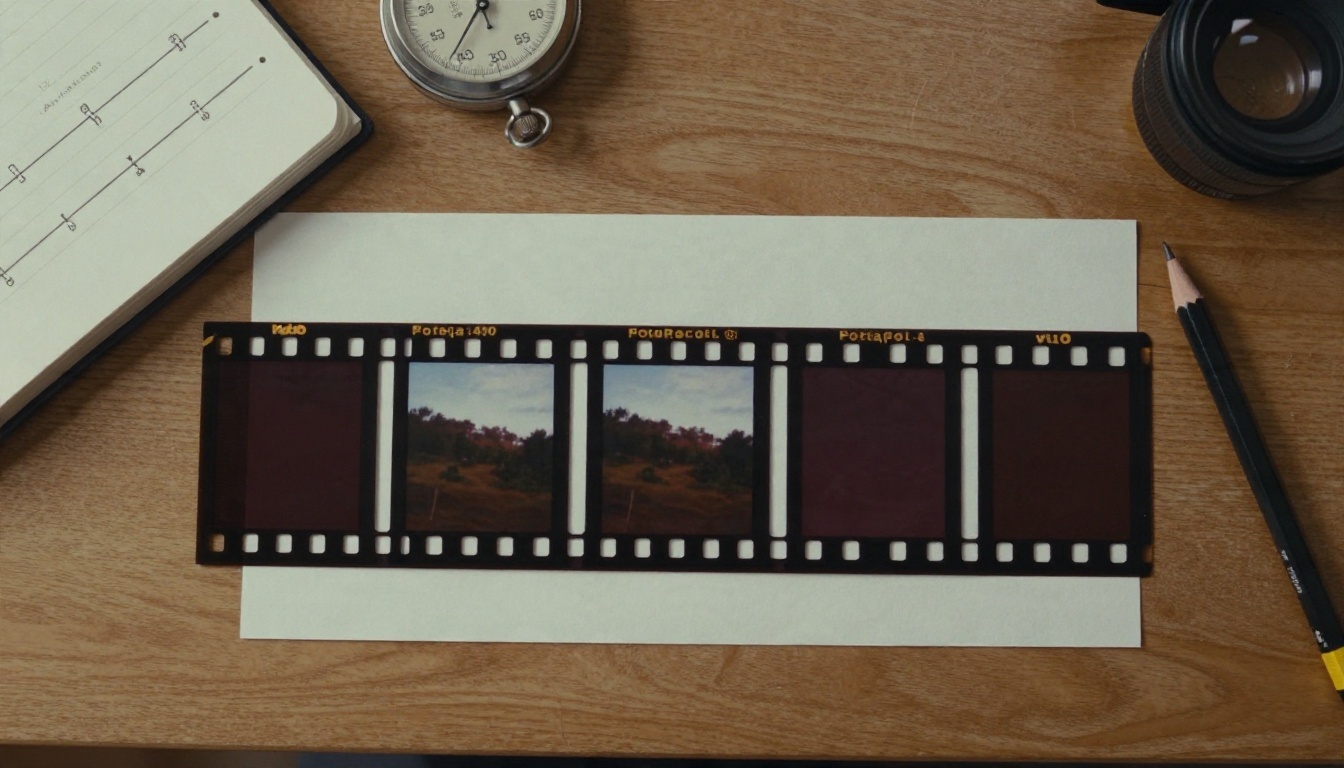
Want a longer scene? Generate several 5 second clips and cut them together. Take the last frame of clip one as the source image for clip two. The seams will show if the lighting shifts, so keep the camera move simple.
720p ceiling and hardware
The official maximum is 720p. Asking for more does not add real detail. If you need sharper output, generate at 720p and run the result through an upscaler afterwards. PicassoIA lists super resolution and video enhancement tools for exactly that step.
| Limit | Official value |
|---|
| Max resolution | 720p |
| Max frames | 129 |
| Approx. duration | 5 seconds |
| Default inference steps | 50 |
| GPU peak memory at 720p | About 60 GB |
| Frame rate | About 24 to 25 fps depending on host |
💡 Rule of thumb: each extra frame costs time and memory. A 49 frame draft finishes in well under half the time of a 129 frame render, so test composition short, then render long.
Settings That Change the Result
Whether you use a local setup or a host that exposes the options, these controls do most of the work.
Inference steps
The default is 50. Dropping to 25 or 30 gives a faster draft with softer detail and sometimes more flicker. Going above 50 rarely pays off. Use low steps while you test prompts, then re-render the winner at 50.
Video length
Fewer frames mean less time for the motion to wander. For portraits, 49 to 81 frames often looks cleaner than the full 129. For landscapes, clouds and water, the full length is usually fine because errors are harder to spot.
Seed and guidance
Keep the seed fixed while you change one thing at a time. If you change the prompt and the seed together, you cannot tell which one caused the difference. The embedded guidance value controls how tightly the output follows your prompt. The text to video Hunyuan model on PicassoIA uses a default of 6, which is a sensible starting point for I2V as well.
| Setting | Draft value | Final value |
|---|
| Steps | 25 to 30 | 50 |
| Frames | 49 | 97 or 129 |
| Resolution | 480p | 720p |
| Seed | Fixed | Fixed |
| Guidance | 6 | 5 to 7 |
Prompts That Work
Because the picture already holds the scene, your prompt should read like a director's note, not a description.

The prompt formula
Use this order: subject action, then camera move, then atmosphere.
The woman turns her head slowly toward the window and smiles, slow dolly in, soft morning light, a light breeze moves her hair.
Keep it to one or two sentences. One clear action per clip gives the best odds.
Prompts to copy
- Portrait: She blinks, lifts her chin slightly and looks into the lens, very slow push in, soft window light.
- Landscape: Waves roll gently toward the shore, mist drifts across the cliffs, locked camera, golden hour.
- Street: A cyclist passes through the frame from left to right, pedestrians walk in the background, handheld feel.
- Product: Steam rises from the coffee cup, camera orbits a few degrees to the right, warm side light.
- Craft: Hands shape the wet clay, the wheel spins steadily, shallow focus, quiet workshop.
- Nature: Fog slides between the pine trunks, leaves tremble, slow tilt upward.
3 common mistakes
- Stacking actions. "She walks, dances, waves and spins" gives mush. Pick one motion.
- Repeating the photo. If the prompt describes the outfit and the room again, you waste words and invite drift.
- Starting from a weak image. Blurry, heavily cropped or low contrast photos produce blurry video. Start with a sharp source with clear subject separation.
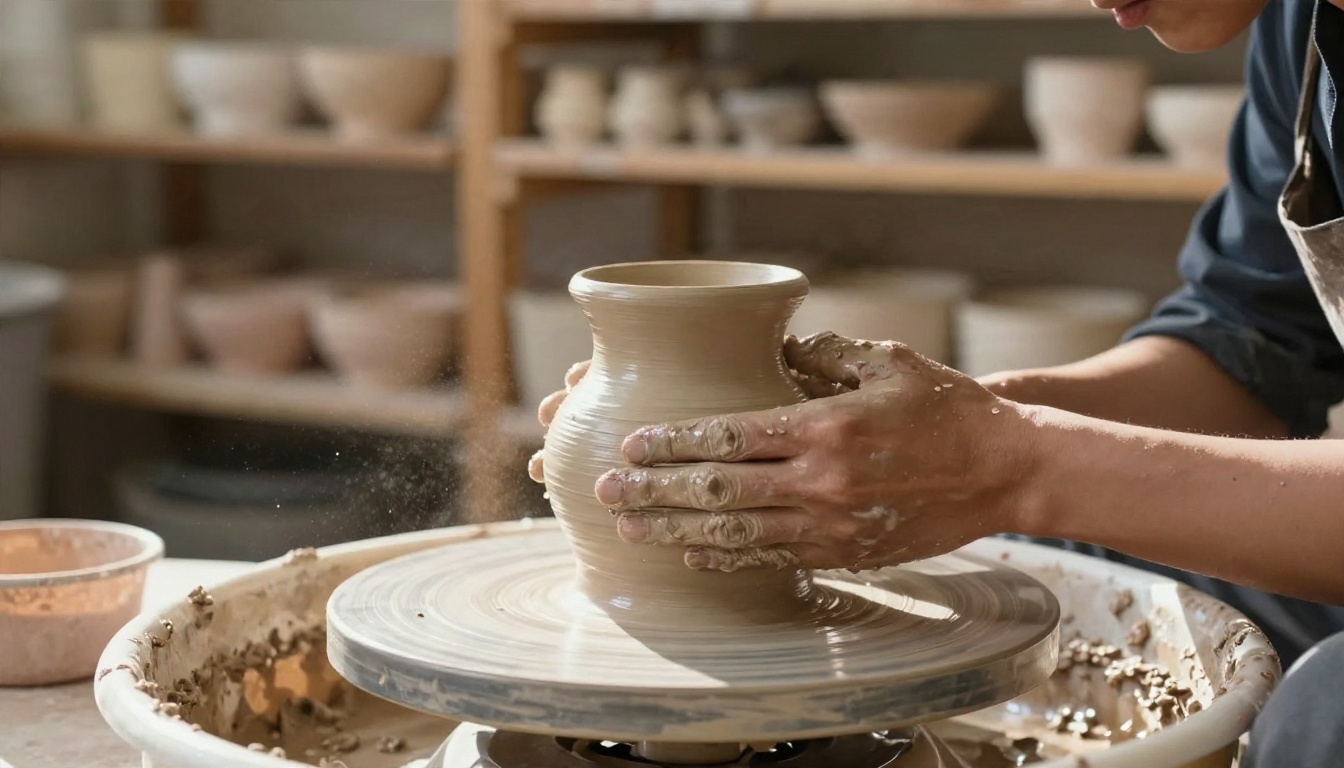
💡 Best source images: subjects with natural, small motion such as hands working, fabric, hair, water, steam and fog. Fast sports action and crowded scenes with many faces are the hardest.
How to Get Similar Results on PicassoIA
Since HunyuanVideo-I2V is not on PicassoIA, the closest match for the same job is Wan 2.5 I2V. It also animates a single photo from a prompt, and you can run it in the browser with no hardware at all.

Step by step
- Open the Wan 2.5 I2V page on PicassoIA.
- Upload your source image in the image field. Pick a sharp photo with a clear subject.
- Write a short motion prompt using the formula above: action, camera move, atmosphere.
- Choose a duration of 5 or 10 seconds.
- Choose a resolution of 480p, 720p or 1080p.
- Optionally add a negative prompt such as "distorted face, flicker, extra fingers".
- Run the generation and review the clip. If the motion is wrong, change only the prompt and keep the seed.
Parameter tips
- Start at 720p, 5 seconds. It matches the Hunyuan limits, so your prompts carry over.
- Use the 10 second option only for calm scenes like water, clouds and fog.
- Leave prompt expansion on for the first test, then turn it off if the model adds motion you did not ask for.
- Set a seed once you like a result, so small prompt edits stay comparable.
- Add audio if you want sound synced to the clip. The model accepts a WAV or MP3 between 3 and 30 seconds.
| Hunyuan I2V setting | Closest control in Wan 2.5 I2V |
|---|
| Resolution up to 720p | Resolution: 480p, 720p, 1080p |
| 129 frames (about 5 s) | Duration: 5 or 10 seconds |
| Prompt | Prompt, plus prompt expansion |
| Seed | Seed |
| Negative guidance | Negative prompt |
Alternatives Worth Trying
HunyuanVideo-I2V is not on PicassoIA yet. For similar results today, these image to video options are, and each handles a slightly different job.
Wan 2.7 I2V
Wan 2.7 I2V is the newer Wan image to video model. Choose it when you want the latest motion quality from the same family and workflow as Wan 2.5.
Seedance 2.5 Lite
Seedance 2.5 Lite accepts an input image as the opening frame, runs at 480p and 720p, and makes clips up to 10 seconds. Elite and Infinite members can generate without a per-clip cost, which makes it the best pick for testing many prompts. It also takes an optional last frame, so you can control where the clip ends.
Kling v3 Video
Kling v3 Video lets you pin a start image and an end image, supports multi-shot scripting and renders up to 1080p in pro mode with optional native audio. It suits polished, client-facing shots where the camera move matters.
| Model | Image input | Max length | Max resolution | Best for |
|---|
| Wan 2.5 I2V | Yes | 10 s | 1080p | Everyday photo animation |
| Wan 2.7 I2V | Yes | See model page | See model page | Newest Wan motion |
| Seedance 2.5 Lite | Yes | 10 s | 720p | High-volume testing |
| Kling v3 Video | Yes, start and end | Up to 15 s | 1080p | Polished multi-shot clips |
Make Your Own Clips Today
The honest picture of Hunyuan image to video is simple: 5 seconds, 720p, a lot of GPU memory, and prompts that describe motion only. If you have the hardware and patience, the open weights are a rewarding project. If you just want your photo to move, you can get there in minutes with a browser.
Pick a sharp photo, write one clear action, and run it through Wan 2.5 I2V or Seedance 2.5 Lite. Try the same image with three different prompts, change only one variable each time, and keep the seed fixed. Within a few runs you will know which motions your photo handles best.
Ready to try? Open PicassoIA, upload a photo and see what 5 seconds of motion does to it. You can browse every available video model at picassoia.com/en/all-models.


