You typed "Imagine to video porn" into a search bar because you want a still picture to move, and you want a tool that will not slam the door the moment the content turns adult. Fair enough. The problem is that most of the pages you landed on are either outdated, behind a paywall, or pushing a sketchy app. This article sorts out what Grok Imagine actually does with suggestive content, what "free" means in 2027, which prompts give smooth motion, and which uncensored alternatives you can use today. Everything here is written for adults, about adult subjects, and stays at the level of glamour and suggestion rather than explicit detail.
💡 Quick answer: Grok Imagine is a paid feature for most people now, and its adult-leaning "spicy" setting has always been restricted. For more freedom, build your still image with Seedream 4.5 or the PicassoIA Image Editor Pro, then animate it with an image-to-video model.
What "Imagine to Video" Really Means
Grok Imagine in plain terms
Grok Imagine is xAI's image and video generator. You give it a text prompt or a photo, and it returns a short clip, usually around five seconds, with synchronized audio. It arrived in August 2025 with a "spicy" mode that made headlines because it allowed more suggestive output than most rivals. Since then the product has changed several times, and every version has kept some hard limits.
The newest video model, Grok Imagine Video 1.5, turns one still image into a 720p clip with sound. It accepts several aspect ratios, and it can read the proportions of your source image automatically.
Why people search this phrase
Three intents sit behind this search:
- The curious: people who heard about spicy mode and want to know if it is real.
- The cost-conscious: people who want to try it without paying.
- The frustrated: people who hit a content block and want something with fewer walls.
The rest of this article speaks to all three.
Free Options: What Is Actually Free
Free tiers come and go
Here is the honest picture as of late 2026. Early on, Grok Imagine had a generous free window. In 2026 access narrowed. Reports from March onward describe video generation and the spicy setting as limited to paying subscribers, either through an X Premium plan or a SuperGrok plan, with xAI calling part of the change a temporary technical measure. Sources disagree on whether free accounts still get a small image allowance. None that I found confirm a free spicy allowance.
So if a page promises "free unlimited Grok Imagine spicy videos," treat it with suspicion. It is either old or it is bait.
Free trial traps to avoid
Search results for this topic are full of these:
| Red flag | What usually happens |
|---|
| "No login, unlimited, no filter" | Clip is watermarked, slow, or never renders |
| Telegram bot asking for payment in crypto | Account vanishes after the first charge |
| Browser extension "unlocking" a paid tier | Harvests your cookies or login data |
| Site asking you to upload a real person's photo | Legal and consent risk, plus your photo is stored |
| Download-only desktop "cracked" builds | Malware is common |
⚠️ Never upload photos of real people without their clear consent. Using someone's likeness for adult content is harmful, and in many places it is illegal. Stick to fictional, AI-generated adults.
What free really looks like
Realistic free options are small: a trial of a paid plan, a handful of free credits on a platform, or open-weight models you run yourself on a strong GPU. The self-hosted route gives the most freedom, but it costs hours of setup and a graphics card that most people do not own. A hosted platform with generous limits is the middle path, which is where the later sections lead.
Why Mainstream Tools Block Adult Clips
Filters and moderation layers
Most big video models run your prompt through a text filter, then check your source image, then check the output frames. If any stage flags the content, the job fails or returns a blurred, toned-down clip. This is why the same prompt can work on Monday and fail on Friday: providers retune the filters often.
Spicy modes are a narrow carve-out inside that system. They allow more suggestive styling, but they are still bounded, and they still refuse anything involving minors, real public figures, or non-consensual scenarios.
Rules that apply everywhere
Whatever tool you choose, a few lines never move:
- Every person depicted must be clearly an adult.
- No real person's likeness without consent.
- No content depicting non-consensual acts.
- Follow local law on adult content and age verification.
These are not just platform rules. They are the baseline for using this technology without hurting anyone.
Uncensored Alternatives That Work Today
The most reliable pipeline is two steps: make a strong still, then animate it. Splitting the job gives you control that a single text-to-video prompt never does. You choose the pose, outfit, lighting and mood first, and the video model only has to add motion.
Seedream 4.5 for the still
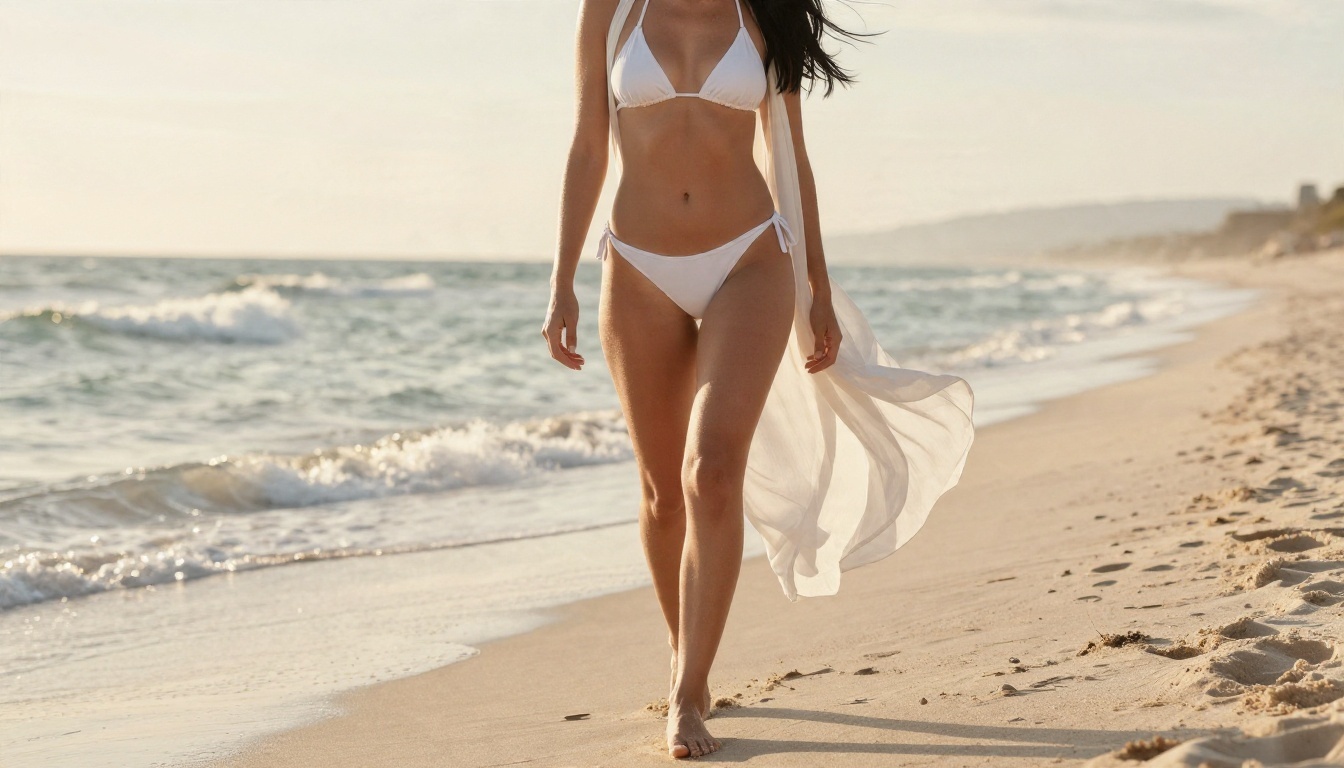
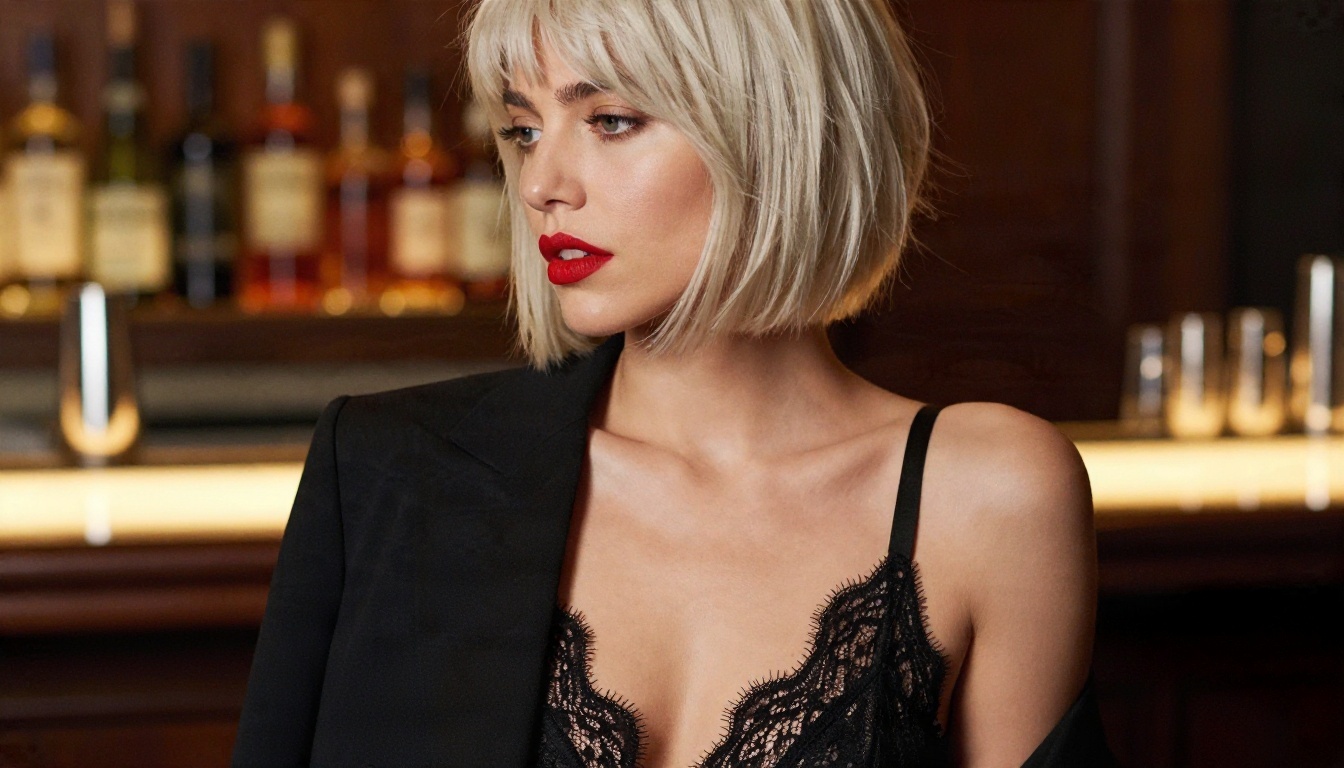
Seedream 4.5 is the first model to try for adult-oriented glamour imagery. It produces sharp skin texture, believable fabric, and clean lighting at up to 4K, and it is far more permissive than the mainstream options. It handles swimwear, lingerie-style outfits, and boudoir scenes with natural proportions, and it is fast enough to iterate on a pose ten times in a few minutes.
💡 Do not use Seedream 5 Lite for this kind of content. It blocks adult prompts, so you will waste credits on refusals.
PicassoIA Image Editor Pro for unlimited edits
The PicassoIA Image Editor Pro is where the "free" worry fades. It offers unlimited generations, so you can keep adjusting an outfit, a background, or a lighting setup without watching a credit counter. Use it to fix small flaws before you animate: a strange hand, mismatched earrings, a hairline that drifts. A clean source frame is the single biggest factor in how good the final clip looks.
Video models for the motion
Once the still is ready, pick an image-to-video model. These are the ones worth trying, all available on PicassoIA:
Content rules vary by model and can change as providers update their systems, so run a short test clip before you plan a whole batch.
Prompts That Actually Work
The five-part motion formula
A good image-to-video prompt does not re-describe the picture. The model already sees it. Instead, describe what changes. Use this structure:
- Subject state: what the person is doing at second zero.
- Motion: one or two clear actions, in order.
- Camera: a single move such as a slow push-in or a gentle pan.
- Light: what the light does, such as sun flickering through curtains.
- Mood: one or two words that set the pace.
Prompt examples to copy
These stay at the glamour level, which is also where models perform most reliably.
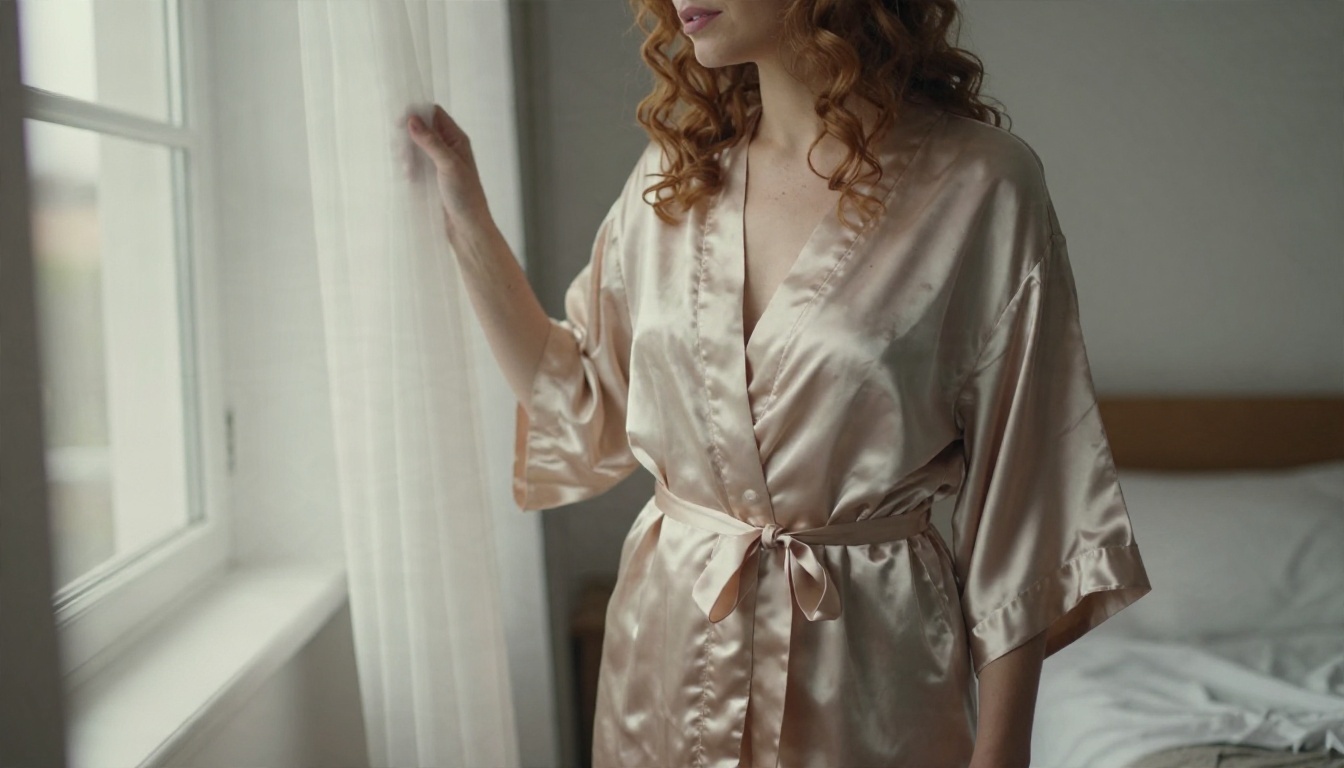
Window scene:
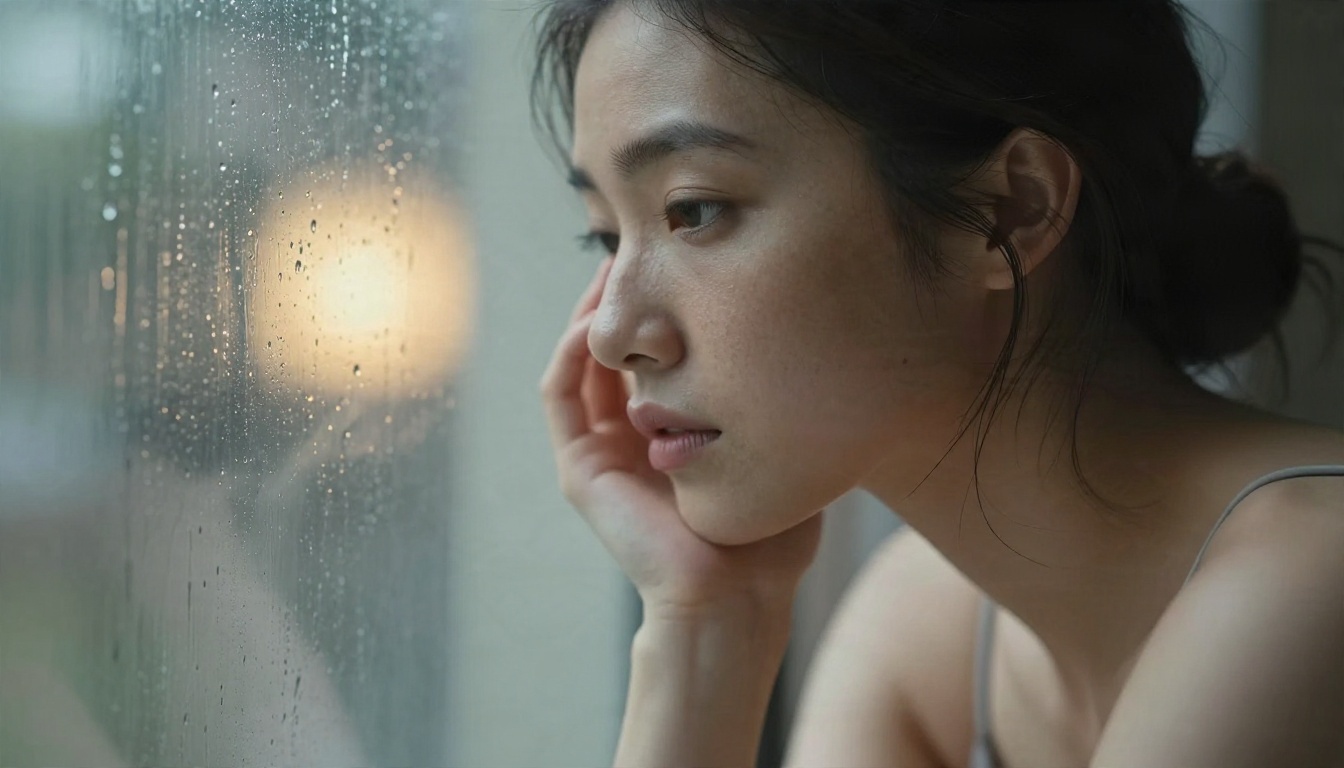
The woman rests her hand on the curtain, then turns her head toward the camera and smiles softly. The silk robe shifts as she moves. Slow dolly-in, soft overcast daylight, calm and intimate.
Beach scene:
She walks forward through shallow waves, hair and fabric lifting in the breeze, glancing over her shoulder once. Low camera tracking alongside, warm golden backlight, relaxed summer mood.
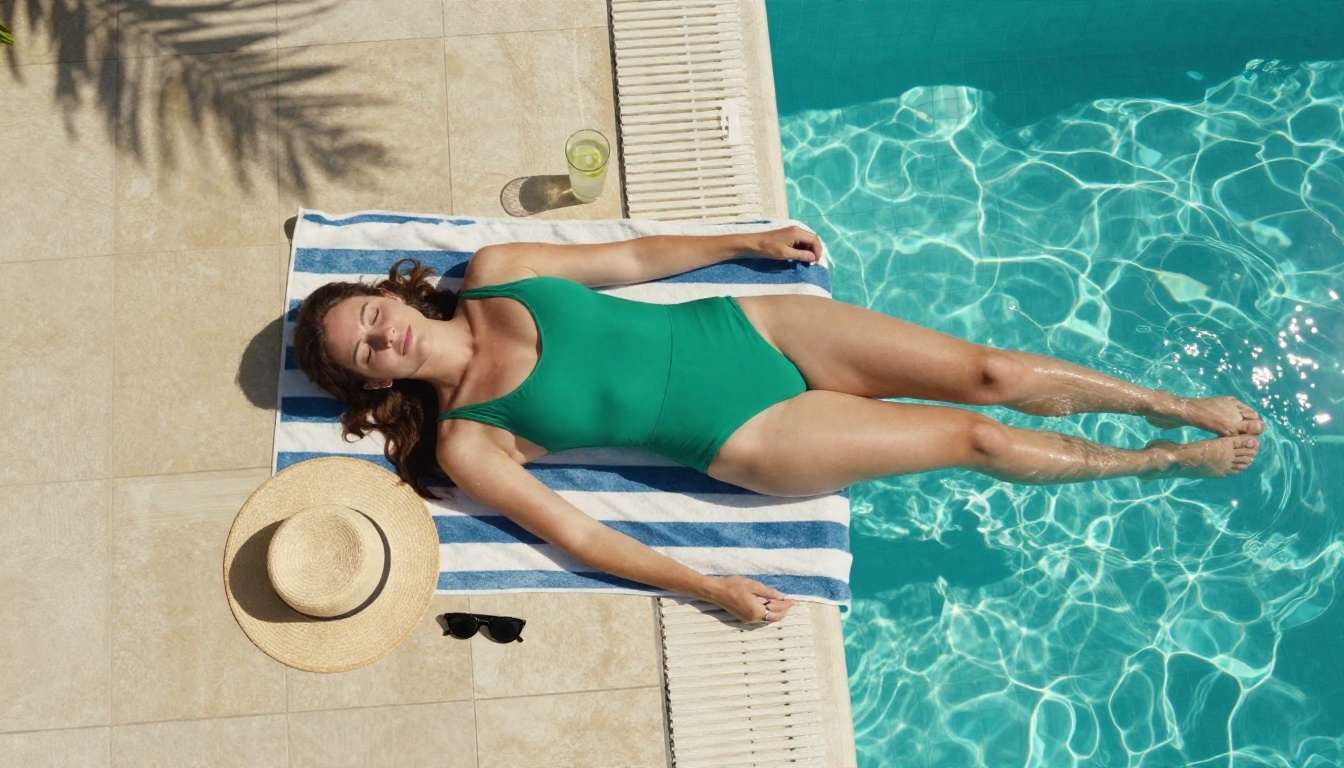
Pool scene:
She lifts her sunglasses with one hand and reaches for the glass of lemonade, water rippling beside the towel. Overhead camera drifts slowly to the right, bright midday sun, lazy and playful.
Mistakes that ruin clips
- Too many actions. Five seconds fits one or two movements. More and the body warps.
- Contradicting the image. If the still shows a red dress, do not prompt "in a blue dress."
- Speed words. "Fast," "rapid" and "violent" cause jitter and melting limbs. Use "slow," "gentle," "subtle."
- Skipping the camera. Without a camera instruction, many models default to a static shot that looks lifeless.
- Low-resolution source. A blurry still gives a blurry clip. Upscale first.
How to Use Grok Imagine Video 1.5 on PicassoIA
If you still want the Grok Imagine look, you can run it on PicassoIA without a separate subscription to another service. Here is the exact flow.
- Open the model page. Go to Grok Imagine Video 1.5.
- Upload your image. It accepts JPG, JPEG, PNG and WebP. Use a clean, high-resolution still, ideally one made with Seedream 4.5.
- Write the motion prompt. Use the five-part formula above. This field is required.
- Set the aspect ratio. Leave it on auto to match your image, or pick 9:16 for vertical social posts and 16:9 for widescreen.
- Choose resolution. 720p is the default and the best option. Drop to 480p only for fast drafts.
- Set duration. The default is 5 seconds, which is what the model handles best.
- Generate and review. Watch for warped hands and drifting faces. If something looks off, adjust the prompt rather than regenerating blindly.
💡 Parameter tip: Keep the prompt under about 60 words. Long prompts push the model to invent extra actions, and that is where artifacts begin.
If a particular source image is refused, try the same still and prompt in Wan 2.7 I2V or Hailuo 2.3. Different providers draw their lines in different places.
A Workflow That Saves Credits
Most wasted generations come from skipping steps. This order keeps costs down and quality up.
Step 1: Build the still
Generate five to ten variations in Seedream 4.5. Pick the one with the most natural hands, clean edges, and a pose that suggests movement, such as a mid-step, a turn, or a hand reaching for something. Static poses make dull videos.
Step 2: Fix it in the editor
Take the winner into the PicassoIA Image Editor Pro. Clean up small flaws. Because generations are unlimited there, you can afford to be picky.
Step 3: Draft cheap, finish sharp
Test your prompt on Wan 2.5 I2V Fast first. When the motion looks right, run the final in Kling v2.5 Turbo Pro or Grok Imagine Video 1.5 for the polished version.
Step 4: Match the pose to the motion
A short checklist before you press generate:
- Does the pose have room to move in the direction you describe?
- Is the lighting consistent across the frame?
- Is there a natural place for the camera to push or pan?
- Are hands visible and clean, or hidden naturally?
Quick Answers to Common Questions
Is there a truly free Grok Imagine spicy mode? Not that I could confirm. Reports point to paid plans for video and spicy content, and older "free" claims are out of date.
Why does my clip come out blurred or refused? A filter flagged either the prompt, the source image or the output. Soften the wording, change the outfit or pose, or switch models.
Can I animate a photo of a real person? Only with their explicit consent, and many tools block it anyway. Fictional AI-generated characters avoid the issue entirely.
What gives the smoothest motion? One action, one camera move, slow wording, and a clean high-resolution still.
How long can clips be? Most image-to-video models give about five seconds. Seedance 2.5 reaches much longer for storytelling.
Make Your Own Clips Today
The shortest path from "Imagine to video" to a finished clip is not a hunt for a loophole. It is a better workflow: a strong still from Seedream 4.5, polish in the PicassoIA Image Editor Pro with unlimited generations, and a short, calm motion prompt in the video model of your choice. Try the three prompt templates above, change one detail at a time, and keep a note of what works.
Ready to start? Open PicassoIA, generate your first still, and bring it to life in a few minutes. For the full list of image and video models, browse picassoia.com/en/all-models and pick the one that fits your style.


