You have seen the photos: skin with real pores, window light that behaves like window light, and a cafe table that looks shot on film. Then you read that ImagineArt 1.5 Preview is behind them, and the next question is always the same. Can I try it without paying, what do I type, and where does it break? This article answers those three questions with plain numbers, copy-ready prompts and honest limits.
One note before we start. ImagineArt 1.5 Preview is not on PicassoIA. I describe it by name and tell you what is publicly known, then show you which models you can use right now for similar photoreal results. The sample photos in this article were made with other image tools to illustrate each prompt style. They are not ImagineArt output.
What ImagineArt 1.5 Preview Is
ImagineArt 1.5 Preview is a text-to-image model from the ImagineArt team, built to produce photorealistic images with natural lighting, believable skin and less of the plastic look that older generators were known for. It sits in the 1.5 generation of the ImagineArt lineup, and the company has since started promoting a 2.0 release, which means 1.5 is no longer the newest option on their own site.
People look for it for three reasons:
- Realism first. It targets portraits, product shots and lifestyle scenes rather than illustration.
- High output size. Hosted versions list square outputs up to roughly 2048 by 2048 pixels.
- Low entry price. Several platforms let you test it with trial credits or a free plan before paying.
Preview versus Pro Preview
The names are confusing, so here is the short version. ImagineArt 1.5 Preview and ImagineArt 1.5 Pro Preview are listed as separate models on hosted platforms, with different pricing and different free offers. If a page promises "10 free credits, no card," check which of the two it is talking about before you assume anything about quality or price.
| Name | What it is | Typical free offer |
|---|
| ImagineArt 1.5 Preview | The standard preview model | Free plan credits or trial credits, depending on platform |
| ImagineArt 1.5 Pro Preview | A separate, higher tier model | Small credit bundles on some hosts |
| ImagineArt 2.0 | The newer release promoted by the company | Check the official plan page |
Why It Is Still Searched
Because new releases rarely replace old ones overnight. Plenty of people still want 1.5 for a consistent look, a lower price per image or a workflow that already depends on it. That is a fair reason, and it is why free access matters.
Free Access: What You Actually Get
There is no single "free access program." Free use depends on where you run the model, and the numbers differ from site to site. Treat everything below as a snapshot, because plan terms change often.
Free Plan Credits
On the company's own platform, one overview describes a free plan with about 50 credits per month, with each generation costing around 10 credits. Do the math and that is roughly five images a month. It is enough to judge the style. It is not enough to run a project.
💡 Tip: Spend free credits on your three best prompts, not on experiments. A single well-built prompt teaches you more than ten lazy ones.
Trial Credits on Hosted Platforms
Several third party playgrounds list the model and give new accounts a small trial balance. Others ask for a free account and then let you run it under a free tier with limits. Queue times can be longer on free usage, and the number of images you get is usually small.
API Pricing
Developers can reach the model through hosted APIs. One public listing shows a price near $0.03 per 2048 by 2048 image. At that rate, 100 images cost about three dollars, which is cheap for testing but adds up for batch work.
| Access route | Cost to start | Realistic free volume | Best for |
|---|
| Official free plan | Free account | About 5 images per month | Judging the look |
| Hosted playground trial | Free account or trial credits | A handful of images | Quick comparisons |
| Paid API | Pay per image | None | Batch work and apps |
| Local install | Not possible | None | Not applicable |
Prompts That Work for Realism
Photoreal models respond to photography language. Describe a photo, not an idea. The structure below works on ImagineArt 1.5 Preview and on almost every other realistic image model.
The Five-Part Formula
- Subject and action: who or what, doing what.
- Environment: where, with two or three physical details.
- Light: direction, softness, time of day.
- Camera: lens, aperture, angle.
- Texture and grain: skin, fabric, film stock, imperfections.
Keep each prompt between 40 and 80 words. Shorter prompts leave too much to chance, and much longer ones start to contradict themselves.
A Portrait Prompt
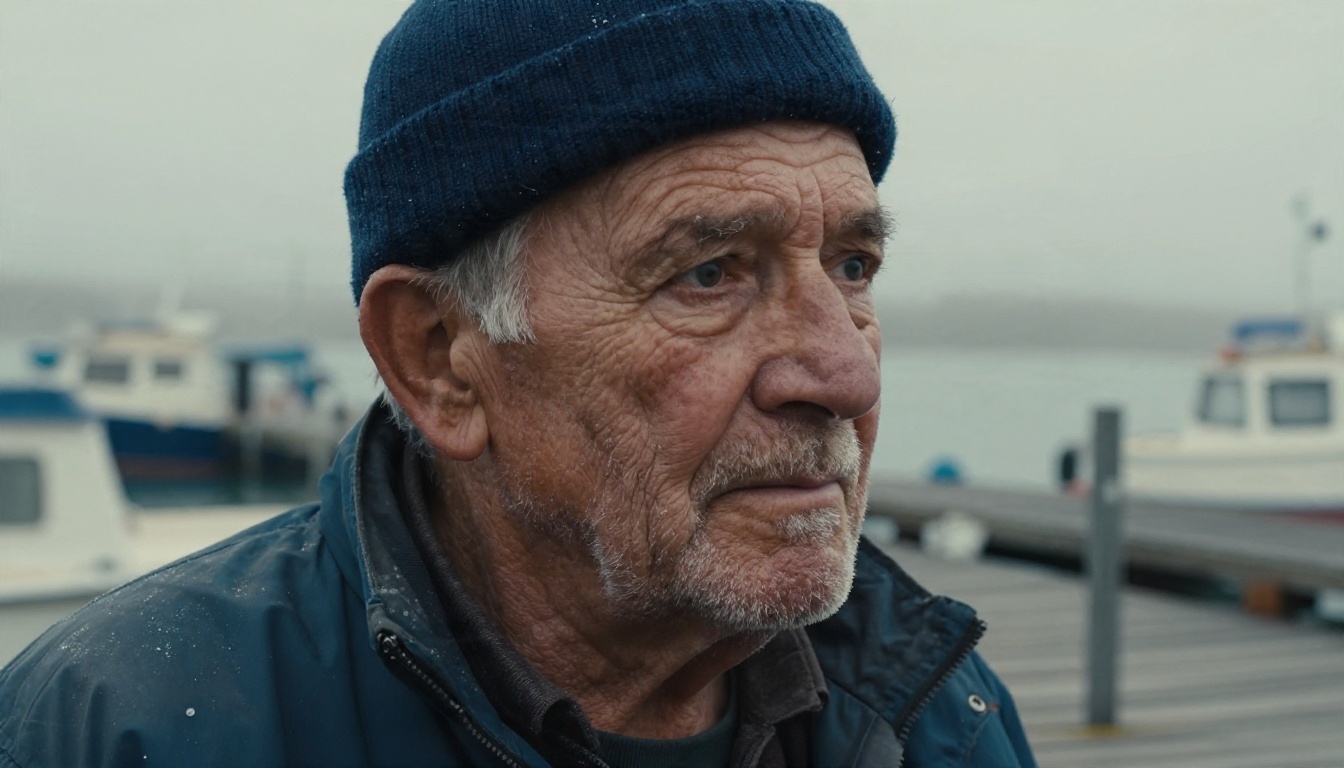
Close-up portrait of an elderly fisherman with deeply weathered skin and white stubble, faded navy wool cap, gazing slightly off camera on a misty harbour dock at dawn, soft overcast light from the right, salt crystals on his jacket collar, blurred wooden boats behind, 85mm f/1.8, visible pores and wrinkles, Kodak Portra 400 grain.
Notice what the prompt does. It names pores and wrinkles, so the model does not smooth the face. It gives a light direction, so shadows have a logic. It uses a film stock, which pulls colour toward a muted, natural palette.
Product and Flat Lay Prompts

Product prompts need hard, directional light and a surface with grain. Ask for a crisp shadow and tiny water droplets, and say which direction the light comes from. Avoid asking for a label with readable words. Text on products is the first thing that goes wrong in nearly every generator.
Overhead flat lay of a glass perfume bottle with a plain amber label on a rough travertine slab, dried lavender sprigs, folded linen cloth, hard window light from upper left, crisp long shadow, 50mm macro at f/4, realistic stone grain.
Landscape and Aerial Prompts
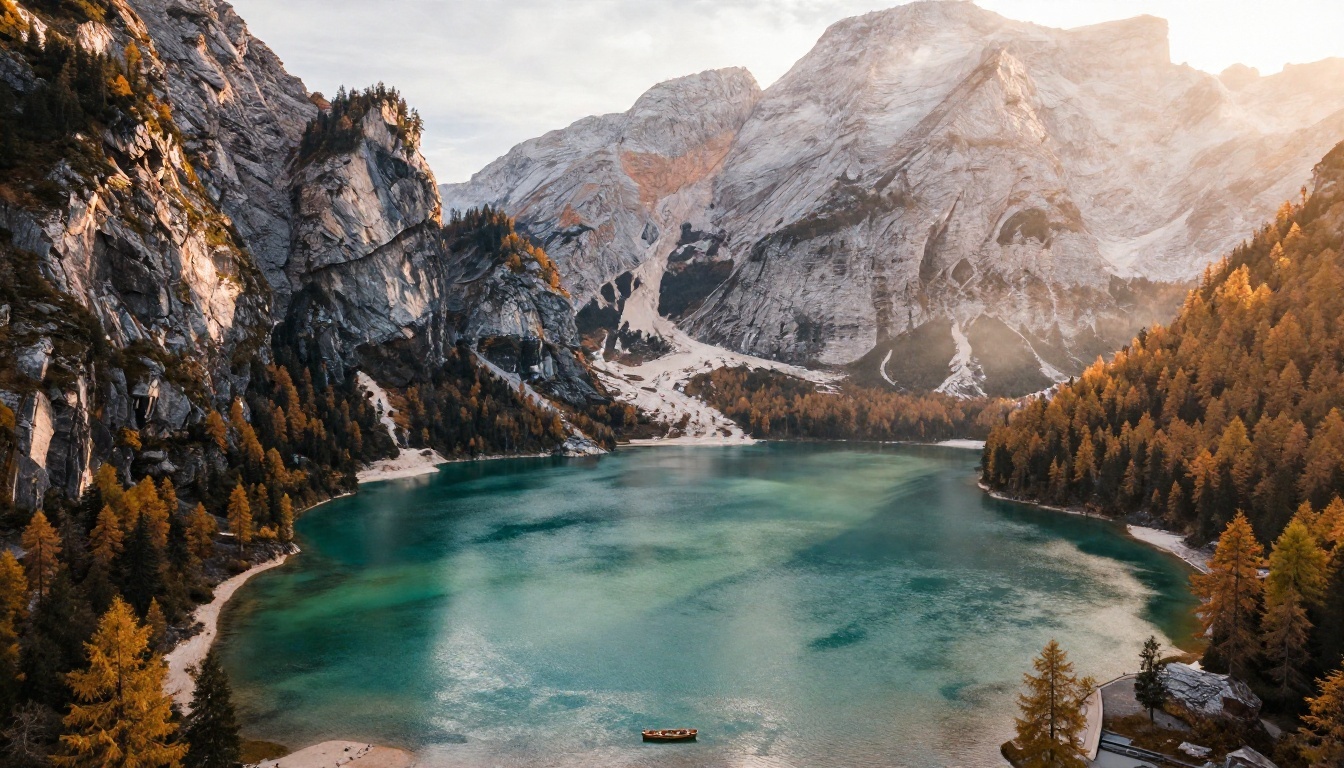
For scenery, tell the model the camera height. "Drone shot at 24mm" produces a very different image from "standing on the shore." Add one small human-scale detail, like a rowboat, so the scene has a sense of size.
Wide aerial view of a turquoise alpine lake surrounded by jagged granite peaks and larch forests in early autumn, a lone wooden rowboat near the shore, low golden sunlight from the right, thin mist over the water, drone shot at 24mm f/5.6.
Food and Kitchen Prompts
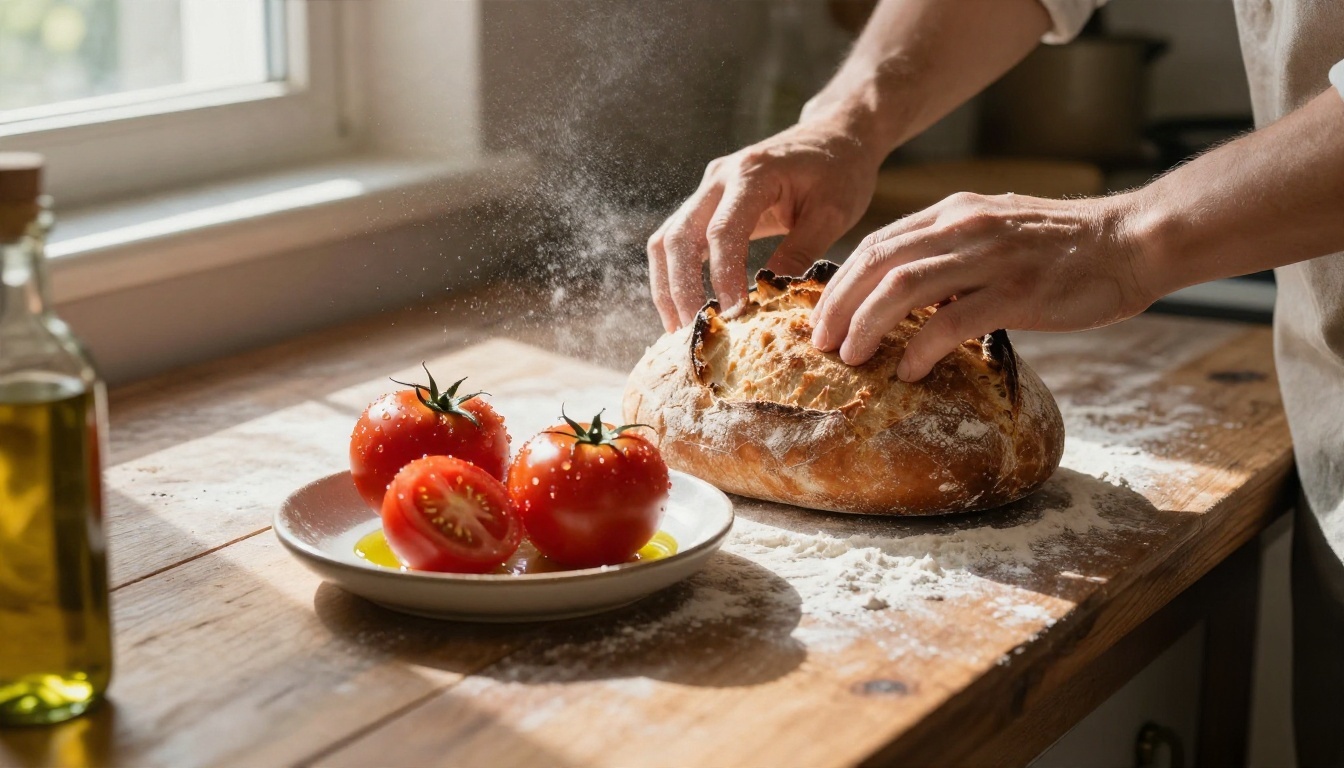
Food looks best with window light from the side and a low camera. Mention surface details such as crumb, crackle, sheen and flour dust. Those words give the model permission to be messy, and messy reads as real.
Low-angle shot of a rustic wooden table in a sunlit Italian kitchen, hand-torn sourdough with a crackling crust, heirloom tomatoes with water beads, olive oil on a ceramic plate, soft morning light from the left, flour dust in the air, 35mm f/2.
Examples Across Six Subjects
A model is easier to judge when you test the same formula on very different subjects. Here is what to look for in each category.
Street and Lifestyle Scenes
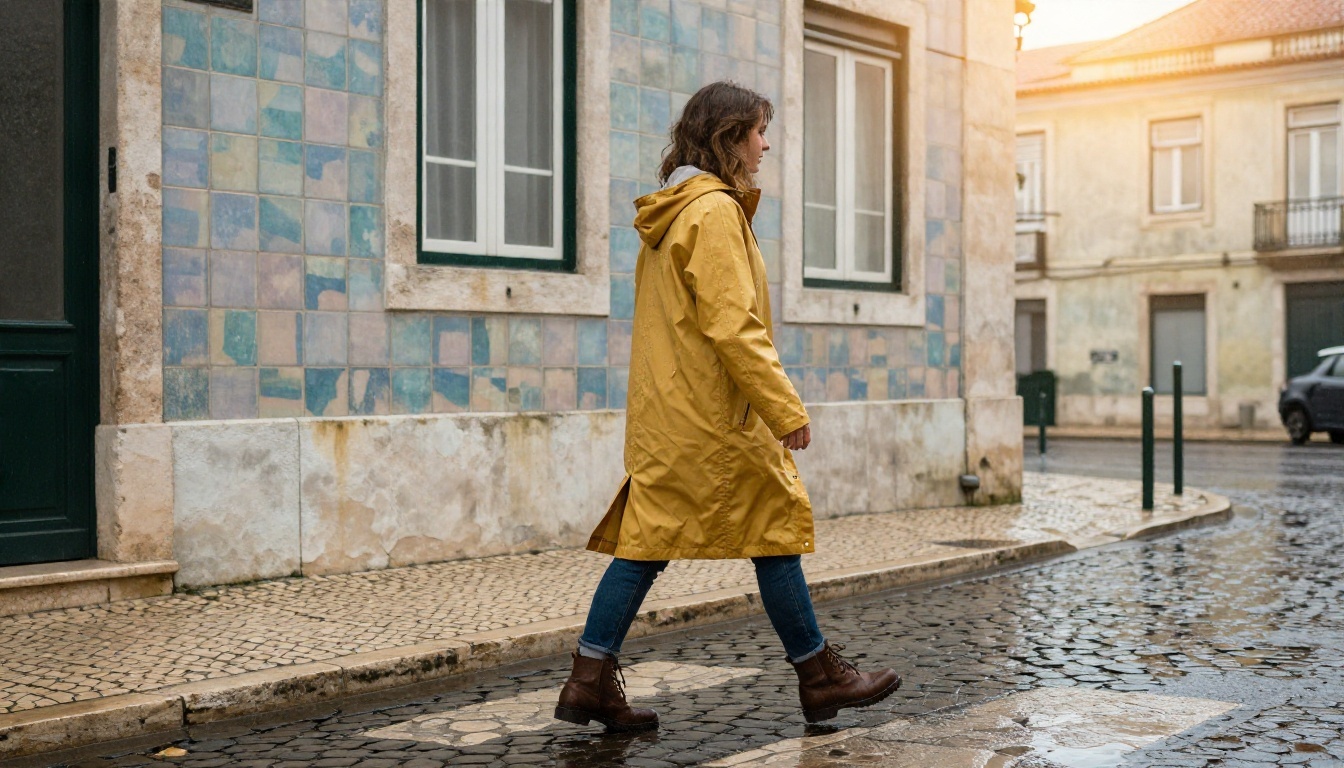
Street scenes test reflections and wet surfaces. Check whether the cobblestones reflect the sky correctly, whether raindrops sit on the fabric and whether the figure's feet touch the ground naturally. A three-quarter rear angle hides face problems and keeps attention on the atmosphere.
Interiors and Architecture
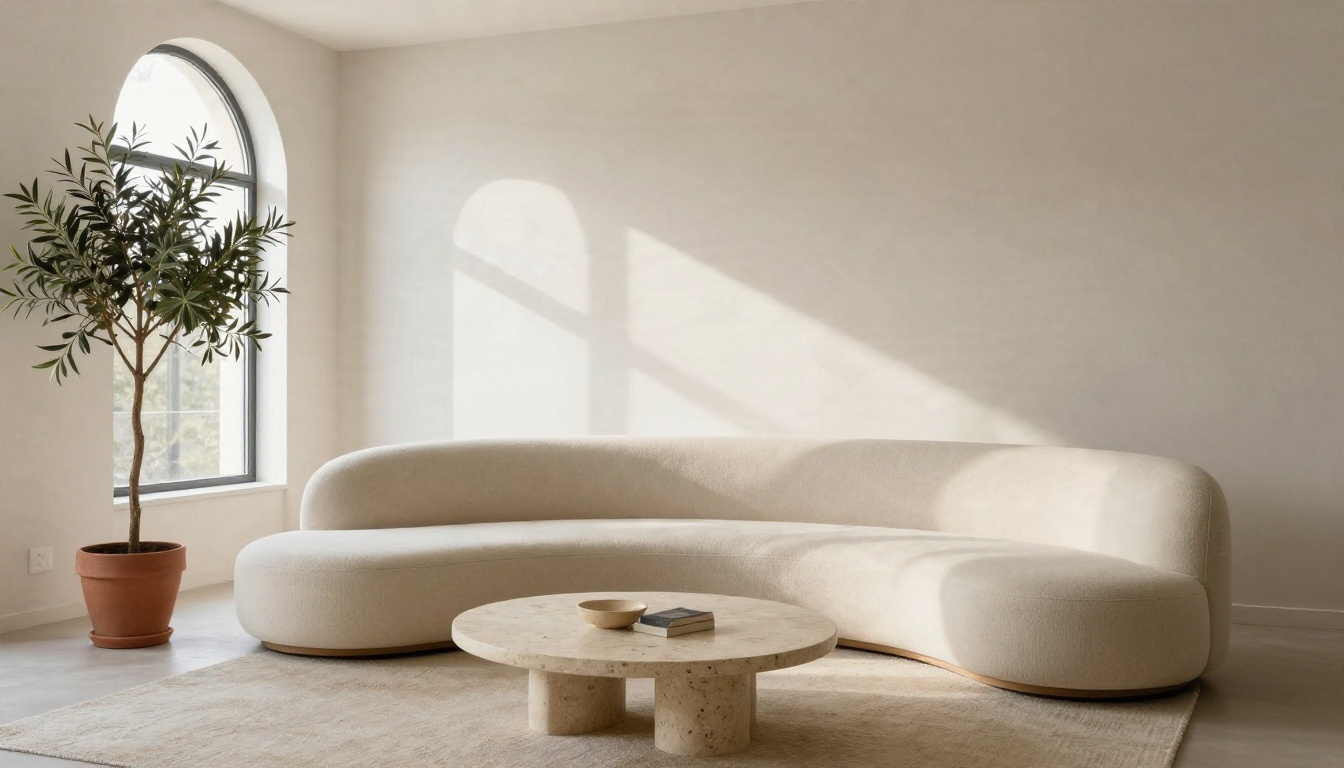
Interiors reveal perspective errors. Straight vertical lines should stay straight, and furniture legs should land on the floor in believable places. Ask for a wide lens from a low corner and name two or three materials, such as limewash, bouclé and travertine.
Lifestyle With People
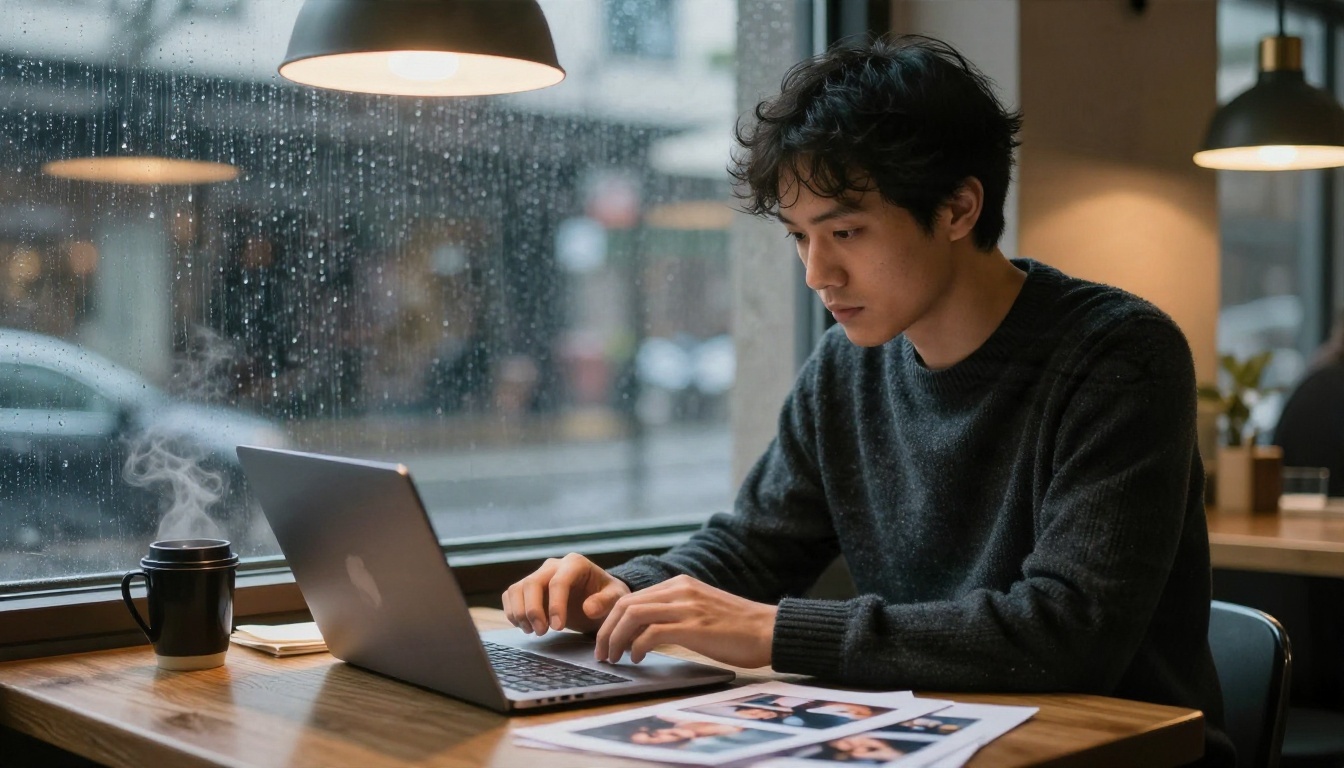
Scenes with a person and props are the hardest test. Look at the hands, the laptop edges and the printed papers. If those hold up, the model is handling complexity well. Mixed light, such as cool window tones with warm lamps, is a good stress test for colour balance.
Macro and Detail Shots
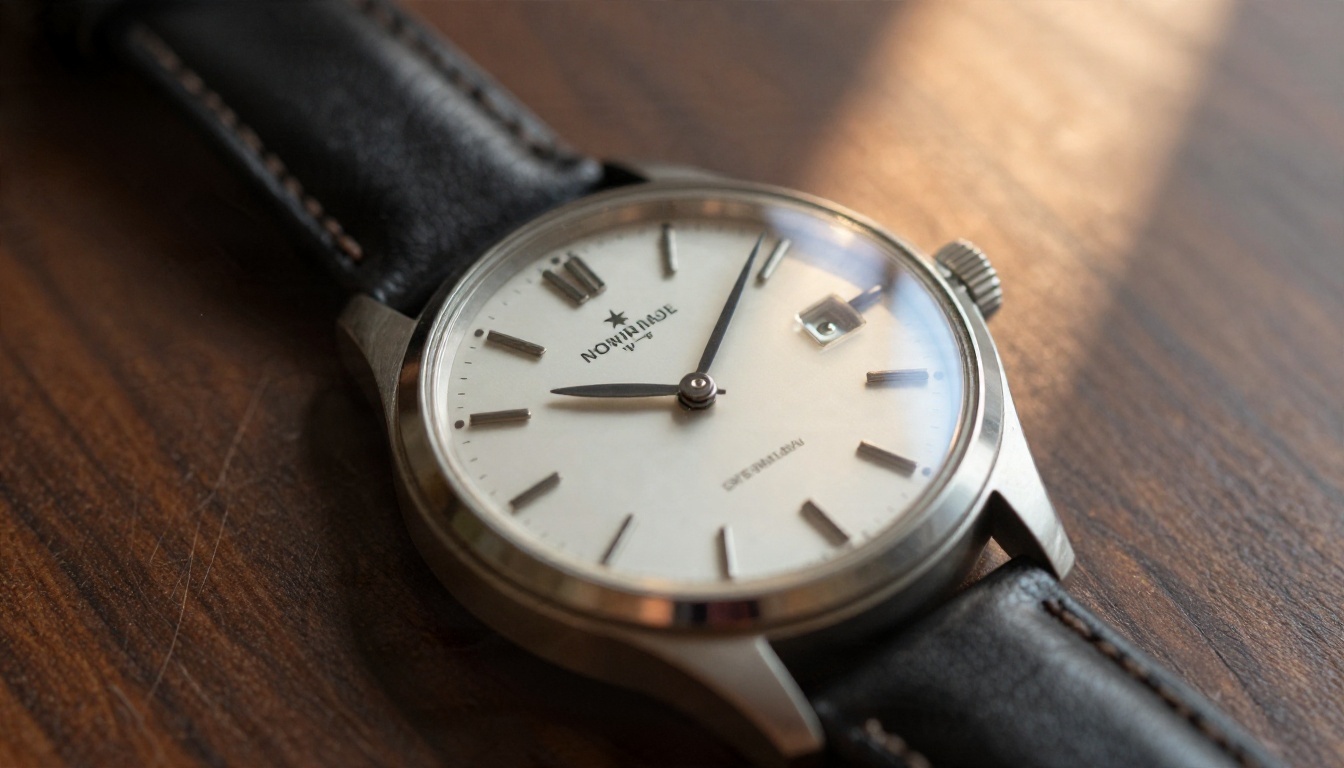
Macro shots expose fine geometry. A watch dial should have evenly spaced markers and a believable crystal reflection. If you ask for no text, you avoid the garbled numerals that often appear on dials.
Prompt Mistakes to Avoid
Most weak results come from the same few habits:
- Stacking styles. Asking for "cinematic, editorial, vintage, documentary" in one prompt muddies the output.
- Skipping light. No light direction means flat, generic lighting.
- Vague people. "A beautiful woman" gives the average of every face. Give age, features and clothing.
- Asking for words. Signs, labels and book spines are unreliable.
- Overloading. Ten objects in one scene means several will be wrong.
Real Limits to Expect
Free access is only part of the story. These are the limits that matter once you start working.
The Credit Ceiling
If the free plan really gives about five images a month, you will hit the wall quickly. Photoreal work usually takes three to six tries per final image, because small details need correcting. That means free credits cover one or two finished pictures, at most.
No Local Weights
The model is offered through hosted services only. There are no open weights to download, so you cannot run it on your own machine, fine-tune it or keep a private copy. If a platform changes its pricing or retires the model, your workflow goes with it.
Text, Hands and Consistency
| Limit | What happens | Workaround |
|---|
| Text in images | Letters warp or repeat | Add text later in an editor |
| Hands with props | Fingers merge or multiply | Hide hands or crop |
| Same person twice | Face drifts between runs | Use an editing model with a reference photo |
| Crowded scenes | Background figures blur together | Keep scenes to three subjects or fewer |
| Version changes | A preview can be replaced | Save your best prompts |
💡 Tip: Keep a text file of every prompt that worked, with the model name next to it. When a preview model is retired, you can rerun the same prompt on another model and compare.
Preview Means Moving Ground
The word "preview" signals that behaviour, price and availability can shift. With a newer 2.0 release promoted by the company, 1.5 may receive less attention. Do not build a paid project on a preview model without a backup.
How to Get Similar Results on PicassoIA
ImagineArt 1.5 Preview is not on PicassoIA yet. For photoreal output today, Seedream 4.5 is a strong match: it produces sharp images up to 4K from text, handles skin and fabric texture well and follows long prompts closely.
Step by Step
- Open the Seedream 4.5 page on PicassoIA.
- Paste one of the five-part prompts from this article into the prompt box.
- Set the aspect ratio to 16:9 for scenes, or 1:1 for portraits and products.
- Generate a first image and check three things: light direction, skin or surface texture, and hands.
- Change one detail at a time and run again. Do not rewrite the whole prompt.
- Save the best version, then upscale it if you need print size.
Parameter Tips
- Prompt length: 50 to 80 words works best. Add detail only where the image is weak.
- Lens words: "85mm f/1.8" for portraits, "24mm f/8" for interiors, "100mm macro" for details.
- Light words: "soft overcast from the right" or "hard window light from upper left" beats "good lighting."
- Imperfection words: "visible pores," "fabric creases," "dust specks," "film grain."
- Negative habits: do not request readable text. Add signs or labels in an editor afterward.
💡 Tip: Run the same prompt twice with a changed lens, once at 35mm and once at 85mm. The difference in perspective teaches you more about photoreal prompting than any list of rules.
Alternatives Worth Trying Today
If you want to compare styles before choosing a workflow, these image models are on PicassoIA and suit realistic work:
Which One for Which Job
- Portraits and lifestyle: start with Seedream 4.5, then compare Qwen Image 3 Pro for skin tone and mood.
- Edits and variations: Nano Banana Pro is handy when you want to change one thing in an existing picture.
- Quick drafts: Seedream 5 Pro gives clean 2K results for testing prompts before a final run.
For retouching and unlimited edits, the PicassoIA Image Editor Pro is worth a look as well.
Why Comparing Pays Off

Every model has a personality. One leans warm, another leans cool, another gives more contrast. Run the same prompt through three models and pick the one that matches the mood you want. That habit also protects you when a preview model changes or disappears.
Quick Answers
Is ImagineArt 1.5 Preview free? There is limited free use through a free plan or trial credits, depending on the platform. The volume is small.
Can I run it locally? No. No open weights have been published for local use.
Is it the same as Pro Preview? No. They are listed as separate models.
Is it on PicassoIA? No. Use Seedream 4.5, Nano Banana Pro, Qwen Image 3 Pro or Seedream 5 Pro for similar photoreal results.
Start Creating Your Own Photos
Free credits on any single platform run out fast, and a preview model can change under you. The better plan is to build your prompt skills on tools you can use every day. Take one prompt from this article, paste it into Seedream 4.5 on PicassoIA, and change the light, the lens and the setting. Try a portrait, a product flat lay and a street scene, and compare the three. When you are ready to try more options, browse every model at picassoia.com/en/all-models and see which one fits your style.


