You typed a prompt into ComfyUI, hit queue, and got a black square. Or maybe a perfectly normal swimwear portrait came back blurred, and now you are wondering if the tool is quietly censoring you. The honest answer is more interesting than a plain yes or no, and it saves you hours of chasing the wrong culprit.
Short version: ComfyUI is a node-based engine, not a content policy. It does not come with a switch that decides what you are allowed to make. The walls you run into usually come from somewhere else: an optional safety node, the checkpoint you loaded, or the website hosting your workflow. Below you will see exactly where each restriction lives, what free models really allow, what running everything locally costs you, and which online options let you create glamour and adult-leaning (but non-explicit) imagery without a weekend of troubleshooting.
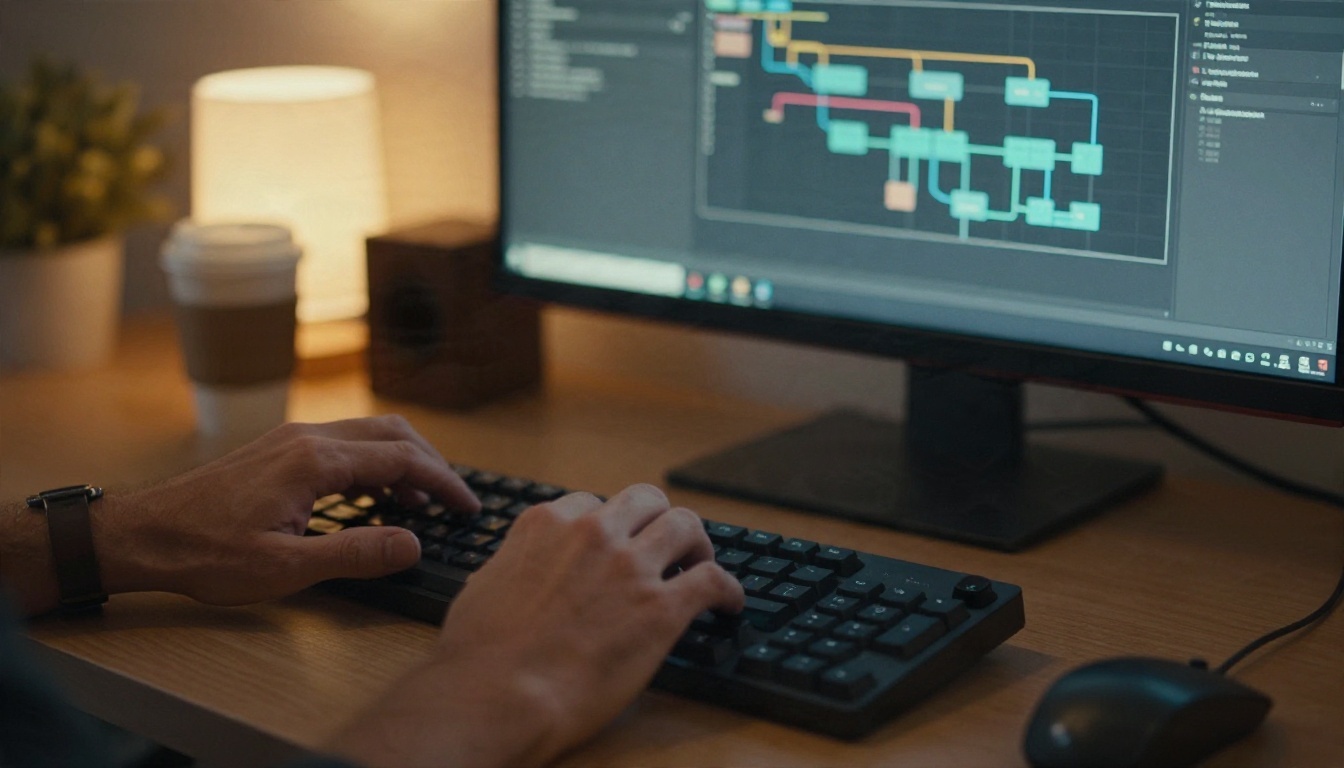
The Short Answer
What the Core Install Does
ComfyUI is an open-source program that lets you chain small blocks (nodes) into an image pipeline: load a model, write a prompt, sample, decode, save. Each block does one thing. There is no hidden moderation layer sitting between your prompt and your output in a standard local install. If you run it on your own machine, nothing phones home to approve your text.
That is why the community often calls it "uncensored." The label is fair in one narrow sense: the software itself does not judge your prompt. But "the software does not judge" and "you can generate anything" are two very different statements.
Where Restrictions Actually Come From
When an image fails or looks sanitized, the cause almost always falls into one of three buckets:
| Source | How it shows up | Who controls it |
|---|
| Safety checker node | Black or blurred output, an NSFW flag in the graph | The workflow author |
| The model itself | Clothing appears no matter what you write, bodies look vague | The model trainer |
| Hosting platform | Prompt rejected, account warning, queue refused | The service you run it on |
💡 Quick diagnosis: if the same workflow works on your own PC but fails on a cloud host, the cause is the host. If it fails everywhere with the same checkpoint, the cause is the model or a node inside the graph.
Filters You Might Hit
Safety Checker Nodes
Some shared workflows include an optional safety checker. These are third-party custom nodes that classify the finished image and, if it scores as explicit, replace it with a black frame or raise a true/false flag that the rest of the graph can act on. Several versions exist, built on different classifiers, and they vary in how aggressive they are. Older checkers are known for being blunt and flagging harmless skin tones, beachwear and even sand dunes.
Because they are separate nodes, you can see them. Open the workflow, look for anything named safety, NSFW check or filter, and follow its wires. If one sits between the sampler and the save node, that is your black square.
Model Training Choices
This is the quiet one. A checkpoint trained on a dataset where adult material was scrubbed will struggle to render it, even with zero filters anywhere. Swimwear may come out fine while anatomy turns into a smooth, ambiguous shape. That is not censorship in a moderation sense. It is the model never having seen enough examples.
You can recognize this problem by its pattern: prompts for "bikini at the beach" work, but anything slightly more intimate drifts toward clothing, soft blur or odd proportions. Swapping the checkpoint solves it far more often than rewriting the prompt for the tenth time.
Hosted Service Rules
The moment you run ComfyUI on someone else's machine, their terms apply. Many cloud hosts and API-based nodes route requests through providers that screen prompts and outputs. Your workflow may be identical to the one on your desktop, but the service decides what it will process. Always read the content rules of any host before building a project around it.

Free Models and What They Allow
Open Weights Checkpoints
ComfyUI loads many model families: Stable Diffusion variants, Flux variants, Qwen and Z Image style models, and plenty of community fine-tunes. "Free" here means the weights can be downloaded at no charge. It does not mean every model is equally permissive or equally good at people.
If you want to try similar model families without downloading anything, these are available online:
LoRAs and Fine-Tunes
A LoRA is a small add-on file that nudges a base model toward a style, face, outfit or body type. In ComfyUI you attach it with a single loader node. This is where most people get the "uncensored" feeling: a LoRA trained on boudoir, swimwear or fashion photography gives a stubborn base model new vocabulary.
Quality varies wildly. Overweighted LoRAs produce plastic skin, melted hands and repeated faces. A strength between 0.6 and 0.9 is a sensible starting range, and stacking more than two usually makes things worse, not better.
License Reminders
Free to download is not free to do anything with. Check the license of every checkpoint and LoRA before you publish or sell what you make. Some forbid commercial use. Some forbid generating real people. And whatever you create, keep it non-explicit and consenting-adult only: never generate imagery of real individuals without permission, and never anything involving minors.

Real Limits of Running Locally
VRAM Is the First Wall
Modern image models are big. A mid-range graphics card handles older Stable Diffusion workflows comfortably, but newer large models and anything with ControlNet, upscaling and multiple LoRAs stacked on top can exceed your video memory. When that happens you get out-of-memory errors, painfully slow offloading to system RAM, or forced downgrades to compressed model versions that look softer.
Setup Time Adds Up
A fresh install is easy. A working install is another story. Python versions, driver mismatches, custom nodes that conflict with each other and workflows that depend on nodes that no longer exist are the normal experience. You can easily spend an evening getting a downloaded workflow to run before you generate one useful image.
Broken and Abandoned Nodes
Custom nodes are written by volunteers. Some stop being maintained, and an update to ComfyUI can break a graph that worked last month. If you rely on a workflow for client work or regular content, plan for occasional repair sessions.
Here is a quick comparison of what you are trading:
| Factor | Local ComfyUI | Online generation |
|---|
| Cost to start | GPU, storage, power | Browser |
| Setup time | Hours to days | Seconds |
| Prompt screening | None by default | Depends on the service |
| Hardware limits | Your VRAM | Not your problem |
| Maintenance | You fix it | Handled for you |
| Control over every parameter | Maximum | Varies by tool |
💡 Rule of thumb: local is best when you love tinkering. Online is best when you want results tonight.
Online Alternatives That Skip the Setup
If your goal is glamour portraits, swimwear shoots, boudoir lighting and fashion editorials with fewer restrictions and zero installation, an online generator is the faster route. The models below are the ones to try first, in this order.
Seedream 4.5 for Photoreal Glamour
Seedream 4.5 is the first stop for this kind of work. It produces sharp, believable skin, natural fabric behavior and convincing light, and it handles suggestive, attractive, non-explicit content such as bikinis, lingerie-style fashion and sunlit beach shoots with far less friction than many filtered systems. Output reaches 4K, so you can crop for social posts or print.
Prompt tips that work well:
- Name the lens and the light: "85mm f/1.8, golden hour from the right."
- Describe surfaces: "water droplets on tanned skin, satin sheen."
- Keep the pose simple: one action, one expression.
- Add film language such as Kodak Portra 400 grain for a natural look.

Image Editor Pro for Unlimited Edits
PicassoIA Image Editor Pro is the second tool to open, and its biggest advantage is unlimited generations. When you are iterating on an outfit, a pose or a background, you do not have to count credits. Upload a photo, describe the change, and run it again as many times as you need. It is fast, which matters when you are testing ten variations in a row.
It suits the jobs people usually turn to inpainting graphs for: swapping an outfit, changing a setting, softening or correcting details, or restyling a portrait.

More Models Worth Trying
After those two, rotate through other models to see which fits your style:

How to Use Any ComfyUI Workflow on PicassoIA
ComfyUI itself is not a model, but you do not have to abandon your graphs. Any ComfyUI Workflow runs a pipeline you built locally in the cloud, straight from a browser. You design once, export once, and generate from any device with no GPU in the room.
Export and Run in Four Steps
- Build and test your graph in ComfyUI until it produces the result you want.
- Export it in API format using the "Save (API format)" option. A regular save will not work here.
- Open the model page on Any ComfyUI Workflow and paste the JSON into the workflow field, or supply a link to it.
- Press run, then download your files in WebP, JPG or PNG.
If your graph needs a reference image, video or archive, attach it through the input file field, or put URLs directly inside the JSON so the model can fetch them.
Parameter Tips That Save Time
| Setting | Recommended value | Why |
|---|
| Output format | PNG for editing, WebP for posting | PNG keeps every pixel, WebP is light |
| Output quality | 90 to 100 | Lower values show compression on skin |
| Randomise seeds | On | A fresh result every run |
| Force reset cache | Off, switch on to debug | Clears stale node outputs when results look odd |
| Return temp files | Off, on for ControlNet checks | Shows preprocessed maps |
💡 Content note: a workflow only defines the pipeline. What a hosted run will accept still depends on the platform's own content rules, so check them before you plan a project.
Safe Habits Worth Keeping
Freedom to create comes with a few habits that protect you and the people in your images.
- Only depict adults. Every subject must be clearly an adult, with no exceptions.
- Never use real people's faces without consent. That includes celebrities, coworkers and exes.
- Stay non-explicit. Glamour, swimwear and artistic boudoir hold up everywhere. Pornographic output creates platform bans, legal exposure and a mess of takedowns.
- Label AI work when you publish it. It builds trust and avoids confusion.
- Keep your model folder tidy. Note the license of each file so you never have to guess later.
- Back up your workflows. A JSON file takes seconds to save and hours to rebuild.
If you remember one thing from this article, remember this: ComfyUI has no opinion about your prompts, but everything around it does. The checkpoint, the add-on nodes and the host each shape what you can make. Once you know which layer is blocking you, the fix usually takes minutes.
Try Your Own Images Today
You now know where the real limits sit, so the next step is to make something. Open Seedream 4.5, write a prompt with a lens, a light direction and one clear action, and see what comes back in seconds. Then take that image into PicassoIA Image Editor Pro and change the outfit, the background or the mood as many times as you like, with unlimited generations. If you already have a ComfyUI graph you love, drop it into Any ComfyUI Workflow and run it from your browser.
Want to see everything on offer? Browse the full catalog at picassoia.com/en/all-models, pick a model, and start experimenting with your own ideas.