You typed a perfectly normal prompt, a woman in a swimsuit by a pool at sunset, hit generate, and got a red banner telling you the content was flagged. Sound familiar? That moment is why so many people search for Is Higgsfield AI Censored? NSFW Rules, Free Alternatives and Prompts before they spend another credit. The short answer: yes, Higgsfield moderates adult content, and it does so in more than one place. The longer answer is more interesting, because the filter is not a single wall. It is a stack of checks, and some of them are not even controlled by Higgsfield.
This article breaks down where the blocks come from, what usually triggers them, what you can reasonably expect from the platform, and which free alternatives give you far more room for non-explicit glamour, bikini and boudoir photography. You will also get a set of tested prompts you can copy today.
💡 Quick note: everything below is about suggestive, tasteful content: swimwear, lingerie-style fashion, glamour portraits. Nothing explicit. That line is where most platforms get fussy, and it is exactly where the differences between tools show up.
What "Censored" Really Means Here
When people ask whether a generator is censored, they usually mean one of three things. The tool refuses certain prompts, the tool blurs or blocks the output after generating, or the tool quietly changes your result so it looks safer than what you asked for. Higgsfield can trigger the first two, and users regularly report the third.
Higgsfield is an aggregator-style creative platform. It gives you image and video tools, and many of them run on top of models built by other companies. That detail matters a lot for moderation, as the next section shows.
The Two Layers of Filtering
According to Higgsfield's own help center, an NSFW flag can come from two sources. The first is Higgsfield's internal safety system, which checks prompts and results against the platform's rules. The second is the filter of the external model provider whose engine is doing the actual generating. Both layers can misfire, and Higgsfield cannot see inside the provider's rules.
In practice this means the same prompt can pass on one model and fail on another inside the same account. It also means that rewording your prompt for one tool may do nothing if the block comes from the other layer.
Credits and Refunds
If a generation fails because of an NSFW flag, the credits are generally returned automatically. That is the fair part. The frustrating part is the time and the guessing game: you often get a generic message, not an explanation of which word, which reference image or which part of the output set off the alarm.
Community Content Gets Extra Checks
Anything you publish to the public community feed goes through an additional automated review, and other users can report it. Private generations and public posts are therefore not held to the identical standard, which is one more reason people feel the rules are inconsistent.
What Higgsfield Usually Blocks
No platform publishes a perfect word list, and Higgsfield's terms define prohibited categories in broad language. From user reports and the help center, the pattern looks like this.
| Content type | Typical result | Notes |
|---|
| Explicit sexual content | Blocked | Refused at prompt or output stage |
| Nudity, even artistic | Usually blocked | Depends on the model in use |
| Lingerie and bikini glamour | Inconsistent | Passes sometimes, flagged other times |
| Real people and celebrity likeness | Often blocked | Copyright and IP checks apply |
| Brand logos and franchise characters | Often blocked | A separate IP filter exists |
| Minors in any suggestive context | Always blocked | Non-negotiable on every serious platform |
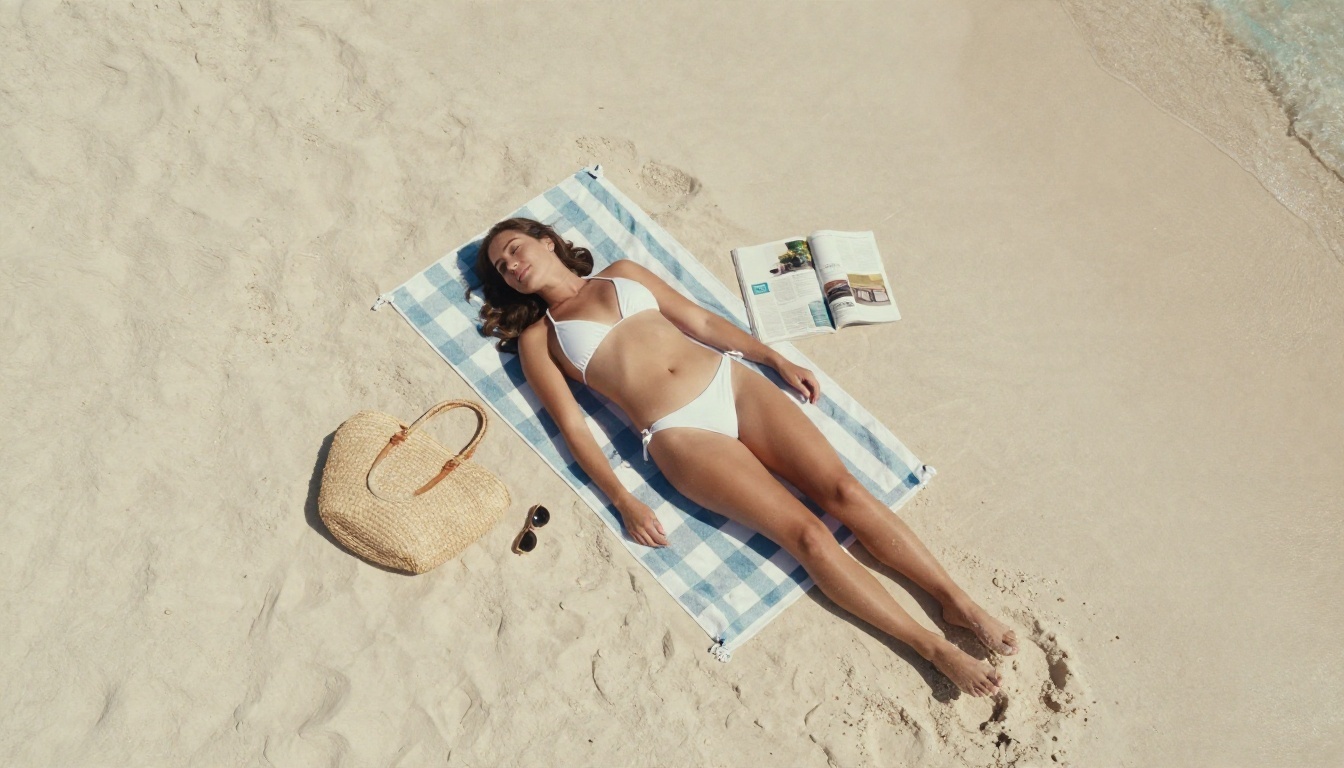
The middle row is where the pain lives. A swimsuit photo is not explicit, yet moderation systems that rely on skin-tone detection and keyword scoring regularly misread beach scenes, wet hair, or a plunging neckline as risky.
Why Harmless Prompts Get Flagged
Three habits cause most false positives:
- Trigger words like "sexy", "topless", "see-through" or "naked" in the prompt, even when the described outfit is modest.
- Reference images with a lot of exposed skin, because the input image is scanned too.
- Output scanning, where the model creates something borderline by accident and the post-check rejects it after you waited for the render.
Is It Censorship or Risk Management?
Fair take: it is mostly risk management. A company that serves enterprise clients, handles payments and ships to app stores has strong reasons to avoid adult material. That is a legitimate business choice. It just means that if your project is bikini editorials, glamour portraits or boudoir-style fashion, you are using a tool that was never built around that use.
Can You Get Around the Filters?
You will find forums full of "bypass" tricks: misspelled words, extra adjectives, vague phrasing. Most of them are unreliable for a simple reason. If the block comes from the model provider's layer, no prompt trick on your side changes that. And even when a trick works once, the filters get updated and your saved prompt stops working next week.
A calmer strategy is to switch tools, not fight the one you have. The goal is a platform whose rules match the kind of content you actually make.
What Does Work Inside Higgsfield
If you want to stay on the platform, these habits reduce rejections:
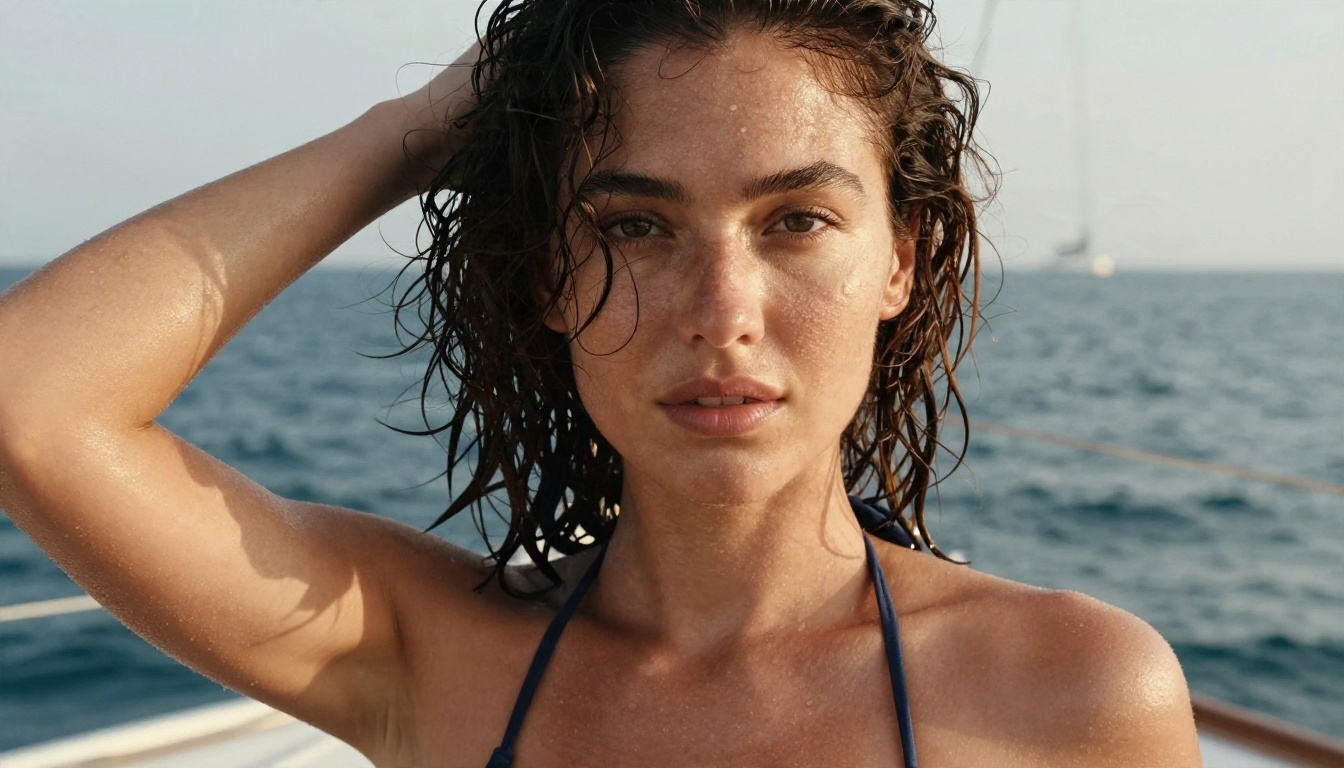
- Describe the scene and the clothing, not the body. "Navy bikini top on a sailboat deck" scores better than anything body-focused.
- Pick a different model from the picker if one keeps failing.
- Use clean reference images with modest framing.
- Keep prompts photographic: lens, light, location. Moderation tends to be friendlier to editorial language.
- Avoid naming real people.
Where It Falls Short
Even with careful prompts, the outcome is a lottery. You may burn several attempts on one image, and there is no unlimited plan that turns retries into a non-issue. For people producing swimwear lookbooks, social content or character references every day, that adds up fast.
Free Alternatives With Fewer Limits
Higgsfield itself is not on PicassoIA, so there is no way to run it there. But the images most people want from it, realistic glamour and fashion photography, are very achievable with models that are. Here are the ones worth trying, in the order I would test them.
Seedream 4.5 First
Seedream 4.5 is the model I would start with for suggestive, photorealistic work. It renders believable skin, handles fabric like satin and knit convincingly, and follows long, detailed prompts well. For bikini, resort and lingerie-style fashion shots, it gives results that look like they came from a real photoshoot. It outputs up to 4K, so images hold up when you crop them for social feeds or print.
PicassoIA Image Editor Pro
PicassoIA Image Editor Pro is the option for people who hate counting credits. Generations are unlimited, so you can iterate on a single look ten, twenty, fifty times without worrying about a failed attempt costing you anything. It also edits: change an outfit, swap a background, adjust the lighting on an existing photo. That is a big difference from tools where every retry is a small financial decision.
Z Image Turbo for Speed
Z Image Turbo is built for fast drafts. When you are testing prompt wording or building a batch of poses, getting a sharp image in seconds changes how you work. Use it to find the composition, then refine your favorite in Seedream 4.5.
Hunyuan Image 3 for Variety
Hunyuan Image 3 offers a different visual character, often a touch more neutral and editorial. It is handy when you want a second opinion on a concept and the first model keeps giving you the same face or the same lighting.
Quick Comparison
💡 Want motion too? Wan 3 handles cinematic video from text, so you can take the same scene idea from still to moving clip. Video models usually apply their own rules, so check results with a simple test prompt first.
How to Get Similar Results on PicassoIA
Higgsfield is not on PicassoIA, but Seedream 4.5 is the closest fit for the photorealistic glamour look people want from it. Here is the workflow.
Step by Step
- Open the Seedream 4.5 page and choose the text-to-image mode.
- Write your prompt in this order: subject and pose, outfit, location, lighting, lens, texture details.
- Set the aspect ratio. Use 16:9 for banners and scenic shots, 3:4 or 2:3 for portraits and social posts.
- Generate a first version and look at the face, hands and fabric.
- Adjust one thing at a time: the light direction, the lens, the outfit color.
- Send your best result to Image Editor Pro for unlimited touch-ups, background swaps or outfit changes.
Parameter Tips
- Be specific about light. "Soft golden hour light from the right" beats "nice lighting" every time.
- Name a lens. 85mm f/1.8 gives portrait compression and soft backgrounds. 35mm gives a wider, candid feel.
- Describe texture. Freckles, pores, salt on skin, linen weave, satin sheen. These words are what separate a photo from a plastic render.
- Keep it tasteful. Suggestive and elegant beats explicit and messy. It also produces better-looking images.
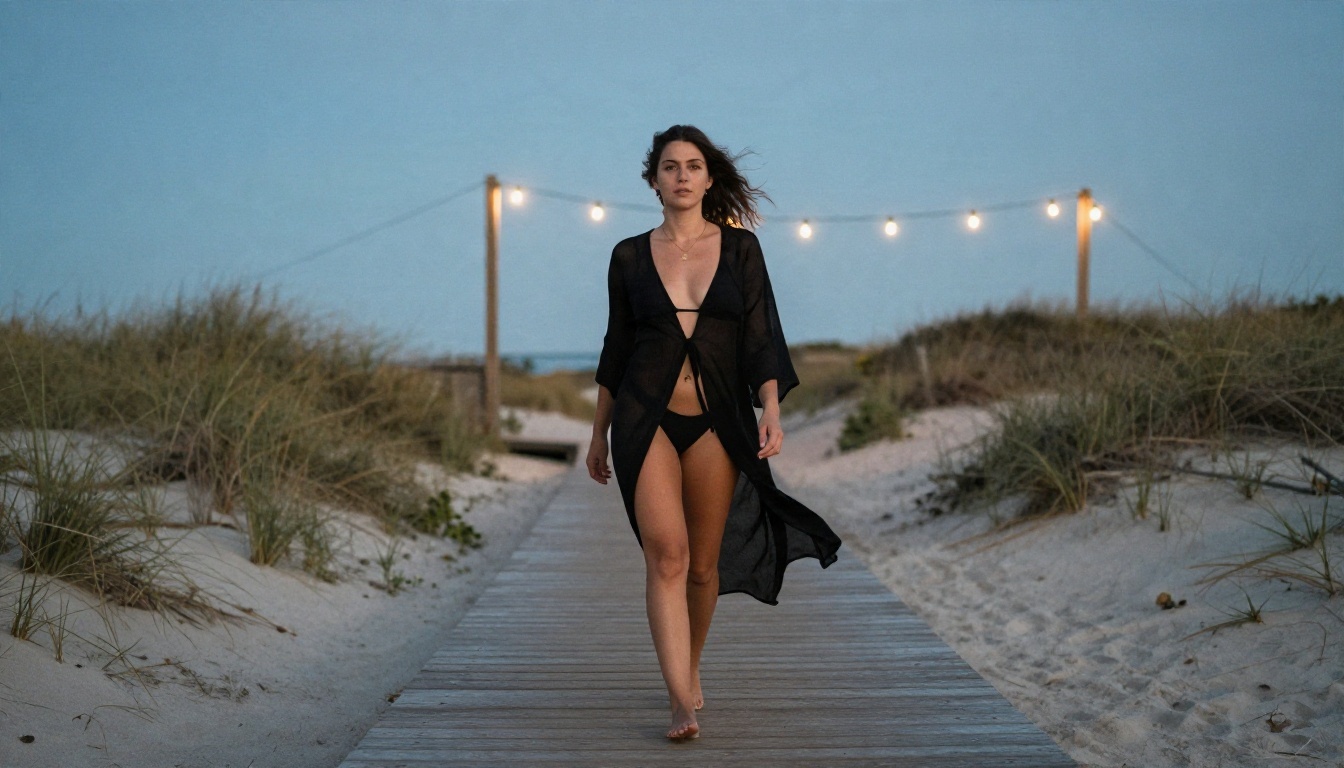
Prompts You Can Copy Today
These are written for non-explicit glamour. Paste them into Seedream 4.5 or Image Editor Pro and tweak the details.
Poolside Golden Hour
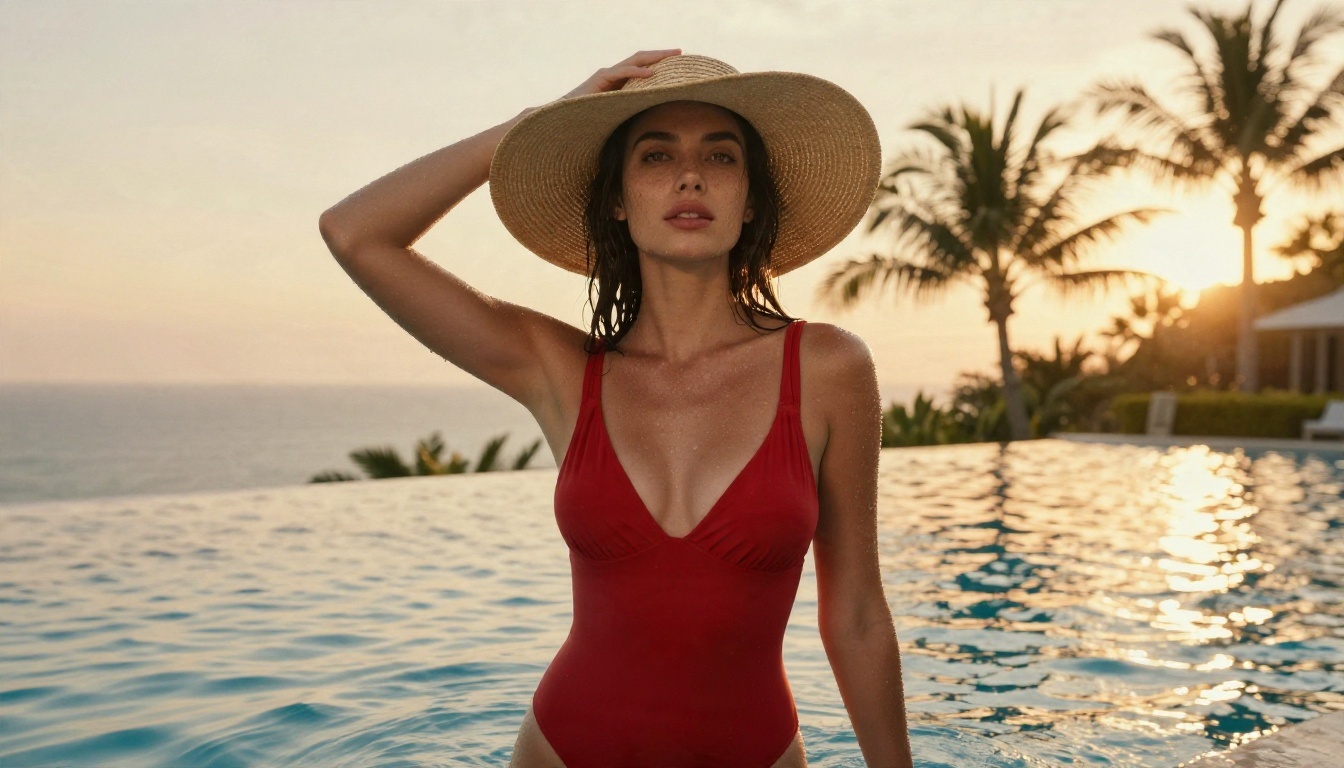
A woman in a red one-piece swimsuit and wide-brim straw hat standing at the edge of an infinity pool at golden hour, water droplets on her skin, palm trees behind, warm sunset light from the right creating rim light, 35mm f/2 lens, visible freckles, film grain, Kodak Portra 400, editorial photograph
Silk Morning Boudoir
A woman in a burgundy silk slip dress sitting on the edge of a hotel bed beside a tall window, soft diffused morning light from the left through sheer curtains, rumpled white linen sheets, 85mm f/1.8 shallow depth of field, realistic skin pores, silk sheen, tasteful boudoir glamour
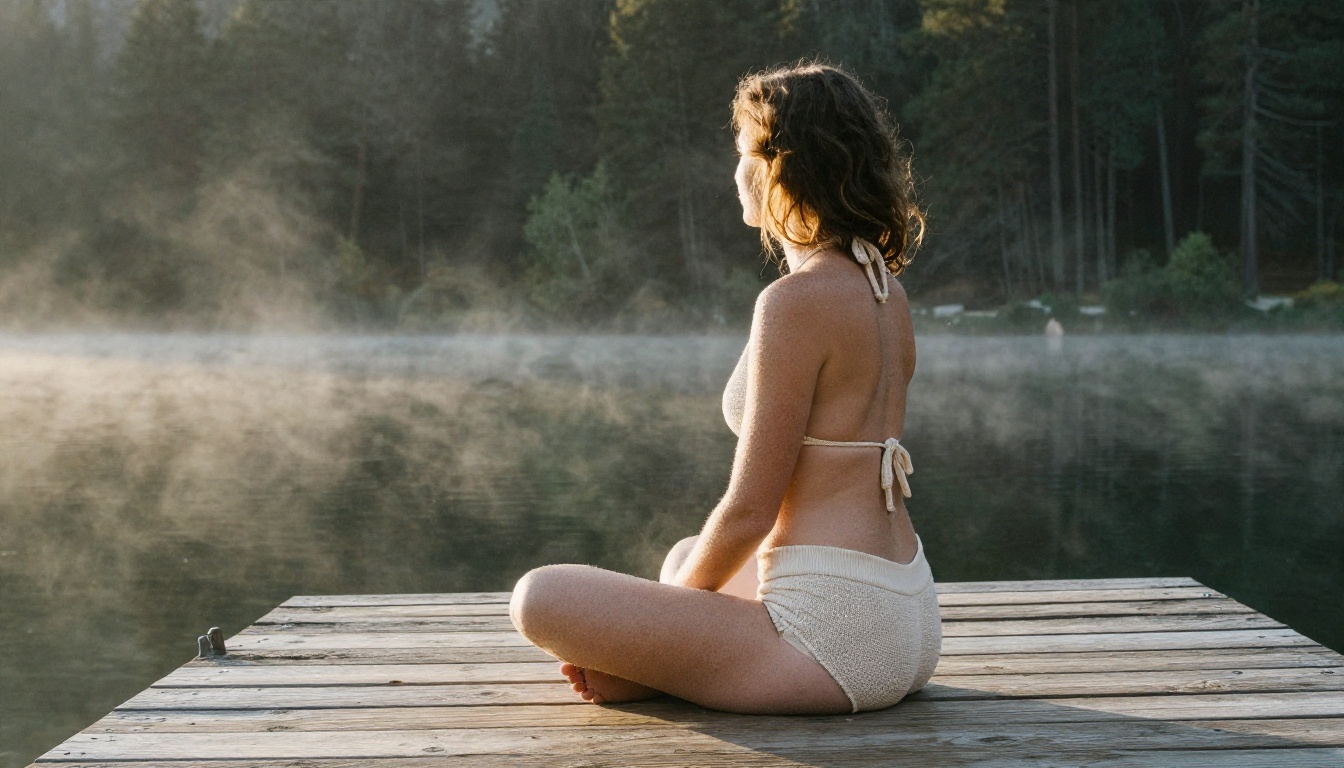
Lakeside Quiet Morning
A woman in a cream knit bikini sitting cross-legged on a wooden dock at a mountain lake, mist on the water, pine forest behind, early light from behind creating a glowing edge on her hair, 70mm f/2 lens, weathered wood grain, film grain
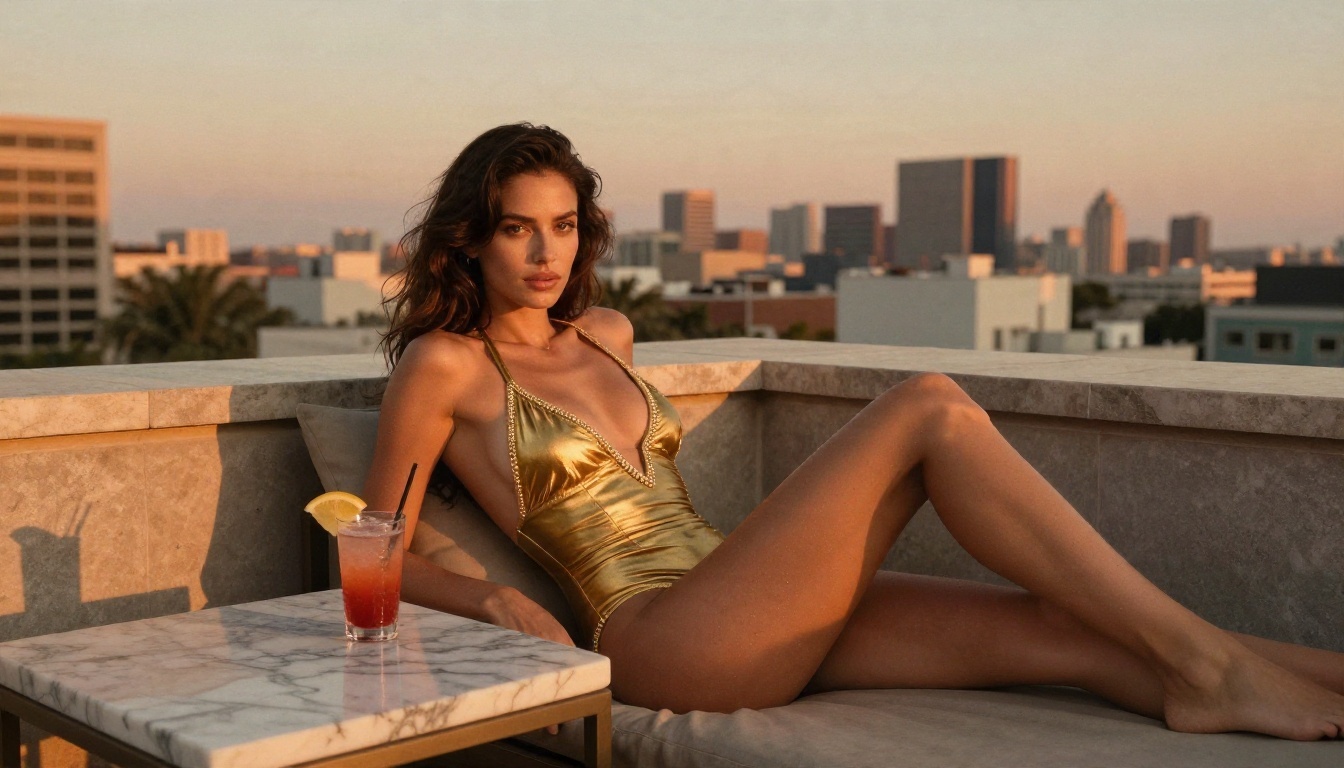
Rooftop Sunset
A woman in a gold-trimmed emerald swimsuit relaxing on a rooftop lounge, city skyline at sunset behind her, cocktail on a marble side table, warm orange light from the left, 50mm f/2 lens, polished stone texture, glamour lifestyle photograph
Prompt Formula That Keeps Working
Use this skeleton and swap pieces:
[Subject + pose] + [outfit and fabric] + [location] + [light direction and time of day] + [lens and aperture] + [skin and surface texture] + [film stock]
Short prompts give generic results. Long, concrete prompts give images with personality. When the output feels flat, add a detail about light or texture before you change anything else.
Common Mistakes to Avoid
- Writing "sexy" and nothing else. It gives the model no visual information.
- Stacking five outfits and three locations in one prompt.
- Skipping the lens, which leaves the framing to chance.
- Regenerating without changing anything. Alter one variable each time.
Higgsfield or Alternatives: Which Wins?
It depends on what you make.
| If you need | Better choice |
|---|
| Polished commercial video with brand-safe content | Higgsfield is built for this |
| Swimwear, glamour and fashion stills | Seedream 4.5 or Image Editor Pro |
| Many retries without worrying about cost | Image Editor Pro, unlimited |
| Quick prompt testing | Z Image Turbo |
| A second visual style | Hunyuan Image 3 |
Higgsfield is not a bad product. It is a tool with firm content rules, and those rules are not tuned for adult-leaning aesthetics. If your work sits inside its comfort zone, it can be a great fit. If your work sits at the edge of it, you will spend more time arguing with filters than making images.
A Practical Test Before You Commit
Take one prompt you actually use, something like a bikini editorial on a beach, and run it through each tool. Count how many attempts it takes to get a usable image. The tool that gets you there in one or two tries is the one that matches your workflow, regardless of its marketing.
Keeping Things Safe and Legal
Whatever platform you choose, a few lines stay fixed. Never generate content involving minors. Do not use real people's faces without their consent. Do not publish content that imitates a specific person. These rules protect you as much as anyone else, and every responsible tool enforces them.
Make Your Own Images Today
If you came here because a red warning banner ruined your afternoon, the fix is simple: use a tool whose rules match your project. Open Picasso IA, start with Seedream 4.5 for your hero shots, move to Image Editor Pro for unlimited edits, and keep Z Image Turbo nearby for fast drafts. Copy one of the prompts above, change the outfit or the location, and see what happens.
Want more options? Browse every available model at picassoia.com/en/all-models, pick the one that fits your style, and start experimenting. Your next image is one prompt away.


