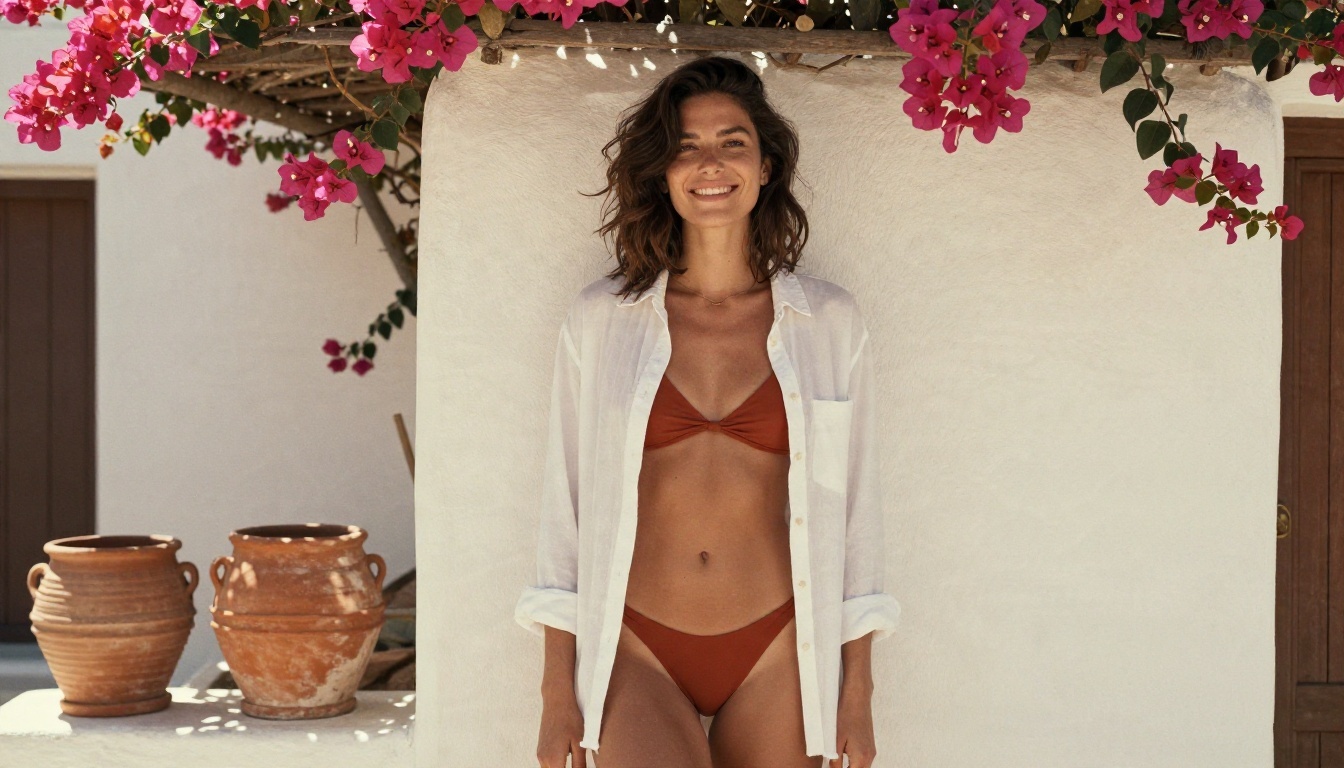
Dial in Juggernaut XL Ragnarok with tested sampler, steps, CFG and resolution values, copy tasteful non-explicit glamour prompts, build a clean ComfyUI graph with a hires pass, and see which PicassoIA models give similar photoreal results today.
Most people who download Juggernaut XL Ragnarok get a plastic, over-sharpened portrait on the first try and blame the model. The model is fine. The settings are usually the problem: a CFG that is too high, a negative prompt copied from a 2023 forum thread, and a resolution the checkpoint was never tuned for. Fix those three things and Ragnarok produces some of the most believable skin and fabric you can get out of a Stable Diffusion XL checkpoint.
This article gives you the numbers that work, a prompt structure for tasteful, non-explicit glamour (swimwear, lingerie, boudoir lighting), a short negative prompt strategy, and a ComfyUI graph you can rebuild in five minutes. You will also see where Ragnarok stands today, and which models on PicassoIA give you similar photoreal results without installing anything.
💡 Adults only, always. Everything below assumes fictional adult subjects, no real people's likenesses, and non-explicit output. Keep it suggestive and beautiful, not pornographic.
What Ragnarok Does Best
Where it came from
Juggernaut XL is a long-running photorealistic checkpoint family from RunDiffusion, built on Stable Diffusion XL. The Ragnarok release (the version with a May 2025 update circulating on model hubs) was tuned to be easier to prompt than the older numbered versions. It leans toward natural light, believable skin pores, and fabric that behaves like fabric.
Its strengths are easy to list:
Skin texture that does not look airbrushed when CFG stays low
Cinematic lighting that responds well to plain photographic language
Clothing detail such as satin sheen, lace trim and linen creases
Short prompts, which usually beat long keyword piles
Why it still gets used
Newer image models exist, and some of them follow long prompts better. But Ragnarok runs on modest GPUs, loads fast in ComfyUI, and has a huge library of compatible LoRAs. For people who want local control and no usage limits, that combination is hard to replace.
💡 Availability note: Juggernaut XL Ragnarok is not on PicassoIA yet. If you want similar results without a local install, jump to the PicassoIA section further down.
Best Settings for Ragnarok
Settings reported on the model pages and in RunDiffusion's own notes agree on most points, with a few small disagreements. The table below shows the starting point I recommend, and the range worth testing.
Setting
Start here
Safe range
Notes
Sampler
DPM++ 2M SDE
DPM++ 2M Karras
SDE gives softer, more filmic skin
Steps
30
25 to 40
Past 40 rarely adds anything
CFG
4
3 to 6
Above 6 starts to look plastic
Resolution
832 x 1216
Other SDXL sizes
Portrait ratio suits glamour shots
Negative prompt
Empty
Short list only
Add terms only after a flaw appears
Seed
Fixed while testing
Any
Change one setting at a time
Sampler and scheduler
DPM++ 2M SDE is the safest first choice. In ComfyUI it appears as dpmpp_2m_sde, paired with the karras scheduler. If your images look slightly gritty, try dpmpp_2m with Karras instead. It is a touch cleaner and a touch flatter.
Steps and CFG
Thirty steps is the sweet spot for most portraits. CFG is where people go wrong. Some NSFW-oriented prompt pages recommend 6 to 7, but for Ragnarok that range tends to push contrast and give skin a waxy look. Start at 4. If the model ignores part of your prompt, move to 5, then 6, and stop as soon as the detail appears.
Resolution that works
Generate at 832 x 1216 for portraits and 1216 x 832 for landscape scenes. Going straight to 2048 pixels on the long edge usually produces doubled limbs and stretched faces. Generate small, then upscale (more on that in the workflow section).
NSFW Prompts That Stay Tasteful
A prompt structure that holds up
Ragnarok responds best to photographer language. Build the prompt in this order:
Subject and pose: age range, hair, expression, what she is doing
Clothing: one or two specific items with materials (satin, lace, linen)
Setting: a real place, not a mood
Light: direction and quality
Camera: lens, aperture, film stock
That ordering keeps the important words early, where SDXL checkpoints give them the most weight.
Three prompts to copy
Boudoir morning
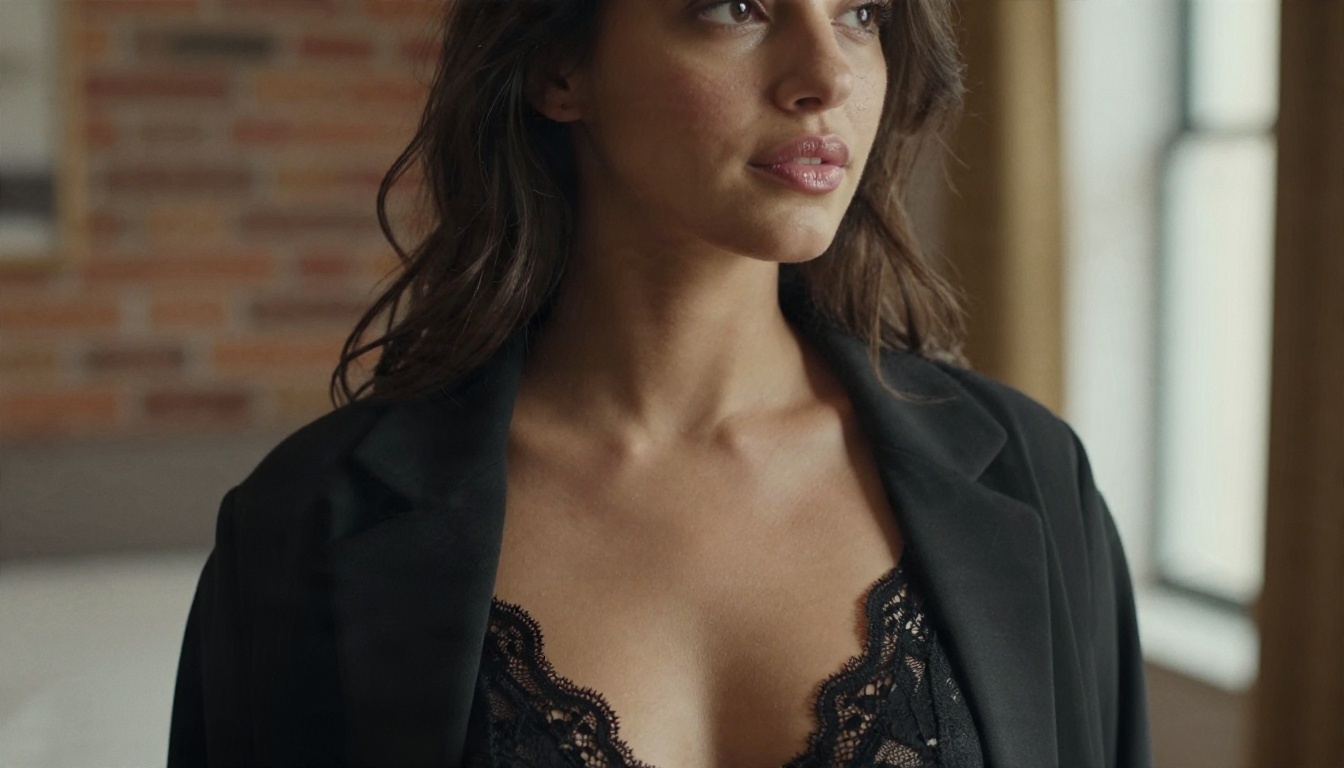
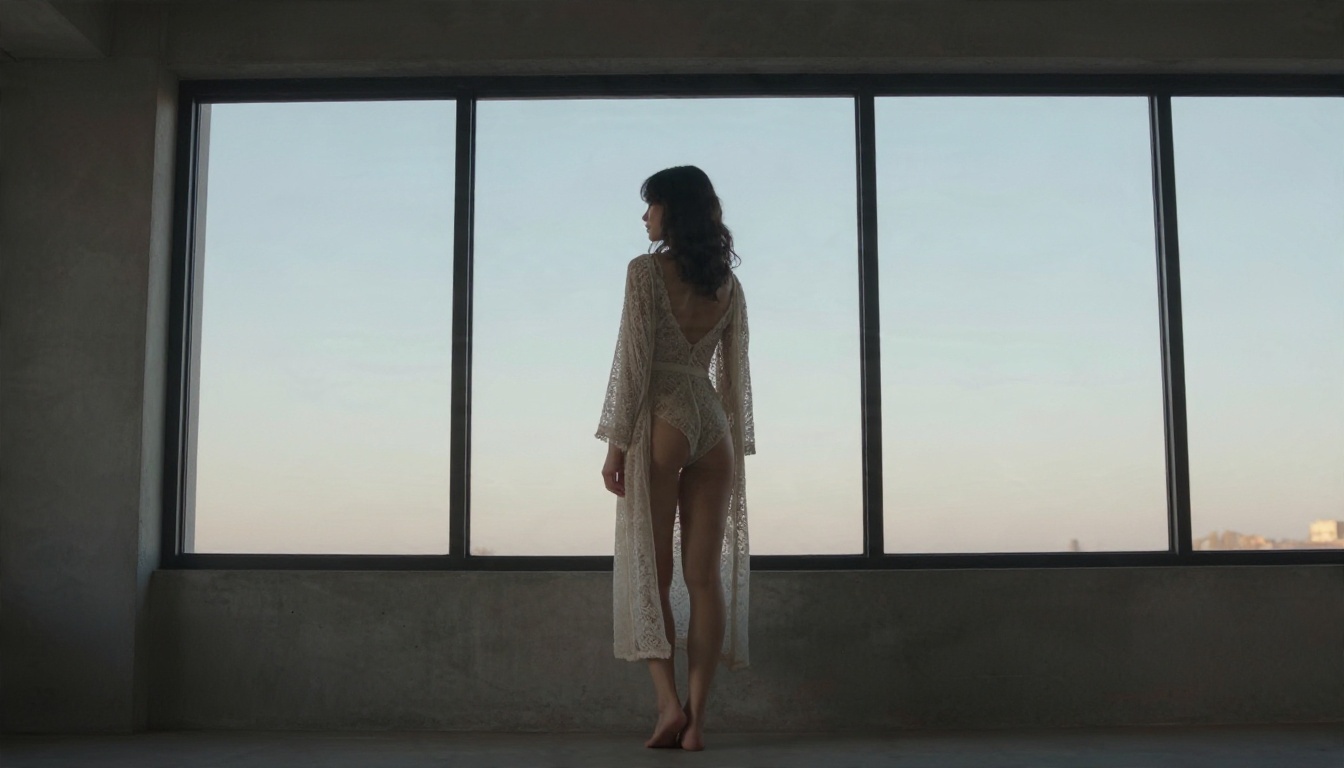
photo of a woman in her late twenties, wavy chestnut hair, light freckles, champagne silk robe slipping off one shoulder, lace lingerie, reclining on white linen daybed, sheer curtains, golden morning light from the left, 85mm f/1.8, shallow depth of field, Kodak Portra 400, film grain, natural skin texture
Beach glamour
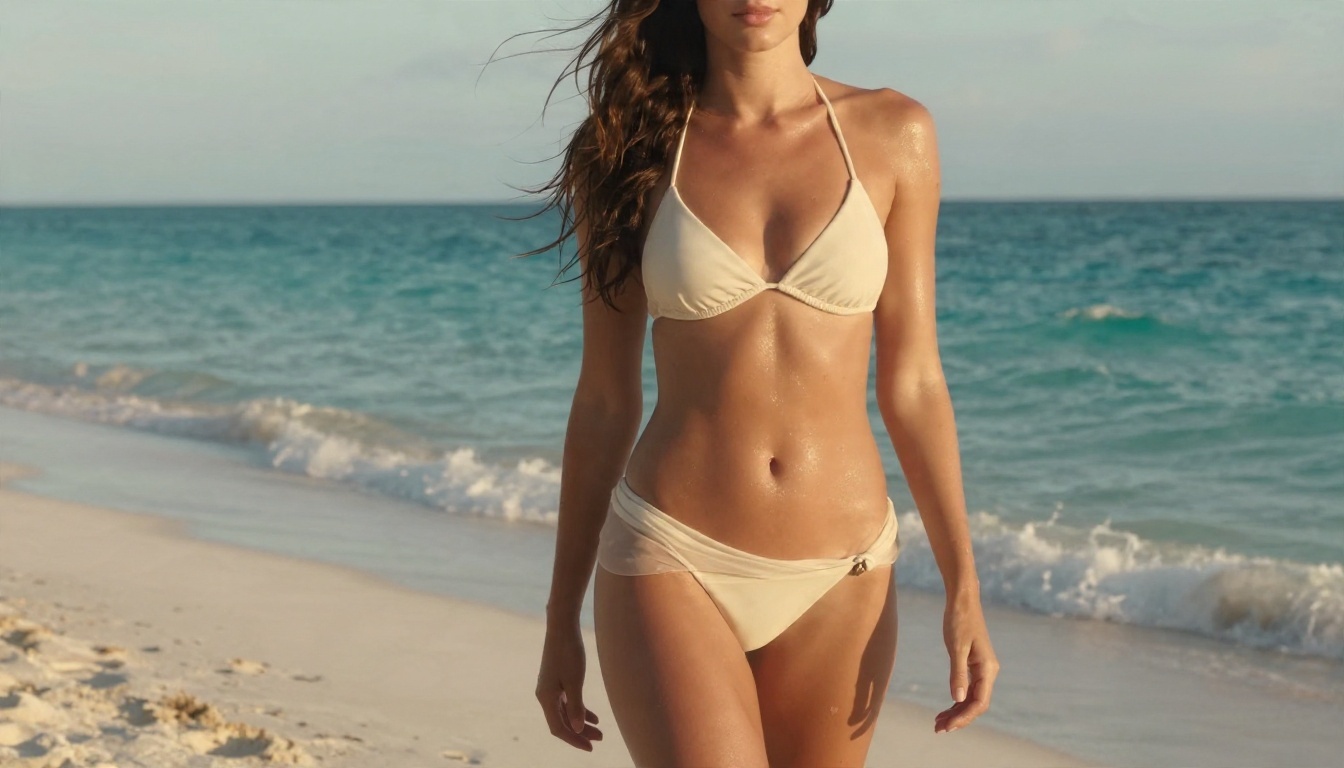
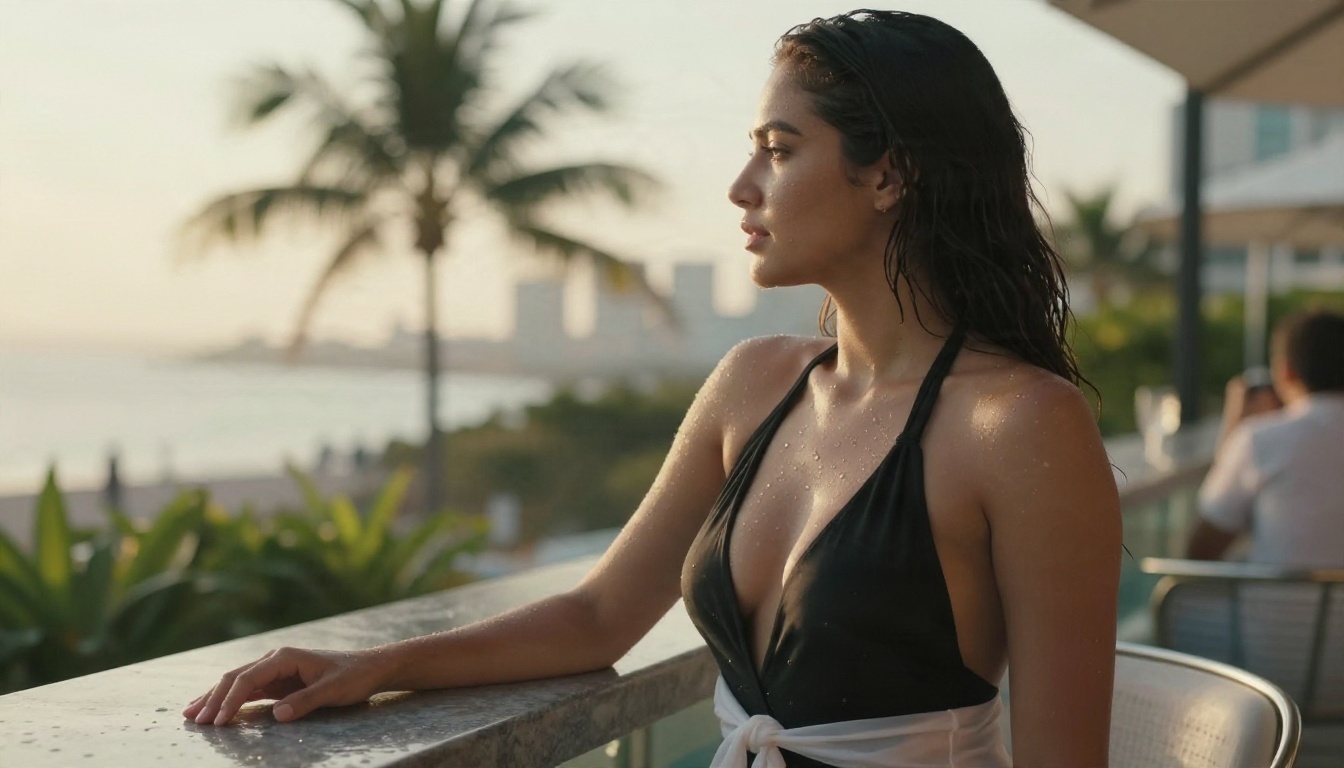
photo of a woman in a cream bikini and sheer linen sarong, white sand beach, golden hour backlight, hair blowing in sea breeze, low angle, 50mm f/1.8, rim light on shoulders, slight skin sheen, film grain
Library evening
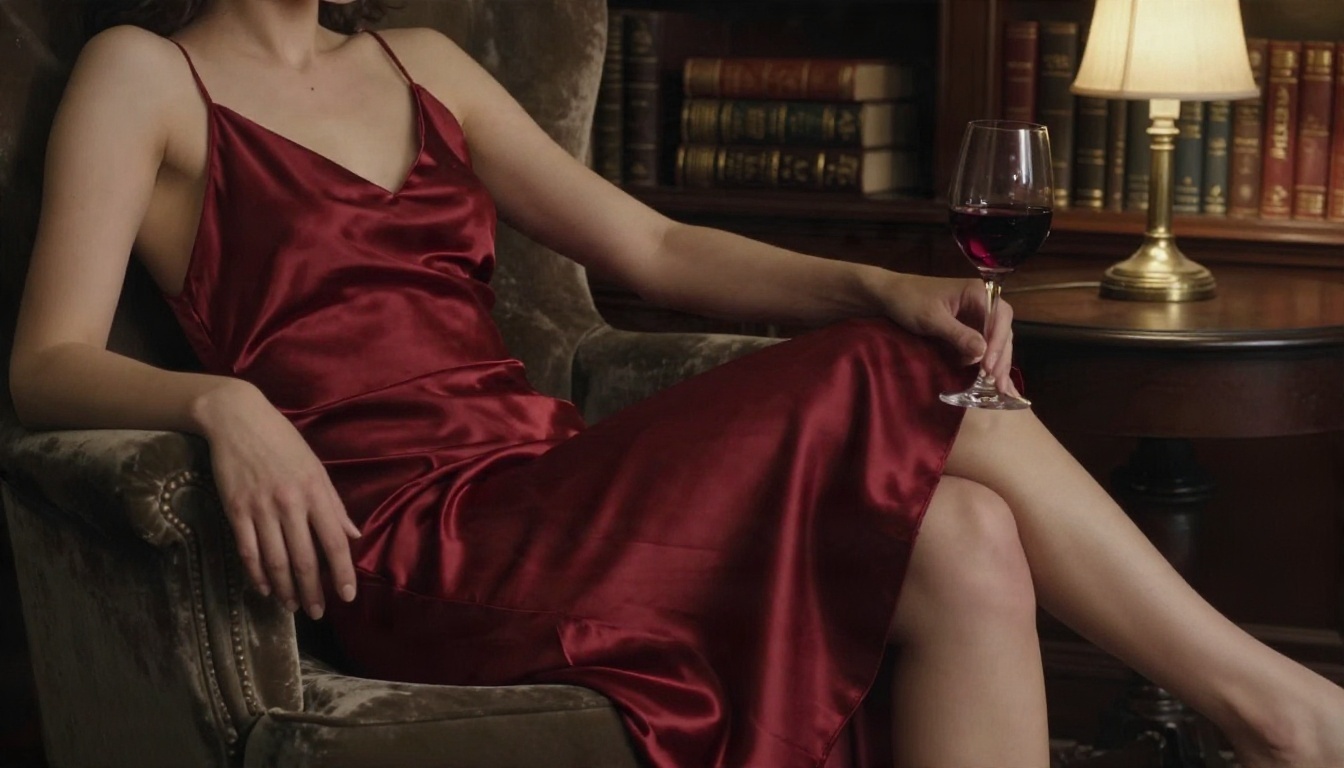
photo of a woman in a deep red satin slip dress, seated on a velvet armchair, brass lamp, leather books, single warm tungsten light from the right, 70mm f/2, silk highlights, visible skin pores
Notice what is missing: no "masterpiece", no "8k uhd", no "best quality". Ragnarok does not need those tokens, and piling them on tends to add contrast and sharpening you then have to remove.
Lighting words that sell realism
Word or phrase
What it does
golden hour backlight
Warm rim light, soft shadows
window light from the left
Directional, flattering falloff
single tungsten lamp
Moody, warm, contained
overcast soft light
Even skin, low contrast
film grain, Portra 400
Gentle color, natural noise
Negative Prompt: Less Is More
Start with it empty
Official guidance for the Juggernaut line has been consistent for a while: begin with no negative prompt. That surprises people who grew up on old Stable Diffusion 1.5 lists with forty terms, but modern SDXL checkpoints are trained to avoid the usual mess on their own. A huge negative prompt also changes the whole image, because every term pulls the latent away from something.
Run your first batch with the field blank. Look at what actually goes wrong.
Short lists for known flaws
Once you see a specific problem, add only the term that targets it. Here is a short toolbox:
Problem you see
Add to negative prompt
Waxy skin
plastic skin, airbrushed
Over-saturated colors
oversaturated
Odd fingers
deformed hands
Flat, cartoon feel
illustration, painting
Stray text or marks
watermark, text
A good working negative prompt for glamour photos is rarely longer than this:
Leave the CLIP layer settings at default. SDXL checkpoints do not need the clip-skip tweak that older 1.5 models relied on.
The hires fix pass
This is the step that separates a decent image from a sharp one. After the first KSampler, add:
Upscale Latent By with a factor of 1.5
A second KSampler with the same model and prompts
Settings on the second pass: steps 20, CFG 4, denoise 0.40 to 0.50
Then VAE Decode and Save Image
A denoise of 0.45 keeps the composition while adding pore and fabric detail. Go above 0.6 and the face can change between passes. For a final 2x or 4x enlargement after that, a dedicated upscale model node works well, or you can send the image to a super resolution tool afterwards.
Fixing hands and faces
Hands are still the weak spot. Two fixes work reliably:
Inpaint only the hand with a low denoise (0.35 to 0.5) and a prompt like "natural hand, relaxed fingers"
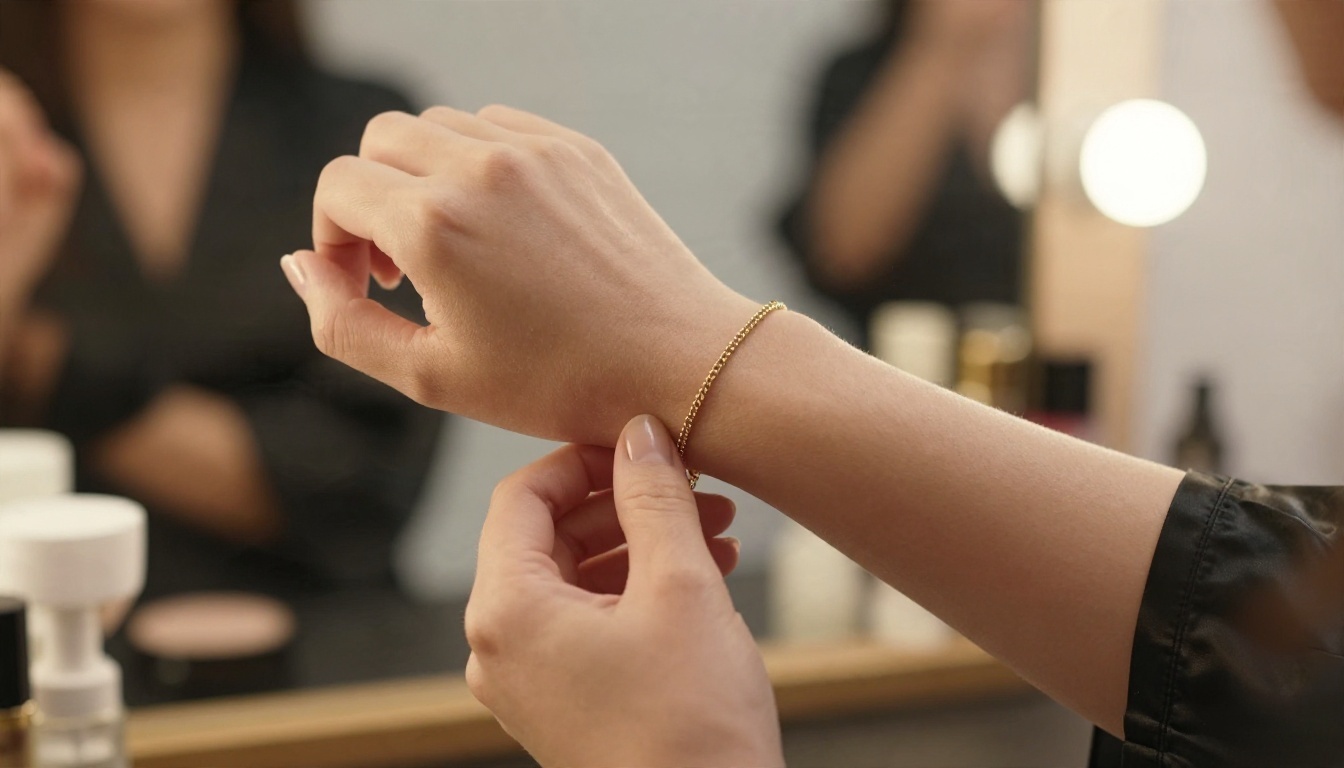
Change the pose so hands hold something simple, such as a bracelet, a glass or a fabric edge
Giving the hands a job in the prompt is a cheap trick, and it works more often than any negative term.
Common Mistakes and Fixes
Mistake
What you see
Fix
CFG at 7 or higher
Waxy skin, harsh contrast
Drop to 4 or 5
Huge negative prompt
Muddy, washed-out image
Empty it, add one term at a time
Generating at 2048 px
Doubled limbs, stretched faces
Use 832 x 1216 plus a hires pass
Quality-token spam
Over-sharpened look
Remove "masterpiece" and "8k"
Changing many settings at once
No idea what helped
Fix the seed, change one thing
Vague clothing words
Generic outfits
Name the material and color
Another quiet mistake: mixing too many LoRAs. Two at a weight of 0.5 to 0.7 is plenty. Three or more fights the base model, and skin goes first.
How to Get Similar Results on PicassoIA
Running ComfyUI locally means managing checkpoints, drivers and VRAM. If you want similar photoreal glamour output in a browser, Seedream 4.5 on PicassoIA is the first model I would reach for. It handles skin, fabric and light very well, and it accepts the same photographer-style prompts shown above.
Paste one of the prompts from the NSFW section above. Drop the negative prompt idea: describe what you want instead of what you do not.
Pick a portrait or landscape aspect ratio to match the 832 x 1216 shape you would use locally.
Generate, then adjust one detail at a time: lens, light direction or clothing material.
Send the best result to PicassoIA Image Editor Pro to fix small flaws such as a hand, a strap or the background, with unlimited generations so you can iterate freely.
💡 Parameter tip: Seedream rewards specific, short sentences. "Champagne silk robe, golden window light from the left, 85mm f/1.8" works better than a long list of adjectives.
Other models worth trying
Ragnarok is not on PicassoIA yet; for similar results today, try these alternatives:
Copy this into a note next to your ComfyUI window:
Checkpoint: Juggernaut XL Ragnarok
Sampler: DPM++ 2M SDE with Karras
Steps: 30 (hires pass: 20)
CFG: 4 (range 3 to 6)
Size: 832 x 1216, then Upscale Latent By 1.5
Hires denoise: 0.45
Negative prompt: empty first, then one term at a time
Prompt order: subject, clothing, setting, light, camera, film stock
LoRAs: two at most, weight 0.5 to 0.7
Make Your Own Images Today
The honest summary: Ragnarok rewards restraint. Low CFG, a short prompt, a nearly empty negative field and a gentle hires pass will beat any giant settings dump. Try the three prompts above, change one variable per run, and keep notes.
If you would rather skip the install and get straight to results, open Seedream 4.5 on PicassoIA, paste a prompt, and see how fast a photoreal glamour image appears. Then refine it in Image Editor Pro, which has no cap on generations, and browse every available model at picassoia.com/en/all-models. Pick a prompt, press generate, and start building your own set.