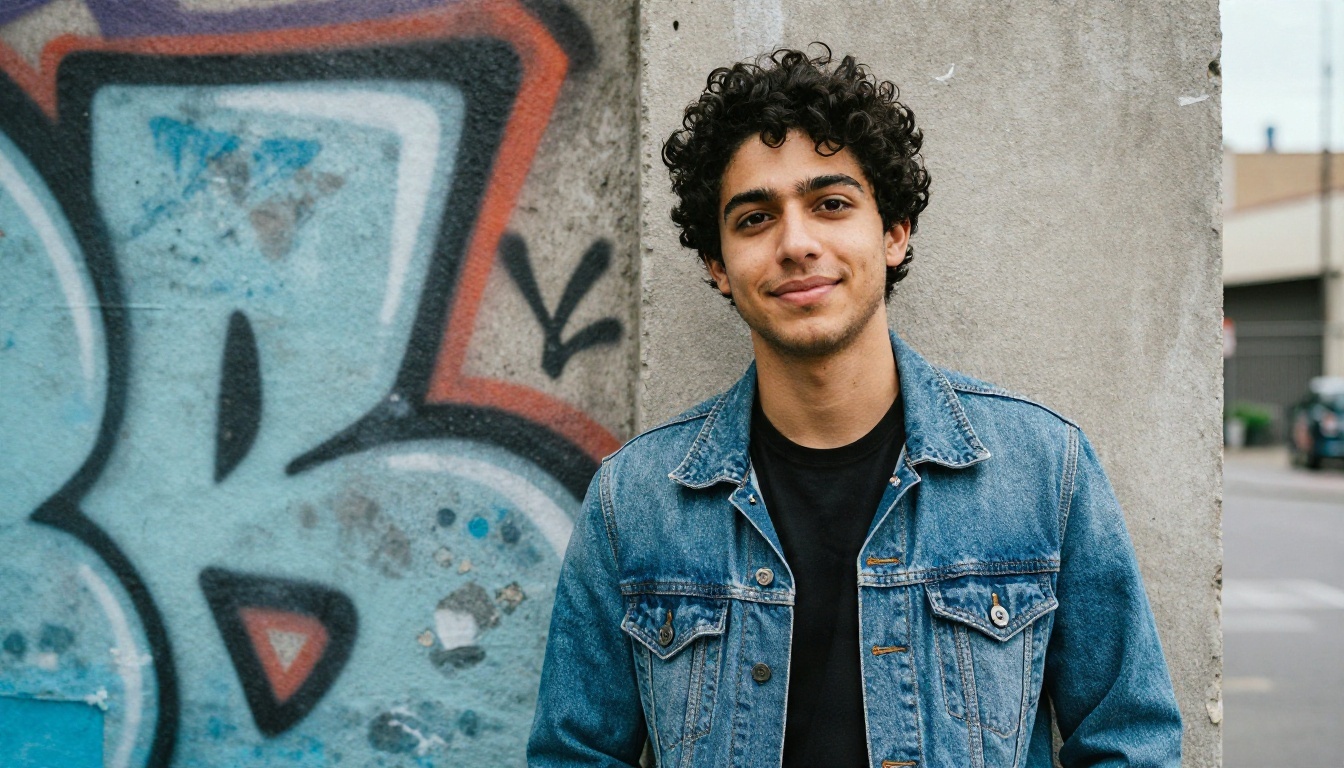
Juggernaut XL V9 Prompts: Examples, Negative Prompt, and Best Settings
Seven tested prompt examples for Juggernaut XL V9, a short negative prompt that avoids over-correction, and the sampler, steps, CFG and resolution settings that produce clean photorealistic images, plus similar-looking alternatives on PicassoIA.
Most people open Juggernaut XL V9, paste a prompt they found somewhere, push CFG to 9 because "higher means better," and then wonder why the skin looks like plastic. The model is not the problem. Juggernaut XL V9 rewards short, photographic prompts, a low CFG and a very small negative prompt, and it punishes almost everything else. This article gives you the exact settings, a prompt formula, seven prompts you can copy, and a negative prompt that does not fight the model.
Juggernaut XL is an SDXL based checkpoint from RunDiffusion, tuned for photorealism. Version 9 is usually used in its "RunDiffusion Photo 2" form, and it is one of the most popular checkpoints for portraits, street scenes and product shots. One thing to know before you read on: Juggernaut XL V9 is not on PicassoIA, so this article treats it by name only. In the section on similar results you will find models that are on PicassoIA and produce a comparable photographic look, with links and settings.
💡 Quick answer: DPM++ 2M Karras, 30 to 40 steps, CFG 4 to 5, 832x1216 for portraits, a prompt written like a photo caption, and a negative prompt of five to ten words at most.
What Juggernaut XL V9 Does Best
Juggernaut XL V9 leans toward natural skin, believable lighting and a slightly filmic tone. Where some SDXL checkpoints give you glossy, over-sharpened faces, this one tends to keep pores, flyaway hair and uneven color. It is also forgiving with composition: ask for a "low angle street photograph" and you generally get one.
Its strengths, based on community results and my own prompt testing patterns:
Portraits with realistic skin and eye detail
Street and documentary scenes with mixed light sources
Food and product photography with believable materials
Landscapes with soft atmospheric depth
Interiors with plausible daylight
Its weak spots are the usual SDXL ones. Hands can still fail, long text inside the image is unreliable, and crowded scenes with many distinct people drift quickly. If you need clean text rendering, you will want a different model.
💡 Tip: Juggernaut is trained to respond to photography language. Words like "85mm", "f/1.8", "overcast", "Kodak Portra 400" and "film grain" carry more weight than abstract quality words like "masterpiece" or "ultra HD 8K".
Best Settings for Realistic Output
Settings matter more with this checkpoint than prompt length does. The numbers below come from community recommendations for V9 and from the official Diffusers example, which uses a guidance scale of 5.0. There is no single official table for V9, so treat these as a starting range, not a law.
Sampler, Steps and CFG
Setting
Starting value
Range to test
What happens at the extremes
Sampler
DPM++ 2M Karras
DPM++ SDE Karras, Euler a
Euler a gives softer, more random results
Steps
35
30 to 40
Under 25 looks unfinished, over 45 rarely helps
CFG scale
4.5
3 to 7
Above 7 burns contrast and flattens skin
Clip skip
1 (default)
1 to 2
Rarely needed on SDXL
Seed
Random
Fixed when comparing
Fix it so you only change one thing at a time
CFG is the most misused setting. A lower value (3 to 5) leaves room for the model's own sense of realism. Push it up and the model obeys your prompt harder, which sounds good until faces get waxy and shadows turn muddy. For portraits, many users settle between 4 and 5.
💡 Tip: Change one value at a time with a fixed seed. Run the same prompt at CFG 3, 4.5 and 6. The difference is easy to see on skin and on the shadow side of the face.
Resolution and Aspect Ratio
SDXL models are trained around one megapixel, so stay near that area instead of generating huge images in one pass.
Use case
Resolution
Ratio
Portrait
832x1216
about 2:3
Square social post
1024x1024
1:1
Landscape or street
1216x832
about 3:2
Wide scene
1344x768
16:9
Need more pixels? Generate at the native size, then upscale in a second step. Going straight to 2048 pixels on one side usually produces duplicated limbs and stretched faces.
The Prompt Formula That Works
You do not need a 150 word block of keywords. SDXL reads prompts in chunks of 75 tokens or so, and the first sentence carries the most weight. Write the prompt like a photographer's note, in this order:
Subject and action: who or what, doing what
Setting: where, with two or three concrete props
Light: direction, quality and time of day
Camera: lens, aperture, angle, distance
Texture and film feel: skin pores, fabric weave, grain, film stock
Why Order Matters
Put the subject first. If you open with "cinematic, dramatic, ultra detailed, 8K" the model spends its attention on mood words and gives you a generic result. Open with "Close-up portrait of an elderly fisherman" and the rest has something to attach to.
Weighting and Length
Weights like (freckles:1.2) work, but keep them between 0.8 and 1.3. Above that, the detail you emphasize often takes over the whole image. Aim for 40 to 80 words. Shorter prompts leave too much to chance, and longer ones start to contradict themselves.
💡 Tip: If one detail keeps getting ignored, move it earlier in the prompt before you reach for a heavy weight.
Prompt Examples You Can Copy
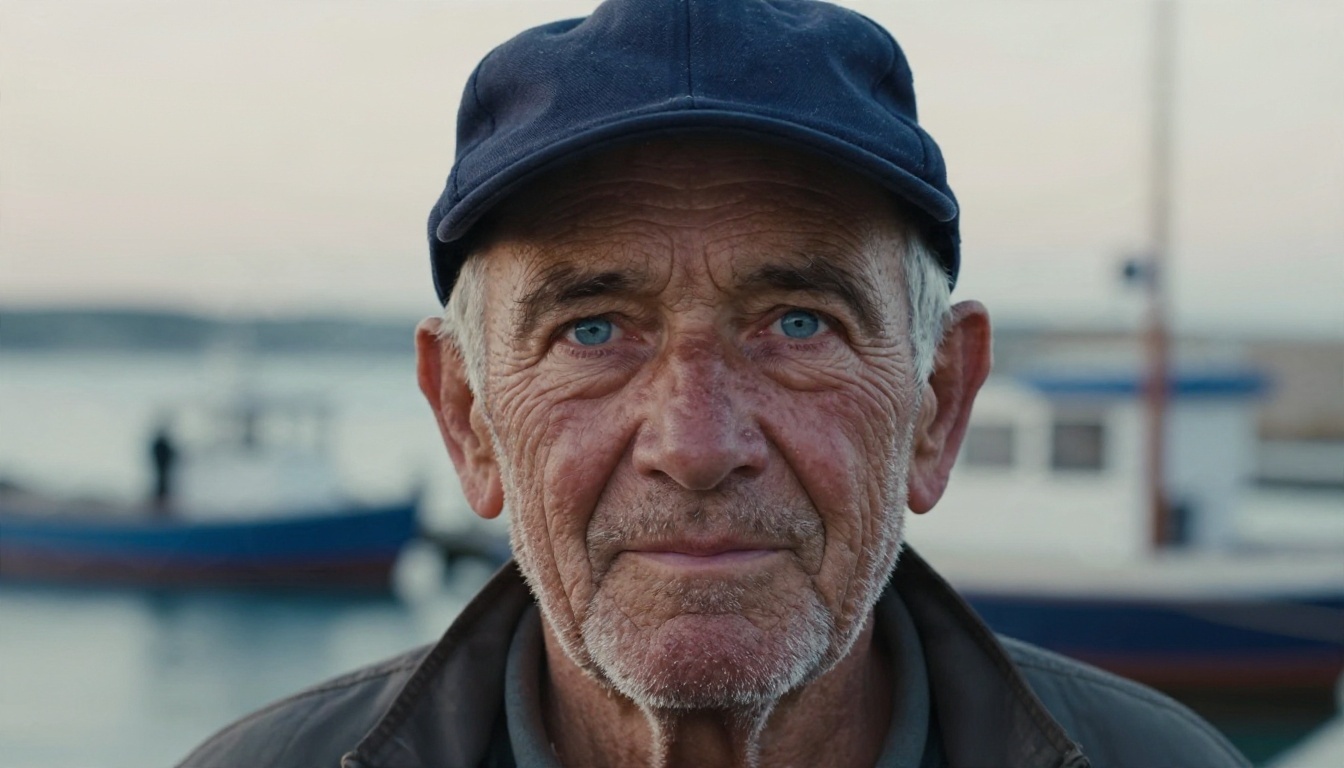
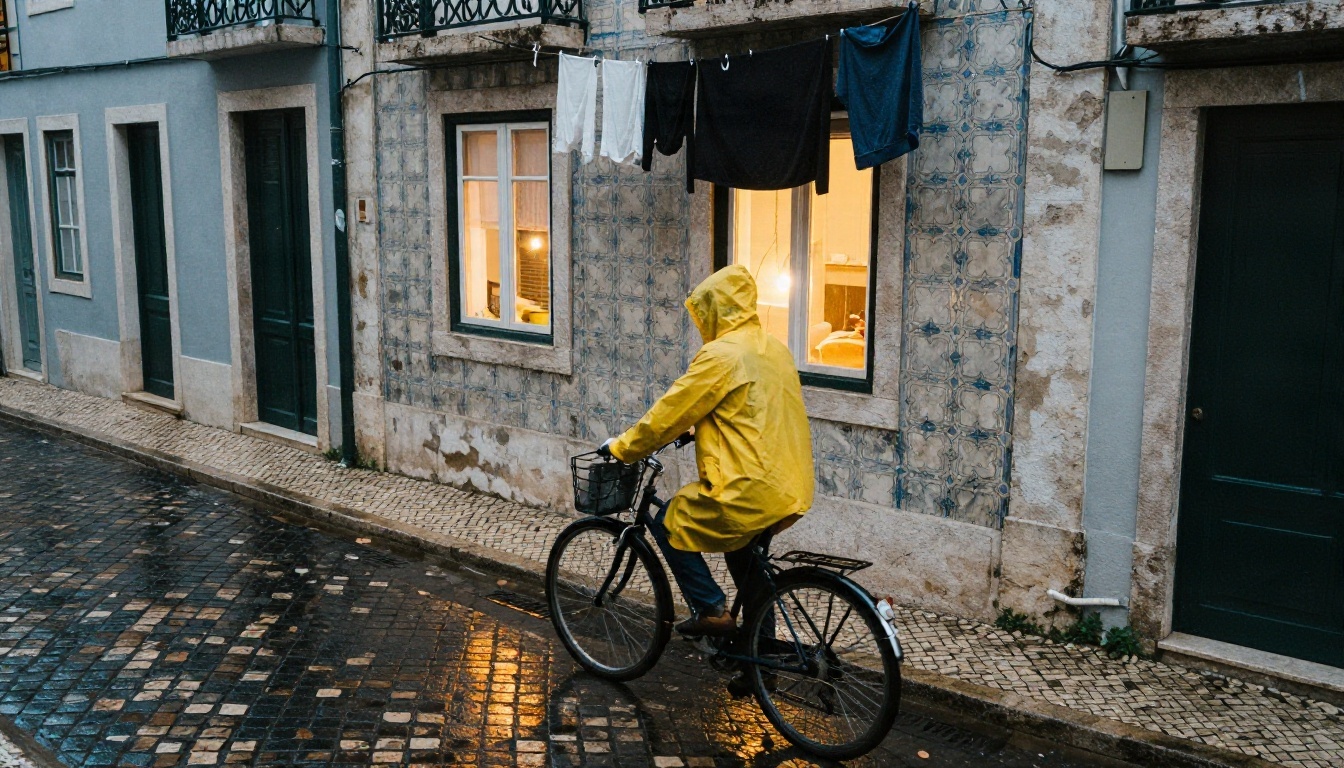
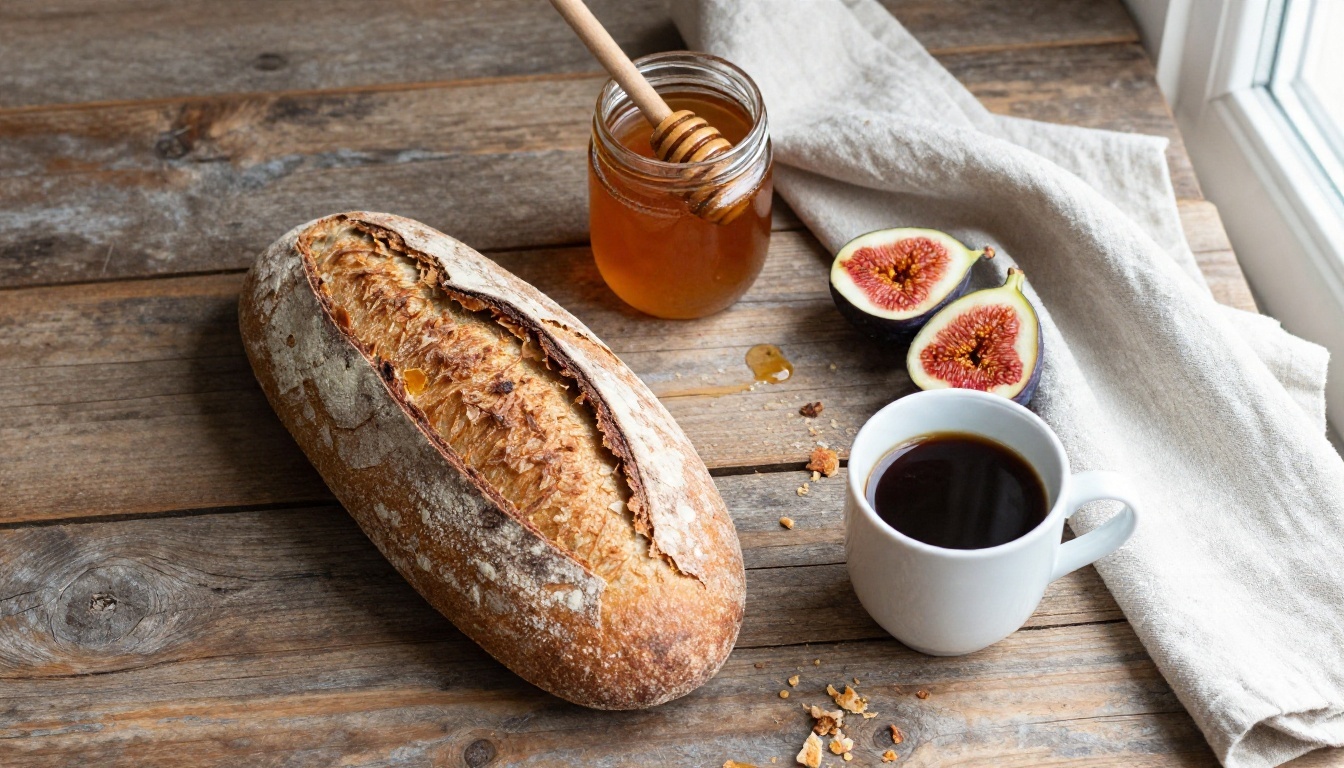
Each prompt below follows the formula above. Every example here is shown with a sample image in the same photographic spirit, generated with a separate model, so use them as visual references for the look, not as exact outputs of any one checkpoint. Paste the prompt, set your sampler to DPM++ 2M Karras, steps to 35, CFG to 4.5 and go.
Portrait With Real Skin
Close-up portrait of an elderly fisherman with deeply weathered skin, white stubble and pale blue eyes, looking slightly past the camera, faded navy wool cap, harbor at dawn blurred behind him, soft side light from the left, 85mm f/1.8 shallow depth of field, visible pores and salt crusted creases, Kodak Portra 400 film grain, raw photograph
Why it works: the subject is specific, the light has a direction, and the skin is described with physical words ("salt crusted creases") instead of "realistic skin."
Settings: 832x1216, CFG 4 to 5, 35 steps.
Street Scene After Rain
Low angle street photograph of a rain soaked Lisbon alley at dusk, a cyclist in a yellow raincoat passing a tiled facade, warm window light reflecting on wet cobblestones, laundry hanging overhead, 35mm f/2 lens, soft overcast ambient light mixed with tungsten glow, realistic textures of wet stone and peeling paint, subtle film grain
Why it works: mixed light sources (overcast plus tungsten) are something Juggernaut handles well, and the single yellow accent gives the frame a focal point.
Settings: 1216x832, CFG 4, 35 steps.
Flat Lay Food Photo
Overhead flat lay of a rustic breakfast on a weathered oak table, a cracked sourdough loaf, a glass jar of honey with a wooden dipper, halved figs, a white ceramic cup of black coffee, crumbs and linen napkin, soft window light from the right with gentle shadows, 50mm lens at f/4, fine crust texture and glistening honey, natural color, Kodak Portra 400 grain
Why it works: food needs material words. "Glistening," "crust texture" and "crumbs" tell the model what surface to draw, which is what separates a photo from a render.
Settings: 1024x1024, CFG 4.5, 30 to 35 steps.
Misty Aerial Landscape
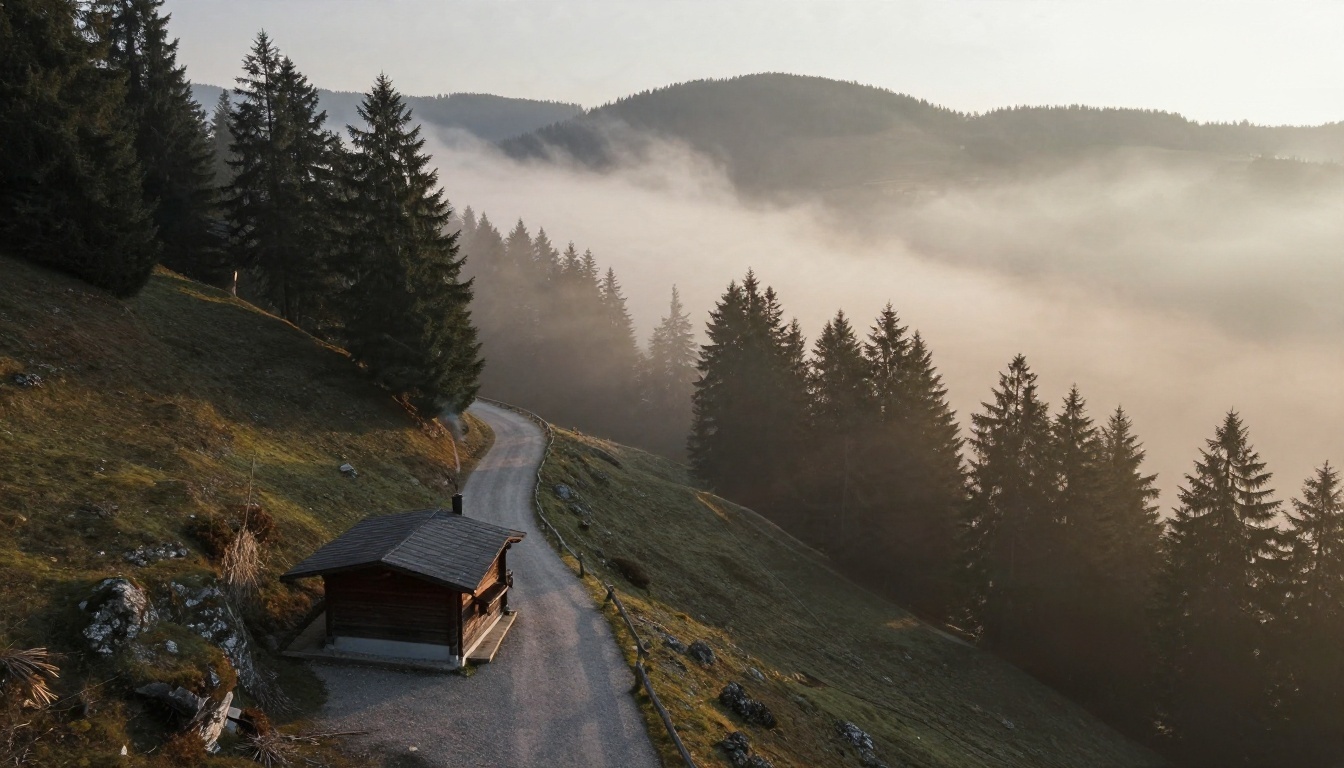
Wide aerial photograph of a misty pine valley at sunrise in the Dolomites, a winding gravel road, a small wooden cabin with a thin line of chimney smoke, layers of fog between ridges, golden light raking from the left, drone 24mm lens, crisp conifer texture, natural muted colors, subtle haze, film grain
Why it works: "layers of fog between ridges" creates depth, and "natural muted colors" keeps the sunrise from turning orange and oversaturated.
Settings: 1344x768, CFG 4, 35 steps.
Fashion by the Sea
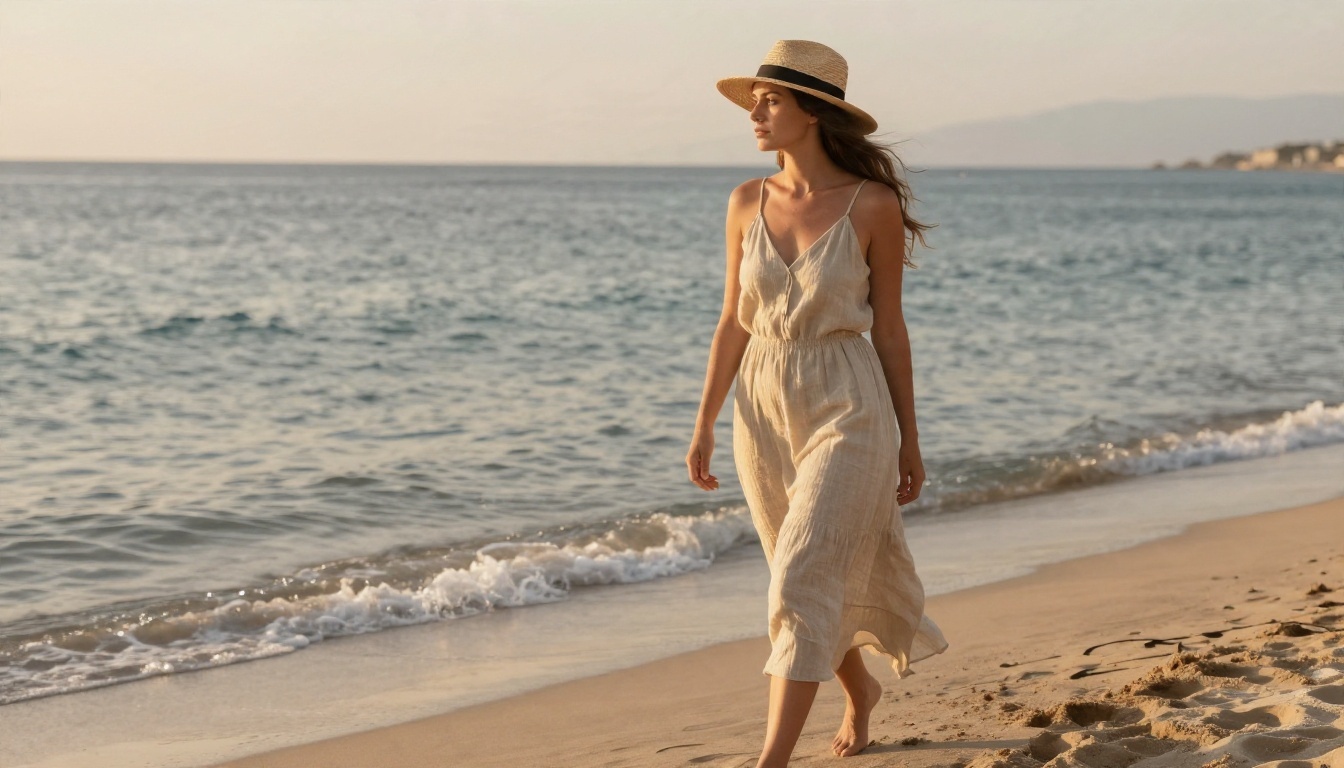
Medium shot of a woman in a linen summer dress and straw hat walking along a sandy Mediterranean beach at golden hour, hair lifted by the breeze, warm backlight from the right creating a soft rim on her shoulders, gentle sea foam at her feet, 85mm f/2 lens, realistic skin tones and fabric creases, soft film grain, tasteful and elegant
Why it works: backlight plus "fabric creases" gives clothing believable folds, and the movement cue (hair lifted by the breeze) avoids the stiff, posed look.
Settings: 832x1216, CFG 4.5, 35 steps.
Interior in Daylight
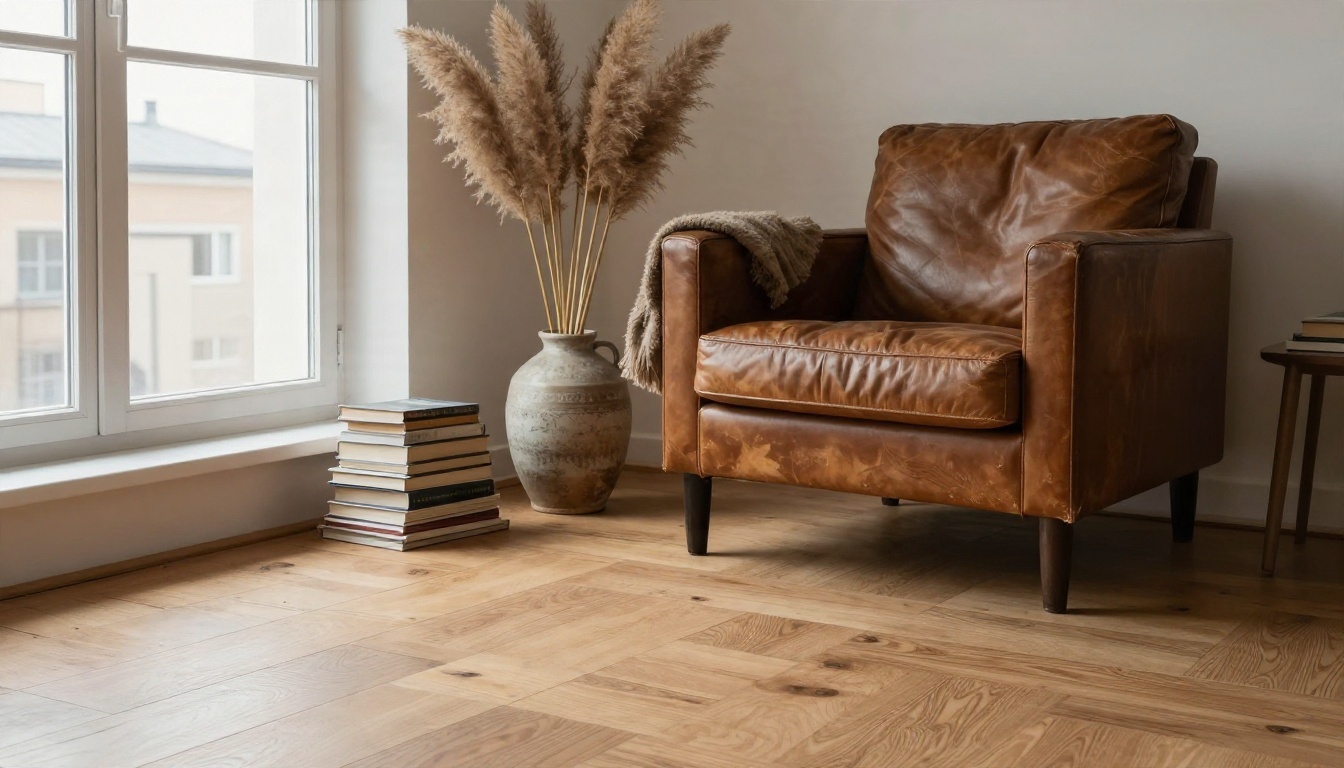
Interior photograph of a Scandinavian living room in late afternoon, a worn leather armchair beside a tall window, a wool throw, stacked books and a ceramic vase with dried pampas grass, oak floor with visible grain, soft diffused daylight from the left, 24mm lens at f/5.6 eye level, realistic textures, neutral warm palette, subtle grain
Why it works: "worn" and "visible grain" push materials toward real objects. The f/5.6 aperture tells the model to keep the whole room sharp.
Settings: 1216x832, CFG 4, 35 to 40 steps.
Macro Product Shot
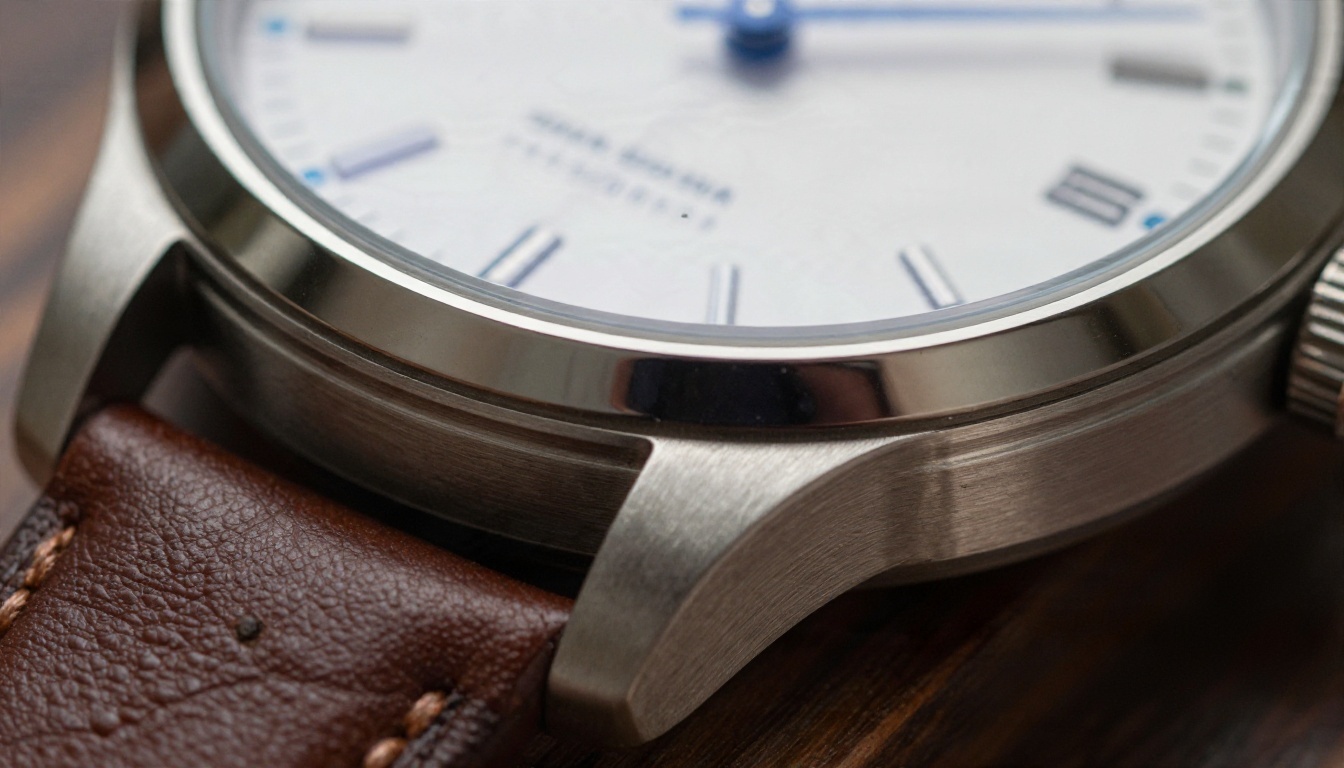
Macro close-up of a mechanical wristwatch on a dark walnut surface, brushed steel case, sapphire crystal with a faint reflection, fine leather strap stitching and grain, a tiny dust speck on the dial, single softbox light from the upper left, 100mm macro lens at f/4, razor thin depth of field, true to life color, subtle film grain
Why it works: one light source, named materials and a tiny imperfection ("dust speck") make a product feel photographed. Expect small dial text to be unreliable, so choose a watch face with minimal markings.
Settings: 1024x1024, CFG 5, 35 steps.
Quick Reference Table
Prompt type
Resolution
CFG
Steps
Key light cue
Portrait
832x1216
4 to 5
35
Soft side light
Street
1216x832
4
35
Mixed ambient and warm
Food
1024x1024
4.5
30 to 35
Window light
Landscape
1344x768
4
35
Low raking sun
Fashion
832x1216
4.5
35
Backlight
Interior
1216x832
4
35 to 40
Diffused daylight
Product
1024x1024
5
35
Single softbox
The Negative Prompt That Works
Here is the counterintuitive part: Juggernaut XL V9 often does best with a very short negative prompt, and sometimes with none at all. The old habit of pasting a 60 term list ("bad anatomy, bad hands, missing fingers, extra digit, fewer digits, cropped, worst quality...") comes from earlier Stable Diffusion 1.5 days. On SDXL checkpoints, a long list can shift the style, flatten the contrast and make faces blander.
Short Starter Negative Prompt
Start with this:
cartoon, illustration, painting, blurry, low quality, watermark, text
That is eight terms, and it does three jobs: it blocks non-photographic styles, it removes obvious softness, and it keeps stray logos away.
When to Add More
Add a term only when you see the problem repeatedly:
Problem you see
Add to negative prompt
Skin looks waxy
plastic skin, airbrushed
Eyes look uneven
asymmetrical eyes
Extra fingers on close-ups
extra fingers, deformed hands
Harsh over-sharpened look
oversharpened, hdr
Cropped heads
cropped, out of frame
Odd text in signs
text, letters, logo
💡 Tip: Add one term, rerun with the same seed, and compare. If nothing improves, remove it. Negative prompts you cannot see working are just noise.
Positive phrasing often fixes what a negative prompt cannot. Instead of "no extra fingers," write "hands resting on the table, fingers relaxed." Instead of "no blurry background," describe the exact blur you want: "shallow depth of field, creamy bokeh."
Common Mistakes to Avoid
These are the errors that show up again and again when people say V9 "looks bad":
CFG above 7. Skin turns waxy, contrast burns. Drop to 4 or 5 first.
Quality word stacking. "Masterpiece, best quality, ultra HD, 8K, hyperrealistic" adds little. Replace with a lens and a light source.
Huge resolutions in one pass. Generate near one megapixel, then upscale.
Giant negative prompts. Cut it to under ten terms.
No light direction. "Soft light from the left" does more than "beautiful lighting."
Conflicting styles. "Photo, oil painting, cinematic, anime" pulls the model four ways.
Changing everything at once. Fix the seed and move one variable per run.
If your result still looks off, check the sampler. Switching from Euler a to DPM++ 2M Karras fixes a surprising number of "mushy" outputs.
Get Similar Results on PicassoIA
Since Juggernaut XL V9 is not on PicassoIA yet, here is where to go for a similar photographic look today. RealVisXL v3.0 Turbo is the closest match: it is also an SDXL based photoreal model, it takes a negative prompt, and it lets you change the scheduler.
Paste one of the prompts from this article into the Prompt field.
Enter the short negative prompt from the section above in Negative Prompt. The default one already blocks illustration, 3D and painting styles, so you can also start with it.
Keep the Scheduler on DPM++ SDE Karras, which is the recommended default.
Set Guidance Scale low. The default is 2, and Turbo models usually work best with values from about 1.5 to 3, not the 4 to 5 you would use on a standard checkpoint.
Leave Inference Steps around 25. More steps rarely help on a Turbo pipeline.
Set Width and Height to match your shot. The default is 768x768, and portrait or landscape sizes work for other framing.
Generate, then fix the Seed when you want to compare changes.
💡 Tip: Turbo models need a lower CFG than a normal SDXL checkpoint. If your image looks burnt, lower guidance first.
Image to Image and Inpainting
RealVisXL v3.0 Turbo also accepts an input image. Upload a reference, then adjust Prompt Strength: lower values keep more of the original, while 1.0 discards it entirely. With a mask, you can inpaint one area only, such as a face or a background object, while the rest stays untouched. This is a good way to repair a single flaw without redoing the whole picture.
For sharper detail at larger sizes, Seedream 4.5 handles longer, more descriptive prompts well, so you can paste the full 60 to 80 word versions from this article without trimming.
Try Your Own Prompts
The fastest way to improve at prompting is repetition: pick one scene from this article, change one detail and compare. Swap the light from "soft side light" to "overcast flat light." Change 85mm to 35mm. Replace the film stock. Within ten generations you will know what each part of a prompt actually does.
You do not need to install anything to practice. Open PicassoIA, choose a photoreal model such as RealVisXL v3.0 Turbo or Seedream 4.5, and run the portrait prompt first. Then try the street scene, then the product shot. Keep a note of the settings that gave you the best skin and the cleanest light, and reuse them on your next idea.