Most AI video tools make you work in two stages: generate a silent clip, then bolt a voice on top and hope the mouth movements line up. Kling 2.6 breaks that habit. It produces the picture and the sound together, so a character can speak, react and move in one pass. That sounds simple, but it changes what you write in your prompt, how you budget your credits and which tool you reach for when a clip does not work. This article walks through how Kling 2.6 lip sync behaves, where voice control helps, where it falls short, and which free or cheaper alternatives are worth trying before you commit to a paid workflow.
What Kling 2.6 Actually Does
Kling 2.6 is a video model from Kuaishou's Kling team. The headline change from earlier versions is native audio: speech, ambient sound and effects are generated at the same time as the frames. You no longer need a separate text to speech step for a basic talking clip.
Audio and Video in One Pass
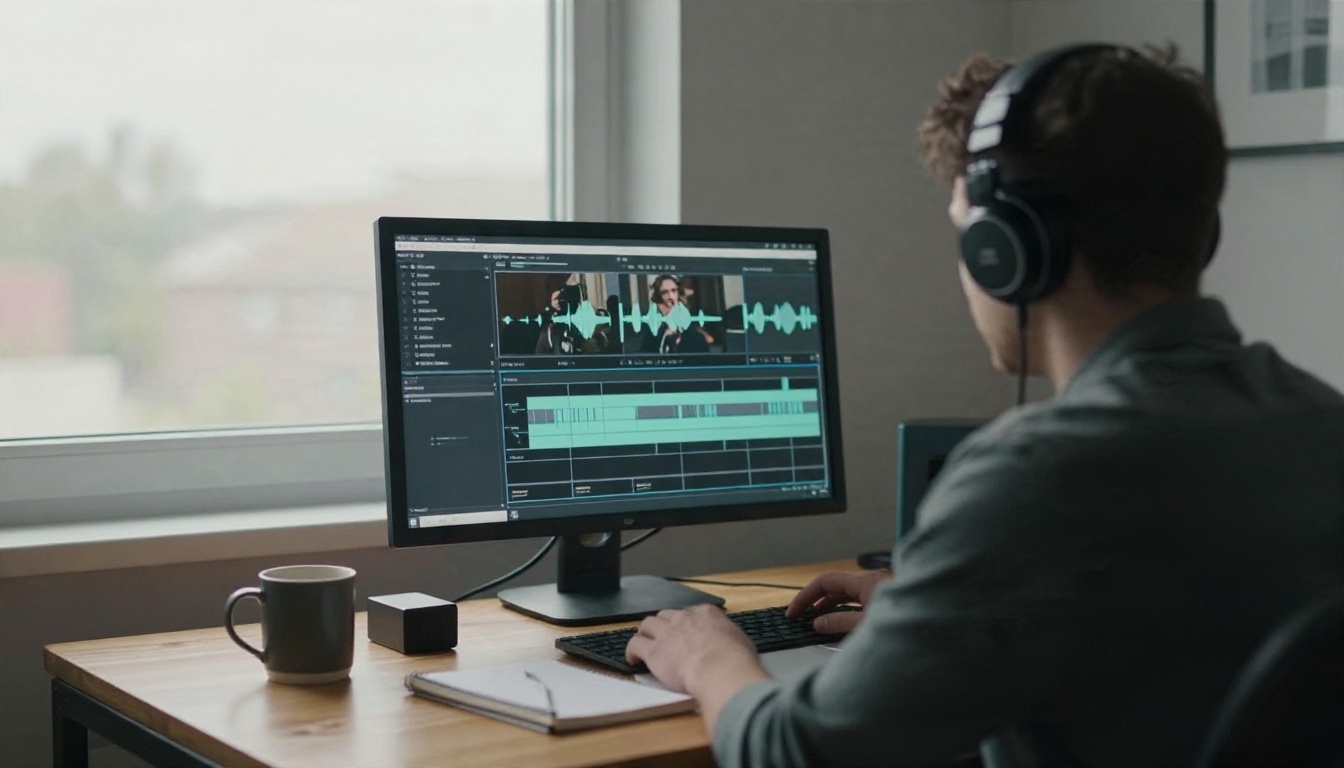
Older workflows looked like this: generate a silent clip, record or synthesize a voice, then run a lip sync model to match mouth shapes to the waveform. Every step introduced drift. The face might be slightly off, the timing might lag by a few frames, and the lighting on the mouth region could look different from the rest of the face.
With native audio, the model decides what the character says and how the lips move during the same generation. The result is usually more coherent, because the mouth, jaw and cheek movement are part of the original motion rather than a patch applied afterward.
Why the Lip Sync Looks Different
Post-process lip sync tools edit the lower half of an existing face. Kling 2.6 builds the face from scratch around the speech. In practice you get:
- Better jaw and cheek motion, since the whole face reacts to each syllable
- Fewer visible seams around the mouth and chin
- Matching emotion, because a laugh in the audio can drive a smile in the picture
- Shorter iteration loops, since one prompt produces one finished clip
💡 Tip: Native audio is not a replacement for every lip sync job. If you already own a recorded voice you must keep, a dedicated lip sync model is still the right tool. More on that below.
How Voice Control Works
Voice control is the part most people ask about. Instead of uploading a voice file, you describe the speech inside the prompt, and the model performs it.
Writing Dialogue in Your Prompt
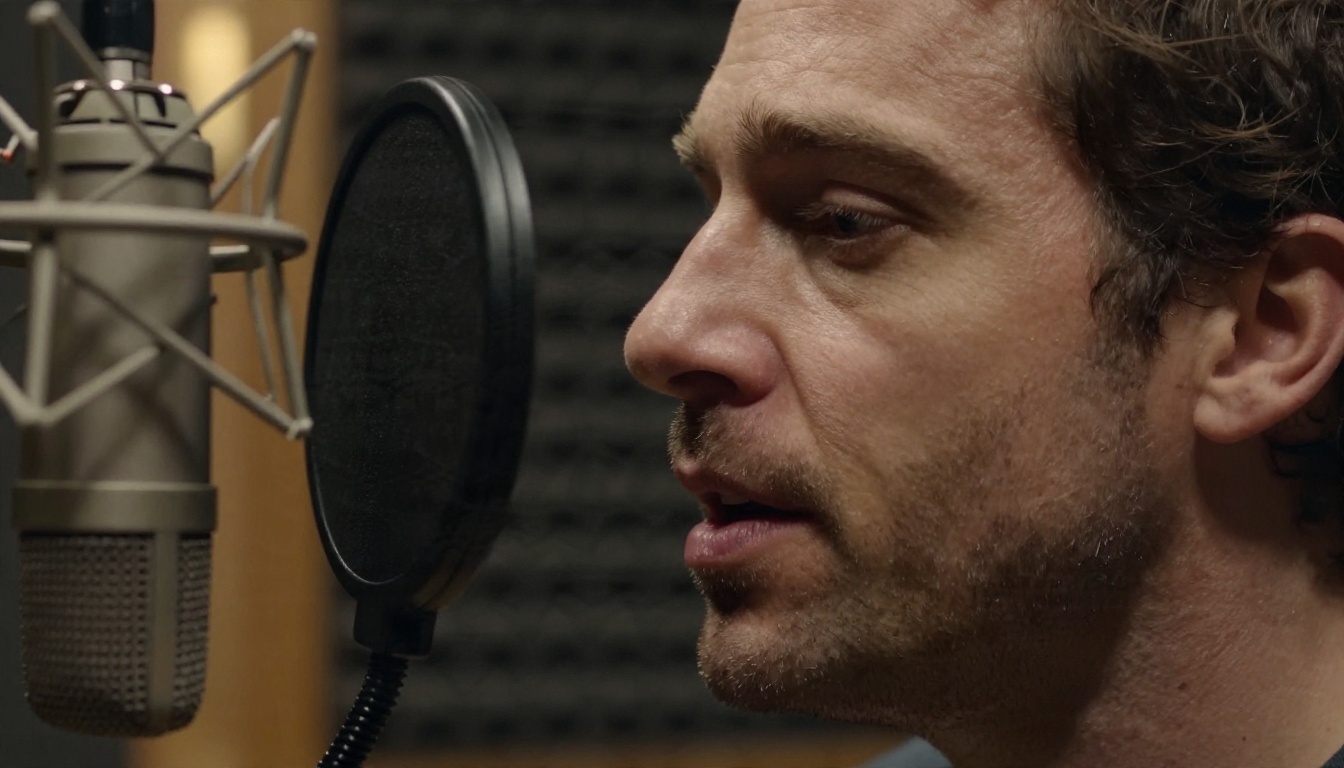
The reliable pattern is to put spoken lines in quotation marks and describe the delivery next to them. For example: a woman at a kitchen table says, in a calm friendly tone, "Today I am showing you the simplest way to make fresh pasta." The model reads the quoted text as speech and the surrounding words as acting direction.
Things that help:
- Keep lines short. One or two sentences per clip lands better than a paragraph.
- Name the tone. Words like warm, hurried, whispered or cheerful steer the voice.
- Describe the speaker. Age, gender and general vocal quality (deep, soft, raspy) influence the voice that gets generated.
- Mention the room. A tiled bathroom, an open street and a quiet studio all sound different, and the model picks up on that.
Two Voices, One Scene
Kling 2.6 can handle dialogue between two speakers in a single clip. Research on the model points to two characters as the practical ceiling: when three or more people talk in one scene, voice attribution tends to get confused and lines may be spoken by the wrong face.
For a two-person exchange, label the speakers clearly. Use a consistent descriptor each time, such as "the woman in the green jacket" and "the man with the beard", and put each line directly after the name. Avoid pronouns when the speaker changes, because they are a common source of mix-ups.

Language Limits
Native speech is strongest in English and Chinese. If you write a line in another language, expect the model to translate it into English for the audio track, which defeats the purpose if you wanted Spanish, French or Arabic delivery. For those cases, generate the video first and handle the voice separately with a dubbing or text to speech tool. A good option on PicassoIA is v2 Multilingual for voiceover in 30+ languages, or Dubbing to translate an existing video.
Prompts That Get Clean Speech
Lip sync quality depends heavily on how the prompt is built. Vague prompts produce vague mouths.
A Prompt Structure That Works
Use this order every time:
| Part | What to write | Example |
|---|
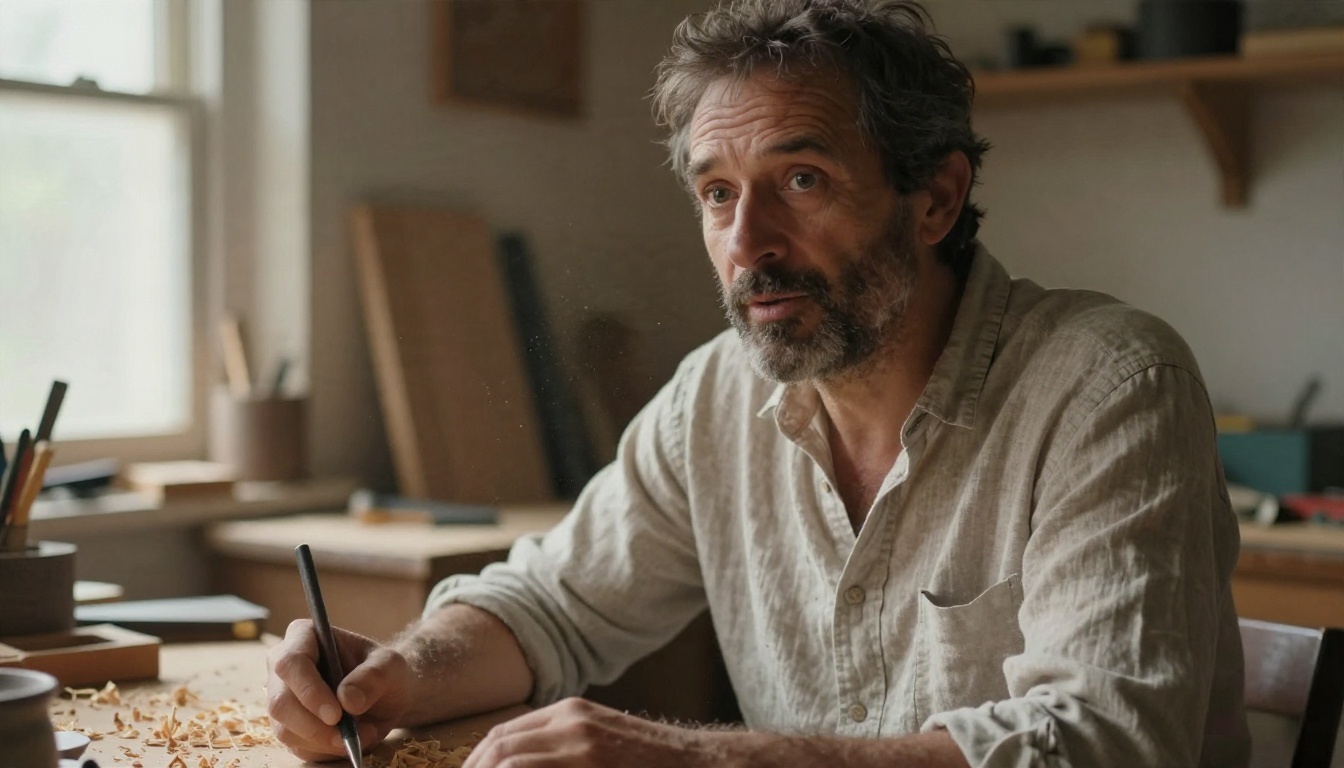
| Subject | Who is on screen | A middle-aged carpenter in a linen shirt |
| Setting | Where and what light | Sunlit workshop, side window |
| Camera | Framing and motion | Medium close-up, slow push in |
| Speech | Quoted line plus delivery | Says warmly, "This joint will outlast the house." |
| Sound | Background audio | Faint sawing in the distance |
Keep the camera movement gentle. Fast whip pans and aggressive handheld shake make the mouth harder to render cleanly, and the audio rarely benefits from the chaos.
Mistakes That Waste Credits
- Overlong dialogue. If the line cannot be spoken comfortably in the clip length, the speech gets rushed or cut off. Clips are short, with a maximum of around 10 seconds.
- Hidden mouths. Hands over the face, heavy beards in deep shadow, or a subject turned away reduce lip clarity.
- Too many characters. Three speakers in frame is where attribution slips.
- Conflicting audio cues. Asking for loud music and a whispered confession in the same prompt means neither works well.
- Wrong language expectations. Writing a Portuguese line and expecting native Portuguese speech will disappoint you.
💡 Tip: Run a cheap test first. Generate a short, simple version of your scene to confirm the voice and face feel right, then add complexity.
Expression Beyond the Mouth
Believable speech is more than lips opening and closing. Eyebrows, eye movement and small head tilts sell the performance. Add cues like "raises an eyebrow on the last word" or "glances down, then back to camera" and the result feels acted rather than animated.
How to Use Kling Models on PicassoIA
PicassoIA hosts several Kling models, so you can pick the one that fits each job without switching platforms. Here is a practical way to use them.
Generate a Talking Clip with Kling v2.6
Open Kling v2.6 and follow this order:
- Write the prompt using the Subject, Setting, Camera, Speech, Sound structure from the table above.
- Put dialogue in quotes and add a tone word right next to it.
- Provide a starting image if the model page offers that input, which helps keep the face consistent from one clip to the next.
- Turn audio on if the model exposes that option, since silent output skips the speech entirely. Available settings can change as the model is updated, so check the options on the page.
- Generate, review, adjust. Change one thing at a time: the line, the tone or the camera move.
Sync Existing Audio with Kling Lip Sync
When you already have a voice file, the better choice is Kling Lip Sync. You supply a video and an audio track, and the model matches the mouth to the sound. This is ideal for:
- A voiceover recorded by a real person
- A brand voice that must stay identical across many videos
- A translated audio track laid over an existing clip
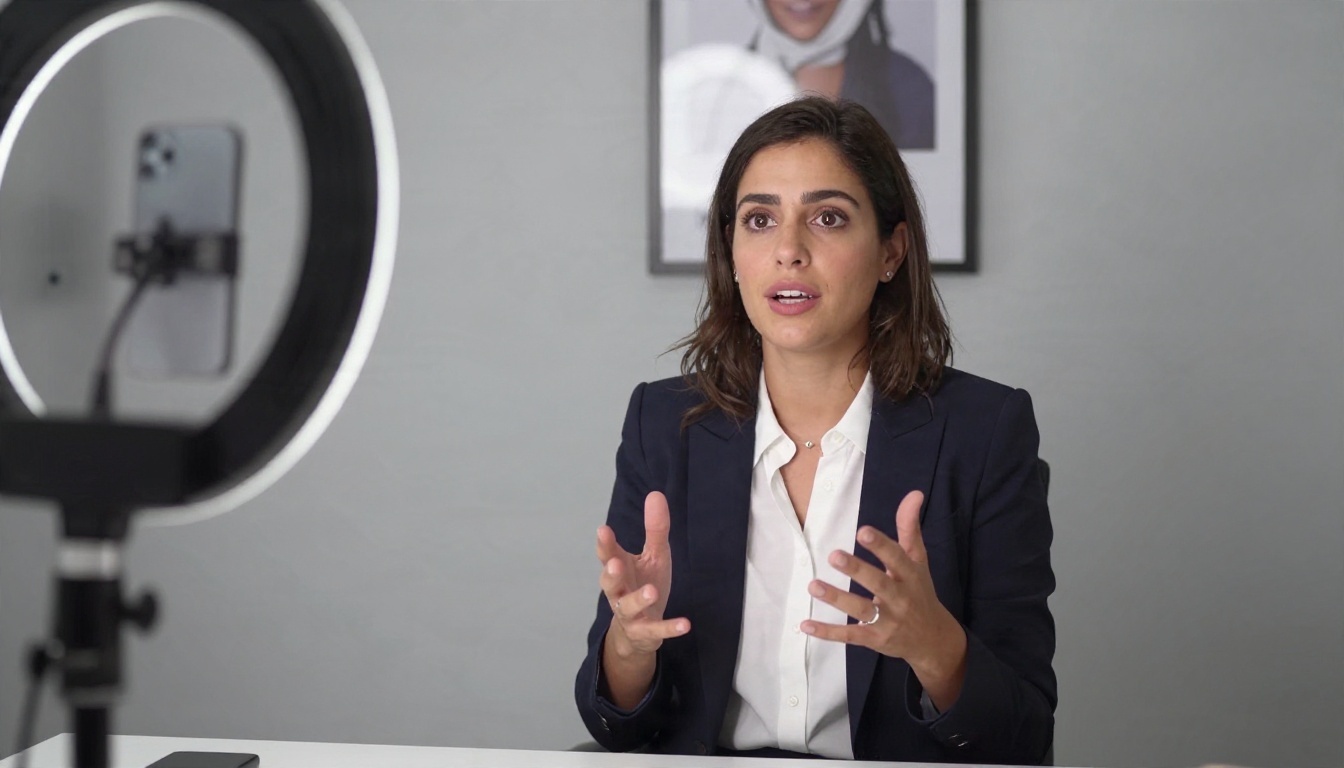
Add Body Movement with Motion Control
If you want a character to gesture, walk or dance while talking, try Kling v2.6 Motion Control. It copies body movement, hand gestures and facial motion from a reference video onto your character. Pair it with a lip sync step afterward when you need a specific voice. For newer output quality, Kling v3 Video and Kling v3 Motion Control are also available.
Free and Low Cost Alternatives
Native audio is convenient, but it is not always the cheapest route. Third-party pricing for Kling 2.6 has been reported at roughly 80 credits per second at 1080p with sound on, against about 45 with sound off, so audio nearly doubles the spend. If you make a lot of talking clips, that adds up fast. These alternatives can cut the bill.
Photo to Talking Video
If all you need is a face that talks, you do not need a full video model. These tools animate a single photo from an audio file:
Fix Lips on Existing Footage
When the video is fine and only the mouth needs work, a dedicated lip sync model is faster and cheaper than regenerating the whole scene:
Other Video Models With Sound
If Kling is not the right fit, Wan 2.5 T2V, Wan 2.5 I2V Fast and LTX 2.5 Fast are strong choices for quick iterations. They are often cheaper per attempt, which matters when you need several takes to get a face and voice that work.
💡 Tip: Free tiers and trial credits change often. Check each model page for current limits before you plan a project around them.
Which Option Fits Your Project
Here is a quick comparison to match the tool to the job.
| Goal | Best fit | Why |
|---|
| Short cinematic scene with speech | Kling v2.6 | Voice and picture made together |
| Real voiceover on a clip | Kling Lip Sync | Keeps your exact audio |
| Talking head from one photo | Omni Human 1.5 | Cheap, fast, face consistent |
| Spanish, French or Arabic delivery | v2 Multilingual plus a lip sync model | Native speech is English and Chinese |
| Translating an existing video | Dubbing | 90+ languages |
| Pose and gesture copying | Kling v2.6 Motion Control | Reference video drives movement |
Social Clips and Short Ads
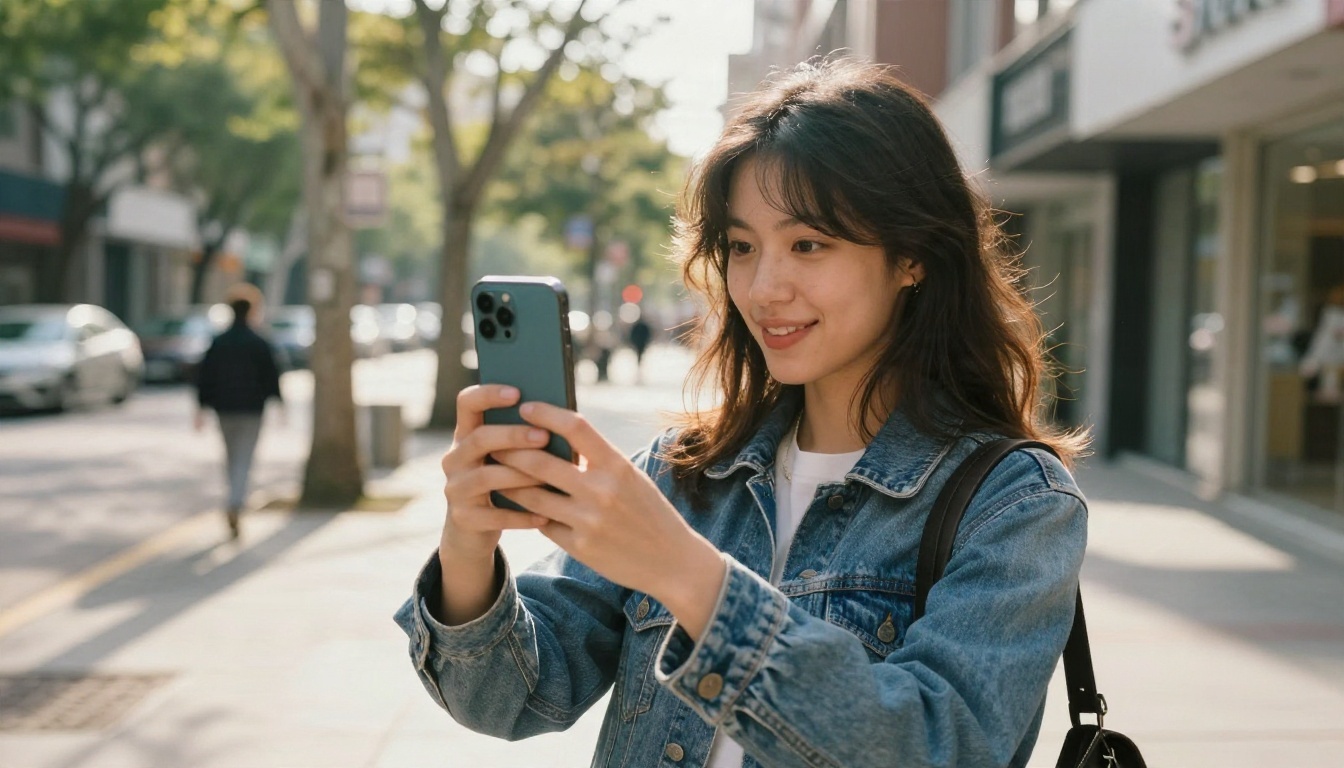
For vertical social content, speed wins. A single-take Kling 2.6 clip with one line of dialogue is often enough. If you need ten variations for A/B testing, generate one strong clip, then use a lip sync model with different audio tracks to produce the rest at lower cost.
Dubbing and Multi-Language Output
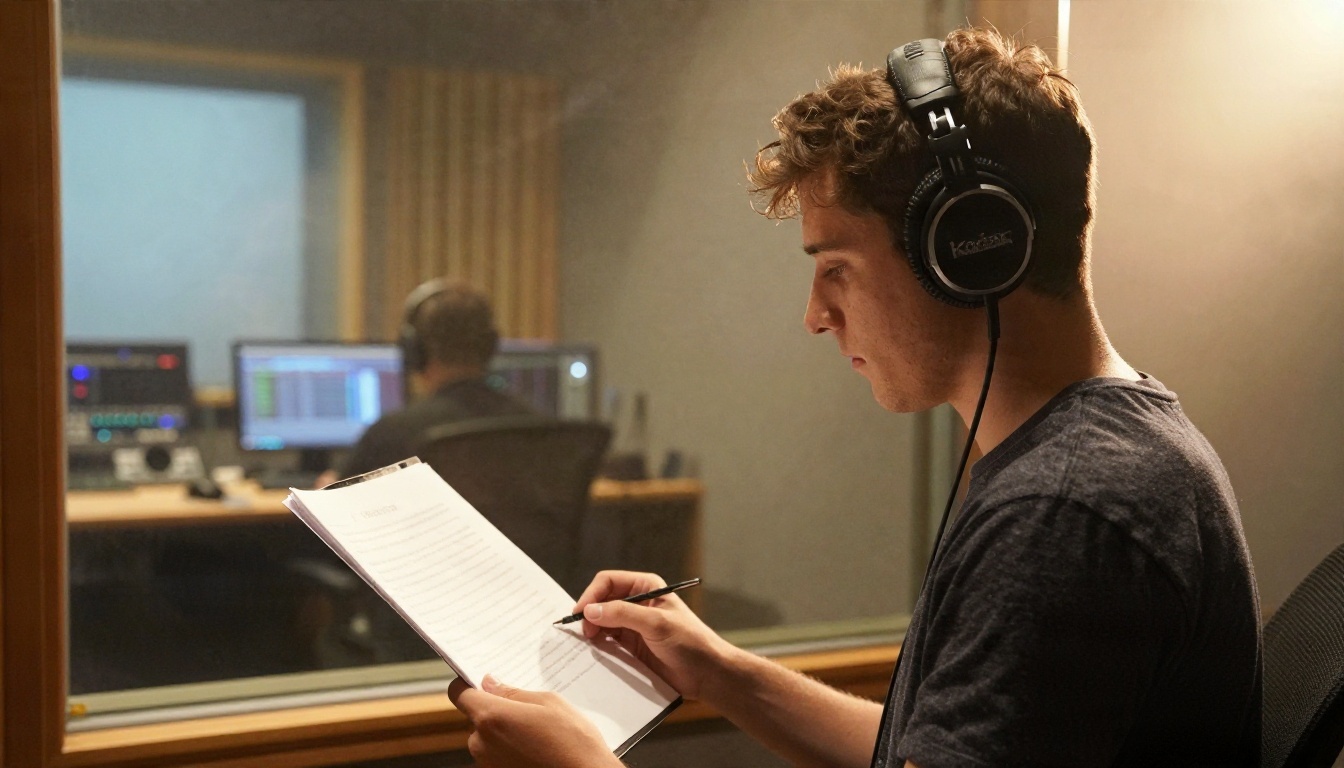
For international audiences, generate the original clip once, then dub it. A voice model produces the new audio and a lip sync step reshapes the mouth to match. This is dramatically more consistent than regenerating the same scene in four languages and hoping each version looks the same.
Limits Worth Knowing Before You Start
Kling 2.6 is impressive, but a few honest limits shape how you should plan:
- Clip length is short. Expect around 5 to 10 seconds per generation, so longer scenes must be stitched.
- Two speakers is the safe maximum. More than that and voices may land on the wrong characters.
- Voice consistency across clips is not guaranteed. A character can sound a bit different from one generation to the next. For a series, record or synthesize one voice and apply it with a lip sync model.
- Non-English speech is translated. Plan separate audio for anything beyond English and Chinese.
- Audio costs more. Sound on roughly doubles the per-second price compared with sound off.
A sensible production loop looks like this: draft with a cheaper model, lock the script, generate the hero shot with Kling, then use lip sync or dubbing tools for variations and languages.
Try It Yourself on PicassoIA
You do not have to pick one tool and stick with it. The strongest results usually come from mixing: a Kling clip for the main scene, a lip sync model to fix or swap the voice, and a text to speech model when you need another language. Start with one short line of dialogue, test it in Kling v2.6, then try the same scene through Kling Lip Sync with your own audio and compare the two. If you also need a still image first, Seedream 4.5 makes a clean starting frame for any talking video.
Everything is in one place at picassoia.com/en/all-models. Open it, pick a model, and make your first talking clip today.


