You type a few lines, wait a minute or two, and a 15 second film shot appears with camera movement, sound and a lead character who keeps the same face from the first frame to the last. That is the promise of the Kling 3.0 AI video generator, and for once the promise mostly holds. The catch is the part nobody puts in the headline: free credits vanish fast, prices differ depending on where you run it, and a handful of limits can wreck a project if you hit them on deadline day.
This article gives you the practical answers. You will see which free options are real, which prompts produce clean motion, what a clip costs in credits and dollars, and where the ceiling sits on length, resolution and prompt size. You will also get a short walkthrough for running Kling v3 Video on PicassoIA, plus alternatives for the days you want something different.
What Kling 3.0 Does Well
Kling 3.0 is the third generation of the video model family built by Kuaishou. Compared with the 2.x releases, the jump is not about prettier pixels. It is about control: longer clips, scene planning inside a single generation, and sound that arrives with the picture.
Multi-shot scenes
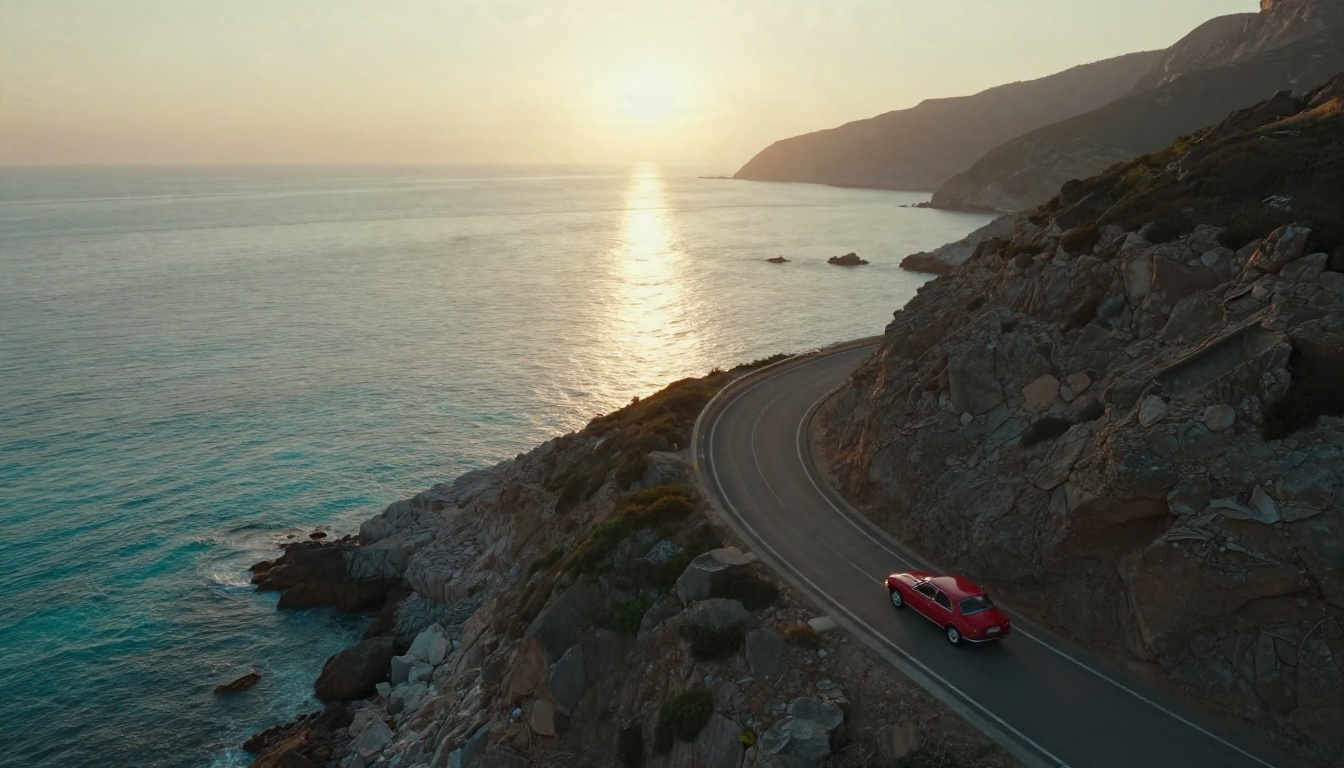
The biggest change is multi-shot scripting. Instead of generating one continuous take, you can define up to 6 separate shots in one request, each with its own prompt and duration. The shot lengths must add up to the total clip length, and each shot needs at least one second.
That means a 10 second clip can open on a wide establishing shot, cut to a close-up, then end on a slow pull-back, all in one pass. The subject stays consistent across cuts, which used to be the hardest thing to fake.
Native audio
Kling v3 Video can generate ambient sound together with the picture. Waves, footsteps, a café murmur, engine hum: you get a rough soundtrack without opening a second tool. It is not a replacement for a proper mix, but it makes drafts feel finished and saves a round trip to a sound library.
💡 Audio is off by default. If you want sound, switch it on before you generate, because rerunning a clip just to add audio costs credits again.
Start and end frames
You can pin the first frame, and optionally the last frame, using your own images. This is the cleanest way to keep a brand look, a character design or a product angle consistent. Upload a still, describe the motion, and the model builds the movement between your anchors.
| Capability | What you get |
|---|
| Clip length | Up to 15 seconds |
| Multi-shot | Up to 6 shots per clip |
| Resolution | 720p standard, 1080p pro |
| Aspect ratios | 16:9, 9:16, 1:1 |
| Audio | Optional native audio |
| Frame control | Start image, plus optional end image |
| Prompt size | Up to 2500 characters |
Free Ways to Try Kling 3.0
Let's be direct: nobody runs a heavy video model for free forever, because the compute is expensive. What exists are small daily allowances and trials. Here is how they actually behave.
Daily free credits
The official Kling app offers a free tier with a daily credit allowance. Third-party write-ups most often quote 66 credits per day, though sources disagree on whether unused credits expire after 24 hours or carry over, so check the in-app message before you plan around it.
What the allowance buys depends on the model and mode. Reported costs for a short 720p clip range from roughly 10 credits to 30 credits. Do the arithmetic and a free day gives you somewhere between 2 and 6 short clips, usually capped at 720p and often queued behind paid users.
Free trial traps
Watch for three things before you start:
- Slow queues. Free jobs wait behind paid jobs, so a 2 minute render can become a 30 minute one at peak hours.
- Watermarks. Free output commonly carries a mark, which rules it out for client work.
- Model gating. The newest mode, audio or highest resolution may be locked behind a paid plan.
💡 Test on the cheapest mode first. Standard mode at 720p is plenty for judging whether your prompt works. Spend credits on the 1080p render only after the motion looks right.
A free and unlimited route on PicassoIA
If your goal is unlimited practice rather than one specific model, Seedance 2.5 Lite is listed on PicassoIA as a free and unlimited video generator for clips up to 10 seconds. It is a different model from Kling, so the look and motion behave differently, but the prompt habits you build there carry straight over. Rehearse your shot lists on it, then bring your best prompts to Kling when you want the 15 second ceiling and multi-shot control.
Prompts That Work
Most bad AI video comes from vague prompts. The model has to guess camera, light and motion, and it guesses boring. Give it a plan.
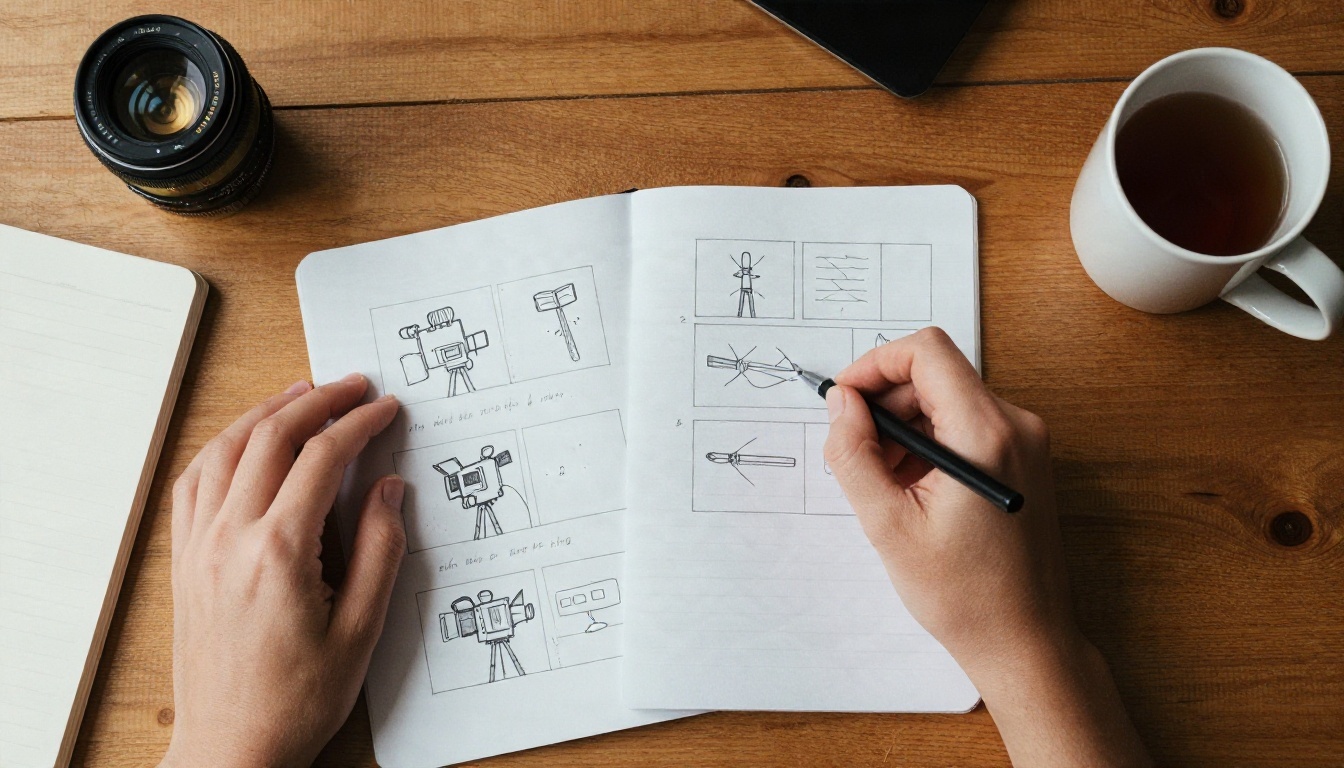
The five-part formula
Write every prompt in this order:
- Subject and starting pose. Who or what is in frame, and what they are doing at second zero.
- Motion over time. What changes across the clip, in chronological order.
- Camera. Dolly in, slow pan, handheld follow, static tripod, low angle.
- Light and atmosphere. Time of day, light direction, weather, haze.
- Sound. If audio is on, name two or three sounds you expect to hear.
A prompt that follows this order beats a longer prompt that rambles. Keep one idea per shot. If you need two actions, use two shots.
Product shot prompt

Product clips love slow, controlled camera moves:
A glass perfume bottle with a brushed gold cap rests on rough gray travertine. A sprig of dried lavender trembles slightly in a draft. The camera glides in slowly from a three-quarter angle until the cap fills most of the frame. Hard window light from the left, crisp highlight on the glass, soft shadow falling right. Quiet room tone, a faint glass tap at the end.
Add a start image of your real product and the model keeps the bottle shape instead of inventing one.
Portrait prompt
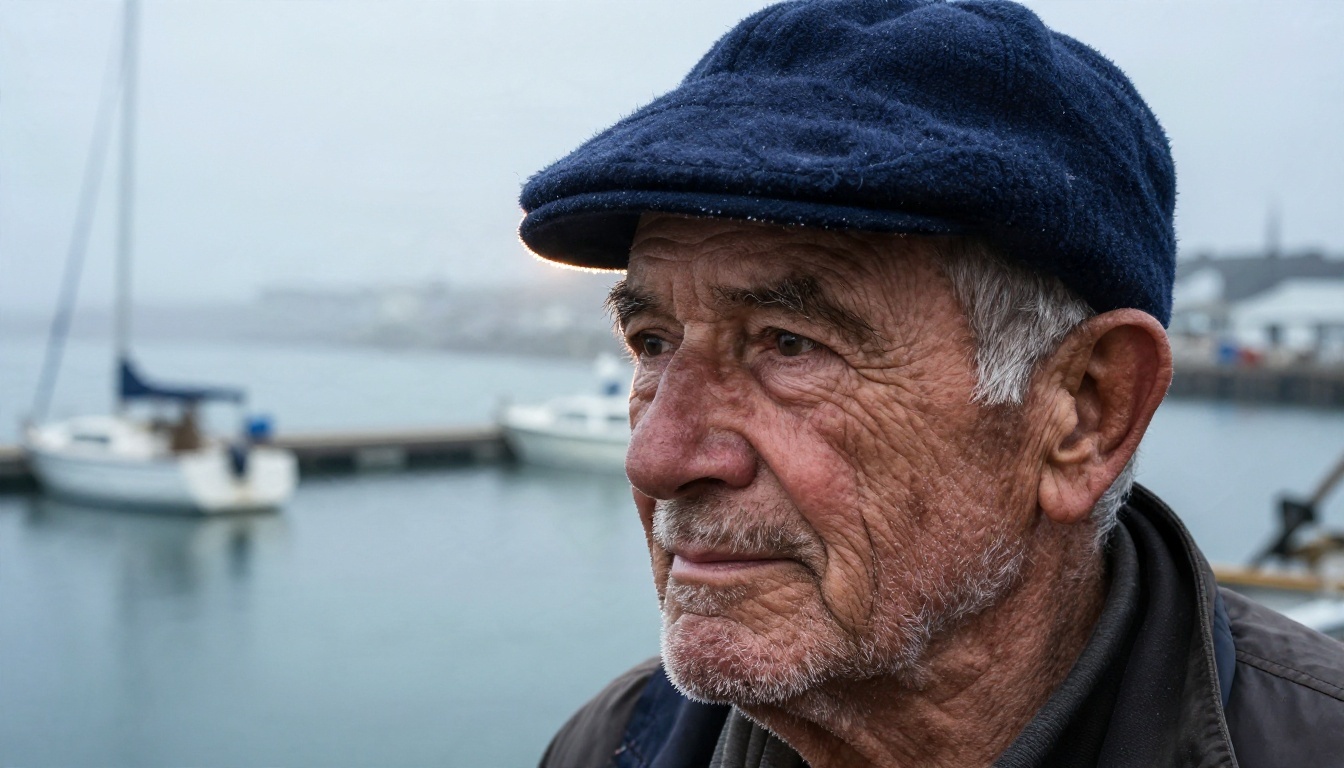
Faces need small movements. Big ones break them:
An elderly fisherman in a navy wool cap stands on a misty harbor pier, looking just off camera. He exhales, a thin breath of vapor drifting past his face, then turns his eyes slowly toward the lens. Handheld close-up with a tiny natural sway. Soft diffused dawn light from behind left, rim light on the cap. Gulls in the distance, water lapping on wood.
Multi-shot script
For the multi-shot field, you pass a JSON array. Each shot has a prompt and a duration, and the durations must sum to the clip length. A 9 second example:
- Shot 1, 3 seconds: wide aerial of a coastal road at dawn, a red car entering frame.
- Shot 2, 3 seconds: side tracking shot of the car, sea haze streaming past.
- Shot 3, 3 seconds: close-up of the driver's hands on a worn steering wheel, light flickering through the windshield.
💡 Use the negative prompt for recurring glitches. Terms like "extra fingers, warped hands, flickering text, sudden zoom" remove the most common artifacts without lengthening your main prompt.
The Real Cost of Kling 3.0
Pricing is where the confusion lives. Kling sells credits through monthly plans, and several partner platforms sell the same model through an API priced per second. Figures below come from third-party reports and change often, so treat them as ranges and confirm before you commit.
Credits and plans
| Plan | Reported price | Reported credits | Best for |
|---|
| Free | $0 | About 66 per day | Testing prompts |
| Pro | About $30 per month | About 3,000 per month | Regular creators |
| Ultra | About $60 per month | About 8,000 per month | Heavy use, higher resolution |
Other sources list the top tier higher, so prices clearly vary by region and billing period. Kling's own cost guide puts 4K output at 30 credits per second, which is why most people save it for final renders only.
Credit cost per clip scales with four things: duration, mode (standard or pro), audio on or off, and resolution. A 5 second silent standard clip is the cheapest thing you can make. A 15 second pro clip with audio sits at the other end, and it can cost many times more.
API cost per second
If you pay per second through an API provider, one platform lists Kling 3.0 Standard at about $0.168 per second without audio and $0.252 per second with audio. That works out like this:
| Clip | Without audio | With audio |
|---|
| 5 seconds | About $0.84 | About $1.26 |
| 10 seconds | About $1.68 | About $2.52 |
| 15 seconds | About $2.52 | About $3.78 |
Those numbers look small until you remember that good results often take three or four attempts. Budget for 3 to 4 generations per usable clip, not one.
💡 The cheapest workflow is to draft in standard mode at 5 seconds, lock your prompt, then render the final version once at pro quality and full length.
Limits You Will Hit
Every model has walls. Knowing where they sit saves you from planning a project the tool cannot deliver.
Length, resolution and format
- Duration: up to 15 seconds per generation. A longer story means stitching clips in an editor.
- Resolution: 720p in standard mode, 1080p in pro mode. Higher output exists on some paid tiers but costs more credits.
- Aspect ratio: 16:9, 9:16 or 1:1. When you supply a start image, the ratio follows your image, and the ratio setting is ignored. Start images must be JPG or PNG, no larger than 10 MB, at least 300 pixels, with a ratio between 1:2.5 and 2.5:1.
- Prompt length: 2500 characters for both the prompt and the negative prompt.
- Multi-shot: 6 shots maximum, every shot at least 1 second, and the total must equal the clip duration.
Queues and consistency
Beyond the hard numbers, three soft limits matter more in daily use:
- Text in frame is unreliable. Signs, labels and logos tend to flicker or morph. Add text in an editor afterward.
- Fast, complex motion breaks. Crowds, sports and quick hand work still produce artifacts. Slower motion looks better.
- Queue time varies. Free and low tiers wait longer, and busy hours stretch every job.
How to Use Kling v3 Video on PicassoIA
Kling v3 Video is available on PicassoIA, so you can run it from a browser without installing anything or writing code. Here is a clean first run.
- Open the model page. Go to the Kling v3 Video page and open the generator.
- Pick your mode. Choose standard for 720p drafts or pro for 1080p finals. Pro is the default, so switch to standard while you are testing.
- Write the prompt. Use the five-part formula above. Stay under 2500 characters.
- Set the duration. The default is 5 seconds. Raise it only after the motion looks right.
- Choose the aspect ratio. 16:9 for YouTube and websites, 9:16 for Reels and Shorts, 1:1 for feeds.
- Decide on audio. The audio switch is off by default. Turn it on if you want ambient sound.
- Add frames if needed. Upload a start image to lock your subject, and an end image if you want a specific final frame. An end image requires a start image.
- Add a negative prompt. List the artifacts you keep seeing.
- Generate and review. Watch for stable faces, smooth motion and clean edges. Adjust one thing at a time and run it again.
Parameter tips that save credits:
- Draft at 5 seconds in standard mode, final at full length in pro mode.
- Change only one variable per run, otherwise you cannot tell what helped.
- Use multi-shot for stories and a single prompt for simple moves.
- Reuse a start image across several clips to keep a character or product identical.
Variants and Alternatives
Kling 3.0 is a family, not a single button, and picking the right member matters.
Pick the right Kling variant
- Kling v3 Video is the general text and image to video model, and the best starting point.
- Kling v3 Omni Video leans on multiple reference inputs and targets 1080p output from a text prompt.
- Kling v3 Motion Control animates a character by copying the movement of a reference clip, which suits dance and acting.
- Kling v2.6 is the previous generation and a useful fallback when you want a different look.
Other models worth testing
No single model wins every shot. These are all on PicassoIA:
A sensible routine: write your shot list, draft on a free model, test the winning prompts on Kling, then render the final in pro mode.
Make Your First Clip Today
You now have the full picture of the Kling 3.0 AI video generator: what it makes, how to try it without paying, how to write prompts that behave, what plans and per-second rates really cost, and where the hard limits sit. The fastest way to turn all that into skill is to run a clip.
Open Kling v3 Video on PicassoIA, paste the product prompt from this article, and swap in your own subject. Then try the multi-shot script with your own three scenes. If you want unlimited rehearsal first, start with Seedance 2.5 Lite and move your best prompts across. To browse every video, image and audio model in one place, visit picassoia.com/en/all-models, and start experimenting with your own ideas today.


