Kling AI looks cheap right up until you press generate a fifth time and watch your credit balance drop. A free account feels generous on day one, a paid plan looks reasonable on the pricing page, and then a single 1080p clip with sound eats a surprising slice of your month. If you want to know what you will actually pay, you need three numbers: what the free tier gives you, what each subscription includes, and how many credits one finished video costs.
This article puts those numbers side by side. Kling AI changes its credit tables often, and third party pricing pages disagree with each other, so treat every figure below as a close estimate from November 2026, not a quote. Check the live generation screen before you spend real money.
How Kling AI Pricing Works
Kling does not charge per video in dollars. It sells credits, and every generation spends a number of credits based on a few variables:
- Model version (newer models cost more per second)
- Mode (Standard renders 720p, Professional renders 1080p)
- Duration (5 seconds or 10 seconds are the common choices)
- Native audio (sound adds a surcharge on the latest models)
- Extras like lip sync, motion control, extensions and image generation
So the "price" of a Kling video is really a credit price multiplied by the dollar value of one credit on your plan. That dollar value shifts from plan to plan, and it shifts again when you buy a top up pack instead of a subscription.
💡 Quick rule: a higher plan does not make a single clip cheaper in credits. It gives you a bigger monthly pool and a lower dollar cost per credit.
Credits, Not Dollars
Think of credits as arcade tokens. A basic 720p clip without sound might cost around 30 credits at the upper end of the older estimates, while a 1080p clip with native audio on a recent model can reach 45 to 60 credits or more. Some pages list lower numbers for older models and higher numbers for the newest ones, which explains a lot of the confusion online.
Why Prices Keep Moving
Kling launched new versions several times over the past year, and each launch came with a revised credit table. Some pricing articles still quote numbers from earlier versions. If a page promises a fixed daily allowance without a date, be skeptical.
Kling AI Free Credits Explained
The free plan is the entry point for most people, and it is the part of the pricing most often described wrongly.
What the Free Plan Gives You
Most sources report that a free account receives a daily credit refill (66 credits per day is the number quoted most often) that expires after 24 hours with no rollover. Some newer pages note that this allowance has changed or been trimmed over time, and a few older articles repeat it as if it were permanent.
With roughly 66 daily credits, here is what that buys under the common estimates:
| Free daily task | Estimated credits | Clips per day |
|---|
| 5 second 720p, no audio | About 30 | 2 |
| 5 second 1080p with audio | About 60 | 1 |
| 10 second 720p, no audio | About 60 | 1 |
Limits You Will Notice
Free generations usually come with trade-offs that matter more than the credit count:
- Longer queues. Free jobs wait behind paid jobs, and a clip can sit in line for a long time during busy hours.
- Watermarks. Free output usually carries a watermark you cannot remove.
- Fewer models and modes. The newest model versions and the Professional 1080p mode are often locked or heavily limited.
- Personal use only. Commercial rights normally start on a paid plan.
💡 Tip: if you need clean clips without a watermark and without waiting, a free tier is a testing tool, not a production workflow.
Subscription Plans Compared
Kling currently sells four paid tiers: Standard, Pro, Premier and Ultra. Prices and credit amounts vary between sources and between billing regions, so the table below uses ranges.

| Plan | Approx. monthly price | Approx. monthly credits | Best for |
|---|
| Free | $0 | About 66 per day, expiring daily | Testing the model |
| Standard | $8.80 to $10 | About 660 | Casual experiments |
| Pro | $26 intro, about $32 to $37 renewal | About 3,000 | Regular creators |
| Premier | Roughly $90 to $180 depending on source | Several times the Pro pool | Heavy weekly output |
| Ultra | Higher still, with no annual option reported | The largest pool | Studios and agencies |
Two things stand out. First, Pro offers a much better price per credit than Standard, because the pool grows far faster than the price. Second, the jump to Premier and Ultra only makes sense if you already burn through a Pro pool before the month ends.
Standard Plan
Standard is the cheapest way to get a watermark free export and priority above the free queue. At about 660 credits, it gives you somewhere between 10 and 20 short clips a month depending on the model, which is enough for a hobby project but thin for client work.
Pro Plan
Pro is where most creators land. With roughly 3,000 credits for a bit over $32 on renewal, one credit costs about 1.1 cents. That is the number you will use for most calculations below.
Premier and Ultra
These plans are built for volume. If you generate dozens of clips a week, the lower cost per credit adds up. If you do not, you pay for credits that expire at the end of the month.
💡 Annual billing: several sources report a discount of around a third on Standard, Pro and Premier when you pay yearly. That is only a bargain if you are sure you will keep rendering all year.
What One Kling Video Really Costs
Now the number most readers came for. Using the plan prices above and a handful of credit estimates, here is a rough cost per clip.

Cost Per 5 Second Clip
The dollar value of a credit is roughly $0.013 on Standard and $0.011 on Pro.
| Clip type | Estimated credits | Cost on Standard | Cost on Pro |
|---|
| 5 s, 720p, no audio | 30 | About $0.40 | About $0.33 |
| 5 s, 720p, with audio | 45 | About $0.60 | About $0.49 |
| 5 s, 1080p, with audio | 60 | About $0.80 | About $0.65 |
| 10 s, 1080p, with audio | 120 | About $1.60 | About $1.30 |
These are estimates built from third party figures, so your own screen may show something lower or higher. The pattern, however, is stable: doubling the length doubles the price, and sound and 1080p each add a noticeable surcharge.
The Hidden Cost of Retries
Nobody keeps the first render. A realistic keep rate for AI video is around one usable clip in three or four attempts, especially for faces, hands and complex motion. That changes the math:
- A clip priced at $0.65 per attempt becomes about $2 to $2.60 per finished video
- A 10 second 1080p clip priced at $1.30 per attempt becomes about $4 to $5 per finished video
This is the number to put in your budget, and it is the one most pricing pages leave out.
Monthly Output on Each Plan
For 5 second 1080p clips with audio at about 60 credits each, a rough count of attempts per month looks like this:
- Standard (660 credits): about 11 attempts, so around 3 finished clips
- Pro (3,000 credits): about 50 attempts, so around 12 to 16 finished clips
- Free (66 per day): about 1 attempt a day, so around 30 attempts and 8 to 10 finished clips, with watermarks and long waits
💡 Budget tip: test your prompt in 720p without audio, then re-render only the winning version in 1080p with sound. That alone can cut your credit use by 30 to 40 percent.
Real Cost by Use Case
Different jobs burn credits at very different speeds.
Product Videos
An ecommerce seller needs a handful of 5 second loops per product: a turntable, a close detail, a lifestyle scene. At roughly $2 to $2.60 per finished clip, a catalog of 20 products with three clips each lands around $120 to $160. That is still far below a physical shoot, but it is not pocket change.
Social Content
A creator posting five short videos a week needs about 20 to 25 finished clips a month. On Pro, that fits the pool only if the keep rate stays high. Many creators end up on Premier or buy top up packs by the second week.
Small Business Ads
A bakery, a barber or a local gym usually needs a few promo clips per campaign, not a stream of content. A Standard or Pro plan for a single month is often enough, then the owner cancels until the next campaign.

Ways to Lower Your Cost Per Video
You do not need a bigger plan to cut your bill. You need better habits.
- Draft in Standard mode. Use 720p until the motion and framing are right.
- Skip audio during tests. Add sound only on the final render, or generate it separately.
- Use image to video. A strong first frame removes a lot of random drift and reduces failed attempts.
- Write shorter, clearer prompts. One subject, one action, one camera move.
- Stay on 5 seconds. Stitch two clips in an editor instead of paying for one long render that may fail in the last third.
- Cancel after heavy months. Credits expire, so a plan you do not use is wasted money.
Compare Before You Commit
Different models handle different jobs better, and the cheapest clip is the one you only render once. Running the same prompt through two models costs less than fixing a bad render five times.
How to Use Kling v3 Video on PicassoIA
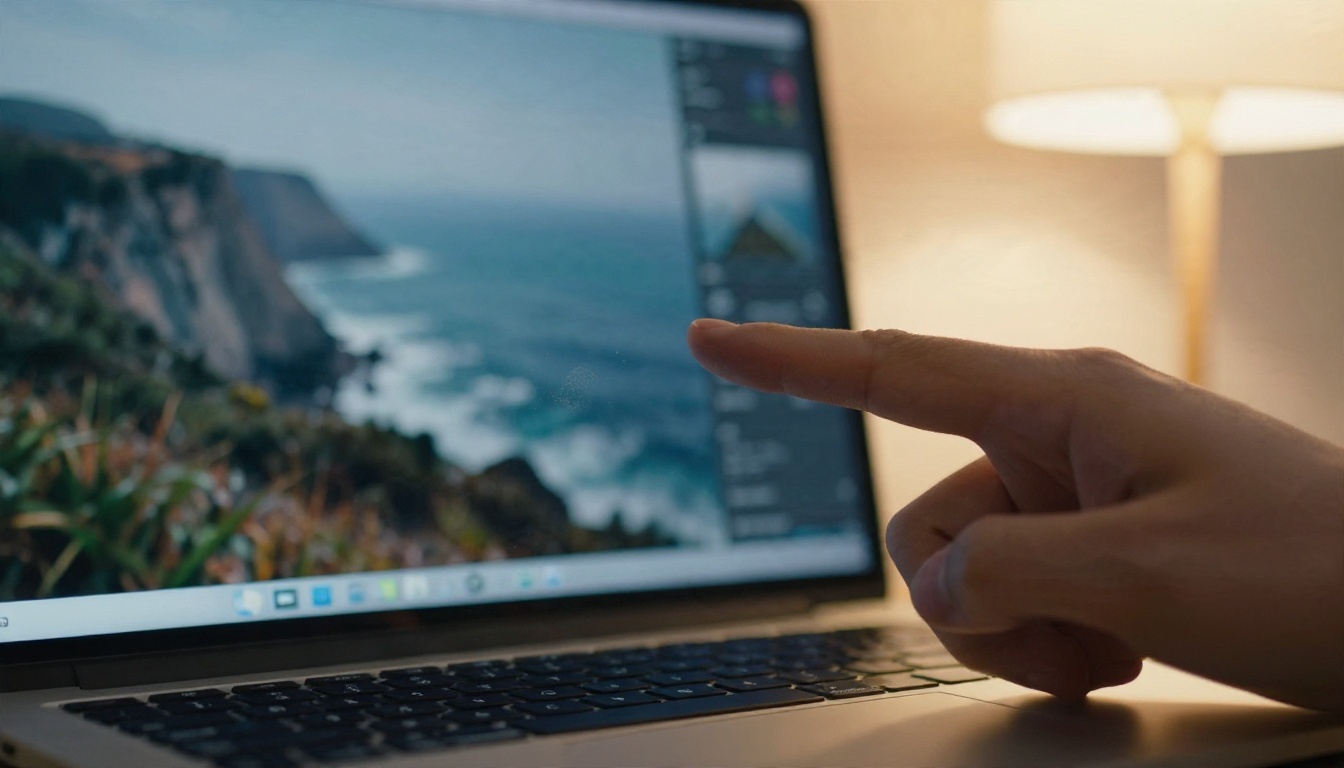
If you want Kling quality without juggling credit pools and expiring balances, you can run the model on PicassoIA. Kling v3 Video generates cinematic clips up to 15 seconds, with multi-shot control, native audio and 1080p output.
Step by Step
- Open the model page. Go to Kling v3 Video on PicassoIA.
- Write your prompt. Describe the subject, the action and the camera move in plain language. The limit is 2,500 characters, but 40 to 80 words usually work best.
- Pick the mode. Choose standard for 720p drafts and pro for 1080p final renders.
- Set the duration. Start at the default 5 seconds while you test.
- Add a start image (optional). Upload a first frame to anchor the look. When you do, the aspect ratio follows your image.
- Turn on audio only for the final. The generate audio toggle adds ambient sound, so keep it off while you test.
- Use the negative prompt. Add things like "blurry, distorted hands, flickering" to reduce common artifacts.
- Generate and compare. Run two or three variations, keep the best and re-render only that one in pro mode.
Parameter Tips
| Setting | Draft value | Final value |
|---|
| Mode | standard (720p) | pro (1080p) |
| Duration | 5 seconds | 5 to 10 seconds |
| Generate audio | Off | On |
| Start image | Optional | Recommended for consistency |
| Aspect ratio | 16:9 | 16:9, 9:16 or 1:1 by platform |
💡 Multi-shot trick: the multi prompt field lets you script up to 6 shots in a single video, each with its own prompt and duration. Total shot length must equal the video duration.
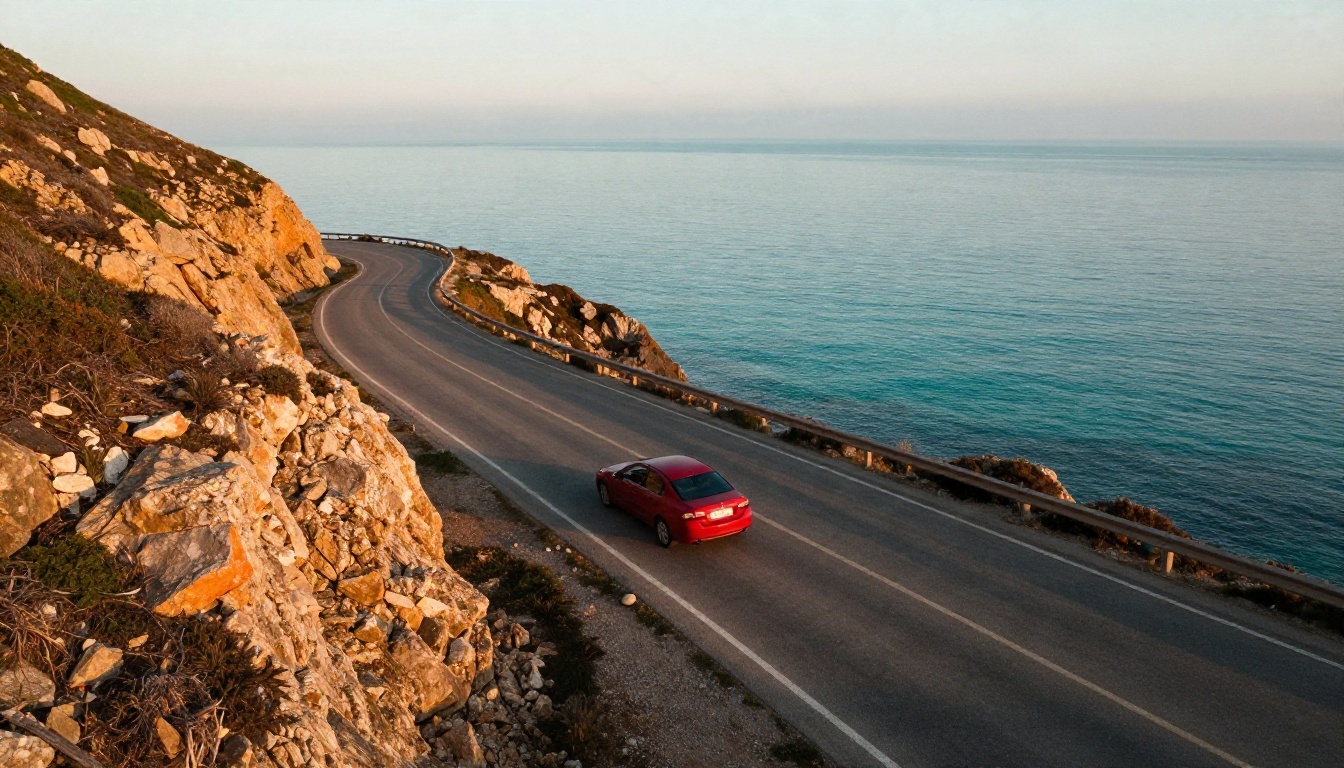
Here is the type of start frame that works well: a clean, well lit scene with one clear subject and room for the camera to move.
Other Kling and Rival Models to Try
Kling is one of several strong video families, and PicassoIA lets you run many of them in one place. These are the ones worth testing against the same prompt:
If your main worry is credit burn during testing, start drafts on Seedance 2.5 Lite, since it is listed as free and unlimited, then move the winning idea to Kling for the final render.
Quick Answers on Kling AI Price
Is Kling AI free? Yes, with a daily credit allowance reported at around 66 credits, but with watermarks, longer queues and fewer features.
What is the cheapest paid plan? Standard, at roughly $8.80 to $10 a month for about 660 credits.
What is the best value plan? Pro, because its price per credit is clearly lower than Standard's.
How much does one Kling video cost? A single 5 second attempt runs from about $0.33 to $0.80 depending on mode and audio, and a finished clip usually costs 3 to 4 times that after retries.
Do unused credits roll over? Monthly subscription credits generally expire at the end of the billing period, and free daily credits expire after 24 hours.
Can I use the videos commercially? Commercial rights normally require a paid plan. Check the current terms before publishing client work.
Build Your Own Clips Today
Pricing tables only tell you so much. The fastest way to learn your real cost per video is to render a few clips and count what you keep. Open Kling v3 Video on PicassoIA, write a short prompt, test it in standard mode, then upgrade only your best take to pro.
Want to compare styles first? Run the same prompt through Seedance 2.5 Lite and Veo 3.1 Fast, then pick the look you prefer. Browse every available model at picassoia.com/en/all-models and start creating your own videos and images with PicassoIA today.


