You typed a perfectly reasonable portrait prompt, hit generate, and got a blocked message or a strangely sanitized result. So you searched Krea AI uncensored hoping for a switch, a hidden setting, or a trick. This article gives you the straight answer: what the filter does, what the free plan really includes, what each paid tier costs, and which tools make more sense if your work leans toward glamour, boudoir, and swimwear photography.
💡 Quick answer: Krea AI is built as a mainstream creative platform, not an adult one. I found no official setting to switch its moderation off, and the sources I checked describe filtering that sits on the hosted service. If you need suggestive, non-explicit glamour images with fewer rejections, the alternatives below are a better fit.
What "Uncensored" Means Here
Before comparing tools, it helps to pin down the word. "Uncensored" gets used for three very different things, and mixing them up is why so many people end up frustrated.
Three meanings people have in mind
- Fewer false positives: a bikini shoot, a satin robe, or a lingerie editorial gets rejected even though nothing explicit was asked for.
- Adult friendly: the platform openly allows suggestive and mature themes within legal limits.
- No rules at all: no moderation of any kind. No reputable hosted service works like this, and you should be suspicious of any that claims to.
Most readers searching this phrase want the first meaning. They are photographers, creators, and designers who want tasteful glamour work without a classifier second guessing every prompt. That is a reasonable ask, and it is the lens this article uses.
Why this topic keeps trending
Krea built its reputation on speed: real time canvas generation, an image enhancer, and a long list of models in one place. Naturally, people who like the interface try to push it into every genre. When adult leaning prompts fail, they go looking for a bypass. The honest summary is that the platform was not designed for that audience, and its policy reflects it.
How Krea's Filter Behaves
Krea publishes an acceptable use policy for its models. In my research, I could not find a plain list of exactly what gets blocked, and most detailed claims online come from competitors, so treat those with a pinch of salt. What the sources do agree on is the general pattern.
What tends to get blocked
Reports from third party reviews describe prompts with intimate or sexually suggestive wording being flagged by classifiers on the hosted service. The result is usually one of two things: an error message, or an output that quietly drops the elements you asked for.
| Prompt type | Typical outcome on a mainstream hosted tool |
|---|
| Fully clothed portrait | Passes |
| Swimwear on a beach | Usually passes, sometimes softened |
| Lingerie or boudoir wording | Often flagged or sanitized |
| Implied nudity | Frequently blocked |
| Explicit content | Blocked, and against policy nearly everywhere |
The middle rows are where the pain lives. Swimwear and lingerie editorials are standard photography genres, yet they sit in a gray zone for automated classifiers.
Why prompt tricks stop working
People try synonyms, misspellings, and indirect phrasing. Modern moderation does not only read your text. Many systems also inspect the generated image before showing it to you. That means a clever prompt can slip past the text check and still get stopped at the image stage. Worse, repeated attempts can trigger account level warnings. I would not spend an evening fighting a filter that is doing exactly what its owner built it to do.
Hosted service versus local weights
One vendor comparison I came across suggests the open weight version of Krea 2, when run locally, has no prompt classifier of its own, while hosted versions apply the host's rules. That is a claim from a company with products to sell, so verify it yourself. Even if true, running a large image model locally means buying a strong GPU, handling installs, and taking responsibility for what you produce. For most creators, a hosted tool with a friendlier policy is far simpler.
Krea Free Plan Limits
The free plan is the main reason Krea has so many casual users, so let's be precise about what it offers.
The daily compute budget
Most 2026 sources agree the free plan gives you roughly 100 compute units per day, refilled daily, with no credit card required. One older page claimed there was no free plan at all, but newer sources contradict it, so I would treat that as outdated.
Compute units are not images. How far 100 units go depends on the model you pick and the output size. Lightweight models stretch the budget, while premium models and video can burn through it quickly. Some top models are also reported to be locked to paid tiers, so the free plan is best seen as a sampler.
Commercial use on the free tier
One review states that the free tier does not grant commercial usage rights. If you plan to sell prints, run client work, or post monetized content, check the current license terms before you publish anything. This is the kind of detail that gets people into trouble months later.
💡 Tip: Screenshot the plan terms on the day you generate commercial work. Pricing pages and licenses change, and a dated record protects you.
Krea Pricing, Tier by Tier
Prices below reflect what most 2026 sources report. Plans change often, so confirm on the official page before you pay.
| Plan | Monthly price | Best for |
|---|
| Free | $0 | Testing the interface |
| Basic | about $9 | Light, regular use |
| Pro | about $35 | Frequent creators |
| Max | about $70 | Heavy daily generation |
| Business | about $200 | Teams |
| Enterprise | Custom | Large organizations |
Several sources mention an annual billing discount of around 20 percent, though the exact figure varies by source.
What you actually pay for
Paying more raises your compute allowance and unlocks more models and faster queues. It does not change the moderation policy. This is the most important point for readers hunting an uncensored mode: upgrading from Basic to Max buys you volume, not a looser filter. I found nothing suggesting any tier removes content rules.
Hidden costs to watch
- Compute burn: premium models and video use far more units per output than quick draft models.
- Re-rolls: blocked or sanitized results can still cost units, so a failing prompt becomes a failing budget.
- Commercial rights: some uses may require a paid tier.
- Tool sprawl: juggling a separate upscaler, editor, and generator adds subscriptions fast.
Who Should Stay on Krea
Fairness matters here. Krea is a strong product, and many people should keep using it.
Where Krea shines
If you do product mockups, concept art, moodboards, branding visuals, or fast iteration on a live canvas, Krea's workflow is genuinely pleasant. The real time feel makes exploration quick, and the interface is clean.
Where it does not fit
If your portfolio includes boudoir, lingerie, swimwear, or glamour photography, you will keep running into friction. Paying more will not fix that, because the limit is policy rather than power. That is when switching tools makes more sense than upgrading.
Better Alternatives for Glamour Work
Krea AI is not on PicassoIA as a platform, so there is no direct way to use it here. For similar results today, these models on PicassoIA are built for photorealistic people, skin texture, fabric, and lighting, and they suit suggestive, non-explicit glamour far better. Keep your content within the law and within the platform rules, and keep it artistic rather than explicit.
Seedream 4.5
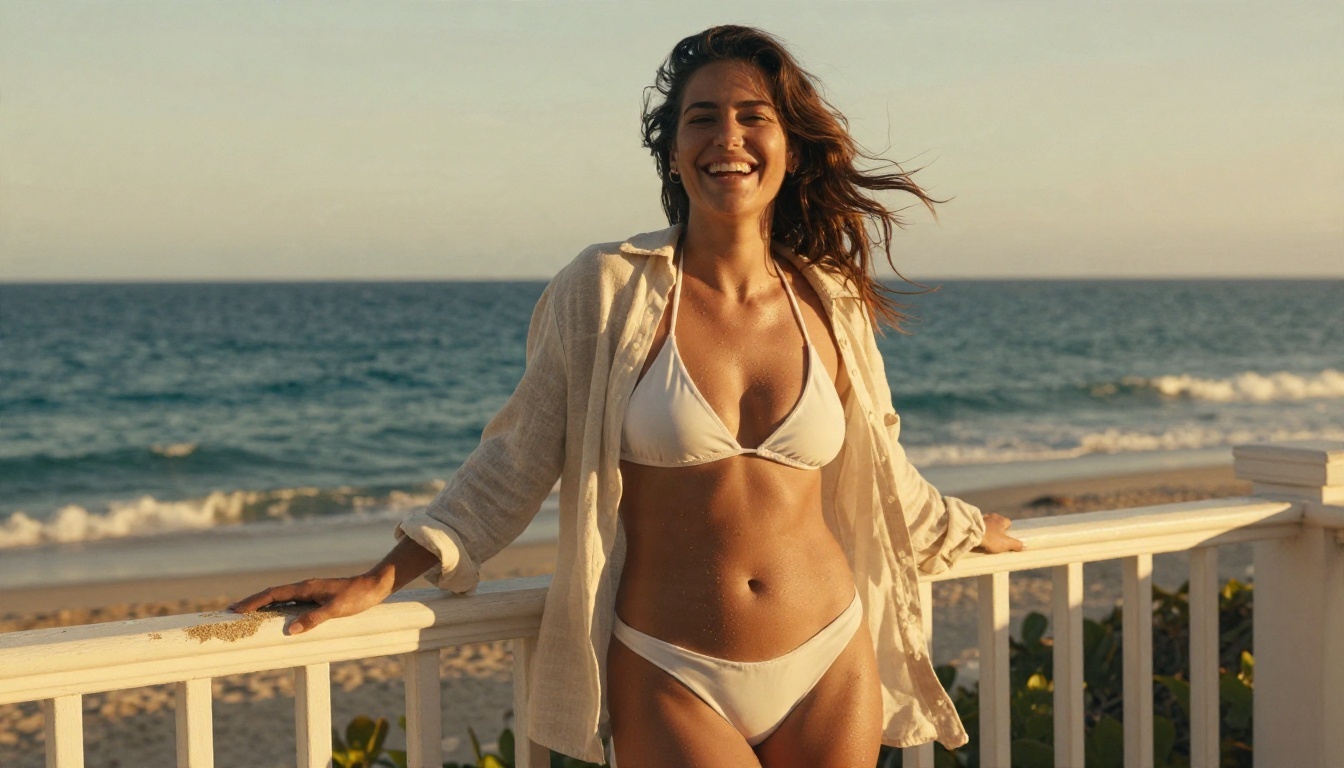
Seedream 4.5 is my first pick. It produces sharp 4K images, handles skin pores and fabric folds convincingly, and follows long, detailed prompts well. For swimwear on a terrace, satin slip dresses, or window light portraits, it gives natural looking results without the plastic skin that gives away many AI images.
PicassoIA Image Editor Pro
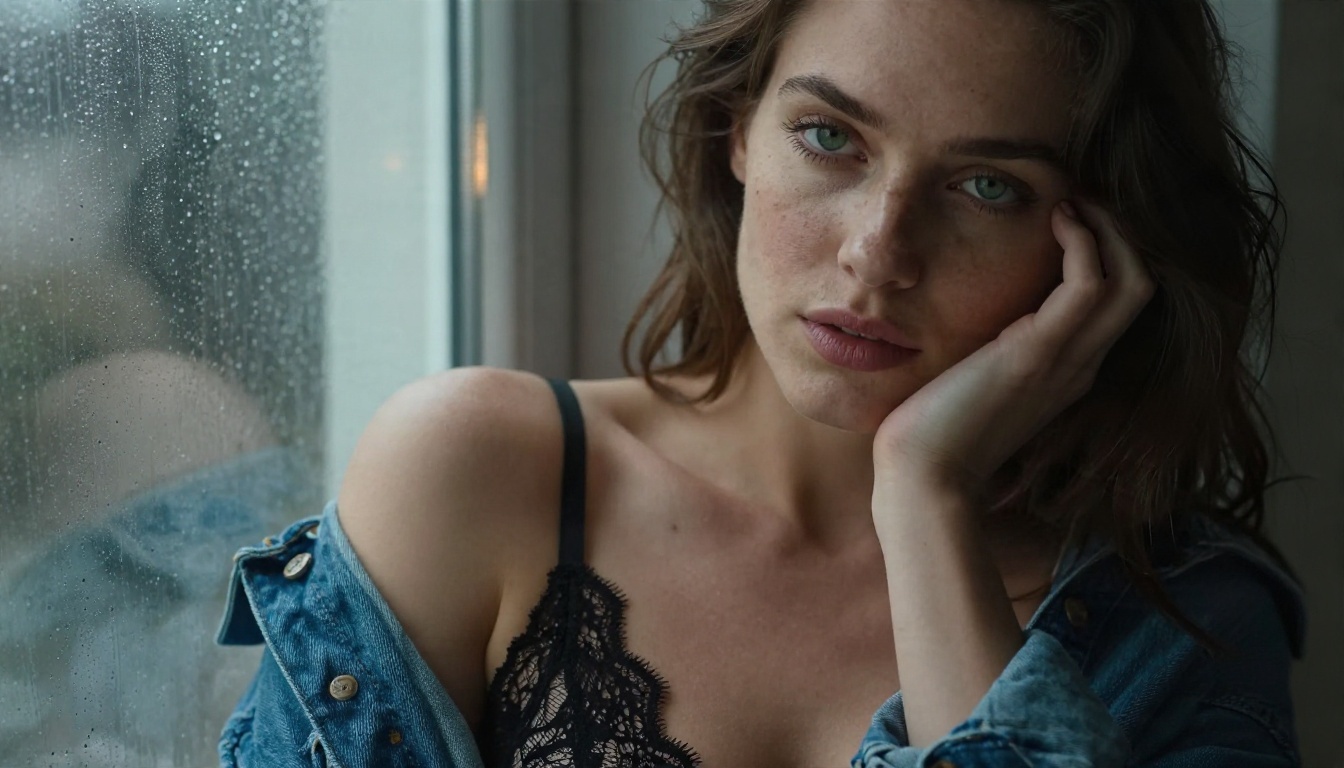
PicassoIA Image Editor Pro is the one to open when you want volume. It offers unlimited generations, which removes the compute budget anxiety that comes with metered plans. It also works well for editing, so you can take an existing photo and change outfits, backgrounds, or lighting rather than starting from zero. Speed is a real strength here, which matters when you are iterating through ten variations of one concept.
More models worth a try
Browse the full catalog at picassoia.com/en/all-models if you want to test others side by side.
How to Get Similar Results on PicassoIA
This walkthrough uses Seedream 4.5, since it is the strongest match for photorealistic glamour work.
Step by step
- Open the Seedream 4.5 page and choose a 16:9 aspect ratio for landscape scenes, or 3:4 for portraits.
- Write your prompt in this order: subject and pose, environment, lighting, camera and lens, texture details.
- Generate a first draft and look at the skin, fabric, and hands.
- Adjust one thing at a time: lighting direction, lens length, or wardrobe color.
- Send your favorite result to PicassoIA Image Editor Pro for final edits and unlimited variations.
Prompt parameters that help
- Lens language: "85mm f/1.8" gives soft backgrounds and flattering portraits. "35mm" gives environmental context.
- Light direction: "morning light from the left" or "golden hour from behind" creates rim light and depth.
- Texture words: "visible pores, fine flyaway hairs, satin sheen" push realism.
- Film feel: "Kodak Portra 400, subtle grain" adds warm skin tones and a natural look.
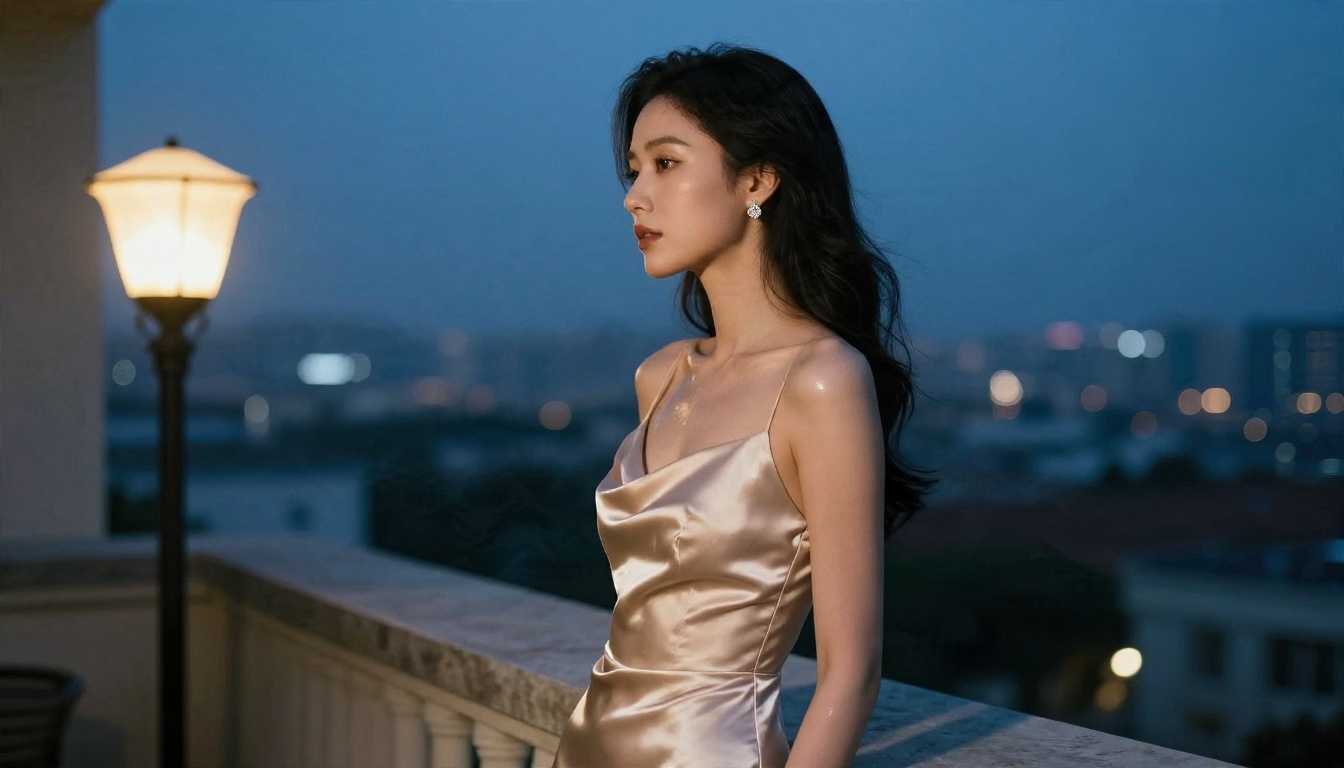
💡 Tip: Keep prompts concrete. "Woman in a champagne satin gown on a hotel balcony at blue hour" beats "sexy glamorous model" every time.
Common mistakes to avoid
- Vague adjectives: words like "stunning" or "perfect" add nothing. Describe the scene instead.
- Too many subjects: one person with a clear pose produces cleaner anatomy.
- Ignoring hands: crop or reframe if hands look wrong, rather than re-rolling endlessly.
- Mixed lighting: pick one main light direction per image.
Krea 2 Models on PicassoIA
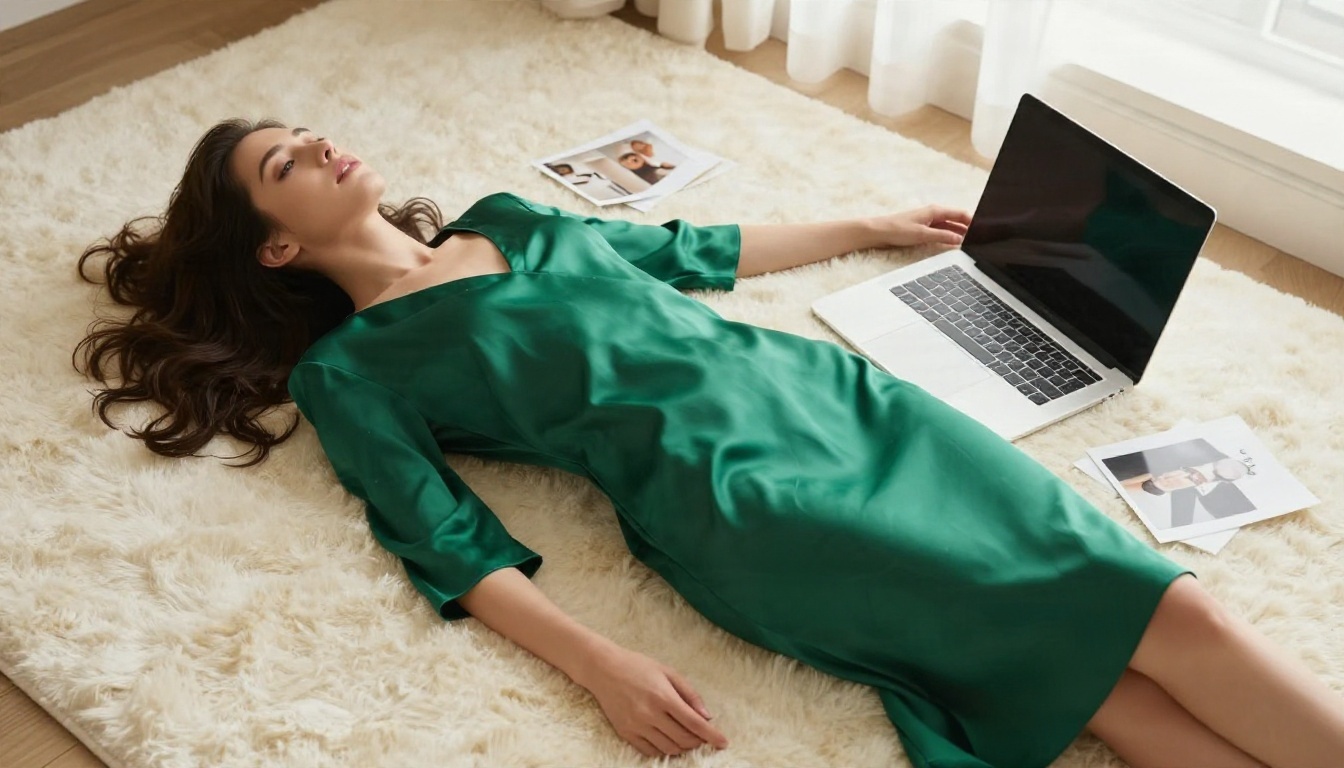
There is a useful twist. While the Krea platform itself is a separate service, models from the same family are available on PicassoIA. Krea 2 Large is aimed at photorealistic images, and Krea 2 Medium leans toward anime and painterly looks. If you like Krea's visual taste, you can try those here. Flux Krea Dev is another option known for images that avoid the typical AI look.
Those models are good for general photorealism and stylized art. For suggestive glamour work, start with Seedream 4.5 and Image Editor Pro as described above.
Side by Side Comparison
| Factor | Krea AI | PicassoIA with Seedream 4.5 and Editor Pro |
|---|
| Free daily access | About 100 compute units | Free entry points plus unlimited Editor Pro generations |
| Paid price range | About $9 to $200 monthly | See the model pages for current options |
| Moderation on hosted service | Reported to flag suggestive prompts | Better suited to non-explicit glamour |
| Photorealistic skin and fabric | Good with the right model | Strong, especially Seedream 4.5 |
| Editing existing photos | Available | Image Editor Pro focused on editing |
| Best for | Concept art, mockups, real time canvas | Glamour, swimwear, portrait series |
Which one fits you
Pick Krea if your work is mostly design, branding, or experimental visuals. Pick PicassoIA if your portfolio is people focused and you want fewer rejected generations. Many creators use both, and that is perfectly fine.
Your Next Step: Make Your Own
The fastest way to settle the Krea question is to run the same prompt in two places. Take one scene, such as a woman in a navy swimsuit at a villa pool with midday light and an 70mm lens, and generate it with Seedream 4.5. Then bring the best result into PicassoIA Image Editor Pro and push it further with unlimited variations: new outfits, different light, another location.
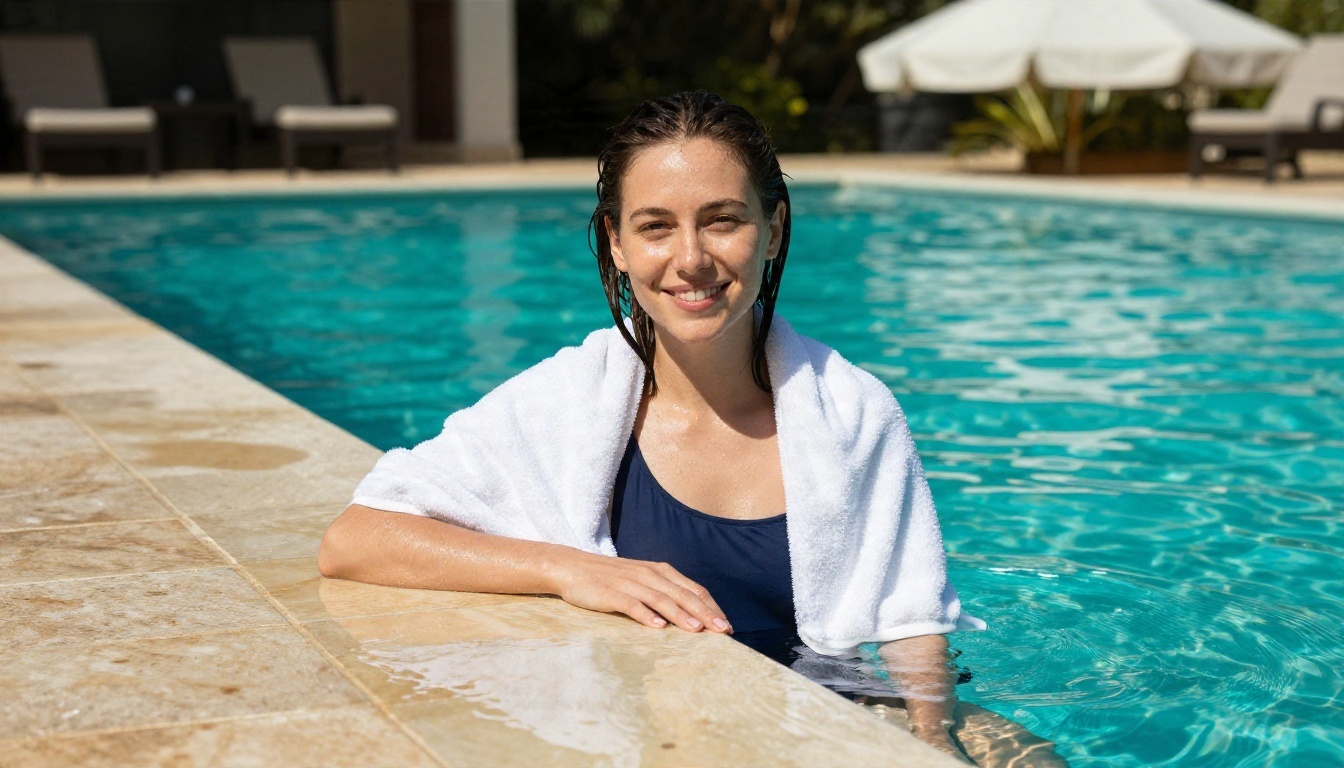
Open Picasso IA, pick a model, and try three prompts today. Stay within the law, keep it artistic, and let the results show you which tool deserves a place in your workflow. When you want to test more options, browse every model at picassoia.com/en/all-models.


