A lip sync model takes a voice and makes a face say it. That sounds easy until you try it. Pick the wrong model and you get a mouth that drifts half a beat behind the audio, a clip that errors out because your recording ran four seconds too long, or a free trial that stamps a watermark across the one take you needed. The category has split into several very different tools, and most of the confusion comes from treating them as one thing.
This article sorts the models by what they actually do, shows where you can try them without paying, walks through realistic examples, explains what API access usually looks like, and spells out the audio limits that decide whether your project works on the first attempt. Everything about PicassoIA models below comes from the model pages themselves, so the numbers are ones you can check.
Two Kinds of Lip Sync Models
Before comparing names, sort by input. Every lip sync model needs audio. The difference is what it gets for the face: a still photo, or a video of a real person talking.
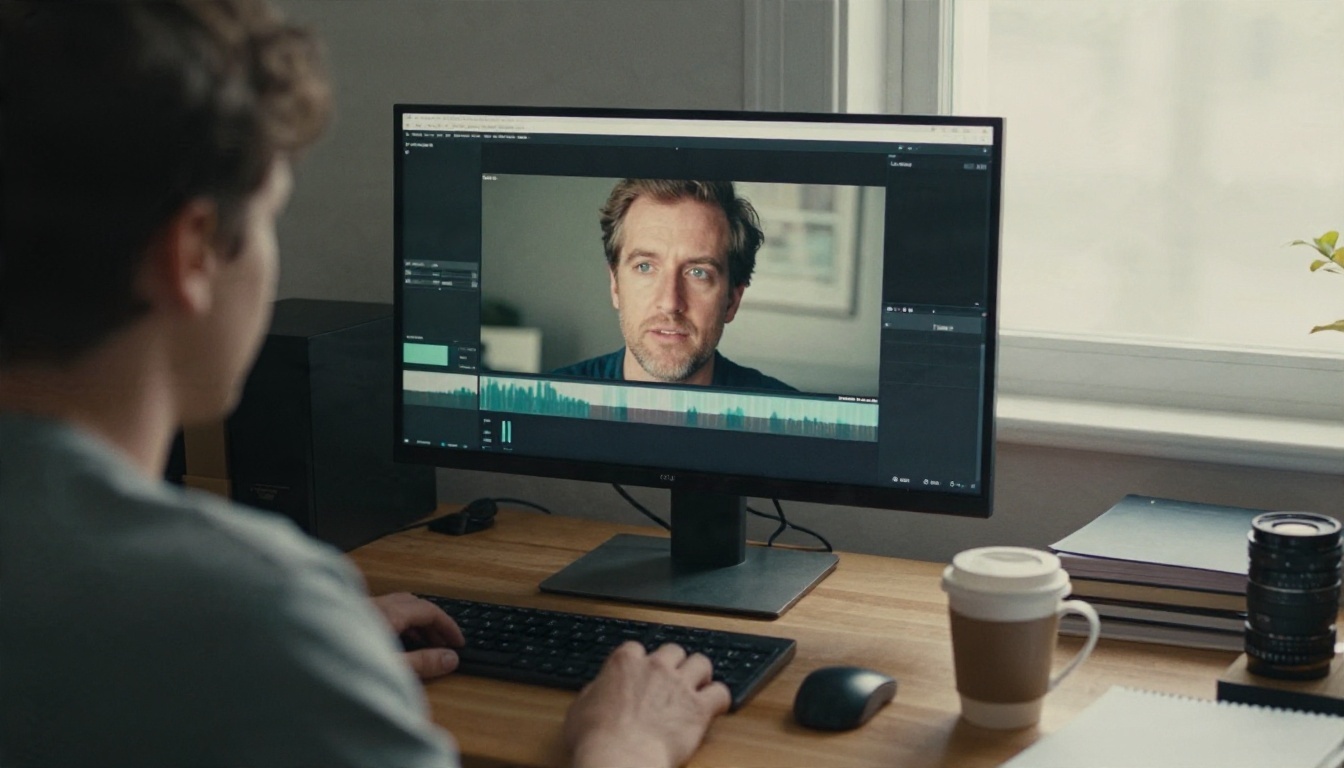
Photo plus audio models
These generate a speaking video from a single image. You provide a portrait and a voice recording, and the model invents the head motion, blinking, and mouth shapes. Nothing was filmed. They suit spokesperson clips, character animation, explainer intros and anything where you have a face but no footage.
Strengths: no camera needed, fast iteration, works with illustrated or stylized characters in some models.
Weak spots: the model decides how the person moves, so you get less control over performance, and long audio is usually capped.
Video plus audio models
These take an existing clip and rewrite the mouth area to match a new audio track. The performance, framing, lighting and body language stay exactly as filmed. This is the dubbing and re-voicing category.
Strengths: keeps your real footage, ideal for translation and for fixing a flubbed line.
Weak spots: needs decent source video, and the clip length and format rules are stricter than people expect.
💡 Quick test: if you have a photo, you need a photo model. If you have footage, you need a video model. Mixing them up is the most common first mistake.
Lip Sync Models on PicassoIA
PicassoIA groups these under its lipsync category, with twelve models at the time of writing. Here is how they break down.
The practical takeaway: if you start from a photo, the Omni Human family and Fabric 1.0 are the obvious candidates. If you start from footage, the Lipsync family, React 1 and Kling Lip Sync are where to look.
Two things the table hides. First, the sync step is only half the job. You also need good audio, and for that PicassoIA has text to speech models such as ElevenLabs V3, Speech 2.8 HD and Gemini 3.1 Flash TTS. Second, if your goal is translation rather than a new performance, Dubbing handles the voice side before a lip sync model handles the mouth.
Free Options That Actually Work
"Free" means three different things in this category, and they behave very differently once you start a real project.
Hosted free tries
Several model pages on PicassoIA, including Kling Lip Sync, Fabric 1.0 and Lipsync Precision, describe themselves as free to try online with no coding. That is the lowest friction route: open the page, upload two files, press generate. Check the model page and your account for what your plan includes, because allowances change.
The same pattern shows up across the wider market. Hosted free tiers tend to cap clip length, limit resolution, restrict exports, or attach a watermark. Some also restrict commercial use, which matters if the video is going into an ad.
Open source on your own machine
Research projects such as MuseTalk and LatentSync can be run without platform fees. The trade is effort: you need a capable GPU, a working Python environment, and patience when dependencies fight each other. For a one-off clip that is rarely worth it. For thousands of clips on hardware you already own, it can be.
Where free tiers get tight
| Limit | What it does to you |
|---|
| Clip length cap | Forces you to split long scripts into pieces |
| Resolution cap | Output looks soft on a large screen |
| Watermark | Fine for testing, unusable for delivery |
| Commercial restriction | Legal risk on client or ad work |
| Queue priority | Slower turnaround at busy hours |
💡 Test with the shortest, cleanest audio you have. A ten second sample tells you almost everything about a model's mouth accuracy, and costs the least to repeat.
Real Examples Worth Trying
Specs are abstract. These three scenarios show what each model type is for.

The spokesperson from one photo
A small company has a headshot of its founder and a thirty second welcome message. With Omni Human 1.5 the workflow is a photo, the audio file, and an optional prompt that describes scene and camera movement. The result is a talking video without anyone setting up a camera. It also accepts voiceover in English, Spanish, Japanese, Korean, Chinese and Indonesian, so one portrait can serve several markets with different recordings.
For a quicker, lighter version of the same idea, Fabric 1.0 takes an image and audio and lets you choose 480p for fast drafts or 720p for the final export.
The dubbed interview
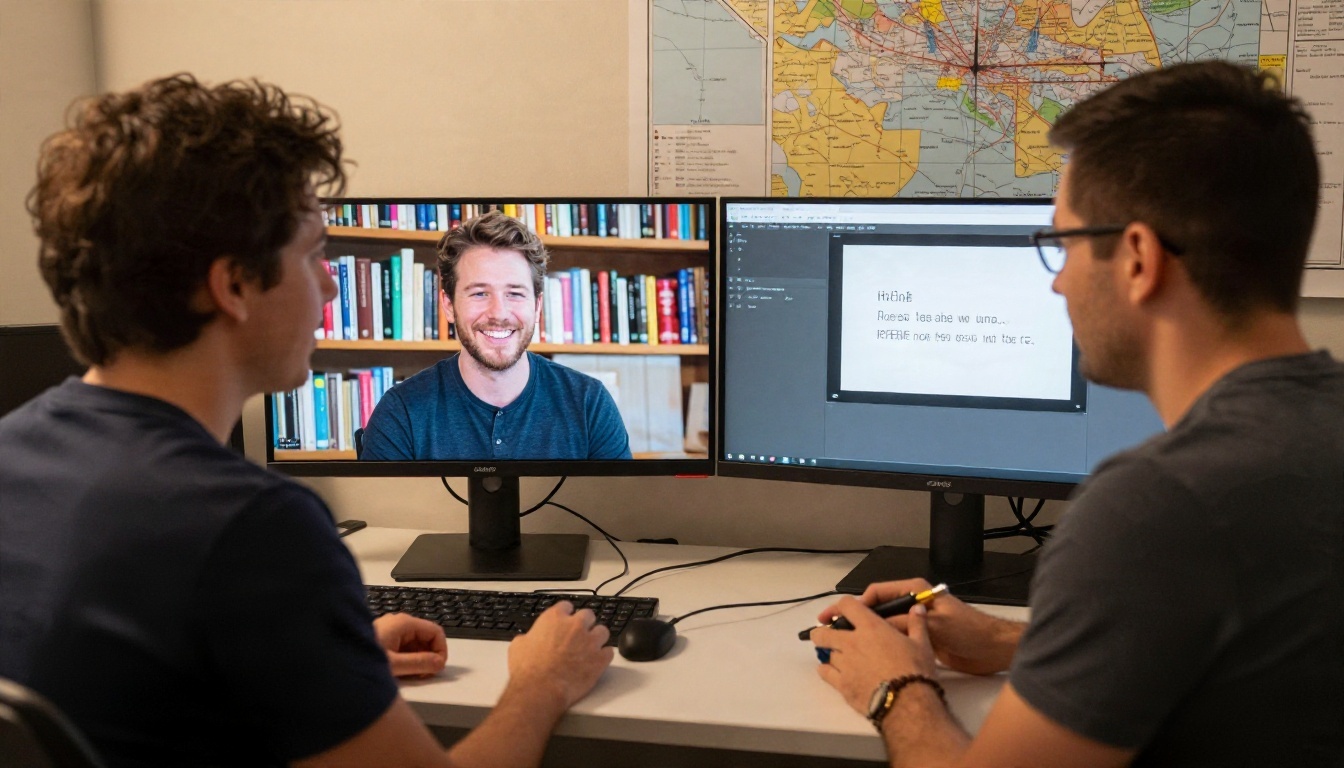
A recorded interview needs a Spanish version. Translate the script, record or generate the Spanish voice, then pass the original clip and the new audio to Lipsync 2 Pro. Its active speaker option helps when more than one face appears in the frame, so only the person talking gets the new mouth movement. If you want translation and sync handled as one step, Video Translate is built for dubbing into 150+ languages.
The short social clip
A creator filmed a good take but fumbled one word. Rather than reshooting, they re-record the line and sync it with Kling Lip Sync. The model also accepts a typed script with a chosen synthetic voice, so you can skip recording altogether. It is built for short clips, which suits vertical social posts.
API Access: What to Expect
If you are building a product rather than making a single video, you will want programmatic access. A few patterns hold across the industry, and they are worth knowing before you commit to a model.
Per second pricing
Most hosted lip sync endpoints bill by the second of generated video. Roundups from 2026 quote ranges from a few cents to several tens of cents per second depending on resolution and model tier, with higher resolutions costing more. That makes the audio length the main cost driver: a one minute clip costs sixty times a one second clip, and retries multiply it. Budget for three attempts per final video, not one.
I did not find a clear, vendor neutral source for exact maximum durations across providers. Many of the comparison pages are written by the vendors themselves, so rankings and prices there deserve a pinch of salt. Treat any number you read as a lead to verify on the provider's own pricing page.
Inputs your pipeline must handle
Whatever endpoint you use, the input rules decide how much glue code you write. From the PicassoIA model pages:
| Model | Audio rule | Video or image rule |
|---|
| Omni Human 1.5 | Under 35 seconds, MP3, WAV and similar | One image with a human subject or character |
| Kling Lip Sync | MP3, WAV, M4A or AAC under 5 MB | MP4 or MOV, 2 to 10 seconds, 720p to 1080p, under 100 MB |
| Lipsync 2 Pro | WAV file | MP4 file |
| Fabric 1.0 | Any audio input | Still photo, 480p or 720p output |
A reliable pipeline converts everything to a safe format before submitting: WAV for audio, MP4 for video, and a trim step that enforces the duration ceiling. Doing this once saves you from failed jobs that cost money and time.
💡 Always validate duration on your side before calling any generation endpoint. A rejected job is the most avoidable expense in this whole workflow.
Audio Limits That Break Results
This is the section most articles skip, and it is where projects actually fail.
The 35 second ceiling
Omni Human 1.5 states plainly that audio must be under 35 seconds. If it goes over, the generation fails with an error. There is no graceful truncation. For a longer script, split the voiceover into segments of around 25 to 30 seconds at natural sentence breaks, generate each, and join them in an editor. Cutting at a pause hides the seam, while cutting mid-word makes it obvious.
The 2 to 10 second clip window
Kling Lip Sync is designed for videos between 2 and 10 seconds. Anything shorter or longer falls outside its stated range. It also limits the audio file to under 5 MB, which matters if you upload uncompressed WAV. A compressed MP3 or M4A of the same speech is a fraction of the size.
This model rewards a particular habit: shoot or cut your source in short beats. Ten second shots make a better edit anyway, and the model is happy with them.
Mismatched lengths
What happens when the audio is longer or shorter than the video? Lipsync 2 Pro gives you five sync modes for exactly this situation:
| Mode | What it does |
|---|
| Loop | Repeats the video to fill the audio |
| Bounce | Plays forward then backward to extend footage |
| Cut off | Stops at the shorter of the two |
| Silence | Fills the gap with silence |
| Remap | Adjusts the video timing to fit the audio |
Loop and bounce are fine for a calm talking head with minimal movement. Remap is better when the footage has gestures you do not want repeated. Cut off is the safest when you just want the overlapping part and nothing else.
💡 Record your voiceover first, then trim the video to match, rather than the other way round. Matching video to audio is almost always easier than stretching audio to fit.
How to Use Omni Human 1.5 on PicassoIA
Omni Human 1.5 is a good first model because the input is simple: one image, one audio file. Here is the process.
Step by step
- Open the model page. Go to the Omni Human 1.5 page on PicassoIA.
- Upload your image. Choose a clear portrait where the face is visible and well lit. Front facing shots with an open, relaxed mouth tend to give the model the most to work with. Full body shots and illustrated characters are also accepted.
- Prepare the audio. Make a voiceover under 35 seconds. If you have no recording, generate one with a text to speech model such as ElevenLabs V3 or Speech 2.8 HD, then download the file.
- Upload the audio. MP3 and WAV both work.
- Add an optional prompt. Describe the scene, small movements or camera angle, for example a calm presenter with gentle head movement and a steady camera.
- Choose fast mode or not. Leave it off for the final export.
- Generate and review. Watch the clip with sound on and check the mouth on plosive sounds like P and B.
Parameter tips
| Setting | Recommendation |
|---|
| Fast mode | On for drafts, off for the final version, since it trades some effects for speed |
| Prompt | Keep it short and concrete, and skip anything about the audio itself |
| Seed | Set a fixed seed once you like a result, so you can reproduce it |
| Audio length | Aim for 25 to 30 seconds to stay safely under the cap |
| Image | Sharp, evenly lit, face unobstructed |
If the first result looks off, change one thing at a time. Swap the audio or swap the photo, never both together, or you will not know which one caused the change.
Try It With Your Own Voice
You do not need a studio to test any of this. Take one portrait, record fifteen seconds of your own voice on a phone, and run it through Omni Human 1.5 and Fabric 1.0 side by side. Then take a short clip of yourself and try Kling Lip Sync or Lipsync 2 Pro with a different audio track. Ten minutes of comparison will tell you more than any roundup, including this one.
When you are ready to see what else is available, browse the full model list at picassoia.com/en/all-models and build your own lip sync workflow on PicassoIA.


