You have a clip, a voice track, and a mouth that doesn't move the way the words do. That mismatch is the whole problem lip syncing AI exists to fix, and in 2027 there are more ways to try it for free than ever. The catch: "free" means very different things from one tool to the next. Sometimes it's a few short clips per day. Sometimes it's a watermark across the corner, a resolution cap, or a trial that ends right after your first export.
This article sorts the free tools, the online options and the app picks by what they actually let you make, then lays out the limits plainly so you don't burn an afternoon on the wrong one. Where it helps, I point to lip sync models you can run on PicassoIA, so you can test the same job with several engines instead of trusting one marketing page.
💡 Quick answer: Free lip syncing AI works well for short, front-facing clips. It gets shaky with long videos, side profiles, hands near the mouth, and anything you need without a watermark or for commercial use.
What Lip Syncing AI Actually Does
Lip sync AI takes audio and reshapes a face on screen so the mouth movement matches the sound. That sounds like one job, but it splits into three different workflows, and picking the wrong one is the most common beginner mistake.

Video plus new audio
You already have footage of a person talking. You swap in a different voice track, a corrected line, or a translated recording, and the model rewrites the mouth region frame by frame. Models built for this include Lipsync 2, Lipsync 2 Pro, React 1 and Kling Lip Sync. The face, lighting and body motion come from your original clip, so the result usually looks the most natural.
One photo becomes a speaker
Here you start from a single still image and an audio file. The model animates the face, and often the head and shoulders, so the person appears to speak. Fabric 1.0, Omni Human and Omni Human 1.5 work this way, and P Video Avatar is built for talking avatar clips. This is the route for explainer videos, product presenters and quick social posts when you have no footage at all.
Dubbing into other languages
Dubbing combines translation, voice generation and lip matching. Video Translate and the Dubbing model handle the multilingual side, while Lipsync Precision and Lipsync Speed focus on matching mouths to the new track, with one leaning toward fidelity and the other toward turnaround.
Search for a free lip sync generator and you'll find a long list of sites. Reading through the 2026 roundups, a pattern shows up fast: almost nobody offers truly unlimited free generation. Free access is a taste, not a pipeline.
Daily credits and short clips
The most common model is a small daily allowance. Tools such as Magic Hour, FreeLipSync, LipSync.video and Dreamina's lip sync feature have been described in recent comparisons with caps in the range of a few generations per day, or single clips limited to roughly 10 to 20 seconds. Those numbers shift often, and different roundups disagree, so treat any figure as a rough guide and check the tool's own pricing page before you plan a project around it.
What this means in practice: free tiers suit a hook line for a Reel, a greeting, a quick test of whether your photo animates well. They don't suit a three-minute training video.
Watermarks and resolution caps
Free exports frequently carry a watermark, a lower resolution, or both. Some tools also hold back commercial-use rights until you pay. If you plan to post for a business, a client or an ad, that last point matters more than clip length.
💡 Tip: Before you spend time on a free tool, run one throwaway clip and check three things: is there a watermark, what resolution comes out, and do the terms allow commercial use.
Open-source routes for tinkerers
If you're comfortable with a command line and a decent GPU, open-source projects such as MuseTalk and LatentSync give you control and no daily cap. The tradeoff is setup time, hardware, and having to troubleshoot your own installs. For most people making a handful of clips, a hosted tool saves hours.
| Free route | Typical limit | Best for | Watch out for |
|---|
| Daily credit sites | A few clips per day | Quick tests, short social posts | Watermarks, resets |
| No signup web tools | Short length, lower quality | One off experiments | Quality caps, queue times |
| Open-source models | Your hardware | Developers, batch work | Setup and GPU needs |
| Trials on paid platforms | Time or credit limited | Comparing engines | Trial ends before you finish |
Online Options Without Installing Anything
For most people the sweet spot is a browser tool: no install, no GPU, and the heavy processing happens on someone else's server.
Browser tools versus platforms
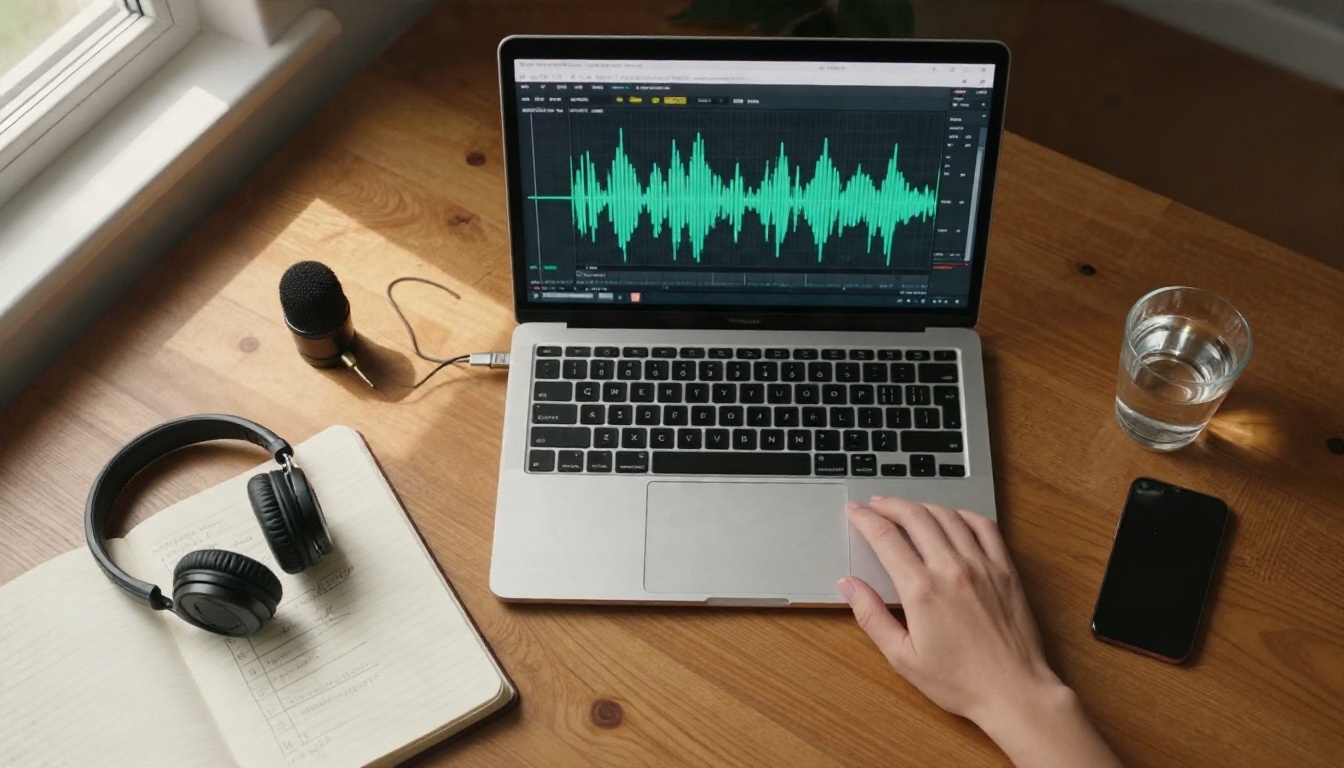
A single-purpose lip sync website is simple. You upload a clip, upload audio, press a button. The downside is that you get one engine, and if it struggles with your footage you have nowhere else to go.
A platform that hosts several lip sync models lets you run the same input through different engines and pick the best output. That's the approach I'd recommend, because lip sync quality varies a lot by face, lighting and language. PicassoIA's lipsync collection puts a dozen of them in one place, including Lipsync from PixVerse for fast matching of an existing video to audio.
Picking a model by job
| Your job | Start with | Why |
|---|
| Fix a line in existing footage | Lipsync 2 Pro | Built to match mouth to new audio on real video |
| Quick sync, short turnaround | Lipsync Speed | Prioritizes speed over polish |
| Highest fidelity dub | Lipsync Precision | Focused on accurate mouth matching |
| Make a still photo talk | Fabric 1.0 | Animates a single image from audio |
| Realistic person from one photo | Omni Human 1.5 | Photo to speaking video |
| Talking avatar for explainers | P Video Avatar | Made for avatar style clips |
| Translate and dub a video | Video Translate | Handles the language change and the sync |
| Add synced sound to generated video | Wan 2.2 S2V | Audio driven video generation |
App Picks for Phone Users
Mobile is where most casual lip sync happens, because the footage, the audio and the posting all live on the same device.
Short clips on mobile
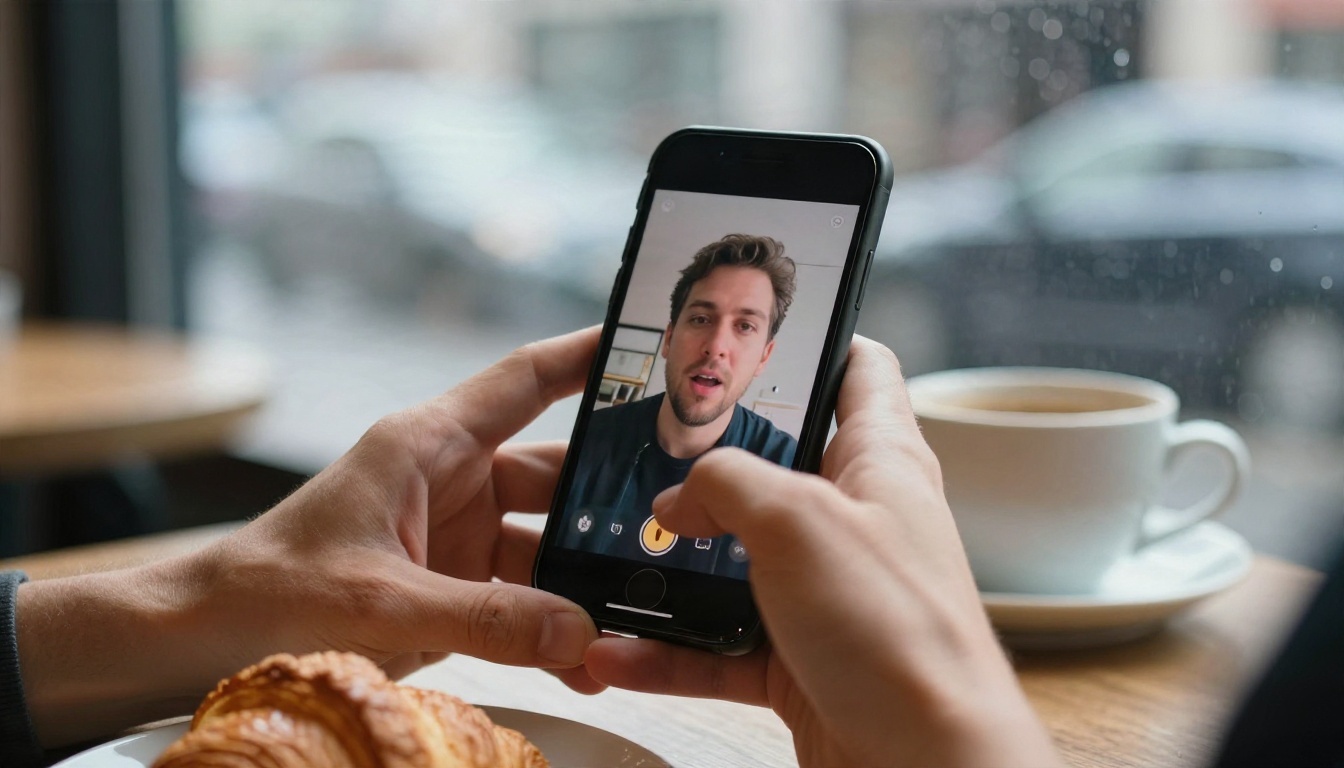
Phone apps and mobile web versions of the same tools are fine for 5 to 15 second clips. The upload step is usually the slow part, so use Wi-Fi and trim your video before you send it. Cropping to just the speaking section cuts both the wait and the credit use.
Apps tend to share the same limits as their web siblings: a daily credit allowance, a watermark on free exports, and short maximum lengths. Because app stores and feature sets change quickly, check the current listing and recent reviews instead of trusting an older list.
When to switch to the browser
Switch to a browser when you need any of these:
- A longer clip than the app's free limit allows
- Higher resolution exports for a client or a website
- Model choice, so you can test two engines on the same footage
- Separate voice work, where you generate speech first, then sync it
That last one is a useful trick. Generate the voice with a text to speech model such as Gemini 3.1 Flash TTS, Realtime TTS 2 or Speech 2.8 Turbo, then feed that audio into the lip sync model. You control the script and the pacing before the face ever moves.
The Limits Nobody Mentions
Every comparison page lists features. Few of them tell you where the results fall apart. After testing enough footage, the same failure points show up again and again.
Faces, angles and obstructions
Lip sync models do best with a clear, well lit, mostly front facing face. Expect trouble when:
- The head turns past a three-quarter angle or looks sharply down
- A hand, microphone, scarf or beard hides part of the mouth
- Several faces share the frame and the tool has to pick the speaker
- The lighting is dark or flickers, which blurs the mouth area
- The subject is far from the camera, so the mouth is only a few pixels wide
If a clip fails, the fix is usually in the source footage, not the settings. A tighter crop, brighter light, or a different take often beats re-running the same file five times.
Audio quality and language
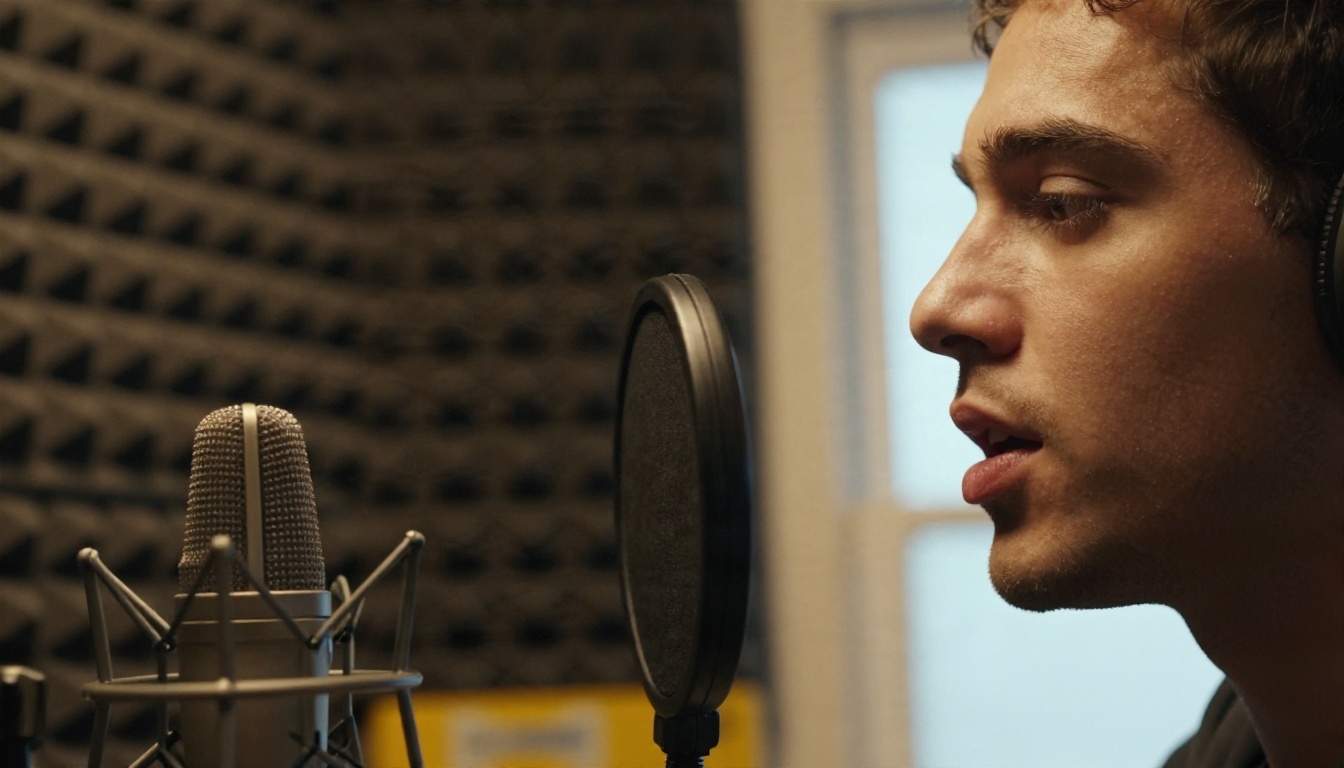
Garbage audio makes a garbage sync. Background music, room echo and overlapping voices confuse the timing. Start from a clean, dry voice track, and keep it free of music until after the sync.
Language matters too. A model can match mouth shapes to almost any sound, but dubbed speech has its own rhythm. A sentence that takes four seconds in English might take six in another language, and a forced match can look rubbery. Rewrite the translated line to fit the original timing, instead of stretching the video.
Consent and disclosure
Lip sync can put words in someone's mouth, which makes permission a real issue. Use footage of yourself, people who agreed, or characters you own. If you publish AI-altered speech of a real person, say so in the caption. Many platforms now require labels on synthetic or altered media, and a clear disclosure protects you and the audience.

A Clean Sync in Five Steps
This workflow applies to nearly any tool, and it saves more credits than any setting you can change.
- Prepare the footage. Trim to the speaking section, keep the face large in frame, and pick a take with even light.
- Prepare the audio. Use a clean voice track with no music. If you have no recording, generate one with a text to speech model and export it as a clear file.
- Run a short test. Process five seconds first. Check the mouth on hard sounds like "p", "b" and "m", and on open vowels.
- Compare engines. Run the same test on two models. On PicassoIA, try Lipsync 2 against Kling Lip Sync and keep the cleaner result.
- Process the full clip. Only now run the whole file, then review frame by frame near cuts and head turns.
💡 Parameter tip: If a tool offers a sync strength or mode option, use the more natural setting for talking footage and reserve exaggerated settings for animation style content. Over-tight matching can make jaw motion look stiff.
If you have no footage at all, you can also generate the clip first. A video model with audio support, such as Flux 3 or Bruma Reference to Video, can produce a scene to sync against, or you can animate a portrait with Omni Human.
Which Option Fits You
Match the tool to the job, not the other way around.
| If you are... | Pick | Expect |
|---|
| A casual creator posting short clips | Free daily credit tools or a phone app | Watermarks, short limits |
| A small business making explainers | Photo to talking video models such as Fabric 1.0 | Fast avatars, no filming needed |
| An editor fixing lines in real footage | Lipsync 2 Pro or React 1 | Cleaner mouths on real faces |
| A team localizing content | Video Translate plus Dubbing | Multi-language output |
| A developer with a GPU | MuseTalk or LatentSync | Full control, setup effort |
A simple rule of thumb: if the clip is under 15 seconds and a watermark doesn't bother you, a free tool is enough. If the clip will represent a brand, runs longer, or needs a language switch, a platform with several models pays for itself in saved retries.
Try Your First Sync Today
The fastest way to find the right setup is to run one short clip through two engines and compare. Open PicassoIA, pick a lip sync model from the full model list, upload a clean ten second clip and a clean voice file, and see which result keeps the mouth natural on the hard sounds. Then try the photo route with Omni Human 1.5 or Fabric 1.0 and watch a still portrait start to speak.
You don't need a studio or a big budget. You need one good face shot, one clear audio track, and a couple of experiments. Start small, compare the outputs, and build from the version that looks the most human.


