You typed a perfectly normal prompt, waited three minutes, and got a red banner that says the generation failed. No reason, no hint, and maybe a few credits gone. If you landed here after searching "nafw Kling AI", you are probably dealing with one of three problems: the service is slow or broken, your prompt tripped a content filter, or you hit a usage limit. This article separates the three, shows what you can fix yourself, and lists generators that give you a smoother ride when Kling AI will not cooperate.
What "Nafw Kling AI" Really Means
"Nafw" is almost always a typo or shorthand for NSFW. People type it when they want to know whether Kling AI allows suggestive, glamour, swimwear or adult-leaning content, and why their clips keep getting rejected. The short answer: Kling AI runs strict moderation, and it is stricter than most users expect, even for content that is merely suggestive and nowhere near explicit.

That search intent splits into three groups:
- Troubleshooters: the app freezes, loops on "generating", or returns a generic failure.
- Policy checkers: they want to know what gets blocked and why.
- Alternative seekers: they need a tool that finishes the job today.
💡 Quick note: Kling AI is a Kuaishou product. The Kling AI app and its newest releases are not on PicassoIA. Older Kling versions are, and I point to them later with links.
Why Kling AI Is Not Working
Before you blame the filter, rule out the boring causes. Plenty of "blocked" prompts are really server trouble.
Server load and queue delays
Popular video models get hammered right after a new release. Queues stretch, renders time out, and the interface shows a failure even though nothing is wrong with your prompt. Free-tier users usually wait longest, because paid tiers get priority in the queue.
Browser and account glitches
Stale sessions, aggressive extensions and cached scripts cause a surprising number of stuck jobs. Reports from users of Kling inside third-party apps, such as a thread about Kling 3.0 inside Adobe Firefly from mid-2026, describe repeated rejections even with trivial prompts. That points to an integration problem, not moderation.
Input image problems
Image-to-video is where many failures start. A reference photo can be rejected because of its content, its resolution, its aspect ratio, or because a face in it looks too similar to a public figure. The prompt can be clean and the image still gets the job refused.
| Symptom | Likely cause | First thing to try |
|---|
| Stuck at 0% or 99% | Queue or server load | Wait 10 minutes, then resubmit |
| Instant "generation failed" | Prompt or image screened | Simplify the prompt, swap the image |
| Fails only on image-to-video | Reference image rejected | Use a different photo, crop, resize |
| Fails after a long wait | Output check flagged the clip | Change the scene description |
| Works on one device only | Browser or cache issue | Clear cache, disable extensions |
Why Prompts Get Blocked
Third-party write-ups on Kling describe moderation as layered rather than a single keyword list. Kling publishes little detail itself, so treat the following as the commonly reported picture, not official documentation.
The three layers
- Prompt screening: your text is checked before any rendering starts.
- Generation constraints: the model itself steers away from restricted content while it renders.
- Output checks: the finished clip is scanned, and a flagged result is thrown away.
That third layer explains the most frustrating case: a prompt that looks innocent, a long wait, then a failure. The text passed, the pixels did not.
What typically gets rejected
Guides to Kling's behaviour consistently list these categories:
- Sexual or explicit content, and often anything heavily suggestive
- Graphic violence and gore
- Self-harm themes
- Some political content, including satire involving public figures
- Real people's likenesses in sensitive contexts
False positives are real
Swimwear campaigns, boxing scenes, medical illustrations, historical battles and even a woman in a wet T-shirt at a beach can all score badly with automated classifiers. If you make fashion, fitness or glamour content, you will hit this wall more often than a landscape filmmaker. That is not a sign you did something wrong. It is a sign the classifier is conservative.
💡 Worth knowing: error messages are generic. A blocked prompt and a server hiccup often look identical on screen, so you cannot always tell which one you are fighting.
Kling AI Limits and Credits
The second source of pain is the meter running in the corner of the screen.

How credits behave
Kling works on a credit system. Longer clips, higher quality modes and newer model versions cost more. Free accounts typically get a small daily allowance that refreshes, while paid plans give a monthly pool.
Do failed jobs cost credits?
The reports disagree, and I would rather say so than guess. Some vendor write-ups say policy rejections usually do not consume credits. Others say output-stage rejections can. API users report that rejected requests may skip the credit charge but still count against request quotas. Check your balance before and after a failed attempt, and contact support with the task ID if you were charged for nothing.
Typical limits to expect
| Limit type | What you will notice |
|---|
| Daily free allowance | Refreshes, but small |
| Clip length | Short clips per generation, extendable at extra cost |
| Queue priority | Slower on free tier at peak hours |
| Concurrent jobs | A few at once, depending on plan |
| Watermark and quality | Often restricted on free output |
If you generate dozens of variations while iterating, the numbers add up fast. Iteration is exactly where a metered tool hurts and an unlimited one shines.
Fixes That Actually Work
Here is what to try, in the order that wastes the fewest credits.
1. Rule out the service
Open the status channels or community threads. If other users report the same failure at the same hour, stop spending credits and wait.
2. Shorten and simplify the prompt
Long prompts with many adjectives give a classifier more chances to find something it dislikes. Describe the scene plainly: subject, setting, light, camera move.
3. Change the reference image
For image-to-video, try another photo of the same subject, a different crop, or a higher resolution file. A reference image can trigger moderation even when it looks harmless.
4. Remove names and brands
Real names, celebrity references and brand terms raise risk. Describe the look instead of naming a person.
5. Test cheap first
Run a short, low-quality version before paying for the premium render. If the cheap one passes and the expensive one fails, you are looking at an output check, not a prompt problem.
💡 Do not fight the filter: if your project is adult-leaning or sits near the edge of a platform's rules, rewording until something slips through is a losing game. You spend credits, you get inconsistent results, and the next model update breaks it. Pick a tool whose rules match your content.
Alternatives on PicassoIA
For fashion, glamour, swimwear and suggestive-but-not-explicit work, the order below is what I would use. Everything stays within non-explicit, tasteful content, which is where these tools perform best.
Seedream 4.5 for the first frame
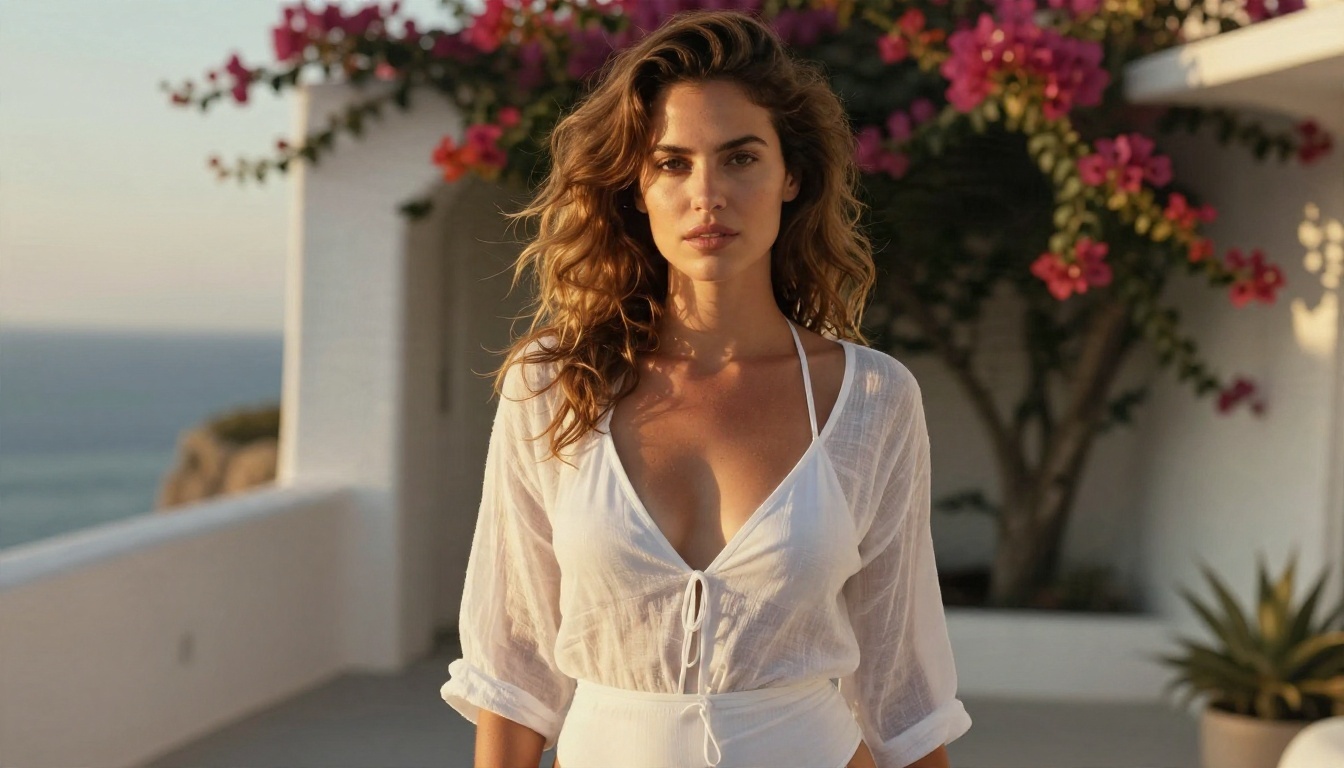
Seedream 4.5 is my first pick. It produces sharp, photographic images up to 4K and handles skin, fabric and light convincingly. It is also forgiving with glamour, beachwear and editorial prompts that other platforms flag. Generate your still here, then animate it.
PicassoIA Image Editor Pro for edits
PicassoIA Image Editor Pro gives you unlimited generations, so you can iterate without watching a counter. Use it to fix a hand, change an outfit, adjust a background or clean up a face before the image becomes a video frame.
Video models that finish the job
| Model | Best for | Why use it |
|---|
| Seedance 2.5 Lite | Free, unlimited clips up to 10 seconds | Fast iteration with no credit anxiety |
| Seedance 2.5 | Longer clips up to 30 seconds | Narrative scenes and fuller shots |
| Wan 2.5 I2V Fast | Animating a still image quickly | Quick turnaround from a reference photo |
| Hailuo 02 | 1080p cinematic motion | Smooth camera moves and clean detail |
Older Kling versions are here too
If you like Kling's motion style, Kling v1.5 Pro and Kling v1.5 Standard are on PicassoIA, and Kling o1 handles text-driven video editing. They are older releases, not the latest Kling app, so expect the look of that generation.
Why Speed and Freedom Matter
When you make content for a living, a blocked generation is not just annoying. It breaks your rhythm. Waiting three minutes to find out a swimwear clip was rejected, then repeating it five times, can eat an entire afternoon.
Tools with unlimited generation change how you work. You stop treating each render as precious. You try ten framings, pick the best, and move on. On PicassoIA, Image Editor Pro and Seedance 2.5 Lite are built for that style: fast, repeatable and not measured in tiny credit slices. They also tend to produce fewer surprise rejections on tasteful glamour and fashion content, because that kind of work is a normal use case for them rather than an edge case.
💡 Reminder: explicit pornographic content is a different matter. This article, and the tools recommended here, are about attractive, suggestive, non-explicit imagery: beachwear, evening wear, editorial portraits, boudoir-style lighting. That is where you get the best results anyway.
How to Get Similar Results on PicassoIA
Kling AI itself is not on PicassoIA, but this workflow gets you comparable image-to-video results with Seedream 4.5 and Seedance 2.5 Lite.

Step 1: Build the first frame
Open Seedream 4.5 and write one clear paragraph. Include the subject, outfit, location, light direction, lens and mood. Example: "A woman in a flowing emerald silk dress walking along a quiet shoreline at golden hour, warm backlight, 70mm lens, shallow depth of field, film grain." Set the ratio to 16:9 if you plan to post to YouTube or a website, or 9:16 for vertical platforms.
Step 2: Polish it
Send the best result to Image Editor Pro. Fix small flaws, adjust the outfit or clean up the background. Because generations are unlimited, run as many passes as you need.
Step 3: Animate it
Open Seedance 2.5 Lite, upload the polished frame, and describe only the motion. Good motion prompts are chronological: "The dress lifts in the wind, she turns her head toward the camera, slow dolly-in, warm light flickers on the water."
Step 4: Tune the parameters
- Duration: start at 5 seconds, then extend once the motion looks right.
- Prompt length: keep motion prompts short. Two or three actions are plenty.
- Camera: pick one move per clip, such as a slow push-in or gentle pan.
- Consistency: keep the same lighting words in your image and video prompts.
Step 5: Upgrade when needed
For longer scenes, run the same frame through Seedance 2.5. For crisp 1080p motion, try Hailuo 02.
Quick Decision Table
| Your situation | Best move |
|---|
| Server errors, everyone is affected | Wait, do not spend credits |
| One prompt keeps failing | Simplify, remove names, change image |
| Fashion or glamour project keeps getting flagged | Switch to Seedream 4.5 plus Seedance 2.5 Lite |
| Need many iterations | Use unlimited tools like Image Editor Pro |
| Want Kling-style motion | Try Kling v1.5 Pro on PicassoIA |

Try It Yourself on Picasso IA
If Kling AI keeps stalling, rejecting or charging you for clips you never received, do not lose another evening to it. Generate a first frame with Seedream 4.5, polish it in Image Editor Pro, and animate it with Seedance 2.5 Lite. You will have a finished clip in minutes, and you can run as many variations as you like.
Browse every available image and video generator at picassoia.com/en/all-models, pick one that suits your style, and start with a single prompt. The fastest way to find out which tool fits your work is to run the same idea through three of them and compare.


