Search for NFSW video AI and you get a mess: apps that blur every frame, free trials that watermark your clip, and "unrestricted" tools that look like they were built in a weekend. People want something simple. They want a suggestive, good-looking clip of a swimsuit shoot, a boudoir portrait or a glamour scene, and they want it to move naturally without a warped face or melting hands.
This article sorts the noise. You will see what these tools do, which kinds of apps are worth your time, the settings that decide whether a clip looks like a photo shoot or a glitch, and a workflow that works on PicassoIA today. Everything here stays on the suggestive and artistic side: swimwear, lingerie, glamour, mood. Nothing explicit.
💡 Quick answer: The most reliable way to get a good adult-leaning clip is to build a strong still first with Seedream 4.5, polish it in PicassoIA Image Editor Pro, then animate it with a video model. Starting from a great image beats starting from a text prompt almost every time.
What NFSW Video AI Really Means
People type "NFSW" (a common typo of NSFW) when they want AI video that is not locked behind a strict family-friendly filter. In practice, that covers a few things: bikini and beachwear clips, lingerie and boudoir scenes, fashion and glamour shoots, and artistic portraits with a sensual mood.
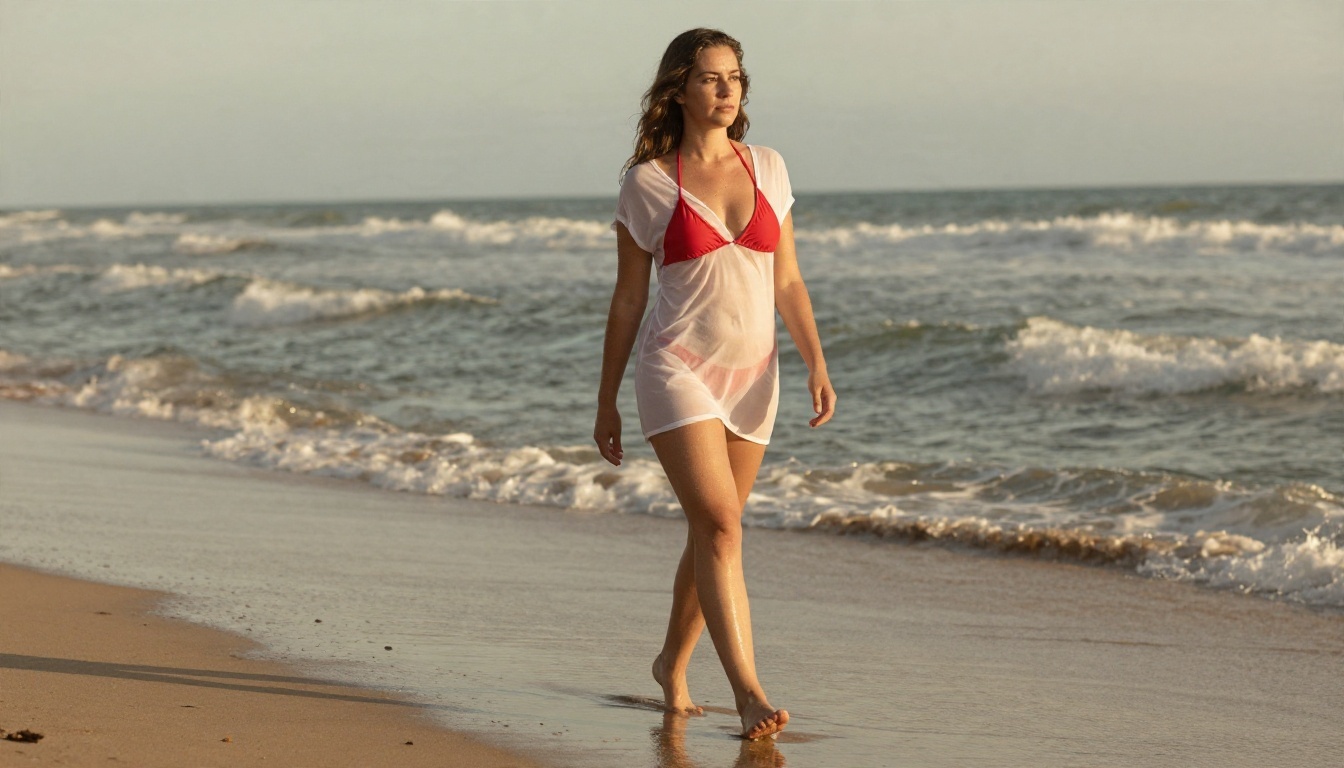
Image to Video vs Text to Video
There are two ways to make a clip.
- Text to video: you write a prompt and the model invents everything: the person, the room, the motion.
- Image to video: you give the model a still and it adds motion. The face, outfit and setting are already locked in.
For glamour content, image to video wins. A still gives you control over lighting, wardrobe and pose before any motion is added. Text to video often drifts: the face changes mid-clip, the outfit shifts, hands multiply.
Why Filters Exist (and Why They Differ)
Every big video model ships with a safety layer. Some block anything that looks like swimwear. Others allow bikinis but reject lingerie. A few are strict about any skin at all. That is why one prompt works on one app and fails on another. The filter is not part of the model quality. It is a policy choice made by the company hosting it.
| Filter style | What it usually blocks | Typical result |
|---|
| Very strict | Swimwear, bare shoulders, "sensual" wording | Blank output or an error |
| Moderate | Lingerie, suggestive poses | Silent rewrites of your prompt |
| Relaxed | Only explicit content | Glamour and boudoir pass |
The Apps People Actually Use
The market splits into three groups. None is perfect, so it helps to know the tradeoffs before you pay for anything.

Mainstream Video Generators
Tools like Veo, Kling, Hailuo, Wan and Seedance produce the best motion quality on the market. Their strength is realism: believable cloth, hair and body movement. Their weakness is moderation, which varies by version and by host. Several of these models are available on PicassoIA, including Veo 3.1 Fast, Kling v1.5 Pro, Hailuo 02, Wan 3 and Seedance 2.5.
Dedicated Adult Apps
A crowd of niche apps sell "unrestricted" video. Some are fine. Many have problems:
- Short clips, often 2 to 4 seconds
- Low resolution with heavy watermarks
- Credits that vanish fast, with unclear billing
- Weak privacy practices around uploaded photos
Read the billing page and the privacy page before uploading a single image.
Mobile Apps and Web Wrappers
Mobile apps are convenient, but many are thin wrappers around an open model with a markup on top. Quality is inconsistent and subscription traps are common. If you only want occasional clips, a browser tool with free access is usually the better deal.
💡 Rule of thumb: If an app hides its pricing until after you sign up, or will not say which model runs underneath, skip it.
Settings That Change the Result
Most failed clips are not the model's fault. They come from poor settings. These are the ones that matter.
Resolution and Duration
Start at 720p and 5 seconds. Longer clips amplify drift: faces slowly change, fabric patterns crawl. Once a 5-second clip looks right, go longer or up to 1080p. A strong short clip is worth more than a long weak one.
Motion Strength
Many tools expose a motion or "creativity" slider. For glamour content keep it low to medium. High motion makes bodies warp and hair stretch. Think of a slight breeze, a head turn, a slow smile. Not a dance routine.
Camera Movement
Camera moves are safer than body moves. A slow push-in, a gentle pan or a soft orbit creates drama and hides small flaws. Specify it in the prompt in plain words: "slow dolly-in, shallow depth of field".
Seed and Consistency
When you find a result you like, note the seed. Re-using it with small prompt changes gives you a variation instead of a different person. This is how you build a short series that looks like one shoot.
| Setting | Recommended start | Why |
|---|
| Resolution | 720p | Faster, fewer artifacts |
| Duration | 5 seconds | Less drift |
| Motion strength | Low to medium | Keeps anatomy stable |
| Camera | Slow push-in or pan | Cinematic, forgiving |
| Seed | Fixed once you like it | Repeatable look |
Prompts That Move Well
Video prompts are not image prompts. An image prompt describes a frame. A video prompt describes what happens over time.
A Simple Prompt Formula
Use this order: subject and starting pose, then motion, then camera, then light.
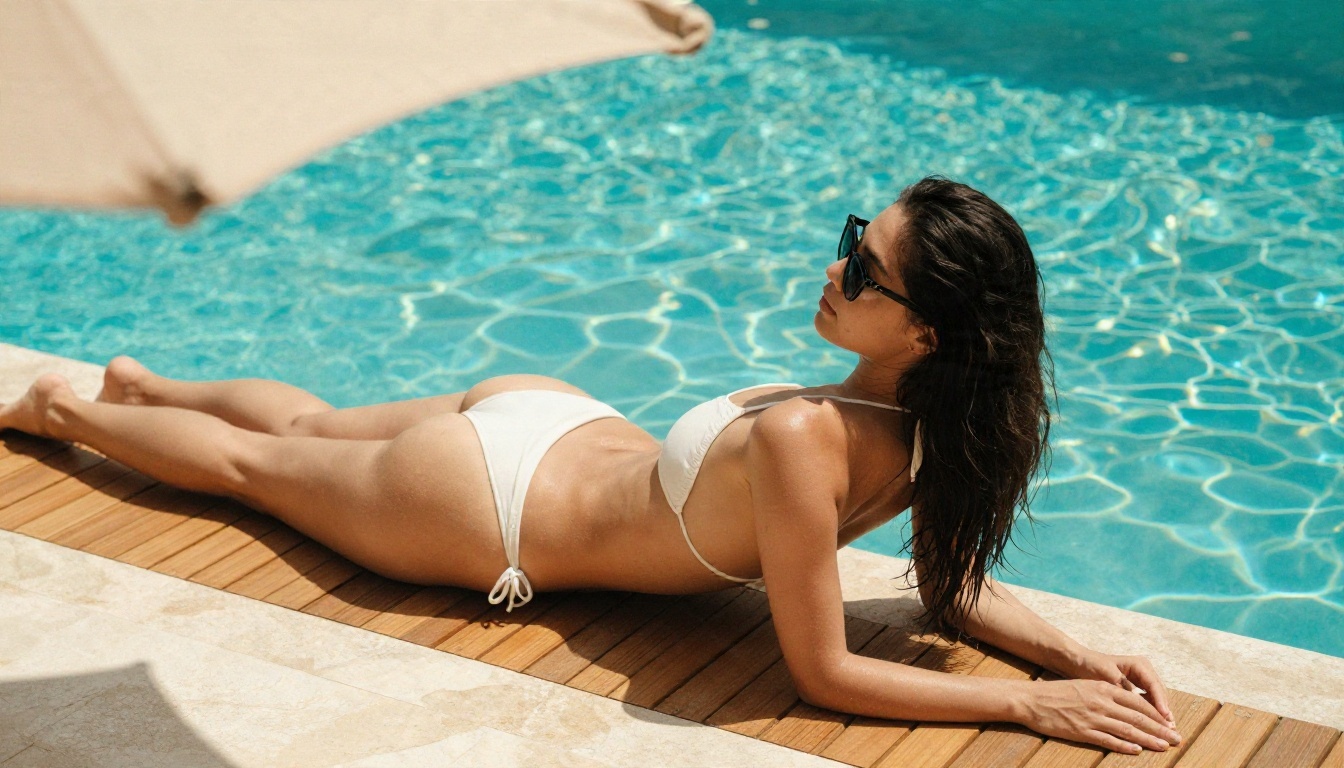
Example: "A woman in a white bikini lies on a teak pool deck. She slowly lifts her sunglasses and turns toward the camera with a soft smile. Slow dolly-in, shallow depth of field, warm midday light, ripples moving on the pool behind her."
Words That Help and Words That Hurt
- Helps: slow, gentle, soft, breeze, subtle, cinematic, shallow depth of field, natural light
- Hurts: fast, intense, dancing, spinning, extreme, anything that stacks several actions at once
One action per clip. If you want a head turn and a smile, that is already plenty for 5 seconds.
Matching Prompt to Image
If you start from a still, do not re-describe the whole scene. Describe only the motion. The model already sees the outfit, the room and the light. Re-describing them invites it to change them.
The Workflow That Works
Here is the process I recommend, in order. It is the most dependable route to a clean, good-looking clip.
Step 1: Build the Still With Seedream 4.5
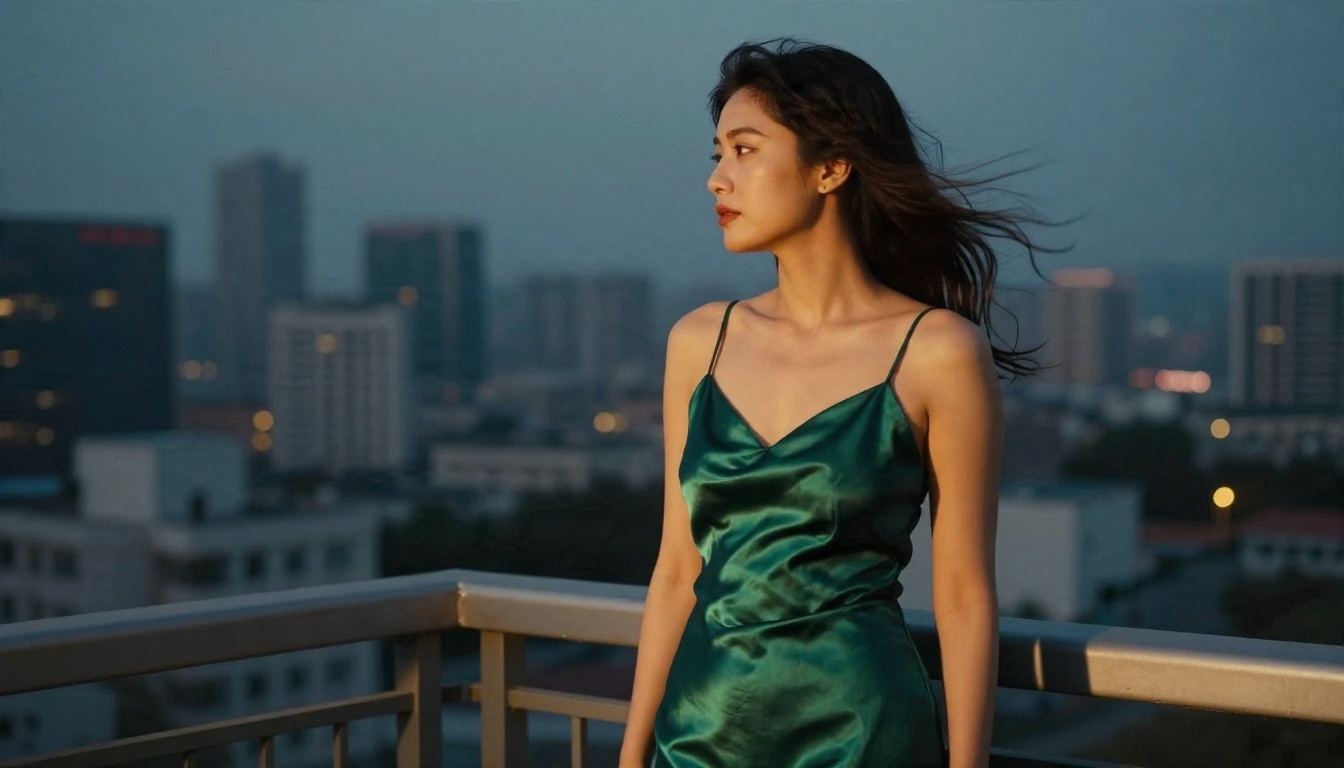
Seedream 4.5 is the first model to try for adult-leaning glamour work. It produces sharp, photorealistic skin, convincing fabric and clean hands, and it handles swimwear, lingerie and boudoir prompts without the constant refusals you get elsewhere. It is also fast, so you can run a dozen variations in a few minutes and pick the best frame.
Tips for the still:
- Describe lighting precisely: "soft window light from the left", "golden hour backlight".
- Name the lens: "85mm f/1.8" gives a flattering portrait look.
- Mention real textures: "fine skin pores, silk sheen, linen creases".
- Keep the pose simple. Complex limb positions are where models fail.
- Generate several versions and keep only the cleanest.
Step 2: Polish With PicassoIA Image Editor Pro
Even a good still often needs a small fix: a stray strap, an odd shadow, a background object that distracts. PicassoIA Image Editor Pro lets you edit by text instruction, and it is unlimited, so you can iterate as many times as you want without watching a credit counter. That matters a lot, because the number of edits it takes to reach a clean first frame is usually higher than people expect.
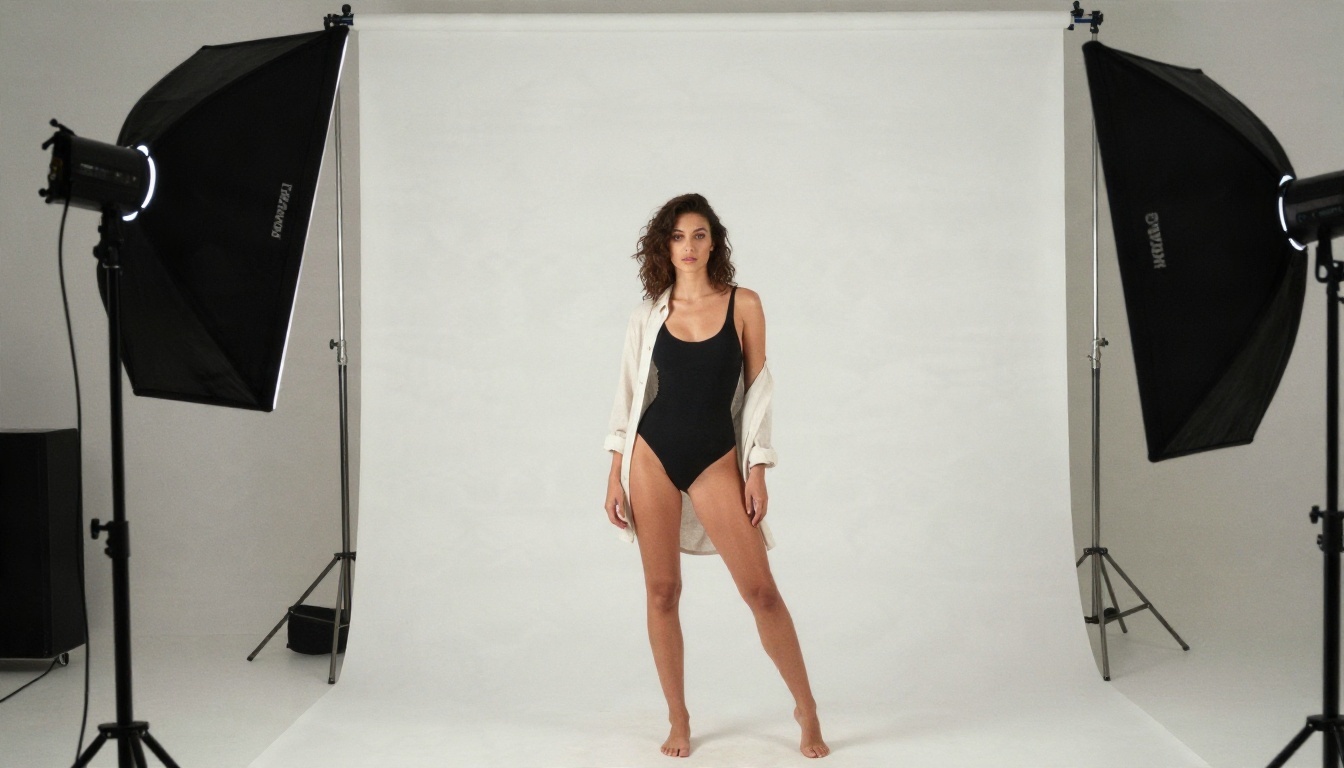
Good edits to try: change outfit color, soften harsh shadows, clean up the background, adjust the time of day, or fix an awkward hand.
Step 3: Animate the Clean Image
Take the polished still into a video model. Start with a short, low-motion prompt and one camera move. Review the result at full size, not in a thumbnail. Faces and hands are where problems hide.
💡 Tip: If the first 5-second clip warps, do not rewrite the whole prompt. Lower the motion, remove one action, and run it again.
Alternatives That Work on PicassoIA
Here is a practical shortlist, in the order I would try them. Start with the image models, since a clean first frame decides everything downstream.
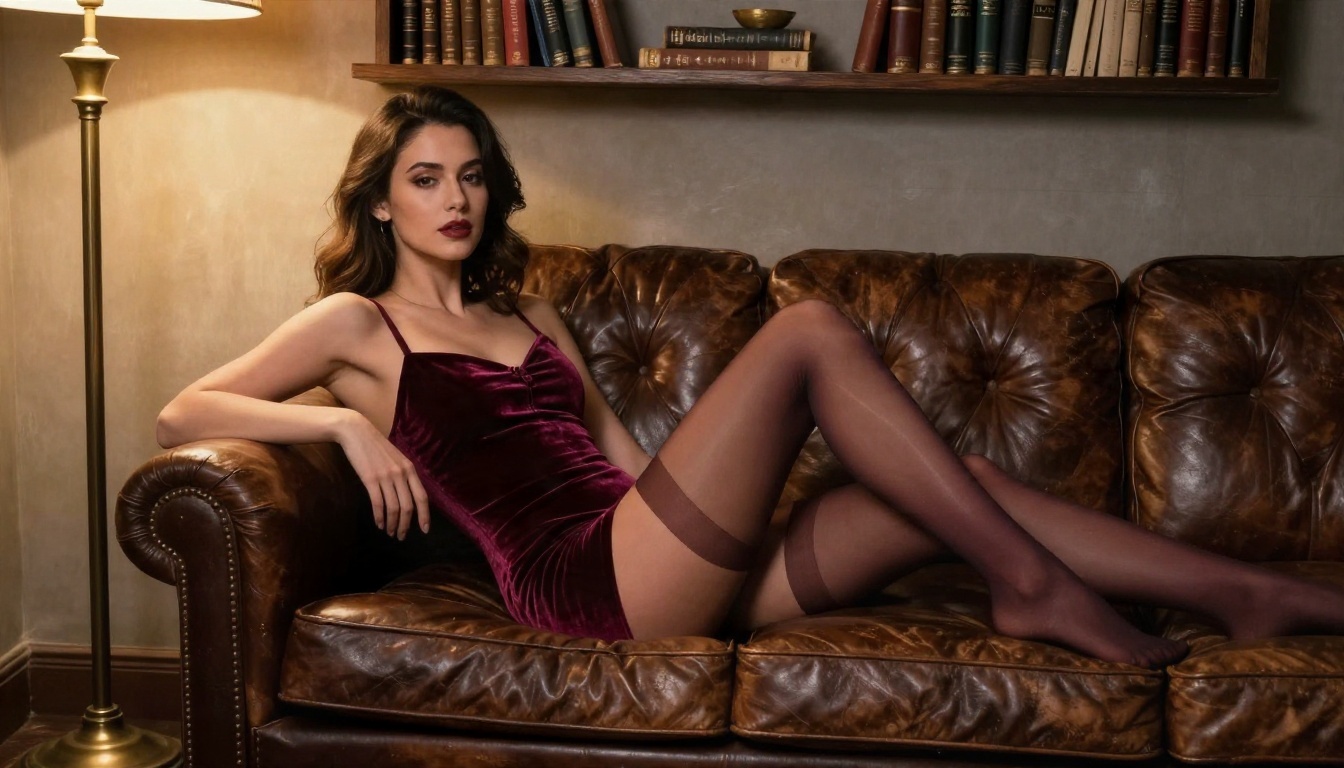
Why Start With Seedream 4.5
It balances realism, speed and permissiveness better than other image models I have tried for this kind of work. Skin looks like skin, not plastic. Light behaves the way a photographer would set it. And the uncensored feel means you spend your time improving a picture instead of fighting a refusal message.
Why Image Editor Pro Is the Second Stop
Unlimited generations change how you work. You stop treating each attempt as expensive and start treating it like a contact sheet. That is how pros work with a camera too: shoot a lot, keep a little.
Picking a Video Model
Different models handle motion differently, so test the same still in two or three of them. Seedance 2.5 Lite is the cheapest way to experiment, since it is free and unlimited. Move to Seedance 2.5 or Wan 3 when you want the final render. Moderation rules differ per model and can change over time, so if one model refuses your still, try another instead of rewording the prompt over and over. Veo 3.1 Fast tends to be the most cautious of the group, so treat it as a better fit for fashion and beachwear than for boudoir.
Common Mistakes to Avoid
Mistake 1: Starting From Text Only
Pure text to video gives the model too much freedom. Faces drift, outfits change. Use a still.
Mistake 2: Too Much Motion
Fast, complex movement is the number one cause of warped limbs. Slow down.
Mistake 3: Judging by the Thumbnail
Small previews hide artifacts. Watch every clip at full size before you share or keep it.
Mistake 4: Paying Before Testing
Never buy an annual plan for a tool you tested for ten minutes. Run the same still through a free option first, then compare.
Adult-leaning AI content comes with real responsibilities. A few lines are not negotiable.
- Only use images of adults. No exceptions, ever.
- Never use a real person's likeness without their consent. That includes celebrities, coworkers, exes and strangers. Face swapping a real person into suggestive material is harmful and, in many places, illegal.
- Make original characters. Generating your own fictional model from a prompt is the safest and most creative path.
- Check local law and platform terms before you publish anything, especially for monetized content.
- Protect your uploads. Prefer tools that clearly state how images are stored and deleted.
Keep your work in the glamour and artistic range. The best-performing content in this space looks like an editorial shoot, not a shock.
Try It on PicassoIA
You do not need five subscriptions to make a good clip. Start with one still: open Seedream 4.5, describe a scene with specific light and a simple pose, and generate a handful of versions. Refine your favorite in PicassoIA Image Editor Pro with as many edits as you like, then animate it in Seedance 2.5 Lite for a free first pass.
Change one setting at a time, keep the seed once you like the look, and compare two video models on the same still. In an hour you will have a short, clean glamour clip and a repeatable process.
Ready to build your own? Browse the full lineup at picassoia.com/en/all-models and start creating.


