Type "anime girl, beach, bikini" into a random free generator and you will usually get one of two things: a muddy, six-fingered mess, or a login wall asking for a credit card before the first render. Both outcomes are avoidable. NSFW AI anime has matured fast, and in 2027 the gap between a lazy setup and a good one is mostly about three things: the model you pick, the prompt structure you use, and a handful of settings that most people never touch.
This article lays out all three. You will see which free routes are worth your time, a prompt formula you can copy, example results with the thinking behind them, and the mistakes that quietly burn through your free credits. Everything here stays on the suggestive, glamour side: stylish, attractive, and non-explicit.
What NSFW AI Anime Means in 2027
"NSFW" covers a wide range. At one end sits the glamour look: swimwear, lingerie-inspired outfits, flirtatious poses, dramatic lighting. At the other end sits explicit content, which many platforms block and which this article does not target. Most people searching for this topic want the first category: attractive anime characters with a bold, adult-oriented style, produced quickly and without a paywall at every step.
💡 Rule that never changes: every character you create should be clearly an adult. Use words like "adult woman", "mature", "25 year old" in your prompt. Reputable platforms enforce this, and so should you.
Why Anime Style Dominates
Anime has strong visual shorthand: large expressive eyes, clean linework, flat cel shading, saturated palettes, and exaggerated hair. Image models picked up these patterns from huge amounts of training data, so a short prompt can already return a recognizable character. That makes anime the easiest style for beginners to get a "wow" result from.
Photoreal Cosplay Is the Other Half
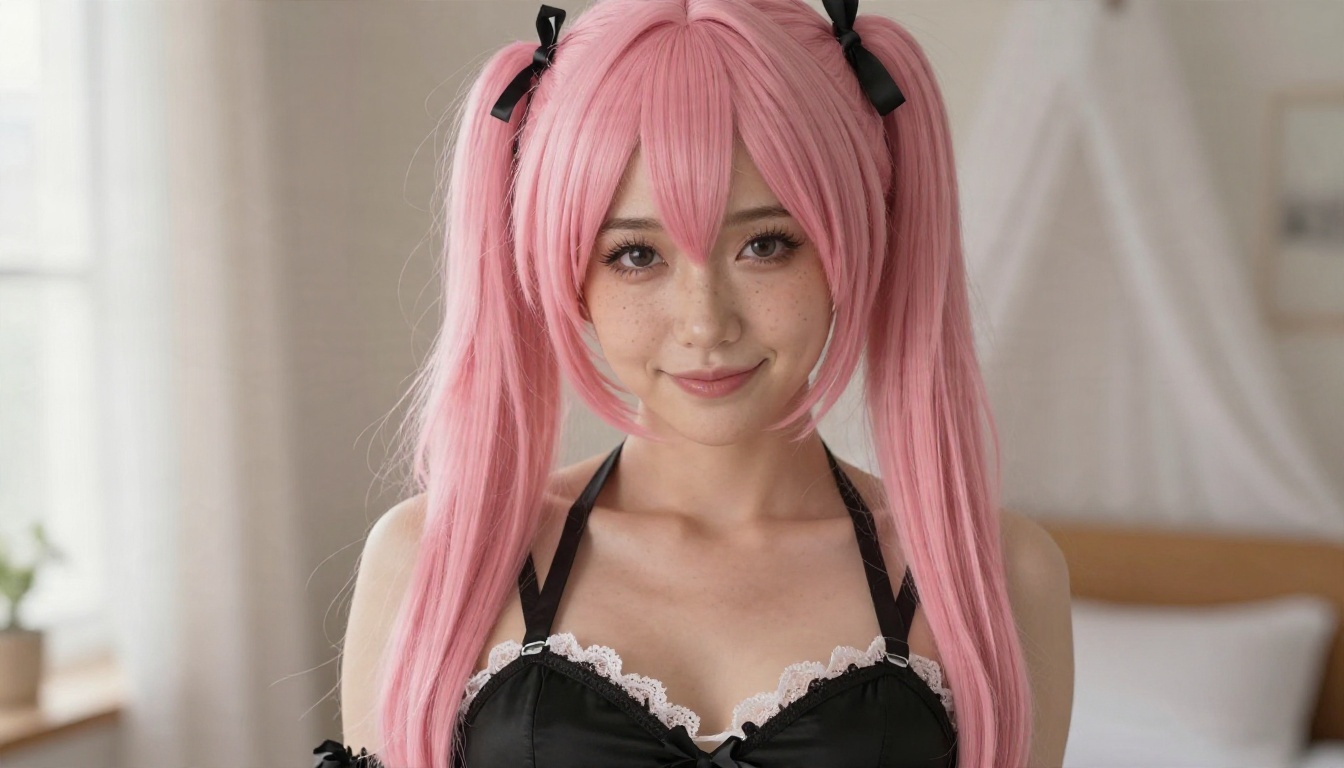
A growing share of searches blend the two worlds: realistic cosplay-style photos of adult models dressed as anime heroines. That is why the example images in this article are photographs of cosplay shoots rather than drawings. The same prompting logic applies to both, you simply swap "cel shaded illustration" for "85mm photograph, natural light".
Free Generators Worth Trying
The market is noisy. A quick scan of 2026 roundups shows the same names repeating, along with a lot of affiliate-style ranking pages, so treat any "best of" list with healthy suspicion, including this one. Here is the honest landscape.
Free Tiers and Their Limits
Plenty of sites advertise free NSFW anime art. In practice, "free" usually means one of these:
- Sign-up credits that run out after a few dozen images (Mage.space, for instance, has been reported to offer a starter balance of credits).
- Community platforms such as PixAI, where models and LoRAs are shared, but queues and daily limits apply.
- Self-hosted Stable Diffusion, which is genuinely free in software terms but demands a capable graphics card and time for setup. Anime-focused checkpoints like Animagine XL are popular here.
Several guides also point out that free limits are often a deliberate conversion tactic. Plan for that: test one idea at a time rather than burning credits on random experiments.
Hosted Sites vs Local Setups
| Route | Cost | Setup effort | Speed | Best for |
|---|
| Credit-based web generators | Free credits, then paid | None | Fast | Quick tests |
| Community anime platforms | Freemium | Low | Medium (queues) | LoRA variety |
| Local Stable Diffusion | Free software, hardware cost | High | Depends on GPU | Total control |
| PicassoIA models | Free to start | None | Seconds | Quality plus speed |
If you do not own a strong GPU, a browser-based route saves hours. If you love tinkering with samplers and LoRAs, local installs are rewarding but slow to get right.
Models on PicassoIA Worth Using
PicassoIA hosts dozens of image models, and a few stand out for this style. Here is the order I would try them in:
- Seedream 4.5: the first stop. Sharp detail, strong skin and fabric rendering, and it handles adult-oriented glamour prompts without the constant refusals you hit elsewhere.
- PicassoIA Image Editor Pro: unlimited generations and uncensored editing, ideal for fixing outfits, changing hair color, or pushing a concept through ten variations without counting credits.
- Qwen Image 3 Pro: strong prompt following and clean photorealistic output.
- Z Image Turbo: very fast, perfect for rapid drafts.
- Flux 2 Klein 9B Base LoRA: a flexible base for styled output.
- Krea 2 Medium: leans into anime and painterly looks.
- Proteus v0.3: a dedicated anime character model.
- Qwen Image Edit Plus LoRA Photo To Anime: turns a photo into an anime-styled version.
How to Use Seedream 4.5 on PicassoIA
Seedream 4.5 is the model I reach for first, mostly because it needs less prompt wrestling than the rest. Here is the exact workflow.
Open the Model
Go to the Seedream 4.5 page, and you land directly in the generator. No local install, no checkpoint downloads, no extension folders.
Write the Prompt in Layers
Build the prompt in this order, separated by commas:
- Subject: "adult woman, 25 years old, long silver hair with blunt bangs"
- Outfit: "black satin two-piece swimwear, thigh-high stockings, short cape"
- Pose and expression: "sitting on a window seat, one knee raised, soft smile"
- Setting: "sunlit loft apartment, sheer curtains, manga shelf"
- Lighting: "warm morning light from the left, soft rim light on shoulders"
- Style: "anime cel shading, clean linework" or "85mm photograph, Kodak Portra 400 grain"
Set Ratio and Resolution
Choose 16:9 for wide scenes and banner images, 3:4 or 2:3 for full-body character shots, and 1:1 for avatars. Pick the highest resolution the tool offers, since fine detail on eyes, hands, and fabric benefits most from extra pixels.
Refine With Editor Pro
Once you have a promising base, send it to PicassoIA Image Editor Pro. Because generations are unlimited, you can ask for tiny changes: "change the wig to pink", "swap the swimsuit for a kimono-inspired robe", "make the background a cafe". Treat it like a conversation, not a lottery.
💡 Speed tip: draft with Z Image Turbo first to test compositions, then move the best idea to Seedream 4.5 for the final render.
Prompts That Actually Work
Short prompts give random results. Long, chaotic prompts give confused results. The sweet spot is 8 to 14 well-chosen phrases with a clear order.
The Base Formula
[adult subject] + [hair and face] + [outfit] + [pose] + [setting] + [lighting] + [camera or art style] + [quality terms]
Here is the formula filled in for an anime illustration:
"adult woman, 26 years old, long lavender hair with twin braids, confident smile, black and white satin swimwear with a short cape, sitting on a window seat with one knee raised, sunlit loft with manga shelves, warm morning light from the left, anime cel shading, clean linework, detailed eyes, high resolution"
And the same idea as a photoreal cosplay shot:
"adult woman cosplaying an anime heroine, silver wig with blunt bangs, black and white satin costume, seated on a window seat, sheer curtains, golden morning light from the left, 85mm f/1.8 photograph, shallow depth of field, Kodak Portra 400 film grain, natural skin texture"
Character Prompts
Characters become consistent when you repeat the same anchor phrases: hair color, hairstyle, eye color, one signature accessory. Change the pose and the setting, keep the anchors identical.
| Anchor | Example phrase |
|---|
| Hair | "long silver hair, blunt bangs, twin braids" |
| Eyes | "violet eyes, soft lashes" |
| Accessory | "black choker, small silver hairpin" |
| Body language | "confident, relaxed, playful" |
| Age cue | "adult woman, 26 years old" |
Outfit and Setting Prompts
Outfits do the heavy lifting in glamour prompts. Be specific about fabric and cut, since "bikini" alone is vague.
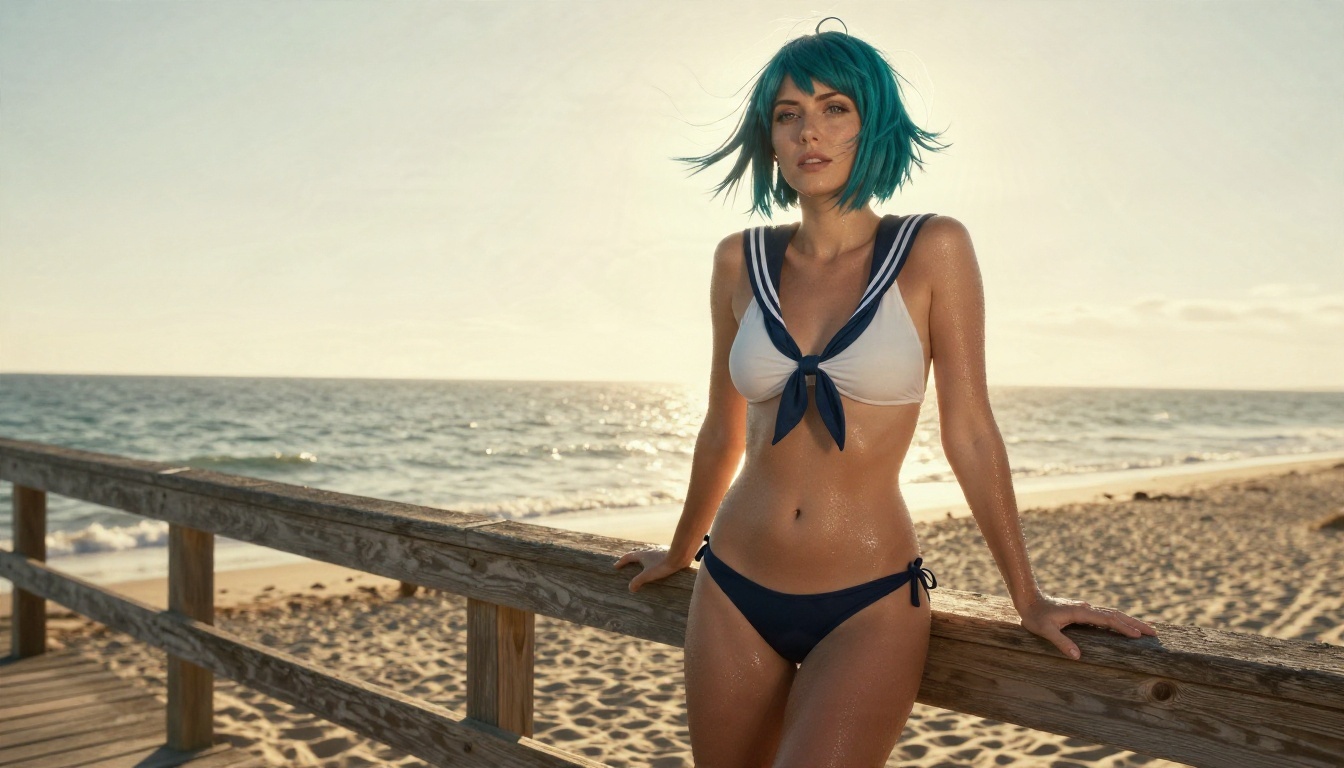
- Beach: "sailor-style two-piece swimwear, wet skin sheen, golden hour backlight, seaside railing"
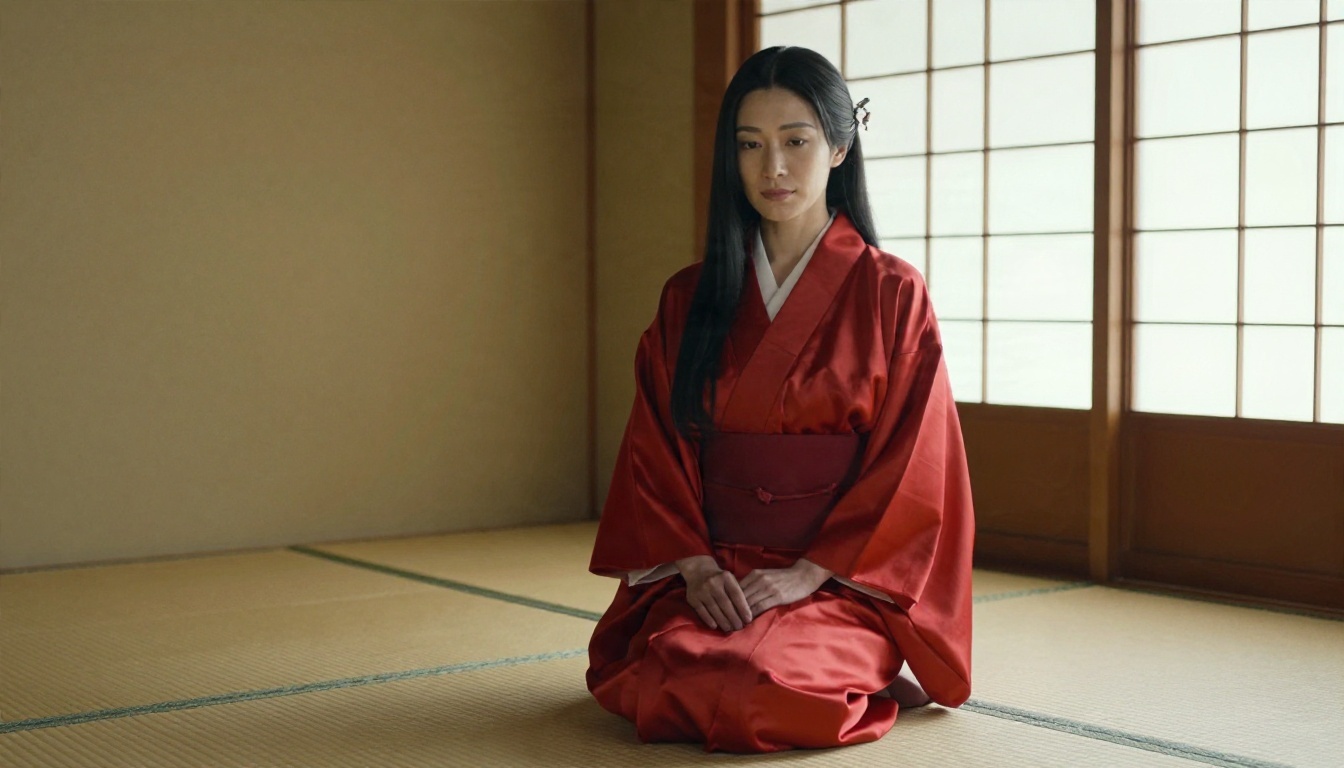
- Traditional: "red silk kimono-inspired robe, loosely tied, tatami room, soft light through shoji screens"
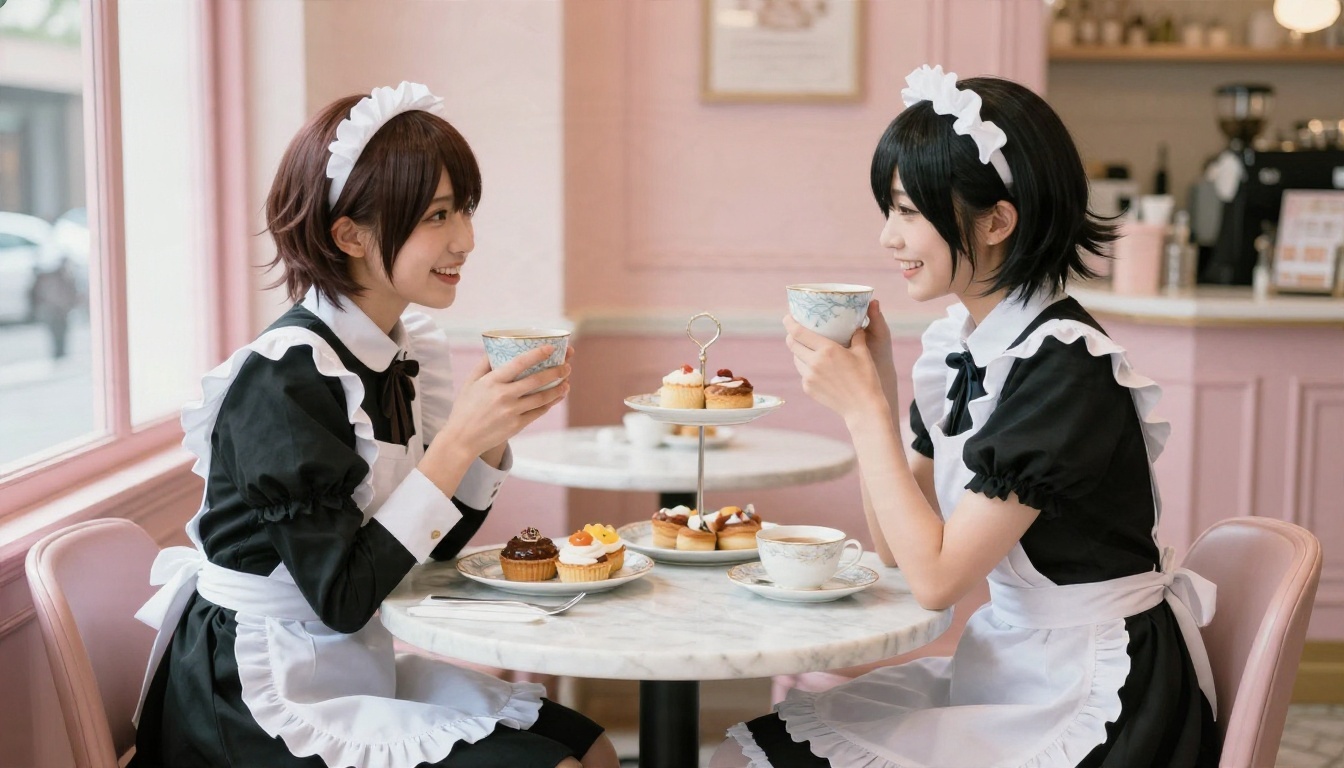
- Cafe: "short maid-inspired dress, white lace apron, pastel cafe, marble tables"
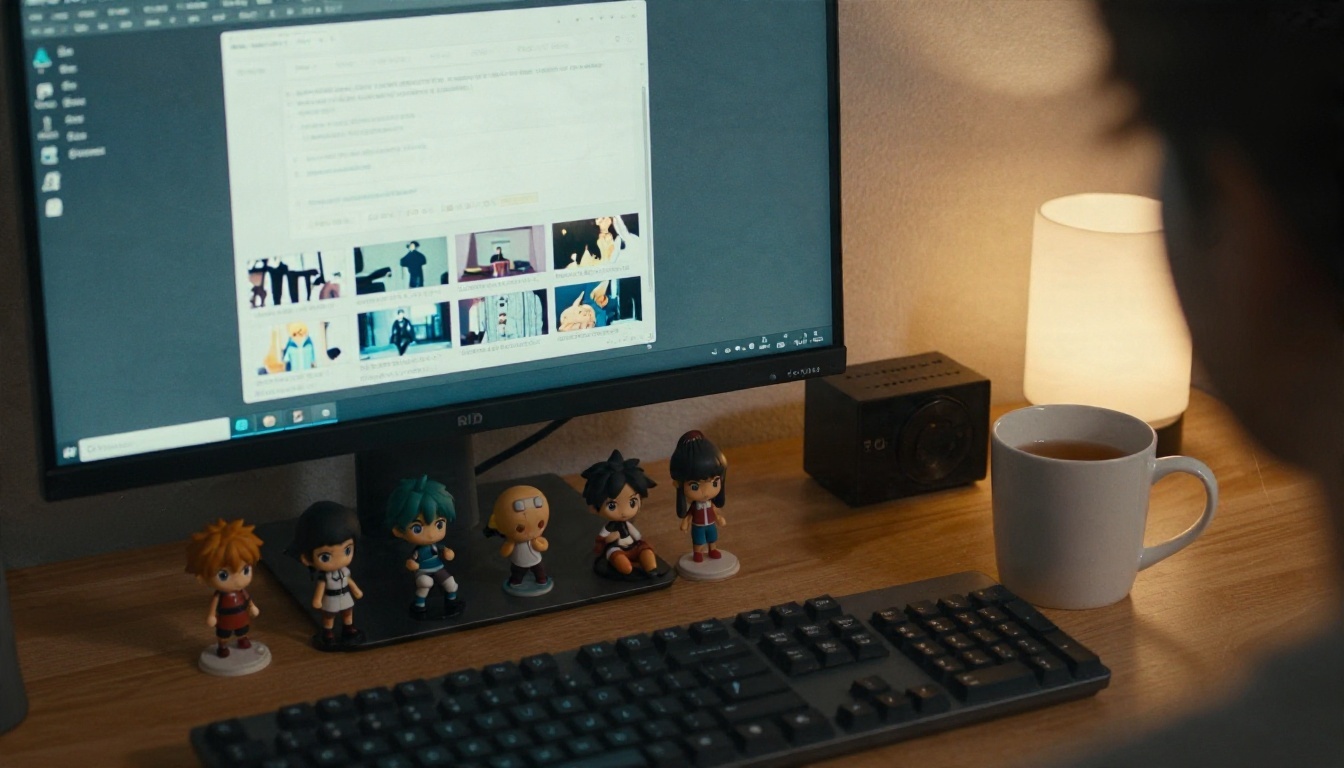
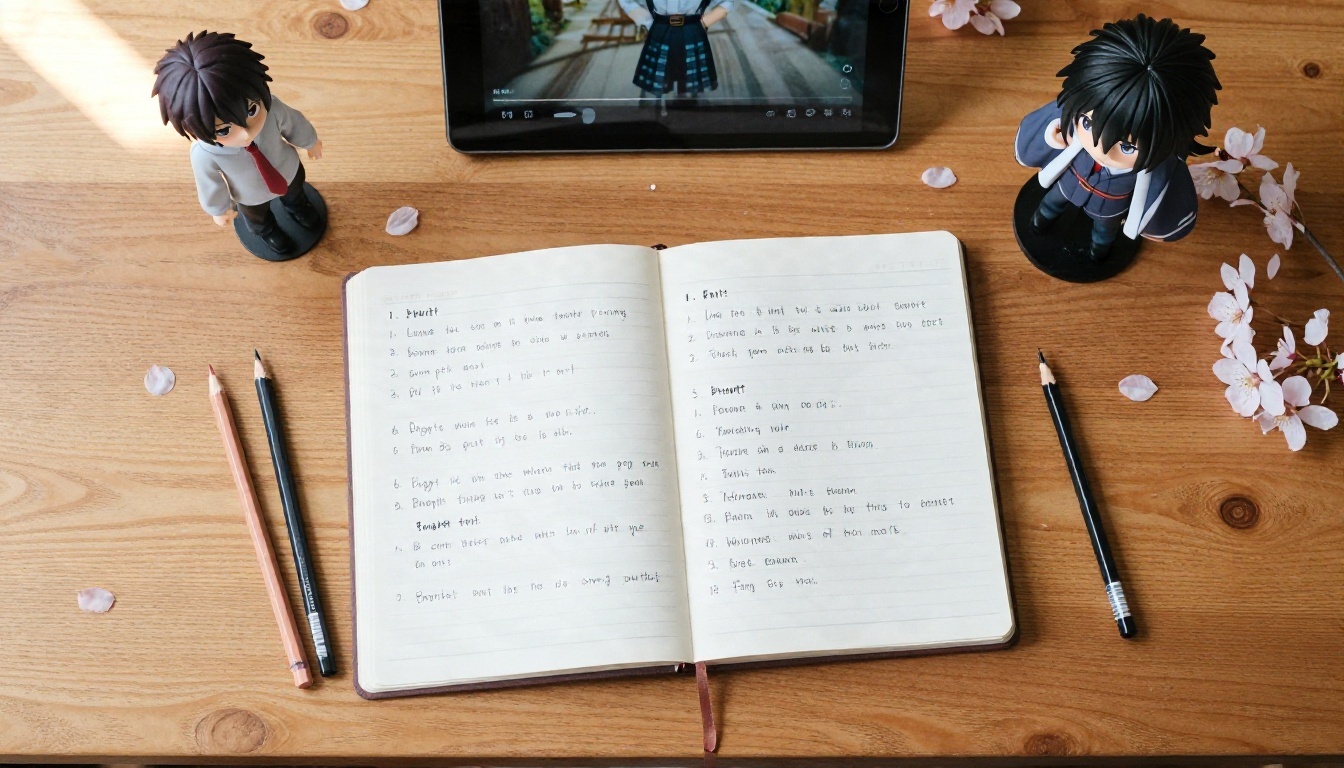
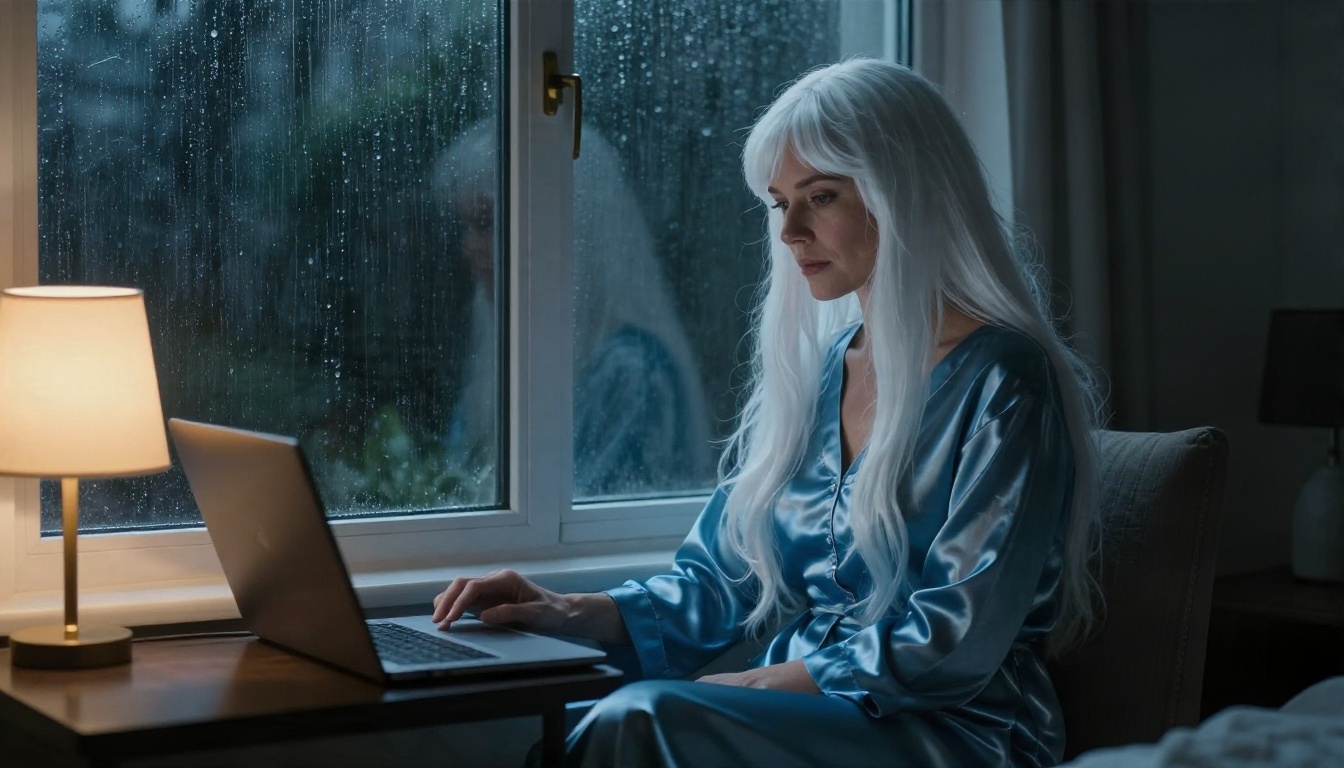
- Night: "blue satin nightgown, rain on the window, warm lamp light, laptop glow"
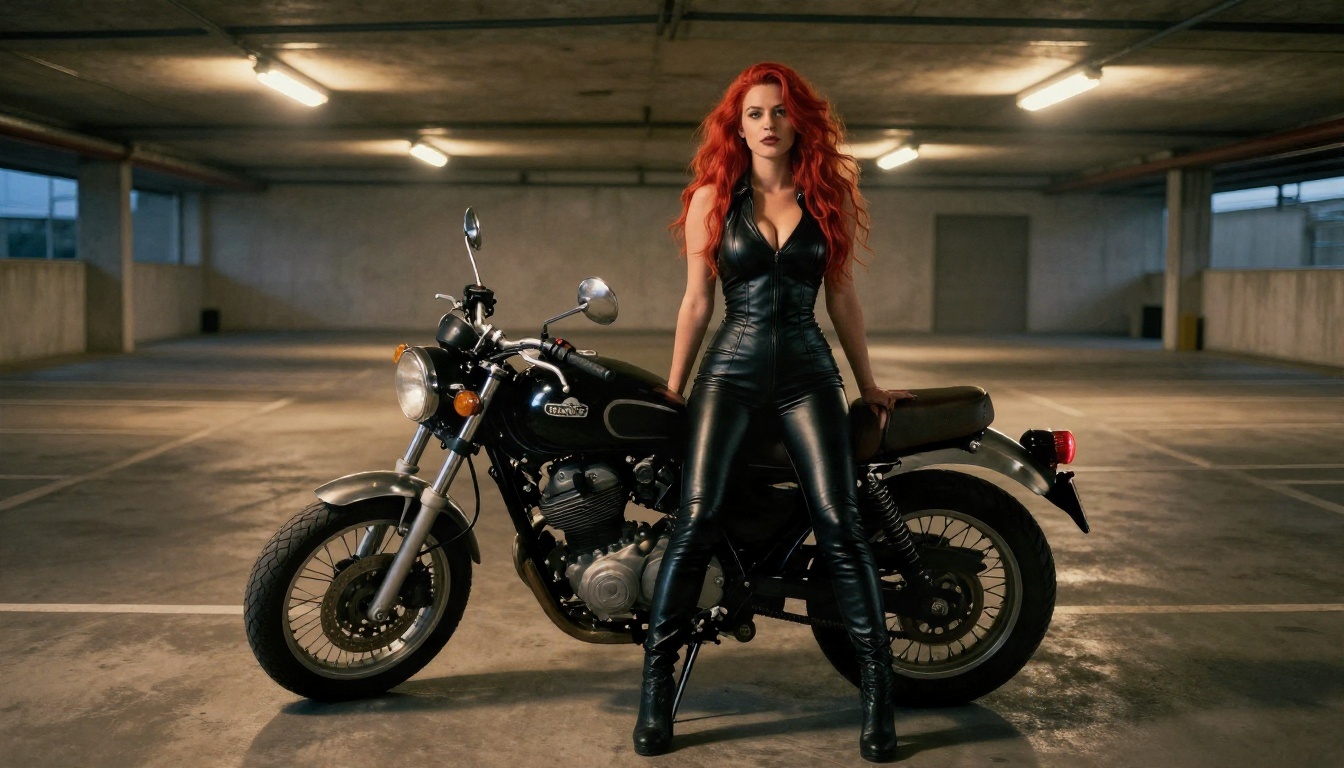
- Edgy: "black leather racing bodysuit, long red hair, vintage motorcycle, dusk garage"
Negative Prompts
Some models accept a negative prompt, others read it inside the main text as "avoid". Either way, a short, targeted list beats a giant copy-pasted block:
"extra fingers, deformed hands, blurry, low resolution, cropped head, text, watermark, asymmetrical eyes"
Overloaded negative prompts can flatten the image and strip personality from the face. Start small, add terms only when you see a specific recurring flaw.
Settings That Change Results
Prompts get the attention, but settings decide whether the output is crisp or soft. Here is what matters.
Aspect Ratio and Resolution
A wide frame invites environment, a tall frame favors the character. Generating a full-body pose at 16:9 often crops feet or shrinks the face, so match the ratio to the shot.
| Goal | Ratio | Why |
|---|
| Wallpaper or banner | 16:9 | Room for scenery |
| Full-body character | 2:3 or 3:4 | Keeps proportions |
| Avatar or profile | 1:1 | Centered face |
| Story or phone wallpaper | 9:16 | Vertical fit |
Seeds and Iteration
A seed is the starting noise behind the image. Keep the seed and change one phrase, and you see exactly what that phrase does. Change the seed and keep the prompt, and you get a new variation of the same idea. Work in this order: lock the seed, tune the prompt, then roll new seeds for the final pick.
Steps, Guidance and Samplers
These apply when you run a local Stable Diffusion setup or any tool that exposes the dials:
- Steps: 25 to 35 is plenty for most anime checkpoints. Going to 60 rarely helps.
- Guidance (CFG): 5 to 7 for anime models. Higher values oversaturate colors and sharpen edges unnaturally.
- Sampler: a Euler-style or DPM++ sampler is a safe default.
- Hires pass: upscale a good draft by 1.5x to 2x, then let a second pass redraw fine detail.
Hosted models such as Seedream 4.5 hide most of these controls on purpose, which is why they are so friendly for beginners.
Upscaling the Final Pick
When the composition is right but detail looks soft, run the image through a super resolution tool rather than regenerating. It preserves the face you liked and sharpens hair strands, lace, and eyelashes.
Examples and What Made Them Work
Here are four of the looks from this article, with the logic behind each. Notice that none of them are explicit: the appeal comes from styling, lighting, and attitude.
The Window Seat Heroine
The classic. A wig with blunt bangs, a satin costume, warm side light. What makes it work is the single strong light source from the left, which shapes the face and gives fabric a believable sheen. If your AI images look flat, add one clear light direction.
The Cafe Duo
Two characters in one frame are hard for many models, since features tend to blend. The fix is to describe each person separately: "woman on the left with a blonde bob, woman on the right with long brown hair". A relaxed, laughing expression keeps the image warm instead of stiff.
The Catgirl Candid
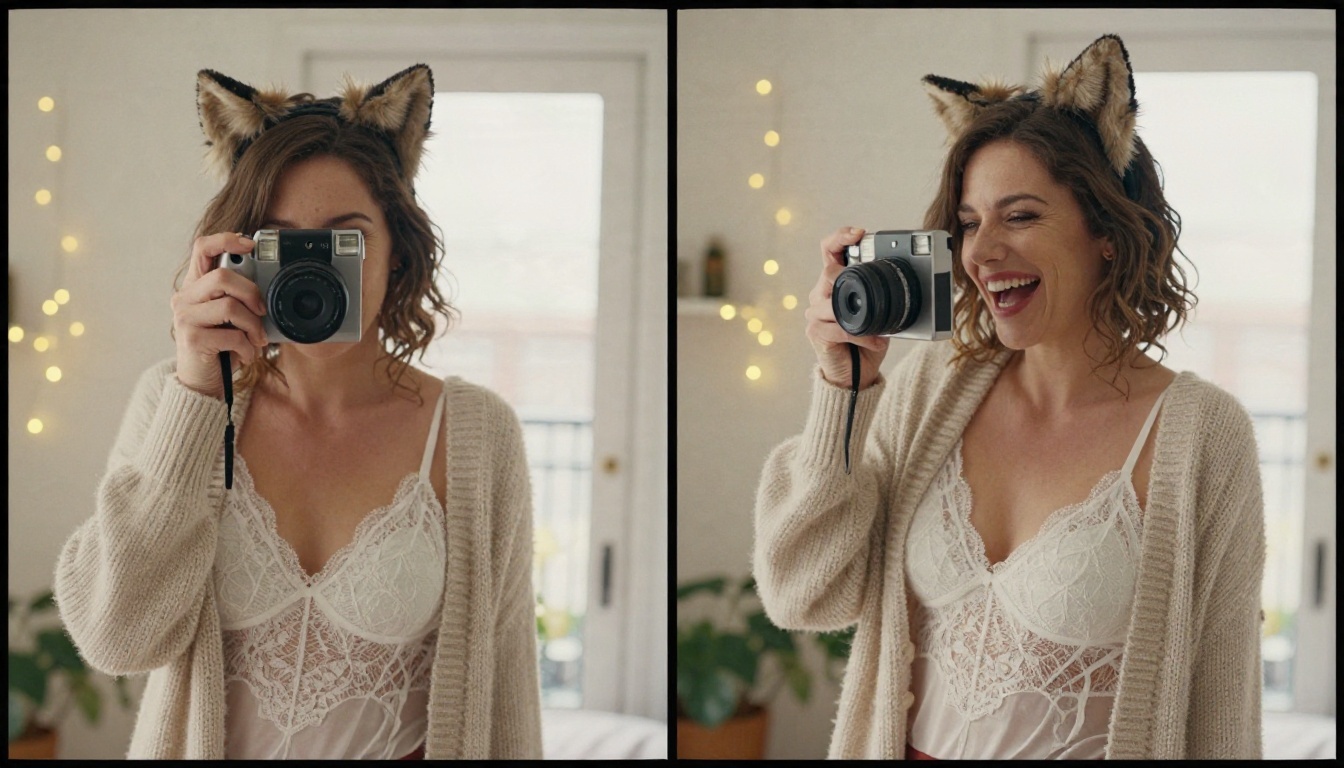
Accessory-driven characters rely on a recognizable prop, here a pair of soft ears and a knit cardigan. Candid expressions (laughing, looking away from the camera) read as more natural than a posed stare, and a small prop like a camera gives the hands something to do, which also helps avoid awkward finger errors.
The Night Window Mood
Mixed color temperature is what gives this image depth: warm lamp on one side, cool screen light on the other, rain texture behind. Ask for two light sources with different temperatures and watch the mood change instantly.
Mistakes That Waste Credits
After watching a lot of failed generations, the same errors repeat.
- Vague outfits. "Sexy outfit" means nothing. Name fabric, cut, and color.
- Too many characters. Start with one subject. Add a second once the first looks right.
- Prompt stuffing. Thirty adjectives dilute each other. Keep it to a dozen strong phrases.
- Ignoring hands. Give hands a job (holding a cup, resting on a knee) or hide them from the frame.
- Wrong ratio. A tall character in a wide frame gets squeezed or cropped.
- Changing everything at once. Edit one variable per run, or you never learn what helped.
- Skipping the age cue. Always state an adult age. It keeps results consistent and appropriate.
💡 Budget rule: spend free credits on drafts at low cost, then spend your best attempts on a single polished final. PicassoIA Image Editor Pro takes the pressure off, since unlimited generations mean a bad draft costs nothing.
Privacy and Rules Worth Checking
Free tools differ in age verification, content rules, and what they do with your uploads. Read the terms before you sign up, avoid uploading photos of real people without their permission, and never create content of real individuals in suggestive scenarios. Laws vary by country, so keep your creations on the right side of both the platform rules and your local regulations.
Try It Yourself on PicassoIA
You now have the full workflow: pick a model, build the prompt in layers, lock a seed, tweak one variable at a time, and polish the winner. Start with Seedream 4.5 for a first render, move it into PicassoIA Image Editor Pro for unlimited edits, and use Z Image Turbo whenever you need fast drafts. If you want an anime-first look, try Proteus v0.3 or Krea 2 Medium.
Copy one of the prompts above, change the hair color and the outfit, and see what comes back in a few seconds. Then keep going. Browse every available model at picassoia.com/en/all-models and build your own character, your own style, and your own look on PicassoIA.


