Most people who search for an NSFW avatar maker want the same thing: a profile picture that looks confident, attractive, and a little daring, without turning into a blurry, plastic-skinned mess. The old way meant paying a subscription, waiting in a queue, and getting refused the moment a prompt mentioned a swimsuit. The new way is simpler. You pick a model that does not flinch at glamour content, write a prompt with real photographic detail, and generate until the face and mood feel right.
This article walks through exactly that. You will see which free online options are worth your time, how to run the first one step by step, and a set of prompts you can copy and adjust. Every example image below was produced as a non-explicit, photorealistic portrait: think magazine boudoir, beach editorial, and late-night balcony shots. Nothing here crosses into pornography, and nothing needs to for an avatar to work.
💡 Quick answer: For the best realism and the fewest refusals, start with Seedream 4.5, then switch to PicassoIA Image Editor Pro when you want unlimited generations and edits.
What an NSFW Avatar Maker Does
An NSFW avatar maker is any AI image tool that can produce a suggestive portrait of an adult character and crop it into a usable profile picture. Some tools are dedicated apps with sliders for hair, body type, and outfit. Others are general text-to-image models where you describe the character yourself. The second group is where the best quality lives, because you control every detail.
Avatar versus full scene
An avatar is a tight composition. Think head and shoulders, or a waist-up frame, with the eyes sharp and the background softened. A full scene, like a woman walking through dunes, has more story but less punch at thumbnail size. Plan for both: generate a wide shot first, then crop or regenerate a closer version for the actual profile picture.
Where the line sits
Suggestive is not the same as explicit. Bikinis, satin robes, lace, bare shoulders, wet hair, and warm window light all read as attractive and adult without showing anything graphic. That is also the range where AI models produce their most believable skin and fabric. Push toward explicit content and you tend to get anatomical errors and uncanny textures anyway, so staying in the glamour lane is better for quality as well as for platform rules.
⚠️ Always keep it adult and consensual. Create fictional adult characters or your own likeness. Never generate images of real people without their permission, and never depict anyone who looks underage.
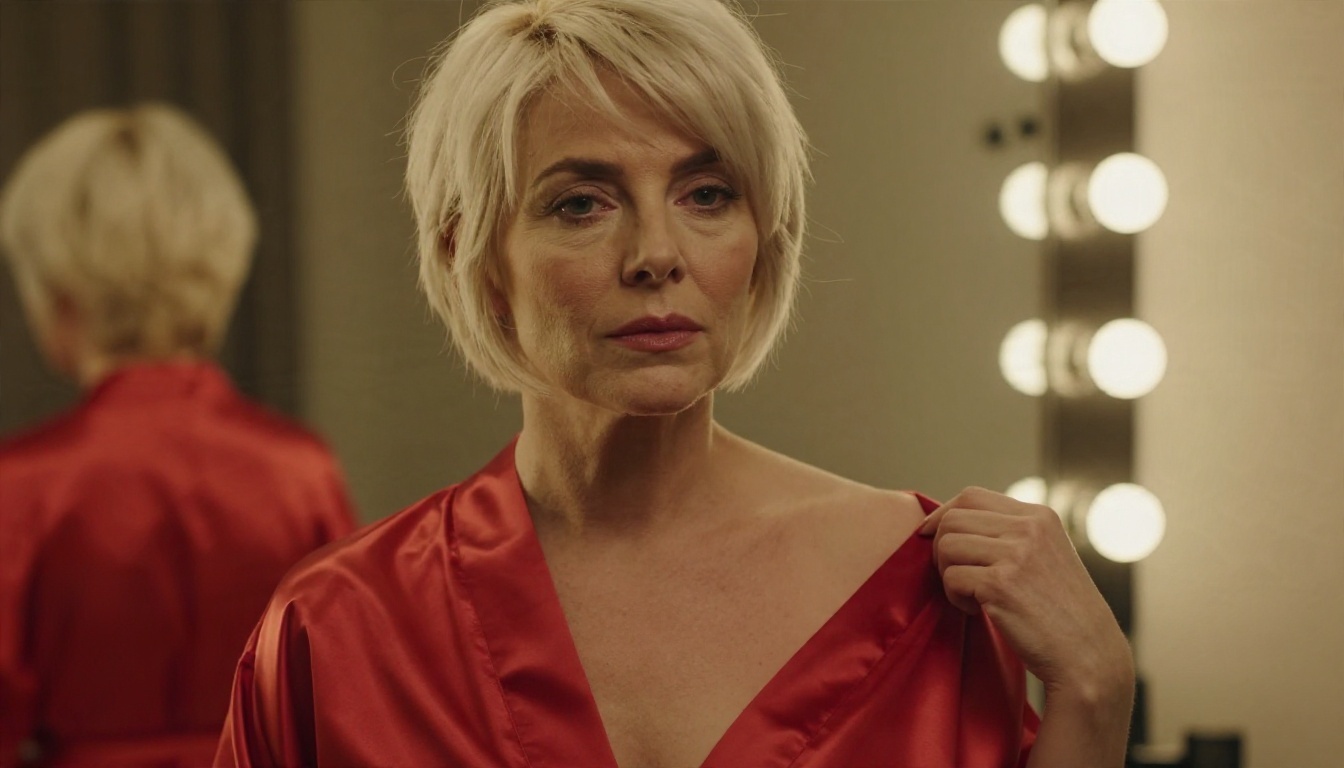
Free Online Options Compared
Not every model handles this kind of content the same way. Some block anything near swimwear. Others render it but give you waxy faces. The table below compares the models I would actually test, in the order I would test them.
| Model | Best for | Realism | Speed | Notes |
|---|
| Seedream 4.5 | Glamour portraits, skin texture | Very high | Fast | Uncensored on PicassoIA, sharp output up to 4K |
| PicassoIA Image Editor Pro | Editing, outfit swaps, unlimited runs | High | Fast | Unlimited generations, no per-image worry |
| Z Image Turbo | Rapid drafts | High | Very fast | Great for testing ten prompt variations quickly |
| Flux 2 Klein 9B Base LoRA | Styled looks with LoRA control | High | Fast | Good when you want a consistent aesthetic |
| Hidream L1 Full | Detailed lighting and fabric | High | Medium | Strong at cinematic light |
| Qwen Image Edit Plus | Fixing and restyling existing photos | High | Fast | Useful for tweaking a favorite avatar |
Seedream 4.5 comes first
Seedream 4.5 is my default for this job. It reads long, detailed prompts well, keeps faces consistent across a batch, and renders skin with visible pores instead of airbrushed plastic. It also does not refuse a prompt just because it mentions a bikini or a satin slip. On PicassoIA it is uncensored for adult glamour content, which saves you the frustration of rewording the same prompt five times.
Image Editor Pro for unlimited runs
Avatars rarely land on the first try. You want a different smile, a different hair length, a different shoulder angle. PicassoIA Image Editor Pro gives you unlimited generations, so you can iterate without watching a credit counter. It is also the tool to reach for when you already have an image you like and want to change one thing, such as swapping a robe for a swimsuit or softening the background.
Other models worth testing
If you want speed, Z Image Turbo produces drafts in seconds. For a consistent look across a series, Flux 2 Klein 9B Base LoRA is useful. Hidream L1 Full handles dramatic lighting, and Qwen Image Edit Plus is a solid editor for retouching. Different models respond differently to the same prompt, so run your best prompt through two or three before settling.
How to Use Seedream 4.5 on PicassoIA
Here is the exact workflow I use when I need a new avatar from scratch.
- Open the model page. Go to Seedream 4.5 on PicassoIA and open the generator.
- Write the subject first. Start with who is in the frame: age range, hair, eye color, expression. Example: "an adult woman in her late twenties with wavy chestnut hair and hazel eyes, relaxed half-smile."
- Add clothing and setting. Name the outfit and the room. "Black satin camisole, sunlit loft bedroom, white linen behind her."
- Describe the light. This step decides whether the result looks like a photograph. Use phrases like "warm window light from the left" or "golden hour rim light."
- Name the lens. Add something like "85mm f/1.8, shallow depth of field." It pushes the model toward portrait photography.
- Pick a ratio. Choose 1:1 or 4:5 if the avatar goes straight to a profile slot. Choose 16:9 if you want a wide image to crop later.
- Generate a batch. Run four to eight variations and pick the face you like best.
- Refine in Image Editor Pro. Open the winner in PicassoIA Image Editor Pro to adjust small things without losing the face.
Parameter tips that matter
- Keep prompts specific, not long for the sake of it. Fifty to eighty words of real detail beat two hundred words of adjectives.
- Reuse your seed when a result is close. Small prompt edits then change one thing at a time.
- Generate wide, then crop. A 16:9 image gives you room to cut a clean square avatar.
- Describe imperfections. "Visible pores, fine peach fuzz, flyaway hair" reduces the plastic look.
💡 Tip: If a face drifts between generations, add the same three face descriptors to every prompt: eye color, hair style, and one distinctive feature such as freckles or a beauty mark.
Prompts You Can Copy Today
These prompts follow the same structure: subject, outfit, setting, light, lens, texture. Swap out any block and keep the rest.
Glamour portrait prompt
RAW photograph, Kodak Portra 400 grain. An adult woman in her late twenties with wavy chestnut hair over one bare shoulder, hazel eyes looking into the lens, soft confident half-smile, subtle freckles, visible skin pores. Black satin camisole with thin straps and a gold chain necklace. Sunlit loft bedroom, white linen blurred behind her. Warm golden window light from the left, soft rim light on her hair. 85mm f/1.8, shallow depth of field, head and shoulders crop, tasteful and non-explicit.
Beach and pool prompt
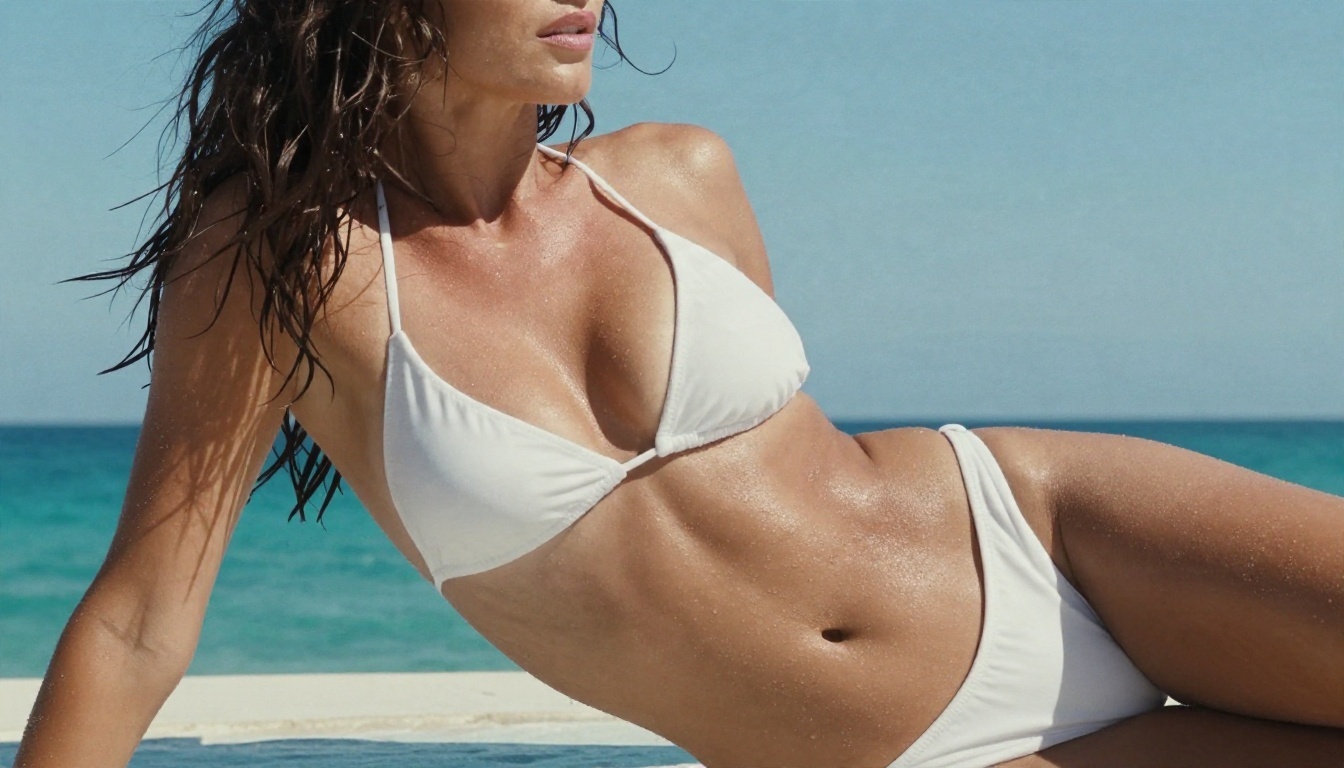
Low-angle RAW photograph of an adult woman in a white bikini at the edge of an infinity pool, water droplets on her skin, wind in her dark hair, turquoise sea and clear sky behind. Hard midday sun from above right, 35mm f/2.8, realistic skin texture, salt shimmer, film grain, non-explicit summer glamour.
Boudoir prompt
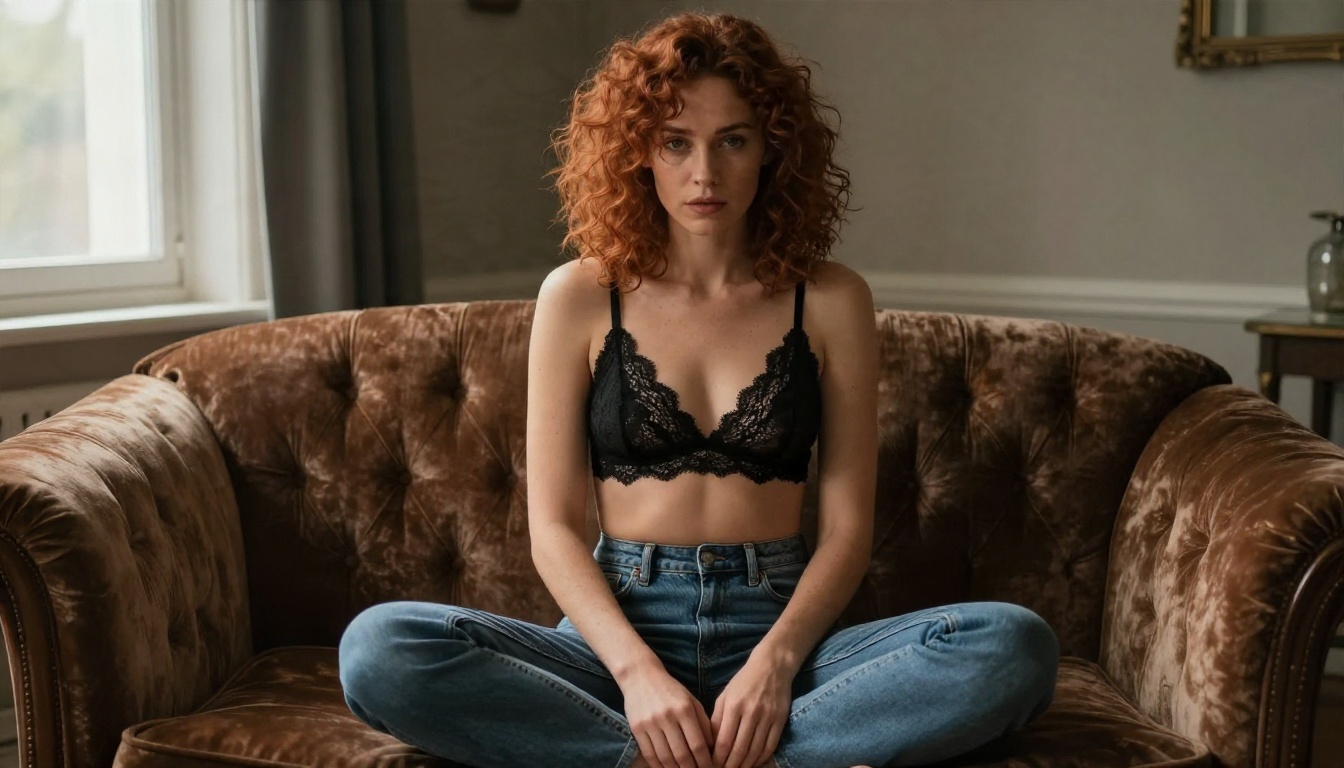
Medium shot of an adult woman with curly auburn hair in a black lace bralette and high-waisted jeans, sitting cross-legged on a vintage velvet sofa in a moody apartment. Soft window light from the left, deep gentle shadows, 50mm f/1.8, lace pattern and skin pores visible, Kodak Portra 400 grain, tasteful boudoir style.
Male avatar prompt
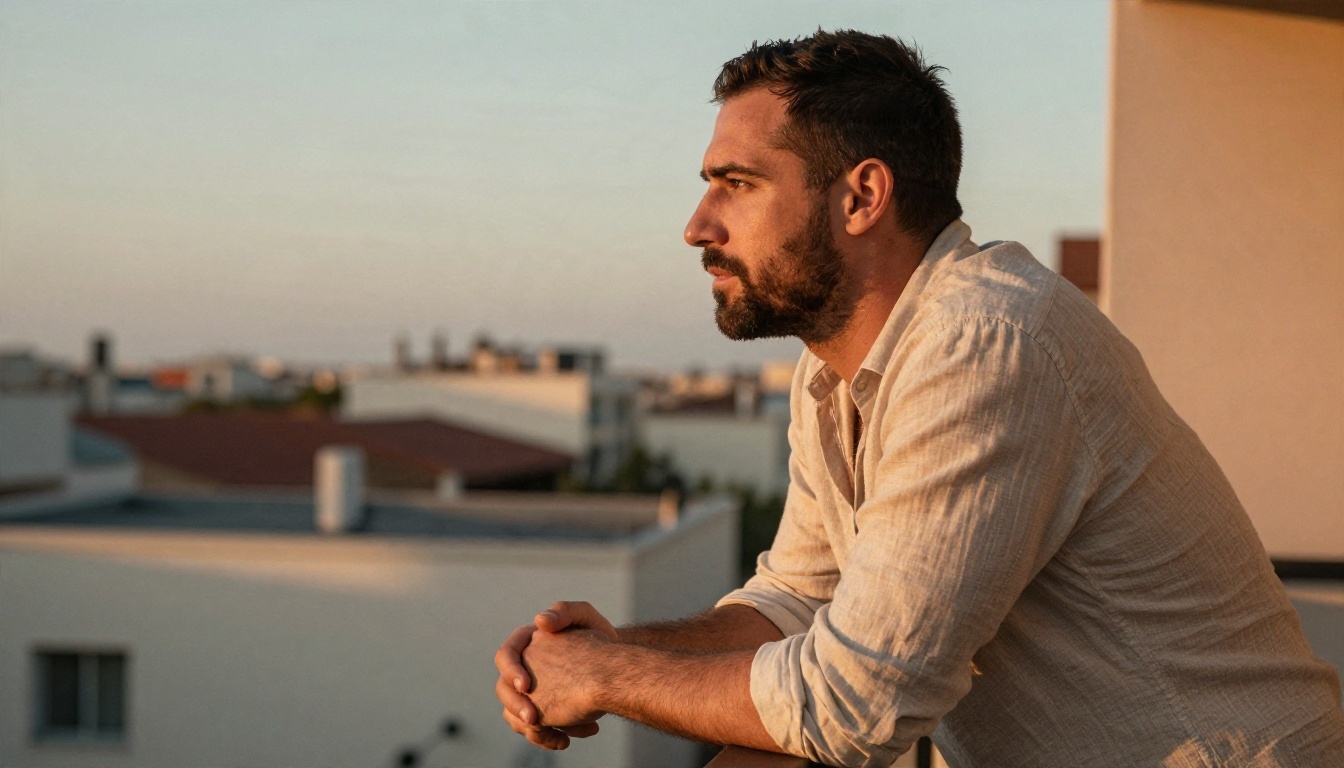
Over-the-shoulder RAW photograph of an adult man with a short beard and bare tanned shoulders, unbuttoned linen shirt, leaning on a balcony railing at dusk, rooftops softly blurred, warm amber sunset light from the left, 50mm f/1.4, visible stubble and skin texture, fine film grain.
Examples With Prompt Breakdowns
Seeing a result next to the choices behind it is the fastest way to improve your own prompts. Here is what made each image work.
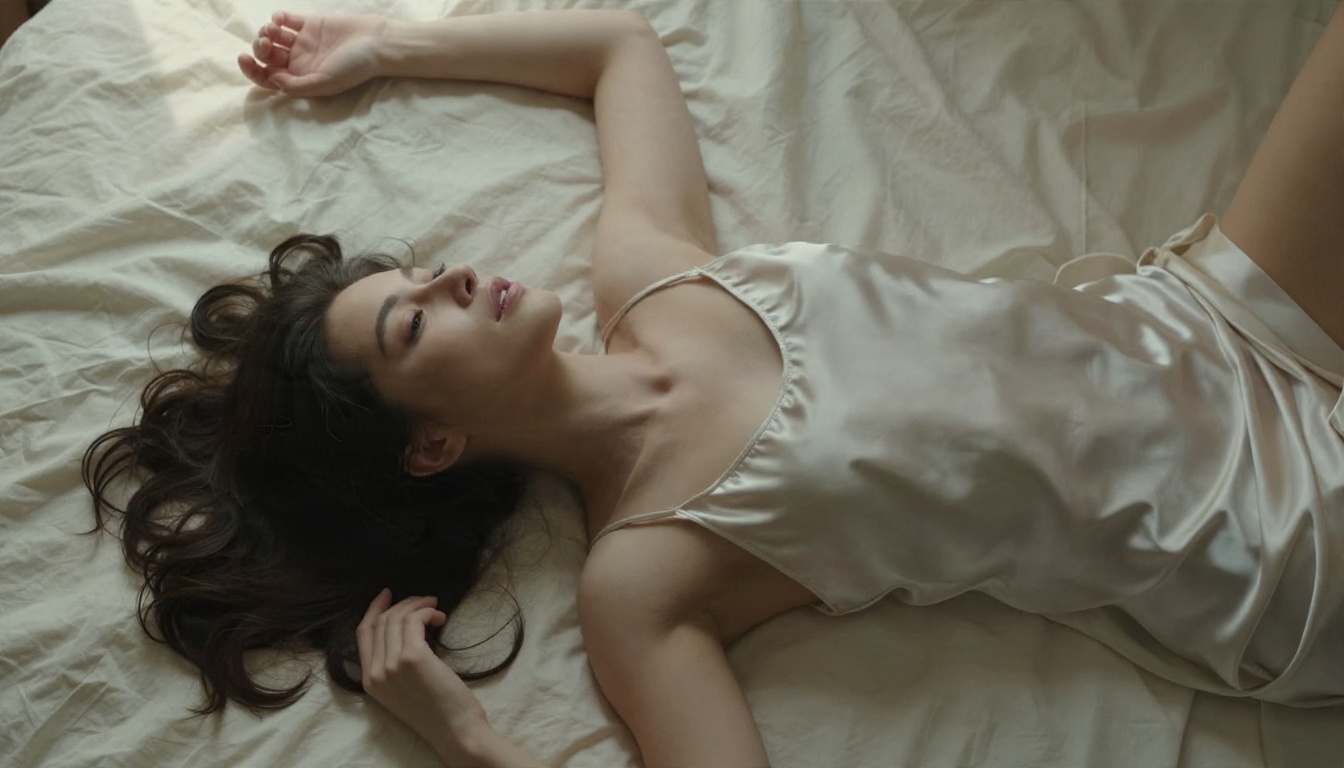
The overhead bedroom shot
The top-down angle is unusual, which is why it stands out in a feed. The silk slip dress and rumpled cream sheets keep the palette soft and warm, and the diffused morning light means there are no harsh shadows to fight. For an avatar, crop tight around the face and raised arm.
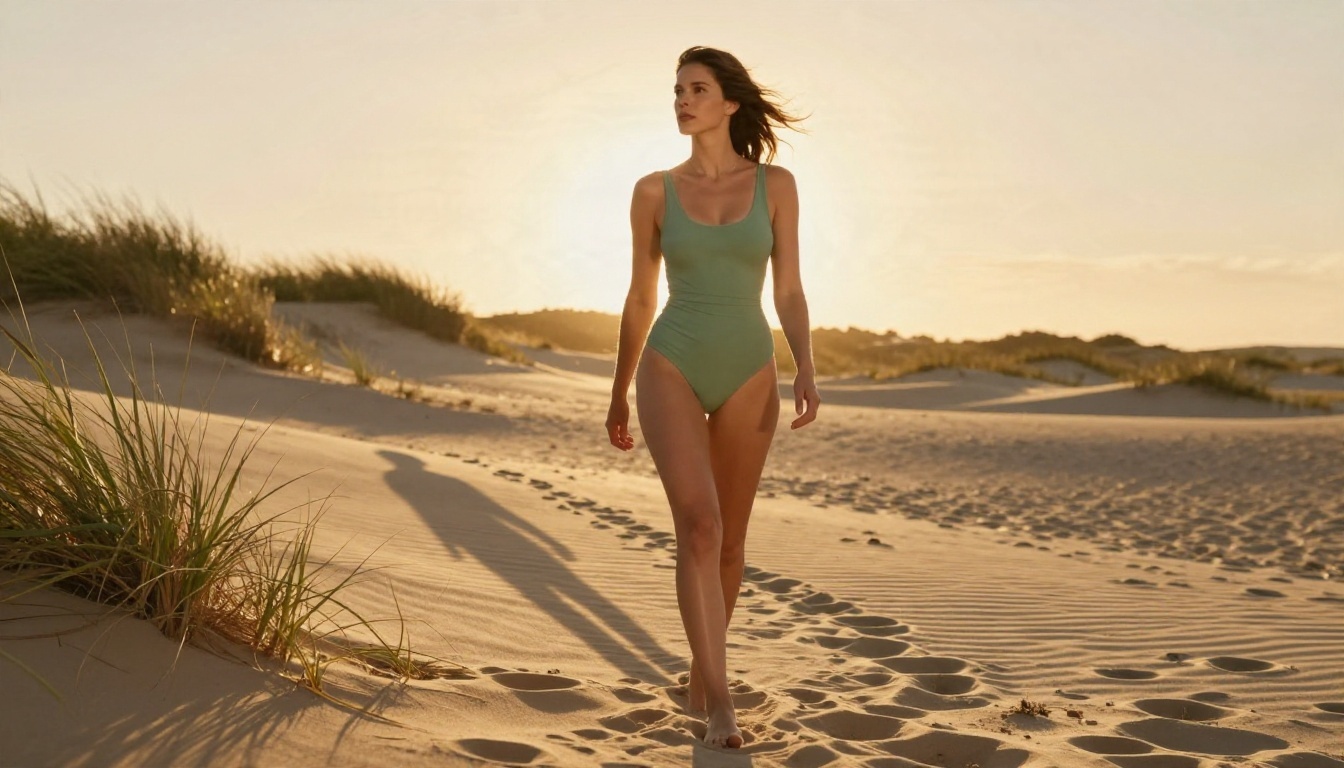
The golden hour dune walk
This one is about atmosphere, not close-up detail. The long shadow, the sea grass in the foreground, and the low sun creating rim light on her hair carry the whole image. A wide 24mm lens makes the scene feel open. Use this style for banners and header images rather than profile pictures.
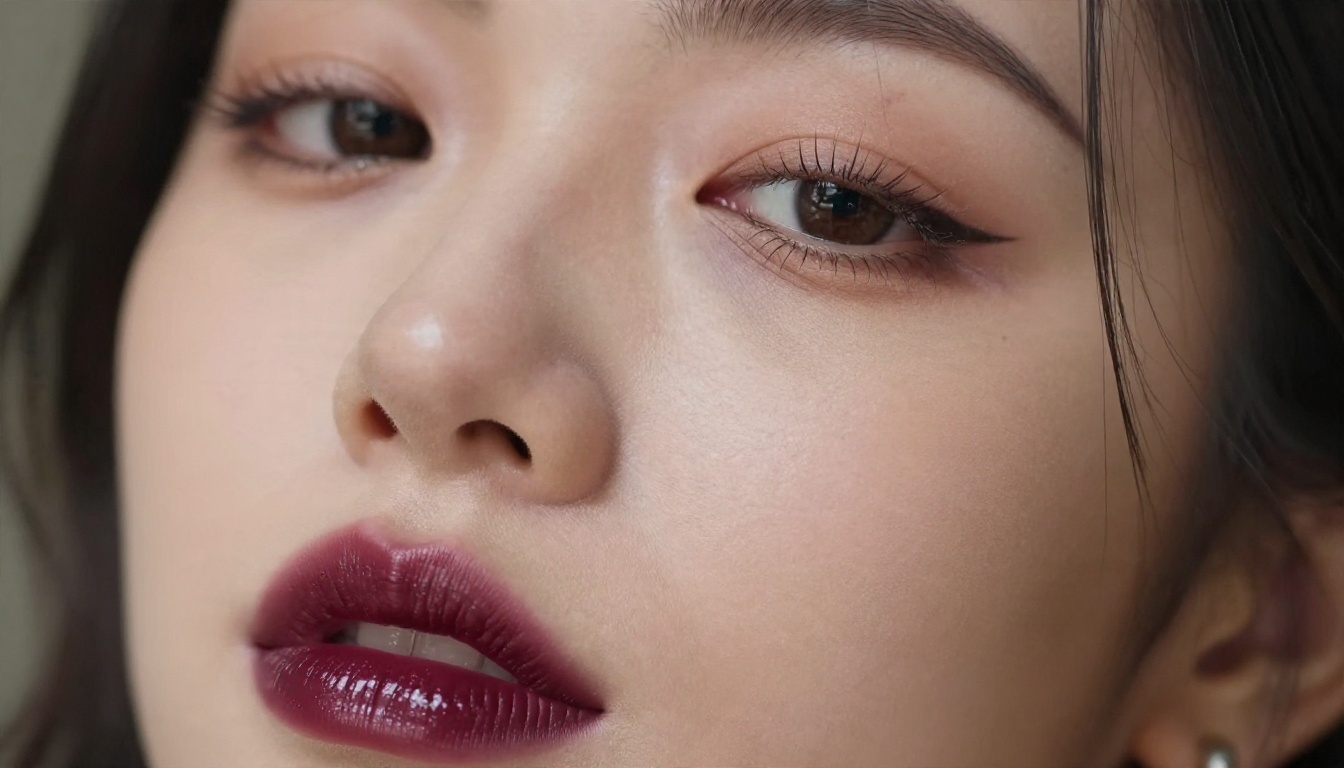
The beauty close-up
If your avatar needs to look good at 100 pixels wide, a tight beauty crop is the safest option. Glossy burgundy lips, winged liner, and one strand of hair across the cheek give the eye a clear focal point. The 100mm macro lens setting keeps only the eyes and lips razor sharp, which is exactly what you want at thumbnail size.
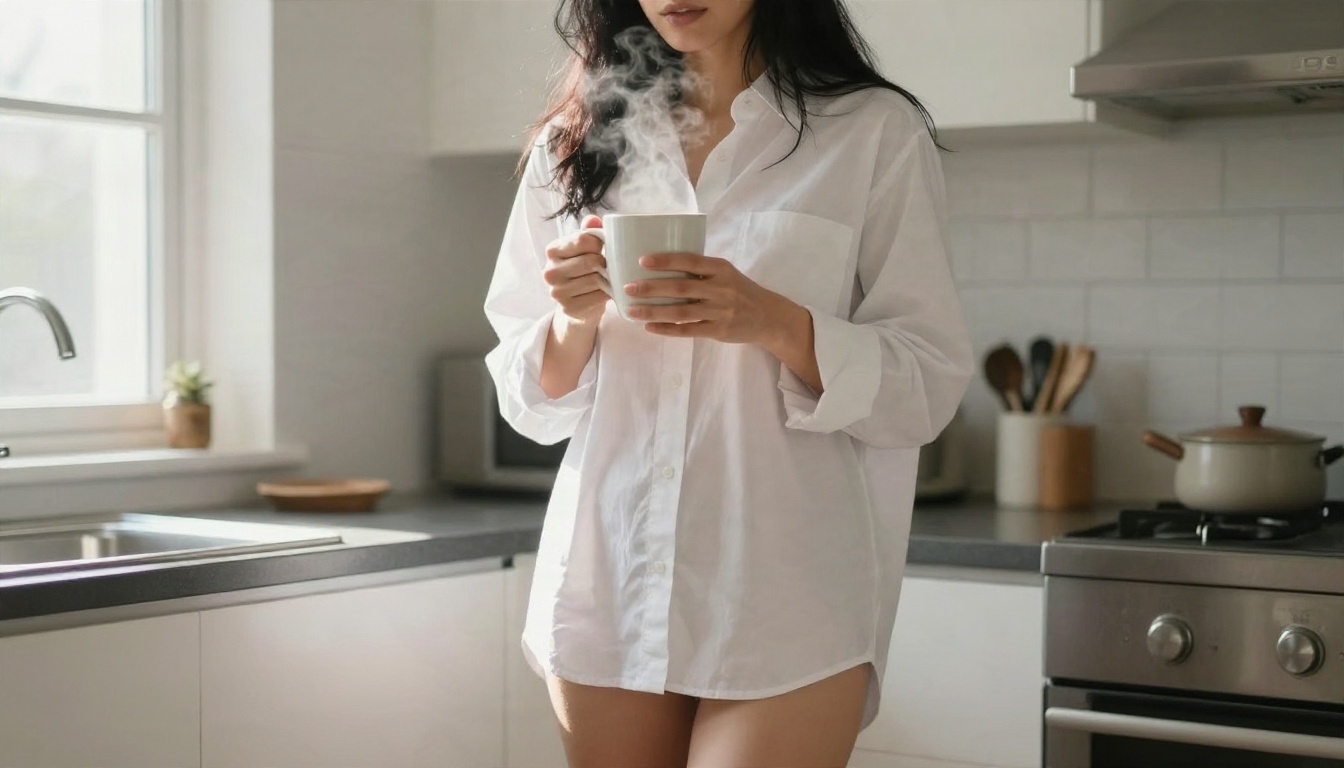
The playful morning kitchen
Not every NSFW avatar needs to be dramatic. An oversized white dress shirt, a coffee mug, and window light make something warm and personal. This style does well on dating profiles and creator pages because it feels like a candid photo rather than a studio shoot. The steam from the mug is a small detail that sells the realism.
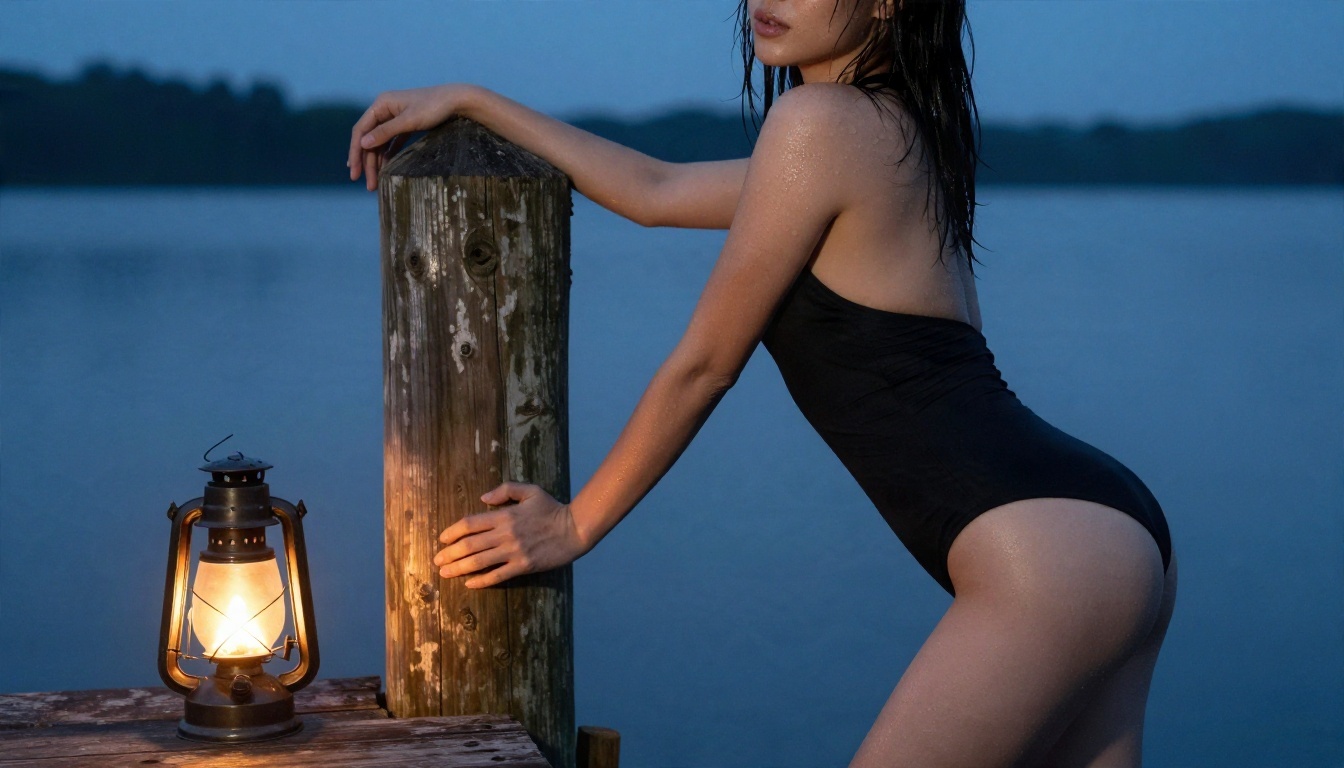
The blue hour dock
Cool twilight light with a warm lantern glow from one side gives skin tones a rich, cinematic contrast. The damp hair and goosebump texture are the details that make it feel physical. Use this look when you want a moodier, more mysterious avatar.
Common Mistakes to Avoid
Most failed avatars share the same few problems. Fixing them takes about a minute each.
Vague prompts
"Sexy woman, beach" gives the model almost nothing to work with, so it falls back on a generic, over-smooth face. Specify hair, expression, light direction, lens, and one texture detail.
Too many style words
Piling on "ultra HD, 8K, masterpiece, trending" does not make an image sharper. It often pushes the output toward a glossy illustration look. Describe a real camera and a real light source instead.
Ignoring hands and edges
Hands are still the weak point in many models. Keep them partly out of frame, holding an object like a mug, or tucked into hair. Check the edges of fabric and jewelry before you export.
Cropping too late
If you plan a square avatar, leave room for it. Generate in 16:9, keep the face in the middle third, and crop after. A face jammed against one edge of the frame cannot be rescued.
Keep Your Avatars Consistent
A single great image is nice. A recognizable character across ten images is what builds an audience.
Lock your face descriptors
Pick three phrases and paste them into every prompt. For example: "hazel eyes, subtle freckles, wavy chestnut hair." The model will not copy a face perfectly, but it will stay in the same family.
Edit instead of regenerating
When you like a face but want a new outfit, use an editor rather than starting over. PicassoIA Image Editor Pro and Qwen Image Edit Plus both work well for this. Describe the change in one sentence and leave everything else alone.
Save your best prompts
Keep a simple note with the prompts that worked. Over a few sessions you will build a small library of lighting setups and outfits that you can recombine in seconds.
Make Your Own Avatars Today
You now have what you need: a short list of models that handle glamour content well, a repeatable prompt structure, six worked examples, and a list of mistakes to dodge. The fastest way to improve is to generate. Pick one prompt from the section above, paste it into Seedream 4.5, and change one detail at a time: the hair, the light, the lens, the location.
When you want to polish a favorite result or run dozens of variations, move to PicassoIA Image Editor Pro for unlimited generations. If you want to compare how other models read the same prompt, browse the full catalog at picassoia.com/en/all-models and test two or three side by side.
Your first avatar might take a handful of tries. Your tenth will take a couple of minutes. Start with a single prompt on PicassoIA and see what comes back.


