Typing "NSFW creator free" into a search bar usually ends in one of two ways. You land on a tool that watermarks every picture and blocks half your prompts, or you land on a page that promises everything and asks for a credit card before the first render. Neither is what you wanted. What you wanted was a place to make attractive, suggestive, photorealistic images of adults, without a paywall in the first thirty seconds and without a lecture from a content filter.
This article sorts the noise. You will see which kinds of free tools exist, which models are worth your time, how to write prompts that give glamour results instead of plastic faces, what the finished images look like, and where the limits really sit. Everything here stays on the non-explicit side: bikinis, lingerie-style fashion, boudoir mood, beach and bedroom light. That is the zone where free tools perform best, and where you can publish without trouble.
What "NSFW Creator Free" Really Means
The phrase hides three different needs. Someone who runs a subscription page wants a steady supply of polished photos. A hobbyist wants to try a style without paying. A designer wants model-quality references for a swimwear or lingerie mood board. The tool you pick should match the need, not the loudest ad.
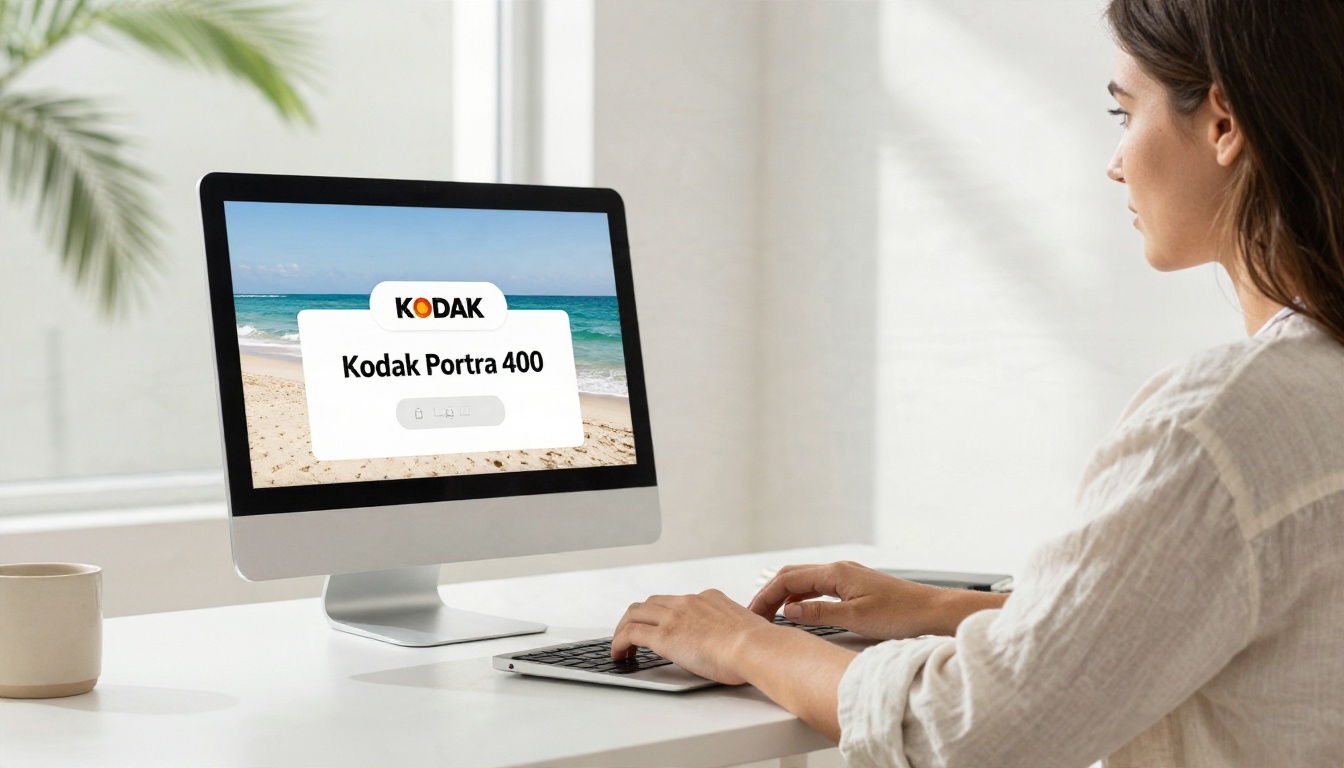
The Three Kinds of Tools
Almost every option online falls into one of these buckets:
| Type | What you get | Typical catch |
|---|
| Credit-based generators | A few free renders per day | Credits run out fast, watermarks on free output |
| Filtered mainstream models | High quality, easy to use | Refuse swimwear or glamour prompts at random |
| Open model platforms | Many models in one place, fewer refusals | You need to pick the right model yourself |
The third type is where a platform like PicassoIA sits. You are not locked into one model's rules, so when one model refuses a bikini beach prompt, another handles it without fuss.
Who Searches This and Why
Most readers are independent creators building a brand, marketers testing swimwear or lingerie visuals, and curious users who simply want to see what the technology can do. A fourth group, people hoping to generate real individuals without permission, is the one group this article will not help. More on that in the limits section.
💡 Quick rule: if you can say the image out loud in front of a fashion editor without blushing, a free tool will almost always produce it.
Quality has jumped. A model from a year ago needed ten tries to get hands right. The current ones render skin pores, fabric weave and believable light on the first or second attempt. What separates them now is how they treat adult-leaning prompts.
Image Models That Handle Glamour
Here is the order I would try them in for suggestive, non-explicit photography:
- Seedream 4.5: the first stop. Sharp skin detail, strong prompt following, and output up to 4K. It is also the most forgiving with swimwear, boudoir and fashion scenes.
- PicassoIA Image Editor Pro: an online photo editor with unlimited generations. Ideal when you want to iterate ten, twenty, forty times without watching a counter.
- Seedream 4: the previous generation, still excellent for natural skin tones and beach light.
- Z Image Turbo: built for speed. Perfect for rapid drafts before you commit to a final render.
- Hunyuan Image 3: a good fallback with a slightly different look, useful when you want variety in faces and styling.
💡 Run the same prompt through two or three of these. Each model has its own taste in skin, colour and framing, and the best result often comes from the one you did not expect.
Editing Versus Generating
Generating gives you a new picture from text. Editing takes a picture you already have and changes the outfit, background, lighting or mood. For creators, editing is often more useful than people expect: you can keep a consistent look across a whole set, fix a distracting background, or swap a dress colour without starting over. Image Editor Pro covers that workflow, and its unlimited generations mean a small tweak does not cost you anything.
For a quick comparison:
| Task | Best starting point |
|---|
| Brand new glamour scene from text | Seedream 4.5 |
| Many small variations of one photo | Image Editor Pro |
| Fast concept drafts | Z Image Turbo |
| Alternative faces and styling | Hunyuan Image 3 |
How to Use Seedream 4.5 on PicassoIA
Seedream 4.5 is the model I recommend opening first, so here is the exact routine.
Step by Step
- Open the Seedream 4.5 page on PicassoIA.
- Paste your prompt into the text box. Write it as one flowing description, not a list of tags.
- Choose a 16:9 ratio for landscape scenes, or a portrait ratio for full-body fashion shots.
- Pick the highest resolution offered for your final render. Use lower settings while you test.
- Press generate, review the result, and change one thing at a time in the prompt before running again.
- When one image is close, take it into Image Editor Pro to adjust small details with unlimited tries.
Settings That Matter
Few controls change results as much as these:
- Aspect ratio: wide frames suit beach and interior scenes, tall frames suit full-body fashion.
- Prompt length: 50 to 100 words is the sweet spot. Shorter prompts get generic faces. Longer ones start to contradict themselves.
- Seed: if the tool exposes it, lock the seed when you like a composition and only change the outfit or light.
- Resolution: draft low, finish high. It saves time and credits.
💡 If a prompt is refused or comes back bland, do not add more adjectives. Remove one, then try again with a clearer scene and a clearer light source.
Prompts That Produce Glamour Shots
Prompts for photorealism work like a photographer's shot list. You describe who, where, how lit, and through what lens. Style words like "stunning" or "masterpiece" add very little. Camera and light details add a lot.
The Prompt Formula
Use this order:
Subject and pose + wardrobe + setting + light direction + camera and lens + texture and mood
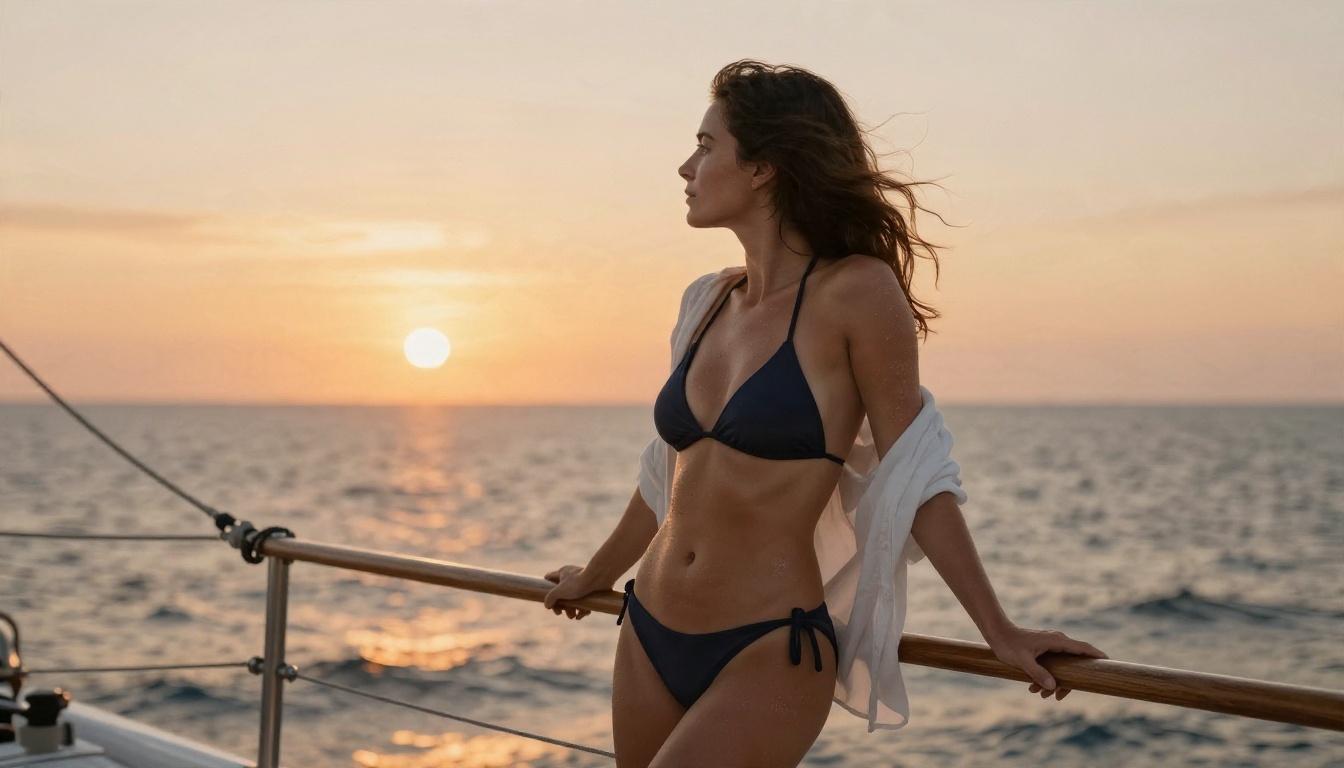
For example: an adult woman in a navy bikini and open white shirt leaning on a teak railing, golden hour sun from behind, 70mm f/2.8, salt-dried skin, rope texture, Kodak Portra 400 film grain.
Notice what is there: a real focal length, a light direction, a film stock and surface textures. Those details pull the model toward photography and away from the smooth, airbrushed "AI look."
Five Prompt Examples
Copy these as starting points and swap the details:
- Boudoir morning: an adult woman in a champagne silk slip dress seated on the edge of a rumpled white bed, sheer curtains glowing with sunlight from the left, 85mm f/1.4, linen creases, fine skin texture.
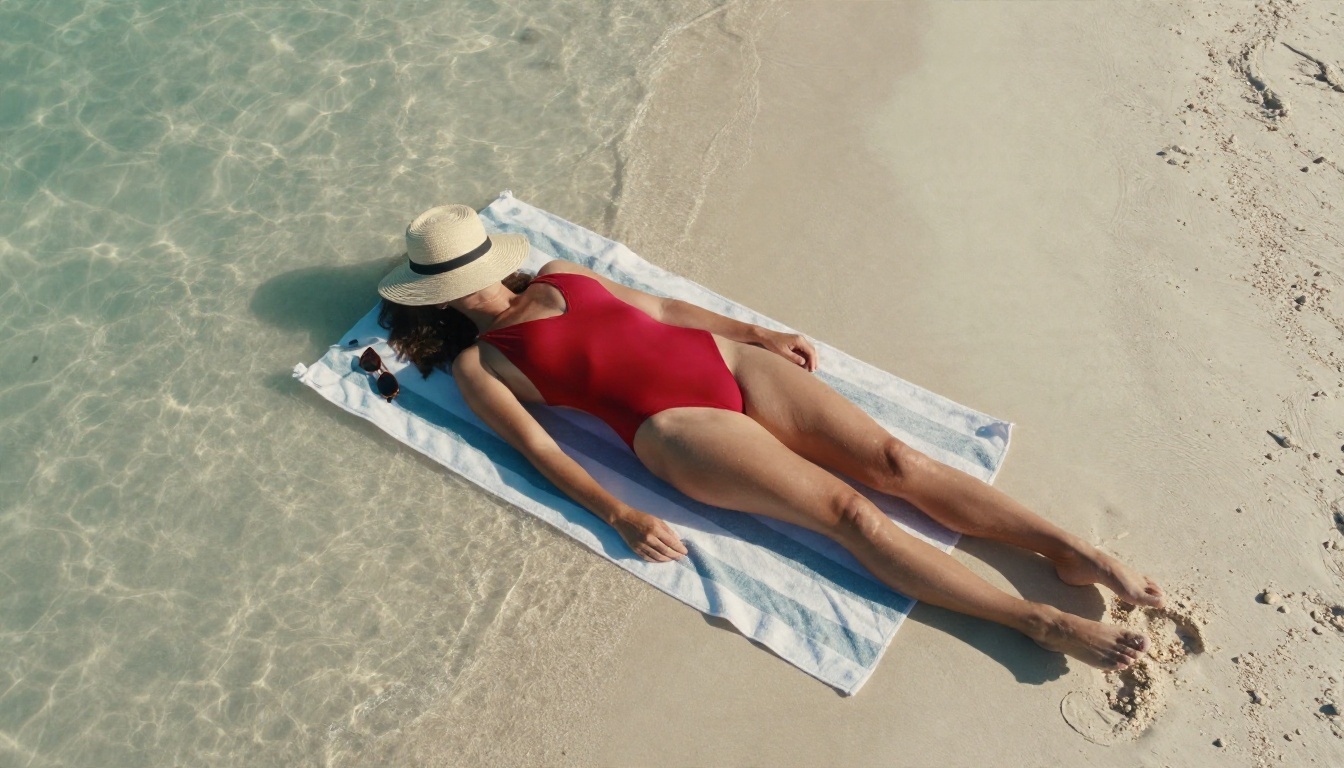
- Beach aerial: wide overhead shot of an adult woman in a red one-piece swimsuit on a striped towel beside turquoise shallows, long afternoon sun from the right, 35mm, sand grain.
- Hotel corridor fashion: low-angle full-body shot of an adult woman in a black lace bodysuit under an oversized blazer, warm sconce light, 35mm f/1.8, wallpaper texture.
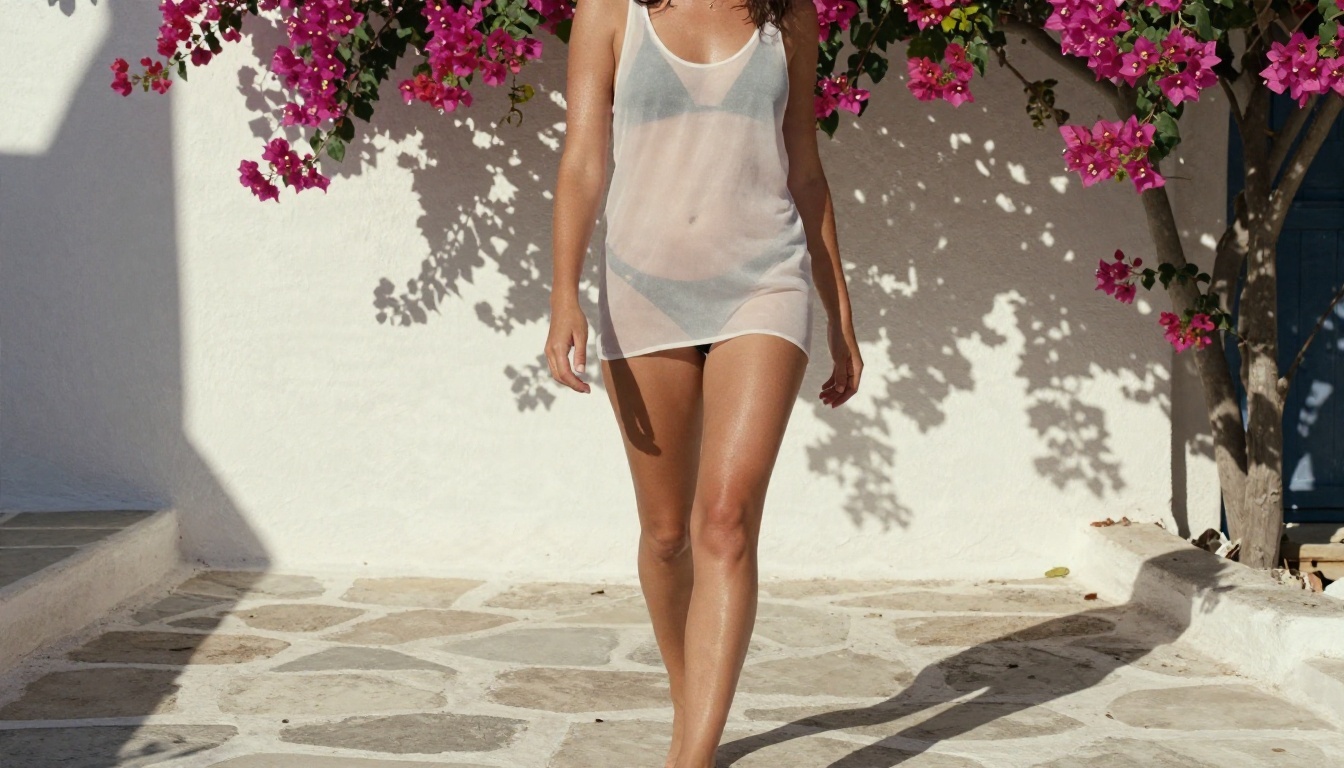
- Terrace summer: an adult woman in a sheer white cover-up over a black bikini on a whitewashed stone terrace, bougainvillea in the frame, midday sun, 28mm.
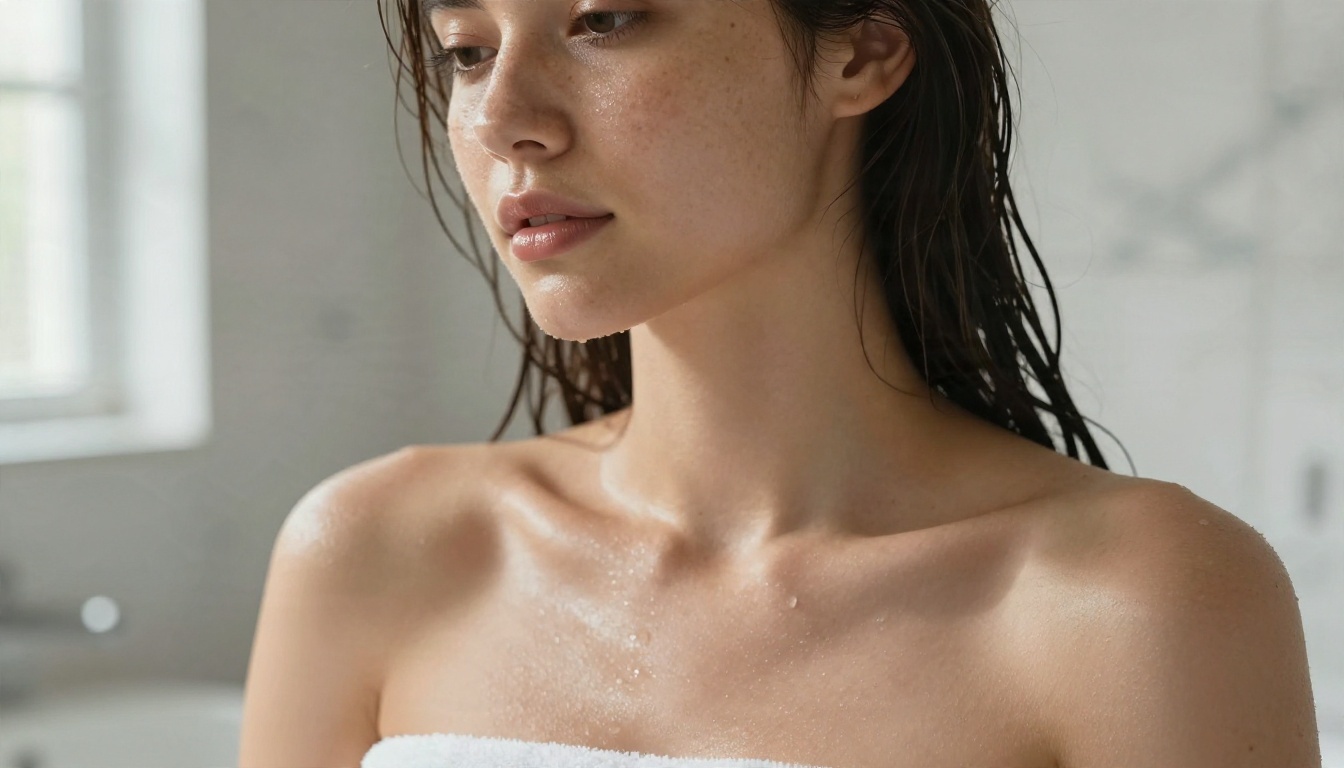
- Spa portrait: close-up of an adult woman with dewy skin, white towel on her shoulders, soft window light from the left, 100mm macro portrait lens, water droplets.
Always include the word adult in the prompt. It sets the age range clearly and keeps results in the territory that platforms and readers expect.
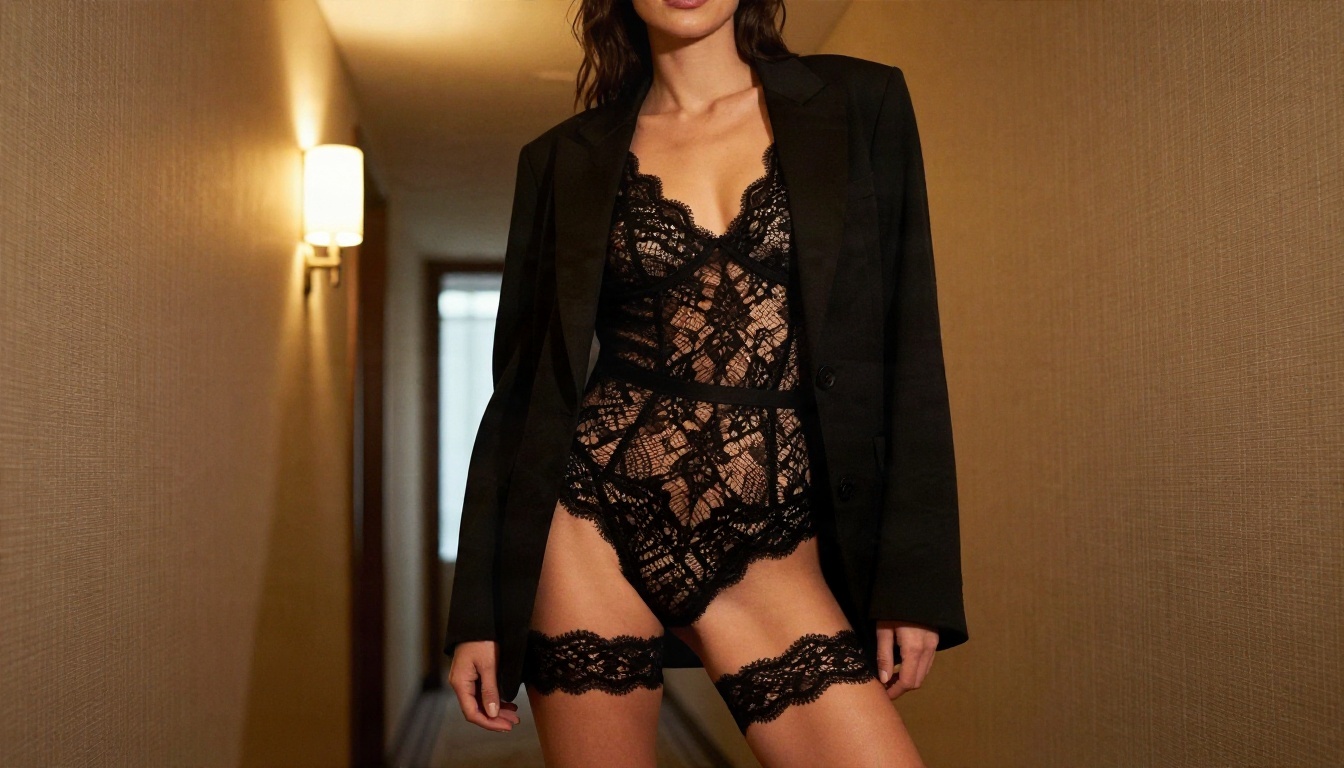
Real Examples and What Made Them Work
Every image in this article came out of the same recipe: a clear subject, a believable place, a single dominant light, and a lens choice. Here is what each detail contributes.
Lighting Decides Everything
A glamour image lives or dies on light. Compare these situations:
| Light | Mood | Best for |
|---|
| Window light from one side | Soft, intimate, natural | Bedroom, portrait, spa |
| Golden hour from behind | Warm rim glow, romantic | Beach, boat, terrace |
| Midday sun, high angle | Crisp, summery, bold | Poolside, Mediterranean |
| Warm lamp plus cool dusk | Moody, cinematic | Close-ups, evening scenes |
Name the direction (from the left, from behind) and the quality (soft, crisp, diffused). The model will place shadows accordingly, and skin looks real instead of flat.

Wardrobe and Setting
Swimwear, silk, lace and knitwear all render well because they have visible texture: weave, shine, folds. A plain studio backdrop gives the model nothing to work with, so images feel empty. Add a setting with surfaces, such as linen sheets, teak decking, whitewashed stone or marble tile, and realism goes up immediately.
For creators, a consistent setting also helps branding. If your page is "sailboat summer," keep returning to rope, teak and sunset light. Readers recognise that look before they read your name.
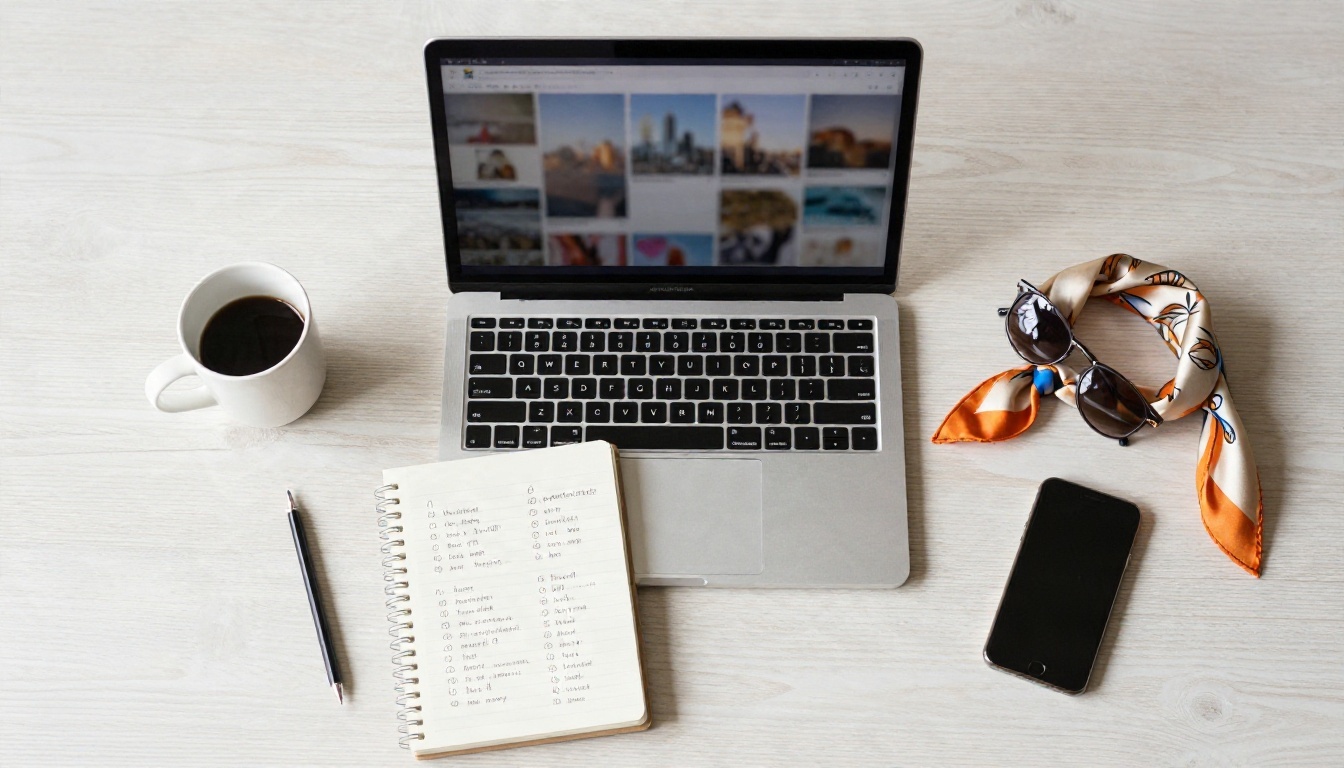
💡 Creator tip: build a short "style sheet" in a notes app: three settings, two light types, one lens range. Reuse it. Your whole feed will look like one photographer shot it.
The Honest Limits of Free
Free is real, but it is not unlimited everywhere. Knowing the walls ahead of time saves you from hitting them mid-project.
Technical Limits
- Credit caps: many tools give a small daily allowance. Spend it on final renders, not on experiments.
- Watermarks: common on free tiers of single-purpose generators. Check before you build a plan around the output.
- Queues: free users often wait behind paying users, especially in the evening.
- Resolution ceilings: some tools cap free images at a low size. Look for models that output sharp 2K or 4K.
- Consistency: keeping the same face across many images is hard in every tool. Fix it by editing one good image repeatedly rather than regenerating from scratch.
The practical answer is to use a platform where the iteration loop is cheap. That is why Image Editor Pro's unlimited generations matter: the cost of "one more try" drops to zero, and quality rises because you can refine until the image is right.
Rules You Should Respect
Some limits are not technical, and they are not negotiable:
- Adults only. No tool, prompt or workaround involving minors, ever. Include "adult" in every prompt that features a person.
- No real people without consent. Do not generate images that look like a specific real person, whether a celebrity, an ex or a coworker. This causes real harm and is illegal in a growing number of places.
- Stay non-explicit if you want reach. Social platforms, payment processors and ad networks have strict rules. Suggestive and tasteful images travel much farther than explicit ones.
- Label AI content where required. Several platforms now ask creators to mark synthetic images. Do it. It protects your account.
- Check your own platform's terms before posting, since each one draws its line in a different place.
A short version: make images of invented adults, keep them tasteful, and label them. Do that and most of the risk disappears.
Common Mistakes to Avoid
Most weak results come from the same five habits:
- Tag soup prompts. A list of twenty keywords confuses the model. Write one scene in plain sentences.
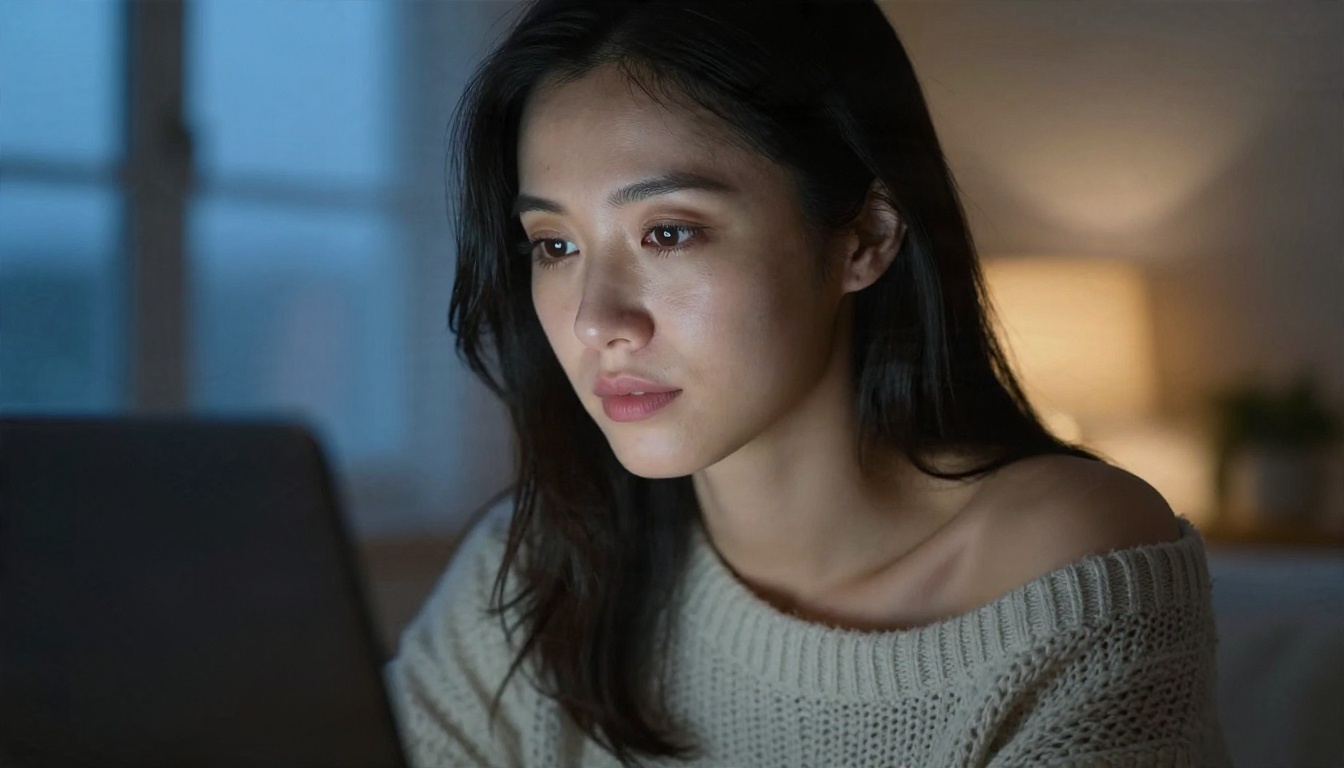
- No light direction. Without it, the model picks flat, even light and skin looks like plastic.
- Piling on quality words. "Ultra, 8K, masterpiece, perfect" rarely helps. Specific lens and film details do.
- Changing everything at once. If you edit subject, outfit and setting together, you cannot tell which change helped.
- Skipping the edit pass. A good generation plus two small edits beats ten fresh generations.
A related point: if a render has soft details or low resolution, run it through a super resolution model before posting. PicassoIA lists several upscalers in its collection, and a sharper final image makes a visible difference on high-density screens.
Make Your First Set Today
You do not need a subscription, a stack of tools or a technical background. Pick one scene from the prompt list above, open Seedream 4.5, and generate it. Then take the best result into Image Editor Pro and adjust the light, the outfit or the background until it looks like a photographer's frame. When you want speed, switch to Z Image Turbo for drafts. When you want a different look, try Seedream 4 or Hunyuan Image 3.
Spend an evening on it. Make one set of six images in a single setting, with consistent light, and see how it looks side by side. That small experiment will tell you more than any comparison table.
Ready to see the full lineup? Browse every model at picassoia.com/en/all-models and start creating your own images on PicassoIA today.


