Type "free NSFW generator" into a search bar and you get a wall of tools that promise everything and deliver a blurred preview, a watermark, and a paywall after three images. It is frustrating, and it wastes an evening. The good news: a handful of online options really do produce attractive, photorealistic, suggestive images without a credit meter ticking in the corner. This article sorts the useful from the noise, explains the limits you will run into, and gives you prompts you can paste right now.
One note on scope. Everything below is about non-explicit adult glamour: swimwear, boudoir styling, fashion editorials, and artistic portraits of adults. That is what the best tools do well, and it is what produces images you can actually use.
What "Free" Really Means
The usual free tier trade-offs
Almost no online generator is free in the way a public park is free. Someone pays for the GPUs, so the cost lands somewhere else. Across the free NSFW tools reviewed by independent roundups this year, the same trade-offs show up again and again:
- Daily caps: a fixed number of images per day, then a wait or an upgrade prompt.
- Queue time: free users wait behind paying users, sometimes for minutes.
- Lower resolution: free output capped at small sizes that fall apart when you zoom in.
- Watermarks: a logo stamped across the corner or the whole frame.
- Model locks: the best model is paid, the free one is the weaker older version.
- Stored prompts: many hosted generators keep your prompts and outputs on their servers.
Most of those roundups are written by companies that sell the tools they rank, so treat any "number one pick" with suspicion and test a tool yourself before trusting it.
Why filters exist at all
Mainstream generators block adult content for brand and legal reasons, not because the model cannot draw a person in a bikini. That is why the same prompt gets approved on one site and rejected on another. The filter is a policy layer sitting on top of the model, and policies differ widely. When a tool says "blocked by content policy" on a swimwear prompt, the fix is usually a different tool, not a cleverer prompt.
💡 Quick test: run one tame prompt, such as "adult woman in a navy swimsuit on a beach at sunset", on any tool you are considering. If that gets blocked, skip the tool. It will never handle anything more daring.
The Limits You Will Hit
Daily caps and queues
Free tiers are built to give you a taste. You get enough generations to see the quality, then a nudge toward paying. The cap is rarely printed clearly. You find it when the button stops working. Tools with a genuinely unlimited editing path are rare, and that rarity is the single biggest difference between them.
Resolution and watermarks
A 512 pixel image looks fine on a phone thumbnail and terrible everywhere else. If you plan to print, post to a portfolio, or crop into a vertical story, you need at least 2K output. Watermarks are the other trap: some are removable in a paid plan, others are baked into the free tier forever.
| Limit | What you see | Does it matter? |
|---|
| Daily image cap | 5 to 20 images, then locked | Yes, for any real project |
| Queue wait | 30 seconds to several minutes | Annoying when iterating |
| Output size | 512 to 1024 px on free plans | Yes, if you crop or print |
| Watermark | Corner logo or full overlay | Yes, for posting anywhere |
| Prompt filter | Blocks swimwear or lingerie wording | Decides whether the tool is usable |
| Data storage | Prompts and images kept on servers | Matters for privacy |
Privacy and storage
Free hosted tools frequently store what you type and what you create. If that bothers you, never upload a photo of a real person, keep prompts generic, and read the privacy page before signing up. Running a local model is the most private route, but it demands a strong graphics card and some patience with setup.
Best Online Options, Ranked
These are the models worth your time, in the order I would try them. Each one links to its page on PicassoIA so you can open it and test with your own prompt.
1. Seedream 4.5
Seedream 4.5 is the first stop for photorealistic glamour. It outputs sharp 2K and 4K images, follows long prompts closely, and renders skin, fabric and lighting with very little of the plastic look older models had. It also accepts up to 14 reference images and can produce batches of related shots in one run, which is handy when you want the same subject across several poses. Speed is excellent: most images arrive in seconds.
2. PicassoIA Image Editor Pro
PicassoIA Image Editor Pro solves the problem that annoys people most: the cap. It is built for unlimited edits, with no daily quota, so you can iterate on one image fifty times without watching a counter. Upload up to three reference images, describe the change in plain language, and most edits finish in a few seconds. Change the outfit, swap the location, adjust the lighting, or rework the mood without starting from scratch.
3. Z Image Turbo
Z Image Turbo is the speed pick. When you want to test ten prompt variations in a couple of minutes, its fast turnaround makes drafting painless. Use it to find the right composition, then move the winning prompt to Seedream 4.5 for the final render.
4. Flux 2 Klein 9B Base LoRA
Flux 2 Klein 9B Base LoRA supports LoRA styling, which means you can steer the look toward a particular film stock, fashion style, or photographic mood. It rewards people who like to tweak settings and keep a consistent visual identity across a series.
5. Flux Dev and Flux Dev LoRA
Flux Dev is a long-standing favorite for photorealism, and Flux Dev LoRA adds custom style control on top. Both handle natural light and realistic textures well.
6. Qwen Image 3 Pro
Qwen Image 3 Pro is a solid photorealistic alternative when you want a different look from the Flux family, especially for clean portraits and careful lighting.
How to Use Seedream 4.5 on PicassoIA
Seedream 4.5 is the model to start with, so here is the exact workflow.
- Open the model page. Go to Seedream 4.5 on PicassoIA.
- Write your prompt. The limit is 4,000 characters, which is plenty. Describe subject, setting, light, lens and mood.
- Pick the size. Choose 2K for fast drafts or 4K for the final version.
- Set the aspect ratio. Use 16:9 for banners, 3:4 or 2:3 for portraits, 9:16 for stories, 1:1 for feeds.
- Add references if you have them. Upload 1 to 14 images in the image input to carry over a pose, outfit or location. Use only images you own or have the right to use.
- Try batches. Set sequential image generation to auto and raise max images to get several related shots in one run.
- Generate and refine. Change one detail per run so you can see what each edit does.
💡 The model page also lists a safety checker setting. Its description says that when relaxed, input moderation blocks only illegal content. Read it carefully, use it responsibly, and remember that the law in your country still applies.
Prompts That Actually Work
A formula you can reuse
Vague prompts give generic results. The best photorealistic prompts follow the same order every time:
Subject and pose + outfit + setting + light direction + camera and lens + texture + mood
Here is that formula filled in:
Adult woman in her late twenties wearing a black satin swimsuit, reclining on a linen daybed in a sunlit hotel suite, soft window light from the left, 85mm f/1.8 shallow depth of field, visible skin pores and fabric sheen, Kodak Portra 400 film grain, confident relaxed expression.
Five prompts to paste and adjust
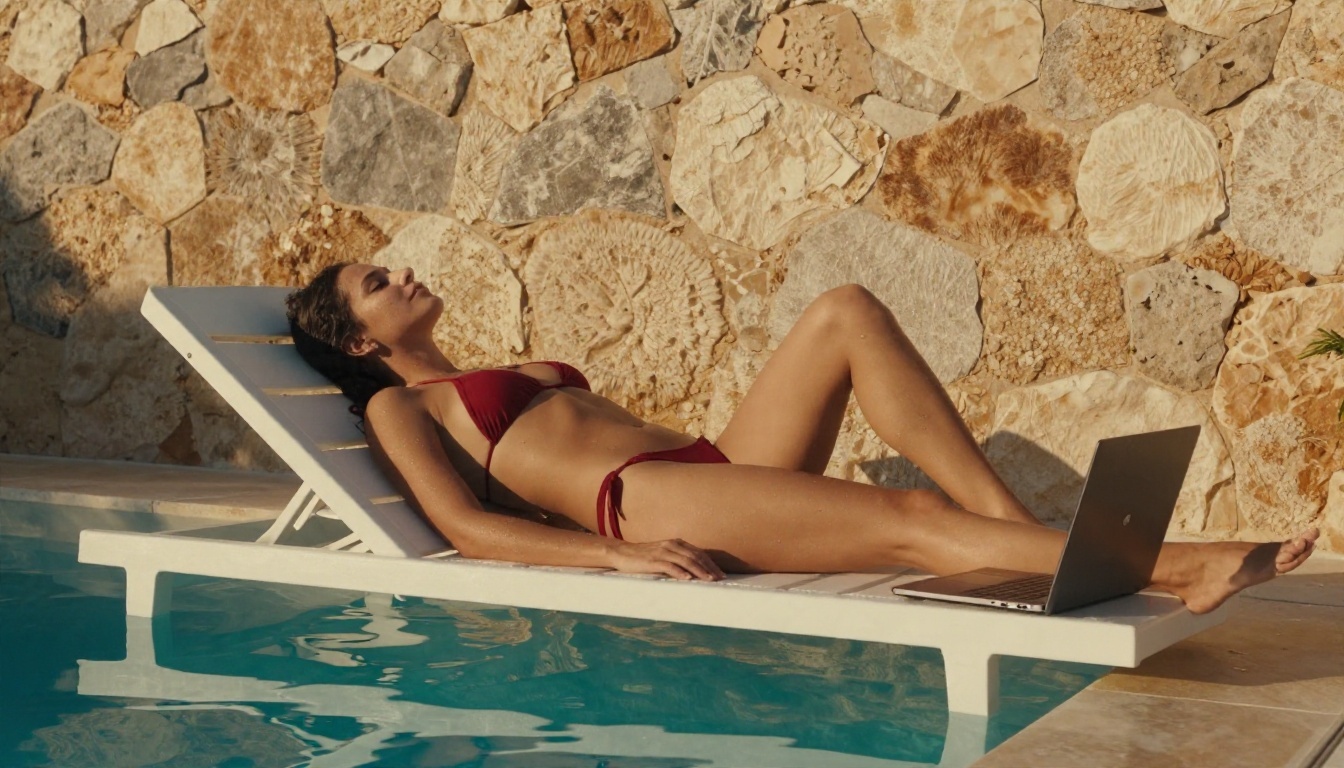
- Poolside: Adult woman in a red bikini on a white lounger beside a villa pool, warm late afternoon light from the right, low angle, 35mm lens, water droplets on skin, film grain.
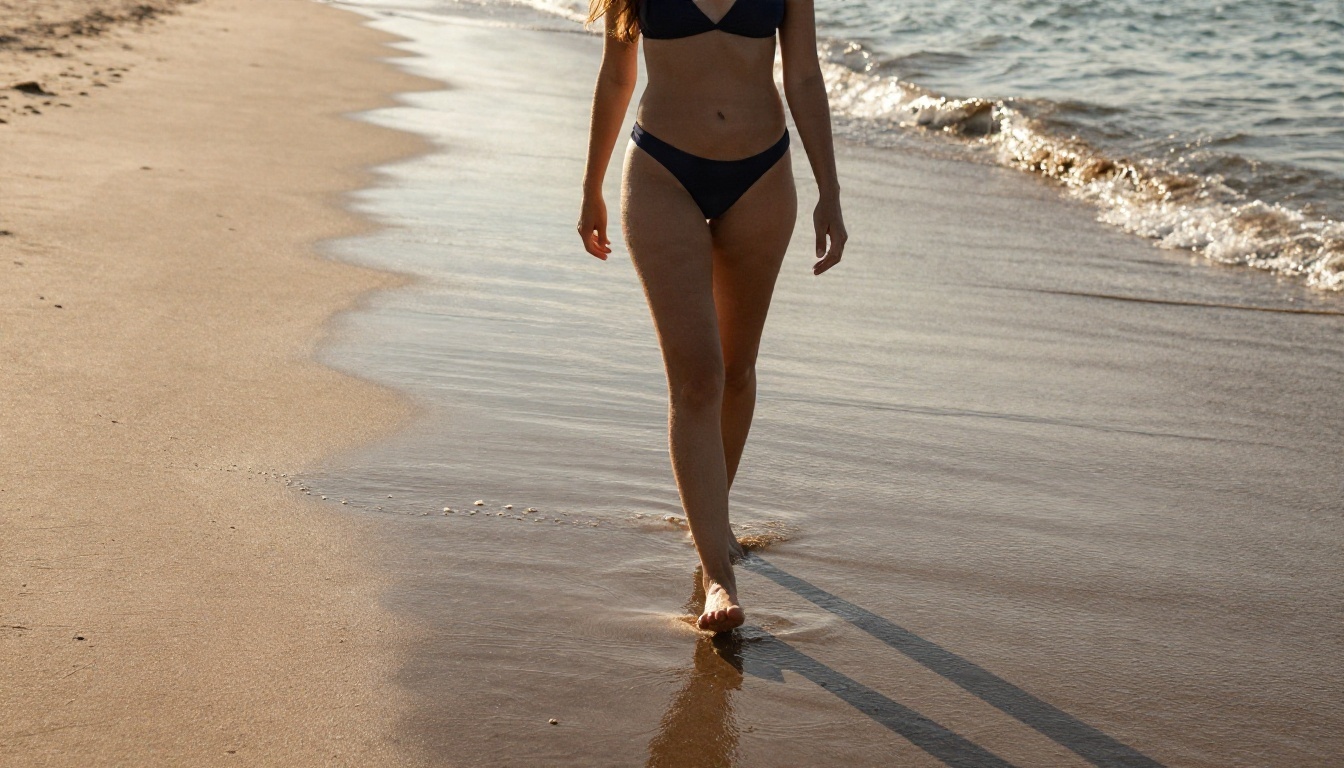
- Beach walk: Adult woman in a navy bikini walking along wet sand at golden hour, backlit hair, long shadow, 28mm lens, sea spray, natural color.
- Rooftop sunset: Adult woman in a white bikini with a sheer sarong on a rooftop terrace, orange backlight, blurred skyline, 100mm lens, windblown hair.
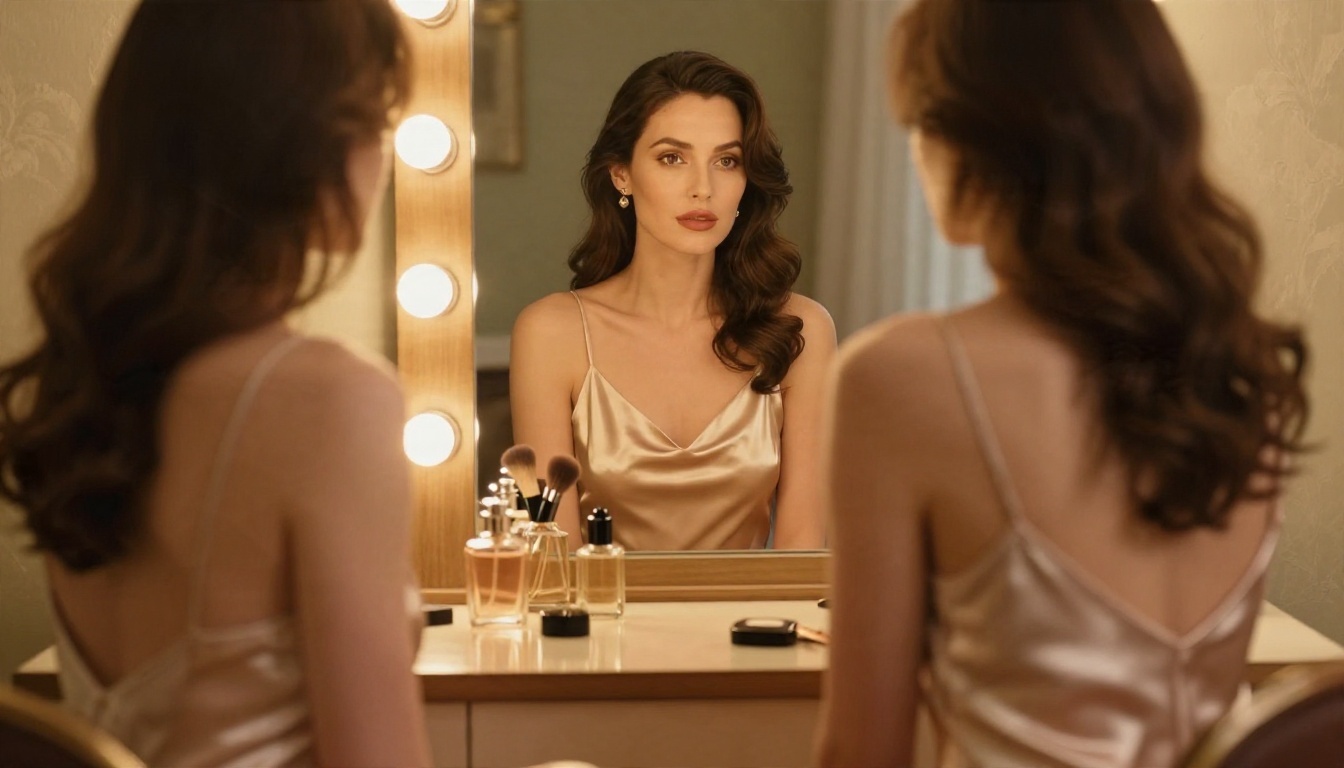
- Vanity mirror: Adult woman in a champagne silk slip dress at a vintage vanity, warm bulb light, reflection in focus, perfume bottles, 50mm lens.
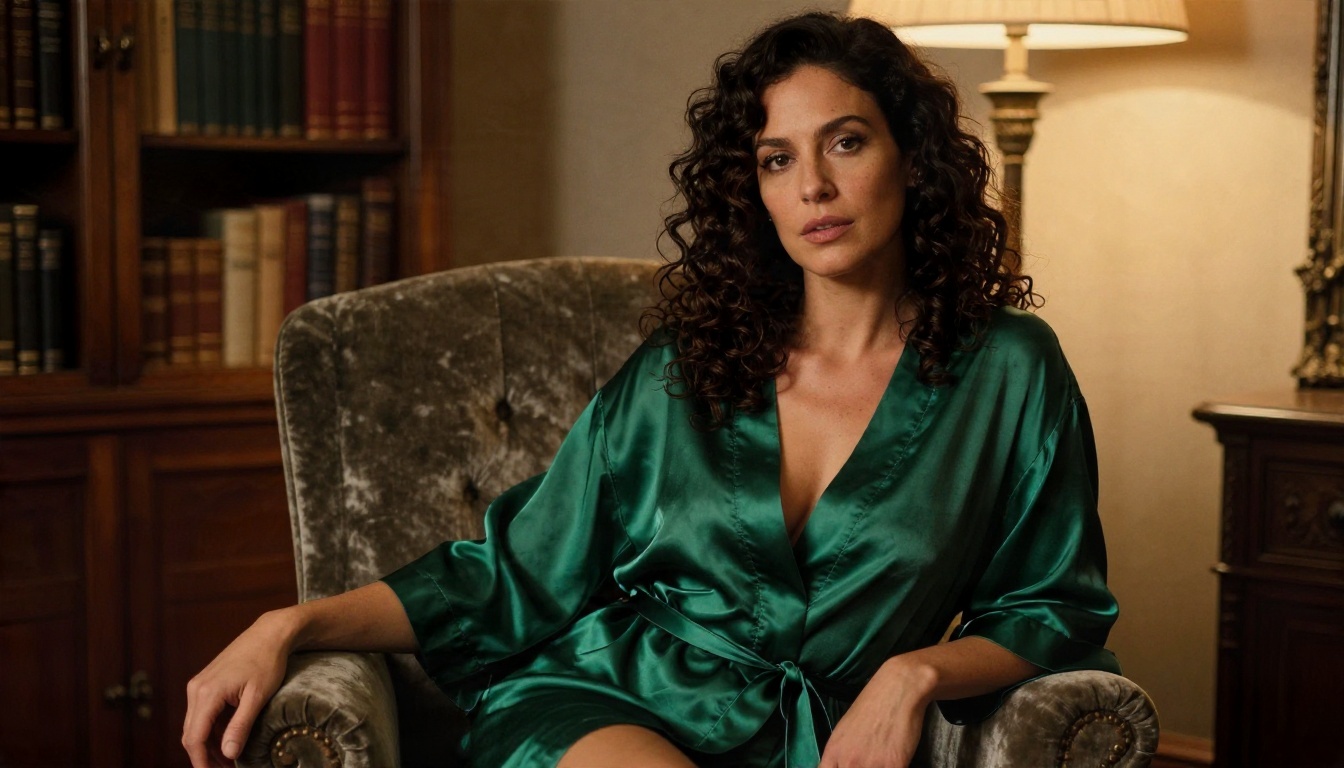
- Library portrait: Adult woman in an emerald satin robe on a velvet armchair, lamp light from the right, 85mm f/1.4, velvet and satin texture, moody tones.
Words that raise realism
Concrete camera and light words do more than adjectives like "beautiful" or "stunning". Reach for these:
- Lens: 35mm, 50mm, 85mm f/1.8, 100mm compression.
- Light: window light from the left, golden hour backlight, overcast diffusion, warm tungsten bulbs.
- Texture: skin pores, freckles, fabric weave, satin sheen, sea spray, sand grain.
- Film look: Kodak Portra 400, gentle grain, lifted blacks.
- Angle: low angle, overhead, over the shoulder, side profile, Dutch angle.
Common Mistakes
Prompts that trigger blocks
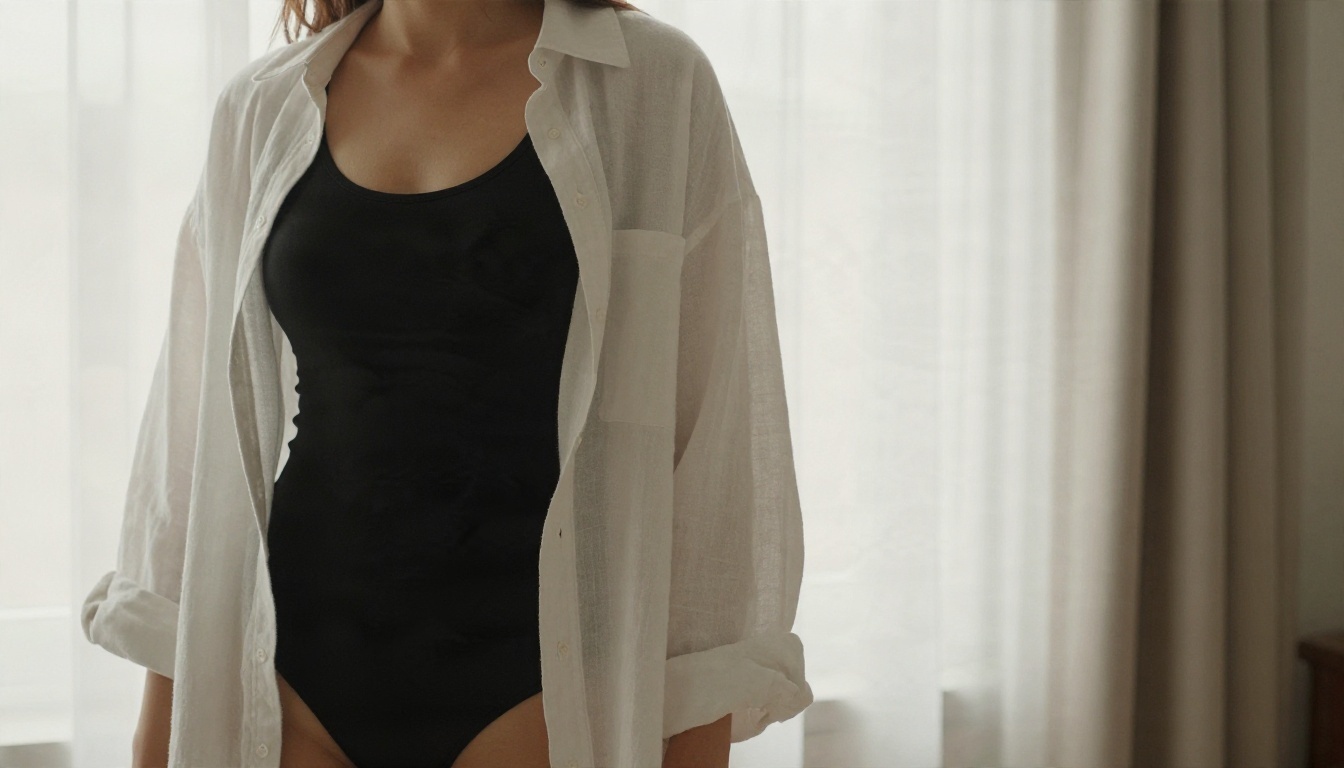
Some wording sets off filters on tools that are otherwise fine. If a prompt is rejected, rewrite it around clothing, setting and lighting rather than the body. "Fitted black bodysuit under an open linen shirt" passes where blunter wording will not, and it often looks better because the model gets concrete visual information to work with.
Plastic skin and flat light
If skin looks airbrushed, you probably left out texture words. Add "visible pores", "fine freckles", "natural sheen". If the frame looks flat, name the light direction. A source from the left with soft shadow on the right gives instant depth.
Wasting generations
People burn through free credits by changing five things at once. Change one variable per run. Draft quickly in Z Image Turbo, pick the best composition, then render the final in Seedream 4.5, and use Image Editor Pro for the unlimited small tweaks that follow.
💡 Save your seeds. When a result is close, reuse its seed and change one phrase. You get a controlled variation instead of a brand new roll of the dice.
Editing Instead of Regenerating
Regenerating from scratch is the slow way. If you already have an image you like, edit it. PicassoIA Image Editor Pro takes up to three reference images and a short instruction, and because edits are unlimited you can keep going until it is right.
Edits worth trying
- Swap the outfit color: "change the bikini in image 1 to emerald green".
- Move the scene: "place the subject on a rooftop terrace at sunset".
- Change the mood: "warmer light, softer shadows, film grain".
- Rework the framing: pick a new aspect ratio such as 9:16 for stories.
Working from your phone
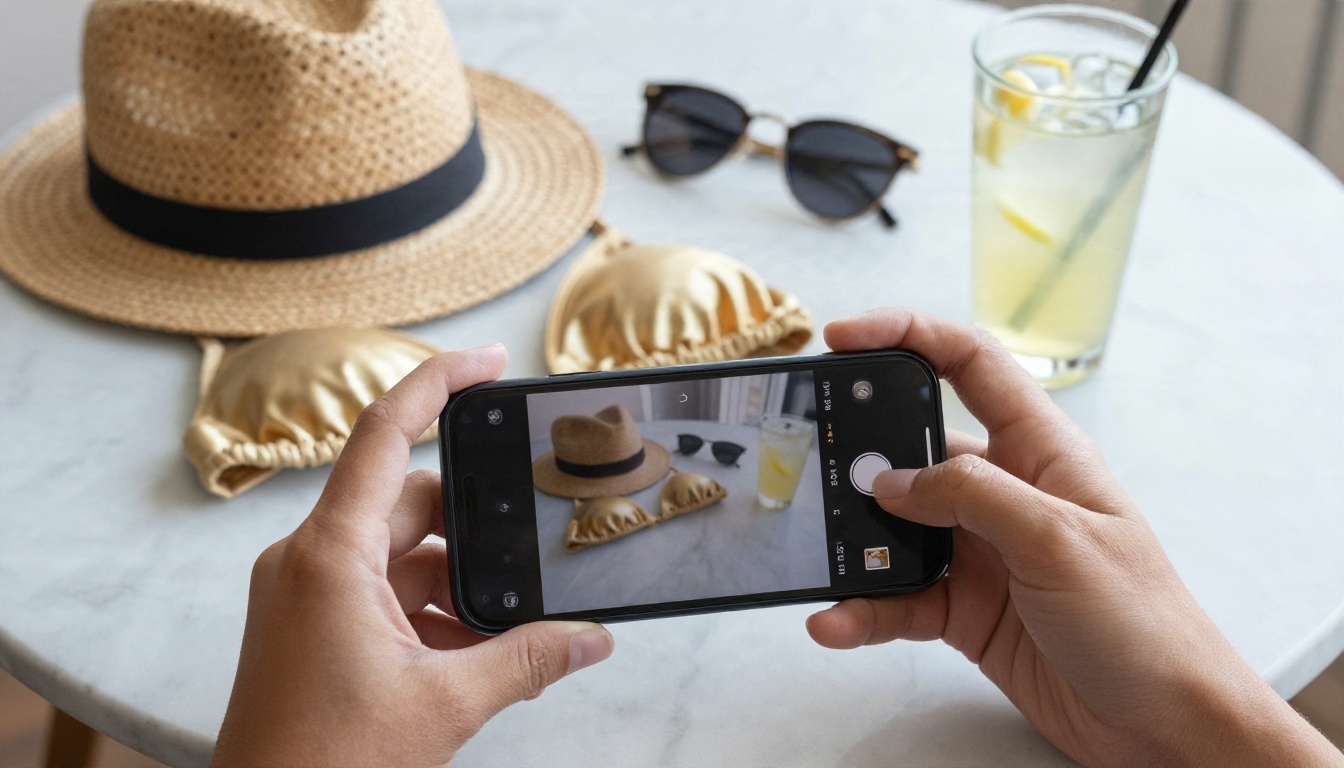
Everything above runs in a mobile browser, so there is nothing to install. That matters for casual use: draft a prompt on the train, pick the best result later on a bigger screen, and finish with an edit pass.
Rules You Should Follow
An unrestricted tool removes platform filtering. It does not remove the law. A few simple rules keep you out of trouble:
- Adults only. Every subject must be clearly an adult. Never generate anything that suggests a minor.
- No real people. Do not use photos of real individuals, celebrities or acquaintances without their explicit consent.
- Stay non-explicit. Suggestive glamour is a legitimate photographic genre. Pornographic output is a different matter and is not what this article covers.
- Check local law. Rules on adult content and on sharing it vary by country and platform.
- Mind where you post. Most social networks restrict adult imagery, so read their terms before uploading.
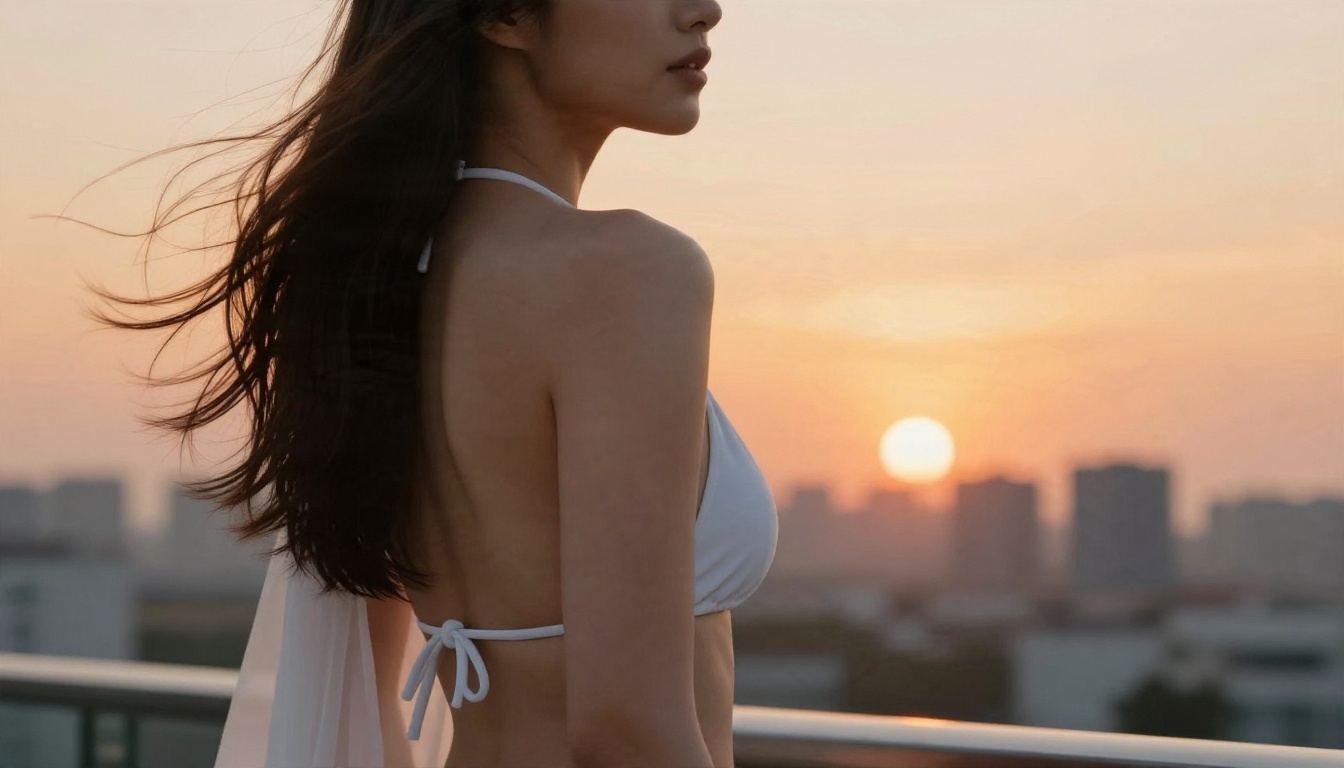
The best free NSFW generator is the one that lets you iterate without a counter, renders skin that looks like skin, and does not reject a swimwear prompt. For most people that means starting with Seedream 4.5 for the render, adding PicassoIA Image Editor Pro for unlimited edits, and drafting quickly with Z Image Turbo.
Take one of the five prompts above, paste it into Seedream 4.5, and change a single detail: the lens, the light, the outfit color. Ten minutes of that teaches you more than any ranking list. When you want to see every option side by side, browse the full catalog at picassoia.com/en/all-models and try your own idea on Picasso IA today.


