You typed a sentence, hit generate, and got a refusal message or a five second clip with a watermark stamped across the middle. That is the usual experience with an NSFW text to video generator in 2027, and it is why so many people bounce between tools without finishing a single decent scene. This article sorts out what is actually free, which prompts give you clean glamour footage, and how long a clip can run before the model runs out of steam.
A quick note on scope: everything below is about suggestive, non-explicit content with adult subjects, such as swimwear, boudoir, beach and editorial glamour. That is the lane where free tools perform best, where results look good, and where you will not fight filters every other generation.
What This Kind of Generator Does
An NSFW text to video generator turns a written description into a short moving clip of adult-themed, glamour-style content. You write a scene, the model renders motion, light and sometimes sound, and you download a few seconds of footage.
Text to video vs image to video
Text to video starts from words alone. Image to video starts from a still frame you already like and animates it. For glamour work the second route is usually more reliable, because you lock in the face, outfit and lighting before motion begins. Most serious creators use a hybrid: write the prompt, generate a still, then animate that still.
Why adult content is harder
Mainstream video models are trained with strict safety layers. Prompts that mention swimwear, lingerie or sensual poses can trigger refusals even when the result would be perfectly tasteful. Tools built with looser policies, or with clear adult-content rules, behave differently. This single factor explains most of the "it worked yesterday" complaints you read online.

💡 Quick rule: If a tool refuses a mild swimwear prompt, the problem is the platform policy, not your wording. Switch tools instead of rewriting the prompt ten times.
Free Options That Actually Work
"Free" means very different things across the market. After checking recent roundups and comparing how free tiers are built, a pattern shows up: every free plan limits at least one of four things, which are clip length, resolution, watermark or credits. No cloud service gives you unlimited length, unlimited resolution and zero restrictions all at once. The only fully unrestricted route is running open models on your own hardware, which needs a strong GPU and a lot of patience.
The four kinds of free
| Free type | What you get | What you give up |
|---|
| Daily credits | A few clips per day | Hard stop when credits run out |
| Watermarked output | Full quality preview | Branding on every frame |
| Short clip cap | Unlimited tries | Clips of roughly 4 to 10 seconds |
| Local open models | No filters from the host | Hardware cost, setup time, slow renders |
Free and unlimited video on PicassoIA
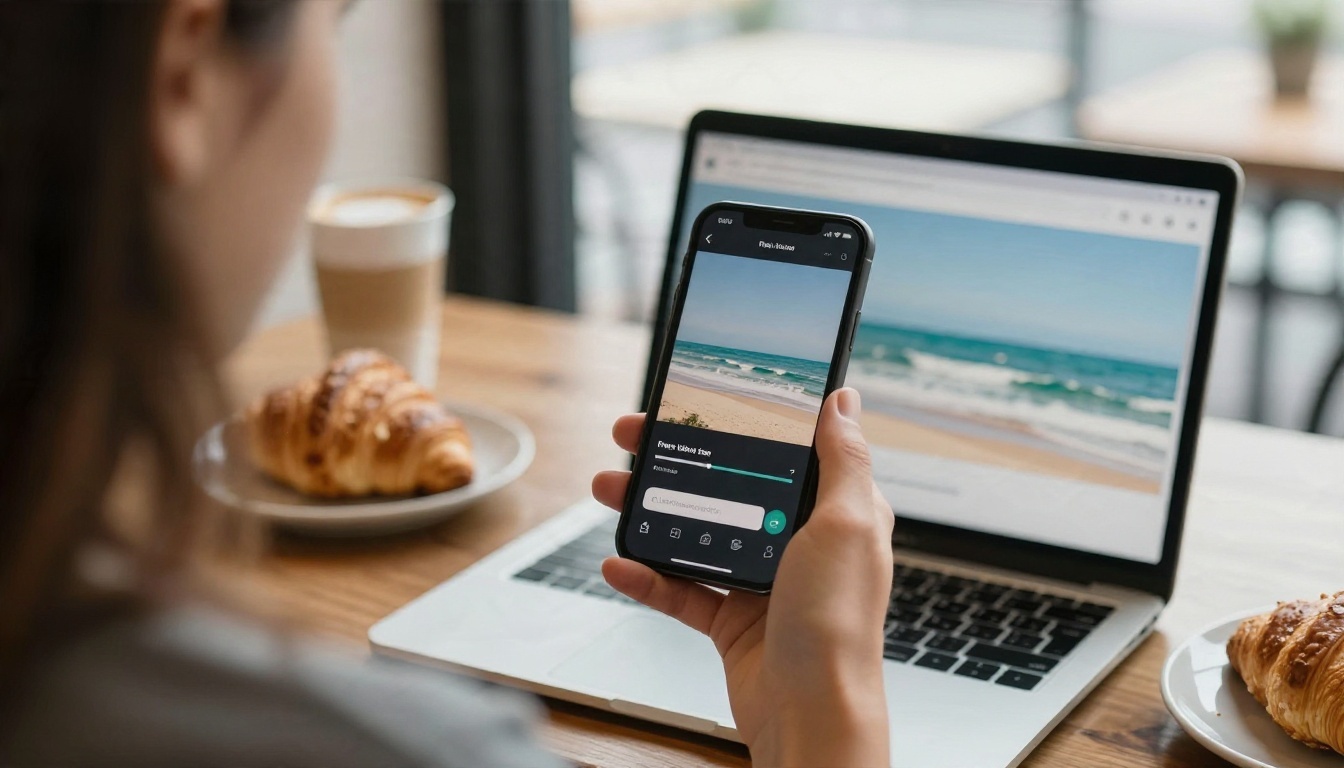
PicassoIA Video is a free, unlimited video generator that accepts text or an image, which makes it a natural starting point when you do not want to count credits. For longer free clips, Seedance 2.5 Lite is listed as a free and unlimited generator for clips up to 10 seconds. If you want to push length further, Seedance 2.5 is built for videos of up to 30 seconds.
Where the first frame comes from
The strongest free workflow is image first. Seedream 4.5 produces sharp, photorealistic stills of adult glamour subjects and handles swimwear and boudoir prompts that many mainstream models decline. Pair it with PicassoIA Image Editor Pro, which offers unlimited generations, so you can keep fixing outfits, backgrounds and lighting until the frame is exactly right. Then feed that frame to a video model. Free, fast and uncensored where it counts: the still.
💡 Budget trick: Spend your retries on the cheap stage (the still image), not on the expensive stage (the video render).
Real Clip Length Limits
Length is the most misunderstood part of any text to video generator. Marketing pages say "up to 30 seconds" while the free tier quietly delivers six.
What to expect per tier
Most general guides agree that free tiers land between 4 and 10 seconds per clip, and that paid plans raise the ceiling. A few models stretch further. Here is a practical overview based on what the PicassoIA models list:
Why longer clips often look worse
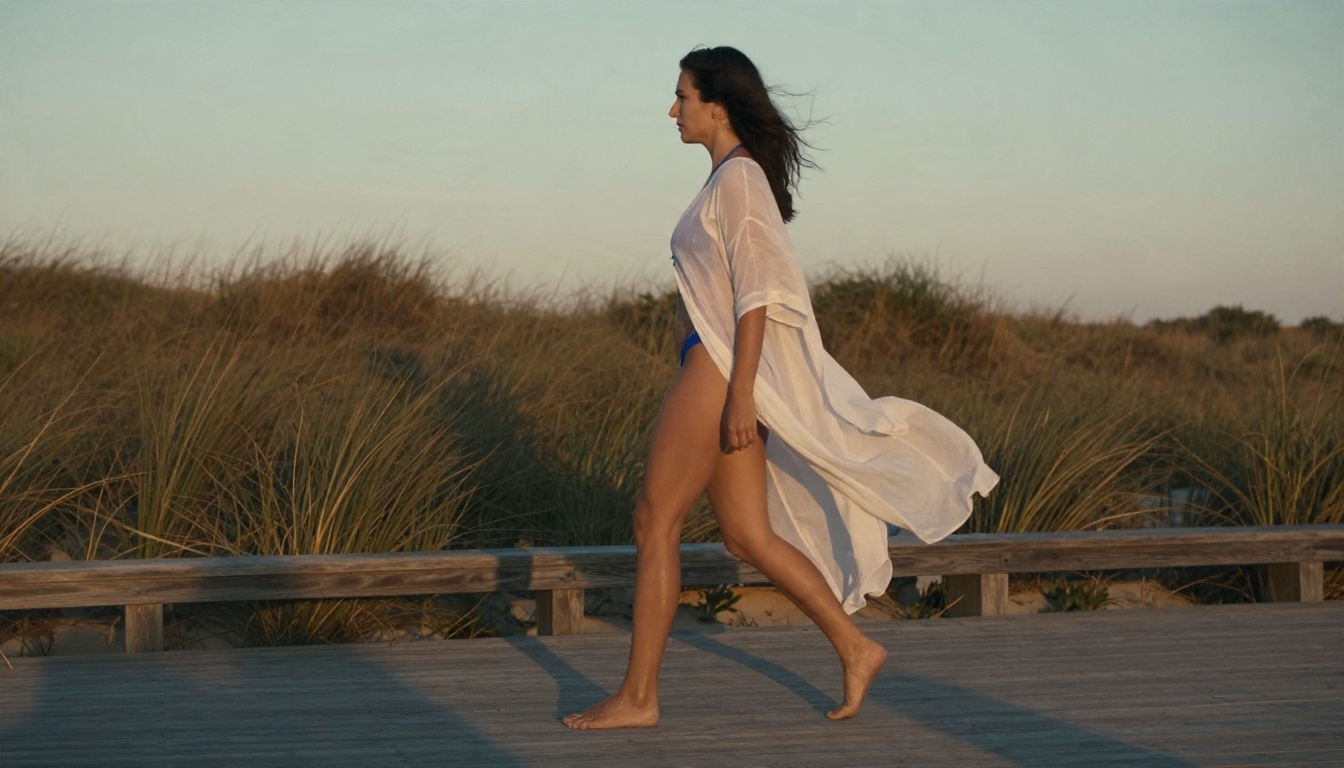
Every extra second gives the model more chances to drift. Faces change slightly, hands warp, fabric flickers. A crisp 6 second clip usually beats a wobbly 20 second one. If the subject is a person in swimwear walking along a beach, six seconds already contains a full, satisfying motion.
How to build longer scenes
Instead of asking for one long take, build a sequence:
- Generate a first still and animate it for 5 to 8 seconds.
- Take the last frame of that clip and use it as the first frame of the next.
- Repeat three or four times.
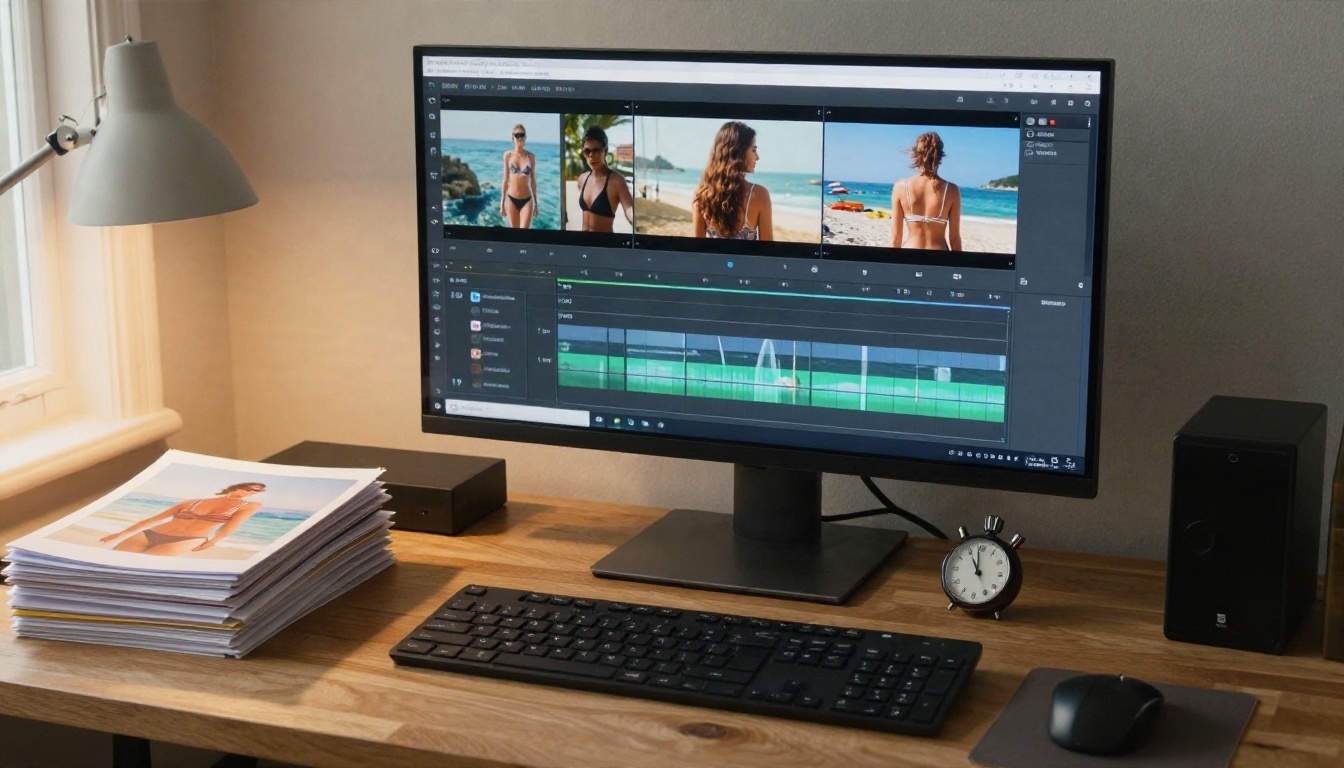
- Cut the pieces together in any editor, with a slow crossfade between them.
This gives you a 25 second scene where every segment stays sharp.
Prompts That Produce Good Clips
A video prompt is not an image prompt with the word "video" added. It needs motion, camera behavior and a time order. Models respond best to a simple chronological recipe.
The five part formula
Use this order every time:
- Subject and outfit: who they are and what they wear.
- Setting: location, time of day, weather.
- Motion: what moves, and how slowly.
- Camera: dolly, pan, handheld, lens feel.
- Light and mood: direction, color, atmosphere.
💡 Write motion in the order it happens. "She turns, then smiles, then walks forward" is easier for a model to follow than a pile of adjectives.
Prompt examples to copy
Beach glamour
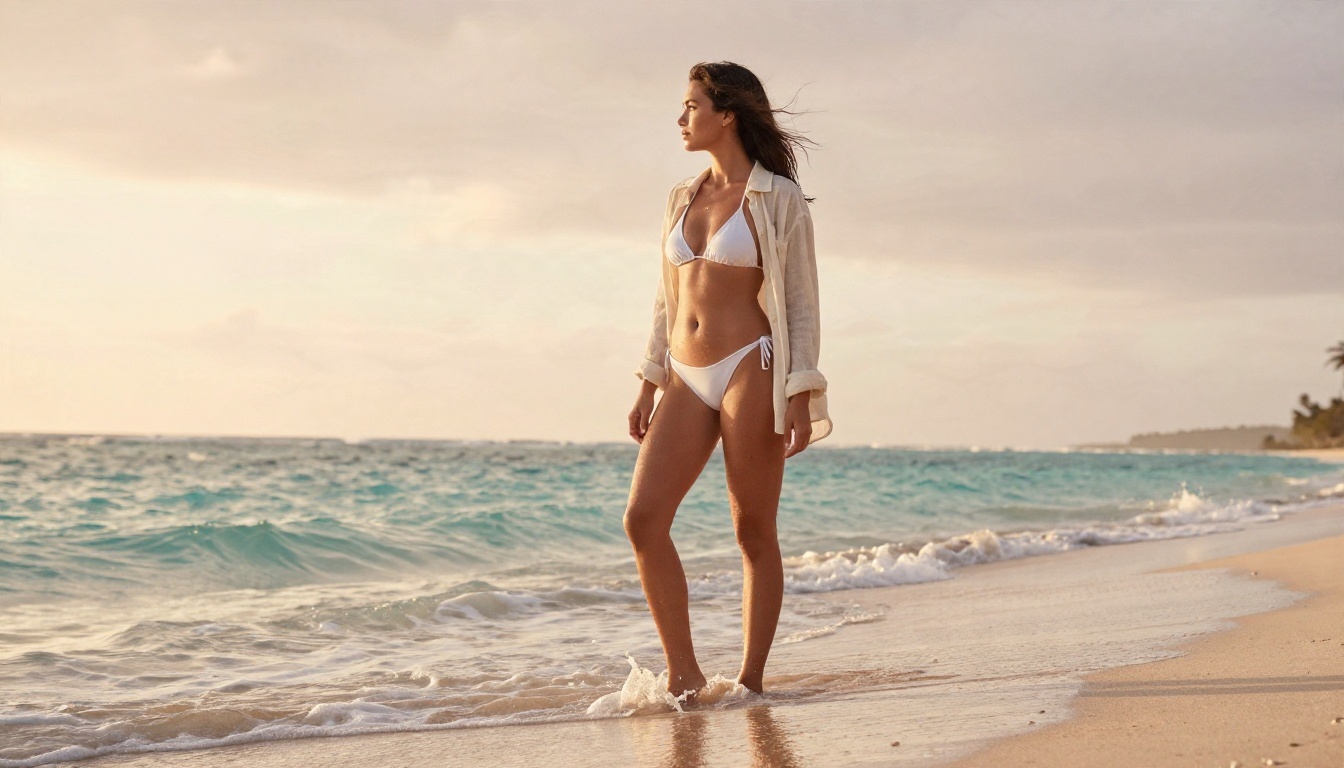
An adult woman in a white string bikini and an open linen shirt stands ankle deep in turquoise surf at sunrise. She slowly pushes her hair back with one hand, then turns toward the camera with a relaxed smile. Slow dolly in at waist height, shallow depth of field, soft golden backlight, gentle waves, natural film grain.
Boudoir morning
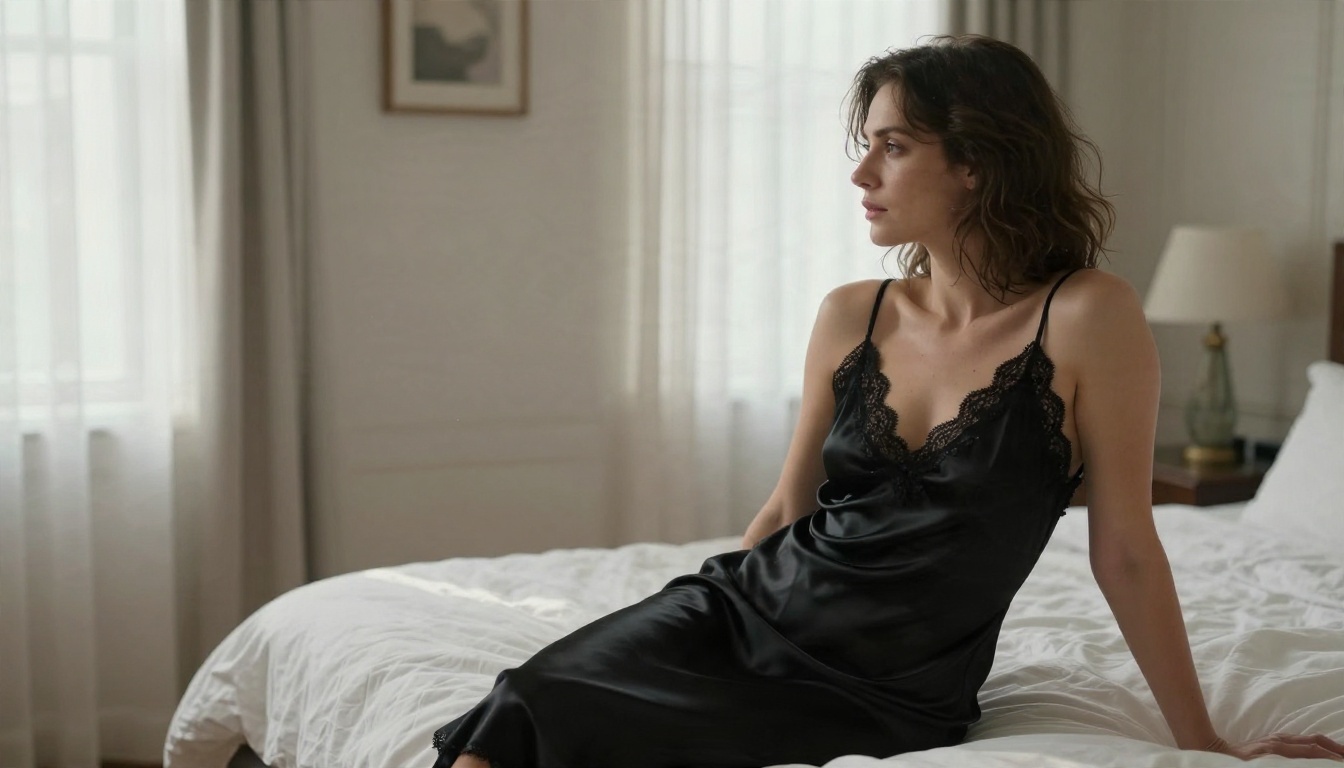
An adult woman in a black silk slip sits on the edge of a white linen bed. Sheer curtains move in a light breeze. She looks toward the window, then slowly rises and walks out of frame. Static camera with a gentle push in, warm morning light, drifting dust motes.
Poolside editorial
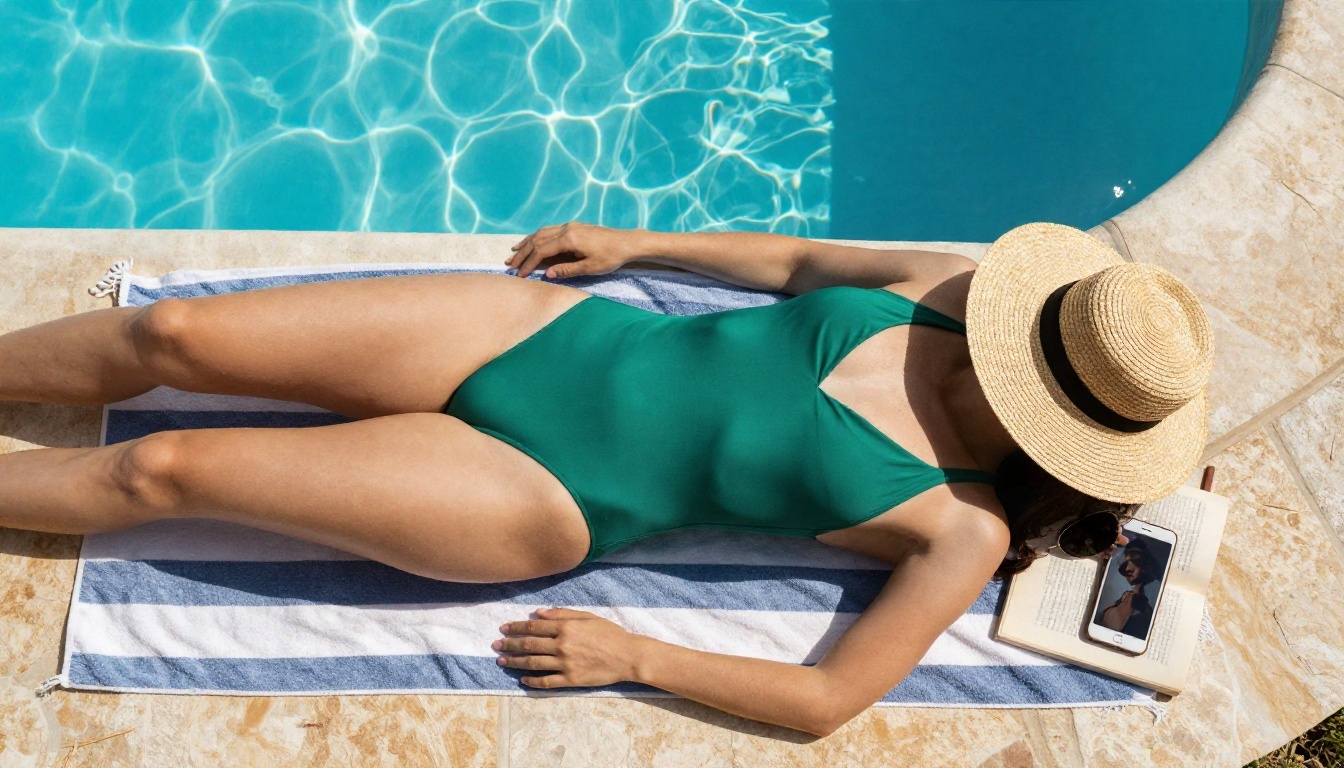
An adult woman in an emerald one-piece lies on a striped towel beside an infinity pool. She lifts her sunglasses, glances up, and smiles. Slow overhead crane descent, bright midday sun, rippling water reflections on stone.
Words that cause trouble
Some phrases make models glitch or refuse. Keep your prompts clean of these habits:
- Stacking five or more actions in one sentence.
- Asking for fast dancing or rapid spins, which break anatomy.
- Vague quality tags such as "ultra amazing masterpiece" that add nothing.
- Describing text on screen, which almost never renders correctly.
- Mentioning multiple subjects when you only need one.
Build the First Frame Right
Since image first is the more dependable route, the still matters more than any other step.
Writing a strong still prompt
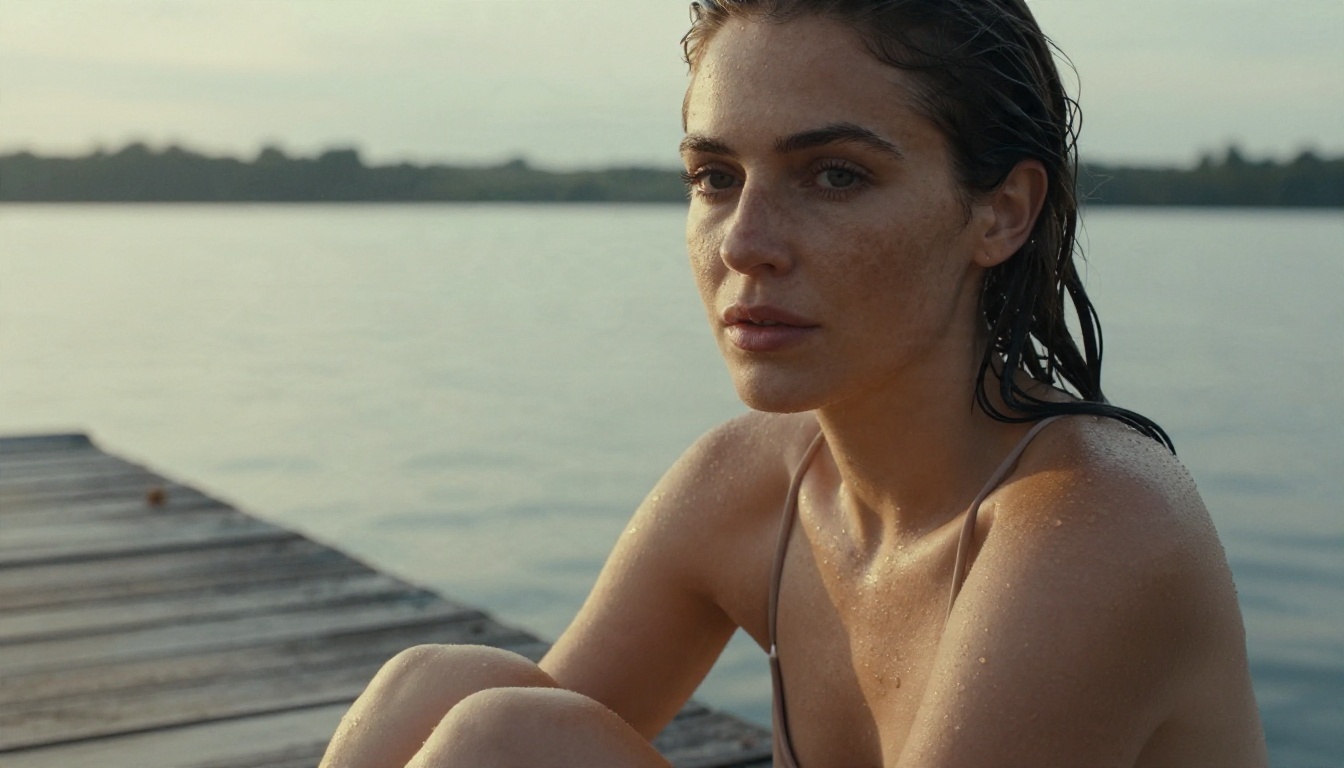
Give the image model the same details you would give a photographer: lens, light direction, skin texture, fabric. A prompt such as "85mm f/1.8, warm late afternoon light from the left, visible skin pores, Kodak Portra 400 color" leads to footage that looks like real photography rather than a plastic render. Realistic skin detail also survives animation far better than airbrushed skin.
Fixing the frame before animating
Check three things before you send a frame to the video model: hands, face and edges. If a finger looks odd, repair it with PicassoIA Image Editor Pro now. A flaw in the still becomes a flickering distraction in the clip.
A Simple Workflow Step by Step
Here is the sequence that wastes the least time and the fewest credits.
From idea to finished clip
- Draft the scene in two sentences: subject, place, one action.
- Generate the still with Seedream 4.5. Make three to five variations.
- Polish the best one in Image Editor Pro.
- Animate it with Seedance 2.5 Lite or PicassoIA Video, using the five part prompt.
- Upgrade the keeper by re-running the same frame and prompt in Seedance 2.5 if you need a longer take.
- Stitch several clips together for a longer scene.
Settings worth adjusting
| Setting | Recommendation |
|---|
| Aspect ratio | 16:9 for landscape scenes, 9:16 for phone feeds |
| Duration | 5 to 8 seconds for the sharpest result |
| Resolution | Draft low, final at the highest your tier allows |
| Seed | Keep the same seed while you refine the wording |
| Motion strength | Medium: high values break faces |
Other models worth testing
Different models handle motion differently, so keep a short list. Wan 3 gives a cinematic feel, LTX 2.5 Fast returns drafts quickly, and Veo 3.1 Fast adds native audio. Keep in mind that each model has its own content rules, so test with a mild prompt before you build a full scene around it.
Mistakes That Waste Credits
Rendering before the still is right
The most expensive mistake is animating a flawed frame. Fix the image first, always.
Chasing long takes
Asking for 30 seconds in a single render and getting a warped face on second 14 is a waste of time. Short clips plus editing wins.
Ignoring the audio
Some models generate synchronized sound. A quiet beach scene with ocean ambience feels dramatically more real than silence. If your chosen model supports audio, mention the sound in the prompt: "soft waves, light wind, distant gulls."
Skipping the platform rules
Every service has terms of use. Only create content with fictional or consenting adult subjects, never real people without permission, and keep your output within the law where you live. That protects you and keeps free tools available for everyone.
💡 Reality check: Treat anything that promises "unlimited, unrestricted, forever free" cloud video with suspicion. Real limits always exist somewhere, so check them before you commit your workflow.
Start Creating Your Own Clips
You now have a working plan: build the still in Seedream 4.5, refine it with the unlimited Image Editor Pro, then animate it with a free video model and stitch the best takes together. Start with one beach or boudoir scene, run three prompt variations, and compare. Within an hour you will know which model suits your style.
Ready to try it? Open PicassoIA, pick a model, and make your first clip today. You can browse every available image and video model at picassoia.com/en/all-models and build the workflow that fits you.


