Running an NSFW video generator locally sounds like the perfect deal: no subscription, no upload queue, no one reading your prompts. The software really is free. The hardware, the patience and the weekend you will spend fixing broken installs are not. Before you clear 200 GB of disk space, here is what a local setup actually demands in 2027, what you get back, and when a browser tool is the smarter move.
This article sticks to suggestive, adult, non-explicit content: glamour, swimwear, lingerie style clips, fashion and boudoir motion. Everything below assumes adult subjects only, and your own original characters or people who gave consent.
What "Local" Really Means
A local video generator is an open-weight model running on your own GPU, usually through a node-based interface like ComfyUI or a lighter wrapper such as Wan2GP. You download the model files once, load a workflow, type a prompt, and your graphics card does the rest. Nothing leaves your machine.
That is the whole appeal. It is also where the confusion starts, because "free" only describes the license fee.
Free Software, Not Free Output
The models are free to download. The costs show up elsewhere:
- Electricity. A 24 GB card pulls several hundred watts for minutes per clip.
- Hardware. A card that handles video comfortably costs more than most people spend on a year of online credits.
- Time. Your first working workflow rarely takes under a day.
💡 Quick math: if you generate 20 clips a month, an online tool often costs less than the electricity and depreciation of a high-end GPU. If you generate 2,000, local starts to win.
Uncensored Does Not Mean Unlimited
Open weights run without a server-side filter, which is why people search for local setups in the first place. But open weights still carry license terms, and the laws in your country still apply. Generating real people without consent, or anyone under 18, is off the table anywhere, local or not. Stay with original adult characters and you avoid nearly every problem.
The Models You Will Actually Run
Three open families dominate home setups right now. All three have hosted versions on PicassoIA, which is useful for testing a prompt before you commit to downloading 30 GB of weights.
| Model family | Strength | Typical home use | Try it online |
|---|
| Wan 2.2 | Smooth motion, strong image-to-video | 720p clips, 5 seconds | Wan 2.2 I2V A14B |
| Wan 2.2 5B | Light enough for 8 GB cards | Fast drafts | Wan 2.2 5B Fast |
| HunyuanVideo | Realistic people and lighting | Cinematic portraits | Hunyuan Video |
| LTX Video | Very fast generation | Quick iterations | LTX Video |
Wan 2.2 for Motion Quality
Wan 2.2 I2V A14B is the one most home users end up with. You feed it a still image, describe the movement, and it animates the frame. Fabric, hair and water behave convincingly, which matters a lot for swimwear and satin shots.
HunyuanVideo for Realistic People
Hunyuan Video tends to produce natural skin and believable lighting, but it is heavier and slower on consumer cards. Expect to lean on quantized files if you do not have 24 GB.
LTX for Speed
LTX Video is the fast one. Community comparisons report clips finishing in a fraction of the time Wan needs for the same length, though many users find the motion a notch less polished. The newer LTX 2.5 Fast is also available online if you want to feel the speed difference without touching a terminal.
Hardware Requirements in Plain Numbers
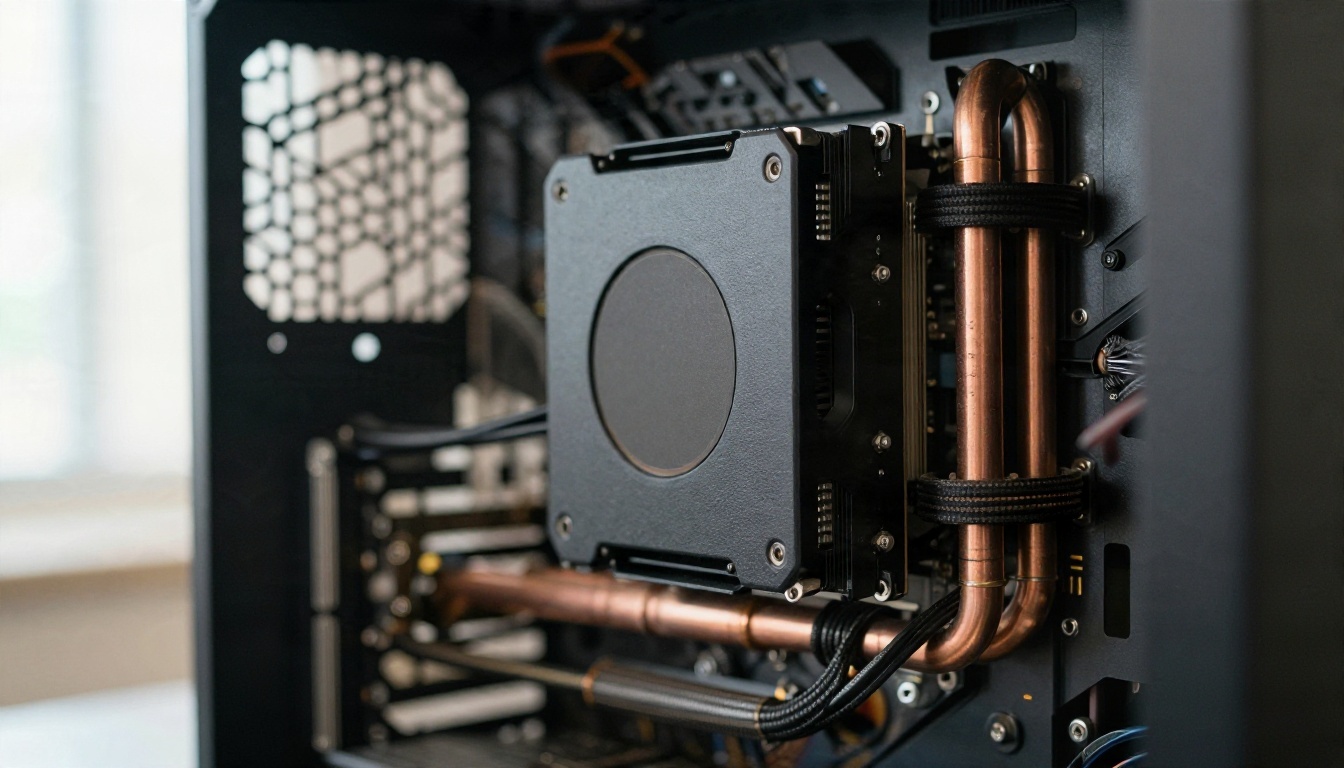
VRAM is the number that decides everything. System RAM and storage matter, but they are secondary.
GPU and VRAM Tiers
Community benchmarks and setup write-ups agree on roughly these tiers for Wan 2.2 class models:
| VRAM | What works | What to expect |
|---|
| 8 GB | The 5B model, or quantized 14B at low resolution | Slow, small frames, frequent out of memory errors |
| 12 GB | Quantized 14B (Q4 GGUF files) | Usable 480p to 720p with patience |
| 16 GB | 14B at reduced precision, LTX comfortably | The realistic sweet spot for most people |
| 24 GB | 14B without much compromise | Fewer workarounds, longer clips |
A few sources quote far higher numbers, up to 65 to 80 GB, but those describe unquantized datacenter runs. Ignore them for a home build.
💡 NVIDIA still has the easiest path. AMD and Apple Silicon can work, but expect extra troubleshooting and slower speeds.
RAM, Storage and Power
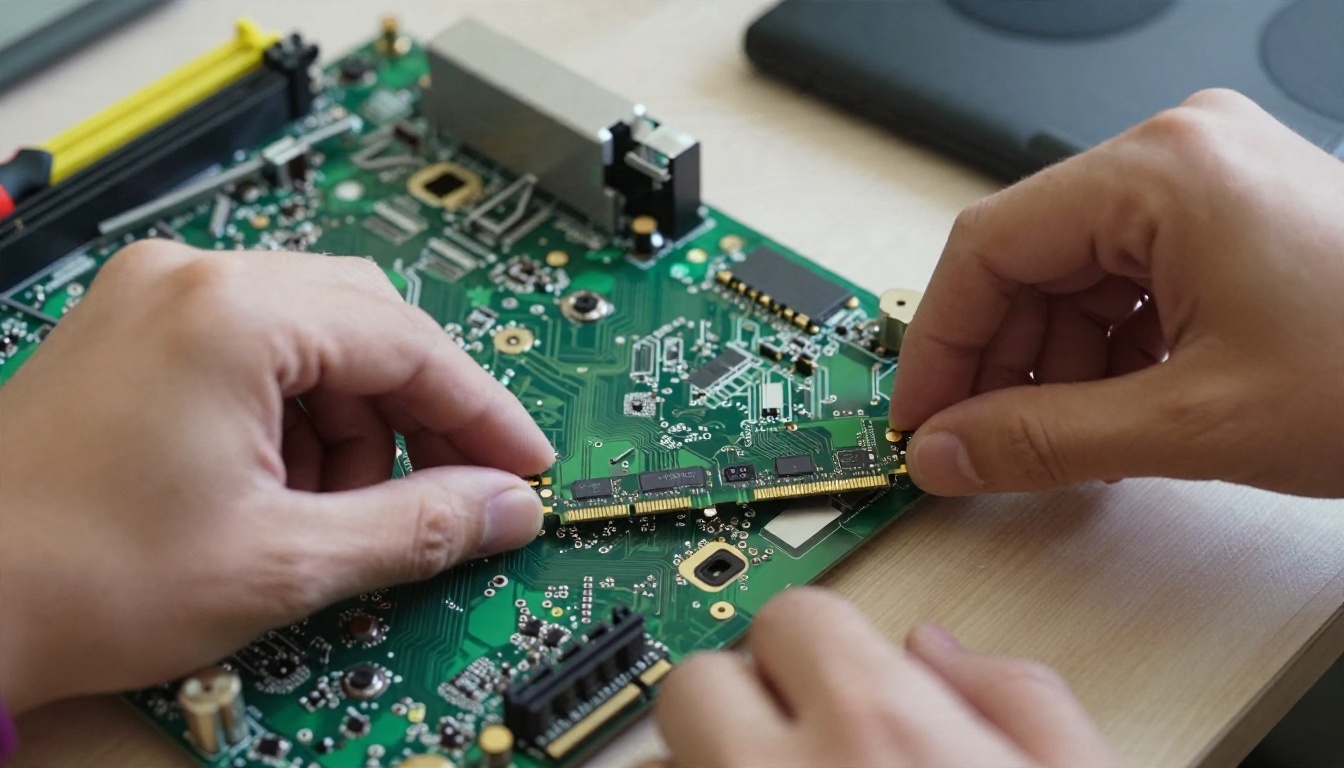
- System RAM: 32 GB is the practical floor. 64 GB prevents crashes when models swap between GPU and memory.
- Storage: Plan for 100 to 200 GB. Each model, text encoder, VAE and LoRA adds up quickly, and you will keep old versions around.
- Power supply: A 750 W unit is a safe baseline for a 16 to 24 GB card.
- Cooling: Video generation is a sustained load. Poor airflow throttles the card and doubles your render time.
Speed Reality Check
Reported times vary by card, but a 5 second 720p clip on Wan 2.2 can take several minutes even on a good GPU, while LTX often finishes in about a minute. On an 8 GB card, those numbers get a lot worse. If you want to iterate ten times on one prompt, that adds up to an evening.
Free Setup, Step by Step
This is the shortest honest path from an empty drive to a first clip.
Step 1: Install the Tools
- Update your NVIDIA driver and confirm your card is detected.
- Install Python and Git, or use the portable ComfyUI build for Windows if you want fewer moving parts.
- Install ComfyUI and open it in your browser.
- Add the manager extension so missing nodes can be installed with one click.
Step 2: Download the Model Files
For Wan 2.2 you typically need the diffusion model file, a text encoder, and a VAE. Low VRAM users pick GGUF quantized versions, which shrink the model at a small quality cost. Put each file in its matching ComfyUI folder, then restart.
Step 3: Load a Workflow
Import an image-to-video workflow from the community, point it at your model files, and fix any red nodes. This is where most beginners lose hours, because workflows built for one version often break on another.
Step 4: Write Prompts That Behave
Video prompts respond best to chronological motion: who is where, what moves, how the camera moves, what the light does. A working example:
A woman in a white swimsuit stands at the water's edge at golden hour. Wind lifts her hair as she turns toward the camera. Slow dolly in, warm backlight, gentle waves around her ankles.
Keep one action per clip. Five seconds is short, and stacking three movements produces mush.
Step 5: Start With a Strong Still
Image-to-video beats text-to-video for consistency. A good first frame decides 80 percent of the final clip. Generate that still first, and the animation step becomes far more predictable.
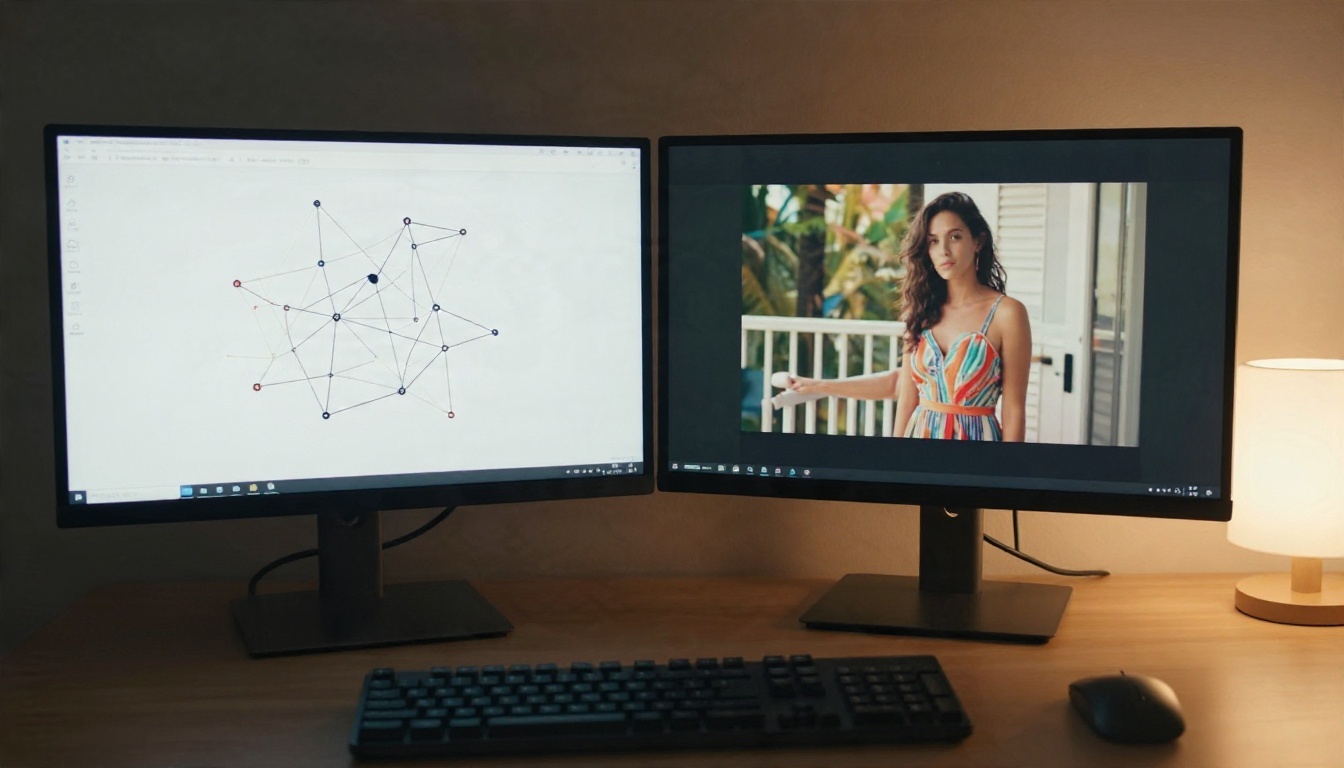
Where Local Setups Break Down
The marketing for "unrestricted local AI" skips the unglamorous parts. Here is what people actually run into.
Short Clips and Drifting Faces
Most open models generate around 5 seconds per run. Longer scenes mean stitching clips, and faces or outfits drift between segments. Fixing that takes extra workflows, reference images and LoRAs.
Version Chaos
Nodes, models and drivers update constantly. A workflow that worked in March can throw errors in June. Keep a frozen backup of any setup that works.
Heat, Noise and Disk Space
A card running at full load for hours is loud and warm. Your drive fills faster than you expect, and failed runs leave temp files behind.
Quality Gaps on Skin and Hands
Open models have improved a lot, but hosted flagship models still handle skin texture, fingers and lighting consistency better. That gap is the main reason many people end up mixing local and online tools.
Online Alternatives That Skip the Hardware

If your GPU is under 12 GB, or you simply want results tonight, a hosted tool removes the entire setup column. Nothing to install, no driver issues, and the heavy models are already tuned.
Start the Still on Seedream 4.5
For suggestive, adult glamour content, the strongest first frame comes from Seedream 4.5. It handles skin, fabric, swimwear and lighting with a photographic look, and it supports high resolution output, so your video model starts from a sharp frame. This is the step that saves the most re-rolls later.
Edit Freely With Image Editor Pro
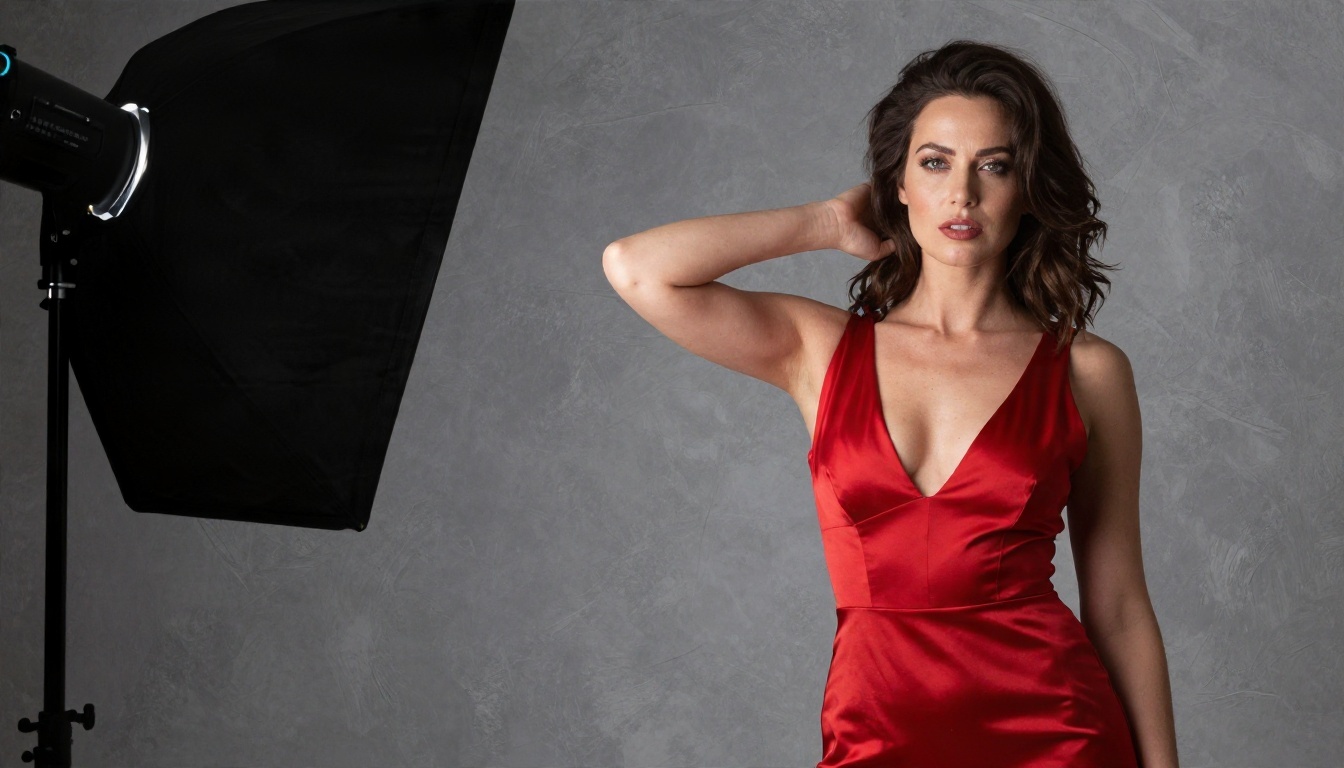
PicassoIA Image Editor Pro offers unlimited generations, which is the point. You can fix an outfit, change a pose, adjust lighting or swap a background across dozens of variations without watching a credit counter. Use it to polish the first frame until it is exactly what you want to animate.
Animate With Wan, LTX or Hunyuan
Once the still is ready, send it to an image-to-video model:
💡 Workflow that works: make the still in Seedream 4.5, refine it in Image Editor Pro, then animate it with a Wan model. The same three steps you would run locally, minus the install.
Local vs Online at a Glance
| Factor | Local | Online on PicassoIA |
|---|
| Upfront cost | High (GPU, PSU, storage) | None |
| Setup time | Hours to days | Minutes |
| Speed per clip | Minutes, GPU dependent | Fast, no queue on your PC |
| Maintenance | You fix every update | Handled for you |
| Privacy | Everything stays on your PC | Cloud processing |
| Model variety | Whatever you download | Many models, one place |
Where Local Still Wins
Be honest about the tradeoff. Local is better if you generate in huge volume, want to train your own LoRA on an original character, or must keep every file offline. For everyone else, online is faster and cheaper.
Build a Better First Frame
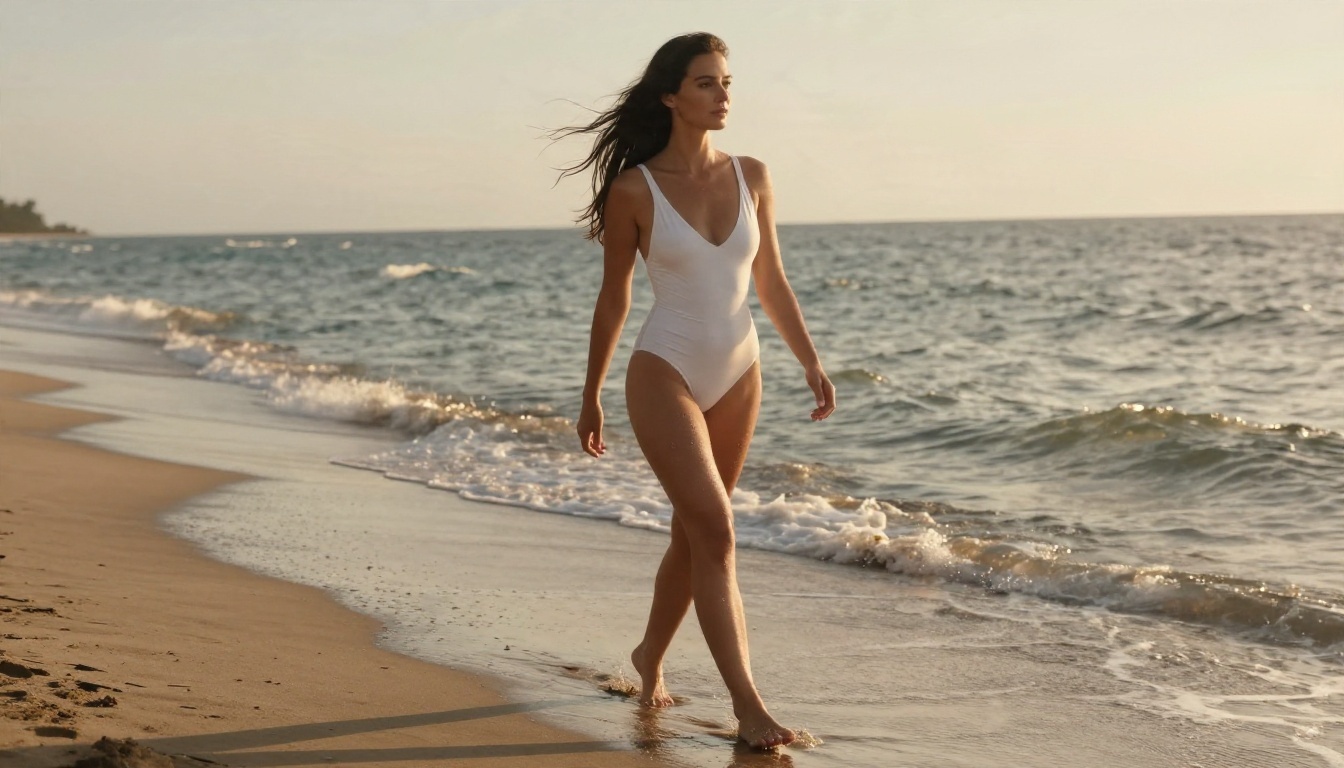
Whether you animate locally or online, the first frame sets the ceiling. A few habits make a visible difference.
Prompt Like a Photographer
Name the lens, the light direction and the surface textures. "85mm f/1.8, warm window light from the left, satin with soft highlights, natural skin texture" beats "beautiful woman, high quality" every time. Mention the camera angle too, because it carries into the animation.
Keep the Pose Simple
Complex hand positions and crossed limbs create artifacts when a video model starts moving them. A relaxed standing or seated pose with a clear silhouette animates cleanly.
Match Outfit and Environment
Swimwear belongs near water, silk robes belong in soft bedroom light. When the scene makes sense, the motion looks believable: hair catches wind, water ripples, fabric folds the way it should.
Test Short Before You Commit
Run a 5 second clip, check the face, hands and background, and only then spend time on variations. Whether you pay in GPU minutes or credits, early checks save both.
Cloud GPU: The Middle Path

Some people rent a GPU by the hour and run the same ComfyUI setup they would use at home. It gives you the workflow control of local without buying a card. The downside is that you still maintain the environment, pay while the machine idles, and re-download models between sessions. It suits people who already know their way around ComfyUI but not people who want to avoid setup.
Safe Use and Honest Limits
A few boundaries apply no matter how you generate.
- Adults only. Every subject must be clearly an adult.
- No real people without consent. That includes celebrities, coworkers and exes.
- Check platform rules before posting anywhere. Many sites restrict adult content, even suggestive.
- Label AI content when you share it. It protects you and your audience.
- Stay non-explicit if you plan to share publicly. Glamour, swimwear and boudoir style clips travel much further than anything graphic.
Try It Yourself on PicassoIA

You do not need a 24 GB card to test whether AI video fits your project. Start with a first frame in Seedream 4.5, refine it with the unlimited PicassoIA Image Editor Pro, then animate it with Wan 2.2 I2V A14B or LTX 2.5 Fast. You can run the same prompt three ways in the time a local install takes to download its first model.
Pick a swimwear scene, a satin robe portrait or a golden hour beach shot, write the motion in one clear sentence, and see how far a single still can go. When you want more options, browse every model at picassoia.com/en/all-models and build the pipeline that suits your style.


