You open the billing dashboard after a weekend of testing an image feature, and the number is higher than your coffee budget for the month. It happens to almost everyone who wires up an image model for the first time. The reason is simple: OpenAI does not really charge "per image" the way a stock photo site does. It bills tokens, and the price you see per picture is a conversion from those tokens. Once you see how that conversion works, the whole pricing page stops feeling random.
This article lays out what each OpenAI image model costs per image, how quality and resolution change the total, whether anything is actually free, and which alternatives give you comparable results for less. Prices below come from published rates and third party trackers as I found them in November 2026. They shift, so treat every figure as an estimate and check OpenAI's own pricing page before you commit a budget.
What OpenAI Charges Per Image
Token billing in plain terms
OpenAI's GPT Image family bills output tokens. Every image you generate is turned into a number of tokens, and that number depends on the quality level and the canvas size. You pay a rate per million tokens, and the "cost per image" shown in tables is just that math done for you.
There is also an input side. Your text prompt costs text tokens, and if you send a reference photo for editing, that photo costs image input tokens. For a plain text to image call, the output tokens are the big line item and the prompt is almost a rounding error.
💡 Tip: When two pricing pages disagree by a few cents, check whether one of them includes input tokens and the other does not. That alone explains most of the mismatch.
GPT Image 1.5 price points
GPT Image 1.5 is the model most teams reach for when they want the sweet spot between cost and fidelity. OpenAI also says its image inputs and outputs run about 20 percent cheaper than the original GPT Image 1. For a standard square 1024 by 1024 image, the figures I found were roughly:
| Quality | Approx. cost per 1024 x 1024 image |
|---|
| Low | $0.009 |
| Medium | $0.034 |
| High | $0.133 |
Larger canvases cost more. A portrait or landscape frame sits a bit above the square price, and the exact rate per quality and size is listed on the official model page.
GPT Image 1 and the mini tier
The original GPT Image 1 is still available and still priced higher. At the same square size, trackers list about $0.011 for low, $0.042 for medium and $0.167 for high. If you are on it today, moving to 1.5 is the easiest saving on this page.
There is also a mini version aimed at cheap, high volume work. I could not confirm a reliable per image number for it, so I will not guess one. Check the current rate before you build a forecast around it. You can test how it behaves on PicassoIA with GPT Image 1 Mini and compare the output with GPT Image 1 and GPT Image 1.5.
GPT Image 2 token rates
The newest generation, GPT Image 2, is where numbers get messy. Third party sources report token rates of about $5 per million for text input, $8 per million for image input and $30 per million for image output. Converted to a square image, that lands anywhere from around $0.006 at low quality up to about $0.21 at high quality.
Resellers advertise their own flat prices on top of that, some well under the official rate and some far above it. Those are not OpenAI prices. If you buy through a reseller, you are paying for convenience, uptime or a bundle, so compare it against the official token math rather than against another reseller.
How Quality and Size Change the Bill
Low, medium and high tiers
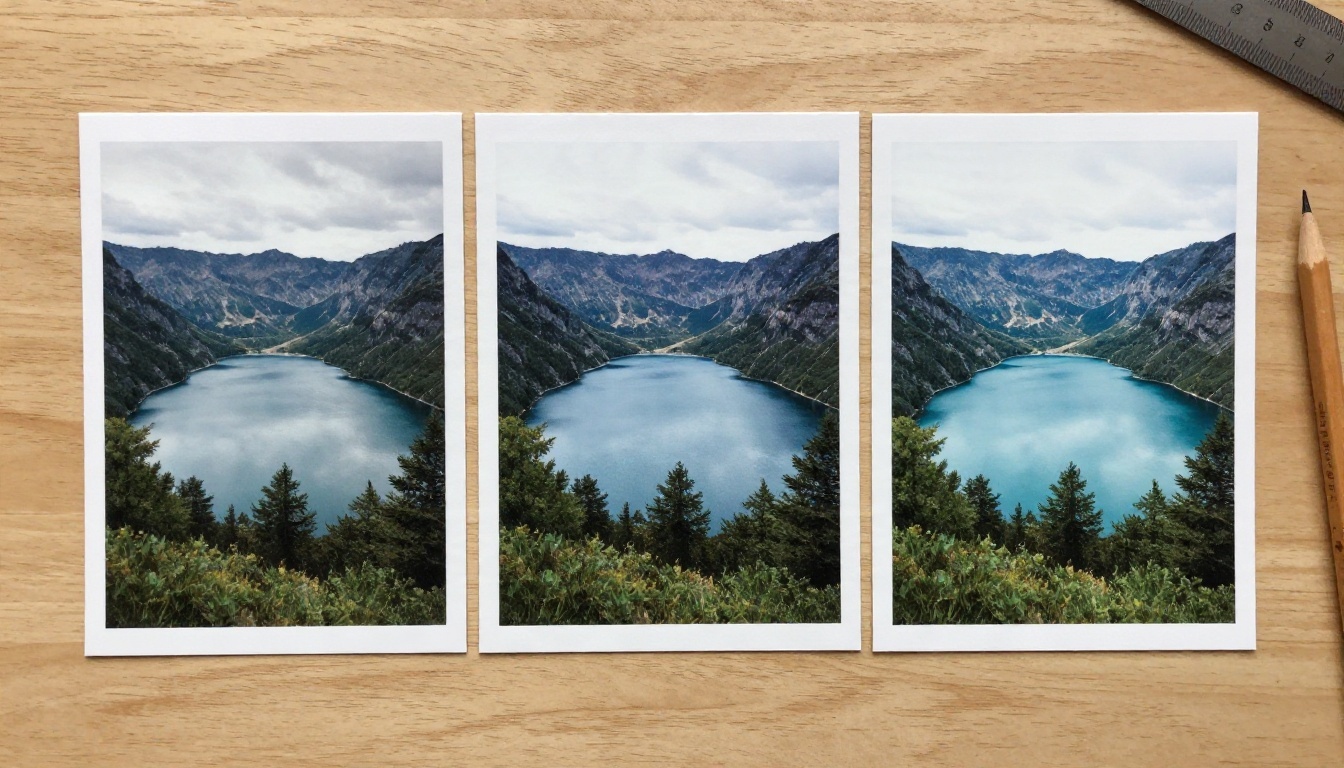
Quality is the biggest lever you control. On GPT Image 1.5, high quality costs roughly fifteen times more than low for the same square canvas. Medium sits in the middle at around four times the low price.
Here is what that gap buys you in practice:
- Low: fine for thumbnails, moodboards, placeholder art and quick prompt testing. Fine detail like hands, small text and fabric weave can look soft.
- Medium: the everyday setting for blog headers, social posts and product mockups.
- High: worth paying for when the image is the product, such as a hero banner, an ad creative or a print.
Resolution and aspect ratio
Token count grows with pixel area. A 1024 by 1024 image is the baseline, and wider or taller formats cost a bit more. Going to a large 2K or 4K output, where the model supports it, can multiply the cost several times over.
A practical habit: generate at the smallest size that still works for the final use. If the image will sit in a 600 pixel wide blog column, paying for a huge canvas is wasted money.
Edits and image inputs
Editing calls cost more than plain generation because you are also paying for the reference image as input tokens. If your workflow sends three reference photos with every request, that input cost can rival the output cost at low quality. Send only the references the model actually needs.
Monthly Cost at Real Volumes
What 1,000 and 10,000 images cost
Using the GPT Image 1.5 and GPT Image 1 square image estimates from above, here is how the numbers stack up as you scale:
| Volume | GPT Image 1.5 low | GPT Image 1.5 medium | GPT Image 1.5 high | GPT Image 1 high |
|---|
| 1,000 images | about $9 | about $34 | about $133 | about $167 |
| 10,000 images | about $90 | about $340 | about $1,330 | about $1,670 |
| 100,000 images | about $900 | about $3,400 | about $13,300 | about $16,700 |
The takeaway is not the exact dollar value. It is that quality choice matters more than model choice at almost every volume. Moving a workload from high to medium saves far more than switching vendors.
A small shop example
Picture a small store with 400 products that wants three lifestyle images per product. That is 1,200 images. At medium quality on GPT Image 1.5 you are looking at roughly $40 to $45 for the whole catalog. At high quality it jumps to around $160. Add a second pass because the first generation of a few images missed the brief, and you can easily double the figure.
This is why most production teams settle on a draft and final rhythm. Draft at low, pick winners, regenerate only the winners at high.
💡 Tip: Budget for retries. In real projects, expect to generate 1.5 to 3 images for every one you publish.
Free Options Worth Trying
Does the API have a free tier?
From what I found, OpenAI's image API does not come with a free image generation allowance. You add credit to your account, and each call draws from that balance. Some accounts have received promotional credits over time, but those are not a standing free tier, so do not plan a product around them.
Free generation inside ChatGPT
OpenAI has offered limited image generation inside ChatGPT for free accounts, with daily caps that change from time to time. That is a handy way to test prompts by hand. It is not an API, you cannot automate it, and you should not assume the limits will stay the same next month.
Free and cheap models on PicassoIA
If your goal is testing ideas without watching a meter, PicassoIA gives you a long list of text to image models in one place, including several from OpenAI. You can try GPT Image 2.5 Flare for fast results and GPT Image 2.5 Sunburst for generation and editing. DALL-E 3 is also there if you want to compare the older model against the newer ones. Use the model pages to see current availability and limits, since those change.
Cheaper Alternatives Today
Models worth comparing
OpenAI is not the only way to get a photorealistic image. These models are all on PicassoIA and are worth a side by side test with your own prompts:
When OpenAI still wins
Price is not the only variable. GPT Image models tend to follow long, detailed prompts closely and render text inside images better than many rivals. If your work involves posters, packaging mockups or infographics with real words, paying more can save you retries, and retries are a cost too.
For pure photography style output, product shots or lifestyle scenes, the alternatives above are often close enough that the cheaper option wins on total spend.
How to Use GPT Image 1.5 on PicassoIA

If you want to see what a GPT Image result looks like before you commit API credit, run a few prompts through GPT Image 1.5 on PicassoIA. It is a quick way to judge quality with no integration work.
Step by step
- Open the GPT Image 1.5 page and sign in.
- Write a prompt with a clear subject, setting, lighting and camera feel. Something like "a ceramic mug on a linen tablecloth, soft window light from the left, 85mm lens, shallow depth of field" works well.
- Choose the options the page offers, such as aspect ratio, and a transparent background when you need a cutout.
- Generate, review, and refine the prompt rather than rerunning it unchanged.
- Download the result you like and compare it with the same prompt on another model.
Parameter tips
- Be specific about lighting. "Soft north window light" gives more realistic results than "nice lighting."
- Name the lens and the film look when you want photographic output.
- Keep one idea per prompt. Long prompts with five competing ideas usually lose detail on all five.
- Run the same prompt on two models. It takes two minutes and tells you whether a premium model earns its price for your content.
Ways to Cut Your Image Spend
Draft low, finish high
Run exploratory prompts at low quality. Only the winners get a medium or high rerun. This single habit often cuts a bill by more than half.
Cache and reuse
If a user requests the same image twice, serve the first one. Store the prompt, the settings and the output, and check for a match before you call the API again.
Let a language model write the prompts
Weak prompts waste money because they produce images you throw away. A language model such as GPT 5.6 Luna can turn a short idea into a detailed, photographic prompt in seconds. For harder briefs, GPT 5.6 Terra handles longer instructions. Better prompts mean fewer retries, and fewer retries are the cheapest saving of all.
Set hard limits
Put a monthly spend cap on your OpenAI account and add per user rate limits in your own app. A single bug in a loop can burn through a budget overnight.
Try It Yourself on PicassoIA
Pricing tables only tell you so much. The fastest way to decide whether an image model is worth its cost is to run your own prompts and look at the results side by side. Open Picasso IA, pick two or three models from this article, such as GPT Image 1.5, Seedream 4.5 and Imagen 4, and feed them the same prompt. Keep the one whose output you would actually publish, then do the cost math for that model alone.
Ready to see more options? Browse every model on picassoia.com/en/all-models and start generating your own images today.


