You open your AI companion app, tap through the menus, and realize she is wearing the same outfit she had yesterday. And the day before. If you searched for OtherHalf AI outfits, you already know the problem: a virtual partner feels more real when her style changes with the mood, the weather and the occasion, but wardrobe options inside companion apps are often limited, locked or tied to a subscription.
This article fixes that from the outside. You will get free outfit ideas sorted by occasion, a prompt formula you can reuse for any look, a few ready-to-paste prompts, and a set of image generator alternatives that give you full control over clothing, lighting and scene. Everything here keeps to tasteful, non-explicit styling: think date night dresses, cozy knits, beachwear and glamour, not anything graphic.
What OtherHalf Actually Offers
OtherHalf is an AI companion app built around a customizable virtual partner you chat with. It is a standalone product, so it is not a PicassoIA model and it has no PicassoIA page. Keep that in mind as you read: everything I recommend for generating outfit images below is a separate tool you can use alongside any companion app.
Free access versus paid upgrades
From what I found, the app listing shows it as free to download with in-app purchases, and third-party directories mention a paid premium tier at around $14.99 per month. Prices and plans change, so check the official page before you pay for anything. The practical takeaway is simple: the basic chat experience is reachable for free, while extras tend to sit behind a paywall.
The outfit question
Here is the honest part. I could not confirm a dedicated outfit customization feature in OtherHalf. Some companion apps in this category let you dress your character from a fixed menu, others do not, and the details shift between updates. If your goal is a different look every day, in your exact taste, relying on a built-in menu will always feel restrictive.
💡 Tip: Treat your companion's character sheet (hair color, age, face shape, personality) as your reference. Write it once in a notes file, then reuse it in every image prompt so her look stays consistent while the clothes change.
That is why many people build outfits outside the app: you generate the image, you pick the clothes, and you pair it with the chat personality you already like.
Free Outfit Ideas That Work
Below are six looks that consistently produce attractive, believable results. Each one comes with the details that make an AI image feel like a real photograph: fabric names, light direction and a setting.
Casual café look
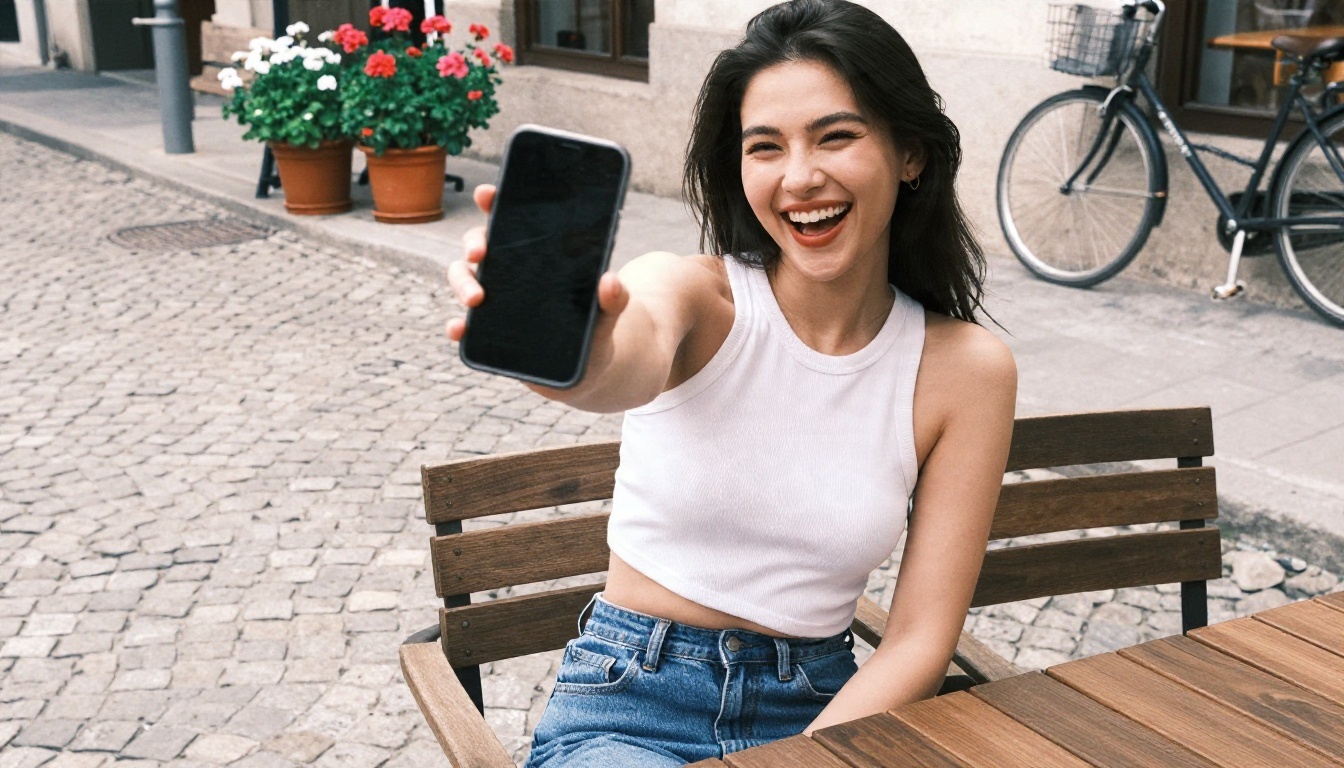
A fitted ribbed white top, high waisted jeans and a relaxed smile. It is the outfit that makes an AI girlfriend feel like someone you would actually meet on a Saturday morning. Soft overcast light flatters skin and keeps colors natural.
Best for: daily check-in photos, "good morning" scenes, coffee dates.
Date night dress
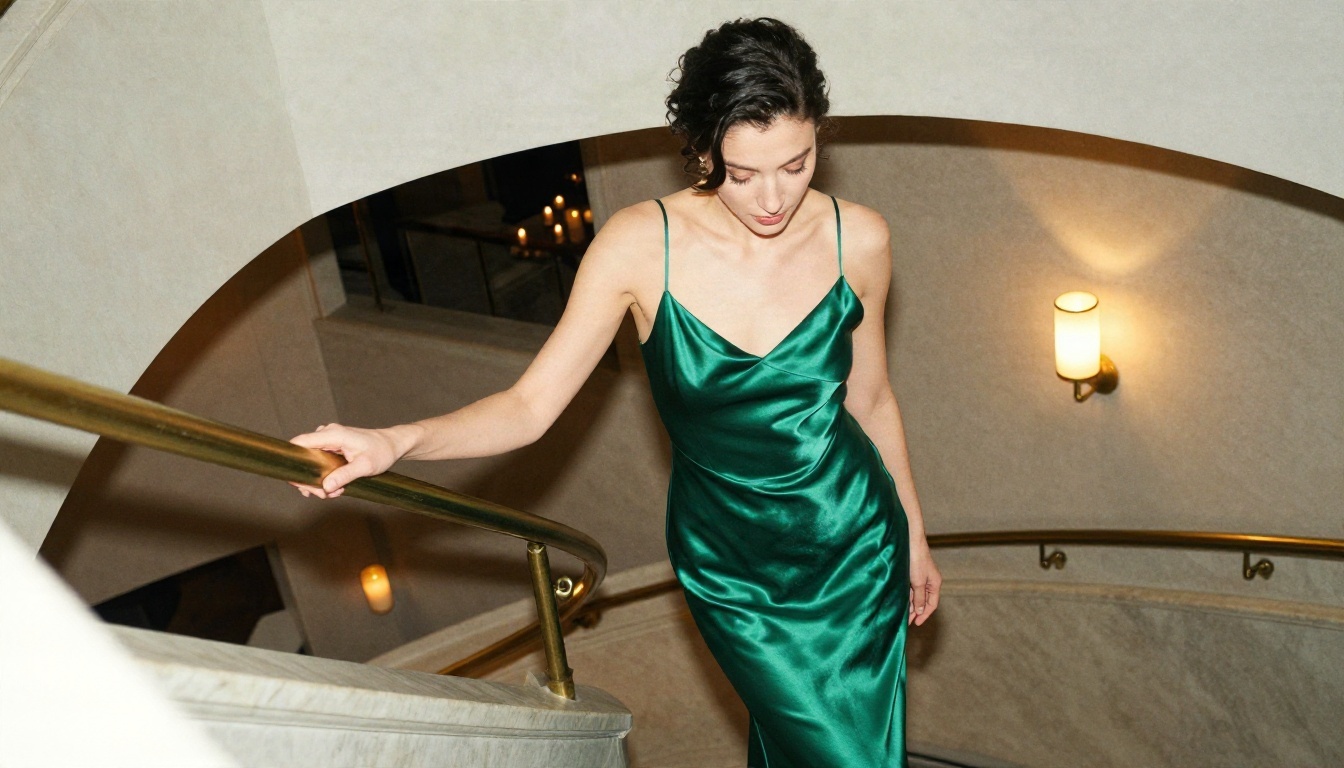
An emerald satin dress with thin straps does more work than almost any other piece. Satin catches warm light beautifully, which gives you highlights on the fabric and depth on the shoulders without needing anything revealing.
Pairing ideas:
- Gold hoops and a thin chain necklace
- Loose waves or a low bun
- Candlelit restaurant, rooftop bar or hotel lobby
- Warm tungsten light from the side
Cozy sweater day
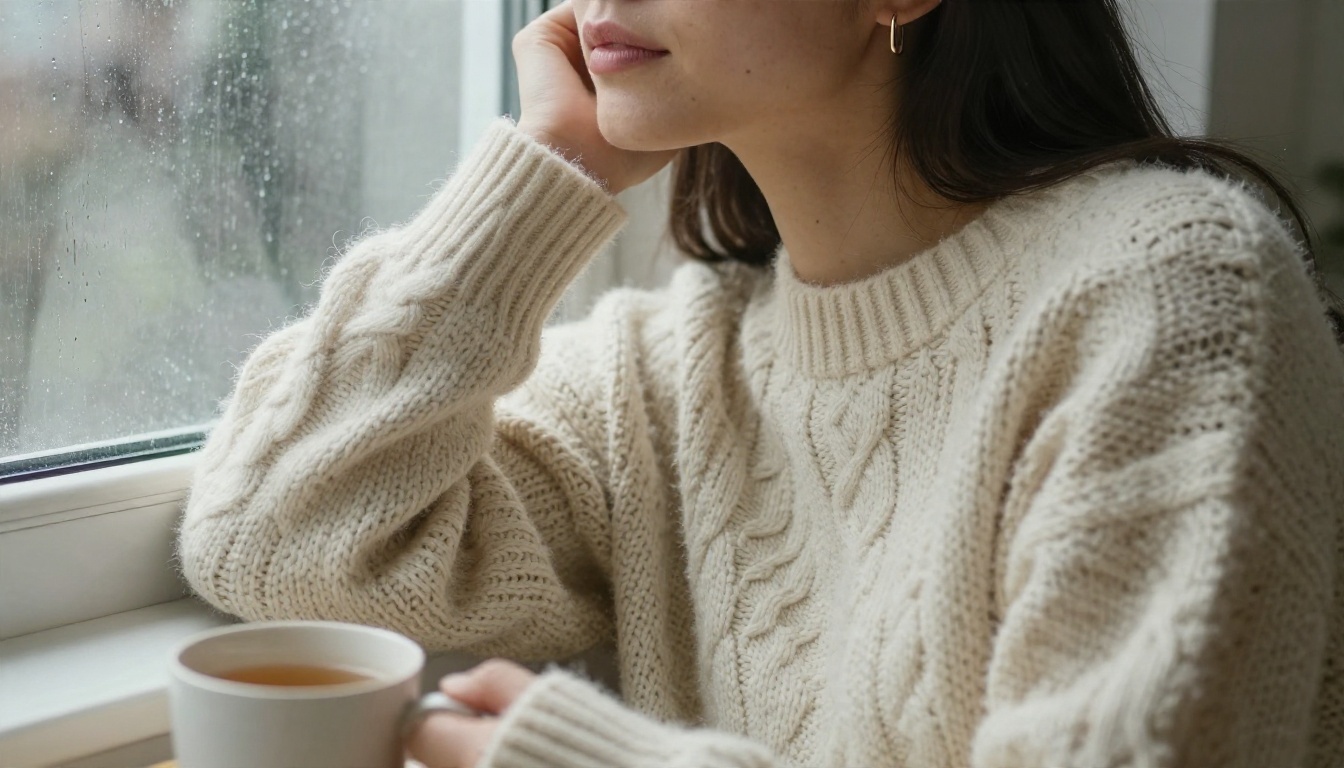
An oversized cream knit, a mug of tea, rain on the window. Cozy outfits are some of the most requested because they feel intimate without being provocative. Close-up framing with a shallow depth of field makes the wool texture and skin detail stand out.
Beach and bikini
Summer looks are where non-explicit glamour shines. A coral bikini with a loose white linen shirt worn open keeps the image stylish and holiday-ready. Golden hour backlight gives a soft rim around the hair and a natural glow on the skin.
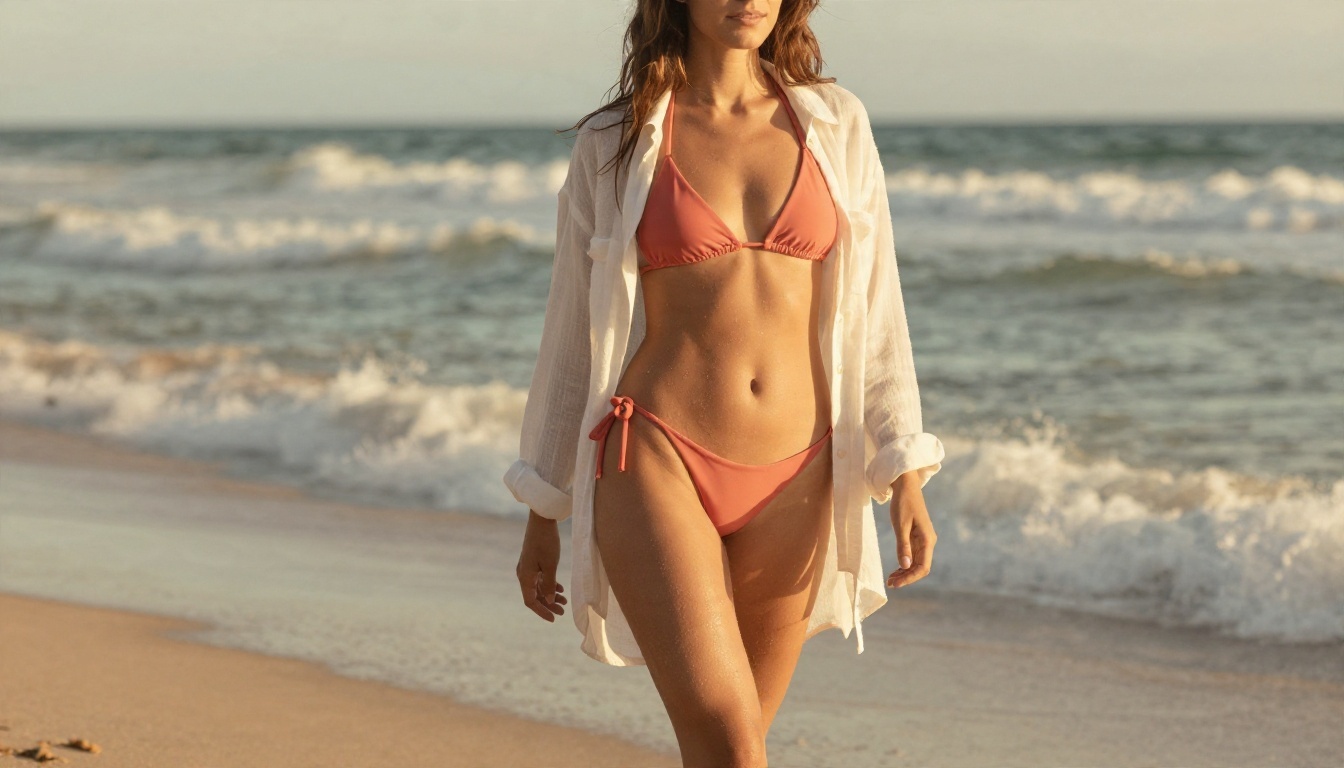
💡 Tip: Add "salt-damp skin" and "sand grains" to the prompt. Small physical details like these push the image toward photography and away from the plastic AI look.
City street style
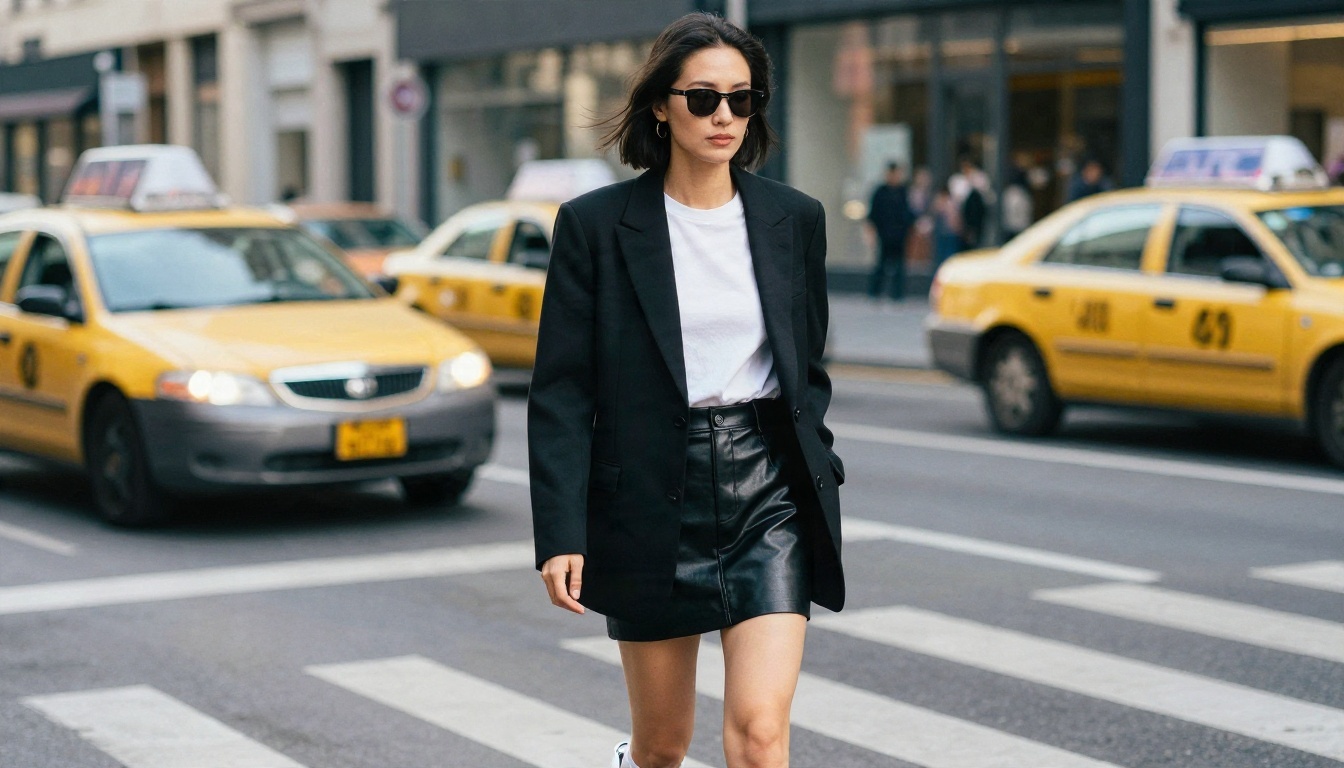
A black blazer, white tee, leather mini skirt and white sneakers. Shoot it from a low angle on a crosswalk in early morning light and you get a confident, editorial feel with strong shadows and clean lines.
Silk lounge and glamour
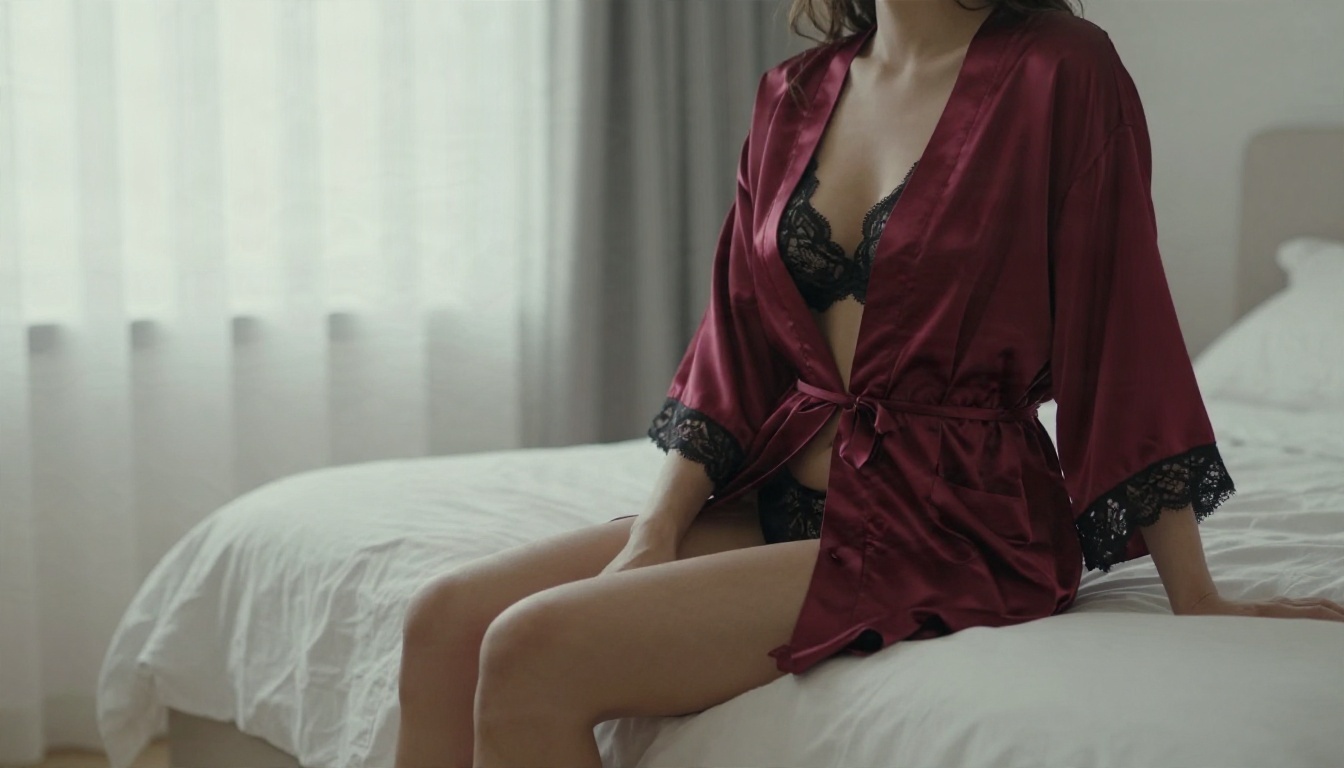
A dark red silk robe over black lace loungewear, sitting on white linen sheets in soft morning light. This is the upper edge of what stays tasteful: suggestive through mood and fabric, never explicit. Keep the framing at medium distance and let the light do the work.
Great outfit images are rarely luck. They come from a repeatable structure. Use this order and you will get far more consistent results than with a one-line request.
The five-part formula
- Subject and pose: who she is, what she is doing, where she is looking.
- Outfit with fabric: name the garment, color and material ("emerald satin slip dress", not "green dress").
- Setting: a specific place with two or three objects in it.
- Light: direction and quality ("warm golden hour light from the left").
- Camera: lens and framing ("85mm f/1.8, medium shot, shallow depth of field").
Close with texture words: film grain, natural skin texture, fabric weave, soft highlight rolloff. That last line is what separates a believable photo from a glossy render.
| Part | Weak version | Strong version |
|---|
| Outfit | "a nice dress" | "fitted black satin slip dress with lace trim" |
| Setting | "a room" | "sunlit loft with oak floor and linen sofa" |
| Light | "good lighting" | "warm golden hour light from the left" |
| Camera | "high quality" | "85mm f/1.8, shallow depth of field" |
| Skin | "perfect skin" | "natural pores, fine freckles, soft flyaway hairs" |
Ready-to-use prompts
Copy these and swap in your companion's details:
- Café: Adult woman with long chestnut waves in a fitted white ribbed top and high waisted jeans, laughing at a cobblestone cafe terrace, soft overcast light, 50mm f/2, natural skin texture, Kodak Portra 400 film grain.
- Date night: Adult woman in an emerald satin evening dress on a marble staircase, warm tungsten sconce light from the right, low angle, 35mm f/1.8, silky highlights, subtle grain.
- Cozy: Close-up of an adult woman in an oversized cream cable knit, holding a mug on a window seat, rain on the glass, diffused gray daylight, 85mm f/1.4, wool fiber texture.
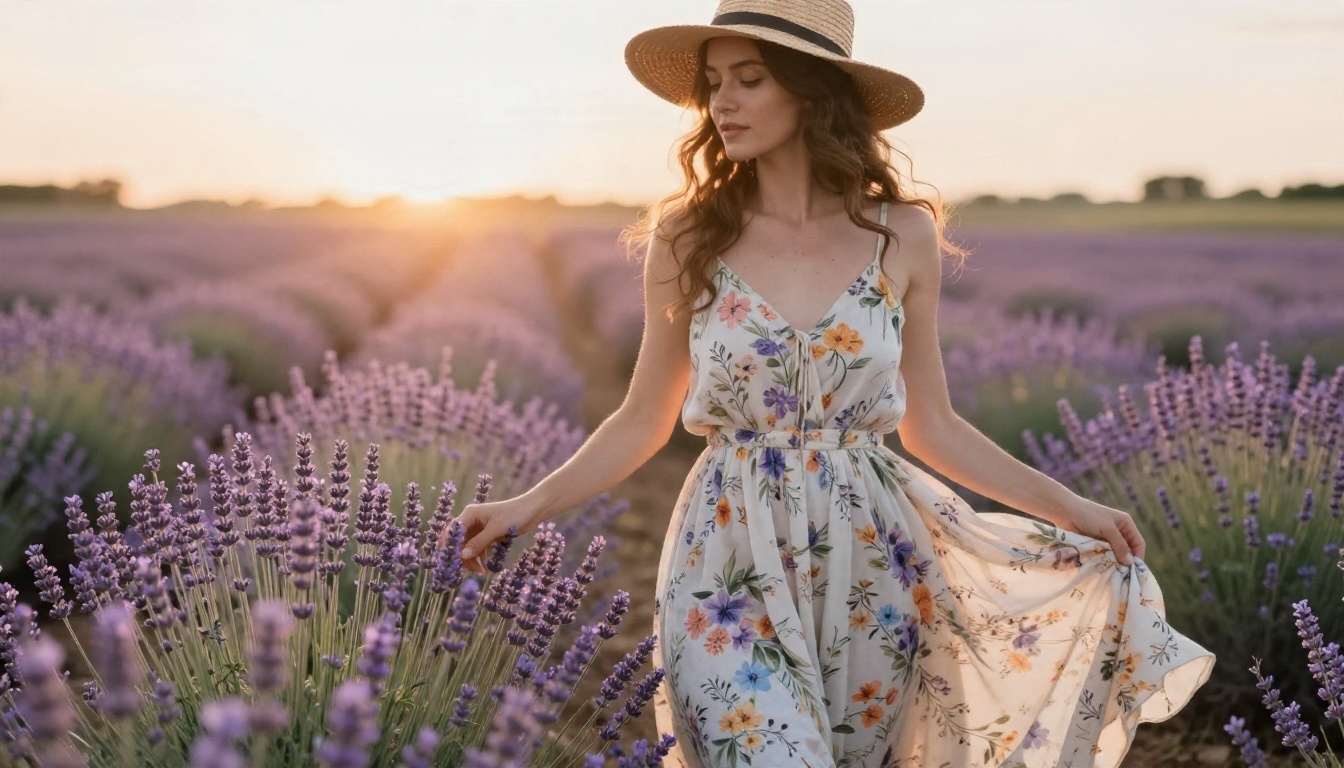
- Summer: Adult woman in a floral sundress and straw hat in a lavender field at sunset, warm backlight, 85mm f/1.8, soft haze, cotton texture.
Let a language model write the prompts
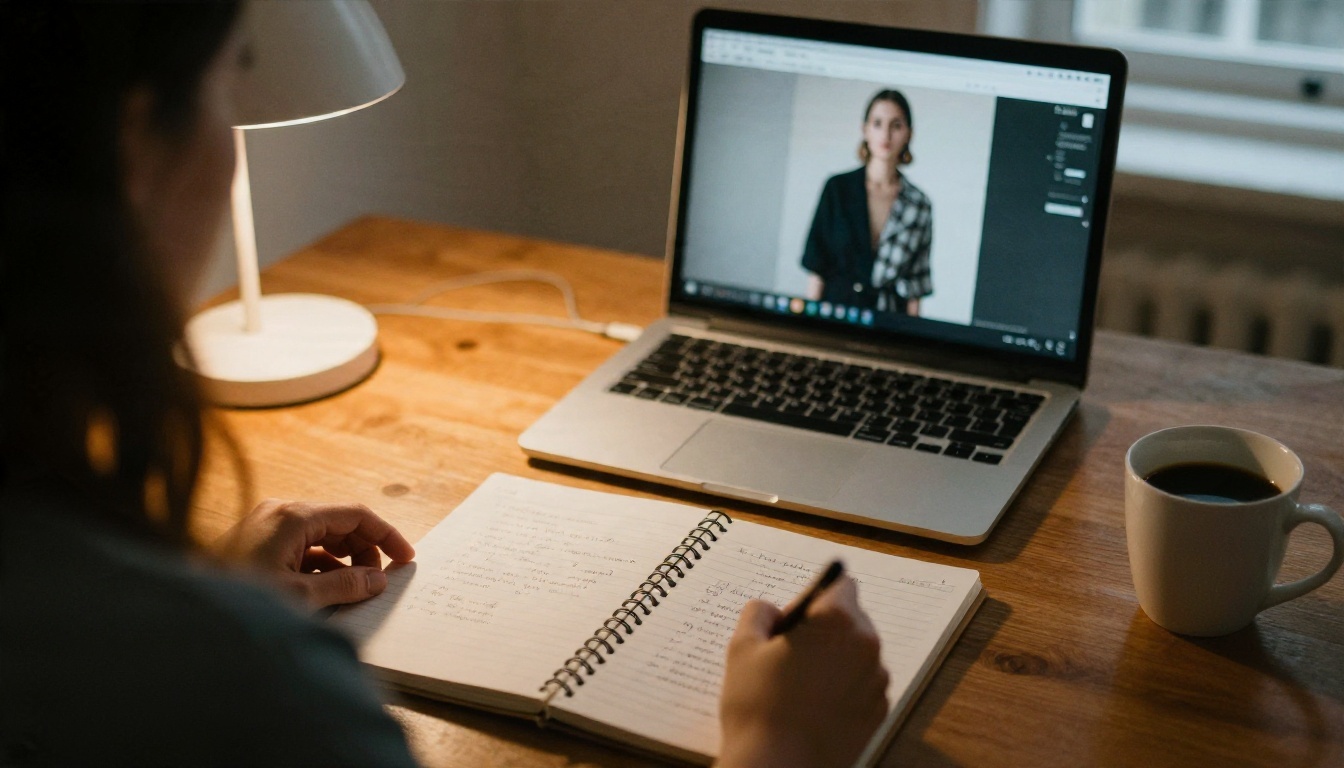
Typing long prompts by hand gets tiring. A large language model can turn a short idea like "rainy day, cozy, gray sweater" into a full five-part prompt in seconds. On PicassoIA you can use Claude Sonnet 5 or Gemini 3.5 Flash for this. Paste your formula and your character sheet, ask for ten outfit prompts for ten occasions, and you have a month of looks planned in one sitting.
💡 Tip: Ask the language model to keep the same face and hair description at the start of every prompt. Consistency comes from repetition, not from luck.
Alternatives on PicassoIA
OtherHalf is not on PicassoIA, so you cannot generate its images here. For similar results today, these image models are available and cover everything from fresh outfit creation to editing an existing photo. For adult-oriented styling, the first two are the ones to reach for.
| Model | Best for | Why use it |
|---|
| Seedream 4.5 | Sharp, realistic outfit images from text | Detailed fabrics, natural skin, up to 4K output |
| PicassoIA Image Editor Pro | Changing clothes on an existing image | Unlimited generations, fast iteration |
| P Image Try On | Seeing a specific garment on a person | Outfit swapping from a reference |
| Flux 2 Klein 9B Base LoRA | Styled looks with custom LoRAs | Flexible, good for consistent characters |
Why these beat a fixed wardrobe menu
A built-in menu gives you maybe a dozen outfits. A text-to-image model gives you an unlimited number, and you decide the fabric, color, location and mood. You are not waiting for an update, and you are not paying per item.
How to Get Similar Results on PicassoIA
For the sharpest outfit images, start with Seedream 4.5. It handles fabric texture and skin detail well, and it is permissive enough for tasteful glamour and beachwear looks.
Step by step
- Open the Seedream 4.5 page on PicassoIA.
- Paste one of the prompts from the section above, or generate one with a language model.
- Set the aspect ratio. 16:9 suits scenic and full body shots, while a portrait ratio suits close-ups.
- Generate, review, and change only one variable at a time: the dress color, the light, or the location.
- Save the versions you like and note the prompt that produced them.
Parameter tips
- Resolution: go higher when the outfit has fine details like lace trim or knit patterns.
- Seed: keep the same seed while testing outfits. The face and pose stay closer between generations.
- Prompt length: 50 to 100 words is the sweet spot. Shorter prompts leave too much to chance, and much longer ones start to contradict themselves.
- Negative habits: do not stack contradictory lighting like "golden hour" and "studio flash" in the same prompt.
Swap outfits on an existing image
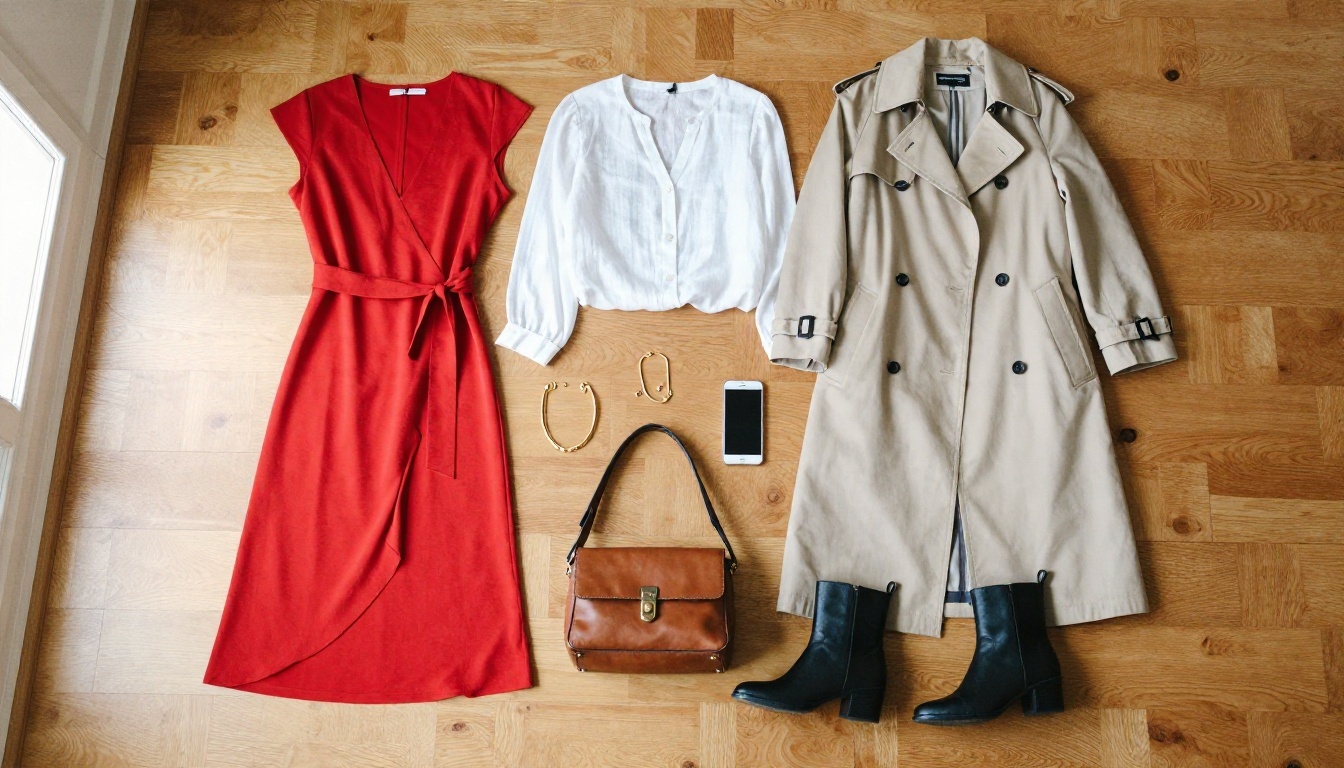
Already have an image of your companion you love? Open PicassoIA Image Editor Pro, upload it, and describe the change: "replace the jeans and top with a red silk wrap dress, keep the face and background." Because generations are unlimited there, you can try ten dresses in a row without counting credits. For a specific garment photo, P Image Try On lets you see that exact item on the person.
💡 Tip: For the best uncensored-friendly workflow, generate the base look in Seedream 4.5, then refine details like a necklace or hemline in the Image Editor Pro rather than regenerating everything from scratch.
Common Mistakes to Avoid
Most weak outfit images fail for the same handful of reasons.
- Vague clothing words. "Sexy outfit" gives the model nothing to work with. Name the garment, the color and the material.
- No light direction. Without it, the image looks flat. Always say where the light comes from.
- Too many accessories. Three details (earrings, necklace, handbag) is plenty. Ten becomes noise.
- Changing everything at once. If the face drifts, you cannot tell why. Edit one thing per run.
- Ignoring the setting. A great dress in an empty gray room feels fake. Place it in a real location with props.
- Forgetting skin texture. Smooth, poreless skin is the fastest giveaway of an AI image. Add freckles, pores and flyaway hairs.
💡 Tip: Keep a personal "lookbook" folder with sub-folders for casual, evening, beach and home. When you want a new image, start from your best prompt in that folder and only edit the outfit line.
Your Turn: Build the Wardrobe
You do not need to wait for an app update to give your AI girlfriend a better wardrobe. Pick one of the six looks above, paste the prompt into Seedream 4.5, and see how close it gets to what you imagined. Then take the result into PicassoIA Image Editor Pro and try five variations: a different color, a different location, a different time of day.
If you want more options, browse the full catalog at picassoia.com/en/all-models and test a few models side by side. Every model reads prompts a little differently, and finding the one that matches your taste is half the fun. Start with a single outfit tonight, and by the weekend you will have a full wardrobe of your own.


