You open your wardrobe, stare at forty items, and still have nothing to wear. Sound familiar? That gap between what you own and what you can picture is exactly where personalized AI outfits come in. Instead of guessing how a coat, a dress or a pair of trousers will look on you, you let an image model show you first, using your own photo, your own taste and a few lines of text.
The good news is that you do not need to pay anything to start. Plenty of apps hand out free credits, several browser tools offer a few daily previews, and modern image models can build entire looks from a single sentence. The tricky part is knowing which option fits your goal, and how to write prompts that give you believable fabric, fit and lighting instead of plastic mannequins.
This article walks through all of it: what these tools really do, which free generators and apps are worth opening, how to build outfits with image models, ready-to-copy prompts, and the limits you should expect from free plans.
What Personalized AI Outfits Really Are
A personalized AI outfit is an image of a specific person, or a specific type of person, wearing clothes chosen or described by you. The "personalized" part matters. A generic fashion image of a random model is easy. An image that reflects your body shape, your skin tone, your colour palette and your budget is what makes the result useful.
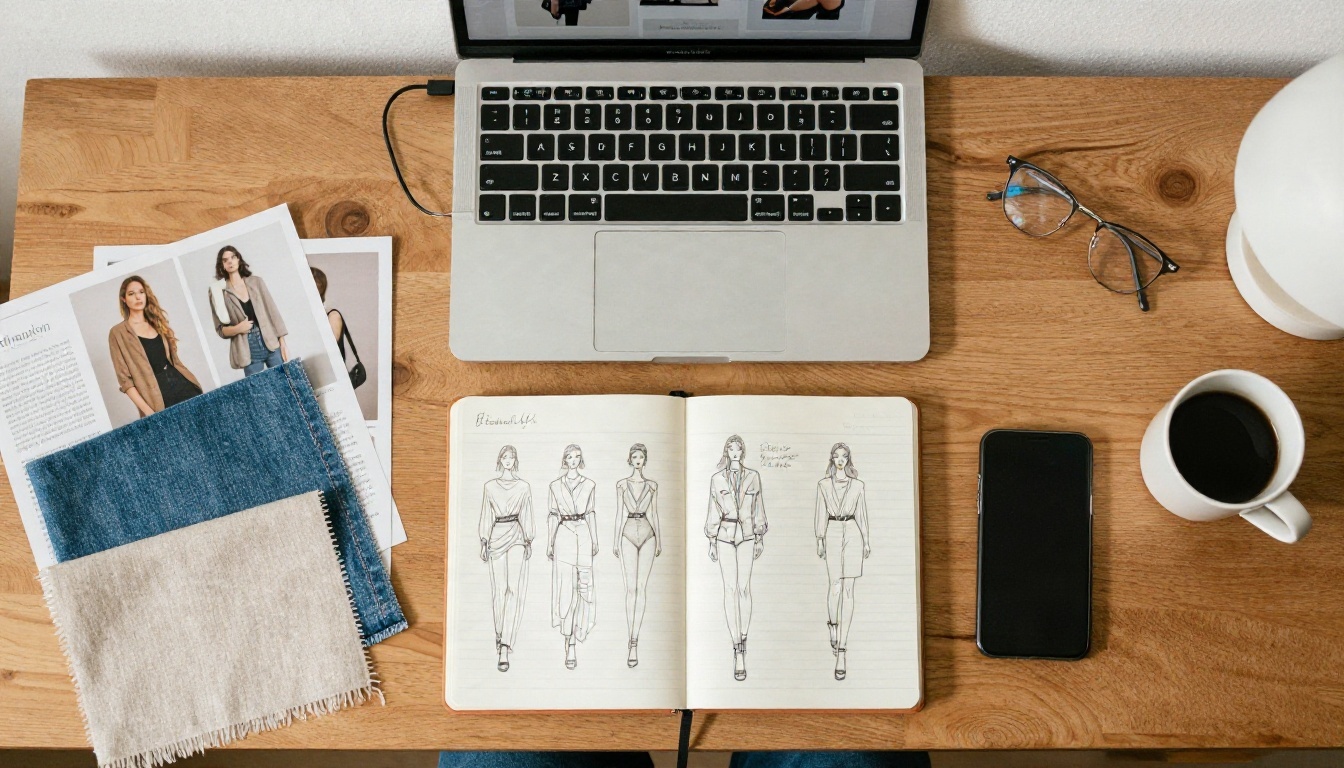
Generators vs try-on apps
There are two families of tools, and mixing them up is the most common source of disappointment.
Outfit generators create a look from nothing. You type "relaxed linen suit in sand, loafers, golden hour" and the model invents the person, the clothes and the setting. These are great for inspiration, mood boards and content creation.
Virtual try-on apps start from a photo of you (and sometimes a photo of a garment) and place the clothes on your body. These are better for answering "will this actually suit me?" because the result is anchored to your real proportions.
| Feature | Outfit generator | Virtual try-on app |
|---|
| Input | Text prompt | Your photo, plus garment or text |
| Output | Brand new person and look | Your body in new clothes |
| Best for | Ideas, mood boards, social posts | Shopping decisions, wardrobe planning |
| Realism risk | Invented details | Warped hands, odd hems |
| Typical free limit | Daily or credit based | A handful of previews |
Who gets the most value
Shoppers who hate returns, stylists building client lookbooks, small clothing sellers who cannot afford a photo shoot, and anyone planning a trip or event all benefit. If you are building a capsule wardrobe, the ability to test a camel coat against five different trousers in two minutes is hard to beat.
💡 Tip: Decide your goal before you pick a tool. Inspiration calls for a generator. A purchase decision calls for a try-on workflow that uses your own photo.
The market is crowded and moves quickly. Many app store listings are marketing pages, so treat quality claims with caution and test each tool with the same photo. Here is what turned up in recent research on free options.
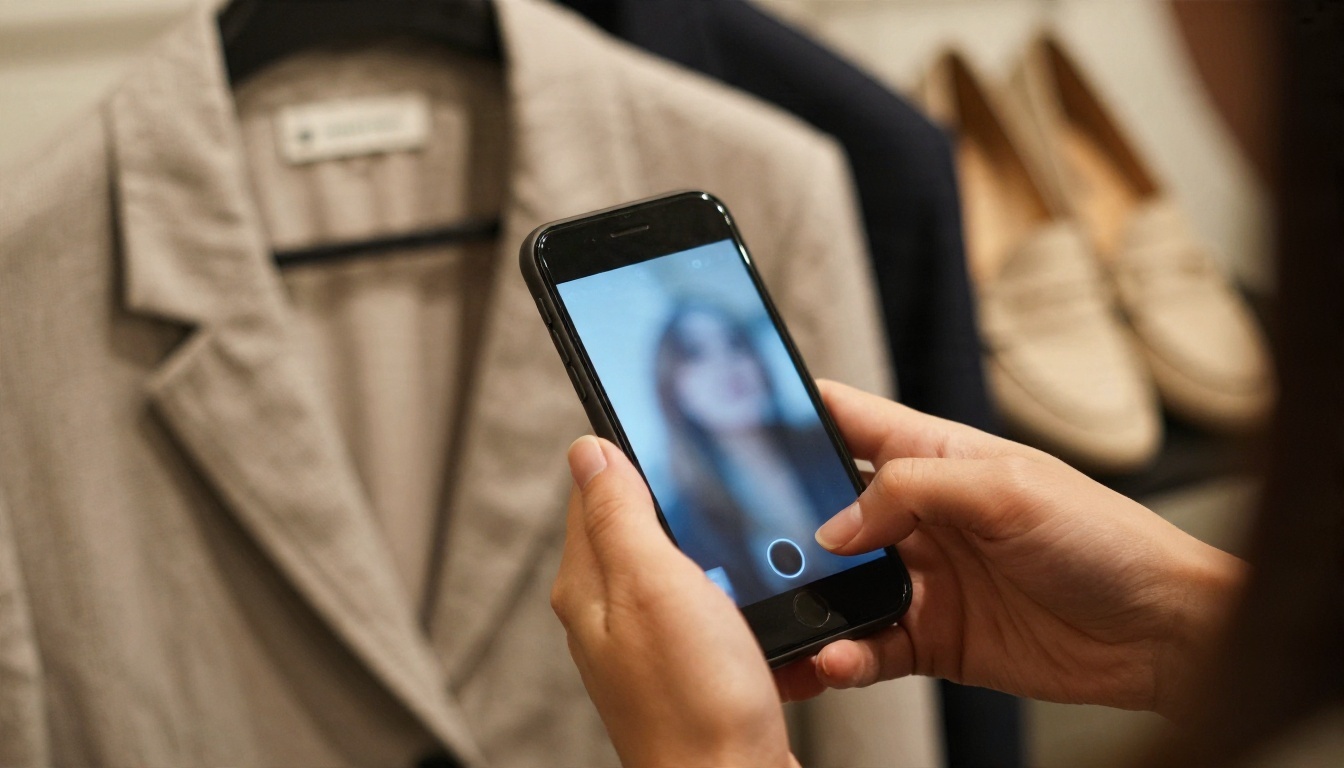
Phone apps with free credits
Apps such as Outfitap, AI Outfit Studio, TryAnyOutfit and DressGenie all target the "upload a selfie, see new clothes" crowd. They are typically free to download, then ask for in-app purchases once your starter credits run out. Outfitap gives one free credit on signup, and AI Outfit Studio offers three free try-ons for new users, which is enough to judge the quality.
Browser outfit generators
If you would rather skip installs, web tools like AI Outfit Changer and AILabTools let you test without an app. One of them allows a few watermarked previews per day without a credit card. AILabTools also lists an API for developers who want to build the feature into their own store.
Wardrobe planners with AI
Some apps focus less on pretty pictures and more on organising what you already own. Fits includes virtual try-on and a lot of free features, though some styling actions use AI credits. Whering is often praised as one of the stronger free options for wardrobe planning, though that opinion comes from a single roundup, so check it yourself. Acloset helps with outfit planning but does not generate try-on images.
| Tool | Type | Free access |
|---|
| Outfitap | Phone try-on | 1 credit on signup |
| AI Outfit Studio | Phone try-on | 3 free try-ons |
| AI Outfit Changer | Browser | Up to 3 watermarked previews daily |
| AILabTools | Browser and API | Free tier available |
| Fits | Phone styling | Many features free, some use credits |
| Whering | Wardrobe planner | Strong free plan |
💡 Tip: Some try-on apps are limited to certain countries. Check availability in your region before you build a routine around one.
Build Outfits With Image Models
Dedicated apps are convenient, but general image models give you far more control. You decide the lighting, the fabric, the camera angle and the setting. On PicassoIA you can run several of the strongest options side by side and pick the result that looks most like real photography.
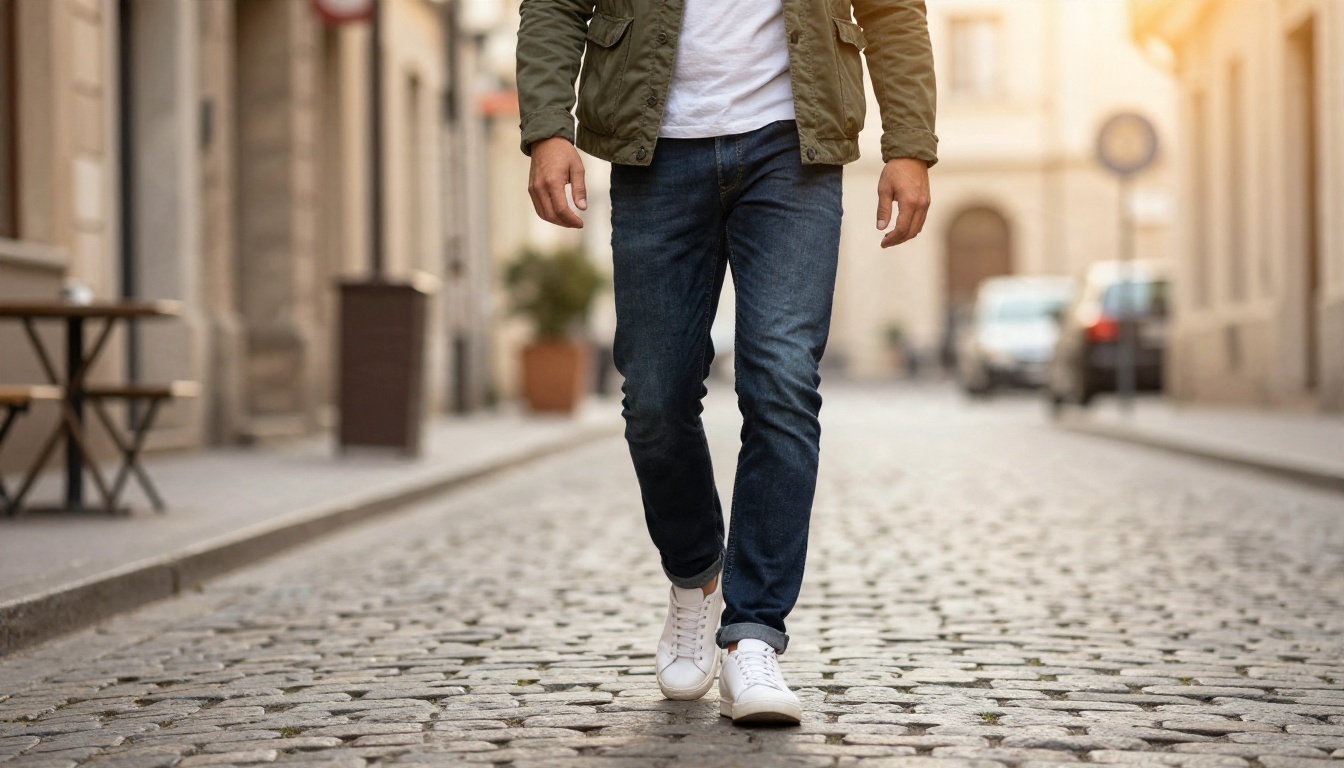
Start with Seedream 4.5
For text-to-outfit generation, Seedream 4.5 is a dependable first stop. It handles fabric texture well, keeps hands and faces believable, and follows long, detailed prompts without dropping half of your clothing list. If you want a sharper 2K result, Seedream 5 Pro is worth a comparison run.
Qwen Image 3 Pro is another strong option for photorealistic fashion shots, especially when the outfit has several layers and accessories.
Edit your own photo
This is where "personalized" becomes literal. Upload a clear photo of yourself and ask the model to change only the clothes. Three tools are especially handy:
- Nano Banana edits and generates images, and it keeps your face and pose recognisable while swapping clothing.
- Nano Banana Pro pushes output to 4K, handy when you want to zoom into stitching and fabric.
- Flux Kontext Fast is built for quick instruction-based edits like "change the jacket to a navy blazer."
- PicassoIA Image Editor Pro offers unlimited AI photo edits, so you can test dozens of outfits on one portrait without watching a credit counter.
💡 Tip: For the cleanest try-on edit, use a front-facing photo with even light, arms slightly away from the body, and no heavy filters.
Prompts That Actually Work
Weak prompts give you weak outfits. "A stylish outfit" produces the same beige average every time. Strong prompts behave like a stylist's brief: they name the garments, the fabric, the fit, the colours, the setting and the light.

The five-part outfit formula
Use this order and you will get consistent results:
- Person: age range, build, hair, skin tone, expression.
- Garments: every piece named, from outer layer to shoes.
- Fabric and fit: wool, linen, satin, denim, cropped, relaxed, tailored.
- Setting: street, studio, rooftop, beach, boutique.
- Photo style: lens, light direction, film look.
A working example: "Woman in her thirties, dark curly hair, wearing a camel wool coat over a cream chunky knit, wide-leg charcoal trousers, brown leather boots, standing on a quiet city street, soft overcast light, 85mm lens, natural skin texture, film grain."
Ten prompts to copy
Swap the details for your own build and colouring:
- Smart casual: navy unstructured blazer, white tee, tan chinos, white leather sneakers, café terrace, morning light.
- Wedding guest: dusty blue satin midi dress, strappy sandals, garden setting, warm late-afternoon light.
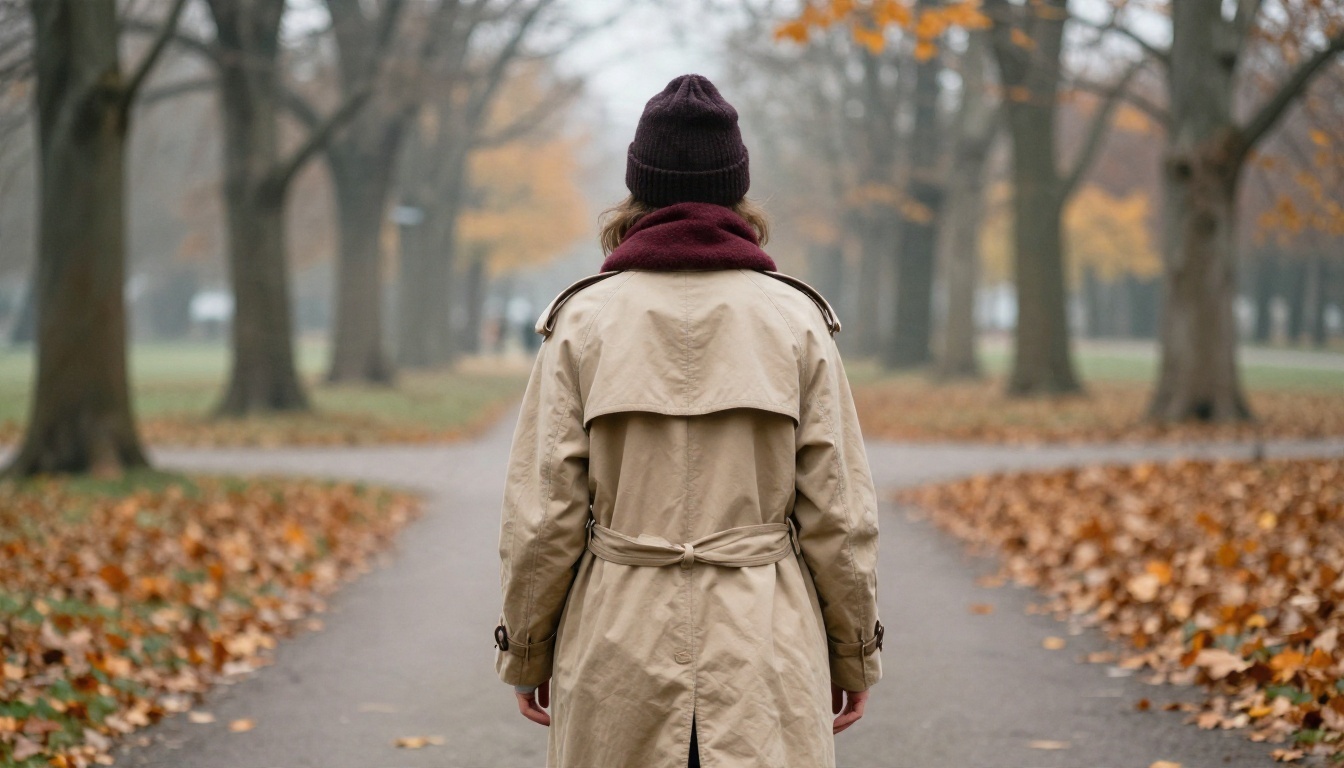
- Winter commute: long charcoal overcoat, burgundy scarf, black knit beanie, leather gloves, foggy platform.
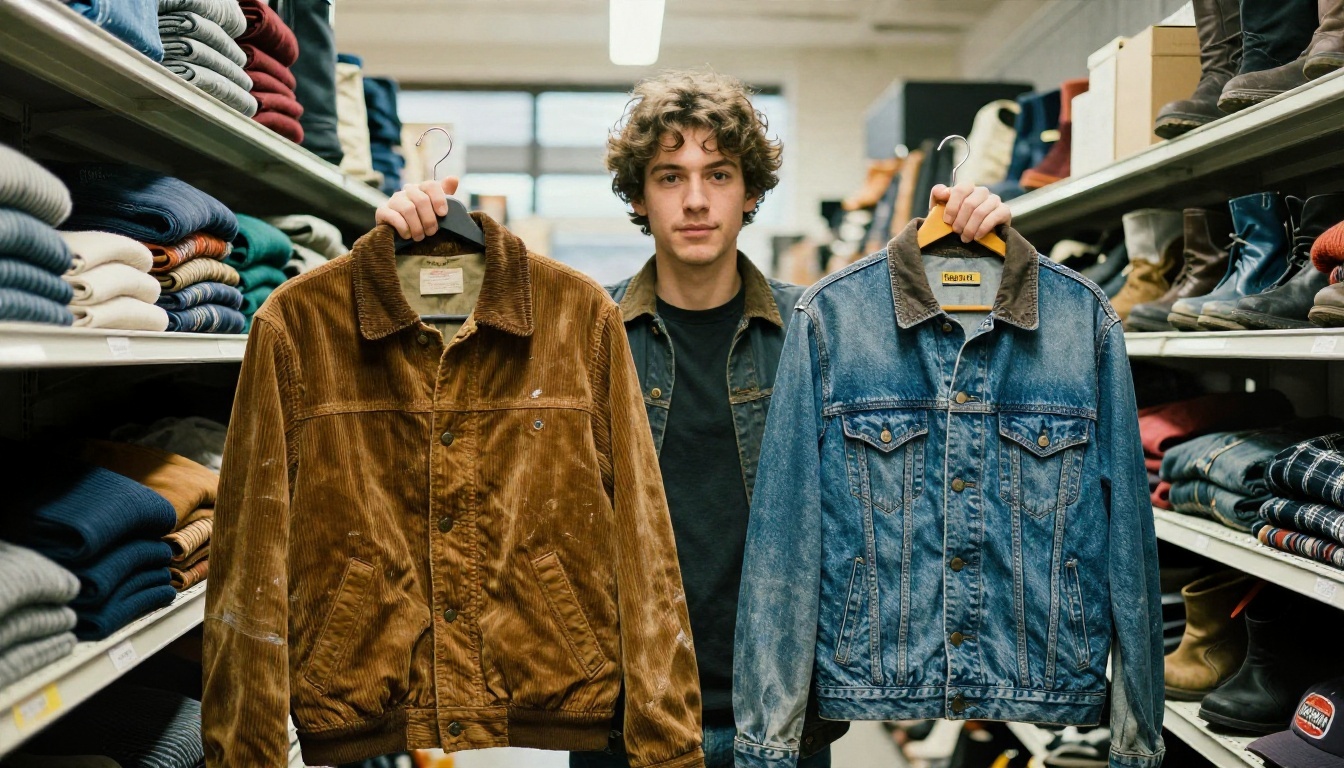
- Weekend vintage: corduroy jacket, faded denim, worn leather boots, flea market aisle.
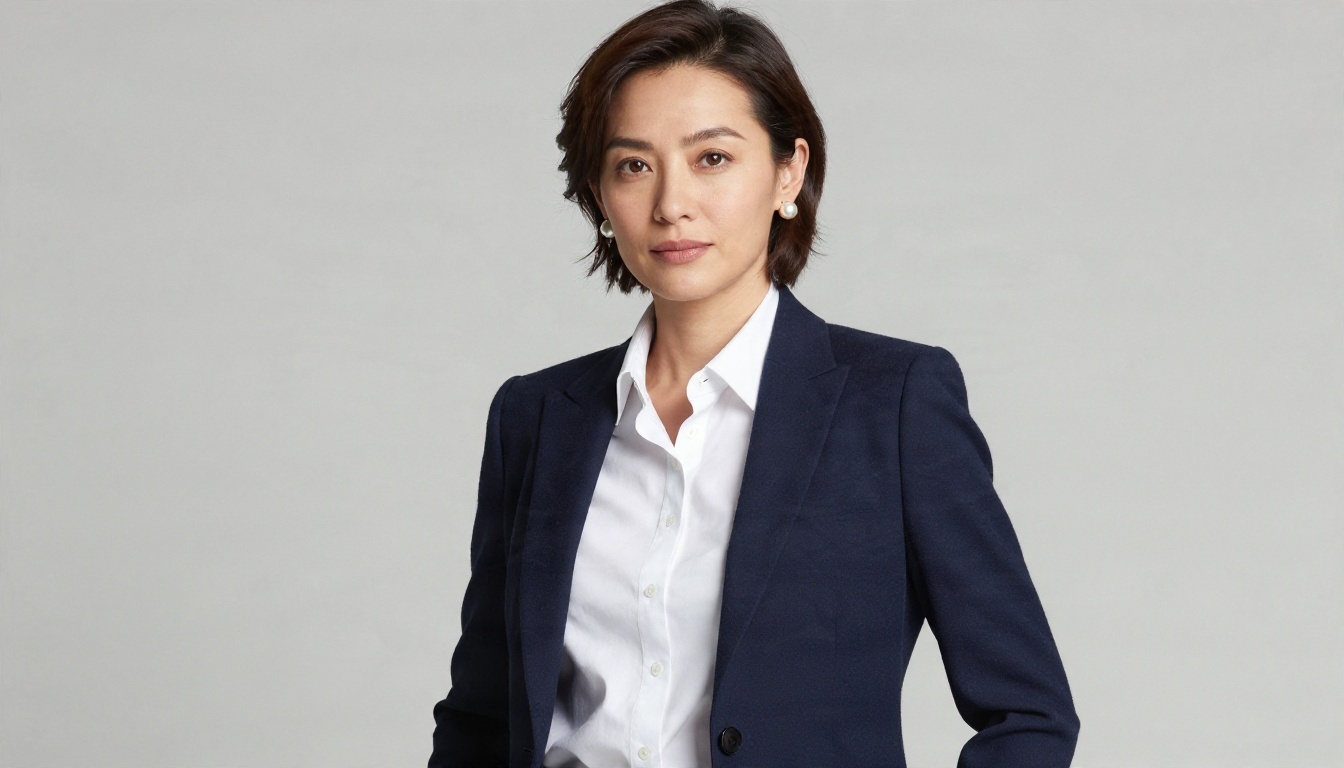
- Interview look: tailored navy suit, crisp white shirt, minimal watch, neutral studio backdrop.
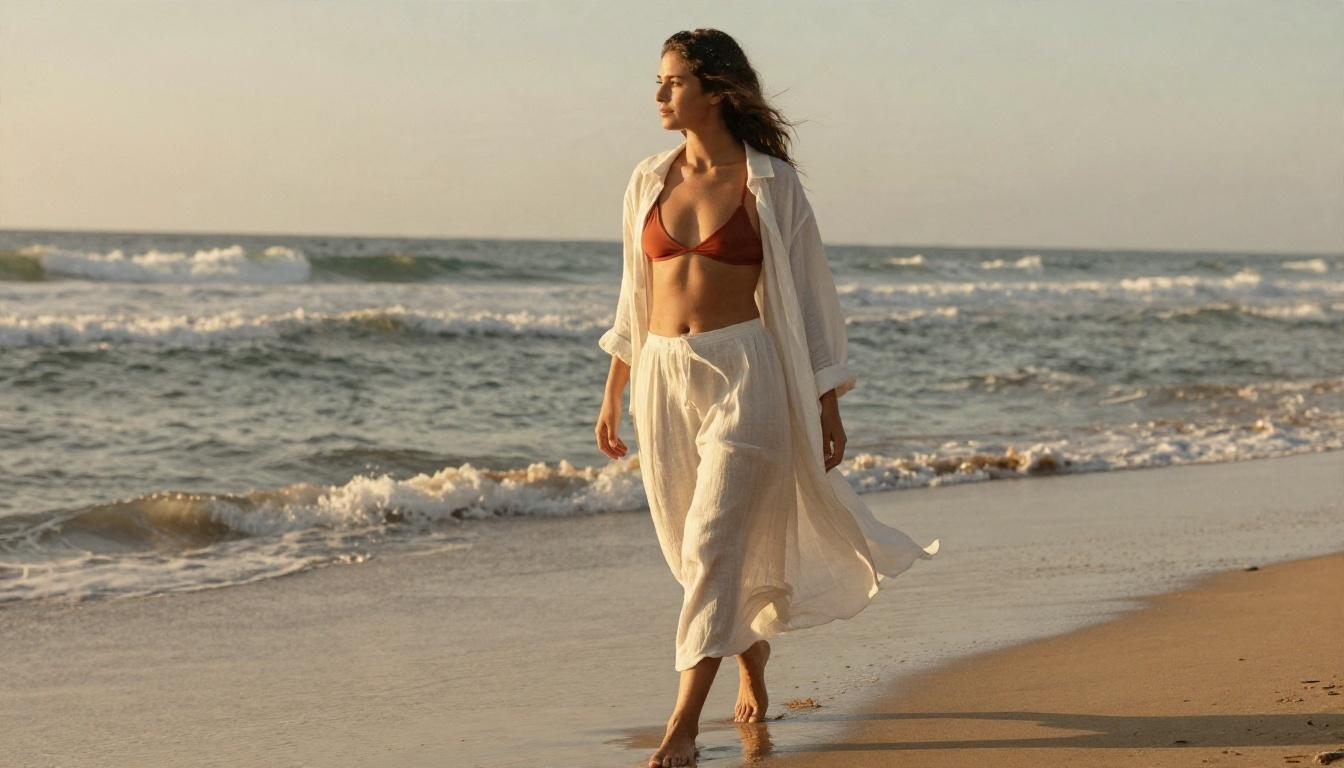
- Beach holiday: open white linen shirt over a terracotta swimsuit, flowing skirt, golden hour sand.
- Gallery night: all-black layered look, oversized blazer, wide trousers, silver jewelry.
- Festival day: patterned shirt, light shorts, canvas hat, sunset field.
- Gym to brunch: matching sage set, cropped zip jacket, clean white sneakers.
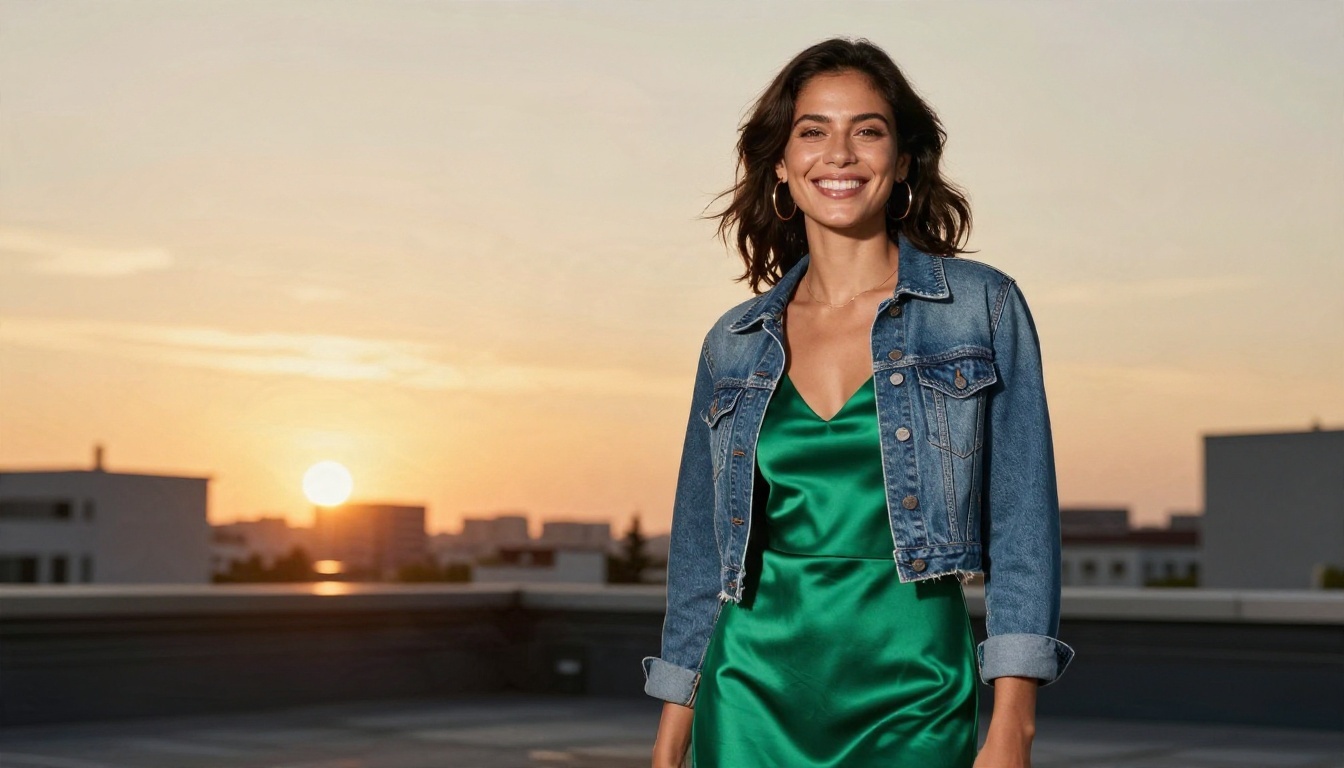
- Date night: emerald slip dress, cropped denim jacket, gold hoops, rooftop at dusk.
💡 Tip: Name fabrics instead of styles. "Heavy wool twill" gives the model a texture to render. "Elegant" gives it nothing.
Outfits for Every Occasion
Personalization is strongest when you aim at a real event on your calendar. Instead of browsing endlessly, generate three looks for that occasion and compare them side by side.
Work and interviews
Professional looks reward precision. Mention the cut of the shoulder, the break of the trousers and the sheen of the shirt. Generate a navy, a charcoal and an olive version of the same suit and see which one flatters your skin tone best. Studio lighting in your prompt gives a clean, catalogue-style result that is easy to compare.
Travel and vacation
Trips are packing puzzles. Prompt the same outfit in different destinations: a linen set on a beach, a light trench in a rainy European street, a packable jacket on a mountain trail. You will quickly see which pieces earn a suitcase spot and which ones only work in one scene.
Seasonal layers
Layering is the hardest thing for AI to get right and the easiest to test. Describe each layer in order, from base to outer shell, and add a weather cue such as "misty morning" or "light drizzle." The weather helps the model make fabric fall and fold naturally.
Limits of Free Plans
Free is wonderful, but it comes with strings. Knowing them upfront saves frustration.
Watermarks and caps
Browser tools often add a watermark and limit you to a few previews a day. App credits run out quickly because every retry costs one. If you plan to compare many looks, that adds up fast. This is one reason an unlimited editor is attractive for heavy testing: you can iterate ten times on the same sleeve length without worrying about a balance.
Privacy with your photos
When you upload a selfie, you are handing over a picture of your face and body. Read the privacy terms of any app, check whether photos are stored, and avoid uploading images of other people without their permission. A good habit is to use a plain, neutral photo you are comfortable sharing, not a family picture.
💡 Tip: Use AI previews to narrow your options, then confirm size and fabric in person or through the retailer's size chart. A preview shows a vibe, not a tailoring fitting.
3 Mistakes That Ruin Results
1. Describing too little. A vague brief gives a vague outfit. List every garment and the fabric.
2. Ignoring lighting. Harsh, flat light makes fabric look like plastic. Name a light direction and softness, such as "soft window light from the left."
3. Treating the preview as a fitting room. AI can show colour harmony and silhouette. It cannot tell you whether a waistband will dig in. Pair previews with real measurements.
Another small trap is changing too many things at once. If you edit your photo and swap the jacket, trousers, shoes and background in a single pass, the model may drift away from your face. Change one or two items per edit, then build up.
Make Your Own Outfits Today
You now have a clear route: pick a goal, choose between a generator and a try-on workflow, write a five-part prompt, and iterate on one change at a time. The only thing left is to try it with your own wardrobe questions.
Open Picasso IA and start with a single portrait and one outfit idea. Try Seedream 4.5 to generate a fresh look from text, then bring your own photo into Nano Banana or PicassoIA Image Editor Pro and swap the clothes. Run the same prompt through two or three models, keep the one that looks most like real photography, and save your favourite looks as a personal style board.
Ready to see what you could be wearing next week? Browse every model at picassoia.com/en/all-models and create your first personalized outfit in minutes.


