You open your favorite AI video tool, type a prompt you have been polishing all week, and hit generate. Then the credit counter drops, the clip comes out at 480p, and a filter quietly rejects a perfectly normal beach scene. That loop is exactly why so many creators are hunting for a Pika Art alternative: free uncensored video generator online with no limits. This article shows what to look for, which models on PicassoIA fill the gap, and a simple two-step workflow (image first, video second) that gives you sharper clips without watching a credit meter.
💡 Quick answer: Pika Art is not on PicassoIA. For similar results today, build your first frame with Seedream 4.5 or PicassoIA Image Editor Pro, then animate it with Seedance 2.5 Lite, Wan 2.5 I2V Fast, Kling v2.5 Turbo Pro or Hailuo 2.3 Fast.
Why Creators Leave Pika Art
Pika built its name on playful, fast video effects, and plenty of people still enjoy it. In September 2026 the company relaunched as a single platform for video, image and sound. That is a big shift, and older plan names and prices you find in blog posts may already be out of date.
The complaints are consistent, though. Pricing reports disagree about what the free tier gives you. Some sources say a monthly free allowance exists (figures from roughly 150 to 250 credits appear), while others say the free plan includes zero monthly credits and you need a pack or subscription before you can generate anything. One detail that does show up repeatedly: on the free plan, the latest Pika model is limited to 480p, and 720p and 1080p sit behind paid plans. Failed generations reportedly still use credits.
If you want to check the current numbers, open Pika's own pricing page before you commit, because they move often.

The Credit Treadmill
Credit-based video tools charge you for every attempt, including the bad ones. A single 5-second clip can be a few credits, which sounds harmless until you realize a good shot usually takes six to ten tries. Camera direction, lighting words and seeds all need testing. Under a credit model, experimentation is a cost, so people stop experimenting and settle for "good enough."
The Resolution Wall
Free plans that cap you at 480p are fine for a quick test and awkward for anything you want to post. Text on screen goes soft, skin looks waxy, and fine fabric detail disappears. A generator that outputs 720p without a paywall removes that friction right away.
The Filter Problem
The third complaint is moderation. Many mainstream tools block prompts that mention swimwear, lingerie, glamour or boudoir lighting, even when the result would be tasteful. Creators working in fashion, beauty, travel and adult-leaning lifestyle content run into this wall constantly.
What "Uncensored" Should Actually Mean
The word gets abused online, so let's be precise. A useful uncensored-style video generator is one that does not treat an adult human body or a bikini as a policy violation. It lets you make glamour, swimwear, boudoir-style portraits and artistic adult content that is suggestive and beautiful.
It does not mean explicit pornography, and that is not what this article is about. The sweet spot is non-explicit, aesthetic content: the kind of imagery you would see in a fashion editorial, a resort campaign or a glamour photo shoot.
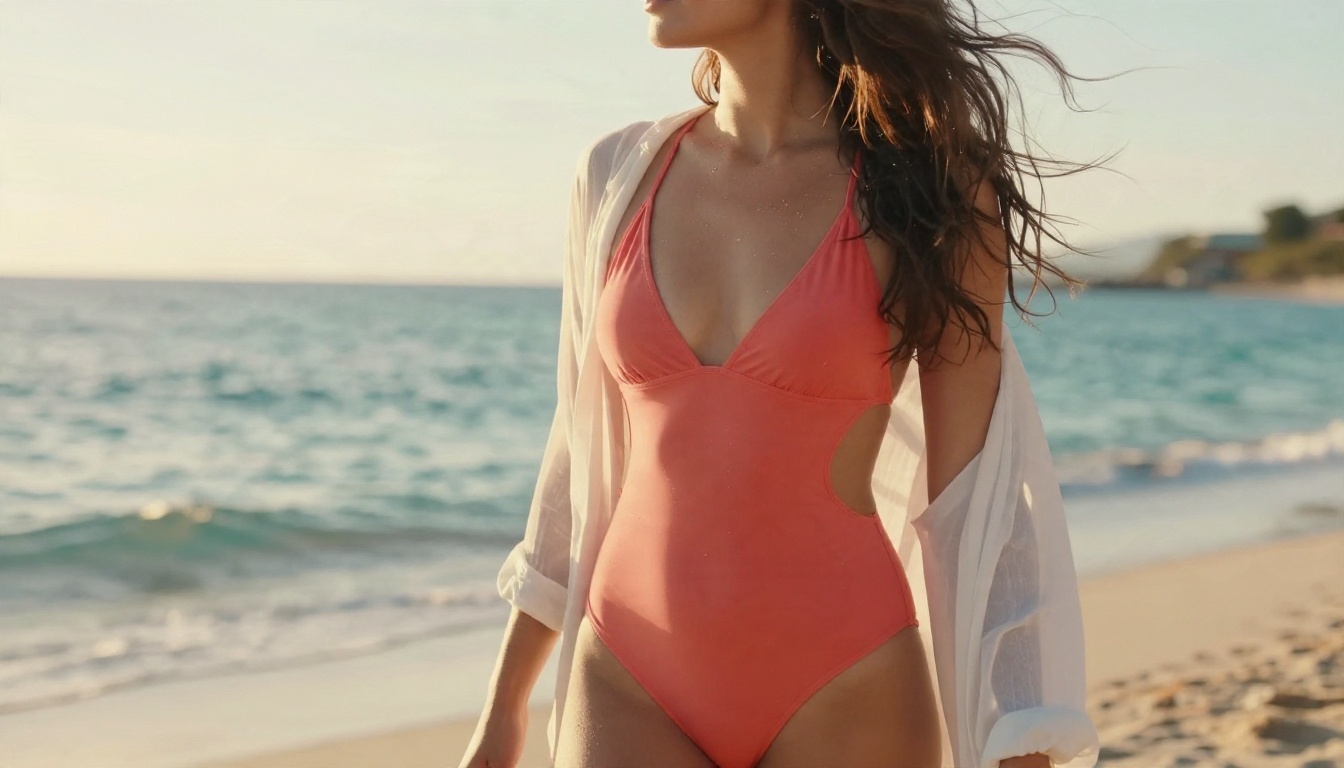
💡 Rule of thumb: If a clip would pass in a swimwear catalog or a perfume ad, a flexible generator should let you make it. If it would not, that is outside what these tools are for.
Three Signs of a Flexible Tool
- It accepts swimwear and glamour prompts without a blanket refusal.
- It lets you start from your own image, so you control the subject, outfit and mood before any motion is added.
- It does not meter every attempt, so you can iterate until the shot is right.
Pika Art vs the PicassoIA Workflow
Here is how the two approaches compare on the points creators actually care about. Pika details come from published reports and may change, so treat them as a snapshot.
| Factor | Pika Art (free plan, reported) | PicassoIA workflow |
|---|
| Cost per attempt | Credits, even for failed runs (reported) | Unlimited for Elite and Infinite members on Seedance 2.5 Lite |
| Free resolution | 480p on the latest model (reported) | 480p and 720p on Seedance 2.5 Lite |
| Clip length | Short clips, plan dependent | 5 or 10 seconds on Seedance 2.5 Lite |
| Start from your own image | Yes | Yes, image to video on several models |
| Glamour and swimwear | Often filtered | Suited to non-explicit glamour and artistic work |
| Model choice | One in-house family | Many text to video and image models side by side |
| Native audio | Varies by feature | Synchronized audio on Seedance 2.5 Lite (can be turned off) |
The last row of model choice matters more than it looks. When a single model fails on a prompt, you have nowhere to go. On PicassoIA you can run the same first frame through three different video models in a few minutes and pick the best motion.
The Two-Step Workflow That Works
The biggest quality jump comes from splitting the job in two. Do not ask a video model to invent your subject, your outfit, your lighting and your motion all at once. Make a great still, then animate it.
Step One: Build the First Frame
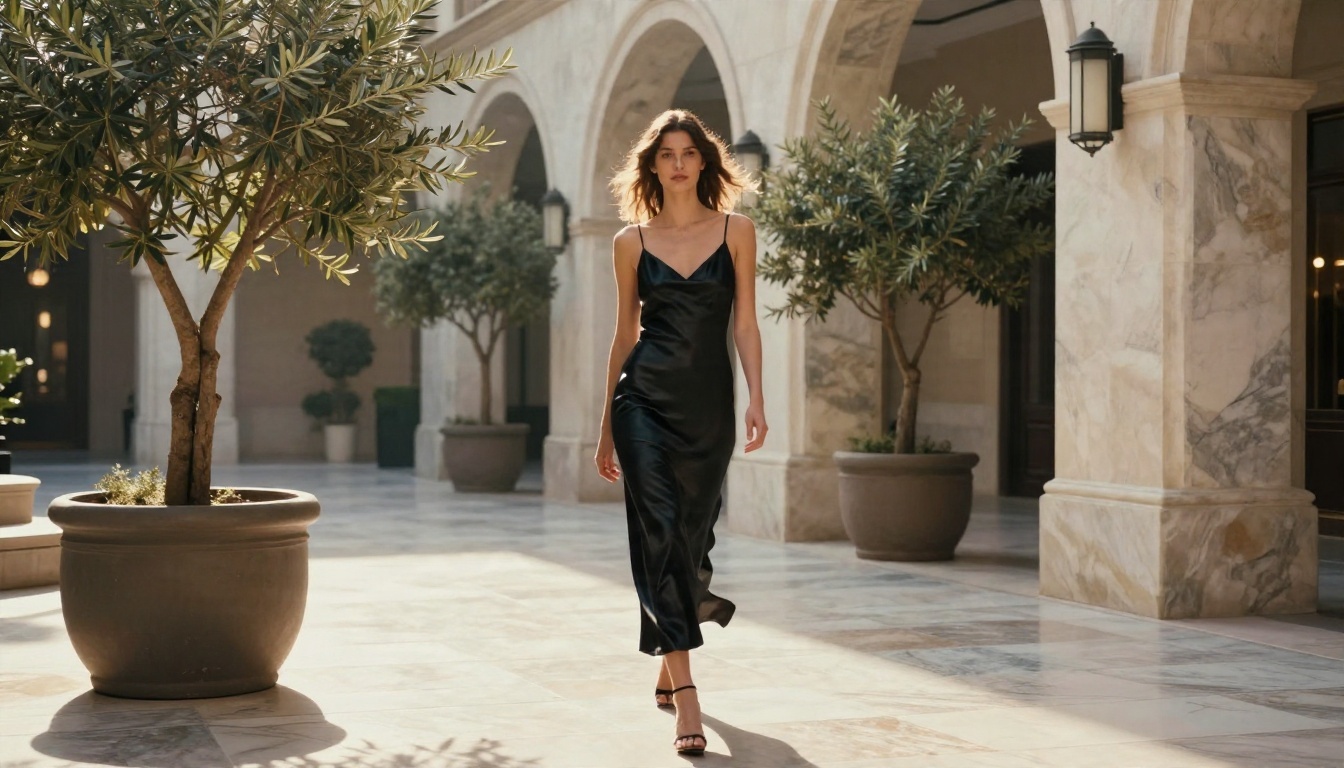
A strong first frame decides about 70 percent of the final clip. For realistic people, fashion and glamour stills, start with Seedream 4.5. It produces sharp, photographic images up to 4K with believable skin texture and fabric detail, and it handles adult-leaning, non-explicit glamour prompts that stricter tools reject.
If you already have a photo and want to change the outfit, background or lighting, use PicassoIA Image Editor Pro. It is built for unlimited generations, so you can keep adjusting until the frame is right without counting credits.
Step Two: Animate It
Once the still looks right, send it to an image-to-video model. This keeps the face, the outfit and the setting consistent, because the video model inherits all of it from your frame. Each model below has a slightly different personality, which I cover in the next section.
Why This Beats Text to Video Alone
Text-to-video is great for quick ideas, but small details drift: a necklace changes shape, a hairstyle shifts, a dress changes color between frames. Starting from an image locks those choices. You also get to approve the composition before spending time on motion.
Write Prompts That Behave
Good prompts for the first frame and for the motion step are different things. For the still, describe the subject, setting, light direction and lens. For the video step, describe what moves, in order.
💡 Still prompt formula: subject and pose, environment, light direction, lens and distance, texture details. Example: "woman in a white linen shirt on a teak deck, low sun from the left, 85mm f/1.8, visible fabric weave and sea spray on skin."
💡 Motion prompt formula: starting pose, what moves over five seconds, camera move, light and atmosphere. Example: "she turns her head toward the sea and smiles, hair lifting in the breeze, slow dolly-in, warm backlight flickering across the water."
Words That Help
- Camera: slow dolly-in, gentle pan left, handheld sway, low-angle tilt up.
- Light: golden hour backlight, soft window light, overcast diffusion.
- Motion: fabric ripples, hair lifts, waves roll, steam rises, curtains stir.
Words That Hurt
Avoid stacking five actions into one clip. Five seconds is short. One clear motion plus one camera move almost always beats a crowded instruction. Also skip vague style words such as "epic" or "amazing," because they add noise and no information.
Get Similar Results With Seedance 2.5 Lite
Pika Art itself is not on PicassoIA, so there is no Pika model to open here. The closest match for free, high-volume experimenting is Seedance 2.5 Lite, described on its page as a free and unlimited generator for clips up to 10 seconds. The unlimited part applies to Elite and Infinite members, so check your plan if you want zero per-clip cost.
Step by Step
- Open the model page for Seedance 2.5 Lite and choose image to video.
- Upload your first frame from Seedream 4.5 or Image Editor Pro in the Input image field. The clip uses it as the opening shot and inherits its aspect ratio.
- Write a chronological motion prompt. The model works best with cinematic descriptions that say what happens first, then next.
- Set resolution to 720p for the sharper output. Use 480p when you only want fast drafts.
- Pick a duration of 5 seconds for a clean beat or 10 seconds for a longer shot with more action.
- Leave save audio on if you want synchronized sound, or switch it off for a silent clip.
- Lock a seed once you like a result, then change only one word of the prompt at a time to refine it.
💡 Optional trick: Seedance 2.5 Lite also accepts a last frame image. Give it a closing frame and the clip animates from your first image to your second one, which is perfect for reveals and outfit changes.
| Setting | Recommended value | Why |
|---|
| Resolution | 720p | Sharper skin, fabric and text |
| Duration | 5 seconds for tests, 10 for finals | Cheap drafts, richer final shots |
| Aspect ratio | Match input image | Keeps your composition intact |
| Seed | Fixed after a good take | Reproducible tweaks |
| Save audio | On for social, off for edits | Easy to replace sound later |

More Video Models to Try
One model never wins every prompt, so keep a short list. These are all on PicassoIA and work well when you start from an image.
Wan 2.5 I2V Fast
Wan 2.5 I2V Fast is built to animate any image quickly. It is a strong pick when you need many fast variations of the same frame, for example testing five camera moves on one portrait.
Kling v2.5 Turbo Pro
Kling v2.5 Turbo Pro leans cinematic. Fabric motion, hair movement and camera glides tend to look smooth, which suits fashion and travel shots.
Hailuo 2.3 Fast
Hailuo 2.3 Fast animates photos into short clips quickly and handles human motion nicely. It is a good second opinion when another model gives you stiff movement. Its bigger sibling, Hailuo 02, generates up to 1080p when you want more detail.
Veo 3.1 Fast and Seedance 2.5
When sound matters, Veo 3.1 Fast delivers 1080p video from text. For longer stories, Seedance 2.5 reaches 30-second clips.
| Model | Best for | Link |
|---|
| Seedance 2.5 Lite | Free-style iteration, 5 to 10 second clips | Open |
| Wan 2.5 I2V Fast | Many quick variations from one image | Open |
| Kling v2.5 Turbo Pro | Cinematic, smooth fabric and camera moves | Open |
| Hailuo 2.3 Fast | Natural human motion from photos | Open |
| Veo 3.1 Fast | Text to 1080p video with audio | Open |

Real Uses for Free Video Clips
A generator without a credit meter changes how you work. Here are the use cases where it pays off the most.
Social Content Without a Shoot
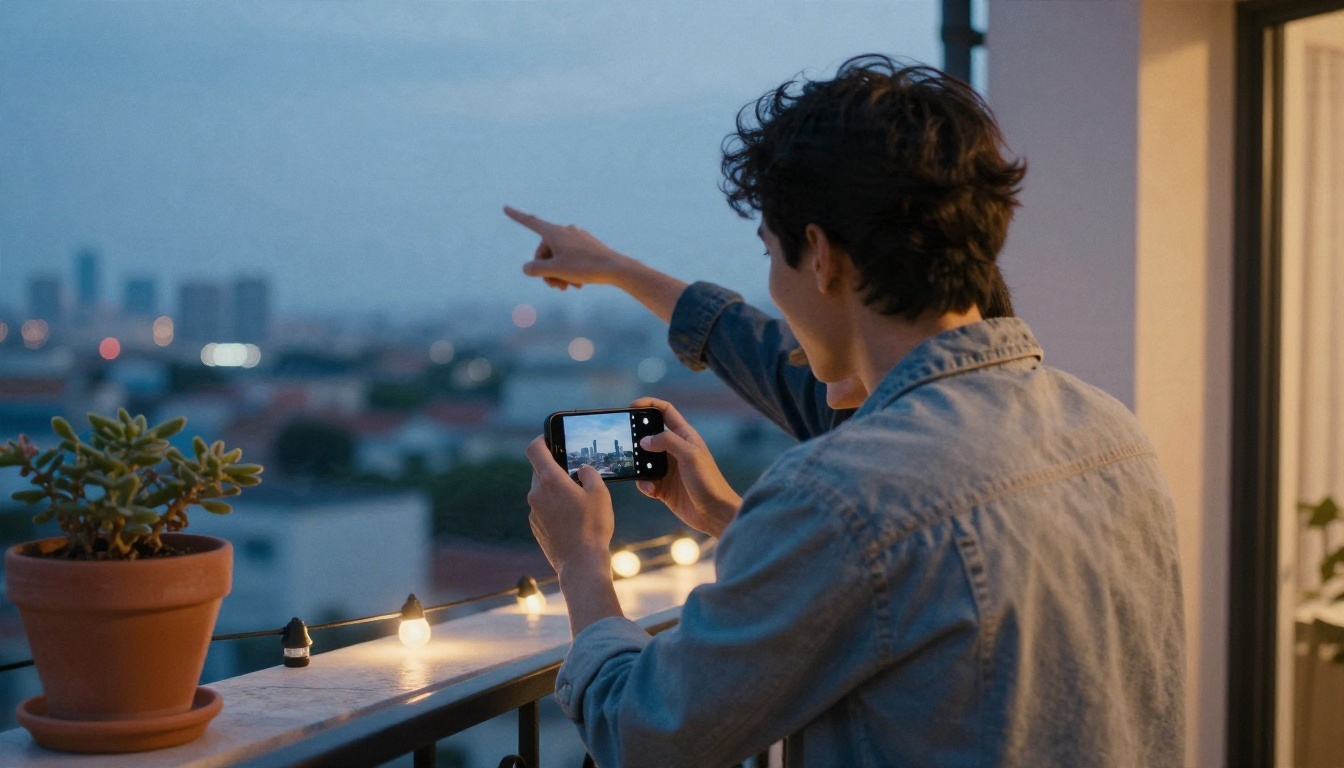
A single still of a model on a beach or hotel terrace can become five different 5-second clips with different camera moves. Post them as a series, and you have a week of content from one afternoon.
Fashion and Swimwear Lookbooks
Brands and independent designers can preview garments in motion before booking a photographer. Swimwear, lingerie-style loungewear and evening dresses are exactly the categories where stricter tools tend to fail, so a flexible workflow saves real time.
Client Pitches and Storyboards
Animated storyboards sell ideas faster than static decks. A 10-second clip of the proposed mood, light and movement helps a client say yes before any budget is spent.
Common Mistakes to Skip
Most disappointing clips come from the same few errors. Fix these and your hit rate jumps.
- Starting with a weak still. A blurry or flat first frame produces a blurry, flat video. Spend your effort on the image.
- Asking for too much motion. One subject action and one camera move is plenty for five seconds.
- Changing three settings at once. Change one thing per run so you can tell what helped.
- Ignoring the seed. When a take is close, lock the seed and adjust only the wording.
- Always generating at 480p. Use 480p for drafts only, then render your keepers at 720p.
- Skipping a last frame. For reveals and transitions, give the model a destination.
💡 Fast routine: Draft five takes at 480p, pick the best, rerun it at 720p, then try the same frame in a second model to compare motion.
Try It Yourself on PicassoIA
You do not need to pick between a credit meter and a quality drop. Build a strong first frame with Seedream 4.5, polish it in PicassoIA Image Editor Pro, then bring it to life with Seedance 2.5 Lite or any of the other video models above. Run the same image through two or three of them and keep the take you like best.

Pick a scene you have been wanting to film, a beach, a rooftop, a fashion set or a quiet morning portrait, and make it tonight. Browse every available model at picassoia.com/en/all-models and start experimenting with your own images and clips on PicassoIA.


